One pair of AirPods can stay registered to both your Mac and your iPhone, and the connection moves between them on its own once you set it up right. What you cannot do is play two audio streams at once. If you know how to connect AirPods to Mac and iPhone at the same time, you stop doing the three-click reconnect dance every time you switch devices, which takes about five minutes to set up.
Updated for 2026. Menu paths below cover current iOS and macOS releases.
Table of Contents
- 1Quick Answer
- 2What You Need Before You Pair Anything
- 3How to Connect AirPods to Mac and iPhone at the Same Time: Step by Step
- 4Step 1: Pair AirPods With Your iPhone
- 5Step 2: Pair the Same AirPods With Your Mac
- 6Step 3: Turn On Automatic Device Switching
- 7Step 4: Start Listening on the iPhone
- 8Step 5: Switch to the Mac
- 9Step 6: Test Both Devices and Adjust Settings
- 10Settings Reference: What Each Option Does
- 11Common Mistakes and How to Fix Them
- 12Recap: How to Connect AirPods to Mac and iPhone at the Same Time
- 13Frequently Asked Questions
- 14Can AirPods be connected to my phone and computer at the same time?
- 15Can I connect my AirPods to two different devices simultaneously?
- 16Do AirPods automatically switch between Mac and iPhone?
- 17Why are my AirPods not connecting to my Mac automatically?
- 18Why do my AirPods keep switching from my Mac to my iPhone?
- 19Can you use AirPods and wired headphones at the same time on a Mac?
- 20Conclusion
Quick Answer
You cannot play audio from a Mac and an iPhone through one pair of AirPods at the exact same time. You can keep that pair paired to both devices, and macOS and iOS hand the audio over automatically when you start playing on the other one. The fix takes three steps: pair the AirPods to your iPhone first, let iCloud attach them to your Mac, then set Connect to This iPhone and Connect to This Mac to Automatically.
What You Need Before You Pair Anything
Four things have to be true before any of the steps work. If one is missing, the AirPods will pair fine but never switch on their own.
- The same Apple Account with two-factor authentication signed in on both the Mac and the iPhone. This is what lets iCloud propagate the pairing. Two different Apple Accounts, or an account without 2FA, and the Mac never learns the AirPods exist.
- Updated software on both devices. Check iOS on the iPhone and macOS on the Mac. Automatic switching has moved labels several times, and older versions do not carry the current options.
- Bluetooth switched on on the Mac and the iPhone, with no other Bluetooth headset fighting for the connection.
- AirPods paired to the iPhone first. Pairing to the Mac first is the single most common reason this setup fails.
Worth knowing which generations this applies to. Any AirPods with the W1 or H2 chip, which is every pair from the second generation onward including AirPods Pro and AirPods Max, will auto-switch between devices signed into the same Apple Account. Pairs from much older eras did not have that chip and never will.
How to Connect AirPods to Mac and iPhone at the Same Time: Step by Step
Step 1: Pair AirPods With Your iPhone
Put both AirPods in the charging case, leave the lid open, and hold the case next to your unlocked iPhone. A setup card appears on screen after a few seconds. Tap Connect, then follow the prompts to pair.
You will know it worked because the AirPods name appears in Settings, then Bluetooth, with a Connected label next to it. Open Now Playing or play anything and the sound should come from the buds rather than the phone speaker. The battery level for each bud and the case also shows up there, which is a good sign the link is healthy.
Step 2: Pair the Same AirPods With Your Mac
With the AirPods in your ears or held nearby, click the Bluetooth icon in the menu bar at the top right of the Mac and choose your AirPods from the list. If the Mac is already signed into iCloud with the same Apple Account, the AirPods usually appear without any pairing prompt at all.
To check the setting, open Apple menu, then System Settings, then Bluetooth. Click the information button next to your AirPods and confirm that Connect to This Mac says Automatically. If you had to pick them manually from the menu bar, that panel may still say Never, which is why the connection never comes back on its own later.
Step 3: Turn On Automatic Device Switching
On the iPhone, open Settings, then Bluetooth, tap your AirPods name, and make sure Connect to This iPhone is set to Automatically. On newer iOS versions the same control lives under Audio & Routing instead, labelled When Last Connected to This iPhone, and the same choice applies.
Set the Mac side to Automatically too. Once both devices are set, whichever one starts playing audio takes the AirPods, and the other one quietly lets go. One rule worth memorising: an incoming call on the iPhone beats Mac playback, no matter what the Mac was doing.
Step 4: Start Listening on the iPhone
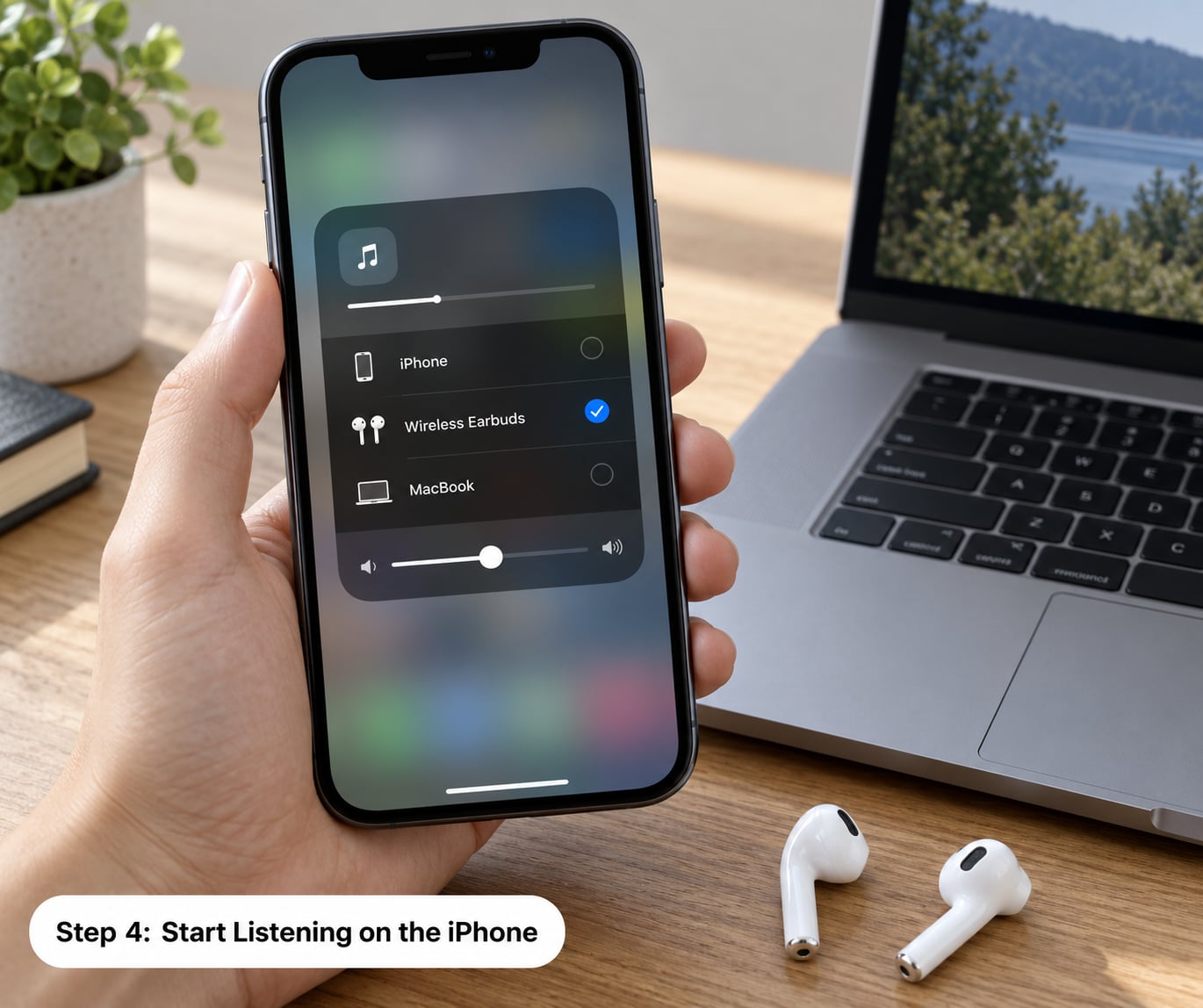
Swipe down from the top right corner of the iPhone to open Control Center, then press and hold the audio playback panel in the corner. Tap AirPods in the list of outputs. On the Lock Screen and in Now Playing, the same output picker is one tap away.
You can tell the iPhone is using them because the output menu shows AirPods as the selected device and the Bluetooth entry on the Settings screen shows Connected. If you still hear music from the phone speaker, you selected the speaker icon by accident, or the iPhone is also connected to something else like a car or a speaker.
Step 5: Switch to the Mac
On the Mac, click the Bluetooth icon in the menu bar and pick your AirPods, or click the Apple menu, then System Settings, then Sound, and choose them under Output. You do not need to unlock the Mac to do this from the menu bar, which is the fastest route when you are already logged in.
The AirPods will pull away from the iPhone on their own within a second or two of audio starting on the Mac. On the iPhone a small notice saying the AirPods moved to your Mac appears, and tapping that notice hands them straight back.
Step 6: Test Both Devices and Adjust Settings
Run a simple two-device test. Play a podcast on the iPhone for a minute, press play on the Mac, and confirm the sound moves across. Then start a FaceTime call on the iPhone while the Mac is playing music, and confirm the call takes over. Those two tests cover the switching behaviour you actually rely on.
If the handoff does not happen automatically, choose the AirPods manually once on each device and check the Sound settings. On the Mac, an entry that looks greyed out in the Output list is a sign the AirPods are paired to the iPhone at that moment rather than broken.
Settings Reference: What Each Option Does
Three settings matter here, and the difference between them explains most of the confusion people report. Automatically keeps the pair ready to grab. When Last Connected holds the connection for a device only after you have chosen it. Never stops that device from taking the AirPods.
| Setting | Where it is | What it does | Use it when |
|---|---|---|---|
| Connect to This iPhone: Automatically | iPhone Settings, Bluetooth, AirPods name | Lets iPhone claim the AirPods the moment you play something | Always, if you want to connect AirPods to Mac and iPhone at the same time |
| When Last Connected to This iPhone | iPhone Settings, Bluetooth, AirPods name, Audio & Routing | Same idea on newer iOS, worded differently | Any time you see the Audio & Routing layout instead |
| Connect to This Mac: Automatically | Mac System Settings, Bluetooth, info button | Lets the Mac claim the AirPods when Mac audio starts | Always |
| When Last Connected to This Mac | Mac System Settings, Bluetooth, info button | Mac only grabs them if you picked them manually last | When the Mac keeps stealing audio mid-call on the iPhone |
| Keep Audio with Headphones | Mac System Settings, General, AirPlay & Continuity | Stops audio jumping to AirPods from speakers or other devices | When AirPods take over while the buds are in the case |
Those last two rows solve two different complaints. When the Mac yanks audio away from your iPhone call, change Connect to This Mac to When Last Connected. When AirPods start playing out loud on your desk while sitting in the case, turn Keep Audio with Headphones off.
Common Mistakes and How to Fix Them
Work down this list in order. The fixes are arranged by cost, so the free setting changes come before anything involving re-pairing. Most people stop at fix two.
| Symptom | Cause | Fix |
|---|---|---|
| AirPods never move between devices on their own | Connect to This Mac or Connect to This iPhone is set to Never or When Last Connected | Set both to Automatically in the Bluetooth settings |
| The Mac does not show the AirPods at all | Different Apple Account, or iCloud signed out | Sign in on the Mac with the same Apple Account used on the iPhone |
| Bluetooth entry shows Connected but there is no sound | The Mac thinks it is connected while the iPhone holds the audio | Select the AirPods once in the Mac Sound settings, Output list |
| AirPods greyed out in the Mac Output list | Paired to the other device right now | Choose AirPods in the menu bar, then confirm in System Settings |
| Mac keeps interrupting an iPhone call with its own audio | Mac audio starts and claims the connection | Change Connect to This Mac to When Last Connected to This Mac |
| AirPods play out loud while sitting in the case | Another device grabbed them and handed them back to a speaker | Turn off Keep Audio with Headphones under AirPlay & Continuity |
| Connected notification on the Mac while the AirPods are in the case | A stale connection the Mac has not cleared | Option and Shift click the Bluetooth menu bar icon, then reset the Bluetooth adapter |
| Connection refused entirely, over and over | Corrupted pairing record on one device | Forget the AirPods on both, then re-pair starting from the iPhone |
Two fixes are worth describing in full because they solve the stubborn cases. To reset the Mac Bluetooth adapter, hold Option and Shift while clicking the Bluetooth icon in the menu bar. A debug panel opens with a Reset Bluetooth Adapter button; the Bluetooth stack restarts, which clears connection records the Mac has stuck on.
If that does not do it, put the AirPods back in the case, hold the setup button on the back for about fifteen seconds until the status light flashes amber then white, and pair them with the iPhone again from scratch. On the Mac, select Bluetooth in System Settings, click the AirPods entry, click Forget This Device, and let iCloud bring them back. Always re-pair with the iPhone first. Some users on older MacBook models report needing this forget-and-re-pair roughly once every thirty times.
A reset AirPods wipes the automatic connect settings, so expect to redo the two toggles afterwards. A Mac software update does not wipe anything and is worth trying before you re-pair.
Recap: How to Connect AirPods to Mac and iPhone at the Same Time
Pair to the iPhone, let iCloud carry them to the Mac, set both automatic toggles to Automatically, then test one handoff in each direction. If the handoff fails, run the fix table above from the top, and stop at the first one that works.
Frequently Asked Questions
Can AirPods be connected to my phone and computer at the same time?
Yes, connected and in use at the same time, no. One pair can be paired to both your iPhone and your Mac and stay remembered by both, but only one of them plays audio through the AirPods at any moment. Starting playback on one device hands the connection over from the other automatically, and an incoming phone call takes priority over music or video.
Can I connect my AirPods to two different devices simultaneously?
You can stay connected to two devices at once in the sense that both remember the pairing. You cannot use them for two audio streams at the same time. If you genuinely need two separate people listening at once, a second pair is the only route. There is a novelty trick where each AirPod registers to a different device, but it disables automatic switching and is not something Apple supports.
Do AirPods automatically switch between Mac and iPhone?
They do, as long as both devices are signed into the same Apple Account with two-factor authentication and both Connect to This iPhone and Connect to This Mac are set to Automatically. The device you start playing audio on takes the AirPods. If they never switch, one of those three conditions is usually missing, most often the same-Apple-Account requirement.
Why are my AirPods not connecting to my Mac automatically?
Check four things in order. Confirm the Mac is signed into the same Apple Account as the iPhone, set Connect to This Mac to Automatically in System Settings, Bluetooth, and make sure nothing else such as a wired or third-party headset is holding the audio output. If it still refuses, Option and Shift click the Bluetooth menu bar icon and reset the adapter, then forget and re-pair the AirPods starting from the iPhone.
Why do my AirPods keep switching from my Mac to my iPhone?
Usually a short notification, a Siri request or a podcast resuming on the iPhone is claiming the AirPods, because an active audio source beats idle Mac playback. On the Mac, set Connect to This Mac to When Last Connected to This Mac so it only takes the pair when you pick it manually. Turning off automatic switching on the iPhone helps too, at the cost of losing the handoff feature there.
Can you use AirPods and wired headphones at the same time on a Mac?
Not as two separate audio streams. The Mac has one active audio output at a time, so you choose AirPods or the wired pair in the Output list and the other one goes quiet. If you need to hear one source while another plays, Mac accessibility audio features such as Mono Audio or the Sound Check can mix sources, though they change the audio rather than duplicating it.
Conclusion
Start with the iPhone. Pair the AirPods there, confirm iCloud is signed in on the Mac with the same Apple Account, then set Connect to This iPhone and Connect to This Mac to Automatically. Test one handoff each way, and if audio stays on the wrong device, work the fixes above from the cheapest to the most thorough.
One pair of AirPods handles a Mac and an iPhone well enough that most people never think about it again, which is exactly the point.