
To clear browsing history on iPhone and Mac in Safari, open Settings on the iPhone, scroll to Safari, tap Clear History and Website Data, choose All time, and confirm. On the Mac, click History in the Safari menu bar and choose Clear History. The whole job takes about thirty seconds per device.
One warning before you start: clearing history and website data signs you out of every site you were logged into, including your email and banking apps. Your saved passwords and autofill entries stay put, so nothing is permanently lost, but you will be typing passwords again for a day or two.
The paths below were checked against current iOS and macOS releases, verified in 2026. Apple moves settings around between versions, so I have noted where the menu lives on older systems too.
Table of Contents
- What You Need — Nothing, But Know Which Browser You Use
- Step-by-Step: Clear Browsing History on Every Browser
- Frequently Asked Questions
- Does clearing Safari history delete saved passwords?
- Will clearing Safari history log me out of my accounts?
- If I clear history on my iPhone, does it also clear on my Mac?
- Why is the Clear History button greyed out on my iPhone?
- Can I recover browsing history after deleting it?
- How do I clear history on all my Apple devices at once?
- Conclusion
What You Need — Nothing, But Know Which Browser You Use
You need no tools, no apps, and no cable. The only thing that trips people up is that Safari is not the only browser on the device, and clearing Safari does nothing for Chrome, Firefox, Edge or Brave.
It also helps to separate three actions that people treat as one. Deleting history removes the list of sites you visited. Clearing website data removes the cookies and cached files those sites left on your device. Signing out of an account is a separate thing you do on the site itself, or by removing that one site’s data.
- Browsing history is the list of pages and sites Safari has visited. Clearing it does not log you out of anything.
- Cookies are small files that keep you signed in and remember site preferences. Clearing them signs you out of most sites.
- Cache holds copies of images and code stored so pages load faster. Clearing it logs you out of nothing, and this is where most of your recovered storage space comes from.
- Website data is Apple’s combined label for cookies and cache together, which is why one button clears both.
If your only goal is privacy, clearing history is enough. If a site is broken, misbehaving, or refusing to log you in properly, you want website data gone too. If you are out of storage, cache is usually where the space is.
Step-by-Step: Clear Browsing History on Every Browser
Clear Browsing History in Safari on iPhone
The fastest way to wipe Safari history on an iPhone takes four taps and about twenty seconds. Here is the exact path:
- Open Settings and scroll down to Safari. On iOS 18 and later, Safari sits inside the Apps section, so scroll further and tap Apps first.
- Scroll to the bottom of the Safari settings list and tap Clear History and Website Data.
- Choose a time range: Last hour, Today, Today and yesterday, or All time.
- Tap the red Clear History and Website Data button, then confirm with Clear Data on the prompt.
To verify it worked, reopen Safari, tap the page icon in the bottom bar, and switch to the History tab. An empty list means the deletion went through.
To remove a single visit instead of everything, open Safari, tap the page icon, choose History, and swipe left on the entry you want gone. Tap Delete. Your other logins and your saved passwords are untouched by this route.
To clear one stubborn site without signing out of everything else, go back to Settings > Safari > Advanced > Website Data, tap Edit, select just that site, and tap Remove. Users on Reddit r/applehelp use this exact path when the normal clear button refuses to cooperate.
What Clear History and Website Data does not delete: saved passwords in Passwords, autofill names and addresses, saved credit card details, bookmarks, and anything in your Downloads folder. Your Reading List survives too.
Clear Browsing History in Safari on Mac
On the Mac the route is shorter because Safari does the work itself. Click History in the menu bar at the top of the screen, then click Clear History, and confirm.
Safari asks for a time range in the same dialog: Last hour, Today, Today and yesterday, All time, or All history depending on your macOS version. Confirm and the list empties.
To delete only some entries, click History > Show All History, click any row, press Command-A to select everything you see, then press Delete. This is the route people in the Reddit r/Enhancement thread recommend when they want a clean history without touching saved passwords.
To free space without logging out of anything, turn on the developer menu first: Safari > Settings > Advanced > Show features for web developers. Then Develop > Empty Caches clears cached files only and leaves cookies alone.
Confirm the result by opening History > Show All History again. An empty pane means the clear completed.
Clear Browsing History in Chrome on iPhone and Mac
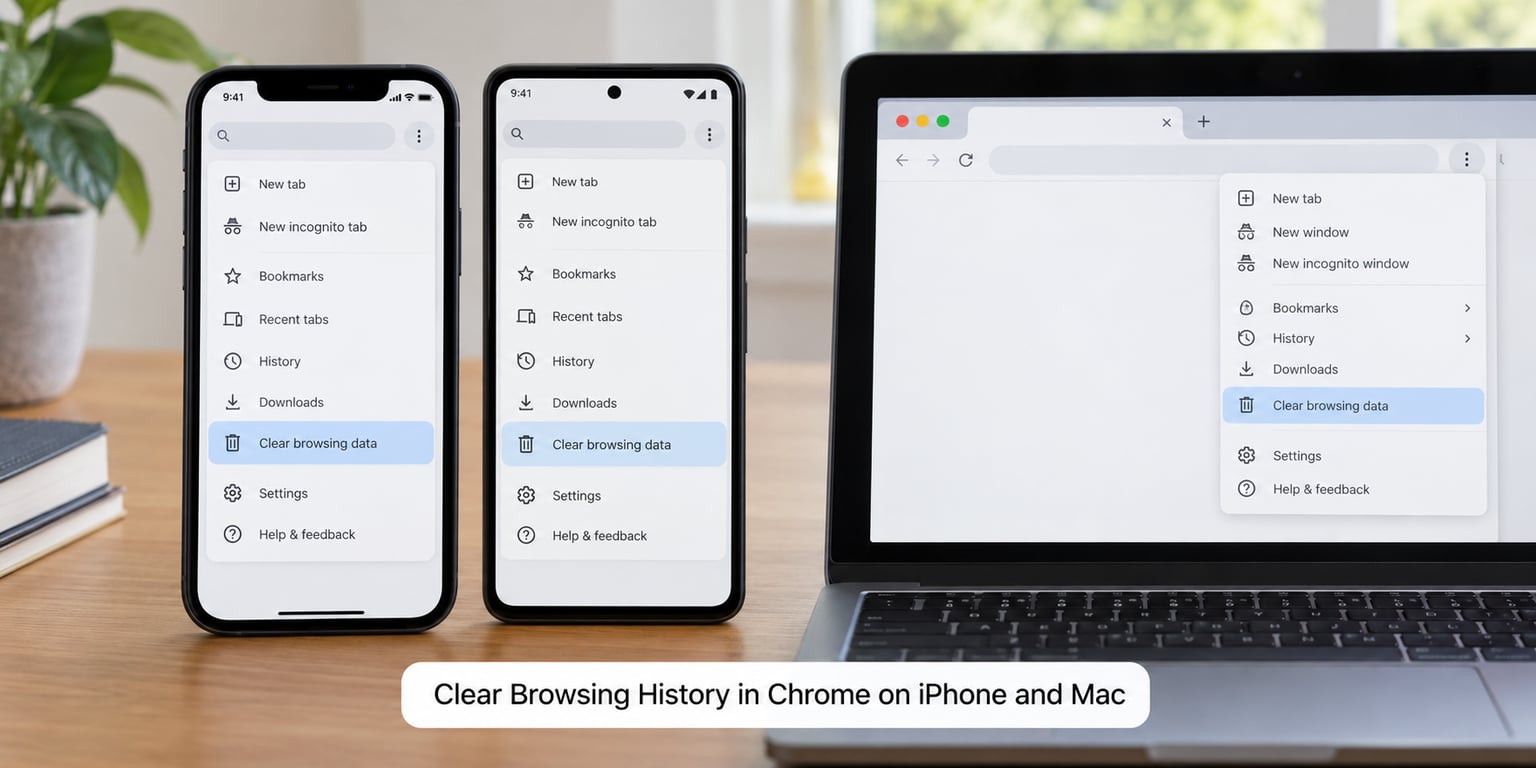
Chrome keeps its history in its own store, separate from Safari, so the iPhone path does nothing for it. On the iPhone, open Chrome, tap the three-dot menu in the bottom right, tap Clear browsing data, pick a time range, and confirm.
On the Mac, click the three-dot menu at the top right of the Chrome window and choose Delete browsing data. Choose Basic for the standard checkboxes, or Advanced if you want to add cookies and cached images. Pick your time range, tick Browsing history, and click Delete data.
The default time range on Chrome is not all time. Many people choose Last hour by habit, wipe it, then wonder why weeks of history are still sitting there. Set the range to All time before you tap delete.
Chrome on iOS offers a shorter list of ranges than the desktop app, usually Last hour, Last 24 hours, Last 7 days, Last 4 weeks, and All time. The options move between releases, so read the list on your own screen rather than trusting a screenshot.
Clear Browsing History in Firefox
On the Mac, click History in the menu bar and choose Clear Recent History. The shortcut is Command-Shift-Delete. Review what is listed, tick what you want gone, choose the time range, and click Clear Now.
In that dialog, look at the checkboxes before confirming. Cache and Cookies and Site Data are selected by default, and unticking Cookies and Site Data is the quickest way to wipe history without being signed out everywhere.
On the iPhone, open Firefox and tap the menu button in the bottom right, then History and Clear Browsing History. You can also find the fuller option under Settings > Privacy and Security. The menu labels shift between Firefox releases on iOS, so if one path is missing, check the other.
Firefox syncing is separate from iCloud. If Firefox is signed into a Mozilla account, its history syncs through Mozilla, not through Apple, and clearing on one device reaches the others only after that sync runs.
Common Mistakes to Avoid
Clearing the wrong browser. This is by far the most common one. If Chrome is your default browser, wiping Safari history changes nothing about what Chrome has stored. Check which app you were actually using before you started.
Leaving the time range on Last hour. Choose All time when you mean everything. Half-finished clears are why so many people report that clearing history did not work.
Expecting deleted history to come back on its own. There is no undo. You can restore a closed tab, but once history is deleted it is gone from the device, and iCloud copies that deletion to your other Apple devices.
Confusing website data with passwords. Clearing website data signs you out. It does not touch the Passwords app, autofill, or your Apple ID.
Syncing it back from another device. If you clear on the iPhone and the Mac still shows history, it is usually iCloud finishing the job rather than a failed clear. Give it a few minutes and pull the Mac down to refresh.
Ignoring a greyed-out Clear button. A number of restrictions block history deletion outright. Settings > Screen Time > Content & Privacy Restrictions > Safari > Website Data set to Don’t Allow disables clearing, and switching it back to Ask or Allow requires the Screen Time passcode. A school or work phone supervised by an MDM profile can also block it, and in that case your administrator controls the setting. Users on the Apple Community thread 256034547 hit this on both an iPhone and a Mac at the same time, which points to a profile rather than a device fault.
Judging the clear by storage alone. A short Safari history frees almost nothing. Cache is where the real space sits, and on a large iPhone clearing it can take a minute or two to finish quietly in the background.
Frequently Asked Questions
Does clearing Safari history delete saved passwords?
No. Clearing history and website data leaves your saved passwords in the Passwords app, your iCloud Keychain, and your autofill entries exactly where they were. What it does delete are the cookies that keep you signed in, so you stay logged out of websites until you sign back in. If you only want to remove the browsing list and nothing else, delete history from inside Safari with the swipe gesture instead.
Will clearing Safari history log me out of my accounts?
Yes, for most websites. Clear History and Website Data removes the cookies that hold your sessions, so email, social apps, shopping sites, and banking pages will ask you to sign in again. Your passwords are still stored, so it is a login prompt rather than a lockout. If you want to avoid the logouts, clear the cache only, or delete website data for one site at a time from the Website Data list.
If I clear history on my iPhone, does it also clear on my Mac?
Usually yes. When iCloud is signed in and Safari syncing is switched on, deleting history on one Apple device deletes it on the others, including the Mac. The change is not instant, so give the sync a few minutes before assuming the clear failed. If your Mac still shows old entries, pull down on the history list to refresh it, or check that iCloud Safari is still enabled for your Apple Account.
Why is the Clear History button greyed out on my iPhone?
Screen Time is the usual cause. Under Settings, Screen Time, Content and Privacy Restrictions, Safari, the Website Data setting can be set to Don’t Allow, which disables history clearing entirely. Change it back to Ask or Allow using the Screen Time passcode. On a school or work iPhone supervised by an MDM profile, the restriction is controlled by the administrator and the passcode alone will not lift it. The alternative path is Settings, Safari, Advanced, Website Data, Edit, then Remove.
Can I recover browsing history after deleting it?
Not from Safari. Once the deletion is confirmed, the history entries are removed from the device and from the iCloud copy, with no undo button anywhere. Two things sometimes look like recovery but are not: recently closed tabs reopen the page rather than restoring the history list, and a cached page may still render on one device that has not synced yet. A backup made before the clear can hold an older copy of the history database.
How do I clear history on all my Apple devices at once?
Clear it on one device and iCloud does the rest. Delete the history in Safari on your iPhone using Settings, Safari, Clear History and Website Data, All time, and confirm. Every other device signed into the same Apple Account with iCloud Safari enabled will follow, usually within a few minutes. If you prefer control over timing, turn off Settings, your Apple Account, iCloud, Safari on each device first, then clear them one at a time.
Conclusion
On the iPhone, go to Settings > Safari > Clear History and Website Data > All time and confirm. On the Mac, click History > Clear History in the Safari menu bar. Those two paths handle nearly every case, and the same deletion reaches your other Apple devices through iCloud within a few minutes.
Before you tap the red button, check two things: that you are in the browser you actually used, and that the time range says All time. If the clear option is greyed out, the cause is almost always Screen Time or a supervised device profile rather than anything wrong with the phone itself.