If you’re wondering why is my iPhone battery draining so fast, the honest answer is that almost every case comes down to one of four things: a just-installed iOS update still indexing in the background, an app or setting that never stops working, a radio hunting for a signal it can’t find, or a battery that has worn past its useful capacity. None of those need a new phone to fix, and three of them you can fix in about ten minutes. This guide walks through how to tell which one you have before you change anything.
One thing worth saying up front: most people guess wrong about the cause. They buy a new phone, or delete every app, or leave Low Power Mode on forever, and the drain comes right back. Five minutes with the Battery settings usually tells you the answer outright.
Table of Contents
- Why Is My iPhone Battery Draining So Fast? The Short Answer
- How to Check What Is Using Your Battery
- Common Reasons Your iPhone Battery Is Draining Fast
- 12 Fixes to Stop Fast Battery Drain
- When Fast Drain Means the Battery Needs Replacing
- How Much Battery Drain Is Normal?
- Frequently Asked Questions
- How do I find out what is draining my iPhone battery?
- Why is my iPhone battery draining so fast right after an iOS update?
- Should I turn off Background App Refresh to fix battery drain?
- Is force-quitting apps the fix for a draining battery?
- What are the signs of a bad iPhone battery?
- Does iOS 26 or iOS 27 drain the battery faster?
- Conclusion: Start With Battery Usage
Why Is My iPhone Battery Draining So Fast? The Short Answer
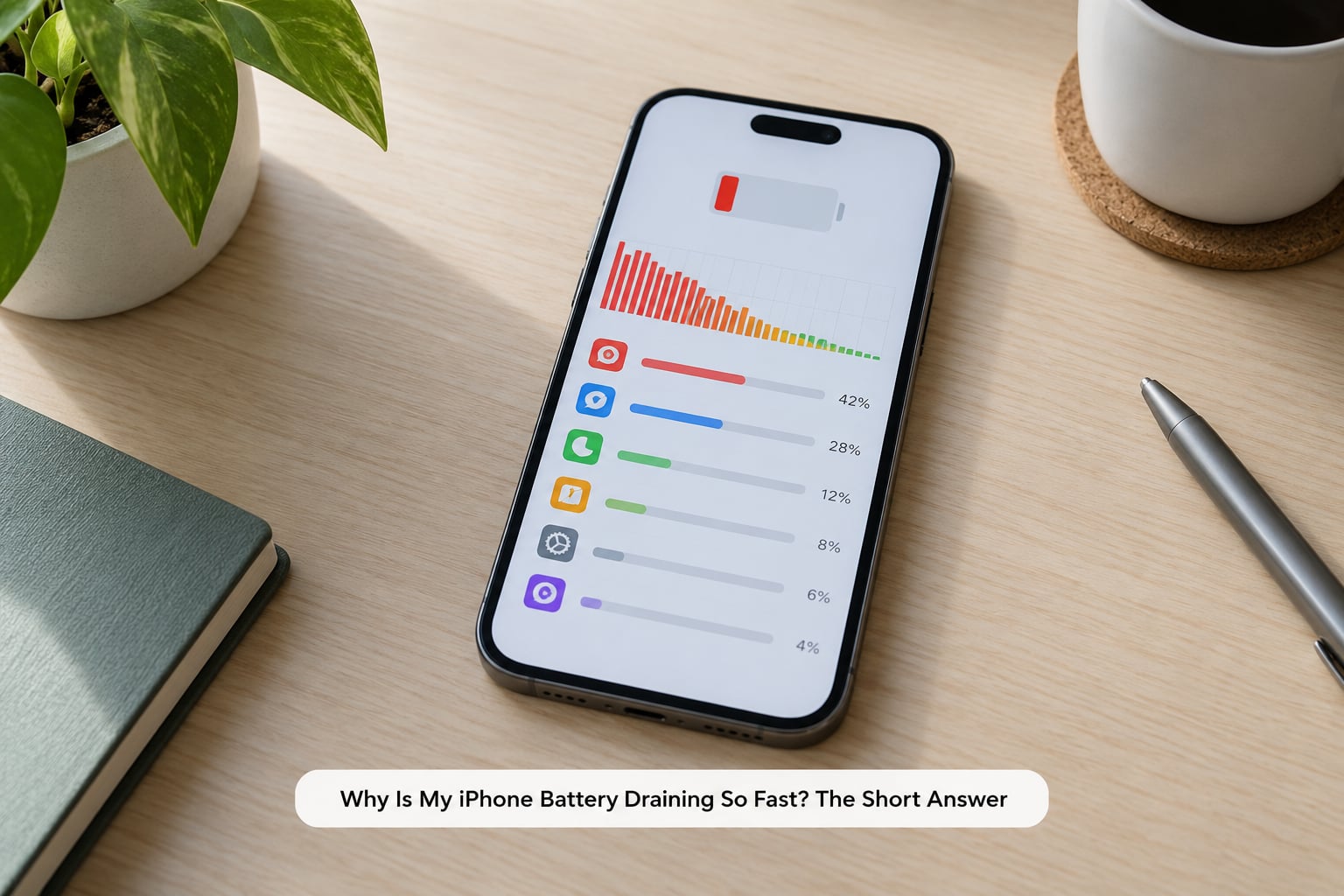
Fast drain is almost always software or settings, not hardware, in the early stages. The four causes that account for the overwhelming majority of complaints: background app refresh and location tracking left on, a recently installed iOS release doing post-update indexing, a weak cellular or 5G signal that keeps the modem searching, and an aging lithium-ion battery.
Before you change a single setting, work out when the drain happens. Drain while you are using the phone and drain while it sits idle overnight are almost always different problems, and they need different fixes.
| What you notice | Most likely cause | Where to look first |
|---|---|---|
| Drops fast while you are scrolling or on calls | Screen brightness, high-refresh mode, one heavy app | Settings > Battery > Battery Usage |
| Drops fast in the car, in the hills, or in a rural area | Weak signal, 5G hunting for towers | Airplane mode test, Settings > Cellular |
| Loses 10 to 20 percent overnight while unused | Notifications, location, Bluetooth accessories, widgets | Activity chart on the Battery screen |
| Started within a day or two of an iOS update | Background indexing of files, photos and Siri | Wait three days, then check again |
| Screen time is lower than usual but drain is worse | Low battery health, aged battery | Settings > Battery > Battery Health and Charging |
If your drain lines up with the third row and nothing else, read the overnight section further down before you go changing app settings.
How to Check What Is Using Your Battery
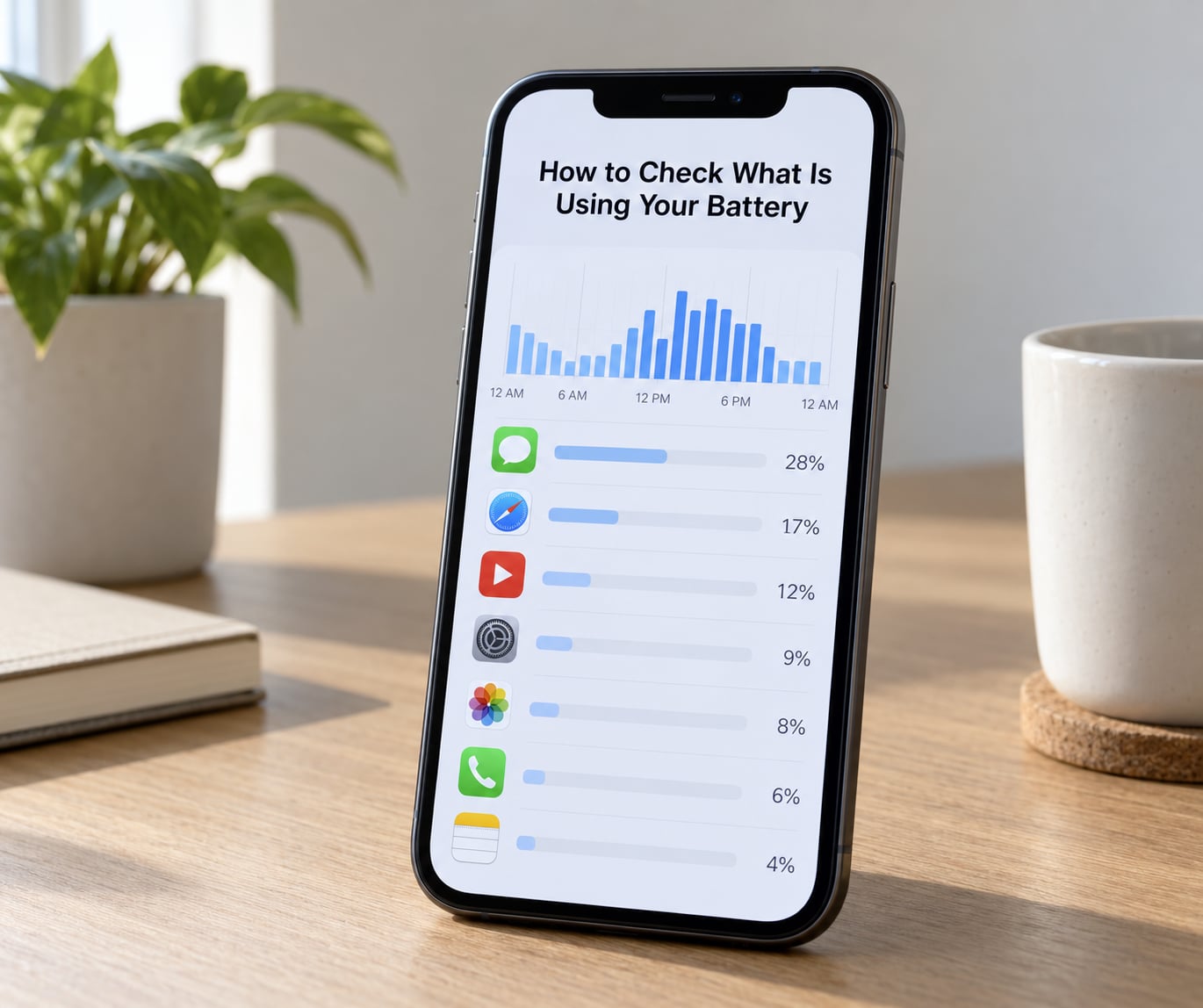
Open Settings, tap Battery, and everything you need is on that one screen. Below the percentage and the charging status sits Battery Health and Charging, then a 24-hour Activity chart, then a list of apps ranked by the energy they consumed since your last full charge.
The three parts answer different questions, and mixing them up is why so many people chase the wrong fix.
| Screen | What it actually tells you | What it cannot tell you |
|---|---|---|
| Battery Usage list | Which apps used the most energy since the last charge | Whether that use was screen-on or background |
| Activity chart | When the drain happened, awake and idle bars | Which app caused it on its own |
| Battery Health and Charging | Maximum capacity, charge limit, cycle count | Anything about the current day’s drain |
Read the chart first. The two colours tell the whole story: the darker band at the bottom is screen-off time, the lighter band above is screen-on. A big pale block during your normal waking hours is normal use. A lot of darker colour across the night is standby drain, and that is a different problem entirely.
Then scroll the app list. Tap any app to see its last 24 hours broken into foreground and background time, which is far more useful than the headline percentage. Look for two things: an app sitting high that you barely use, and a high-background entry for a social or messaging app that should be idle.
Give the numbers a few days before you act on them. The list covers roughly the last 24 hours on recent iOS releases, so a single bad afternoon with navigation running will make any app look terrible.
Common Reasons Your iPhone Battery Is Draining Fast
The iPhone Is Still Background Processing After an Update
Right after a major iOS release, the phone spends a day or two rebuilding indexes: re-analyzing photos, re-scanning files, re-optimizing Siri and dictation models, and rebuilding the shared photo library thumbnails. During that window battery use climbs sharply and Screen Time shows more activity than you remember. It normally settles within two to three days, often sooner if you restart and leave the phone plugged in on Wi-Fi for a while.
Late 2026 has brought a fresh round of this on iOS 26 and iOS 27. Multiple iPhone 16 and 17 series owners in Apple and Reddit communities report worse overnight drain on the newer builds, and the pattern in those threads matches indexing rather than a hardware fault.
An App or Two Refuses to Settle Down
A handful of apps are notorious for waking constantly: social feeds, navigation, ride-hailing, and delivery apps that keep a live location ping running. Turning off Background App Refresh is the most-repeated fix in Apple community threads, and it is the wrong first move for most people, because it does not stop an app that is misbehaving on its own.
The more targeted version: leave Background App Refresh on globally, then turn it off per app for the two or three worst offenders. Location permissions matter more, which is why that setting gets its own section below.
The Radios Are Working Overtime
This is the cause people blame on the battery. When your iPhone cannot hold a usable signal, the modem ramps transmission power and keeps searching for a better tower, and that burns power and generates heat. It is brutal in basements, lifts, rural roads, and anywhere 5G coverage is patchy and the phone keeps switching between 5G and LTE. Bluetooth, AirDrop scanning, Personal Hotspot and a VPN all add smaller chunks on top.
The Screen and Display Settings Are Working Harder Than They Need To
Brightness is the single biggest screen-side consumer, and it scales with how much light the phone thinks it is in. ProMotion models running always-on at a high refresh rate also draw more than the adaptive setting would need to. Live Wallpapers, a crowded Home Screen full of widgets, and True Tone adjustments are smaller but real, and each widget set refreshing every few minutes adds up over a day.
Heat Is Making Everything Worse
Lithium-ion batteries do not like heat, and a hot battery uses more power for the same work. A thick case traps warmth, wireless charging while you are actively using the phone adds heat, and a phone sitting in direct sun or on a warm car dashboard will both drain faster and age faster. Removing a bulky, non-breathable case is a surprisingly effective first move, and one that keeps coming up in battery-focused communities.
The Battery Itself Is Worn
Every charge cycle costs a little capacity, and after a few years the pack holds noticeably less than it did new. Once maximum capacity drops to around 80 percent, Apple shows a service recommendation, and the phone will also throttle performance in some situations to protect the cell. This is the one cause on the list that no setting change will fix.
12 Fixes to Stop Fast Battery Drain
Work down the list in order. Give each change a day to show up in the Activity chart before moving to the next, or you will not know what worked.
- Restart the phone. Not a wake from sleep, an actual restart. Force-quitting every open app is not the same thing, and on balance it makes things slightly worse: iOS has to reload those apps from scratch next time. A hard reboot is still the most-recommended first move in troubleshooting threads, and it clears a genuinely stuck process.
- Install the current iOS update and update every app from the App Store. Post-update drain is real, and app updates often ship battery fixes that never show up in release notes. An iPhone 16 running iOS 27 with all apps current is the fix most often recommended in recent iPhone battery communities.
- Check Settings > Battery and read the top five apps. Look at the background number for each, not just the total. This is the step that actually identifies the problem rather than guessing.
- Set Location Services to While Using the App for anything that does not need it. Go to Settings > Privacy and Security > Location Services and switch off per-app access for the apps on your list that had high background time. Avoid the blunt “Never” option for anything you actually use for navigation or ride tracking.
- Turn off Background App Refresh for your three heaviest apps. Settings > General > Background App Refresh, then scroll to the individual app and switch it off. Keeping it on globally costs little; the specific offenders cost a lot.
- Trim notifications per app. Settings > Notifications, and for anything you do not need instantly, turn off Allow Notifications or switch to Scheduled Summary. Every app that lights up your screen at 2am is an activation you did not need.
- Switch mail from push to fetch. Settings > Mail > Accounts > Fetch New Mail, and drop it to every 15 or 30 minutes. Push mail keeps a live connection to several servers; fetch polls on your schedule. This is one of the few changes that reliably reduces overnight drain.
- Turn off Siri background analysis and Suggestions. Settings > Siri and Search, then switch off both Suggestions and Share App Content Suggestions. Siri and Search also powers widget and lock screen suggestions, which is more activity than most people expect.
- Use Low Power Mode strategically, not permanently. Settings > Battery > Low Power Mode reduces screen brightness, limits background activity and disables some animations until you charge above 80 percent. It is a useful bridge on a long day, and it is not a repair, since it is a temporary limit rather than a fix.
- Test weak-signal drain with Airplane Mode. If your phone gets hot and the percentage falls in areas with poor coverage, this is your cause. Settings > Airplane Mode, then turn Wi-Fi on manually when you have a network. Leaving the phone on full cellular search in a dead zone is the worst possible option.
- Test whether charging heat is the issue. Take the case off, stop using the phone while it charges wirelessly, and keep it out of direct sun and off warm surfaces. If drain improves in normal use, heat was doing part of the work.
- Check Battery Health and arrange service if it is worn. Settings > Battery > Battery Health and Charging. Below 80 percent, no amount of settings work will restore your battery life.
How to Fix Battery Drain Caused by Weak Signal or Location Tracking
Weak signal and location tracking are related problems, so handle them together. A phone that cannot find a tower boosts radio power continuously, and a phone with broad location permission keeps the GPS receiver and motion coprocessor active well past the moment you stop moving.
Start with the two-minute test. Turn on Airplane Mode, then use the phone normally for ten minutes. If the drain calms down noticeably, signal hunting is your problem. The permanent fix is a mix of Wi-Fi calling if your carrier supports it on your model, and using Airplane Mode deliberately in the places where coverage is genuinely poor rather than leaving the modem to search.
For location, go through Settings > Privacy and Security > Location Services and work down the list. Per-app access is what matters: While Using the App keeps a navigation app functional and stops it tracking you for the rest of the day, and turning off Precise Location where you do not need street-level accuracy saves a surprising amount.
One more switch people overlook is under Settings > Privacy and Security > Location Services > System Services. System-wide Location Services, Find My, and Significant Location Change each keep location hardware warm. Turning off Location Sharing, not the whole service, is a reasonable middle ground.
How to Fix Battery Drain on Different iPhone Models
Menu labels shift between iOS releases, though the layout has been stable for years. Battery Health and Charging replaced the older Battery Health screen in iOS 16, and older models that cannot run current iOS show a plainer page with just capacity and cycle count.
The bigger difference is the hardware. Older iPhones, particularly anything past three to four years old, are far more likely to be draining fast because of genuine cell wear rather than a setting. A small screen and an efficient processor also mean a healthy battery gets noticeably further than the same battery in a large high-refresh model, so comparing your number to a friend’s newer phone is not a fair test.
On ProMotion models, Settings > Accessibility > Display and Text Size > Motion has a Reduce Motion option that lowers refresh rate in some situations. On iPhone 16 and 17 series models, Settings > Cellular > Cellular Data Options lets you force LTE instead of 5G, which is a solid test if your drain spikes on 5G.
Battery Health can also be temporarily unavailable or show a stale reading. It recalibrates as the phone learns your routine, and the figure can adjust after an update. Give it a few days of normal use before treating an odd number as real.
When Fast Drain Means the Battery Needs Replacing
Open Settings > Battery > Battery Health and Charging. The percentage is maximum capacity, the share of the original design capacity the cell can still hold. A phone that was 100 percent when new and now reads 82 percent is holding 18 percent less than it did, and that is the definition of a worn battery.
At 80 percent or below, iOS shows a service recommendation message. That threshold is also where community consensus generally sits, with Apple community and Reddit answers agreeing that anything above 80 percent is still within normal range.
Other signs that point to hardware rather than software: the phone shutting down unexpectedly with battery still showing 20 percent or more, noticeably slower performance in the same tasks that used to be fine, the back getting hot while the phone sits idle on a desk, or the percentage jumping in uneven steps as it drains.
If the reading is low, take it to Apple or an authorized service center. Avoid third-party shops that open the phone without a repair process, and do not attempt to replace the battery yourself: the adhesive, seals and calibration step matter, and a botched job causes far bigger problems than a tired battery.
One more thing to rule out first: on some models the battery health figure is known to lag or reset after a major iOS update. Check the App Store for a pending system update before booking service, and look again a few days later.
How Much Battery Drain Is Normal?
There is no honest universal number, and anyone quoting one is guessing. Battery life depends on screen time, signal quality, model, screen size and your settings. Compare your own weeks against each other instead.
On standby, community benchmarks put overnight loss at roughly 10 to 17 percent for a healthy phone, with iPhone 16 owners reporting figures in that range. Loss of 20 percent or more with the phone untouched usually means something is waking it: notifications, a Bluetooth accessory, a widget, or a misbehaving app.
During the day, a rough guide is that an older or smaller iPhone should manage about 7 to 8 hours of mixed screen time on a full charge, while a large high-refresh Pro model running always-on display and heavy camera use can do noticeably less. Both are healthy results if Battery Health is above 90 percent.
| What you measured | Likely healthy | Worth investigating |
|---|---|---|
| Overnight loss, phone idle | 10 to 17 percent | Over 20 percent, or near zero on older models |
| Drop over 5 hours of normal use | Roughly 30 to 50 percent depending on model | Over 70 percent |
| Screen time versus drop | Roughly 1 percent per 3 to 5 minutes of use | 1 percent per minute or faster |
| Maximum capacity | Above 80 percent | 80 percent or below, or a service message |
Log three ordinary days, not one bad afternoon. Navigation, a long video call or a day at low signal will skew a single reading more than anything else.
Frequently Asked Questions
How do I find out what is draining my iPhone battery?
Open Settings and tap Battery. The top of the screen shows your charge level, the Activity chart, and a list of apps sorted by energy used since the last charge. Tap any app to see its foreground and background split, and look for an app with high background time. Check Battery Health and Charging underneath for maximum capacity. Read the chart before the list, because it tells you whether the drain happened in use or while idle.
Why is my iPhone battery draining so fast right after an iOS update?
A new iOS release rebuilds its indexes in the background for a day or two, re-analyzing photos, re-scanning files and re-optimizing Siri, and that work uses noticeably more power. Heavy use can also wake the phone before its optimized charging schedule is learned. Give it three full days, restart, and leave it charging on Wi-Fi. If drain is still abnormal after that, it is something else.
Should I turn off Background App Refresh to fix battery drain?
Only for specific apps. Background App Refresh is what lets mail, messages and your calendar stay current, and switching it off globally breaks more than it saves. The better move is Settings, General, Background App Refresh, then switch off only the two or three apps that top the Battery Usage list. For apps that keep running regardless, restricting Location Services to While Using the App does far more.
Is force-quitting apps the fix for a draining battery?
No, and it can do the opposite. When you swipe an app away, iOS has to rebuild its state and reload it the next time you open it, which costs more energy than letting it sit in memory. It is worth doing as a one-off troubleshooting step if an app is genuinely stuck in a loop, but swiping through your recent apps every few hours is a habit that costs you battery for nothing.
What are the signs of a bad iPhone battery?
The clearest signs are unexpected shutdowns while the phone still shows 20 percent or more, slower performance in familiar tasks, the back getting warm while the phone sits idle, and a percentage that falls in uneven steps. The objective number is maximum capacity under Settings, Battery, Battery Health and Charging. At 80 percent or below, iOS shows a service recommendation and the battery has worn past its useful life.
Does iOS 26 or iOS 27 drain the battery faster?
Reports of worse battery life on iOS 26 and iOS 27 builds are widespread in Apple and Reddit communities, particularly on iPhone 16 and 17 series models, with overnight drain called out most often. Part of that is the indexing period described above, and part is simply the volume of people testing a new release. Update, restart, wait three days, then compare your own Activity chart to your normal week before assuming anything is broken.
Conclusion: Start With Battery Usage
If you’re still stuck on why is my iPhone battery draining so fast, the answer is sitting in Settings > Battery and it takes thirty seconds to find. Read the Activity chart to see whether the drain is happening in use or overnight, find the app sitting at the top of the list, and change the one setting that maps to it. Restart the phone afterwards, because that alone clears more stuck processes than any setting change.
Give any fix two or three ordinary days before judging it, and ignore the urge to swipe-close your apps in the meantime. If the numbers stay wrong and Battery Health and Charging reads 80 percent or below, or the phone is shutting down while it still has charge, stop tweaking settings and arrange service.