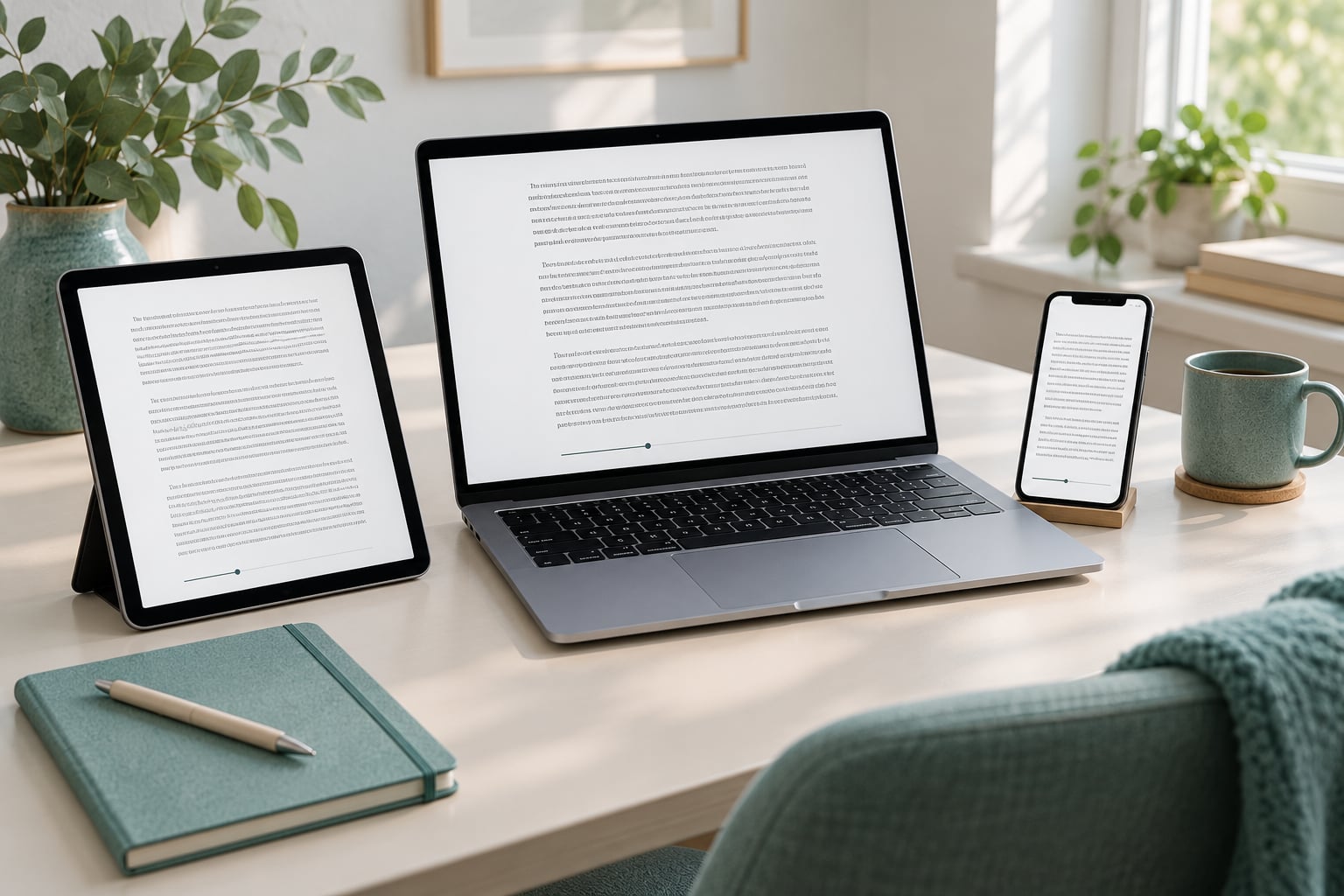
Reader Mode is built into Safari on every Apple device, and switching it on takes a single tap or a single keyboard shortcut. On iPhone and iPad you tap the aA button in the address bar and choose Show Reader; on Mac you choose View, Show Reader or press Command+Shift+R. Once you know that, the rest is adjusting text size and background colour, and understanding which pages Reader Mode can handle at all.
Reader Mode does one job: it takes a webpage apart, keeps the article text and the main images, and throws away everything else. Navigation bars, adverts, newsletter pop-ups, cookie banners, sidebars and video players all disappear, leaving a plain page you can change the type on. It is genuinely useful on a phone screen, where a quarter of the display is usually a signup box.
The honest limit is that Reader Mode is a reading tool, not a read-later service. It is at its best on conventional written articles. Home pages, video players, photo galleries, dashboards and most web apps are not articles, so Safari may not offer the option, or may offer it and produce a thin result.
Table of Contents
What You Need
You need three things, and none of them cost anything or take more than a minute to arrange.
- Safari open on your device. Reader Mode lives inside Safari, not inside a separate app. There is no Reader app to download and no subscription to start.
- A page that is really an article. A news story, a blog post, a review, a long feature, a recipe card, a support article. Not a search results page and not a web app.
- A reasonably current version of iOS, iPadOS or macOS. Apple has moved the button a few times over the years, so an older system may hide Reader Mode somewhere you do not expect.
You also need to know where the controls sit, and that is different on each device. On iPhone the aA button sits at the start of the address bar, at the same height as the website name. On iPad the same options live in the page menu inside the Safari toolbar. On Mac there is a Show Reader button inside the Smart Search field, plus the View menu and the keyboard shortcut.
One more note, because it trips people up: if you read in Chrome or Firefox on an iPhone or iPad, there is no Reader Mode there. Those browsers use Apple’s engine but not Safari’s reading view. You need the Safari app itself.
Step-by-Step
Read these in order the first time. Steps 1 and 5 apply to every device, while steps 2 to 4 cover the specific controls on iPhone, iPad and Mac.
Step 1: Open the Article in Safari
Open Safari and load the article. Wait until the page has fully drawn, including the images at the top, because Safari decides whether Reader Mode is available while the page is still loading.
You will know it is ready when the page has settled and nothing new pops up. If the article uses lazy loading and the text below the fold has not appeared yet, scroll down a little first. That gives Reader Mode something to work with.
Try a normal article rather than a landing page. If Show Reader is not in the menu at all, that is usually the reason, not a broken feature. Reloading the page with the refresh button is a good habit before you start troubleshooting.
Step 2: Turn On Reader Mode on iPhone
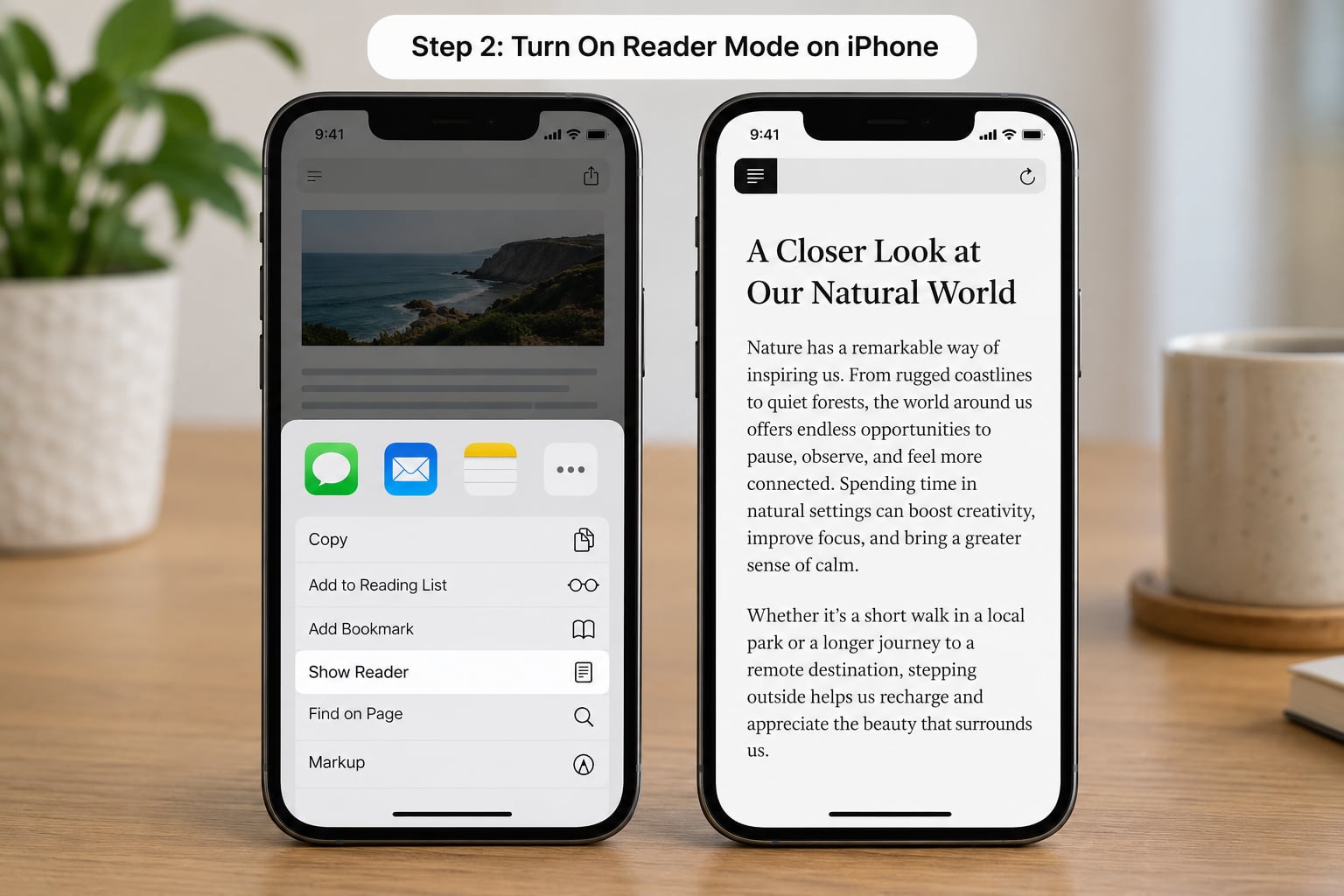
On iPhone, the route to how to use Safari Reader Mode is the aA button. It is the two-letter button at the start of the address bar, level with the website address, and it looks like two letter a’s of different sizes.
- Open your article in Safari and let the page finish loading.
- Tap the aA button at the start of the address bar.
- In the menu that appears, tap Show Reader.
- Safari strips the page back to the article text and images.
You will know it worked when the adverts, cookie banner, navigation bar and sidebars vanish, and you are left with a white or themed page of text. There is also a small text-size control near the top of the view that you can tap whenever you want bigger type.
Hold your finger on the aA button instead of tapping it and you get extra options, including Use Reader Automatically for that site. That saves the tap every time you visit that particular website. On some installed versions of iOS the same commands also appear in the Safari page menu, and the wording can shift slightly between releases.
To leave Reader View, tap the close button in the corner or choose Show Original, and the full page comes back exactly as it was. Nothing about the original site changed, so you can flip in and out freely.
Step 3: Turn On Reader Mode on iPad
The iPad works the same way but the controls are easier to miss, because the Safari toolbar compresses into a smaller icon. Look for the page menu in the toolbar, open it, and you will find the same aA options with Show Reader listed.
If you prefer, the aA button in the address bar still works on iPad when the address bar is expanded. With a hardware keyboard attached, Command+Shift+R also toggles Reader View, which is handy once you get used to it.
A successful result looks the same as on iPhone: text and images only, no adverts, and the text-size control within reach of your thumb. Reader Mode is genuinely nicer on a large iPad screen, because you can push the type size well up without losing the shape of the article.
Open the page in Safari rather than in Chrome, Firefox or Edge on the same iPad. Those browsers do not carry Safari’s reading view with them.
Step 4: Turn On Reader Mode on Mac
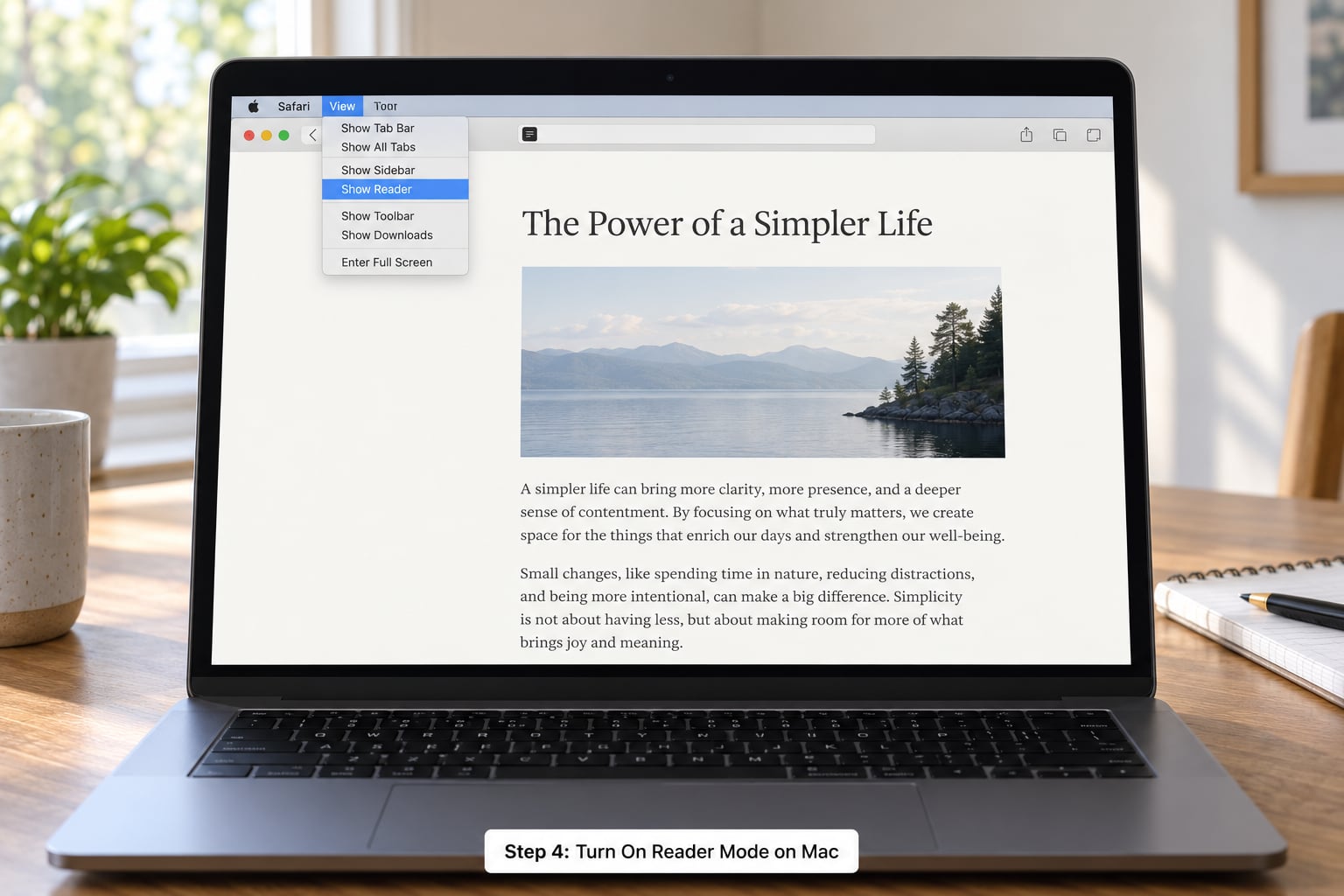
Mac has three ways in, and all three reach the same clean page. Choose the one that suits how you work.
- View menu: click View in the macOS menu bar at the top of the screen, then choose Show Reader.
- Keyboard shortcut: press Command+Shift+R. Press it again and you go back to the original page.
- Show Reader button: click the small page icon in the Smart Search field, next to the address, labelled Show Reader.
The keyboard shortcut is the one worth memorising. It works in full-screen mode when the menu bar is hidden, and it turns Reader View on and off in a single movement.
If the Show Reader button is not sitting in the Smart Search field, that usually means Safari has decided the page is not an article. Interactive pages, PDFs and most online tools will not offer it.
On the Mac, click the appearance button in Reader View to open the settings panel. It sits at the far end of the toolbar and looks like a small page with text controls on it.
Step 5: Adjust Reader Settings and Return to the Page
Once you are in Reader View, the appearance controls are where the feature really earns its place. Open them from the aA button in Reader View, and you get a set of choices that most people never scroll down to find.
- Text size: smaller or larger, usually in about five steps. Your choice is remembered for that site.
- Font: a short list of typefaces. The selection has grown over the years but it is still limited compared with a dedicated reading app.
- Background: white, sepia, grey and a dark or night theme. The dark theme is the one people with light sensitivity use most.
- Layout on Mac: line spacing, margins and the amount of text shown per screen.
To return to the original page, use the close button at the top of the view, the Show Original command, or the same keyboard shortcut you used to get in. Your scroll position in the article is usually kept, so you can pop back in later.
Two extra tricks are worth knowing. On the Mac, choosing Print while you are in Reader View prints a clean, text-only version of the article with no adverts and no navigation, which is much easier to read on paper than the normal page. And if you select a passage in Reader View and copy it, the text arrives without the adverts, tracking formatting and sidebars that normally come along for the ride.
If you would rather Reader View switched itself on, you have two levels of automation. For a single site, press and hold the aA button on iPhone and iPad, or press and hold the address bar on Mac, then choose Use Reader Automatically. For every site, open the Settings app, go to Apps, then Safari, then Reader, and turn on All Websites. On older systems the same option sits under Safari in the main Settings list. On Mac, the Reader options live in Safari, Settings.
Turning it back off is the reverse. Close Reader View, switch off the All Websites toggle, and if a particular site is listed separately under Other Websites, remove it from that list. That is the fix for the most common complaint in reader forums, which is a site that stubbornly opens in Reader View every single time.
Common Mistakes to Check First
A few things go wrong most often, and every one of them has a fix.
Show Reader is not in the menu. The page is usually the problem, not the setting. Home pages, search pages, video pages, photo galleries and dashboards are not articles, so Safari leaves the option out. Open a specific article on the same site and try again.
The aA button seems to have vanished. Apple has moved it between versions, and readers on r/ios and r/apple frequently post about the button changing position after an update. Before assuming it is gone, check the Safari page menu, and make sure the address bar is expanded rather than collapsed.
You tap it and nothing changes. Reload the page and try once more, since a page that is still loading may not have been offered to Reader View. If it still does nothing, the site is probably image-heavy or built in a way Safari cannot parse, and a different article from the same site will usually work.
The wrong or an old version of the page appears. Reader View works from the page Safari has already fetched, so a stale cached version gives you stale text. Reload from the address bar, or close the tab and open the link again.
Reader View keeps opening on its own. Automatic Reader is switched on for all websites, or that site is on the separate list. Check Settings, Apps, Safari, Reader on iPhone and iPad, and the Reader panel in Safari, Settings on Mac.
Safari extensions disappear in Reader View. Extensions generally do not load inside Reader View, which has been raised in threads on discussions.apple.com. The practical workaround is to turn Reader View off when you need the extension, for example to reach an in-page translation or a password tool.
It refuses to work on a PDF. Reader View does not convert documents. Open the PDF, use the built-in viewer, and if the text is too small, change the zoom or turn on larger text in Accessibility settings.
Common Mistakes: Why Show Reader Is Missing
Before you go any further, three checks resolve most cases. First, reload the page, because a half-loaded page is the single most common reason the option does not appear. Second, confirm that you are in Safari, since Reader View is a Safari feature and Chrome or Firefox on iOS and iPadOS will not offer it. Third, test a different article on a different site, so you can tell whether the problem is the page or your setup.
Then keep Safari up to date. Apple shifts this control between releases, and the layout described here matches the current versions in 2026. An out-of-date system is the most common reason people think a feature has been removed when it has simply moved.
It is also worth knowing what Reader Mode is for, because that solves a lot of disappointment. It is a viewing mode for text that is already on the page. It does not save articles, sync them between devices, or handle anything behind a login that has not loaded. If you want an article to wait for you later, add it to Reading List from the share sheet first, and use Reader View when you are ready to actually read it.
Reader View and Reading List solve different problems, and the same is true of services such as Instapaper. Reading List keeps a page for later, offline, and syncs through your Apple account. Reader View makes the page in front of you readable right now. Doing both, in that order, is what most regular readers end up doing.
Frequently Asked Questions
Is Reader Mode built into Apple Safari?
Yes. Reader Mode, called Reader View on Mac, ships with Safari on iPhone, iPad and Mac. There is nothing to download and no account to create. Open an article, use the aA button in the address bar on iPhone and iPad, or the View menu on Mac, and choose Show Reader.
How do I turn on Reader Mode instantly in Safari?
On iPhone and iPad, press and hold the aA button in the address bar and choose Show Reader, or set Use Reader Automatically for that site. On Mac, press Command+Shift+R, or choose View and then Show Reader. Once automatic mode is on, articles open in Reader View with no extra taps.
Why is Show Reader missing from Safari?
The page is usually the reason. Home pages, search results, video players, photo galleries, dashboards and PDFs are not articles, so Safari leaves Show Reader out. Reload the page to rule out a page that is still loading, then try a specific article on the same site to see if the option appears there.
Can I use Safari Reader Mode offline?
Only after the article has already been loaded once, because Reader View works from content Safari has already fetched. Once you have opened an article in Reader View while connected, it can reappear later without a connection. For dependable offline reading, add articles to Reading List instead.
Does Reader Mode work on every website?
No, and no reader tool can promise that. Reader Mode works best on conventional articles with clear headings and paragraphs. It may produce a thin result on image-heavy pages, may leave out captions and sidebars, and often does not trigger at all on interactive tools, video and document viewers.
How do I stop a website from opening in Reader Mode?
Tap the aA button in the address bar and remove that site from the automatic list, or on Mac choose View and turn off Show Reader Automatically. If every site opens in Reader View, open Settings, Apps, Safari, Reader on iPhone and iPad and switch off All Websites, then use the close button to leave the current page.
Conclusion
Start with one article in Safari and press the aA button at the start of the address bar on iPhone, open the page menu on iPad, or choose View and then Show Reader on Mac. That single action is the whole feature, and it works on almost every written article.
Once it is on, open the appearance controls and set the text size, font and background you like, because that is where Reader View becomes comfortable reading rather than a novelty. Use the long press for automatic mode on the sites you read most, and turn it off again if a site starts opening in Reader View when you wanted the full layout.
That is how to use Safari Reader Mode well. It works best for long text, it will never handle an interactive page, and it takes a couple of seconds to undo.