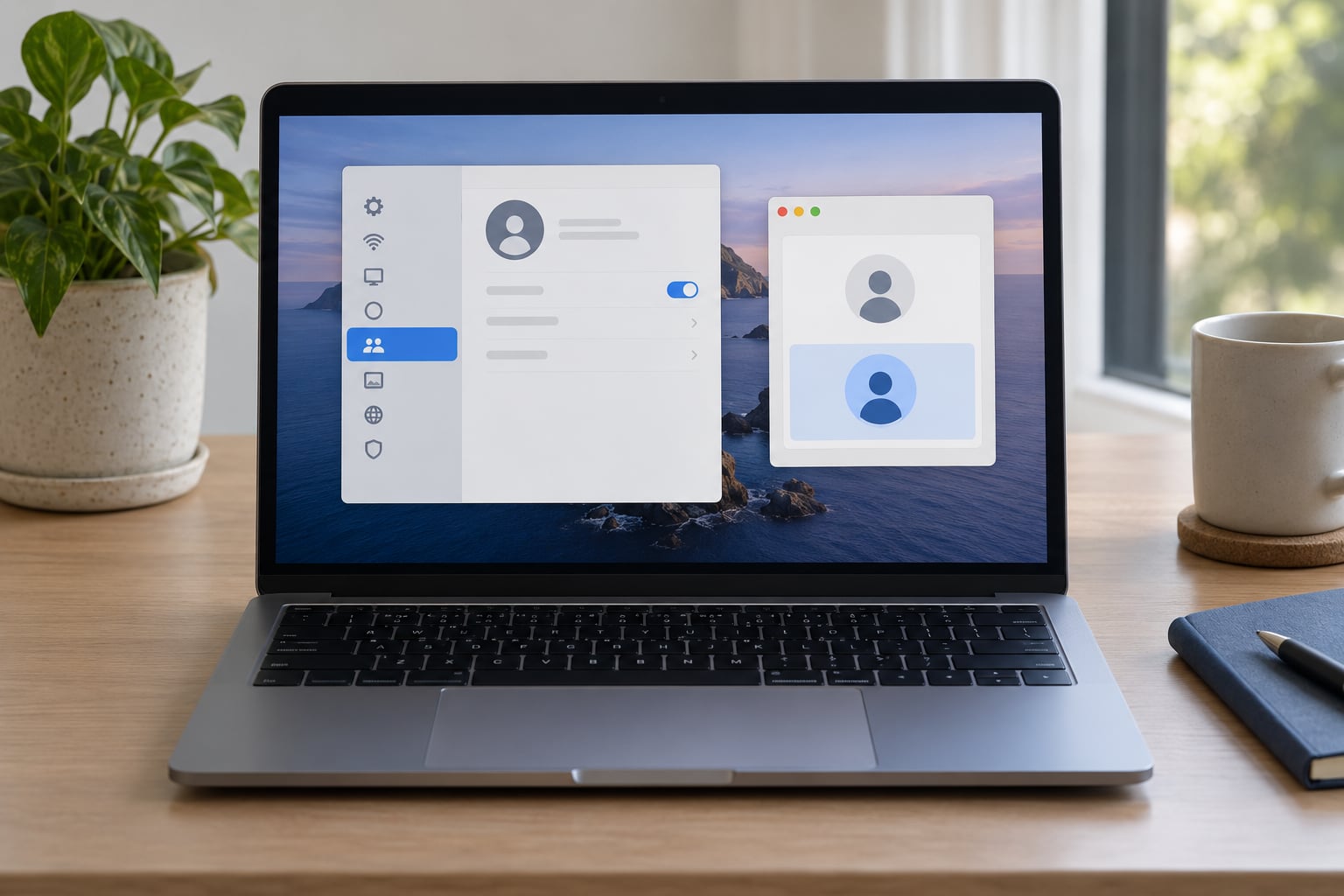
Setting up a guest account on a Mac takes about two minutes: open System Settings, click Users & Groups, select Guest User, and turn on Allow guests to log in to this computer. Whoever sits down next signs in without a password, cannot open your files or your apps, and everything they create gets deleted the moment they log out. That is the whole point of a guest account, and as of 2026 it is built into every Mac, from a Mac mini to a MacBook Pro.
The step most tutorials get wrong is the last one. People enable the toggle, log out, and then cannot work out where the guest login went, because macOS does not label it “Guest” on the login window. It says Other User. Once you know that, the whole thing takes under a minute.
Table of Contents
- What You Need
- Step-by-Step: How to Set Up a Guest Account on Mac
- Common Mistakes
- No Other User or Guest option on the login window
- The toggle keeps switching itself back off
- The guest only gets Safari
- My Mac logged into a fresh guest session instead of mine
- The guest can shut the Mac down
- The guest can see a shared folder I did not mean to share
- My guest changed the desktop and I cannot change it back
- I turned guest access off and the tile is still there
- Does turning guest access on weaken Find My Mac?
- Frequently Asked Questions
- What is the difference between a macOS guest account and a standard user account?
- Can a Mac guest account see my personal files and apps?
- Should I make a Mac guest account an administrator?
- How do I let a guest user install apps without giving full access?
- What is Fast User Switching on a Mac, and is it the same as logging out?
- How do I delete or disable a Mac guest account later?
- Conclusion
What You Need
You need administrator access to your own Mac and the password for that admin account. If your account is a Standard account, you cannot see the Guest User pane at all, and macOS will not offer to enter an administrator password for you.
The steps below use the current macOS layout. macOS 13 Ventura and later call it System Settings; macOS 12 Monterey and earlier call it System Preferences. The pane is called Users & Groups in both, and every label inside it is the same, so only the first click differs. Whatever version you are on in 2026, anything from Ventura onward uses System Settings.
Before you start, decide which of the two things you actually need:
- The built-in Guest User. One switch, no password, nothing persists. Right for a friend borrowing your Mac, a technician diagnosing a problem, or a reception or kiosk machine.
- A separate standard user account. A real home folder, its own password, and its own apps and files. Right for a long-term second user, a child, or a partner who uses the same iMac daily.
Fast User Switching is a third option and gets confused with both of them. It is not a type of account at all. It lets two people keep separate sessions on one Mac without logging anyone out, and it is covered in its own section below.
The one question that settles most of these cases: does the person need to come back to the same files tomorrow?
If the answer is no, guest mode is enough and nothing survives the session. If the answer is yes, guest mode will frustrate them, because anything they download is wiped at logout. Most people leave the toggle off for months and only flip it when a relative needs the laptop, usually after trying some workaround first, like changing their own login password. That is the wrong fix.
A standard account solves the persistence problem without opening up your files. Each account has its own home folder, its own Desktop, its own Downloads and its own Library. You are not sharing an iCloud account with them either; every new account can sign in with a different Apple ID, which is how one MacBook supports two separate Apple IDs without either person seeing the other’s messages, photos or subscriptions.
What the guest account genuinely cannot do is install software, reach your files, or sign into your accounts. That is the whole security model, and it is why most people treat it as low risk. The limitation worth planning around is that it is a browser-first experience, not a work machine.
Step-by-Step: How to Set Up a Guest Account on Mac
Here is the shortest correct path to set up a guest account on Mac, using the exact labels Apple puts on screen.
Turn on the built-in Guest User
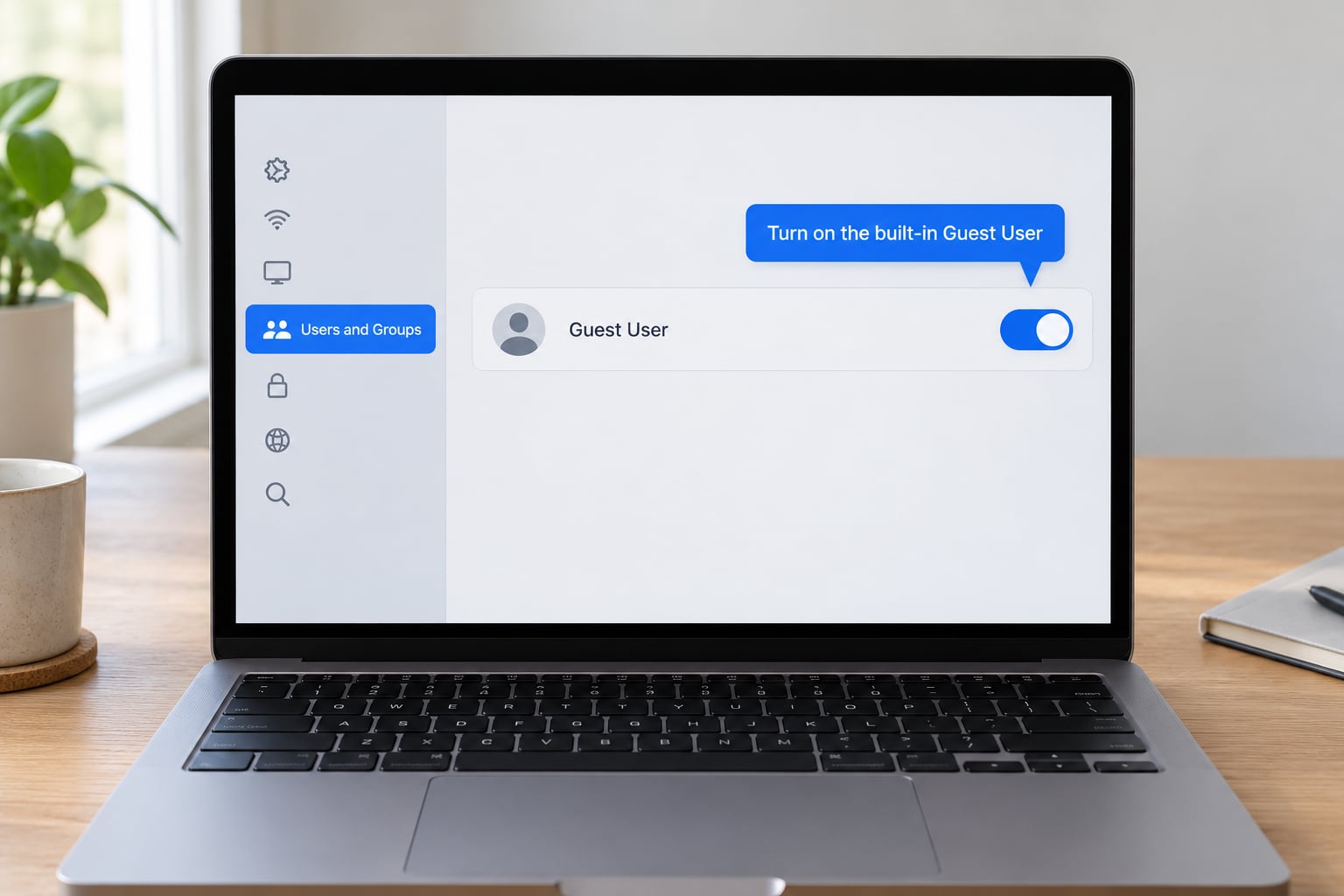
- Click the Apple menu and choose System Settings.
- Click Users & Groups in the sidebar.
- Click the padlock or Info (i) button and enter your administrator password.
- Click Guest User in the list of Other Users.
- Turn on Allow guests to log in to this computer.
- Close Settings. There is no Save button; macOS applies the change immediately.
To confirm it worked, log out and look at the login window. If an Other User tile is sitting at the bottom of the user list, the guest account is live.
Configure the account details
With Guest User still selected, click the Info (i) button to open its settings. Three fields here are worth the ten seconds:
- Account name. Change it from the default and the login window shows that name instead of the anonymous Other User. “Visitor” or “Front Desk” reads better than Other User for anyone unfamiliar with Macs.
- Picture. Choose a photo or emoji so the correct tile is obvious at a glance.
- Explanatory text. A short line that appears under the name, such as “Session ends at logout.”
The Guest User pane has no password field, and that is not a bug. macOS will not let you promote the guest account to Standard or Admin, which is exactly what keeps it contained. If you need someone who can install software, you want a separate account instead, covered in the next section.
Choose the account type and permissions
To add a real second user, go back to Users & Groups, click the + button at the bottom of the account list, and choose New Account. macOS offers two types:
- Standard. Can use the apps already installed, browse the web, and work in its own home folder. Cannot install software, cannot change system settings that affect other accounts. Choose this by default.
- Admin. Can install apps, change settings, and see other accounts on the Mac. Choose it only for a user you trust as much as yourself.
Once you fill in a full name and an optional Apple ID, click Create User. That account appears on the login window immediately.
For the guest account itself, these are the limits you are working with:
| Action in a guest session | Allowed? |
|---|---|
| Use Safari and browse the web | Yes |
| Install apps or use the App Store | No |
| See your files, photos or app library | No |
| Sign in to your iCloud account | No |
| Change wallpaper and appearance | Yes |
| Save files after logging out | No, they are deleted |
| Shut down, restart or sleep the Mac | Yes |
| Log in without a password | Yes |
A guest can still download files and change the wallpaper, so a determined person can make a mess of appearance settings even though they cannot reach your data.
To limit websites or block the App Store, use Screen Time. Open System Settings > Screen Time while logged into the account you want to restrict, turn on Screen Time, then use Limit Access to Apps to switch off the App Store and add website restrictions. Set a Screen Time passcode, otherwise the guest simply switches it back off in ten seconds.
To share one specific folder, drop it in the /Users/Shared folder. Open its Get Info panel, click Sharing & Permissions, and set Everyone to Read & Write. Anything else in that folder stays out of reach.
Save the account and test it
Nothing to save. Close System Settings, then click the Apple menu > Log Out and confirm. At the login window, click Other User and then Log In. No password appears, because the guest account has none.
Run a quick test while you are there. Open Finder and check that your Desktop, Documents and Downloads are not visible. Open the App Store and confirm it does not launch. Create a text file on the Desktop, log out, and log back in as yourself. The file is gone, which is the behaviour you want.
Ending the session is not always obvious. The guest user has no Log Out button in the same place yours is; the reliable methods are quitting the browser, which returns you to the login window, or restarting the Mac from the Apple menu. Either way the temporary folder goes with it.
Before you hand the Mac over, join it to your Wi-Fi network first. A guest session can only use a network the Mac is already connected to, and joining a new one from the login window is often blocked. If the person needs the internet, sort that out while you are still logged in.
One more thing worth doing for a loaner: check whether Find My Mac is signed in and active. A Mac in someone else’s hands is a Mac that can walk out of the house, and the guest session itself is untracked by design.
Apple’s own guide to what guest users can do covers the Wi-Fi menu and ending a session, and it is the reference to bookmark if something behaves differently on your Mac.
Set up Fast User Switching
Fast User Switching keeps your session running while someone else logs in. Nothing you were working on is lost, and no password prompt stops you handing the Mac over.
- Open System Settings > Users & Groups.
- Click Login Options near the bottom of the sidebar.
- Click the padlock and enter your administrator password.
- Turn on Enable fast user switching.
From then on, hold Command + Tab and pick another user to switch instantly, or click the name in the top-right menu bar. Turning it off puts the Log Out button back where the fast switch option used to be.
It is not the same as logging out: your apps keep running in the background and a guest session can leave memory-hungry apps open. On a school or work Mac, an MDM profile can disable the switch entirely, and it is often unavailable while a Screen Sharing session is connected.
Common Mistakes
These are the ones that come up again and again. In almost every case the guest account is not broken; the login window is just being confusing.
No Other User or Guest option on the login window
- Confirm the toggle Allow guests to log in to this computer is still on, not just the Guest User row being visible.
- Look for Other User, not Guest. That is the name the guest account uses at login.
- Restart the Mac. The tile sometimes fails to paint until a full restart rather than a log out.
- Check FileVault. With disk encryption on, the guest session is limited to the web browser, and on some setups Other User does not appear at all.
- On a managed Mac, an administrator may have disabled guest login through a configuration profile, and the pane will refuse to stay switched on.
The toggle keeps switching itself back off
This is the classic “Cannot enable guest account” report. It almost always means the change was not authenticated, or a profile is managing the setting and overwriting you. Make the change while you are logged in as an administrator, unlock the pane with the padlock, and try again from a fresh restart. If it reverts a second time, check Screen Time and any device management profile before fighting it further.
The guest only gets Safari
FileVault is doing this, and it is deliberate. Check System Settings > Privacy & Security > FileVault on macOS 13 and later, or System Preferences > Security & Privacy > FileVault on older versions. When it is on, macOS gives the guest a browser-only session with no access to any other app.
There is no setting that overrides this. Keep FileVault on and use the guest session for browsing, or turn guest access off entirely and give the person a standard account if they need real work.
My Mac logged into a fresh guest session instead of mine
Type your own short name and password at the Other User prompt and you will get your normal desktop back, with nothing of theirs mixed in. If the login window only shows a fresh unidentified Mac-like desktop, the Mac skipped your account, often after an automatic login or a fast-switch mishap.
If you instead see a message that your home folder protected by FileVault did not open, restart the Mac and enter your credentials again from a cold start. Accounts created from Terminal with directory service commands are a separate problem: they show up in Users & Groups but often never appear on the login window at all, which is a good reason to add accounts with the + button instead.
The guest can shut the Mac down
macOS offers no switch that removes Shut Down and Restart from a guest session, which is the top request in the Mac support communities. A Screen Time passcode combined with Downtime limits gets you most of the way. For a hard block on a shared machine, a standard account under supervision is the reliable route.
The guest can see a shared folder I did not mean to share
Anything placed in the /Users/Shared folder is genuinely open to the guest, and on a Mac with few personal accounts that folder can quietly collect shared downloads, exported scans and installer files. Open /Users/Shared in Finder yourself before lending the machine, and delete what you no longer want readable by Everyone.
My guest changed the desktop and I cannot change it back
Appearance and wallpaper edits persist after logout. Reset them from System Settings > Wallpaper or System Settings > Appearance, or turn on a Screen Time passcode so a guest cannot fiddle in the first place.
I turned guest access off and the tile is still there
The change applies straight away, but a login window that was already showing can stay stale. Click the time in the top-right corner to return to the login window, or restart. If the tile survives a restart, a Screen Time or device management profile is holding the setting open.
Does turning guest access on weaken Find My Mac?
Not in any way you will notice day to day, but on Apple silicon I would still set guest access up before leaving the house rather than in a hurry, then open Find My on your phone and confirm the Mac is still listed. Thirty seconds of reassurance is worth it.
Frequently Asked Questions
What is the difference between a macOS guest account and a standard user account?
A guest account needs no password, cannot install apps, and deletes every file created during the session at logout. A standard user account has its own home folder, password and login that persists forever, and can be given admin rights. Choose guest for a one-off visit, and a standard account for anyone using the Mac regularly.
Can a Mac guest account see my personal files and apps?
No. The guest session cannot open your home folder, your Photos library, your saved passwords or your iCloud account, and the App Store will not launch for it. Anything the guest creates lives in a temporary folder that macOS wipes at logout. The one change you cannot prevent is cosmetic, since wallpaper and appearance settings can be edited.
Should I make a Mac guest account an administrator?
You cannot, and macOS blocks the attempt on purpose. The Guest User account type is fixed, which is what keeps a visitor from changing system settings or installing anything. If you need admin rights for a second person, add them as a separate account with the + button in Users u0026amp; Groups and accept the trust that implies.
How do I let a guest user install apps without giving full access?
You cannot do both, and the guest account is the wrong tool for it. Guests cannot install anything at all. Create a standard account instead, pre-install whatever that person needs, and leave the account type as Standard so they still cannot change settings that affect your account or see your files.
What is Fast User Switching on a Mac, and is it the same as logging out?
Fast User Switching keeps your session signed in while another person logs in, so nothing you were working on is lost. Logging out ends your session and closes your apps. Enable it in System Settings, Users u0026amp; Groups, then Login Options, and switch between users with Command + Tab.
How do I delete or disable a Mac guest account later?
To disable it, reopen System Settings, click Users u0026amp; Groups, select Guest User, and switch off Allow guests to log in to this computer. Other User then disappears from the login window. The built-in guest account cannot be deleted, only switched off, and any edits you made to its name or picture stay saved for next time.
Conclusion
Set the guest account up before you need it, then test it once by logging out and clicking Other User. That two-minute check is what stops the awkward moment where a visitor is standing at your desk and the guest option is nowhere to be found.
Once it is on, leave it on. It costs nothing while unused, and it is the cleanest way to lend a Mac to family, hand it to a technician, or set up a machine that lives in a waiting room. For anything longer than a visit, give the person a standard account instead, and turn on Fast User Switching so nobody has to close your work to hand the computer over.