You can free up storage on your iPhone without deleting photos by starting at Settings > General > iPhone Storage, turning on Optimize iPhone Storage, offloading unused apps, and clearing messaging caches, offline downloads and screen recordings. The camera roll is almost never the biggest thing you can trim.
That surprises most people. They open the storage screen, see photos eating 30 GB, and start deleting memories. Meanwhile an abandoned podcast download, a year of screen recordings, or a Synced Media bucket nobody can explain is quietly holding another 20 GB.
Below is the order I work through, written for iOS 18 and iOS 26 on iPhone. Menu labels drift a little between releases, but nothing here touches your photo library.
Table of Contents
- What You Need
- Step-by-Step: How to Free Up Storage on iPhone Without Deleting Photos
- How to Free Up Storage on iPhone Without Deleting Photos Using the Storage Breakdown
- Back Up Your iPhone Before Removing Large Files
- Review Large Apps, Videos, Downloads, and Attachments
- Offload Unused Apps Instead of Deleting Them
- Use iPhone Storage Recommendations and Optimize Storage
- Clear Temporary Files and Cached Data Carefully
- Check the Space You Recovered
- Common Mistakes
- Frequently Asked Questions
- Conclusion
What You Need
Three things, and none of them cost money. First, an iPhone with enough free space that Settings and Photos will actually load, otherwise the storage screen can refuse to refresh. Second, a finished backup, either iCloud or a computer, for anything you care about. Third, about fifteen unhurried minutes.
If you are moving your library to an external drive or a Mac later in this process, budget extra time. Transferring tens of thousands of photos over USB is slow in a way that a full storage bar does not prepare you for.
Step-by-Step: How to Free Up Storage on iPhone Without Deleting Photos
How to Free Up Storage on iPhone Without Deleting Photos Using the Storage Breakdown
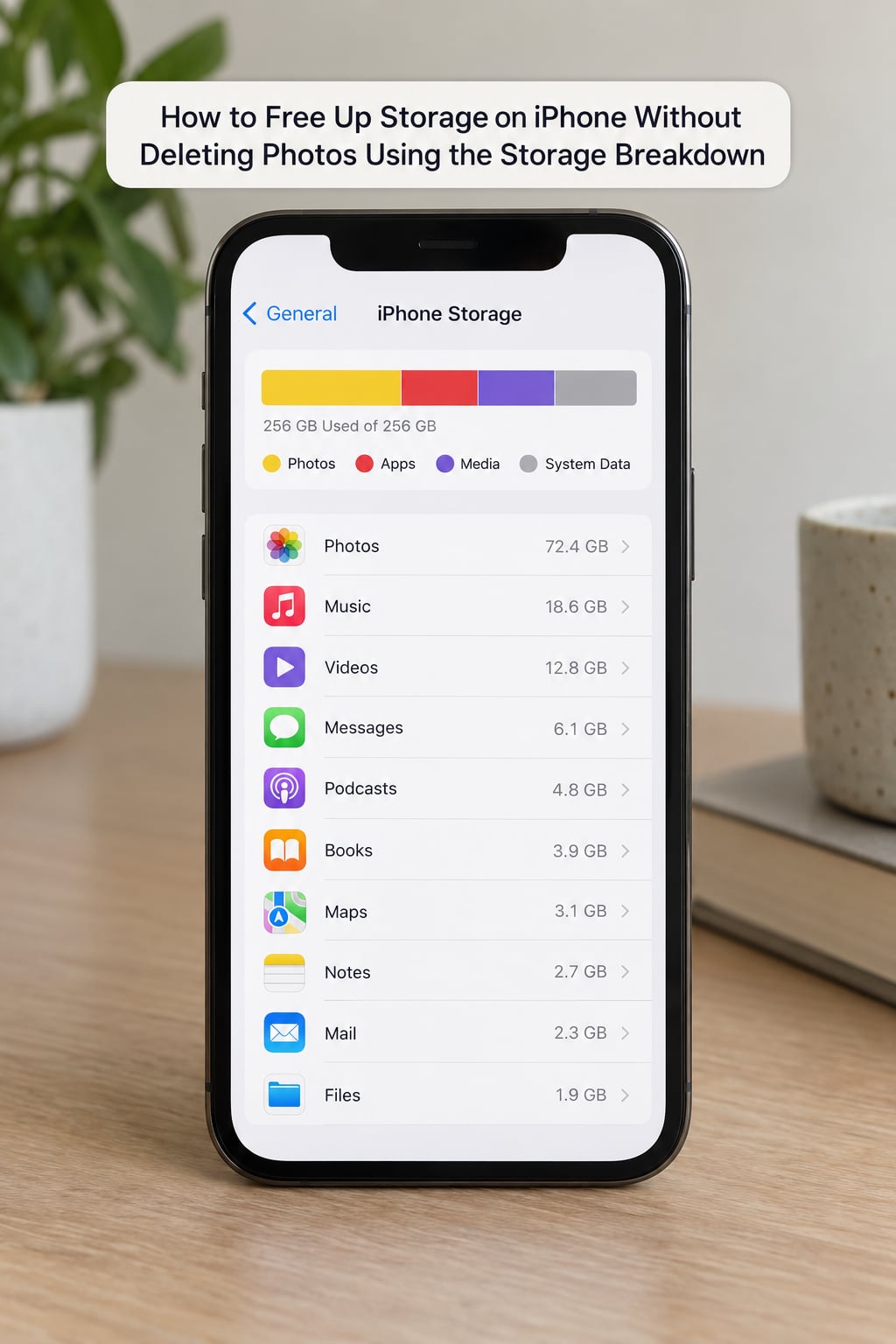
Open Settings, tap General, then iPhone Storage. This is the only screen that tells the truth about what is using your space, and it breaks usage into categories rather than a single number.
Tap any category to see what sits inside it, and tap the largest apps list to sort by size. The bars can take several minutes, sometimes an hour on a very full phone, to settle after a big change, so check it now to get a baseline before you touch anything.
Two categories cause most of the confusion. Media is broader than photos: it also holds downloaded music, podcasts, audiobooks, ringtones and cached artwork. System Data is a catch-all for logs, cached website data, pending iOS update files and sync leftovers, which is why it seems to grow on its own. Synced Media, which appears on recent releases, usually means files transferred through Finder or iTunes.
Back Up Your iPhone Before Removing Large Files
Before you remove anything, confirm a backup completed. Check the iCloud backup screen, or connect to a computer and look at the Finder or iTunes summary.
A backup is not the same as a sync. Backups are copies stored elsewhere; iCloud Photos sync keeps a full-size original in iCloud and a smaller version on the phone. Neither means the file is on your device where an offline app can open it, so think about which one you actually need before you rely on either.
Review Large Apps, Videos, Downloads, and Attachments
Video is usually where the quick wins are. A few minutes of 4K footage can run into gigabytes on its own, and burst shots cluster quietly in the camera roll. Neither requires giving up the whole library, but both are worth scanning once.
Messaging apps are the other big one. In iPhone Storage, tap Messages and review the large attachments list; you can remove individual files without deleting the conversation they belong to. One reader on the ClarkConnect forum reported freeing 6 GB this way alone, which is at the higher end but not out of line for chatty group threads.
Then handle offline downloads. Music, Podcasts, Apple TV, Netflix, Spotify and YouTube all keep copies locally that never show up as photos.
Screenshots and screen recordings deserve their own pass too. Most of us save dozens and review none. The storage screen sorts them, and they are almost always disposable.
| Cleanup | Typical reclaim | Photos touched? |
|---|---|---|
| Empty Recently Deleted album | Whatever you deleted in the last 30 days, sometimes several GB | Only items you already chose to delete |
| Merge duplicates in Photos | Rarely more than a few hundred MB on most libraries | Duplicates merged into one copy |
| Messaging media and attachments | Roughly 1 to 6 GB on heavy users | No |
| Offline video and downloads | Several GB if you stream regularly | No |
| Offloading unused apps | Hundreds of MB to a few GB | No |
| Optimize iPhone Storage | Whatever the full-size originals take, if iCloud Photos is on | No, originals stay in iCloud |
These are ranges, not promises. Your library decides the real numbers, which is why the before-and-after check at the end of this process matters more than any estimate.
Offload Unused Apps Instead of Deleting Them
In Settings > General > iPhone Storage, scroll to Apps and tap any app you rarely open. Choose Offload App and iOS removes the application itself while keeping your documents and data.
Reopen the app with a working internet connection and it downloads again with its data intact. That makes offloading the right move for the games and apps you open twice a year, and the wrong move for anything holding offline documents you cannot re-download.
One more thing worth checking here: if you no longer use an app at all, deleting it outright frees more space than offloading, because the document data goes too.
Use iPhone Storage Recommendations and Optimize Storage
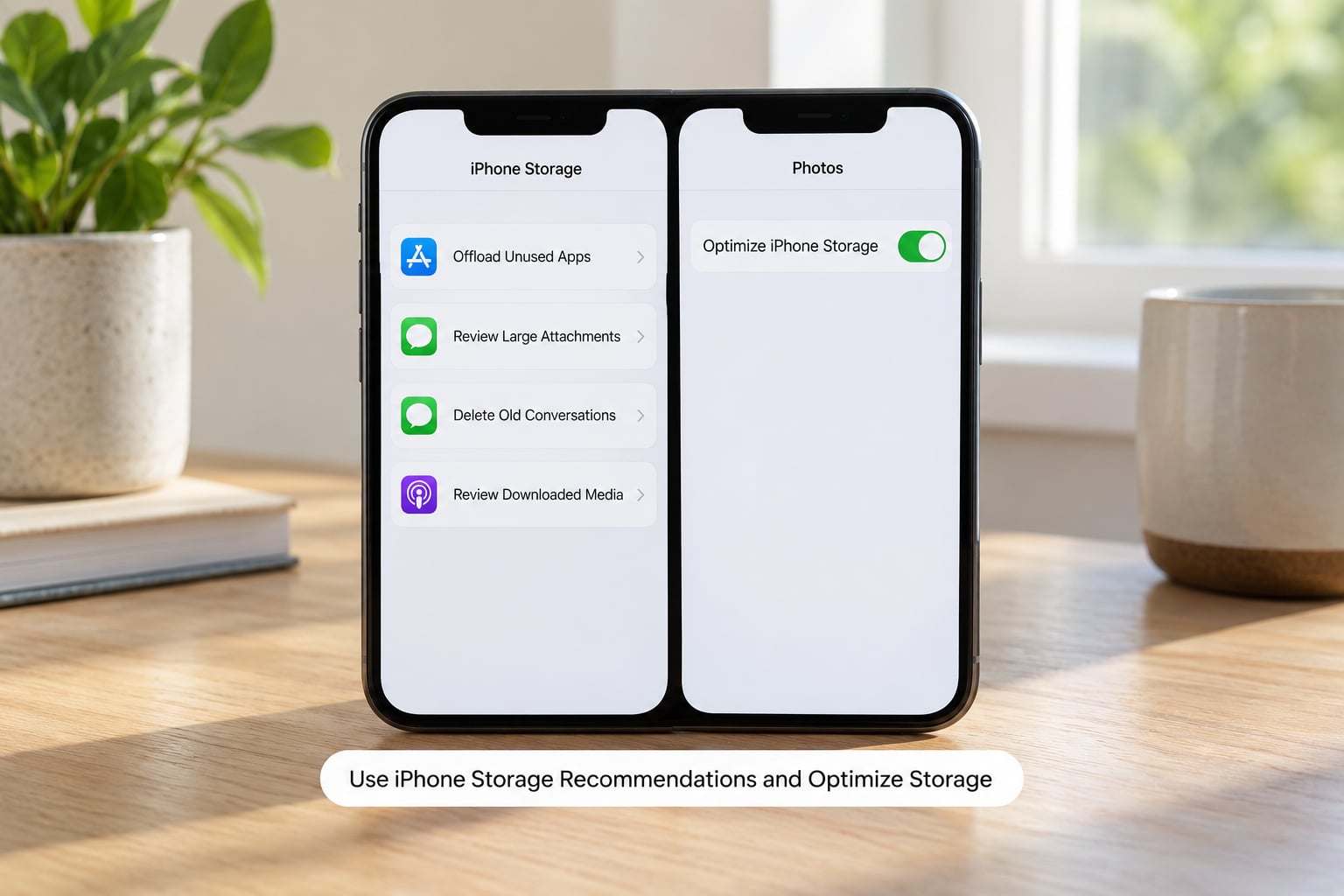
The iPhone Storage screen offers recommendations when it spots cleanup opportunities, and it reviews them first under Settings > General > iPhone Storage > Recommendations.
The important one is photo optimization. Go to Settings > Photos and turn on Optimize iPhone Storage. On iOS 18 and iOS 26 you may find the same switch at Settings > Apps > Photos instead, since Apple moved Photos into the Apps section. Either way it works the same: the phone keeps screen-sized versions locally and pulls the full-resolution original from iCloud whenever you open it.
Users confirm on the forums that this is where most of the photo-related space comes from, and it is the single safest move in the whole process. It needs iCloud Photos switched on, and it does not promise a specific number of gigabytes, so judge it by what the storage bar shows after a day or two of use.
Clear Temporary Files and Cached Data Carefully
Clearing Safari website data is safe and takes seconds: Settings > Apps > Safari, then Clear History and Website Data. Expect to sign in to a few sites again.
Inside apps, clear caches from the app’s own settings rather than deleting anything, since most messaging and streaming apps separate the two. Restart the iPhone afterwards.
Two cautions. Cached data grows back, so this is maintenance rather than a permanent fix. And never try to remove System Data by deleting unfamiliar files through third-party tools or a file manager; that category recalculates itself and manual removal causes real problems.
Check the Space You Recovered
Return to Settings > General > iPhone Storage and give it time to refresh. Compare the available space figure to the baseline you noted at the start.
If the number barely moved, that is usually the recalculation lag rather than a failure. A restart, an hour on Wi-Fi, and finishing any pending iOS update often settle it. If a specific category is still stubbornly large after a few days, address that one category rather than repeating safe steps that already did their job.
Common Mistakes
Deleting the Photos album to make room. That removes the images, which is exactly what you were trying to avoid. Use Optimize iPhone Storage and the Duplicates merge in Photos > Utilities instead.
Assuming a backup means the file is on the phone. It is not. iCloud Photos stores the original in the cloud and a smaller copy locally, so an offloaded app that needs offline access still cannot reach it.
Offloading an app that holds offline documents. Offloading keeps documents and data, but a downloaded document inside an app you no longer open is a poor bet on future access. Delete those apps properly or move the documents out first.
Deleting unfamiliar System Data. It is a catch-all, and the entries inside it are not yours to remove by hand. A restart, a completed update, and a clean Finder sync resolve most of it.
Expecting the number to drop immediately. Recently Deleted holds items for 30 days, and the storage bar recalculates on its own schedule. Deleting a video does not free its space until you empty Recently Deleted, which surprises people every time.
Going forward, check iPhone Storage once a month, keep Optimize iPhone Storage on, set Messages to auto-delete attachments after a year instead of keeping them forever, and review screenshots before they turn into a second camera roll.
Frequently Asked Questions
Can I free up iPhone storage without deleting any photos?
Yes. Turn on Optimize iPhone Storage so full-resolution originals stay in iCloud, offload unused apps, empty Recently Deleted, merge duplicates, and clear messaging caches and offline downloads. Those steps routinely reclaim several gigabytes while leaving every photo in the library. Most of the wasted space is not in the camera roll to begin with.
Does iPhone Storage optimization delete my original photos?
No. Optimize iPhone Storage removes the full-size copy from the phone and keeps a smaller, screen-sized version, while the original stays in iCloud and downloads when you open it. You need iCloud Photos switched on and enough iCloud space for the library. If you turn the setting off, the originals come back down to the device.
What happens when I offload an app instead of deleting it?
Offloading removes the app binary and frees its code space while keeping your documents and data intact. Reopen the app with an internet connection and it reinstalls with everything still there. That makes offloading ideal for apps you rarely use, but risky for anything holding offline files you cannot download again.
How much free storage should I keep on my iPhone?
Aim to keep at least 10 percent of your total capacity free, and never run below a few gigabytes. A full phone slows down, struggles to take new photos and videos, and can fail a system update. If your bar regularly sits above 80 percent used, a monthly check of Settings u0026gt; General u0026gt; iPhone Storage keeps problems small.
Do I need to reset my iPhone if storage is still full?
Almost never. Resetting is a last resort and you will lose everything not backed up. First empty Recently Deleted, clear caches, offload unused apps, finish any pending iOS update, restart, and give the storage screen a day to recalculate. A large System Data figure that survives all of that may justify a backup and a factory reset.
Conclusion
Start at Settings > General > iPhone Storage and read the breakdown before you delete anything, confirm a backup, then work down the list: optimize photo storage, empty Recently Deleted, review messaging attachments and offline downloads, and offload apps you never open. Not one of those steps touches your photo library.
Then make it a habit. A quick look at that screen once a month catches a runaway download long before it turns into a full phone, and updating 2026 only takes a few minutes.