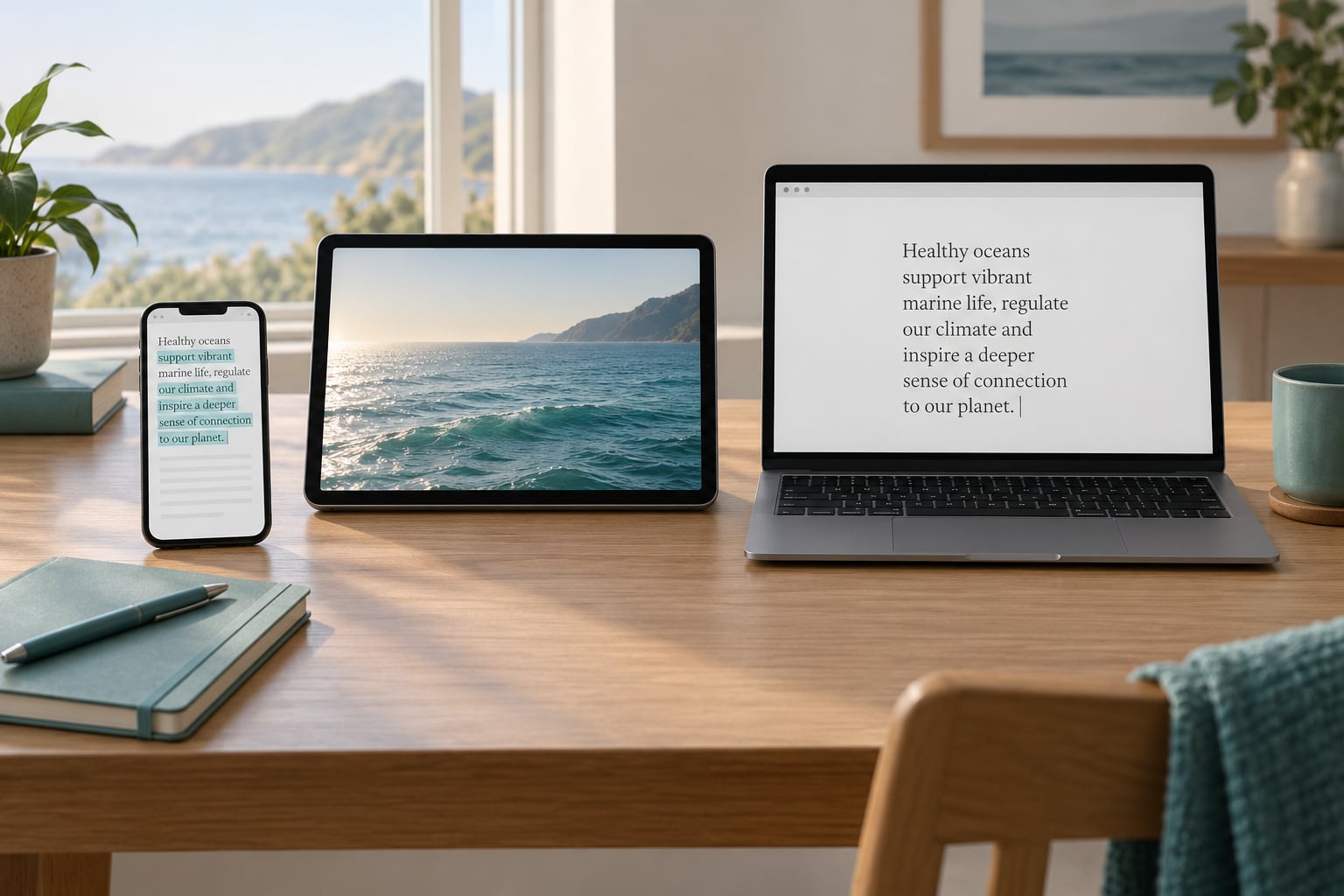
Universal Clipboard is a built-in Apple Continuity feature that shares one clipboard across your nearby iPhone, iPad and Mac. There is no app to buy and no dedicated switch to flip: copy something on one device, pick up another one nearby, and paste. Getting it to work comes down to four things — the same Apple Account on both devices, Wi-Fi on, Bluetooth on, and Handoff enabled.
The catch is that it fails silently. No error message, no warning badge, just an empty Paste menu. That is why most searches for how to use Universal Clipboard on Apple devices end up in troubleshooting threads rather than documentation. This guide covers the setup, the everyday use cases, and an ordered list of fixes for when pasting stops appearing.
Everything below applies to current iOS, iPadOS and macOS versions, using the System Settings app that replaced System Preferences on Mac and the AirPlay & Handoff pane that replaced the old AirDrop menu.
Table of Contents
- 1What You Need
- 2What you can copy, and what refuses to travel
- 3How it differs from the other Continuity features
- 4Step-by-Step: How to Use Universal Clipboard on Apple Devices
- 5Step 1: Confirm compatibility and sign-in
- 6Step 2: Turn on Wi-Fi, Bluetooth, and Handoff-related features
- 7Step 3: Copy content on the source device
- 8Step 4: Paste on the destination device
- 9Step 5: Resolve common transfer issues
- 10Common Mistakes
- 11Two different Apple Accounts
- 12It worked until an update
- 13Bluetooth or Wi-Fi off on one device
- 14Devices too far apart
- 15Unsupported content
- 16A third-party clipboard manager interfering
- 17Trying to turn it off
- 18Frequently Asked Questions
- 19Do Universal Clipboard and Handoff need to be on?
- 20Can Universal Clipboard work with two different Apple Accounts?
- 21Does Universal Clipboard need Wi-Fi or an internet connection?
- 22How long does copied content stay available on the other device?
- 23Does Universal Clipboard work with Windows or Android devices?
- 24Conclusion
What You Need
Universal Clipboard needs five conditions met on both devices. If even one is missing, the copy stays where it is.
- The same Apple Account signed in on every device, with iCloud and Keychain switched on. Two different Apple Accounts means no shared clipboard, even on the same Wi-Fi network.
- Bluetooth switched on on both devices, with discoverability enabled.
- Wi-Fi switched on on both, ideally connected to the same network. Your internet connection does not have to be active for transfers to work, but a connected network keeps sign-in state healthy.
- Handoff enabled on both devices. This is the toggle that actually governs clipboard sharing.
- Devices within roughly 10 metres of each other, and two-factor authentication left on for the Apple Account.
What you can copy, and what refuses to travel
Text, links, phone numbers, addresses, images, screenshots, short video clips, and files copied in Finder on a Mac all transfer. What does not transfer includes passwords from password fields, payment card numbers, and some DRM-protected media from streaming apps. Very large video files can paste, but a progress dialog sits there while the transfer completes, which looks like a freeze if you are not expecting it.
How it differs from the other Continuity features
Universal Clipboard gets confused with three neighbours. Knowing which is which saves a lot of wasted settings changes.
| Feature | What moves | Between which devices | Needs Handoff |
|---|---|---|---|
| Universal Clipboard | Clipboard contents you copy | iPhone, iPad, Mac | Yes |
| Universal Control | Your cursor and keyboard | iPhone, iPad, Mac | Yes |
| Handoff | Whole apps and calls, plus the clipboard | iPhone, iPad, Mac | Yes |
| AirDrop | Whole files over its own radio link | Apple devices and nearby non-Apple devices | No |
Universal Control is the one most people confuse it with. That one moves your mouse and keyboard onto a second screen. Universal Clipboard never moves your cursor at all.
Step-by-Step: How to Use Universal Clipboard on Apple Devices
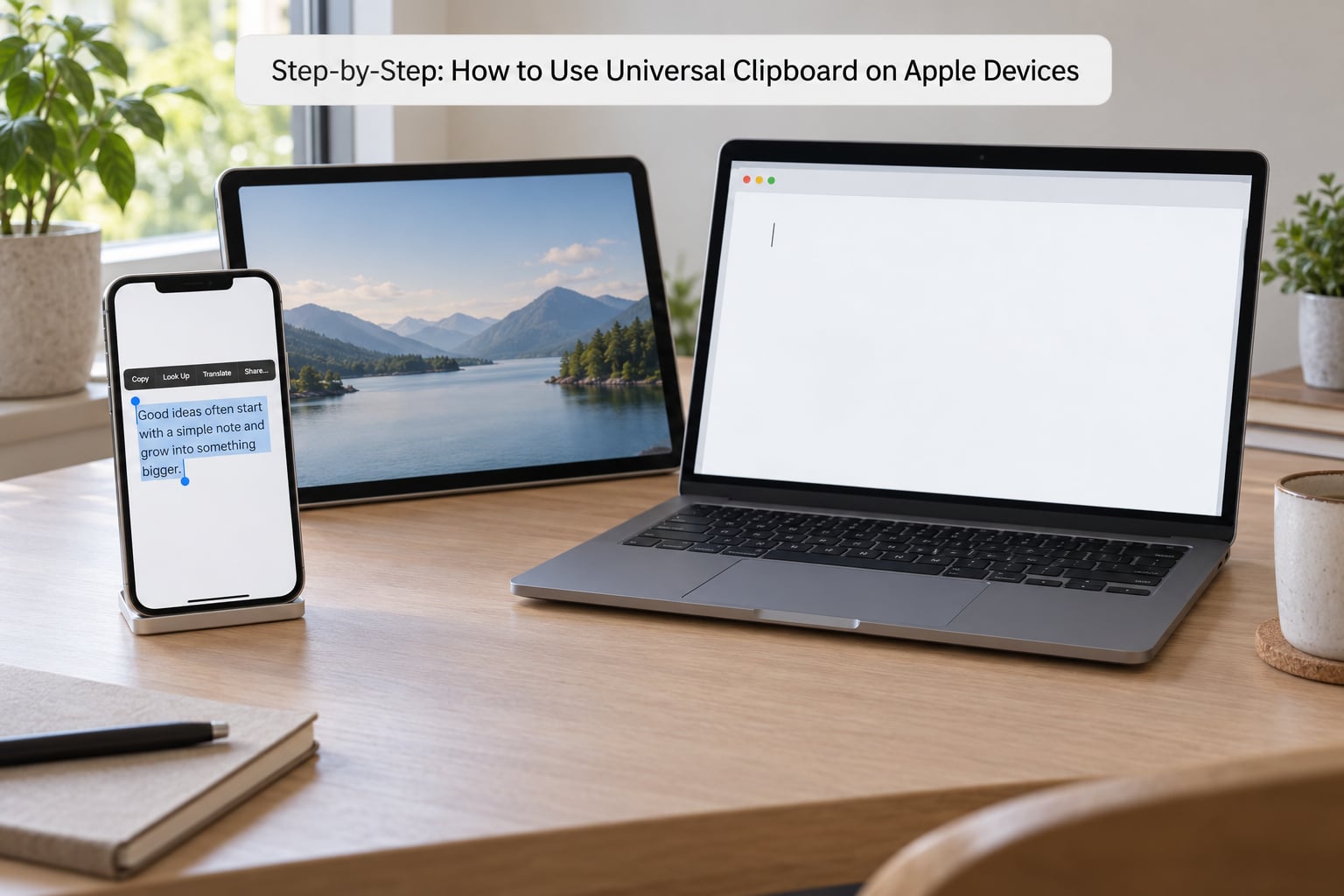
Step 1: Confirm compatibility and sign-in
Open Apple Account settings on each device and check that the email address at the top matches exactly on all of them. Apple Account now covers what used to be called Apple ID, and the same sign-in has to be present on every machine involved. Then check the hardware is recent enough for Continuity: an iPhone 8 or later, an iPad with a modern chip, a Mac from roughly 2016 onward, or an Apple Silicon Mac. Apple requires iOS 10 and macOS 10.12 or better at the absolute minimum, and current software is strongly worth having.
Keep two-factor authentication turned on. Forum troubleshooting threads on Reddit and the Apple communities consistently report that Continuity features misbehave on accounts where it has been switched off, and re-enabling it resolves the issue. Both devices need an internet connection at least once during setup so Apple Account and iCloud state can sync, after which transfers happen over a local peer-to-peer link.
Step 2: Turn on Wi-Fi, Bluetooth, and Handoff-related features
On iPhone and iPad, open Settings, tap General, then AirPlay & Handoff, and flip the Handoff switch on. The same path exists on iPadOS. Older versions of iOS put this under Settings > AirPlay, AirDrop & Handoff instead.
On Mac, click the Apple menu, then System Settings, then General, then AirPlay & Continuity, and turn on Allow Handoff from this Mac. This pane also carries the cursor and keyboard controls for Universal Control, so you can check both at once. Toggle Bluetooth from Control Centre on iPhone and iPad, or the Bluetooth menu on Mac. Wi-Fi sits in Settings > Wi-Fi on iOS and iPadOS, and in the Wi-Fi panel on Mac.
If you want to confirm the Mac sees your phone at all, open Control Centre on the Mac and look for the nearby-devices area at the top of the sidebar.
Step 3: Copy content on the source device
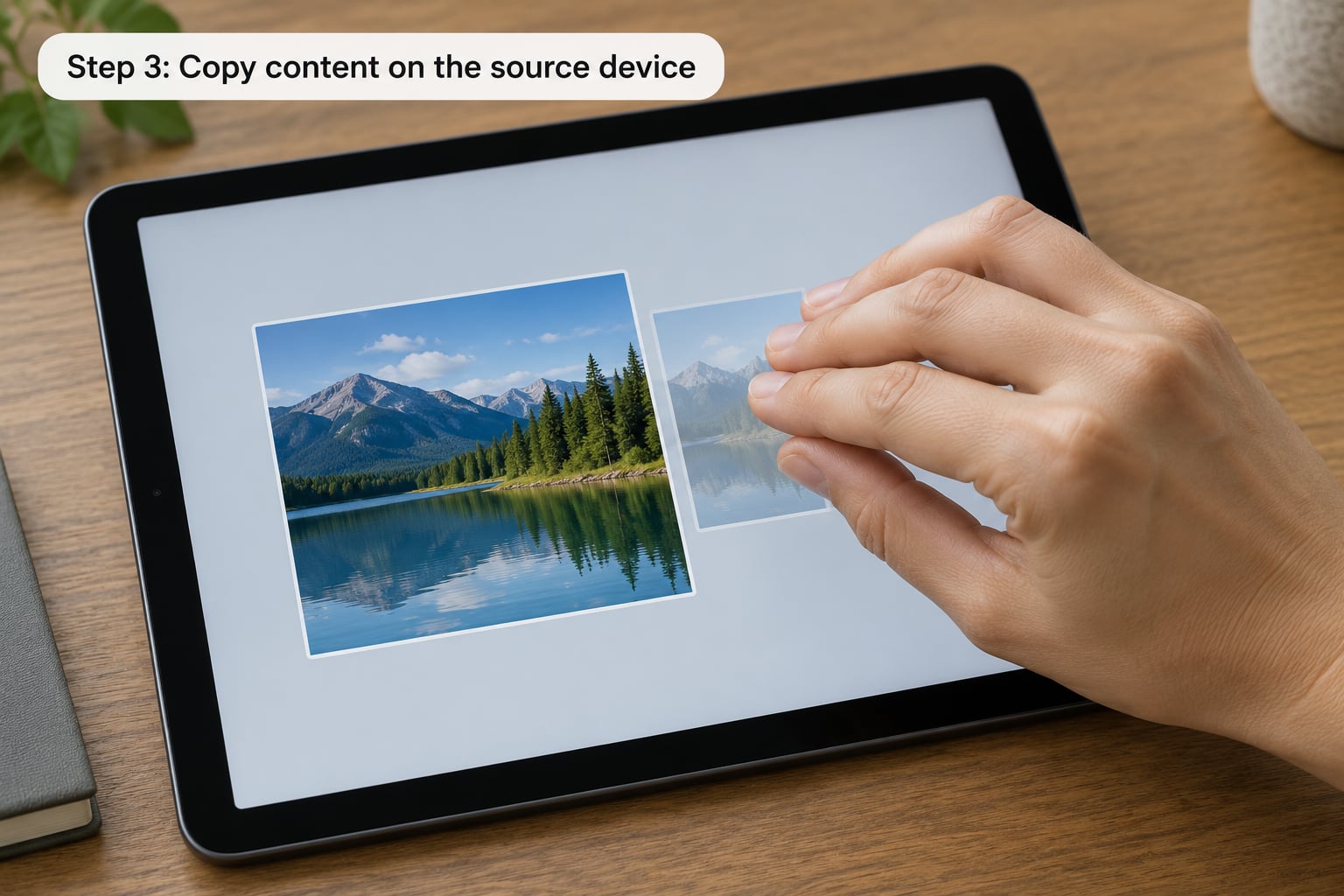
On iPhone and iPad, tap and hold to bring up the selection menu, drag the handles to cover what you want, then tap Copy. You can do this with a paragraph of text, a phone number in a message, a web address, a photo in Photos, or an image in Notes or Mail.
For a full-screen capture, press the side buttons and volume buttons together on an iPhone, then tap the copy icon on the screenshot preview. The image is on the clipboard immediately.
On Mac, select the text or file and press Command-C. Finder works the same way — copy a file in one Finder window, click into another window, and press Command-V.
Between iPhone and iPad there is a shortcut worth learning: a three-finger pinch on a photo or text opens a small pop-up with Copy and Paste, so you can send something across without opening the Copy menu at all.
Then physically move to the other device. Whatever you copied stays on the clipboard for roughly two minutes, and anything you copy in that window overwrites it.
Step 4: Paste on the destination device
On iPhone and iPad, tap once inside the app where you want the content to land — a Notes page, a Messages thread, a browser search bar — then press and hold until the Paste menu appears and tap it. In some apps a small Pasteboard button appears under the cursor instead; tap that.
On Mac, click into the destination app or Finder window and press Command-V, or use Edit > Paste from the menu bar.
How do you know it worked? The content simply appears in the field with nothing downloaded, no progress spinner and no file transfer step. If a Paste option is greyed out, the clipboard link is broken, and the next section is where to look.
Step 5: Resolve common transfer issues
Work through this in order, cheapest fix first. Restart both devices — this alone fixes a surprising share of reported failures, particularly immediately after an iOS or macOS update. Toggle Bluetooth off, wait ten seconds, and back on, doing the same on both devices. Confirm Wi-Fi is on and connected on each device. Check the Handoff switch on every device again, since an update occasionally resets it. Turn off third-party apps under Settings > General > Background App Refresh on iPhone and iPad; multiple Reddit users identified this as the culprit behind third-party tools interfering with clipboard sync. Disable any VPN or proxy you are running, since managed networks block the peer-to-peer traffic Continuity relies on. Sign out of iCloud and back in on each device, one at a time. Finally, reboot both.
If one direction works and the other does not, that is usually a stale clipboard on the receiving side. Copy something fresh on the source device within the two-minute window rather than waiting.
Common Mistakes
Two different Apple Accounts
The most common cause, and the least obvious because the feature just never appears. Clipboard sharing is tied to one account, so a work iPhone and a personal Mac will never sync. Sign both into the same Apple Account, or accept that they stay separate and use AirDrop instead.
It worked until an update
Plenty of users report copy and paste between Mac and iPhone or iPad breaking straight after an iOS or macOS update with no setting change on their end. Treat the restart and the Handoff recheck above as the first move, since that matches what usually fixes it.
Bluetooth or Wi-Fi off on one device
Wi-Fi is needed for the local network path and Bluetooth for device discovery. A phone that has been in Low Power Mode overnight sometimes leaves Bluetooth off after reconnection. Check both devices separately.
Devices too far apart
Clipboard sharing is designed for nearby devices, roughly within 10 metres and in the same room. Across a house or between floors it will not connect, and there is no setting to widen that.
Unsupported content
Passwords, one-time codes, card numbers and DRM-protected media do not transfer. Anything copied inside a secure text field stays put by design. Waiting too long is the other version of this mistake: the content expires after about two minutes and a new copy replaces it.
A third-party clipboard manager interfering
Clipboard history apps on iPhone keep the system clipboard busy, which can break the sync. On Mac, third-party clipboard utilities do the same. Close them and test again before blaming the Apple Account.
Trying to turn it off
There is no separate on switch for Universal Clipboard, and no way to disable it per app. Switching off Handoff on a device turns off clipboard sharing, Universal Control, and the other Continuity handoffs on that device together. If a family member on a shared or family Apple Account copies something near your devices, it can land on your clipboard — giving each person their own Apple Account is the real fix for that.
Frequently Asked Questions
Do Universal Clipboard and Handoff need to be on?
Yes. Handoff is the master switch for Continuity features on every current Apple device. Universal Clipboard shares its toggle, so if Handoff is off, nothing crosses between your devices. Turn it on under Settings, General, AirPlay and Handoff on iPhone and iPad, or System Settings, General, AirPlay and Continuity on Mac.
Can Universal Clipboard work with two different Apple Accounts?
No. Clipboard sharing is tied to a single Apple Account plus iCloud, so a personal Mac and a work iPhone will never sync even on the same Wi-Fi network with Bluetooth on. Sign both devices into the same account if you need the feature, or use AirDrop for transfers across two accounts.
Does Universal Clipboard need Wi-Fi or an internet connection?
Wi-Fi should stay switched on, and both devices work best on the same network, but the transfer itself runs over a local encrypted peer-to-peer link rather than the internet. You need a working connection during setup so iCloud and Apple Account state can sync. After that, transfers generally keep working even on a network with no internet access.
How long does copied content stay available on the other device?
Roughly two minutes. After that the item disappears and pasting returns nothing, which is the single most common reason people think the feature has broken. Anything you copy in that window also overwrites what was there before, and Apple keeps no history of earlier items on the system clipboard.
Does Universal Clipboard work with Windows or Android devices?
No. It is limited to iPhone, iPad and Mac signed into the same Apple Account. Apple Watch and Apple TV are excluded as well. If you need to reach a Windows PC or an Android phone, you will have to use a third-party clipboard utility such as a shared network clipboard app, or fall back on email, messaging apps and cloud drives.
Conclusion
Start by opening the Handoff pane on both devices and confirming the switches are on, then check that every device is signed into the same Apple Account. Those two checks resolve most failed transfers, and copying fresh again fixes the cases where you simply waited past the two-minute window. Once it is working, the feature quietly removes a surprising amount of AirDrop and messaging from a normal day.