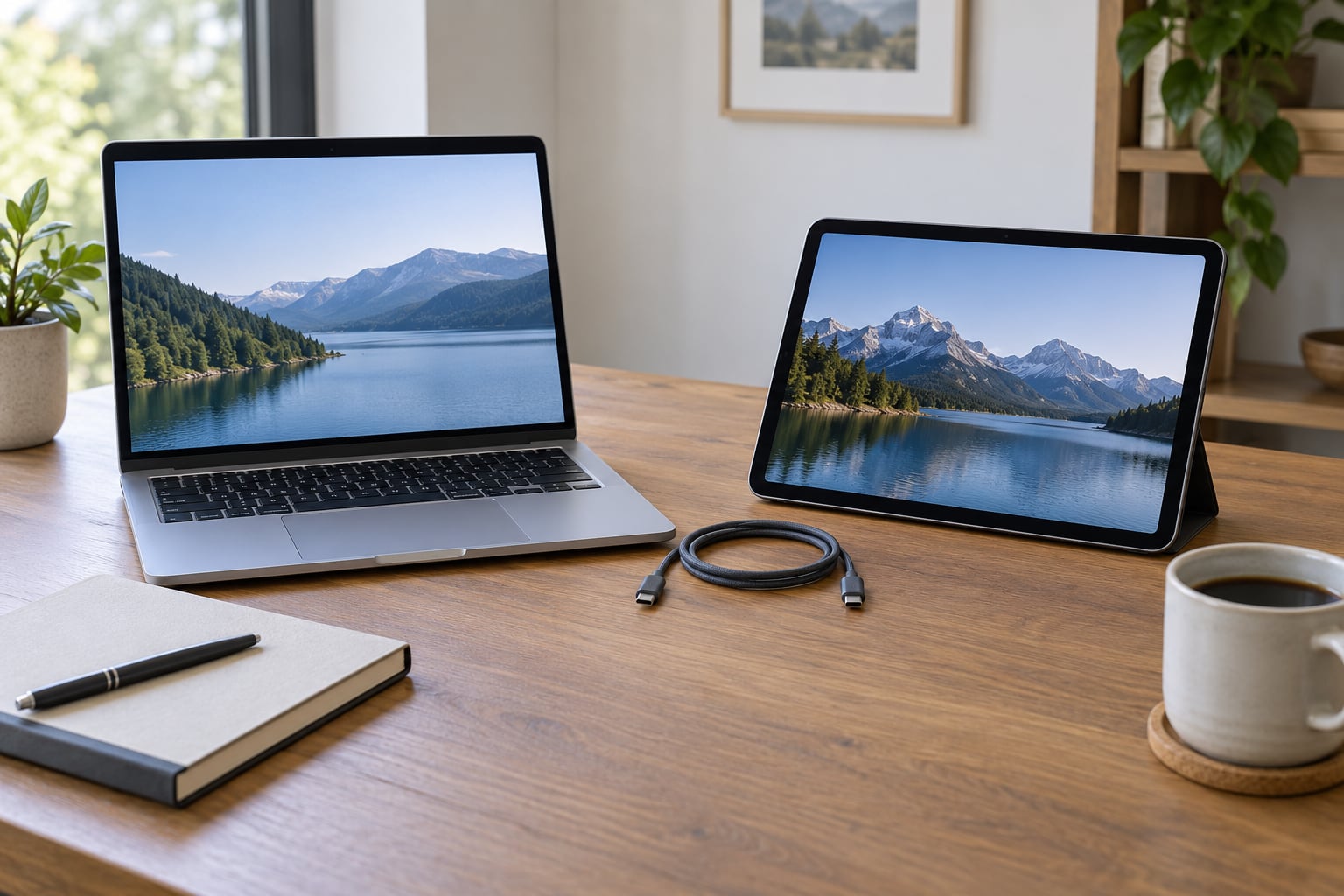
To use an iPad as a second display for Mac, open Control Center on the Mac, click the Screen Mirroring icon, choose your iPad, and Apple calls it Sidecar. It takes about a minute, costs nothing, and works wirelessly or over a USB-C cable. The catch is compatibility: if your iPad or Mac is too old, or they are signed into different Apple Accounts, the iPad simply will not appear.
I run my MacBook with an older iPad as a permanent second screen. It lives beside the laptop showing Mail, Slack, and a reference doc, and it travels in the same bag. This guide covers what you need, the exact menu paths in current macOS, and the fixes for the problems that actually come up.
Table of Contents
- 1What You Need to Use iPad as a Second Display for Mac
- 2Step-by-Step
- 3Use iPad as a Second Display for Mac with Sidecar
- 4Extend or Mirror the Mac Display
- 5Move and Arrange Apps Across Both Screens
- 6Connect by USB for Better Performance
- 7Disconnect and Reconnect the iPad
- 8Common Mistakes
- 9Frequently Asked Questions
- 10Can I use my iPad as a second monitor for any Mac?
- 11Does Sidecar work wirelessly, or do I need a USB cable?
- 12Can I use an Apple Pencil or mouse on the iPad in Sidecar?
- 13How do I get more screen space without duplicating the Mac display?
- 14What should I do if Sidecar is unavailable on my Mac?
- 15Start Using Sidecar in Under a Minute
What You Need to Use iPad as a Second Display for Mac
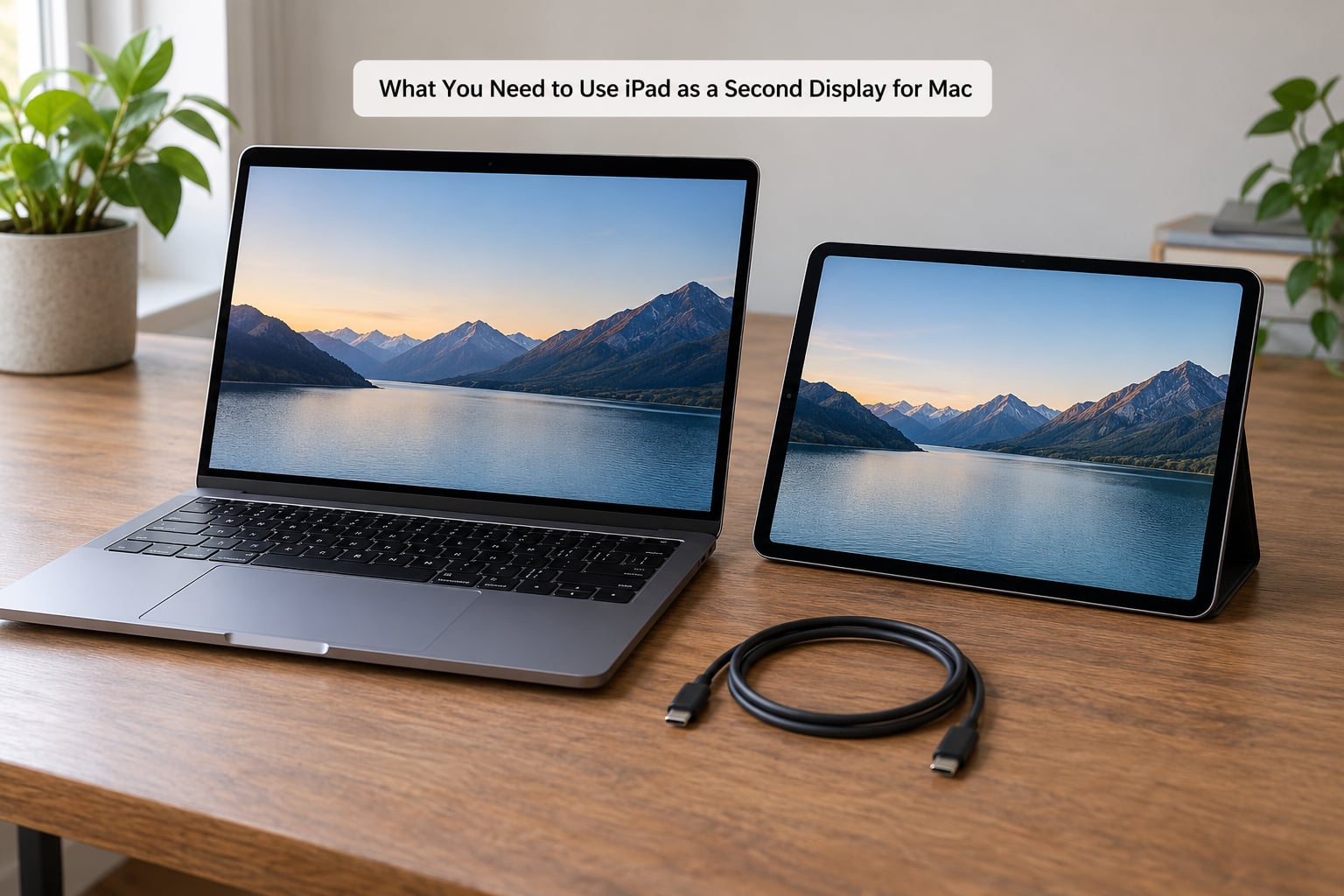
Sidecar needs both devices signed into the same Apple Account with two-factor authentication on. On both sides, Wi-Fi, Bluetooth, and Handoff must be switched on, and the two devices must be within roughly 10 metres of each other or joined by a USB cable.
Here is the compatibility grid, because this is where most attempts fail:
| Device | Works with Sidecar | Does not work |
|---|---|---|
| MacBook | MacBook Pro 2016 or later, MacBook Air 2018 or later | Any older MacBook Pro or MacBook Air |
| Mac desktop | Mac mini 2018 or later, iMac Retina 27-inch Late 2015 or later, iMac Retina 5K 27-inch 2017 or later, iMac Pro 2017, Mac Pro 2017 or later | Older Intel iMacs without a Retina display |
| iPad | iPad 6th generation and later, iPad mini 5th generation and later, iPad Air 3rd generation and later, iPad Pro 12.9-inch (all generations), iPad Pro 10.5-inch, 10.9-inch, 11-inch, and 12.9-inch 3rd generation or later | iPad Air 2, iPad mini 4, and any iPad older than those |
| Software | macOS Catalina 10.15 or later and iPadOS 13 or later, ideally both up to date | Any pairing where one side is below those versions |
Two requirements catch people out constantly. First, the Apple Account must match exactly; an iPad signed into a work profile or a family member’s account will not show up even if you are both in the same room. Second, a VPN can block the local network traffic Sidecar needs, so turn it off while you set things up.
A USB-C cable is optional, not required, but it is the single most effective fix for laggy wireless sessions. Any cable that charges an iPad will do, and a USB-C to USB-C cable also charges the iPad while it works as a display.
Step-by-Step
Use iPad as a Second Display for Mac with Sidecar
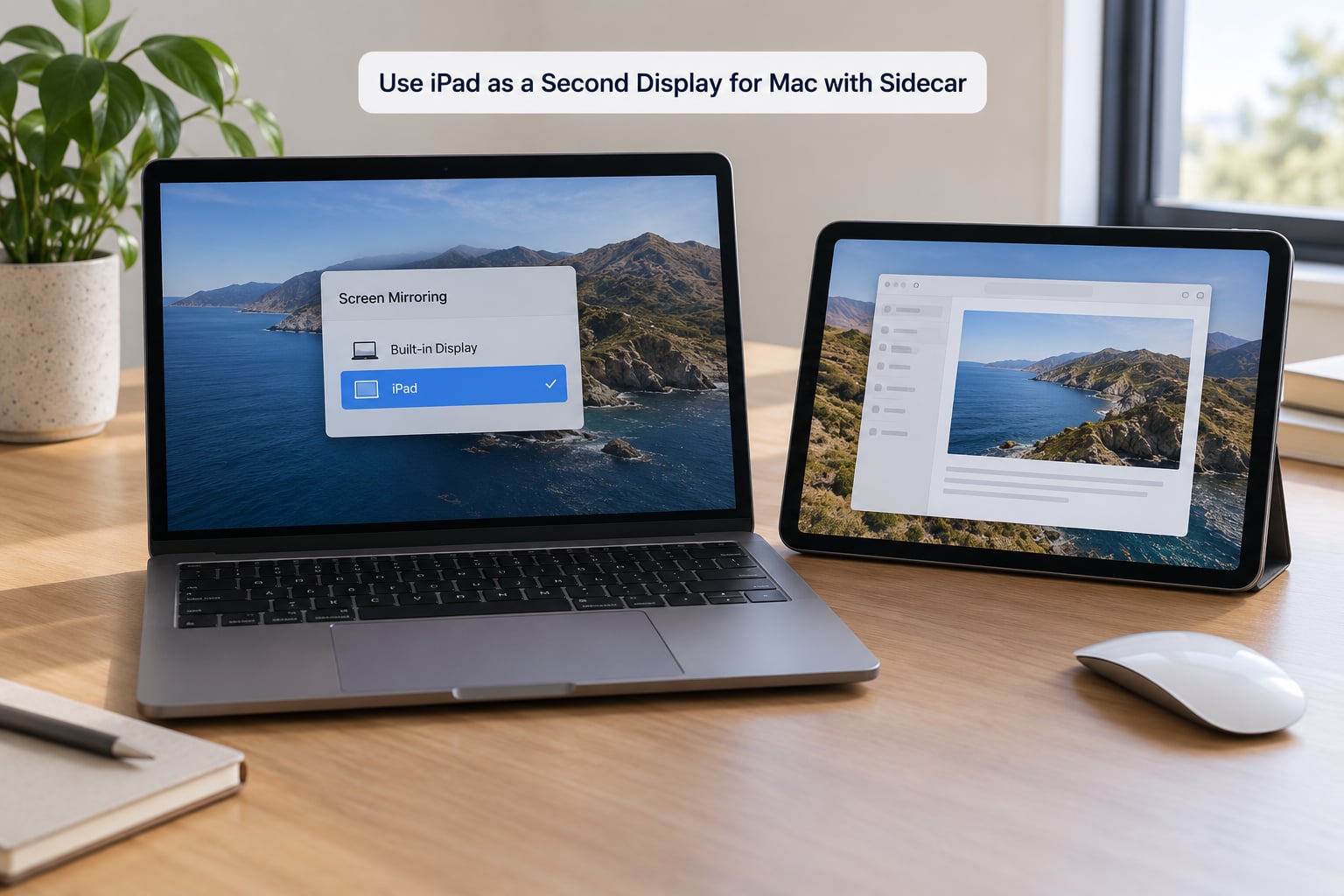
On the Mac, click the Control Center icon in the menu bar, then the Screen Mirroring button. Wait a second or two and your iPad shows up in the list alongside your other displays.
Select the iPad, then choose Use As Separate Display. If you would rather see the same image on both screens, pick Mirror Built-in Display, which is labelled Mirror Built-in Retina Display on Retina Macs.
A small Sidecar toolbar appears in a corner of the iPad the moment the connection succeeds. Drag a window from the Mac onto the iPad screen and it lands there. That toolbar and a window appearing on the tablet are your two verification signals that it worked.
The same route exists in System Settings: Apple menu, then System Settings, then Displays, where your iPad appears as a panel you can select. Use whichever one you can find faster, they do the same thing.
Extend or Mirror the Mac Display
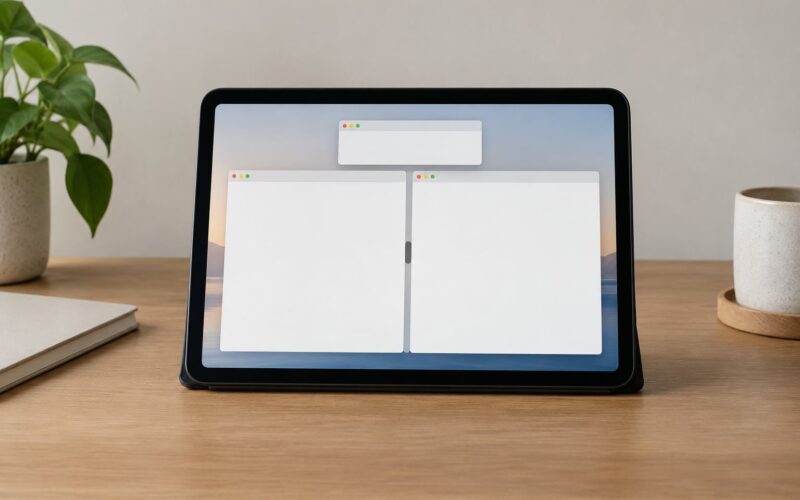
Extended means the two screens behave like one large desktop: windows can span from the Mac display onto the iPad, and the pointer crosses between them. Mirrored means both screens show an identical image, which is handy for showing a colleague something.
To switch after you have already connected, open Control Center, click Screen Mirroring, click your iPad, then pick either Extend Display to Extend or Mirror Built-in Display. The choice applies immediately, no reconnect needed.
Extended is what people actually want day to day. Mail, chat, a running document, a stock dashboard, a podcast player. Mirroring is for presentations and for the moments when a second person needs to see your screen.
Verify which mode you are in by dragging a window as far right as you can. If it slides off the Mac display and lands on the iPad, you have extended. If it bounces back, you are mirroring.
Move and Arrange Apps Across Both Screens
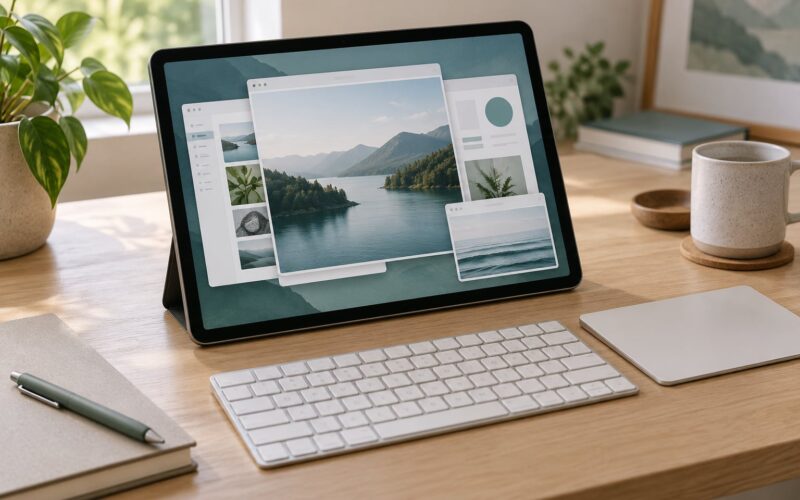
To send a single window to the iPad, hover over its green full-screen button until the second control appears, and pick the small iPad-shaped icon. Alt-click the green button does the same thing without the menu. Dragging a window with the pointer works exactly like moving it to any other monitor.
The Sidecar toolbar handles the rest. It toggles brightness, flips the iPad between landscape and portrait, shows the modifier keys sidebar, and turns the iPad into a virtual Touch Bar on Macs that lack one. A three-finger pinch on the iPad copies and pastes into Mac apps, matching what the trackpad does natively.
Screen position is set in System Settings, then Displays, then the Arrange Displays grid. Drag the iPad rectangle to the left or right side, whichever matches where the tablet physically sits. Get this wrong and the pointer feels like it flies off in the wrong direction.
Apple Pencil works as a pointer inside Sidecar, which is genuinely useful in drawing and markup apps. Touch input is disabled in Sidecar mode, so do not expect the tablet to behave like a touchscreen.
Connect by USB for Better Performance
Plug a USB or USB-C cable into the Mac and the iPad while Sidecar is running and it usually switches to the wired stream on its own, giving you a steadier frame rate and lower latency. If it does not, unplug it, confirm Use As Separate Display is still selected in the Screen Mirroring menu, and plug it back in.
The iPad must be trusted by the Mac the first time. Unlock the iPad with its passcode after connecting, tap Trust in the prompt that appears on it, and enter your Mac password.
You do not lose wireless. The two devices stay paired over Bluetooth and Wi-Fi, so you can unplug the cable and keep going, then reconnect it later for a heavy session. Long editing timelines and anything latency-sensitive, such as gaming or dragging a large file, are where the cable earns its keep.
Disconnect and Reconnect the iPad
To stop a Sidecar session, click the Screen Mirroring icon and select your Mac again, or press the disconnect button on the Sidecar toolbar. The iPad returns to its home screen and works normally as an iPad again.
Reconnect later the same way you started: Control Center, Screen Mirroring, tap the iPad. Most of the time it reconnects automatically when both devices wake up nearby.
Confirm the extended desktop is back by dragging a window toward the edge of the Mac screen. It should slide onto the iPad rather than stopping at the bezel.
Common Mistakes
Most failures come down to one of six things. Here is what each symptom means and the fix that usually works.
The iPad does not appear at all. Check the Apple Accounts on both devices first; mismatched accounts are the most common cause and there is no fix other than signing both into the same one. If the accounts match, confirm Handoff is on in both Settings, then restart both devices. Still nothing? Check your model against the table above, because unsupported hardware cannot be coaxed into working.
Error saying Wi-Fi is not available on the iPad. Turn Wi-Fi off and on again on the iPad, then toggle Airplane Mode. Restarting the iPad resolves this for most people.
The connection keeps dropping or timing out. Switch to a USB-C cable, and long sessions will hold. Disabling Reduce Motion and Reduce Transparency in Accessibility is reported to make wireless sessions noticeably more stable. Moving the iPad out of a pocket and off a soft surface helps, since heat throttles the connection.
The other screen goes black when I put an app in full screen. Exit full screen by hovering the green button and choosing the exit control, or press Control-Command-F. macOS occasionally leaves the wrong display blanked after moving a full-screen window across.
Both screens show the same thing. You are in mirrored mode. Open the Screen Mirroring menu and choose Extend Display to Extend.
A window disappeared and I cannot find it. Check the arrangement grid in Displays; the iPad may have been placed below the Mac rather than beside it. If the window itself is stuck, try dragging it back, or check Mission Control to find it.
The iPad drains quickly. Wired Sidecar still runs the display engine on battery, so a long session will eat charge. Connecting the cable charges the iPad while it works.
A few habits make sessions smoother. Turn off screen recording tools, which capture the stream and add overhead. Do not run a VPN during the session. Keep the two devices within a couple of metres rather than across the room. And expect the iPad’s own resolution not to be used; it inherits a scaled resolution from the MacBook, which can make small text look softer than it would on a real monitor.
Know what this setup is not good for. It is a documentation, communication, and reference screen. It is not a colour-critical canvas, it is not a comfortable place to grade a video, and it is not where you want to edit a timeline with lots of scrubbing.
Frequently Asked Questions
Can I use my iPad as a second monitor for any Mac?
No. Sidecar needs a MacBook Pro from 2016, a MacBook Air from 2018, a Mac mini from 2018, a Retina iMac from Late 2015 or 2017, an iMac Pro, or a 2017 Mac Pro. Older Macs and Intel iMacs without a Retina display do not support it at all. The Mac also needs macOS Catalina 10.15 or later.
Does Sidecar work wirelessly, or do I need a USB cable?
Both. Wireless is the default and works well when the iPad stays within about 10 metres of the Mac with both on Wi-Fi and Bluetooth. A USB or USB-C cable gives a steadier frame rate and lower latency, which matters for long sessions, and it charges the iPad while it works. The two devices stay paired either way.
Can I use an Apple Pencil or mouse on the iPad in Sidecar?
An Apple Pencil works as a pointer inside Sidecar, which is handy in drawing and markup apps, and an attached Bluetooth mouse or trackpad also works. Touch input is disabled in Sidecar mode, so tapping the iPad screen does nothing. You need a Mac keyboard or mouse, or the Mac’s on-screen keyboard, to type into a Mac window.
How do I get more screen space without duplicating the Mac display?
Choose Extend Display to Extend rather than Mirror Built-in Display, which is labelled Mirror Built-in Retina Display on Retina Macs. You can switch from the Screen Mirroring item in Control Center at any time during a session, without disconnecting. Once extended, set the iPad on one side of the Mac in the Arrange Displays grid in System Settings, then drag windows across the seam.
What should I do if Sidecar is unavailable on my Mac?
Work through the basics in order: confirm both devices are signed into the same Apple Account with two-factor authentication on, turn on Wi-Fi, Bluetooth and Handoff on both, restart both, and turn off any VPN. If the iPad still does not appear, your hardware is probably outside the supported list and no third-party app will change that.
Start Using Sidecar in Under a Minute
Open Control Center on the Mac, click Screen Mirroring, and pick your iPad. That is the whole first move, and it takes about a minute once both devices are signed into the same Apple Account.
The real benefit is not a bigger canvas than a monitor, it is a second screen that is already in your bag. Mail, chat, a reference document, a dashboard you glance at but do not touch, all of it off your main display.
Start wireless, and reach for a USB-C cable the moment the connection stutters or you settle in for a long session. Check your model against the compatibility table first, because that is the only step with no workaround.