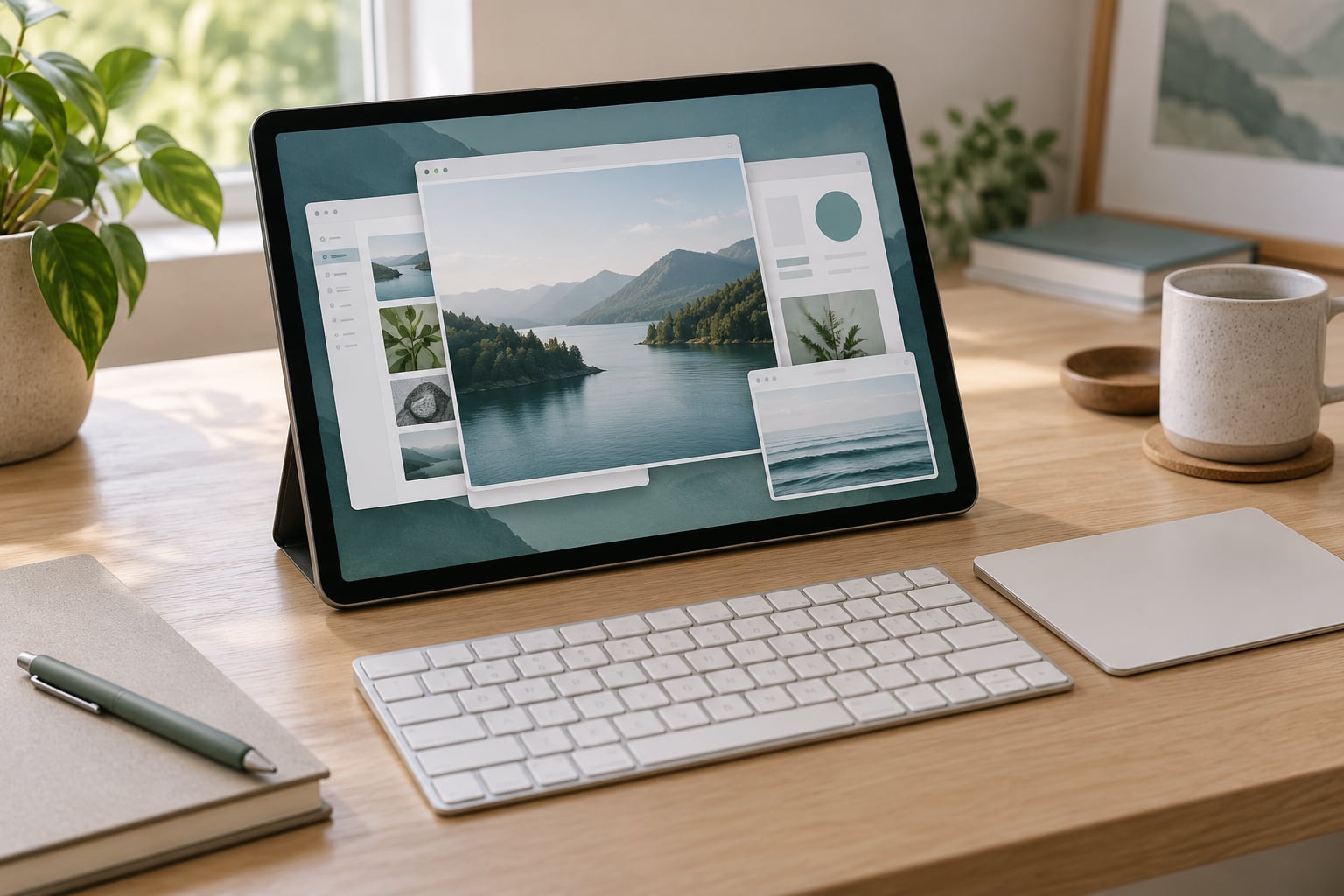
Stage Manager turns your iPad into a windowed workspace: you can resize, move and overlap app windows, switch between apps with a tap, and park everything you are not using in a slim strip along one edge of the screen. To turn it on, open Control Center and tap the Stage Manager button, or enable it in Settings under Home Screen & Multitasking.
I use it every day on an 11-inch iPad Pro, and the thing that took me longest to understand was not the mechanics. It was the idea of a stage. A stage is just a set of apps you have decided belong together for one task, and switching between stages swaps that whole set in one move instead of app by app.
Table of Contents
- 1What You Need
- 2Step-by-Step
- 31. Check That Your iPad Supports Stage Manager
- 42. Turn On Stage Manager
- 53. Open and Switch Between Apps
- 64. Resize and Move App Windows
- 75. Create and Use App Groups
- 86. Turn Stage Manager Off or Pause It Temporarily
- 9Common Mistakes
- 10Frequently Asked Questions
- 11Can I use Stage Manager on my iPad?
- 12Which iPads support Stage Manager?
- 13How do I turn off Stage Manager on my iPad?
- 14Can I move the Stage Manager sidebar to the other side?
- 15Does Stage Manager work with an external monitor?
- 16Is Stage Manager better than Split View?
- 17Conclusion
What You Need
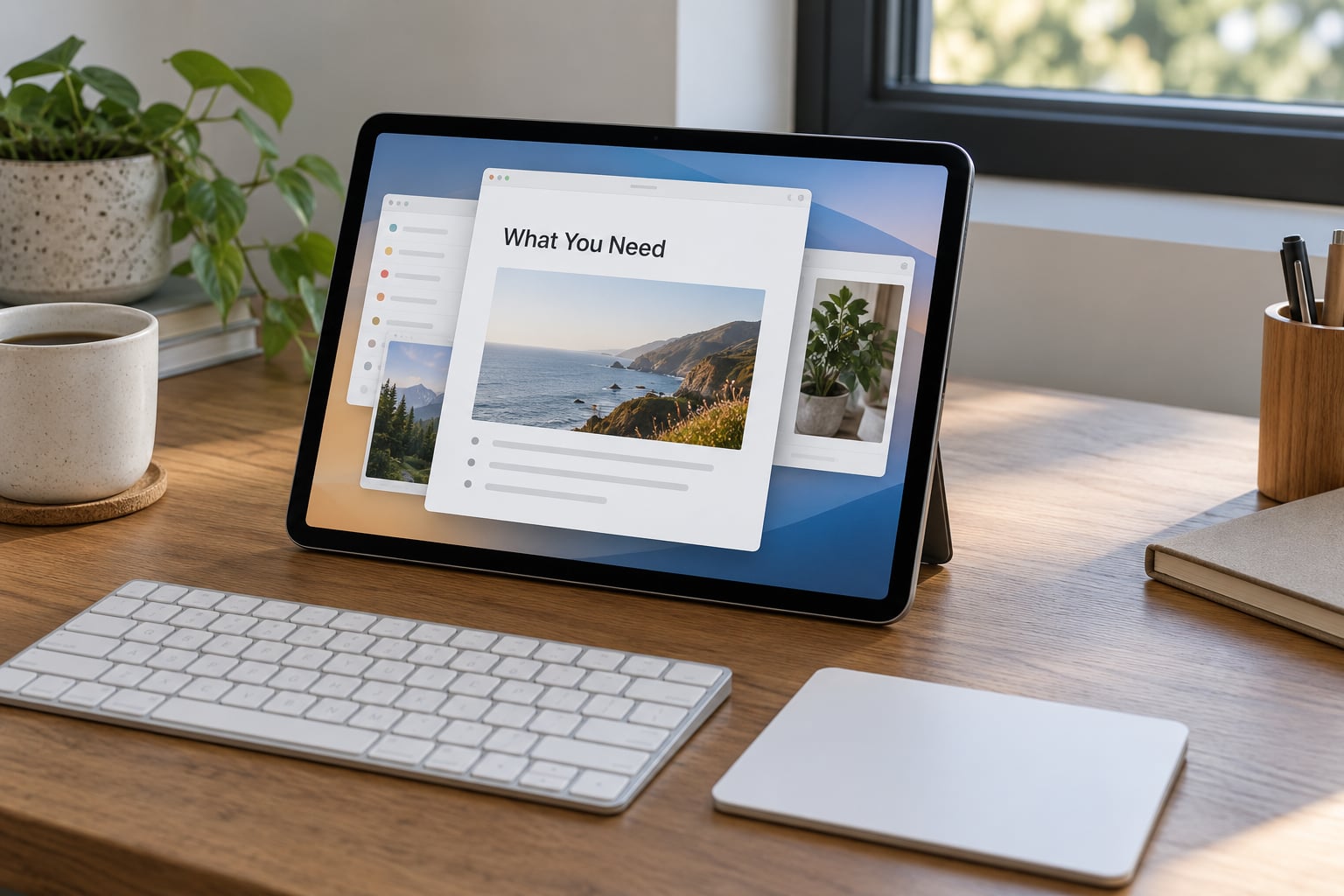
Two things decide whether Stage Manager appears on your iPad at all: the chip inside it and the version of iPadOS running on it.
Stage Manager needs an Apple silicon chip, which means an M-series iPad. That covers the 11-inch and 12.9-inch iPad Pro from the 3rd generation onward, the iPad Air 5th generation and later, the iPad mini 7 and later, and every current iPad in the standard line. You also need iPadOS 16 or later, and staying current helps, since Apple has added window handling improvements in each release since, including in iPadOS 17 and 18.
If the Stage Manager button is not in Control Center and there is no toggle in Settings, your iPad has an older chip. That is a hardware limit, not a setting you missed. Older models such as the 2020 iPad Pro, the 9th generation iPad and the 6th generation iPad mini never gained support, and no update will change that.
Step-by-Step
1. Check That Your iPad Supports Stage Manager
Open Settings and tap Home Screen & Multitasking. If you see Use Stage Manager on iPad with a switch beside it, your iPad supports the feature. If the line is missing, the hardware is too old.
2. Turn On Stage Manager
There are two ways, and they do the same thing.
Control Center: Swipe down from the top-right corner of the screen to open Control Center, then tap the Stage Manager icon. The screen resizes slightly and the window strip slides in along one edge. You will know it worked the moment the active window shrinks.
Settings: Open Settings, tap Home Screen & Multitasking, and switch on Use Stage Manager on iPad.
There is no built-in keyboard shortcut to toggle Stage Manager on and off, which comes up constantly on forums. With a Magic Keyboard or a trackpad attached you still have to reach for Control Center or Settings.
3. Open and Switch Between Apps
The large window in the middle is your active app. Tap any app in the Recent Apps strip along the edge of the screen and it opens in that main window. You can also open a second window of the same app by dragging it from the Dock, and on iPadOS 17 and later that app can show multiple windows at once.
To get a bigger view of what you are working on, hover your cursor near the top edge of the active window. The three grey dots appear in the corner, and tapping the yellow button maximizes the window. Tapping it again puts it back.
Newer versions of iPadOS include window tiling, so you can snap a window to half the screen and have the free space beside it offer a second app.
4. Resize and Move App Windows
Drag a window by its title bar to move it. Drag any edge or corner to resize, and the neighbouring windows shuffle out of the way rather than stacking underneath. You can drag a window right over another one to tile them into two halves of the screen.
For fine control, hover over the top edge until the dots appear and click the leftmost one to open the window menu. From there you can choose Snap to Left, Snap to Right, Fill or Enter Full Screen. The menu also carries Zoom and the option to move the window to an external display.
5. Create and Use App Groups
This is where Stage Manager earns its keep. A group is just several windows sitting together in the same stage, and you make one by dragging additional apps into the main area while your first app is already open.
Here is the setup I use for writing. A notes app holding my outline in one window, the browser with my references in a second, and my draft document underneath. When I am done researching, I press the yellow button on the draft and the notes and browser drop into the strip. All three are still one tap away.
Switching stages takes one tap on any window in the strip. When you come back to that stage, the windows return in the arrangement you left them in. Users on iPad forums consistently describe this as faster than reopening each app, and after a couple of weeks of use it stops feeling like a trick and starts feeling normal.
6. Turn Stage Manager Off or Pause It Temporarily
Open Control Center and tap the Stage Manager icon again, or turn off Use Stage Manager on iPad in Settings under Home Screen & Multitasking. Your apps go back to full screen and the strip disappears.
If you only want one app to have the whole screen without losing your setup, double-tap the app’s icon or use the yellow button in the window menu. A swipe up on the home indicator or a pinch-out gesture from the bottom edge restores Stage Manager.
Common Mistakes
No Stage Manager button in Control Center. Almost always the chip. Check Settings under Home Screen & Multitasking first, and if the toggle is missing there too, the iPad predates Apple silicon.
An app never shows up in the Recent Apps strip. Phone-only apps such as Instagram often refuse to window and jump straight to full screen. That is an app limitation, not something you can fix from Settings.
You went full screen by accident. Tap the three dots in the corner of the window, choose Fill, or open the Dock from the bottom and pick the Stage Manager icon. This catches people out most often after a stray double-tap on a Home Screen icon.
Windows look wrong on a small iPad. The saved window positions are sized for a bigger display, so on an iPad mini some windows render at awkward sizes or overlap oddly. Dragging the window back to a sensible size fixes it, though the position may not survive a restart.
You want the window strip on the other side. iPadOS does not let you move it, and left-handed users have asked for it for years. The Dock can go to either side in Home Screen & Multitasking settings, but the Recent Apps strip cannot.
You think you have opened Split View. Dragging one app icon on top of another creates a stage with two windows. That is not Split View, which splits the screen into two fixed halves. Split View suits comparing two apps, Stage Manager suits keeping a pile of references behind whatever you are doing.
Two more limits worth knowing. External displays work, but the experience is rough: users report windows failing to move cleanly between the iPad screen and a monitor, and HDMI-connected displays often refusing to fill the screen. And the Recent Apps strip plus Dock eat into your usable area, so if that bothers you, hide both from the same Home Screen & Multitasking settings screen.
Frequently Asked Questions
Can I use Stage Manager on my iPad?
Yes, if your iPad has an M-series chip, which means an 11-inch or 12.9-inch iPad Pro from the 3rd generation onward, an iPad Air 5th generation or later, an iPad mini 7 or later, or a current standard iPad. You also need iPadOS 16 or newer. Older hardware such as the 2020 iPad Pro and the 9th generation iPad will never support it.
Which iPads support Stage Manager?
Support covers M-series models only: iPad Pro 11-inch and 12.9-inch (3rd generation and later), iPad Air 5th generation and newer, iPad mini 7 and newer, and the current iPad. The requirement is hardware, not software, so upgrading iPadOS alone will not unlock Stage Manager on an older iPad.
How do I turn off Stage Manager on my iPad?
Swipe down from the top-right corner to open Control Center and tap the Stage Manager icon again. You can also open Settings, tap Home Screen and Multitasking, and switch off Use Stage Manager on iPad. Apps return to full screen and the window strip disappears, but your app groups are remembered for next time.
Can I move the Stage Manager sidebar to the other side?
Not currently. iPadOS only places the Recent Apps strip along one edge and offers no setting to swap sides, which frustrates left-handed users. The Dock underneath can be moved to either side in the same Home Screen and Multitasking settings, but the strip itself stays where iPadOS puts it.
Does Stage Manager work with an external monitor?
It does, and with a keyboard and mouse attached an iPad can behave much like a laptop. The experience is imperfect though. Users report windows failing to move cleanly between the built-in screen and the monitor, and HDMI-connected displays that refuse to fill the screen instead of showing one near-full-screen window.
Is Stage Manager better than Split View?
They suit different jobs. Split View pins two apps to fixed halves of the screen and is best for comparing them side by side, like a document and its notes. Stage Manager keeps a stack of apps one tap away behind whatever you are working on, so it wins when you need quick access to several references without giving up screen space.
Conclusion
Quickest route: swipe into Control Center from the top-right corner, tap the Stage Manager icon, and confirm it worked by watching your active window shrink. Then open the app you care about most and drag one or two more into the main area to form your first group.
Give it a week before you decide. The controls are simple, but thinking in stages takes a few days to click, and once it does you will stop launching apps one at a time.