Updated for October 2026. Steps follow the current iOS menu names: Summary, Sharing and Browse.
Knowing how to use the Health app to track habits takes about ten minutes of setup and then about five seconds a day. Open Health, fill in your health profile, star the handful of metrics that matter to you on the Summary tab, and log the rest by hand when something the app cannot measure gets done.
The quick version, in seven steps:
- Open Health and complete your health profile with birthdate, biological sex, height and weight.
- Open the Summary tab and swipe down to star your favourite metrics into the Favorites row.
- Learn which habits log automatically: steps, flights climbed, exercise minutes, stand hours, walking distance.
- Add the rest by hand: Health, Browse, choose the category, tap Add Data.
- Set a recurring reminder in the Reminders app for the habits Health will never nudge you about.
- Give third-party apps write permission under Settings, Apps, Health, Data Access & Devices so they can fill in the blanks.
- Open Trends every Sunday and change one thing, rather than logging more.
The single biggest thing to understand is that Health is an aggregator, not a detective. Your iPhone measures some things, Apple Watch measures more, and other apps write in the rest. When a card sits empty, that usually means nothing has written to it yet, not that the app is broken.
Table of Contents
- 1What You Need
- 2Step-by-Step
- 3Step 1: Open the Health App and Review Permissions
- 4Step 2: Choose One Habit to Track
- 5Step 3: Add a Habit Using Manual Entry
- 6Step 4: Use Habit Reminders and Notifications
- 7Step 5: Review Trends in the Health App
- 8Step 6: Maintain Your Habit Log
- 9Common Mistakes
- 10Frequently Asked Questions
- 11Can I track habits manually in the iPhone Health app?
- 12Do I need an Apple Watch to track habits?
- 13How do I add a reminder for a health habit?
- 14Can I edit or delete a Health app entry?
- 15Is the information in the Health app private?
- 16Why can I not find my habit data in Health Trends?
- 17Conclusion
What You Need
You need an iPhone with the Health app, which ships preinstalled. There is nothing to buy and no account to create. If you wear an Apple Watch or a smart ring, that device makes the automatic half of this far easier, but it is not a requirement.
Open Health, tap your profile picture in the top corner, and fill in birthdate, biological sex, height and weight. Those numbers do not change what the app measures much, but they do affect how some goals and charts are framed, and it takes thirty seconds.
While you are in there, set up your Medical ID as well. It lives on the same profile screen and is readable by anyone who picks up your phone in an emergency, which is the whole point.
Decide before you start which two habits you actually want to follow. Most people set up five and abandon all of them in a fortnight. Two is enough to find out whether this works for you.
Step-by-Step
Step 1: Open the Health App and Review Permissions
The three tabs along the bottom are worth learning properly. Summary is the dashboard. Sharing is for giving a family member or doctor read access to chosen categories. Browse is the library of every data type Health holds, and it is where manual entry happens.
Health itself asks for almost no permission because it is the system app that owns the sensors. The permissions that matter are the ones other apps request. Open the Settings app, scroll to Apps, Health, then Data Access & Devices.
You will see two columns: Allow. You want read access, and write access only for apps you actually trust to log something, such as a meditation app that writes mindful minutes. Revoking write access does not delete the data already in Health, so a nervous experiment is reversible.
You can tell it worked if any card on your Summary tab has a source name under it. Tap a metric and the chart names the device or app behind every data point, which is the quickest way to find out why a number looks odd.
Step 2: Choose One Habit to Track
A habit tracker only helps if the thing you track is measurable and small enough to repeat on a bad day. Walk for twenty minutes. Drink six glasses of water. Take a multivitamin with breakfast. Log ten mindful minutes before bed.
Watch out for goals that sound admirable and turn into daily failure, because a streak that breaks every third day teaches you to stop opening the app. If you care about sleep, track your wake time rather than total hours; a consistent wake time is far easier to hold and pulls sleep duration along with it.
Then split your habit into automatic or manual. Anything your iPhone or Watch measures on its own is automatic. Everything else is manual, and manual habits need a trigger you already have, such as after brushing your teeth or after your first coffee.
Here is the practical version for the habits people ask about most often:
- Walking — Activity, automatic. Your iPhone’s motion sensors count steps and walking distance with no setup at all.
- Flights climbed — Activity, automatic. The barometer detects changes in floor level, so stairs in a stairwell count and a flight of lift does not.
- Exercise minutes — Activity, automatic on Apple Watch. On iPhone alone this often sits empty, so log a workout by hand instead.
- Stand hours — Activity, automatic on Watch. On iPhone alone, the hourly stand reminders are what makes this work.
- Sleep — Sleep, automatic with a Watch or a nearby sleep app. Without either, log your sleep by hand each morning.
- Mindful minutes — Mindfulness, automatic if a meditation app writes to it. Otherwise it is a manual entry.
- Water — Nutrition, manual. Health will not remind you and will not log it for you.
- Vitamins and medication — Medications or Vitals, manual, or scheduled in the Medications section on current iOS versions.
- Mood — Mental Wellbeing, manual, or a supported third-party app writes it for you.
- Weight — Body Measurements, manual. A connected smart scale writes this in for you.
- Blood pressure — Vitals, manual. A cuff with Health support can write readings straight in.
Pick two from that list. The rest can wait until month two.
Step 3: Add a Habit Using Manual Entry
Manual entry takes four taps and about ten seconds. Open Health, tap Browse at the bottom, pick the category from the list, then tap Add Data in the top corner.
The form wants the value first, then the date and time. Fill both in properly because backdated entries with the wrong time will sit in the wrong slot on your charts, and you will spend a Sunday wondering why Tuesday looked strange.
Some categories have a Notes field at the bottom. This is the least used and most useful part of the form. A note reading two coffees plus a poor night is the kind of context that makes a trend readable six weeks later.
Confirm you did it right by going back to the Summary tab. The metric card should show today’s ring filled a little further, and tapping the metric should list your entry with the source shown as Health or Manual.
Step 4: Use Habit Reminders and Notifications
Here is the honest limitation: the Health app has no reminder system for habits you log by hand. It will nudge you about trends, and the Medications section can schedule its own reminders on current iOS versions, but water and vitamins are on you.
The least annoying fix I have found is the Reminders app. Create one repeating reminder set to the time the habit already fits into your day, then open the Health widget from the Home Screen Lock Screen or StandBy to log it in one tap.
Adding a Health widget to the Home Screen is what makes manual logging stick. Without it you have to open the app, and opening the app is where most people give up. Widgets remove the decision, and the decision is the expensive part.
For hands-free entry, say something like add two glasses of water to Health and Siri will log it. Siri handles straightforward values well, so use it while your hands are busy and use Add Data when accuracy matters.
If you would rather build this on notes and reminders alone, that works too and costs nothing. Plenty of people on forums like r/QuantifiedSelf run a simple Reminders checklist plus a Notes log and never install another app. You lose the charts, and you gain a system with zero friction.
Step 5: Review Trends in the Health App
Tap Trends, the third chart icon at the bottom of the Summary tab, then use the Day, Week, Month and Year toggle to see the same metric at four scales. Week is the useful one for habits. Year is the useful one for noticing whether anything actually changed.
Each metric has its own trends page, and the small cards at the top usually show a seven-day or 30-day comparison against your recent average. Scroll further and you get a seasonal view that separates summer from winter, which matters enormously for step counts and daylight-driven mood.
Tap the app icon at the top of a trends page to filter by data source. This is how you confirm that your Watch is supplying the steps and your phone is not quietly adding a second set on top.
Health Highlights appear in Summary when it spots something worth a look, such as a consistent change in resting heart rate or a new record. Treat them as a prompt to look, not as a diagnosis. If a highlight worries you, raise it with a doctor rather than with an app.
Step 6: Maintain Your Habit Log
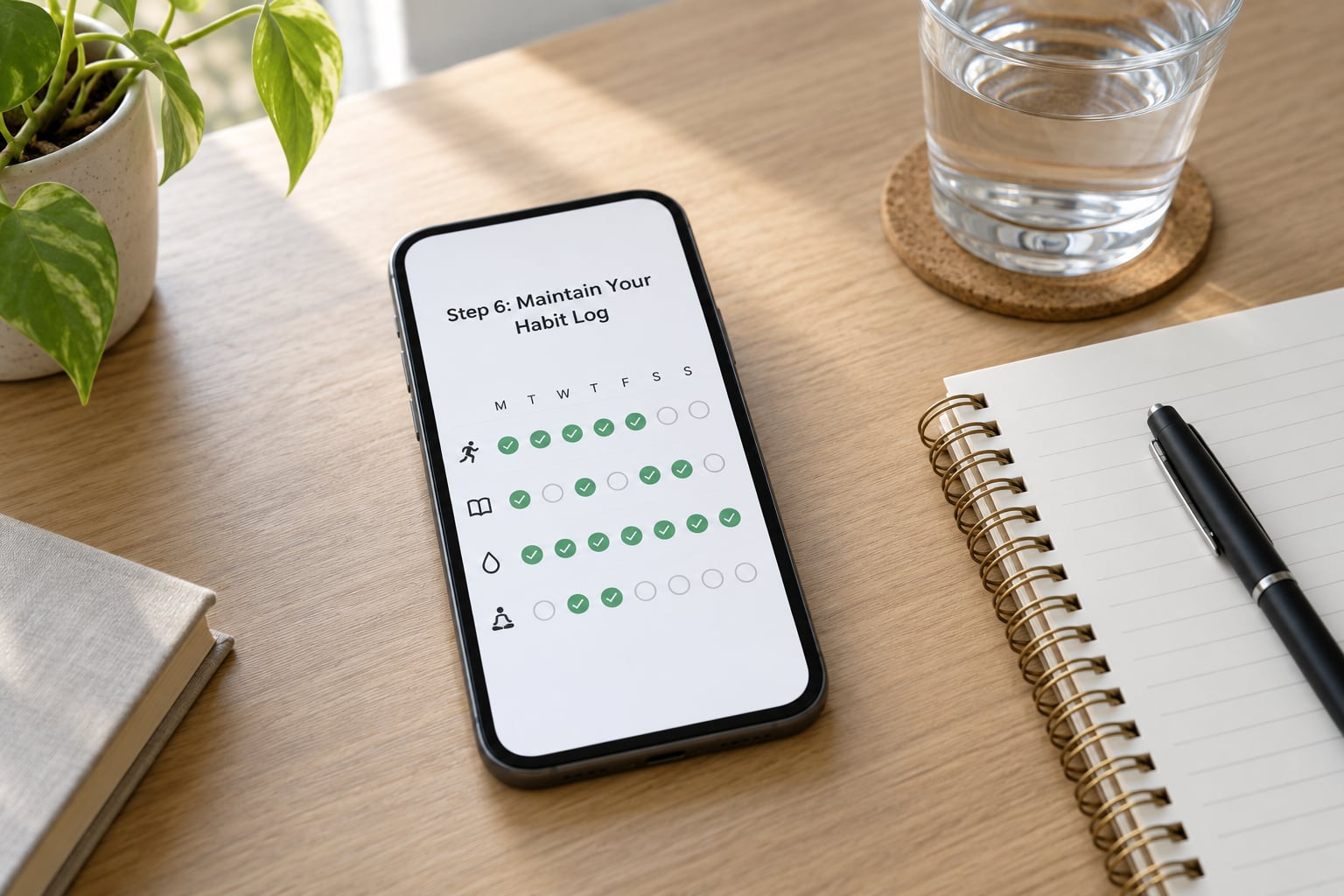
Give yourself a fixed weekly review. Sunday evening, five minutes. Open Trends, look at week against the previous week, and ask one question: which habit slipped and what was in the way?
Change one thing as a result. Swap the evening walk to lunchtime, move the vitamin to the breakfast slot, or set the water reminder to when the kettle boils. Small schedule changes stick better than willpower changes.
To correct something, open the metric, find the entry, and edit or delete it. Health never blocks you from deleting a bad record, which is one of its quiet advantages over paper logs.
And stop here if the numbers start making you anxious. Checking resting heart rate every morning for a month will not tell you more than checking it once a fortnight, and monitoring your own body obsessively is its own kind of unhealthy habit. Health is for general wellbeing, not for diagnosis or treatment.
Common Mistakes
Expecting the app to fill up on its own. Health only shows data something writes to it. An empty exercise-minutes card on an iPhone with no Watch is normal, not a fault. Fix it with a manual workout entry or a connected device.
Tracking ten habits at once. The dashboard becomes noise and you quit. Fix: two habits for the first month, then add a third only if the first two are boring.
Adding data with the wrong timestamp. This quietly corrupts your charts and makes trends look random. Fix: always set the date and time when you log late in the evening.
Your iPhone and Apple Watch show different step counts. This is the most common complaint in the forums and it has a short list of causes. Both devices may count steps independently, your Watch may count a wrist-only movement the phone does not, the Watch may lose a connection during a workout, and if both are worn and both have permission, both sets can be written and shown separately. Fix: open the Steps metric, tap the source list, and turn off write access for the device you would rather trust, usually the Watch.
Breaking a streak and abandoning the app. Health has no streak counter to lose, which is quietly a mercy. Fix: aim for five days a week rather than seven, and mark rest days in advance so a missed day reads as planned rather than failed.
Handing every installed app read access. Health data is sensitive and the permission list is long. Fix: open Settings, Apps, Health, Data Access & Devices and revoke anything you did not deliberately connect this week.
Signing up for a habit app too early. Dedicated trackers do one thing well, with streaks, reminders and cheerful widgets. Start with the free built-in app for thirty days, then pay for software only if you know exactly what it will do that Health cannot.
Frequently Asked Questions
Can I track habits manually in the iPhone Health app?
Yes. Open Health, tap Browse, choose the category such as Nutrition or Body Measurements, then tap Add Data in the top corner. Enter the value, set the date and time, and add a note if you want context later. Manual entries sit alongside automatic ones on the same charts, so a habit Health cannot measure still builds a visible record you can check in Trends each week.
Do I need an Apple Watch to track habits?
No. Your iPhone records steps, walking distance, flights climbed and stand hours on its own, and manual entry covers everything else. A Watch makes it far easier because it captures workouts, heart rate, sleep stages and mindful minutes without you doing anything. If you already own one, wear it; if not, start with two habits on the phone and add a device later if the data feels thin.
How do I add a reminder for a health habit?
The Health app does not schedule reminders for habits you log by hand, so use the Reminders app for that. Set one repeating reminder at the point in your day where the habit already fits, then add a Health widget to your Home Screen, Lock Screen or StandBy so logging takes one tap. Siri also works for simple values, for example telling it to add two glasses of water to Health.
Can I edit or delete a Health app entry?
Yes, for entries you added manually. Open the metric from the Summary or Browse tab, find the entry on the day view, tap it and choose Edit or Delete. Entries recorded automatically by a device or third-party app are usually read-only in Health, so the fix there is to change the setting in the app that wrote the data or revoke its write access under Settings, Apps, Health, Data Access and Devices.
Is the information in the Health app private?
Health data stays on your device and in your iCloud account unless you deliberately share it. The risk comes from other apps. Review every app with read and write access under Settings, Apps, Health, Data Access and Devices, and revoke anything you did not connect on purpose. You control sharing yourself from the Sharing tab inside Health, category by category, and nothing is shared until you name a person.
Why can I not find my habit data in Health Trends?
Three usual reasons. The habit has no entries yet because nothing has written to it, which is normal for water, vitamins and mood. The entries sit outside the range you are viewing, so check the Day, Week, Month and Year toggle. Or you are looking at the wrong tab, since Trends charts what has been recorded and Browse lists every data type Health supports, including the empty ones.
Conclusion
Start with one thing today. Open Health, fill in your health profile, then star Steps and one manual habit into the Favorites row on your Summary tab. That is the whole setup.
Give it thirty days with two habits and one weekly five-minute review, and add a third only once the first two feel boring. Health will never nag you about water or vitamins, so pair it with Reminders and a Lock Screen widget, and log the same time each day.
Treat everything you see as general wellbeing information. If a trend concerns you or you are managing a health condition, take the data to a doctor rather than drawing conclusions from a chart.