To add a shared calendar on iPhone, open the Calendar app, tap Calendars at the bottom of the screen, then add the account that holds the calendar — iCloud, Google, or Exchange — and switch the shared calendar’s toggle on. If someone sent you an invitation, accept it inside the Calendar app rather than in Mail. The whole job takes about two minutes once you know which service hosts the calendar.
Last updated October 2026. The menu labels below match the iOS Calendar app on iOS 18 and later.
Table of Contents
- 1What You Need
- 2Which type of shared calendar are you adding?
- 3Step-by-Step
- 4Add an iCloud Shared Calendar
- 5Add a Google Shared Calendar
- 6Accept a Calendar Invitation
- 7Verify the Shared Calendar and Its Permissions
- 8Common Mistakes
- 9Frequently Asked Questions
- 10Can I add someone else’s shared calendar to my iPhone?
- 11What is the difference between viewing and editing a shared calendar?
- 12Why is the shared calendar not showing up in my iPhone Calendar app?
- 13How do I accept a shared calendar invitation on iPhone?
- 14Can I use an iPhone to subscribe to a Google Calendar?
- 15Will I receive reminders for events on a shared calendar?
- 16Conclusion
What You Need
Before you start, sort out four things.
- An internet connection. Shared calendars sync through the account server, not between phones directly, so the phone needs to be online when you add one.
- The right account on the iPhone. Open Settings, tap your name at the top, tap iCloud, then check that Calendar is switched on. If the toggle is off, the app cannot fetch anything.
- Sharing details or a link. That is either an Apple Account email address, the address of a Google or Microsoft account, or an iCal link somebody pasted into a message.
- An idea of which kind of calendar this is. The route you take depends on who made the calendar and with what.
Which type of shared calendar are you adding?
- iCloud shared calendar. Made by someone with an Apple Account. You can edit it if they enabled Allow Editing. Apple devices only.
- Public iCloud calendar. Published by someone as a link. Read-only, and it works in Google Calendar or on Android.
- Google account calendar. Made by someone with a Google account. Editable as soon as you sign in with Google, and it works on any device.
- Outlook or Exchange. Usually a work or school Microsoft account. Editable depending on the permissions your administrator set there.
That last point is the one people miss. A shared iCloud calendar only works between Apple devices, so a partner on Android or Google Calendar will not see it. For those recipients, the calendar has to be published as a public link or hosted in Google or Microsoft.
Step-by-Step
Add an iCloud Shared Calendar
This is the route when a person with an Apple Account shared a named calendar with you, and it is the most common case.
- Open Calendar and tap Calendars in the bottom bar.
- Tap Add Calendar, then tap Add Calendar again to name it yourself. Choosing your own name rather than picking the invite is useful when several shared calendars arrive at once.
- Select your iCloud account from the account list, pick a colour, then tap Done.
- Tap the info (i) button beside the new calendar and choose Add Person.
- Enter an Apple Account email address or a phone number, then tap Done to send the invitation.
With the calendar selected, an Allow Editing switch appears under Shared With. Switched on, anybody you invite can add, change and remove events. Switched off, they see everything but can only add events to their own calendar.
You can change that toggle at any time, and the calendar list shows each participant’s current access level next to their name.
Add a Google Shared Calendar
There are two ways, and they give you different levels of control.
Route one — sign in to Google. Open Settings, tap Calendar near the top of the list, then tap Accounts and Add Account. Choose Google, sign in, and tick Calendar during the permission screen. The Google calendars then appear inside the Calendar app alongside your iCloud ones. This is the better option if you need to add and edit events.
Route two — subscribe read-only. Ask the owner in Google Calendar to open Share, then Share with others, and send you the iCal link. On the iPhone, tap Settings > Calendar > Accounts > Add Account > On My Mac, tap Add Subscribed Calendar, paste the link, give it a name and a colour, then tap Add.
The read-only route is worth knowing because it needs no Google login and works in any calendar app, including on Android. Nothing you add to it goes back to the owner.
Accept a Calendar Invitation
Invitations are the part that catches people out, because they do not live in Mail or Messages. They arrive inside the Calendar app.
- Open Calendar and tap the Inbox tab at the top of the screen. This is where pending invitations sit.
- Tap the invitation to see the details, then tap Accept, Maybe or Decline.
- To review it later, pull down on the Inbox list. Accepted invitations disappear from the inbox and the calendar turns up in your Calendars list.
If the invite opened in Safari instead, the person sent an .ics file rather than a native iCloud invitation. Add it from Settings with the subscribed calendar steps above, or open the Files app, tap the file, and choose Add All to load it into Calendar.
People on Apple Discussions report invitations vanishing into spam when the recipient’s mail provider decides a machine-generated message is not worth showing. If the sender says they invited you and the inbox is empty, ask them to check whether you have an Apple Account on the device at all.
Verify the Shared Calendar and Its Permissions
Once the calendar appears, confirm three things rather than assuming it worked.
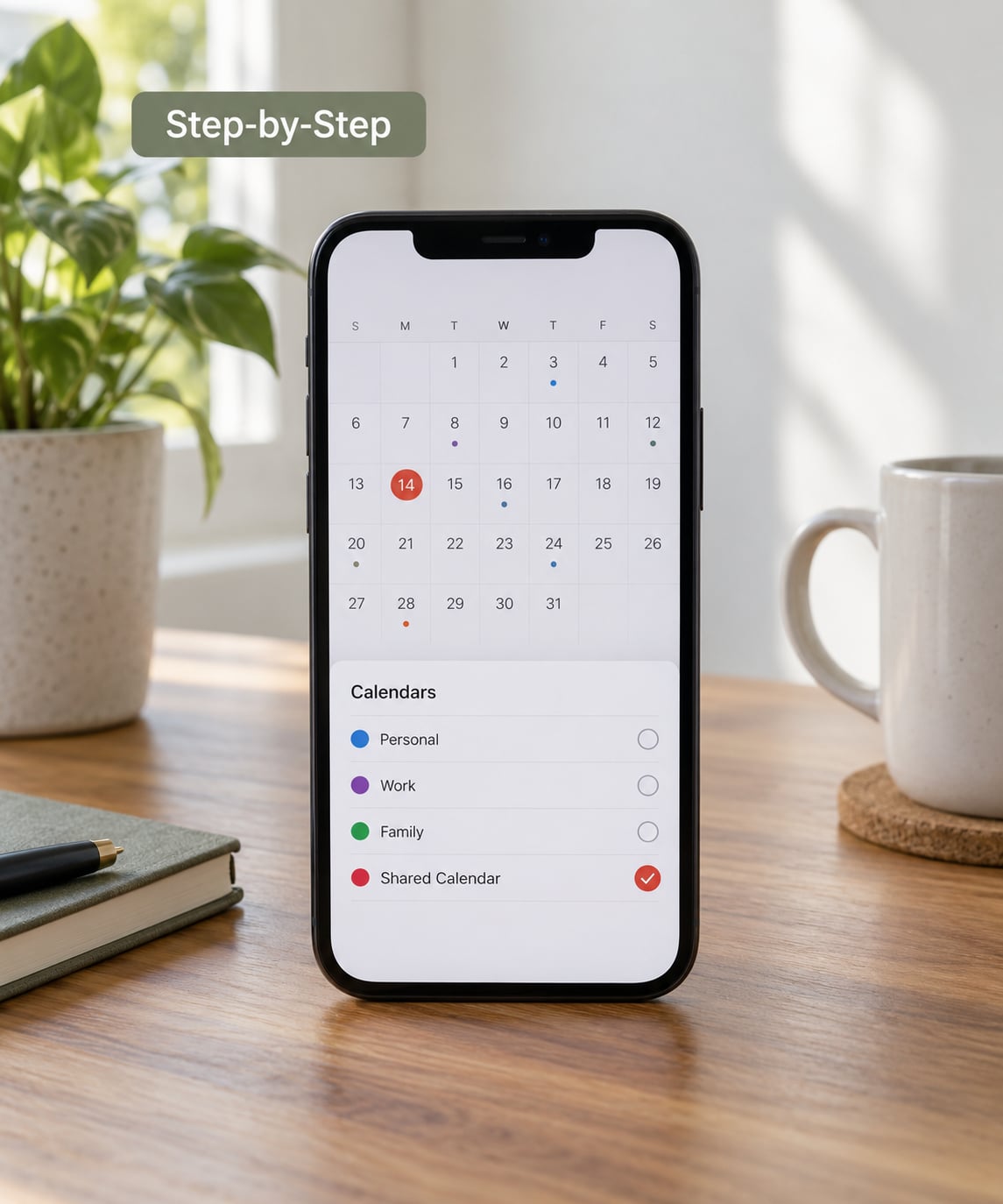
First, tap Calendars at the bottom and look for the calendar’s checkbox. A grey tick against a white background means the calendar is hidden rather than missing — a common cause of “it vanished” reports, and it happens to all calendars at once after some iOS updates.
Second, check your access level. Open the info (i) menu and scroll to Shared With. The list shows every participant and marks each one as view only or able to edit. If you expected edit rights, the owner has to enable Allow Editing from their side; you cannot grant it yourself.
Third, set how it behaves. Tap the calendar’s colour dot to change its colour, which matters when three shared calendars stack on one screen. Open Settings > Notifications > Calendar and confirm alerts are on, then set a default alert time under Settings > Calendar > Default Alerts so new events remind you before the event, not at it.
Event alerts belong to the person who owns the device, so everyone on a shared calendar sets their own. One person getting reminders says nothing about the others.
Common Mistakes
The shared calendar does not show up. Check the Calendars list for a greyed tick first. If it is hidden, tap the colour next to it to switch it back on. If the calendar is not there at all, the invitation was never accepted — go back to the Inbox tab.
The invitation never arrived. Look in the Calendar app Inbox rather than Mail. Confirm the person shared the calendar to the exact Apple Account on this iPhone, since a Gmail or Google address is a different account to iCloud even on an iPhone. If they used Add Person with a phone number, that invitation goes to Messages instead.
Add Person is greyed out. The calendar has to be an iCloud calendar, and it has to be a named calendar you can open the info (i) menu for. Subscription calendars added by URL cannot have people added to them, and neither can calendars that live under a Google or Exchange account.
Events added on the iPhone do not reach other members. Check the iCloud Calendar toggle in Settings, your name, then iCloud, since an update can switch it off without warning. Pull down on the calendar view to force a refresh. MacRumors forum users also report duplicate entries and iCloud errors when a large import is dumped into a shared calendar in one go, so add large batches a day at a time.
Someone deleted a recurring event and it is still there for everyone else. Open the original recurring event rather than a single instance, tap Delete, then choose Delete All instead of deleting that one date. Deleting one instance never touches the series for the other members.
You can see the calendar but cannot change anything. That is a permission setting, not a fault. The owner opens the calendar, taps the info (i) button, turns on Allow Editing, and each person listed then gets edit rights.
The recipient is on Android or uses Google Calendar. An iCloud shared calendar will not reach them, so publish a public link from iCloud.com or move the schedule into Google Calendar. From iCloud.com, open the calendar, tap the share icon, switch on Public Website and enable Enable Read Only, then send the web address.
You want to stop sharing. Open the info (i) menu on the calendar, tap the person, then Stop Sharing. If you are the owner, delete the calendar to remove it for everyone. Participants can leave, but only the owner can delete.
Frequently Asked Questions
Can I add someone else’s shared calendar to my iPhone?
Yes, as long as that person shared it with your Apple Account. Open Calendar, tap Calendars at the bottom, and the shared calendar appears in the list under your iCloud account. Tick the box beside it to show it. If the person published a public link instead, add it through Settings, Calendar, Accounts, Add Account, On My Mac, then Add Subscribed Calendar and paste the address.
What is the difference between viewing and editing a shared calendar?
View-only participants see every event on the calendar but cannot change, move or remove anything. Participants with editing rights can add events, adjust times and delete entries, and their changes sync to everyone else. The owner controls this with the Allow Editing switch in the calendar’s info (i) menu, and can turn it on or off for each person individually at any time.
Why is the shared calendar not showing up in my iPhone Calendar app?
Three things cause this most often. The calendar is hidden: a greyed tick in the Calendars list means it is switched off, so tap its colour dot to bring it back. The invitation is unaccepted: pending invitations wait in the Inbox tab of the Calendar app. Or the iCloud Calendar toggle got switched off after an iOS update, which you fix in Settings, your name, then iCloud.
How do I accept a shared calendar invitation on iPhone?
Open the Calendar app and tap the Inbox tab at the top of the screen, where pending invitations appear. Tap the invitation, read the details, then tap Accept. The calendar then shows up in your Calendars list. Note that the invitation does not come through Mail or Messages for a native iCloud share, so checking your inbox email will not help.
Can I use an iPhone to subscribe to a Google Calendar?
Yes, in two ways. Sign in to Google under Settings, Calendar, Accounts, Add Account, and tick Calendar during setup, which gives you full editing rights. Or ask the owner for the iCal link from Google Calendar’s share dialog and paste it into Settings, Calendar, Accounts, Add Account, On My Mac, Add Subscribed Calendar. The subscribed option is read-only and also works in the Google Calendar app on Android.
Will I receive reminders for events on a shared calendar?
You will, provided alerts are switched on for Calendar in your own settings. Go to Settings, Notifications, Calendar and allow alerts, then set how much warning you get under Settings, Calendar, Default Alerts. Reminders depend on your device settings, not the calendar owner, so someone else getting alerts or not getting them says nothing about yours.
Conclusion
Start by working out where the calendar actually lives, because that decides the route. An iCloud share means accepting the invitation in the Calendar app Inbox, then checking the Allow Editing switch if you need more than viewing rights. A Google or Microsoft account means adding that account under Settings, Calendar, Accounts. A public link means subscribing to it read-only, which is also the only option that reaches a partner on Android.
If a calendar you expected is missing, the first two things to check are the hidden grey tick in the Calendars list and the Inbox tab. Those two explain most missing-calendar cases, and neither takes more than a few seconds to rule out.