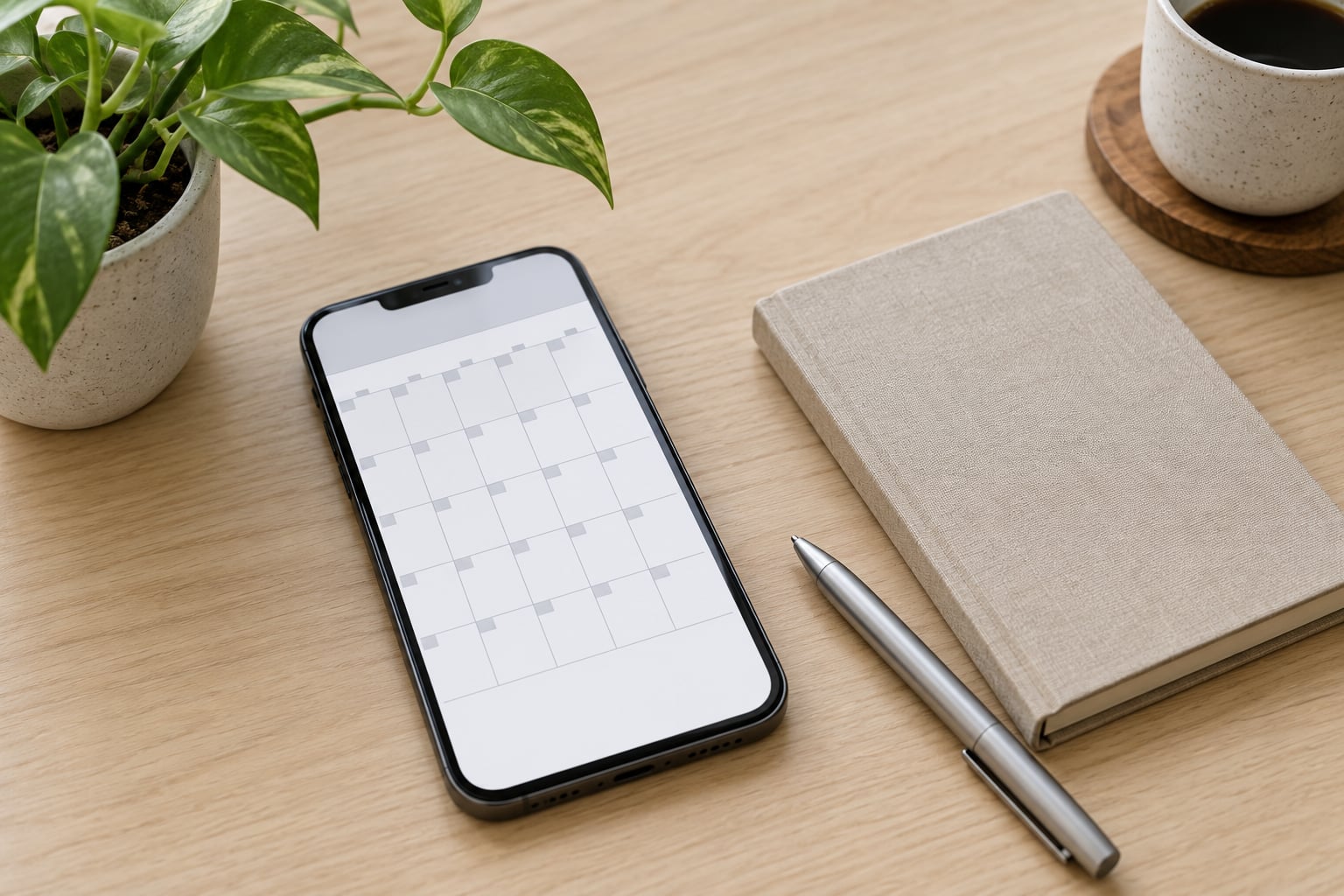
To use the Calendar app on iPhone, tap the Calendar icon, tap the + button to add an event, set a date and time, and tap Add. Switch between day, week and month views with the buttons at the top of the screen, and tap Today whenever you lose your place.
That is the whole basic loop, and it takes about a minute. The harder part comes later, when your schedule starts living in three places at once: iCloud on your iPhone, a Google calendar from work, and an Outlook or Microsoft 365 calendar with every team meeting on it. Getting those three to cooperate is where most people give up.
Apple Calendar is the app that ships on every iPhone. It holds your events on the device and syncs them through whichever account you sign in to, so the same dentist appointment shows up on your iPad, your Mac and your Apple Watch without you copying anything. The steps below cover iOS 18 and later, including iOS 26. Menu labels have shifted over the years, so I have flagged the places where older iPhones say something different.
Here is the sixty-second version before the detail:
- Open Calendar from the Home Screen.
- Tap + in the top-right corner to start an event.
- Type the title, then adjust the date and start time.
- Add an alert so you actually see it coming.
- Tap Add, then check the event appears on the right day in the right colour.
Those five actions cover about 80 percent of what anyone does with this app. Everything after this is fixing the situations where the event you created does not turn up where you expect it.
Table of Contents
- 1What You Need
- 2Step-by-Step
- 3How to Open the Calendar App and Choose a Calendar
- 4How to Create a New Calendar Event
- 5How to Add a Location, Notes, or a Video Link
- 6How to Set Reminders and Event Alerts
- 7How to Repeat an Event or Change Its End Time
- 8How to Edit, Move, or Delete an Event
- 9How to Use Day, Week, Month, and Agenda Views
- 10How to Find an Event with Search
- 11Common Mistakes
- 12Frequently Asked Questions
- 13How do I sync my iPhone Calendar with iCloud?
- 14How do I share a Calendar event from my iPhone?
- 15Why is my Calendar event not showing an alert?
- 16How do I create an all-day event on iPhone?
- 17How do I delete one occurrence of a repeating Calendar event?
- 18Conclusion
What You Need
You need an iPhone and about ten minutes. Calendar is built in, so there is nothing to download and no subscription to start. If you have never opened the app, it may also be sitting in the App Library rather than on your first Home Screen page, which trips up more beginners than anything else here.
Everything else depends on accounts. An iPhone with no account added still works perfectly as a single-device diary, but the events live only on that phone. Sign in to iCloud and they follow you to your other Apple devices. Add a Google or Outlook account and those calendars appear alongside iCloud in the same app.
Before anything else, it helps to know which icon is Apple’s. Apple Calendar is the app that opens a month grid with a date in the centre of the icon. If you see a second icon that looks similar, that is either a third-party calendar app you installed earlier or a duplicate restored from a backup, and events you create there will not automatically join your iCloud calendar. A quick way to settle it: open the app and check the Calendars list at the bottom left. Apple’s app always shows your iCloud and subscribed calendars there.
Menu labels also vary a little between iOS versions. The biggest change in recent years is the app settings path: on iOS 18 and later, Calendar settings moved to Settings > Apps > Calendar, where on iOS 17 and earlier you would find them at Settings > Calendar. When in doubt, search for “Calendar” at the top of the Settings app and it will take you to the right screen on any version.
One last thing to settle before you start typing events: which account should own new events by default. If you have iCloud, Google and Outlook all active, the default decides where a new event lands, and that is the single most common reason an event seems to have disappeared.
Step-by-Step
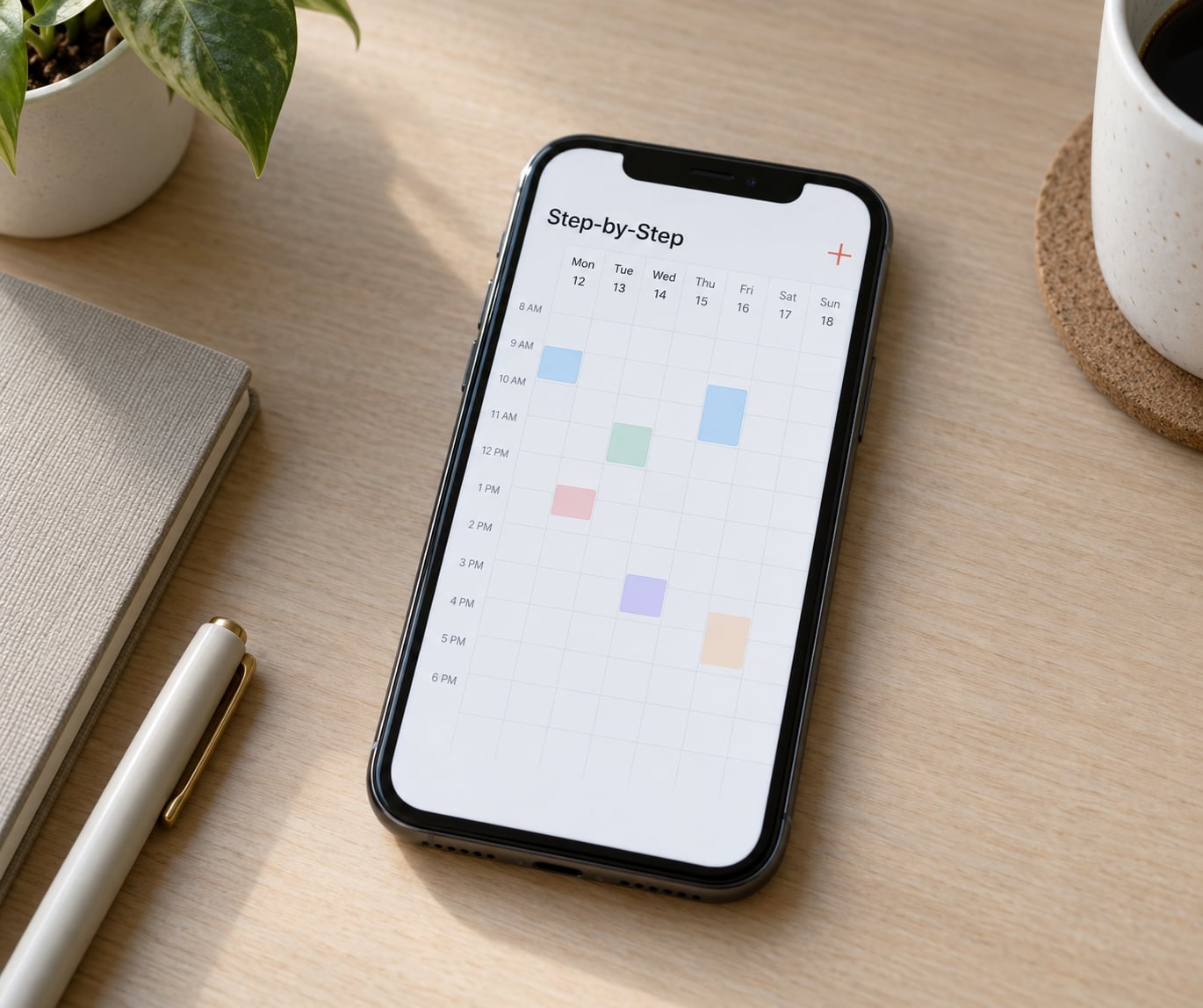
Work through these in order the first time. Each step includes how to confirm it worked, because the difference between an event that saved and an event that saved somewhere you are not looking is usually the colour of a small label.
How to Open the Calendar App and Choose a Calendar
Tap the Calendar icon on your Home Screen. The app opens on today’s date in whichever view you used last, which is a small thing that annoys people who left it in year view. The date sits at the top of the screen with the current month above it.
Now tap the Calendars button, which sits at the bottom left on current iOS versions and at the top left on older ones. You get a list of every calendar on the phone: iCloud calendars, Google calendars, Outlook calendars, plus the Birthdays, US Holidays and any subscribed calendars.
Tap a calendar name once to make it the default for new events. A tick mark appears next to the calendars that are currently switched on, and each one has its own colour, which is what you will see on the event itself. If two calendars are switched off, their events are still there but invisible in every view, so leave that tick alone unless you are deliberately hiding something.
To check it worked, tap Done and look at the coloured dot under the date. That dot tells you which calendar received your next new event, and it is worth glancing at every time you add something important.
How to Create a New Calendar Event
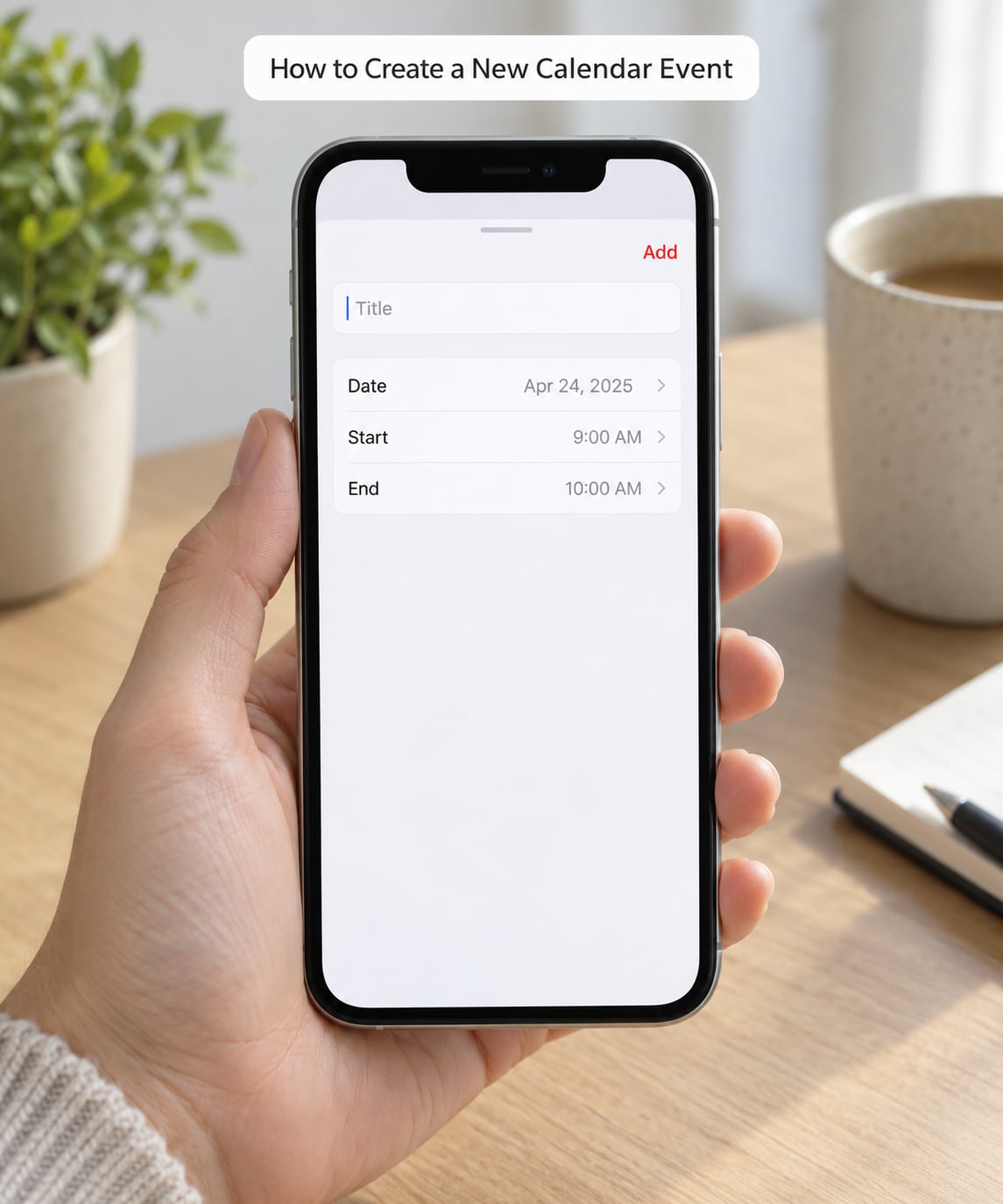
Tap + in the top-right corner. A new event screen slides up with a Title field, Starts and Ends fields, an alert line, and an Add button in the top right.
Type what the event is, then use the natural-language trick. Instead of tapping through the date picker, type a phrase like Lunch with Priya Thursday at 1 and Calendar fills in the day, time and end time on its own. It is faster than the pickers and it works in almost every language, so give it a try before you decide the app is fussy.
If you would rather set it manually, tap the Starts date and time, pick what you need from the wheels, and tap the Ends time to set the duration. A dentist appointment gets 45 minutes; a lunch gets an hour. Hold the end time and the duration can be set in minutes rather than by picking a second time, which is handy for a long flight or a half-day appointment.
Two examples worth copying. For a dentist appointment, add the name of the practice in the title and put the address in the location field, so Calendar can warn you about travel time. For a birthday, add the person’s name and set it to repeat every year, or add the birthday to their contact card and let the Birthdays calendar handle it automatically.
Tap Add, and the event lands on the calendar you chose earlier, in that calendar’s colour. To confirm it saved, tap the event once: the details open, and the calendar name appears at the very top. If you were expecting a different colour, you picked the wrong default calendar, and that is the fix in the next section.
How to Add a Location, Notes, or a Video Link
The new event screen has more room than it first looks. Tap the Add Location field and start typing a street address, a building name or a place. As you type, suggestions appear below the field, and tapping one fills it in properly. A filled-in location can also trigger a departure reminder, so Calendar will nudge you when it is time to leave rather than only telling you the meeting has started.
Tap the URL field for anything that opens in a browser, from a meeting room booking page to a restaurant menu. If your team runs on FaceTime, Zoom, Teams or Meet, pasting the meeting link here is the habit worth building, because the link sits inside the event and travels with it to whichever device you read it on.
The Notes field takes the rest: an agenda, a confirmation number, the name of the person to ask for at reception, or the thing you must not forget to bring. Notes do not appear in the compact day view, so keep the important part in the title.
Tap Add again, then open the event and check the location line shows a pin with the address. If no travel time appeared, that is normal: it depends on the address resolving to somewhere Apple recognises and on your notification settings allowing location-based alerts.
How to Set Reminders and Event Alerts
An event with no alert is an event you find out about too late. Tap the Alert field on the new event screen and choose a lead time from the list, which runs from five minutes before up to a week before, with a None option at the bottom.
For most appointments, a day before and fifteen minutes before is the useful pair. To add a second one, tap Alert again after choosing the first. Each alert appears as its own line on the event, and you can remove a single alert by tapping it and selecting Delete Alert without touching the event itself.
Alerts also have defaults, so you do not have to set them one by one forever. On iOS 18 and later, go to Settings > Apps > Calendar > Default Alerts and set the standard lead time and the calendar it applies to. On iOS 17 and earlier the same screen is at Settings > Calendar > Defaults.
Two more switches control whether those alerts ever fire. Settings > Notifications > Calendar has to allow notifications, and the app needs location permission if you want travel-time nudges. A Focus mode will hold alerts back until you check them, which is worth remembering before you conclude the app has lost an event.
For a quick test, create an event ten minutes out with a five-minute alert and leave the phone alone. If the notification arrives, your alerts are working and any missing reminder is a per-event setting rather than a broken app.
How to Repeat an Event or Change Its End Time
Tap the Repeat field and choose a rule: Every Day, Every Week, Every Month, Every Year, or Custom. Weekly is the common one, and Custom is worth two minutes because it covers the awkward cases, such as every second Tuesday, or every weekday but never at the weekend.
Under Custom you set the frequency, the interval, and which days it repeats on. Two fields underneath decide how long it runs. End can be set to Never, or to a number of occurrences, or to a specific end date. A weekly standup that ends at the end of the quarter is a Custom rule with an end date, not something you remember to delete.
To change how long an event lasts without moving its start, edit the Ends time only. Leave Starts alone and a 30-minute standup becomes a 60-minute one at exactly the same time. In day or week view you can also drag the bottom edge of the event block to stretch it, which is faster for a booking that overran.
For something that occupies the whole day, tap the start date and time and switch on the All-Day toggle. Holidays, birthdays and a trip to the coast belong here, and all-day events sit at the top of the day rather than being pinned to an hour.
Save and check the title: a repeating event shows a small repeat symbol and words like “Every week” underneath. If those do not appear, the repeat rule did not save and you should reopen the event before walking away.
How to Edit, Move, or Delete an Event
Tap any event to open it, then tap Edit in the top left. Change whatever is wrong, then tap Done. To add something you forgot at creation time, you do not need to recreate the event, and the event keeps its original position in the list of past events.
Moving an event is a press and drag. In day or week view, press and hold the event and drag it to the new slot, and the time changes with it. In month view, drag it sideways to another day. If the drag feels fiddly on a large event, edit the Starts date instead, which is more precise.
For a second identical appointment, press and hold the event in day or week view and tap Duplicate. The copy lands right after the original, already carrying the same repeat rule, alert and location.
Deleting has three variants, and choosing the wrong one is the classic recurring-event mistake. When you tap Delete Event on a repeating event, Calendar asks whether you want to delete This Event, This and Future Events, or All Events. This Event removes one occurrence and leaves the rest of the series alone, which is what you almost always want after a single cancelled session.
Deleted iCloud events go to a Recently Deleted list inside the iCloud account, where they stay for roughly 30 days before going for good. That is your undo button if you delete the wrong occurrence.
To confirm a delete, close the event and check the day. The block should be gone from the grid, and it should appear under Recently Deleted if it was an iCloud event.
How to Use Day, Week, Month, and Agenda Views
Three buttons at the top of the screen switch views, and the leftmost one cycles through the set. Day gives you a single column of hours with events as blocks you can tap and drag. Week shows seven columns and is the one most people live in. Month shows the whole month as a grid, and it sits above Year, which lists months in a scroller and is useful for a quick look at a school holiday or a work quarter.
Turn your iPhone sideways while you are in day or week view and the week expands into a full-screen layout with a time scale down the side. On iPhone this is the fastest way to spot a clash before you commit to a slot, and it is worth knowing because nothing in the app tells you that the gesture exists.
The Today button at the bottom right jumps back to the current date from any view or any far-future month, and the back arrow at the top steps one period at a time. If you ever feel lost, Today fixes it instantly.
One honest note about Agenda: it is not a permanent button on iPhone the way it is on iPad and Mac. On the phone, the equivalent is a list of what is coming, which you get by searching, or by pulling up the notifications for the app. On iPad and Mac, Agenda is one tap from the view switcher and shows everything upcoming as a plain list.
| View | Best for | How to get there |
|---|---|---|
| Day | Hour-by-hour scheduling and travel time | Top-left view buttons, or swipe left |
| Week | Most people, most of the time | Top-left buttons; turn the phone sideways for the full layout |
| Month | Long-range planning and birthdays | Top-left buttons, or swipe right |
| Year | Holidays, leave and school terms | Swipe past the month view |
Check your choice by looking for the events you already know are there. A view is not hiding anything, it is only showing a different slice of the same schedule.
How to Find an Event with Search
Tap the Search field at the top of the screen in day or week view, then type a few words. Calendar matches event titles, locations, notes and calendar names, so searching for a street address finds the appointment you made at that address even if you never remember whose name it was under.
Search covers the range you are currently looking at, which surprises people. If you are looking at a single week further back and the event is next month, it will not show up. Switch to year view, or widen the dates at the top of the results, before you decide the event has vanished.
If an expected event is not in the results, work through this short list. Check that the calendar holding it is switched on in the Calendars screen, since a hidden calendar is excluded from everything. Check you are looking at the right account, not just the right app. Check Recently Deleted inside the iCloud account. And if the event was created on another device, it is a sync problem rather than a search problem, which the next section covers.
When the event does appear, tap the result to jump straight to it in the calendar, with the day view opened on that date.
Common Mistakes
Almost every complaint about this app comes down to one thing: an event saved fine, but somewhere you are not looking. Here are the causes in the order they are worth checking, each with the fix.
1. Events go to the wrong calendar. New events land on whichever calendar is set as the default, and the small coloured dot under the date shows which one. Fix: tap Calendars at the bottom left, then tap the calendar you want as the default. To change where all new events go at once, open Settings > Apps > Calendar > Default Calendar on iOS 18 and later, or Settings > Calendar > Default Calendar on iOS 17 and earlier.
2. No alert fires. Check the alert on the event itself first, then Settings > Notifications > Calendar, then whether a Focus mode is holding notifications. Scheduled Focus and any Do Not Disturb mode will hold calendar alerts even when every setting is correct. Users report the same missing-alert problem with Microsoft Exchange calendars specifically, so if the account is Exchange, test the alert on an iCloud event to see which side is failing.
3. Times are wrong after a trip or an iOS update. Every event has a time zone attached, and an event created in one zone can land in another. Each account has an Overwrite Time Zones option, which forces events to display in your current zone instead of the zone they were created in. Users often report it appearing to do nothing, which is usually because individual events still carry their original zone. Fix: decide which behaviour you want, set it on the account, and edit the affected events to match.
4. Duplicate events. Two entries for one appointment usually mean the event exists in more than one account, most often iCloud and Google. Calendar never merges them, because it has no way to know they are the same thing. Fix: search for the title, delete the copies you do not want, and leave the event in the calendar your other devices actually sync.
5. Recurring events go wrong. Deleting “This and Future Events” from a weekly standup removes the rest of the series, and editing only the first occurrence can leave a series split in two. Fix: when you change a repeating event, pick This Event for a one-off change and This and Future Events for a permanent change, then check the next few weeks to confirm the series still looks right.
6. Events do not appear on your iPad or Mac. Both devices need to be signed in to the same Apple Account, both need the current iOS or macOS, and iCloud Calendar has to be switched on. Check that under Settings > [your name] > iCloud > Calendar, and look at the per-calendar toggles as well as the master switch. If events appear for a while and then quietly stop, toggling Calendar off and on again inside iCloud is the first fix most people report working, and it is safe because your events are stored in iCloud, not on the phone.
7. Gmail or Google calendars will not connect. Adding a Google account for Mail does not always switch on its calendar. Fix: go to Settings > Apps > Passwords (Accounts in older versions), find the Google entry, and turn Calendar on. On iOS 17 and earlier, go through Settings > Mail > Accounts and tap the Google account instead. If the account was added long ago, removing it and adding it again forces a fresh authorisation, which resolves most of the “unable to connect to my Gmail account” cases.
8. A spam or subscribed calendar keeps coming back. A meeting invitation can add a calendar you did not ask for, and deleting the events does not remove the calendar, so the next invitation lands again. Fix: open the Calendars screen, find the subscribed calendar, swipe it and tap Delete Calendar. If an invitation banner appears, tap it and choose Delete Event rather than blocking the sender, because blocking the sender stops their mail, not the subscription.
9. Two Calendar icons on the Home Screen. Apple’s Calendar opens a month grid with the date centred. If another icon looks similar, it is a third-party app or a duplicate restored from a backup, and it will not share data with iCloud. Fix: press and hold the icon, check the app name in the menu, and remove the one you do not recognise. If you ever hesitate, open it and look for the Calendars button; Apple’s app always has it.
A few habits keep all of this quiet. Give each account its own colour so you can see at a glance where an event came from. Set default alerts once instead of per event. Keep one shared calendar for the household rather than asking everyone to check three separate phones. And check the coloured dot under the date whenever you add something that would be genuinely annoying to miss.
| Account | Where to add it | Good for | Known snag |
|---|---|---|---|
| iCloud | Settings > [your name] > iCloud > Calendar | Apple devices, family sharing, Recently Deleted undo | Stops silently after an update; toggle Calendar off and on |
| Settings > Apps > Passwords, then Calendar toggle | Gmail users, personal and work calendars | Mail account can be on while the calendar stays off | |
| Outlook / Microsoft 365 | Settings > Apps > Passwords, add account | Work calendars, team meetings, invitations | Alert times and some events are the most reported sync failures |
Frequently Asked Questions
How do I sync my iPhone Calendar with iCloud?
Sign in to iCloud first, then turn the Calendar switch on at Settings your name iCloud Calendar. Sign in with the same Apple Account on your iPad and Mac and use the same iCloud settings there. Open Calendar, tap Calendars at the bottom left, and check that iCloud is ticked and not hidden. Events you add to the iCloud calendar then appear on every device signed in to that account.
How do I share a Calendar event from my iPhone?
Open the event, tap Edit, then tap the Add People field and enter an email address or phone number. The recipient gets an invitation and can accept, decline or suggest a new time. For a group rather than single events, share a whole calendar instead: in the Calendars list, tap the iCloud calendar, switch on Shared, and add people there. They can then add events of their own.
Why is my Calendar event not showing an alert?
Check the event’s own Alert field first, since it can be set to None even when your defaults are fine. Then confirm Settings Notifications Calendar allows alerts, and check that no Focus mode is holding them. Alerts also depend on permissions, and Microsoft Exchange calendars are the most commonly reported source of alerts that never arrive. Test with a new iCloud event five minutes ahead to narrow down which side is failing.
How do I create an all-day event on iPhone?
Tap the plus button, enter a title, then tap the start date and time. On the new event screen, switch on the All-Day toggle and the times disappear, leaving only a date. The event then sits at the top of that day in month and week views. All-day events work well with repeat rules, so a multi-day trip or an annual birthday takes about fifteen seconds to set up.
How do I delete one occurrence of a repeating Calendar event?
Open one instance of the repeating event and tap Delete Event. Calendar asks whether to delete This Event, This and Future Events, or All Events. Choose This Event to remove just that one session and leave the rest of the series untouched. The other two options change the whole series, and choosing them by accident is the most common recurring-event mistake beginners make.
Conclusion
Start small. Open Calendar, tap Calendars and confirm which account is set as the default, then add one real event with a time and an alert. Once that single event shows up in the colour you expected and the notification arrives, everything else in this guide is a variation on it.
Most confusion after that comes from two settings: the default calendar new events go to, and the notification permissions that decide whether alerts fire. Check those two before you troubleshoot anything else, because they explain the majority of events that appear to have vanished.
After a week or two of daily use, set default alerts once, pick a view you like, and if you share a household schedule, turn on a shared iCloud calendar. That last step is the one people mention most often as changing how the app feels.