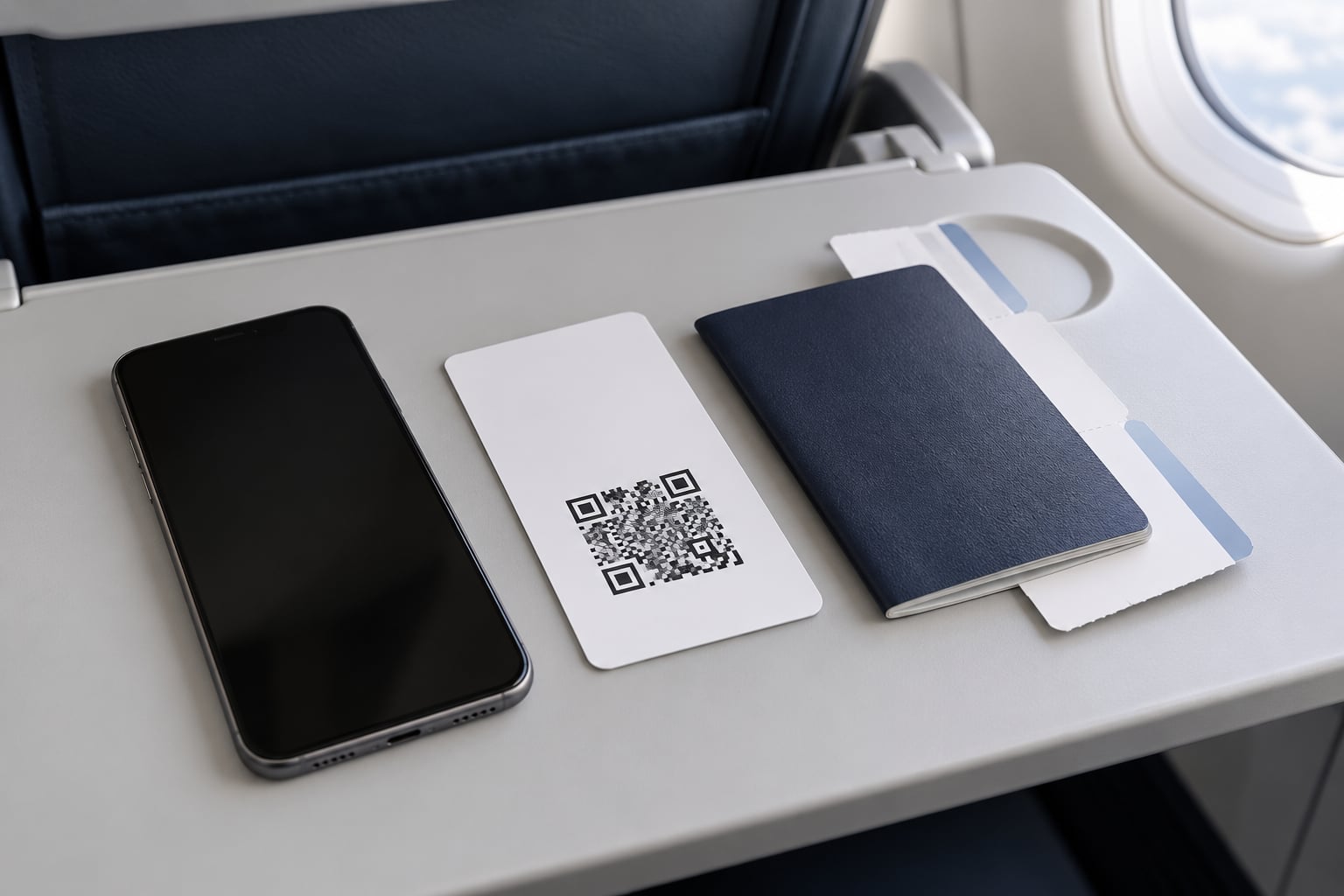
To add a boarding pass to Apple Wallet, open your airline app or your check-in confirmation email and tap "Add to Apple Wallet", then confirm with the black Add button. The pass lands in the Wallet app and is ready to scan at the gate, usually in under a minute. Updated for October 2026.
One thing worth knowing up front: the airline creates the boarding pass, and Wallet just holds it. If your airline never issued a Wallet pass, there is no button to tap and no setting that will conjure one. Everything below assumes that pass exists, and the fallback routes cover what to do when it does not.
Table of Contents
- 1What You Need
- 2Which route should you use?
- 3Step-by-Step: How to Add a Boarding Pass to Apple Wallet
- 4Open the Airline App and Find the Wallet Option
- 5Add the Pass from an Email or Webpage
- 6Find and Open the Boarding Pass in Apple Wallet
- 7How to Share a Pass With Another Traveler
- 8Common Mistakes
- 9Frequently Asked Questions
- 10Can I add any airline boarding pass to Apple Wallet?
- 11Will my Apple Wallet boarding pass work without internet?
- 12Can I use a screenshot instead of an Apple Wallet boarding pass?
- 13How do I update a boarding pass after a flight change?
- 14Can I add boarding passes for my family members to my iPhone?
- 15Why does the Add to Apple Wallet option not appear?
- 16Conclusion
What You Need
You need an iPhone with the Wallet app built in, the airline app or a check-in email that carries an "Add to Apple Wallet" button, and a connection for the initial download. After the pass is installed it stays on the phone and works with the radio switched off, which matters more than it sounds when you are queuing at security with one bar of reception.
Wallet has to be on your device in a region that supports it, and iOS should be reasonably current because airlines rebuild their apps and check-in flows regularly. If you have never used the Wallet app, open it once so it finishes its setup before you leave the house.
Which route should you use?
| Method | Needs airline support | Updates on its own | Works offline | Best for |
|---|---|---|---|---|
| Airline app | Yes | Yes | Yes | Most travelers, updated seats and gates |
| Check-in email or booking site | Yes | Sometimes | Yes | When you check in on a laptop or a different phone |
| Boarding pass PDF | No | No | Only as a saved file | Reading a PDF is not the same as a Wallet pass |
| Screenshot in Photos | No | No | Yes | Backup when the airline offers nothing else |
A PDF attachment in your inbox is not a Wallet pass, no matter what the file name says. Opening it in Mail shows a preview, and that preview cannot be added to Wallet. The airline has to send a real pass file for the button to work.
Step-by-Step: How to Add a Boarding Pass to Apple Wallet
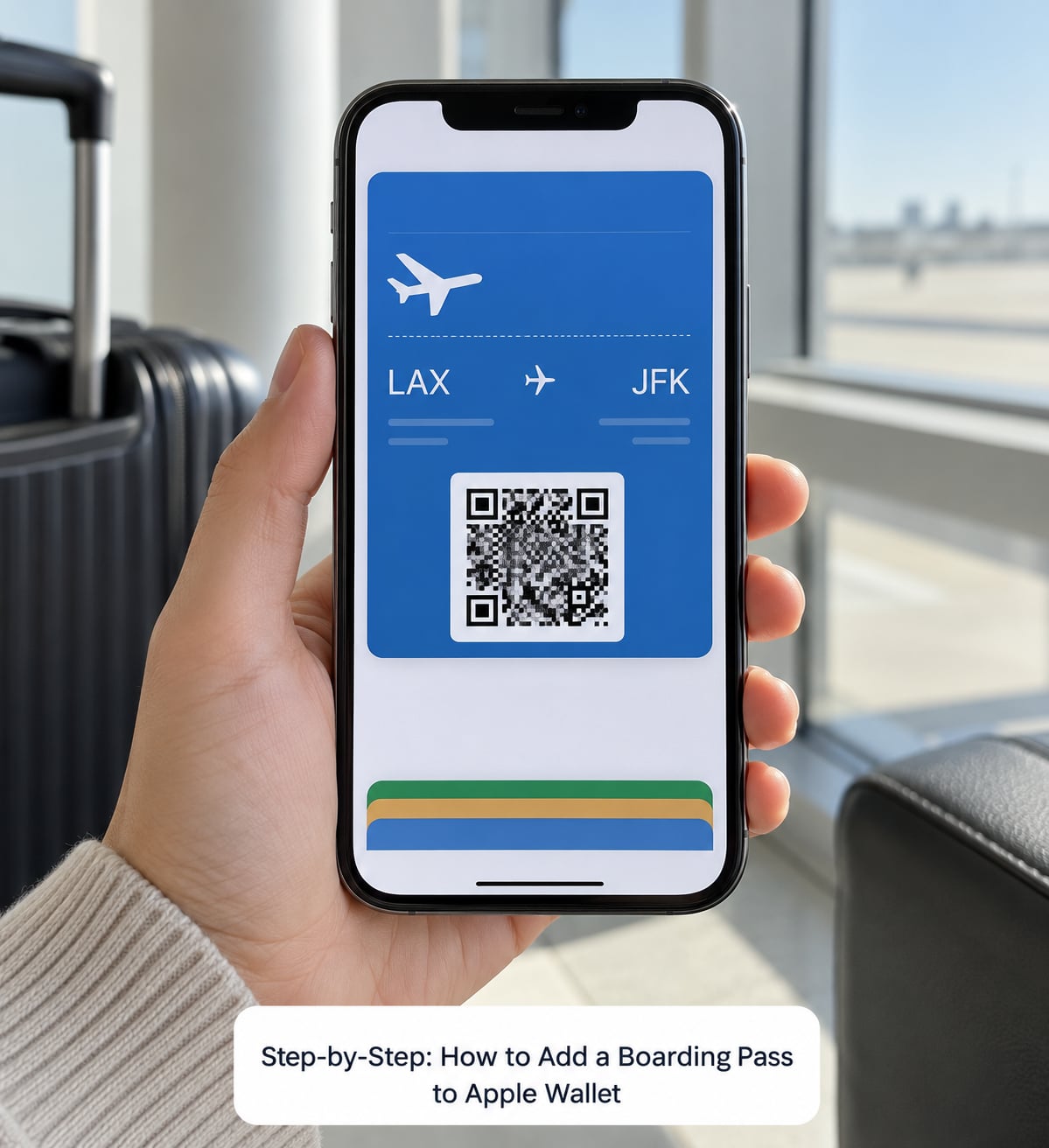
- Open the airline app or find the check-in confirmation email.
- Open your trip and tap the boarding pass for the passenger you are adding.
- Tap "Add to Apple Wallet".
- Check the name and flight number on the preview screen.
- Tap the black Add button in the top corner.
- Double-click the side button to open Wallet and confirm the card is there.
That is the whole process for most trips. The sections below cover the variations, starting with the one airline apps use.
Open the Airline App and Find the Wallet Option
In most current airline apps, the boarding pass lives inside your trip rather than in a separate tab. Open the app, tap Trips or My Trips, choose the reservation, and select the passenger. The pass screen usually holds a card with a barcode and one button under it.
The label varies. You may see "Add to Apple Wallet", "Add", or an Add button with a Wallet icon next to it. Tap it and check the preview before confirming, because the name on the pass comes from your booking and a typo there causes problems at the desk.
How do you know it worked? The new pass appears as a card in Wallet, usually on top of the stack, and iOS shows a confirmation on screen. On a paired Apple Watch the pass arrives on its own, with no second tap.
Add the Pass from an Email or Webpage
Some airlines put the button in the check-in email, and others show it only after you check in through the airline website. Open the message, scroll to the itinerary section, and tap the Add button embedded in the layout. Safari hands the file to Wallet and a preview screen slides up from the bottom. Confirm with Add and check the details before it saves.
If you tap the button in Safari and get the message "Safari cannot download this file", the airline sent you a PDF rather than a Wallet pass. That error is confusing because nothing about it mentions boarding passes. The fix is not a different setting: open the airline app instead, where the proper pass usually lives.
Group bookings are where this gets fiddly. The lead traveler often gets the button while partners and children do not, and a return leg can lack it even when the outbound flight had one. Each traveler has to add their own pass, though you can add everyone’s to one iPhone and send them out from there.
Find and Open the Boarding Pass in Apple Wallet
Double-click the side button on your iPhone, or double-click the Digital Crown on Apple Watch, and Wallet opens with your cards stacked newest first. Tap the boarding pass and the barcode fills the screen. Turn the brightness up before you reach the gate, since scanners struggle with dim screens.
That is the whole routine at the gate: open, tap, present, done. Once the pass has downloaded it works with no cellular data and no WiFi, which travelers confirm repeatedly after getting caught with a dead signal at a gate. For a second layer of protection, keep a screenshot of the barcode in your Photos library.
Where the pass ends up depends on the airline. Some offers an option to show it on the Lock Screen, and an eligible one can add a Live Activity with flight status and gate information. On a paired Apple Watch the pass syncs automatically, so nothing else is required there.
How to Share a Pass With Another Traveler
You can add every passenger in a booking to one iPhone, then hand each one out. Open Wallet, tap the pass, tap the ••• button in the corner, choose Pass Details, and tap the share icon. Send it by AirDrop or message, or hold two iPhones together to use Nearby Share.
Watch what you send. A Wallet pass shared this way is a live object on your own phone, and some versions let the recipient view the details without saving anything. If your group is traveling soon, adding each pass early and confirming the names is faster than doing it at the gate.
Common Mistakes
| What you see | Why it happens | What to do |
|---|---|---|
| No Add button anywhere | The airline has not issued a Wallet pass for that booking | Check the app first, then ask the airline if they support passes at all |
| "Safari cannot download this file" | You tapped a PDF attachment, not a pass file | Add it from the airline app instead |
| Tap does nothing, no error | The pass failed to install, often on a stale cached version | Force-quit the airline app, reopen, and try again |
| Pass added but shows old gate or seat | The stored pass stopped refreshing | Delete the pass and re-add it from the airline app |
| Only adult passes will not add | Secondary passenger records often lack their own pass file | Sign out of the airline app and back in, then retry each passenger |
| Pass missing after an iOS update | The pass file was invalidated by the airline | Re-add it from the booking, and keep the screenshot backup |
Deleting and re-adding is the fix that shows up again and again on airline and iPhone forums when a pass refuses to update. Open Wallet, tap the stale pass, tap •••, choose Remove Pass, then add it again. Since the airline issued the original, the fresh copy has current data.
Another small mistake: tapping "Add to Apple Wallet" and walking away before the preview finishes. The pass only saves after you confirm with Add on the next screen. If you back out mid-way, nothing is installed.
Two habits cover most failures. Sign in again to the airline app if a pass refuses to load, and always keep a screenshot of the barcode in Photos as a fallback. That second habit costs nothing and has saved a lot of people at a gate.
Frequently Asked Questions
Can I add any airline boarding pass to Apple Wallet?
No. Only airlines that have built Wallet support into their app, website or check-in email can issue a pass. Wallet cannot create one from a PDF or a screenshot, because the barcode data comes from the airline. If your airline offers no Add button anywhere, check the app first, then ask the airline directly whether they support passes.
Will my Apple Wallet boarding pass work without internet?
Yes, once the pass has finished downloading. It stores the barcode on the device and scans at the gate with no cellular data and no WiFi, which travelers confirm in practice. The download itself needs a connection, so add the pass before you leave home rather than in the terminal queue.
Can I use a screenshot instead of an Apple Wallet boarding pass?
A screenshot works as a backup and most gate agents accept it, but it is not a real pass. It cannot update when the gate or seat changes, it disappears if you delete the photo, and screen brightness or a smudged lens can slow the scan. Treat a screenshot as your backup, not your plan.
How do I update a boarding pass after a flight change?
Delete the stored pass and add it again from the airline app. Open Wallet, tap the pass, tap the button in the corner and choose Remove Pass, then re-add from your booking. Some passes refresh on their own with gate and seat notifications, but a deleted and re-added pass is the reliable fix when the details stay stale.
Can I add boarding passes for my family members to my iPhone?
You can, though each passenger still needs their own pass from the airline. Add every traveler from the booking to one iPhone, then open the pass, tap the button in the corner, choose Pass Details and share it by AirDrop, message or Nearby Share. Secondary travelers often need a sign-out and sign-in in the airline app before their pass appears.
Why does the Add to Apple Wallet option not appear?
Usually the airline has not issued a pass file for that specific booking, passenger or leg. Return flights and child records often lack one even when the lead traveler has a button for the outbound flight. Try signing out of the airline app and back in, check the website check-in page, and ask the airline whether they support Wallet passes at all.
Conclusion
Add the pass while you are still at home. Open the airline app, tap "Add to Apple Wallet", read the name and flight number on the preview, confirm, and then open it once in airplane mode to prove it works without a signal.
Keep a screenshot of the barcode in Photos as your spare. That single habit covers the airlines that never offered a Wallet pass in the first place.