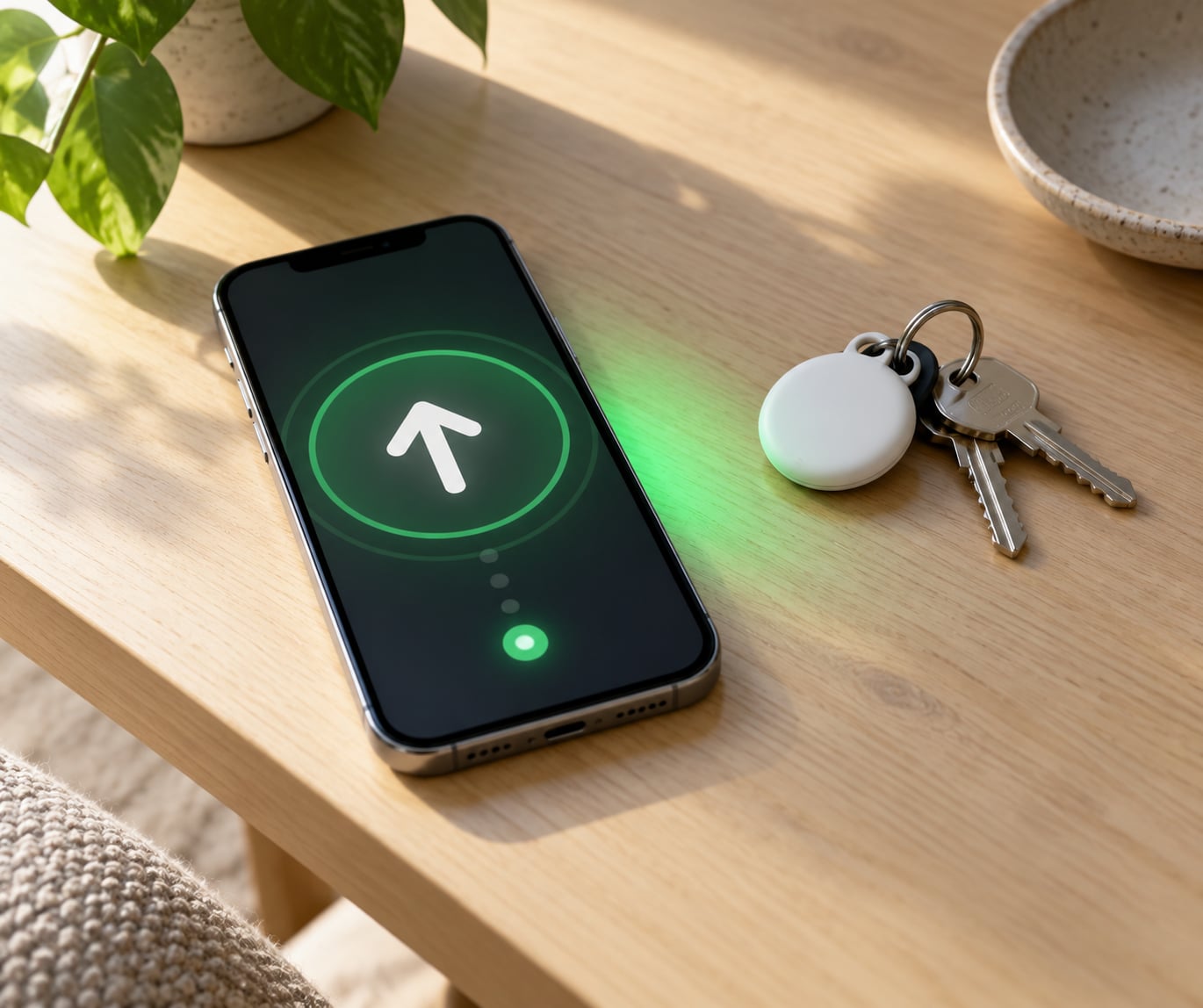
To use Precision Finding on your iPhone, open the Find My app, tap the AirTag or the friend you want to locate, and tap Find Nearby. Your iPhone measures the distance with its Ultra Wideband (UWB) chip and draws a direction arrow that turns green when you are walking the right way.
Once the settings are right the whole thing takes about a minute, and the fiddly part is almost never a fault in the app. It is usually one switch sitting in Settings that nobody remembers changing.
Table of Contents
- 1What You Need
- 2How to Use Precision Finding on iPhone, Step by Step
- 3How to Check the AirTag’s Location
- 4How to Use Precision Finding Directions
- 5How to Make an AirTag Play a Sound
- 6How to Find a Friend With Precision Finding
- 7Common Mistakes When Precision Finding Stops Working
- 8How Accurate Is Precision Finding?
- 9Frequently Asked Questions
- 10What is Precision Finding on iPhone?
- 11Does Precision Finding work without an AirTag?
- 12Why does my AirTag show as offline in Find My?
- 13How close must I be before I can use Precision Finding?
- 14Why can’t I play a sound from my AirTag?
- 15Does Precision Finding tell me exactly where my AirTag is?
What You Need
Precision Finding only appears when the hardware, the software and the permissions all line up. Miss any one of them and the app quietly falls back to a plain Directions button, which is why people think the feature is broken.
- An iPhone 11 or later. The U1 (and now U2) chip is what measures the real distance. Older iPhones show a map pin and nothing else.
- For finding a friend, an iPhone 15 or later on both phones. Finding an item works on iPhone 11 and up. Finding another person needs iPhone 15 or newer on your phone and theirs, on iOS 17 or later.
- An AirTag or another supported tracker. AirTag, AirTag Pro, and third-party trackers that use the same UWB path can be located this way.
- Location Services switched on for Find My. Go to Settings > Privacy & Security > Location Services and check that Find My is allowed.
- Precise Location on for Find My. Without it, iOS rounds your position down and the distance estimate gets noisy.
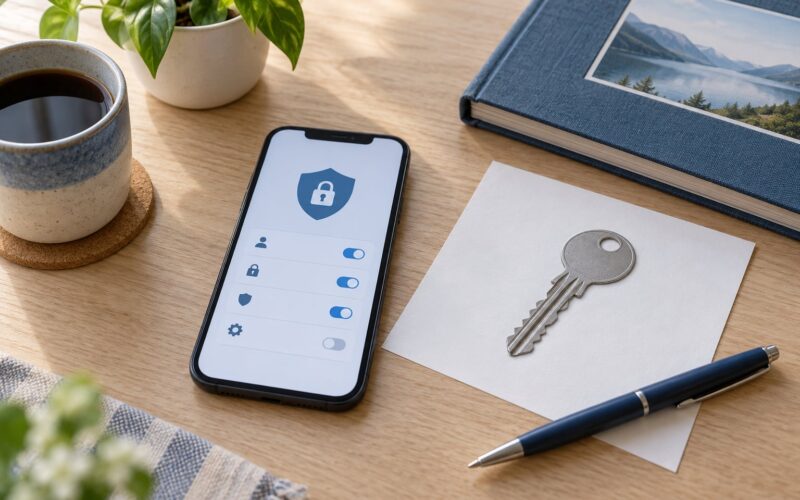
- Share My Location pointed at your own device. Settings > Privacy & Security > Location Services > Share My Location, then set My Location to This Device. This is the setting behind most failed attempts.
- Bluetooth and a network connection. The UWB handshake is local, but the map pin and the last-seen time come from Apple’s network.
One more thing people miss: both people have to share with each other. Location sharing runs in both directions, so if your friend shares with you but you never reciprocate, they will see a request and no arrow.
Finally, Precision Finding is not offered in every country or region. If the Find Nearby button is missing completely rather than replaced by Directions, availability in your area is the first thing to check.
How to Use Precision Finding on iPhone, Step by Step
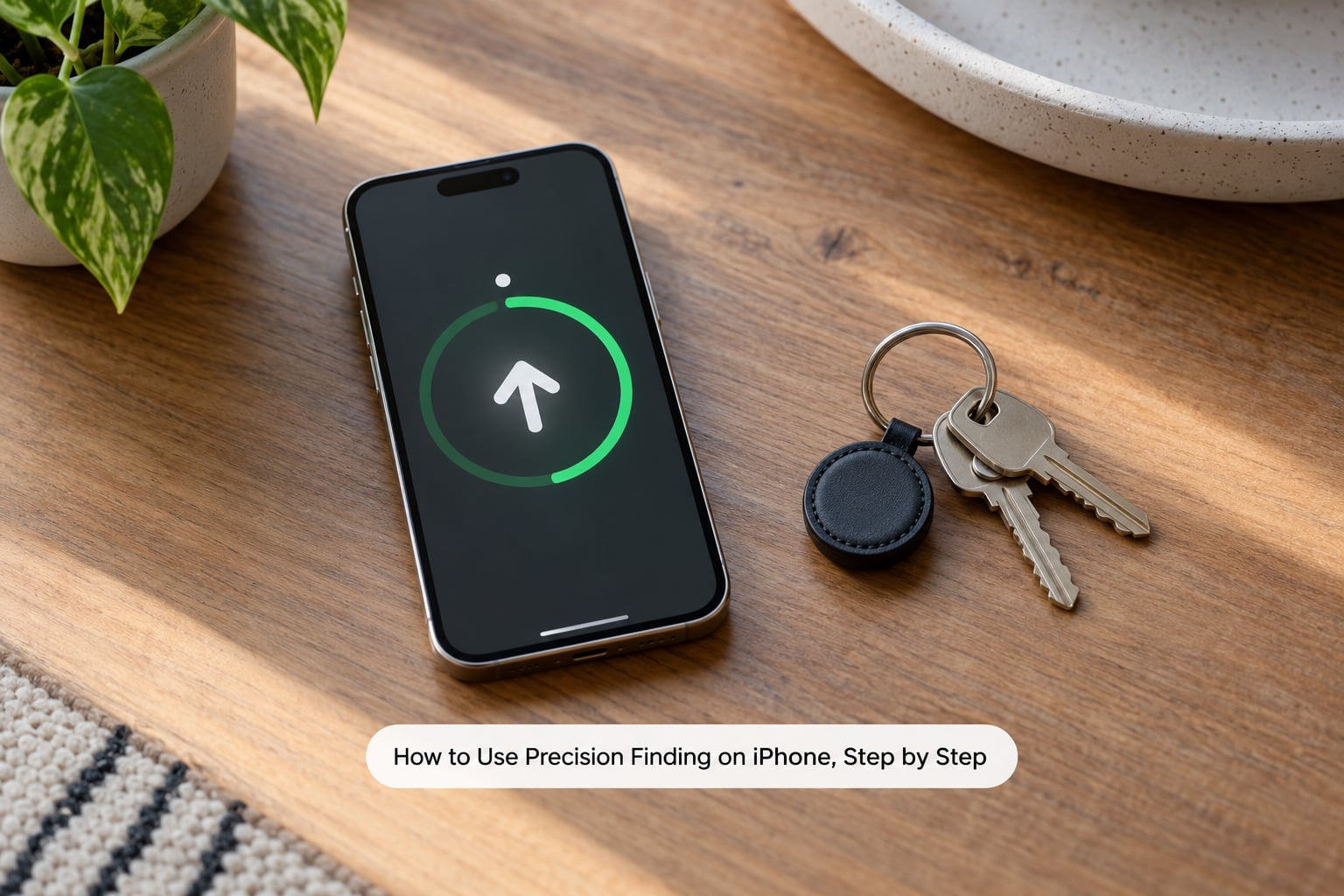
The full flow is short once you know the four taps. Do them in this order the first time and the screen will tell you which step is missing.
- Open Find My from the dock or by searching on the Home Screen. It is the green radar icon.
- Tap Devices or Items at the bottom of the screen. Devices is the default tab and it holds your AirTags, your other Apple gear and third-party trackers.
- Select the AirTag or item by tapping its name in the list. The item’s card opens with a map, a last-seen line and a row of controls.
- Tap Find Nearby if the option is there. Hold your phone up with the screen facing you and the top edge pointing roughly in the direction the item is.
- Watch the arrow and the distance number. The arrow points toward the item and the number counts down as you walk. The screen turns green the moment you face the right way.
- Slow down near the end. Under about 5 metres the reading gets jumpy. Stop, look around, and use Play Sound if the item is still hidden.
How to Check the AirTag’s Location
Before you get an arrow, check the map pin. Tap your AirTag in the Devices list and the card shows where iOS last placed it, plus how old that information is.
Read the line under the name. If it says the item was seen a moment ago, the map is live and you can start walking. If it says last seen several hours ago at a fixed address, your AirTag is out of range of any iPhone nearby, and Precision Finding will not start until it reconnects.
Pull the map down or reopen the item to refresh the reading. The accuracy circle around the pin matters as much as the pin itself: a small circle means recent and precise, a wide one means iOS is estimating from the Find My network rather than from a phone that actually saw the tag.
An offline item is not a broken item. AirTags do not transmit on a schedule. They wake up and send a ping when a passing iPhone in the Find My network is close enough, which in a quiet hallway can take a while.
How to Use Precision Finding Directions
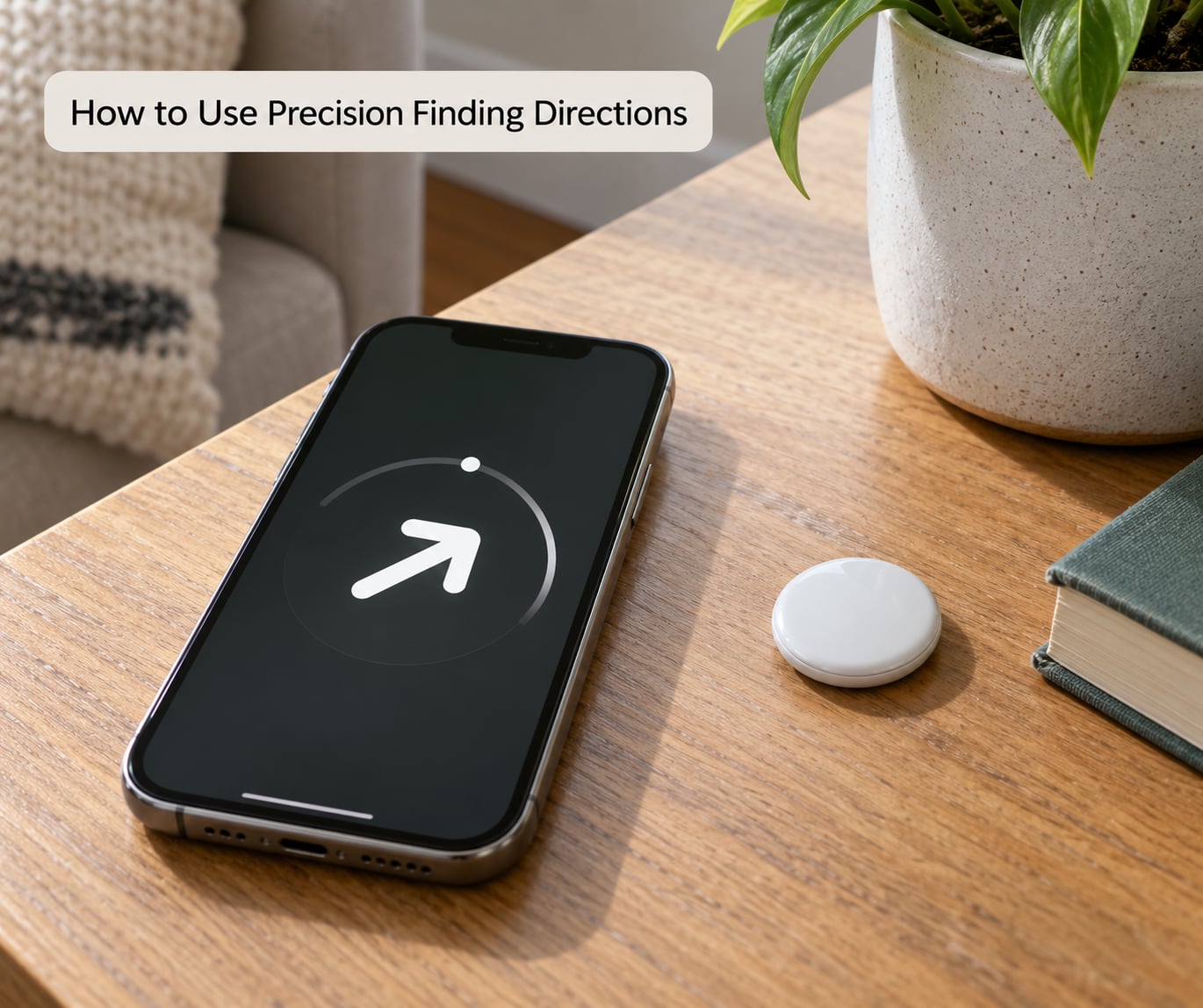
Tap Find Nearby and the map view is replaced by a full-screen direction finder. A big arrow fills most of the display with the estimated distance in metres or feet underneath it.
Turn your body until the arrow points up the screen. The screen background turns green when the phone thinks you are facing the item, and a soft haptic pulse ticks faster as you close in, so you can follow the direction without staring at the display the whole way.
Walk slowly. Every step you take changes the measured distance, and moving too fast makes the estimate lag behind you by a metre or two. Turn corners gently and re-check the arrow, because the bearing only recalculates as you move.
When the number drops into single digits, stop walking and look at your surroundings. A tag on a sofa cushion, under a car seat or inside a bag will not announce itself, and the reading can be off by a full metre against a wall or a metal surface.
Confirm the tag belongs to you by tapping Play Sound. A beep means you are in the right room. Silence means you are close but the item is muted, out of Bluetooth range, or the sound is coming from a different device nearby.
How to Make an AirTag Play a Sound
The sound control sits under the item’s name in Find My, next to AirDrop, Mark as Lost and Battery. Tap Play Sound and the AirTag chirps for a couple of seconds.
Tap it again to repeat the chirp. There is no separate stop button; the sound ends on its own after a few seconds, and you can play it as many times as you like while checking under cushions.
When nothing comes out, walk closer first. Play Sound relies on Bluetooth, so it only works at short range, and the AirTag speaker itself can be muffled by a wallet sleeve or a pocket. If the sound works but the arrow does not, the two systems are telling you different things: Bluetooth can see the tag while UWB is still out of useful range.
How to Find a Friend With Precision Finding
Finding a person works differently from finding an item, and the extra step is sharing.
- Open Find My and tap People. If you do not follow each other yet, tap the add button, search for their name or share link, and have them accept.
- Confirm both sides are sharing. Tap your friend’s name, switch Share My Location on, and make sure they have done the same for you.
- Tap Find Nearby under their name. Both phones need iOS 17 or later, and both need to be an iPhone 15 or newer for this flow to appear.
- Agree who moves. One person stays still while the other walks toward the arrow, otherwise the two of you circle each other.
If your friend sees a Find request instead of your location, they need to open their own Find My, tap People, tap your name and choose Share. Until they do, you are one-sided and there is nothing to point at.
Common Mistakes When Precision Finding Stops Working
You only see a Directions button. This is the most reported problem, and the fix is a Settings switch most people never knew existed. Go to Settings > Privacy & Security > Location Services > Share My Location and set My Location to This Device. While you are in Location Services, set Find My to While Using the App and turn Precise Location on.
You get a Could not start Precision Finding error. Three things cause it. Turn Bluetooth off and on again, close the item and reopen it, and walk closer to the tag. If the error appears while you are trying to find a person, their phone may be on a different network, out of cellular range, or have Location Services switched off at their end.
The AirTag says offline. No iPhone has been close enough to relay a ping. Carry the item into a busier room, or check whether the tag is switched off at the Find My network level by opening it in Find My and confirming it is not marked as lost or muted.
The arrow spins or points at a wall. Usually you are holding the phone upside down, or you have walked past the item and the bearing is now measuring back the way you came. Turn around, walk three paces in the opposite direction, and check whether the distance number grows.
No sound plays. Move within Bluetooth range, unmute your ringer, and check the item is not set to Lost Mode, which silences some alerts. If the AirTag is inside a bag with a metal clasp, the speaker may be physically covered.
Find Nearby is missing entirely for a friend. Friend-finding needs iPhone 15 or later on both phones, iOS 17 or later on both, and mutual sharing. Owners of iPhone 11 through 14 can still find items, just not people this way.
It worked last week and stopped. Check for a pending iOS update, since a major release can reset privacy permissions back to their defaults. Re-check the three settings above after every update, and treat the item tab as the fastest way to confirm Precision Finding is alive again.
Android phones in the same room are not the problem either. Some Android models show a coarse UWB distance with no directional arrow at all, and third-party trackers vary widely in how well they pair with the arrow interface.
How Accurate Is Precision Finding?
Outdoors with a clear view, expect the arrow to be right and the distance to land within a metre or two of the truth. Indoors it is still useful, but walls, furniture and people scatter the signal, and a tag behind a closed door or under a mattress will read noticeably long.
Treat the number as a floor rather than a GPS coordinate. The arrow is the reliable part. When the reading says 3 metres, the item is somewhere in that room, not necessarily at arm’s length.
Get better results by holding the phone screen-up at chest height, walking rather than jogging, and stopping to re-orient whenever the screen loses its green background. A short Play Sound is still the fastest confirmation once you are close.
Frequently Asked Questions
What is Precision Finding on iPhone?
Precision Finding is a Find My feature that uses the Ultra Wideband chip to point a direction arrow at a nearby AirTag, item or friend and show a live distance estimate. On iPhone 11 and later it works for items. On iPhone 15 and later it also works for people, provided both phones run iOS 17 or newer and share location with each other.
Does Precision Finding work without an AirTag?
No. The arrow needs a device with an Ultra Wideband chip to measure against. That means an AirTag, a supported third-party tracker, an AirTag attached to an item, or another person carrying an iPhone 15 or later. With no tagged device nearby, Find My can only show a last-seen map pin.
Why does my AirTag show as offline in Find My?
Offline means no iPhone in the Find My network has been close enough to wake the AirTag and relay its position. AirTags stay mostly silent until a passing phone is within range. Carry it into a busier area, and check that it is not marked as lost or muted in the Find My app.
How close must I be before I can use Precision Finding?
You need to be within roughly 30 metres of the tag for the arrow to appear, and closer than that for the distance reading to be useful. Below about 5 metres the estimate gets jumpy, so stop walking and use Play Sound to confirm. Bluetooth sound works at a much shorter range than the arrow does.
Why can’t I play a sound from my AirTag?
Play Sound uses Bluetooth, so it only works at short range. Get closer, unmute your ringer, and make sure the AirTag is not in Lost Mode, which changes how it behaves. If the tag is in a wallet or bag with a metal clasp the speaker can be muffled, so you may hear nothing even standing next to it.
Does Precision Finding tell me exactly where my AirTag is?
Not exactly. The arrow is dependable because it points in the right direction, but the distance number is an estimate that drifts indoors and around walls. Read it as a floor: three metres means the tag is somewhere in that room. Use Play Sound once you are close to confirm exactly where it is.
Start in Find My, pick the AirTag, and tap Find Nearby. If no arrow appears, fix the Share My Location setting first, check Precise Location, and then make sure the tag is not sitting offline.