A powered-off iPhone cannot be tracked live. There is no GPS receiver running and nothing broadcasting a location, so the honest answer to how to track a lost iPhone that is turned off is that you read the last location Apple stored before shutdown, then lock the phone so it checks in again the moment somebody switches it on.
Here is the short version. Open Find My on another Apple device or go to iCloud.com/find from any browser, select the missing iPhone, read the pin and the timestamp beside it, turn on Mark As Lost, and leave it. If the phone has been switched off or flattened, Find My Network can still surface an approximate position later, but only if you set it up before the phone went missing.
Three settings have to have been on before you lost the phone, and this is where most people discover the bad news:
- Find My iPhone — Settings > [your name] > Find My > Find My iPhone.
- Find My Network — the offline-finding switch in the same panel. Needs iPhone 11 or later on iOS 15 or later.
- Send Last Location — the service that stores a final position when a device goes offline.
Miss any one of those and the map goes blank the moment the phone dies. Everything below walks through what you can still do today, in the order that actually helps.
Table of Contents
- 1What You Need
- 2How to Track a Lost iPhone That Is Turned Off
- 3Step 1: Confirm Find My and Location Services are the settings you think they are
- 4Step 2: Check the iPhone in Find My and read the timestamp, not just the pin
- 5Step 3: Turn on Lost Mode to lock the phone and set a trap for the finder
- 6Step 4: Use the Find My Network and other Apple devices to fill the gap
- 7Step 5: Protect the Apple Account and report the device
- 8Common Mistakes
- 9Frequently Asked Questions
- 10Can I track a lost iPhone if it is completely turned off?
- 11How long does it take for an offline iPhone to appear in Find My?
- 12Does Lost Mode erase or delete a lost iPhone?
- 13Will Find My show a location if the iPhone has no cellular or Wi-Fi service?
- 14What should I do if my lost iPhone was stolen?
- 15Should I remove a lost iPhone from my Apple Account?
What You Need
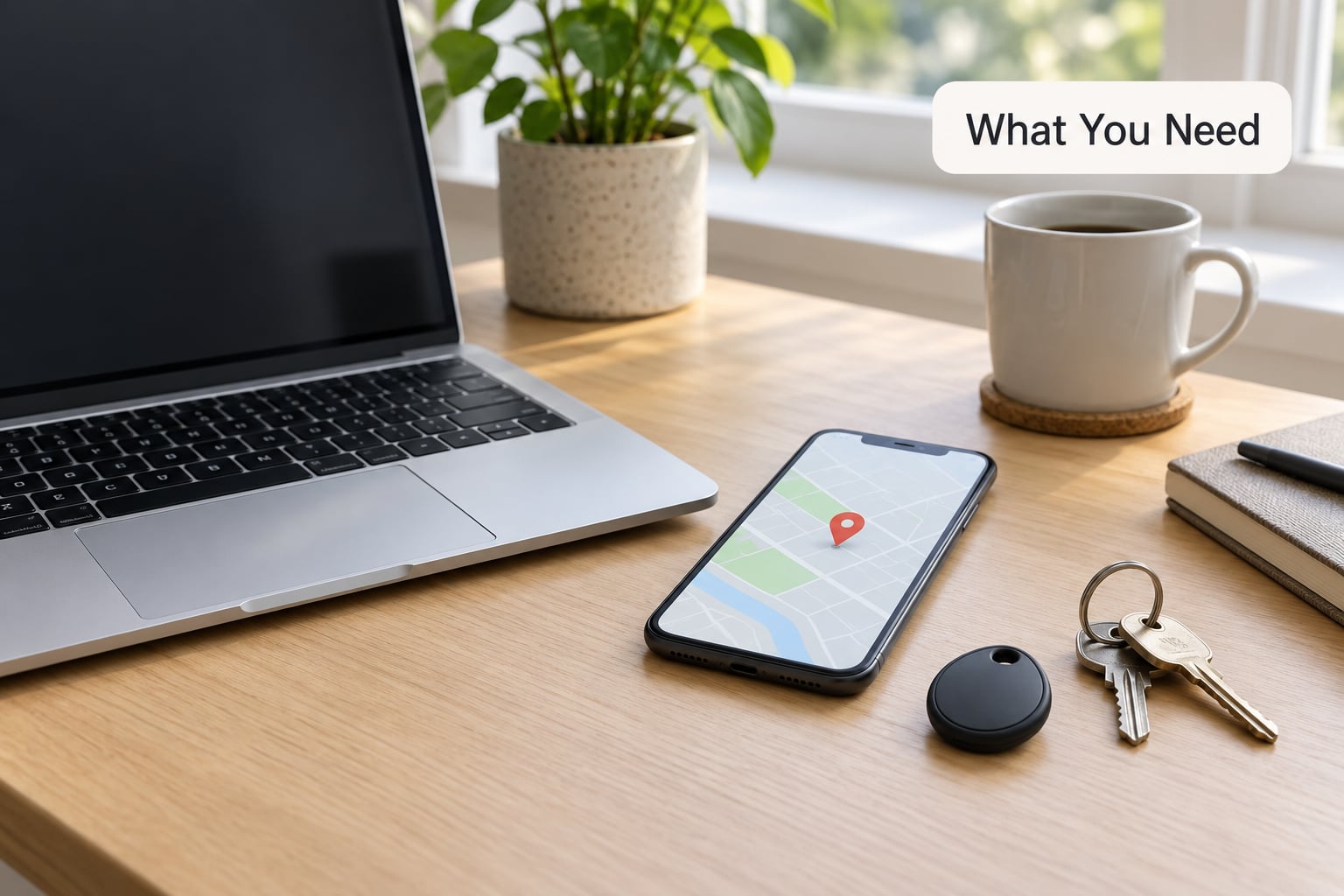
You need three things, and one of them cannot be fixed after the fact.
Access to your Apple Account. Find My is tied to the account signed in on the phone. If you signed out before it went missing, or somebody removed it from the account, the device leaves your device list and there is nothing left to open. If you do not know the password but still have access to the email or phone number on the account, reset it at account.apple.com.
A second Apple device or any browser. The Find My app lives on iPhones, iPads and Macs. If you have none of those, open iCloud.com/find on a borrowed or work computer, sign in with your Apple Account, and sign out again when you are done. The Help a Friend screen inside Find My lets someone else’s iPhone look up your phone using an email address or phone number registered to your account, which is the fastest route if you have no device of your own.
Your serial number or IMEI. You will not need it for Find My, but you will need it for a police report, a carrier block and an insurance claim. Find it under Settings > General > About on the iPhone, or on the box or the Apple ID account page.
Now the limitation worth sitting with: a completely powered-off iPhone sends out no signal of any kind. Find My cannot put a live dot on the map while the phone is off. What it can do is show the last position it received, and later pick up an approximate position from the Find My Network once the phone is back on, or still switched off but within range of other Apple hardware.
That distinction matters because two very different situations produce the same grey “Offline” label. A phone in airplane mode and a phone that has been sitting dead in a drawer can look identical on the screen while meaning completely different things for your search.
How to Track a Lost iPhone That Is Turned Off
Step 1: Confirm Find My and Location Services are the settings you think they are
Start by checking what Find My was configured to do before the phone went missing. On the lost iPhone the path is Settings > [your name] > Find My > Find My iPhone, and Location Services sits under Settings > Privacy & Security > Location Services.
If you no longer have the phone, you cannot change these now. What you can do is check your other devices and the account itself. Sign in to account.apple.com, open Devices, and confirm the missing iPhone still appears in the list. If it is there, Find My was on. If it is gone, somebody signed out of it or removed it from the account.
Three switches do three different jobs, and people routinely enable only the first one:
- Find My iPhone reports the device’s location whenever it can.
- Find My Network lets other Apple devices detect your phone’s Bluetooth beacon and relay an approximate position, which is what allows offline finding. This is the one that matters when the phone is off.
- Send Last Location stores a final position at the moment the phone loses its connection, so there is something to look at even after a dead battery.
If Find My Network was never switched on, offline finding is not available to you. The map will simply freeze at the last position recorded while the phone was online.
Step 2: Check the iPhone in Find My and read the timestamp, not just the pin
Open the Find My app on another Apple device, or open iCloud.com/find in any browser and sign in. Your devices appear in a list — tap or click the missing iPhone to load its page.
What you are looking at is one of three states:
- A green location with “Now” or a recent time — the phone is online and reporting.
- “Offline” with a grey pin and a timestamp — the last known location, and the time it was recorded.
- “No Location Found” — nothing has ever been stored for this device, or the stored history has aged out.
Read that timestamp first. A pin from yesterday is a place you were yesterday, not a place the phone is now. Forum users report the single most useful habit in the first hour is checking the pin’s age before reacting to it, because a stale pin sent people to the wrong end of town while the phone was actually in the other room.
Then work the pin like a breadcrumb rather than an address. Tap the pin to see the timestamp, retrace the steps you took from that point, and check the places that pin drops are usually wrong: the sofa cushions, the coat pocket, the car, the bottom of a bag, and the tray of a car hire desk.
One more thing to know about the device page. If a location appears grey and does not refresh for hours or days, the phone is genuinely offline rather than being hidden. Somebody cannot fake a dead pin in Find My, but they can move the phone before switching it off, and the last recorded position will faithfully show you where it was when it went dark.
Step 3: Turn on Lost Mode to lock the phone and set a trap for the finder
On the device page, choose Mark As Lost. Newer versions of iOS label this Lost Mode. The phone locks itself, keeps your Apple Account password out of reach, and shows a contact message with a phone number or Apple Account email address you choose. Pick a number you can actually answer, because you will get that call if someone picks the phone up.
Two things worth knowing about the status that appears afterwards. Pending means the command has been sent but the phone has not come online yet to confirm it — the lock is still queued. Activated means the phone has checked in and confirmed the lock is live. If it sits on Pending for a long time, that is itself information: the phone has not connected since you issued the command.
Mark As Lost does not erase anything. It is reversible, and the data stays on the phone. That is why it is the right first move — you keep the option of recovering the phone with your photos and messages intact.
Leave Notify When Found on. The moment somebody powers the phone on and connects it, you get a timestamp and location showing when it came back and roughly where. That is often the moment the pin becomes accurate again, and it tells you whether the phone is in someone’s hand or back where you left it.
Use Play Sound as well if you suspect the phone is at home. It rings for a couple of minutes even when the phone is otherwise off in terms of what you can see on screen.
Never share your passcode. Not with the person holding the phone, not with a helper, not with anyone claiming to be from Apple. A passcode can be used to erase the phone and defeat Lost Mode, and nobody legitimate will ask for it.
Step 4: Use the Find My Network and other Apple devices to fill the gap
Find My Network is the answer to the hard version of this question. When your iPhone is on but offline — no cellular signal, no Wi-Fi, out of battery reserve — it keeps sending a low-energy Bluetooth beacon carrying an identifier rather than a location. Other Apple devices nearby pick that up and report it to Apple without ever learning whose phone it is. Apple then works out an approximate position and shows it on your map.
Here is how to track a lost iPhone that is turned off in practice: wait. The position appears only when a compatible Apple device happens to be nearby the missing phone. It can be minutes in a busy place or hours in a quiet one, and it will never be a street-accurate pin. Treat it as a neighbourhood-level hint.
Compatibility matters more than most guides admit. Offline finding needs iPhone 11 or later running iOS 15 or later. Older models have no beacon to be picked up, so on an older phone the answer really is no.
Do not treat any of this as live GPS. Nobody can watch the dot move in real time while the phone is dead. Refresh the device page periodically, and keep checking for the Notify When Found alert, because that alert is the single most reliable signal you will get.
If you own a second Apple device, the same Find My app screens cover it. An Apple Watch on your wrist is another way to trigger Play Sound when the phone is somewhere in the house.
Step 5: Protect the Apple Account and report the device
Keep your iPhone signed in to your Apple Account rather than removing it. Removing it deactivates Find My, drops the device out of your list and removes the Activation Lock protection that stops someone else setting the phone up with their own account. A device you cannot see is a device you have no chance of getting back.
If you think the password may be compromised — for example a phishing message got you to type it, or the phone was unlocked with it — change it immediately at account.apple.com, check the list of trusted devices, and sign out of any that are not yours. Changing the password does not remove Activation Lock, but it does stop someone signing in as you.
When it comes to a stolen phone, the order matters. Mark it as lost first. Then record the IMEI and serial number. Then file a police report and ask for the reference number, because the carrier and your insurer will both want it. Then contact your carrier and ask them to block the device on their network. Then raise it with your insurer if you are covered.
Apple itself cannot recover a device for you. Nobody at support can locate a phone or hand one back. What Apple can do is confirm that Activation Lock is on, which stops a stolen iPhone being activated with someone else’s Apple Account — and that is what makes a blacklisted phone worth little to a reseller.
Do not erase the phone from the Find My page while you still hope to get it back. If you erase it, you lose the location, the photos, and the chance of recovering the device, and the phone still shows in your device list afterwards anyway — just permanently without a location. Users on Apple support forums raise this constantly and the answer is always the same: erasing does not remove a device from the list, it only removes your ability to find it.
Common Mistakes
Almost every dead end here comes from one of these.
Expecting a live dot while the phone is off. There is no GPS fix and no broadcast from a shut-down iPhone. What you get is a stored position with a timestamp and a later, rough network estimate. If your plan depends on watching the phone move, it will fail.
Erasing the phone before trying Lost Mode. Erasing is permanent, kills the location data and any chance of recovering your stuff. Mark it lost instead. Erase only when you have written off recovering the device and your insurer or police process needs you to.
Removing the phone from your Apple Account. This is the single most damaging thing you can do. It deactivates Find My on the device and removes Activation Lock. Leave it signed in.
Believing a grey pin means the phone is somewhere current. Offline pins show the last known location. Always check the timestamp and treat an old pin as a place you visited, not a place the phone is.
Looking for a live GPS trace from the Find My Network. Network positions come from other people’s devices detecting a beacon. They are approximate and delayed. Wait for them rather than expecting them on demand.
Assuming Find My is on because Location Services is on. They are separate switches, in separate parts of Settings. Location permission alone does nothing for Find My.
Posting your IMEI, serial number or Apple Account email in public forums or on social media while asking for help. Those three values together can get your phone blocked and your account compromised. Share them only with Apple, your carrier, police and your insurer.
These are the states you are most likely to run into and what each one actually means for tracking:
| iPhone state | What Find My shows | What you can do |
|---|---|---|
| Powered off | Offline with a grey pin and timestamp | Read the last location, turn on Mark As Lost, wait for the Find My Network estimate |
| Battery dead | Same as powered off | Same, plus Send Last Location if it was on — it may hold the final position |
| Airplane mode | Offline, often with a fresher last location | Best case for offline finding, since the beacon still transmits |
| On but no cellular or Wi-Fi | Offline, location updates as nearby devices report it | Wait and refresh; this is exactly what the network is for |
| Erased by you or by a finder | Still in your device list, with no location | Nothing. Erase removes your ability to locate it permanently |
| Find My iPhone off | No location at all | Use carrier or IMEI lookup and report it stolen |
| Removed from your Apple Account | Device disappears entirely | Only a carrier block, a police report and an insurance claim |
One thing people forget about the retention window. Location history in the Find My app on your own device goes back further — roughly up to a week — while the web version at iCloud.com/find keeps a much shorter window, about 24 hours. If you started on a borrowed computer, open the app on a device you own as soon as you can.
Finally, think about how likely each outcome is. A phone left in a taxi, on a work floor or at the gym is usually recovered from the last known pin within the hour, and users in Apple community threads describe exactly that success. A phone that was deliberately taken and immediately powered off is a different problem, and the carrier block plus police report is what actually moves it forward.
Frequently Asked Questions
Can I track a lost iPhone if it is completely turned off?
Not live, no. A fully powered-off iPhone has no GPS receiver running and sends no signal, so Find My cannot show a moving location. What you can use is the last location the phone recorded before it went offline, along with its timestamp, and later an approximate position from the Find My Network if another Apple device comes near it. Turn on Mark As Lost so the phone locks itself and checks in the moment somebody switches it on.
How long does it take for an offline iPhone to appear in Find My?
There is no fixed time. The last known location normally stays on screen for hours, while the Find My Network can add an approximate position as soon as another compatible Apple device passes within range of your phone. That might be minutes in a busy place and hours somewhere quiet. If your iPhone is 11 or later on iOS 15 or later and Find My Network was already switched on, refresh the device page periodically and watch for the Notify When Found alert.
Does Lost Mode erase or delete a lost iPhone?
No. Mark As Lost, called Lost Mode in newer versions of iOS, locks the phone and displays a contact message so whoever finds it can call you. Your data stays on the device and the setting is reversible. Erasing is a separate, permanent action that destroys the location data along with everything else, so keep Lost Mode on until you have genuinely given up on recovering the phone.
Will Find My show a location if the iPhone has no cellular or Wi-Fi service?
Yes, but only an approximate one, and only if Find My Network was switched on before the phone went missing. Your iPhone keeps sending a low-energy Bluetooth beacon, and nearby Apple devices relay it anonymously to Apple so the map can show a neighbourhood-level position. There is no signal from the phone itself, so the pin never moves in real time. You will need an iPhone 11 or later running iOS 15 or later for offline finding to work.
What should I do if my lost iPhone was stolen?
Mark it as lost straight away so it locks and records any future connection, then note the IMEI and serial number. File a police report and keep the reference number, ask your carrier to block the device on their network, and tell your insurer if you are covered. Do not erase the phone and do not remove it from your Apple Account, because that deletes your chance of recovering it and removes the Activation Lock that makes a blacklisted phone worthless to sell.
Should I remove a lost iPhone from my Apple Account?
No, never. Removing the device deactivates Find My, drops it out of your device list and switches off Activation Lock, which is the protection that stops someone else activating it with their own Apple Account. Keep it signed in so the phone keeps checking in and reporting back. If you think the Apple Account password may be compromised, change it at account.apple.com instead, and remove only trusted devices you do not recognise.
Do this first, before anything else: open Find My from another Apple device or iCloud.com/find, select the iPhone, note the timestamp on the pin, and turn on Mark As Lost. Then let the Find My Network do its slow work while you retrace the pin’s last known location.
And once you have the phone back — or a new one — spend two minutes on Settings > [your name] > Find My and switch on Find My Network, Send Last Location and Notify When Found. That two-minute habit is the entire difference between a map with a pin on it and a blank search that goes nowhere.