To check for stalkerware on iPhone, you inspect the settings iOS gives you: unfamiliar apps, Screen Time and Family Sharing entries, your Apple Account device list, app permissions, and any configuration profile or VPN. There is no scan button on an iPhone. iOS is a closed system, so an app cannot deep-search your phone for hidden surveillance, and every check is something you do by hand in about half an hour.
Most of those checks are free and take minutes. Some people find nothing at all, which is genuinely good news. Others find a management profile from an old job, a parental control app they forgot installing, or a second device signed into their Apple Account that they have never seen.
Table of Contents
- 1What You Need
- 2How to Check for Stalkerware on iPhone
- 3Step-by-Step
- 4Step 1: Secure the iPhone and record what you see
- 5Step 2: Review installed apps and mobile data
- 6Step 3: Check Screen Time and family-sharing controls
- 7Step 4: Audit Apple ID, Find My, and other devices
- 8Step 5: Review location, microphone, camera, and Bluetooth permissions
- 9Step 6: Check profiles, VPNs, and other accounts
- 10Step 7: Decide whether to remove the suspected tracker
- 11Common Mistakes
- 12Frequently Asked Questions
- 13Is checking apps enough to know my iPhone is clean?
- 14How do I remove a suspicious configuration profile?
- 15Is Family Sharing the same as stalkerware?
- 16What do I do if my Apple Account password was changed without me knowing?
- 17When should I contact Apple or a digital security specialist?
- 18Can I tell if someone is mirroring my iPhone screen?
What You Need
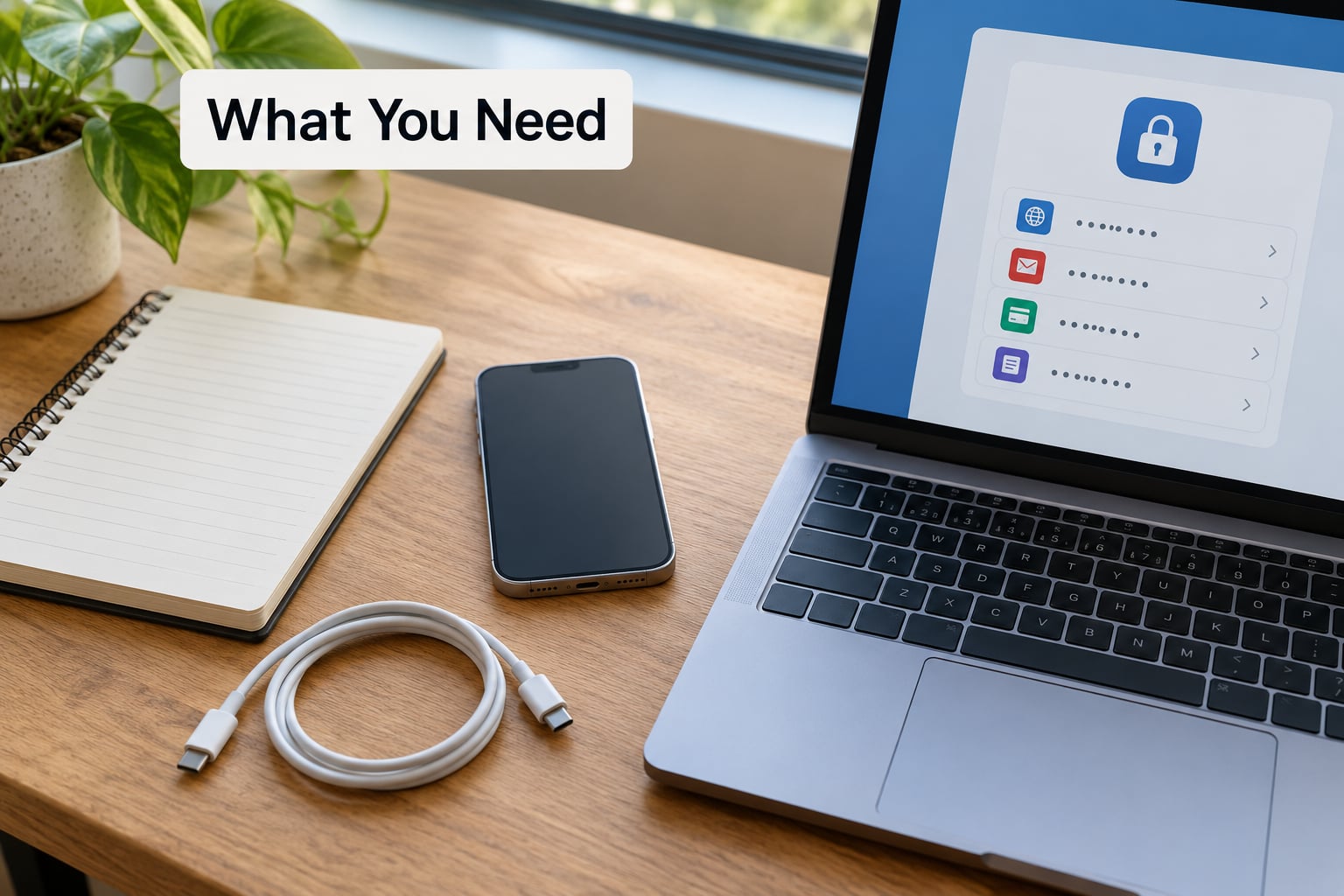
You need the iPhone itself, your current Apple Account password, and a second trusted device or computer. That second device matters more than people expect, because changing your Apple Account password while signed in on the phone you are inspecting can tip off whoever has access.
A pen and paper beat screenshots taken on the same phone, since anything you capture is visible to anyone who can see your screen. Set aside 20 to 40 minutes, and do it somewhere private.
One note on menu names, because many guides send you to dead ends. Older articles tell you to look for iTunes Wi-Fi Sync, which Apple removed in iOS 15. Others say Profiles & Device Management, now called VPN & Device Management. The paths below match current iOS releases, where you will find Settings at the top of your home screen, and your Apple Account page shows your name or initials at the top of Settings.
How to Check for Stalkerware on iPhone
Here is the short answer. A clean iPhone looks like this across seven areas:
- Apps: every app in your App Library is one you installed, on purpose, with a name you recognize.
- Screen Time and Family Sharing: no limits, schedules, or family members you did not add yourself.
- Apple Account: no unknown devices in your device list, no Handoff devices, no call forwarding, no text message forwarding.
- Permissions: no app holding Always-on location, microphone, or camera access that you never granted.
- Profiles and VPNs: nothing under VPN & Device Management that you cannot explain.
- Background activity: no unfamiliar app burning through battery or mobile data around the clock.
- Account security: a password you chose, two-factor authentication on, and a trusted phone number that is yours.
No single entry proves stalkerware. A trusted device with an unfamiliar name might be your old iPad. What matters is the pattern: several unfamiliar entries, several over-broad permissions, or a combination of those plus behaviour that does not fit.
Stalkerware, by the definition used by the Coalition Against Stalkerware, is monitoring software that lets someone track a device without the consent of the person using it, almost always an abusive partner or an ex. Citizen Lab’s research on intimate partner abuse describes it as privileged access in practice: the installer usually knows your passcode or your Apple Account password. That detail explains why the checks below focus on your passwords and your device list as much as on your apps.
Step-by-Step
Step 1: Secure the iPhone and record what you see
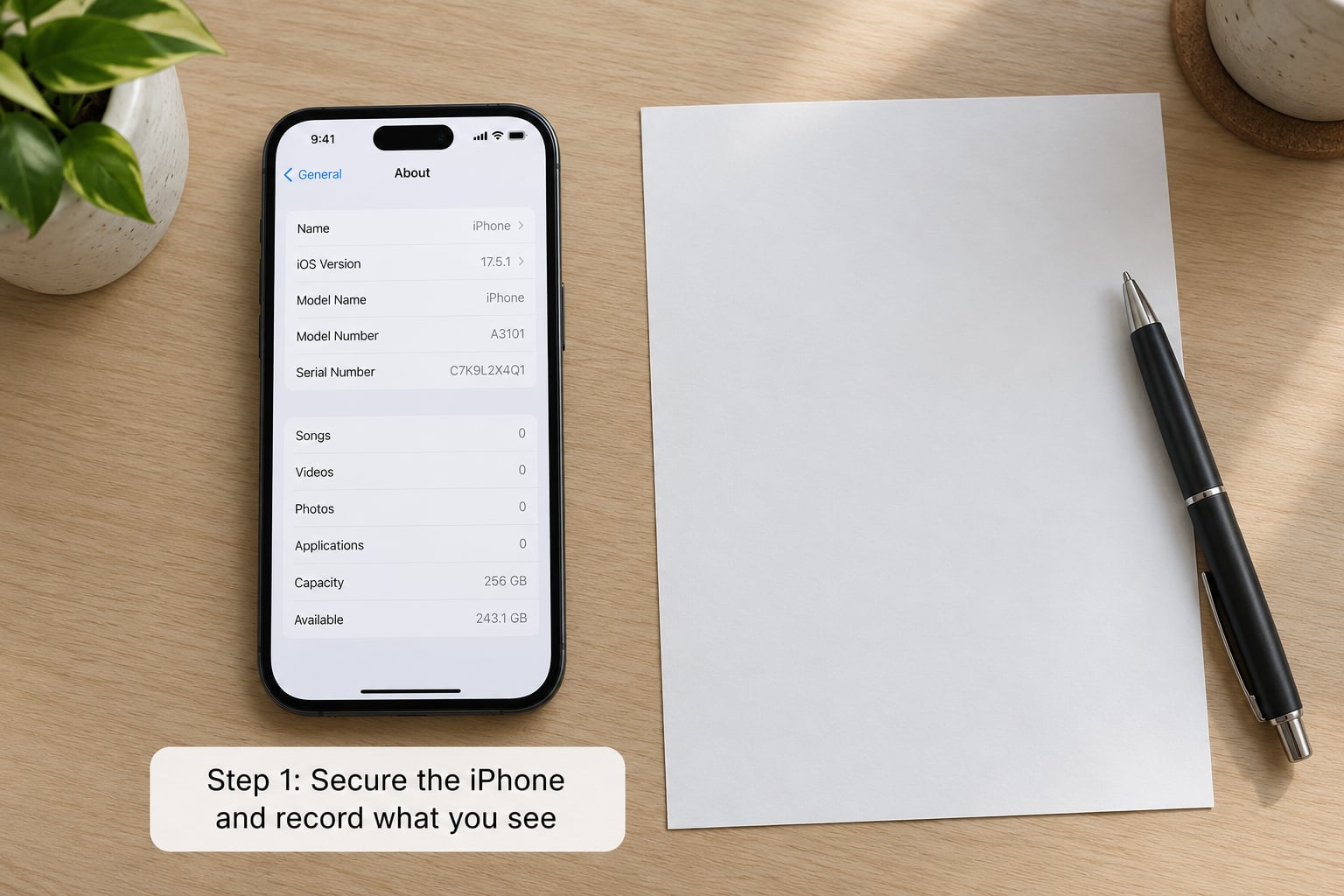
Write down what is on the phone before you change anything, because deleting evidence first is the most common way people lose their way. Open Settings > General > About and note the iOS version number exactly as shown.
Install any pending iOS update if it is practical to do so from a safe place. Security patches close real gaps, and the Coalition Against Stalkerware maintains a news feed specifically for surveillance exploits that need an update to fix.
Do not reset the phone, delete apps, or remove profiles yet. If you might want police, a lawyer, or a support service to see what was installed, record the app names, the profile name and its date, and the date you first noticed something wrong.
Step 2: Review installed apps and mobile data
Most consumer stalkerware arrives as a normal app, so the App Library is where you will find it. Open Settings > Apps > See All Apps and read the list top to bottom, not just the folder on your home screen.
Scroll to the bottom of that list for App Library, which holds every app on the phone including ones you have deleted. Look for names associated with monitoring, parental control, remote management, or employee device management: mSpy, FlexiSPY, Eyezy, SpyBubble, ClevGuard, Nearcheck, Earphone Spy, Cerberus, and similar products appear in consumer stalkerware app lists.
A clean result is a list where every entry has a purpose you would be able to explain in one sentence. Hidden apps tend to use names that look like system components or untitled utilities.
Next open Settings > Cellular and scroll to the data usage chart ordered by time. Stalkerware exfiltrates data constantly, so a monitoring app you do not recognise will usually sit near the top of that list. Look for the same pattern in Settings > General > iPhone Storage, where the largest apps are listed first.
Do not delete an unfamiliar app before you understand what it is and which account it belongs to. Some monitoring tools send an alert the moment they are removed.
Step 3: Check Screen Time and family-sharing controls
Screen Time is easy to set up and easy for someone with your passcode to set up without asking. Open Settings > Screen Time and read through App & Website Activity, App Limits, Always Allowed, and any communication limits.
Also check the Screen Time passcode under Screen Time > Change Screen Time Passcode. If you do not know the passcode, someone else set it, and that is worth noting down.
Then open your Apple Account page at the top of Settings, tap Family, and read the member list. Legitimate Family Sharing is identifiable because you can see it in your payment method and it applies across your Apple devices. An entry you never added, or one you cannot remove, needs a closer look.
Step 4: Audit Apple ID, Find My, and other devices
This is the check most guides skip and the one that catches the most, because iCloud-based monitoring leaves nothing on the phone to find. Open Settings > [your name] and tap Devices. Every device listed should be one you own or have used.
Check the account page itself for your name, primary email, phone number, and trusted phone numbers. An unfamiliar phone number is how password resets get redirected, so remove anything you do not recognise after you have changed the password.
In the Apple Account settings, look at Password & Security to confirm two-factor authentication is on, then open Family, Payments & Subscriptions, and Login & Security to spot anything unfamiliar. On a computer, sign in at appleid.apple.com and open Where you are signed in, which forum users on r/techsupport consistently point to first, since iCloud credentials are the most common monitoring route on iOS.
Now open Find My and check Devices, plus People under Allow Location Sharing. Each name there can see your location continuously. Remove anyone you did not add yourself.
Step 5: Review location, microphone, camera, and Bluetooth permissions
Go to Settings > Privacy & Security and open Location Services. Scroll the full list and look at anything set to Always. Then open App Privacy Report, where you can see which apps have accessed which sensors and which websites contacted, grouped over the last seven days. It is the most underused diagnostic on iOS and takes about a minute to read.
Work through Tracking, Microphone, Camera, Bluetooth, Contacts, Calendars, and Health. For anything questionable, set Location to Never or Ask for the Next Time and turn off the other permissions.
The orange dot in the status bar means the microphone is in use. The green dot means the camera is in use. If either appears when you are not using the microphone or camera, pull down Control Centre and check nothing is recording. On a clean phone those dots only appear while you are actually in a call, recording voice memo, or in a camera app.
Check Settings > Bluetooth too and remove accessories you do not recognise.
Step 6: Check profiles, VPNs, and other accounts
Open Settings > General > VPN & Device Management. An empty screen here is the goal. A configuration profile titled Mobile Device Management, or anything you cannot explain, is the item that most deserves investigation, because a management profile can push apps, restrict settings, and block removal.
A VPN profile is usually legitimate. Many people use one for privacy, and work phones carry one. What matters is whether you put it there. A corporate profile from an employer you no longer work for is worth deleting; an enrollment profile with no employer name is not.
Also open Settings > Passwords and remove saved passwords and autofill devices you do not recognise, then check Settings > Apps > Mail > Accounts and Settings > Apps > Calendar > Accounts for any account that is not yours.
Step 7: Decide whether to remove the suspected tracker
If you found something, work in this order: change your Apple Account password from the second device, turn on two-factor authentication, remove unknown devices from your Apple Account device list, then remove the app or profile from the phone.
On your phone, open Settings > General > Transfer or Reset iPhone > Erase All Content and Settings as the cleanest option, then restore from a backup you are confident predates the problem. Restoring from a backup taken after the infection puts it straight back.
Watch the phone afterwards. Stalkerware that is removed sometimes reappears, because the installer still has your iCloud password or an active profile.
If monitoring continues, or you cannot remove a profile because a passcode you do not have is required, contact Apple Support and a specialist. If an abusive partner may be involved, contact a domestic violence support service before you act, because the reaction risk is real and a support worker can plan the timing with you.
Common Mistakes
Deleting before you record. Screenshots of the profile, the app list, and the battery report are what make a case to Apple, police, or a lawyer. Note the date, then act.
Treating battery drain as proof. A hot, slow phone usually means an old battery, a weak signal, or a heavy app, not surveillance. Check the Settings > Battery report and look at which specific app is the cause instead.
Assuming every VPN profile is malware. VPNs are normal, and employer MDM profiles are normal. Read the profile name and the organization before you delete anything.
Only looking at apps. The most common iOS monitoring route uses your Apple Account password, and it leaves no app, no profile, and nothing on the phone. The device list and Where you are signed in history are where that shows up.
Changing settings on a device someone else can see. Do the Apple Account work from a computer or a phone the other person has never touched, not from the phone under suspicion.
Panicking into an anti-spy app. Several App Store scanners marketed as stalkerware detectors cannot do what they claim on iOS. Every check in this guide is free and needs none of them.
A few habits cut the odds considerably. Keep iOS updated, never share your passcode, use a separate password and two-factor authentication for your Apple Account, review your device list every few months, and never install an app or tap a configuration profile link someone sends you in a message.
Frequently Asked Questions
Is checking apps enough to know my iPhone is clean?
No. Most iOS monitoring uses your Apple Account password to read iCloud data remotely, which leaves no app and no profile behind. You also need to review your device list, Where you are signed in, Find My sharing contacts, Handoff, Calls on Other Devices, Text Message Forwarding, Screen Time limits, and app permissions. Apps are the easiest check and the least conclusive one.
How do I remove a suspicious configuration profile?
Open Settings, then General, then VPN u0026amp; Device Management. Tap the profile and choose Remove Profile. Some profiles are protected by a screen passcode or by a remote wipe rule from the organization that installed them, and removal can fail if you do not have that passcode. Record the profile name and date first, then contact Apple Support if it will not delete.
Is Family Sharing the same as stalkerware?
No. Family Sharing is an Apple feature you opted into, and you can usually see it in your payment method or across your own devices. Stalkerware is installed without your knowledge or consent. An unfamiliar family member, a Screen Time passcode you never set, or a device in your Apple Account list that you cannot account for are worth investigating rather than assuming they are normal.
What do I do if my Apple Account password was changed without me knowing?
Change it again from a trusted computer immediately, turn on two-factor authentication, and verify your trusted phone numbers and recovery email on your Apple Account page. Then review Where you are signed in at appleid.apple.com and remove every session and device you do not recognise. Anyone with your password can read iCloud data without installing anything on your phone.
When should I contact Apple or a digital security specialist?
Contact Apple Support when a profile will not delete, when a device appears in your account list that you cannot remove, or when monitoring continues after a clean restore. Contact a specialist when you suspect sophisticated or state-level tools. If an abusive partner may be involved, contact a domestic violence support service before acting, so the timing of removal is planned around your safety.
Can I tell if someone is mirroring my iPhone screen?
Sometimes. Check Settings, then your Apple Account, then Handoff and see whether devices you do not own are listed there. Also check Phone for Calls on Other Devices and Messages for Text Message Forwarding, where another device receives your calls and texts. Apple removed remote screen mirroring from iOS years ago, so live mirroring usually means either a managed device or an active monitoring feature.
If you do only one thing first, open your Apple Account device list on a computer you trust and remove anything you do not recognise. It costs five minutes, it catches the most common form of iOS monitoring, and it tells you quickly whether this is a small problem or a bigger one.