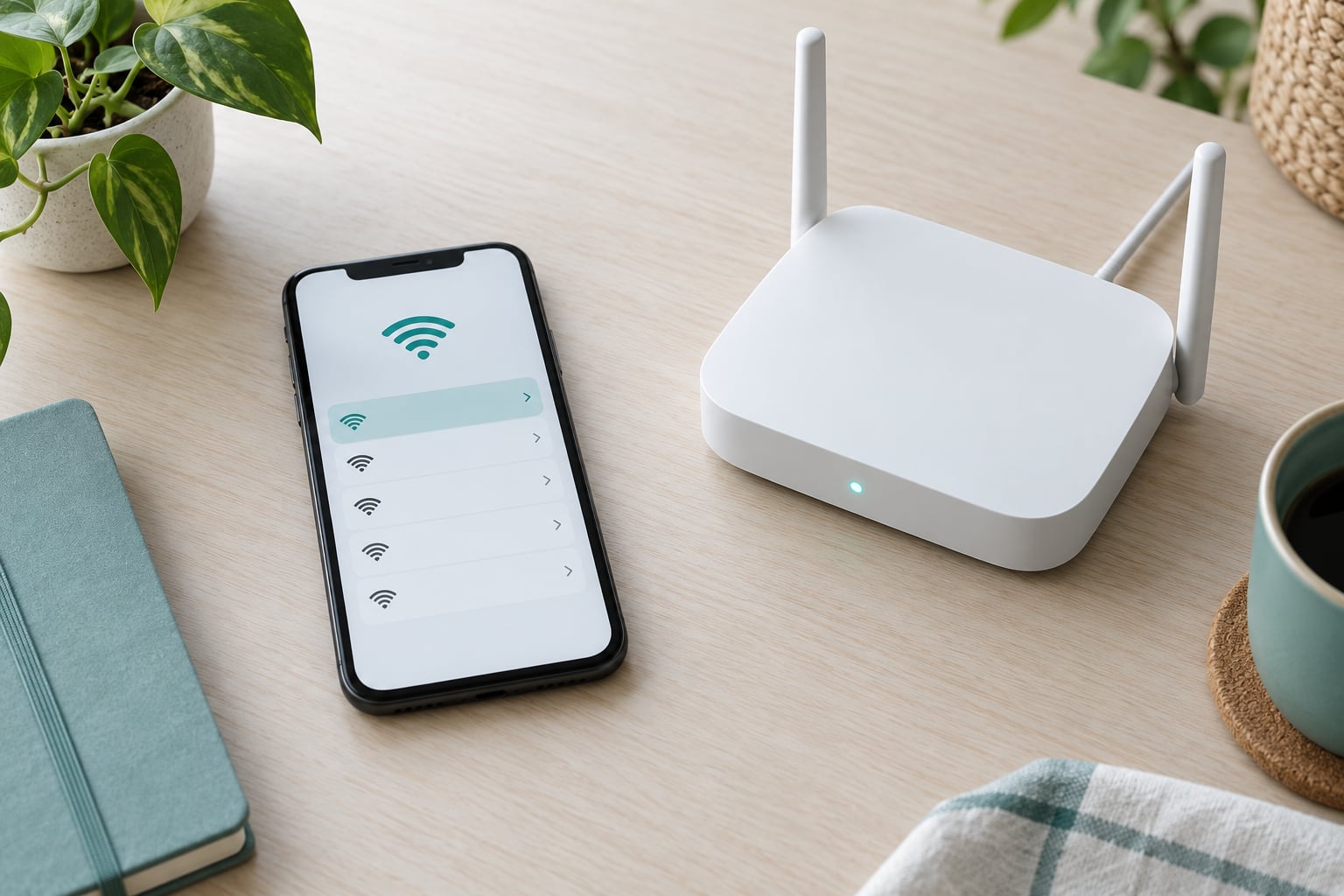
Most iPhone Wi-Fi drops come down to one of four things: Wi-Fi Assist quietly handing your traffic to cellular, a saved network that has gone stale, a router that needs a power cycle, or a software glitch in the iOS build you are running. If you want to know how to fix wifi keeps disconnecting on iphone, work through the fast fixes first, in this order: toggle Airplane Mode, forget and rejoin the network, then restart the iPhone and the router.
Table of Contents
- 1What You Need
- 2Step-by-Step: How to Fix WiFi Keeps Disconnecting on iPhone
- 31. Check Whether the Problem Affects Every Device
- 42. Confirm the iPhone Is Connecting to the Right Network
- 53. Restart the iPhone and Router
- 64. Check for iOS or Carrier Settings Updates
- 75. Disable Wi-Fi Calling, Private Relay, and VPN Interference
- 86. Reset Network Settings on the iPhone
- 97. Test the Router, Placement, and Network Name
- 108. Check for an iPhone Hardware or Service Problem
- 11Common Mistakes
- 12Frequently Asked Questions
- 13Why does my iPhone keep disconnecting from Wi-Fi when the screen locks?
- 14Should I turn Wi-Fi Assist on or off?
- 15Does Reset Network Settings delete anything on my iPhone?
- 16Why does my iPhone say connected but there is no internet?
- 17My iPhone Wi-Fi works everywhere except at home. What do I check first?
- 18Do these fixes work on an iPad or a Mac?
- 19Conclusion
What You Need
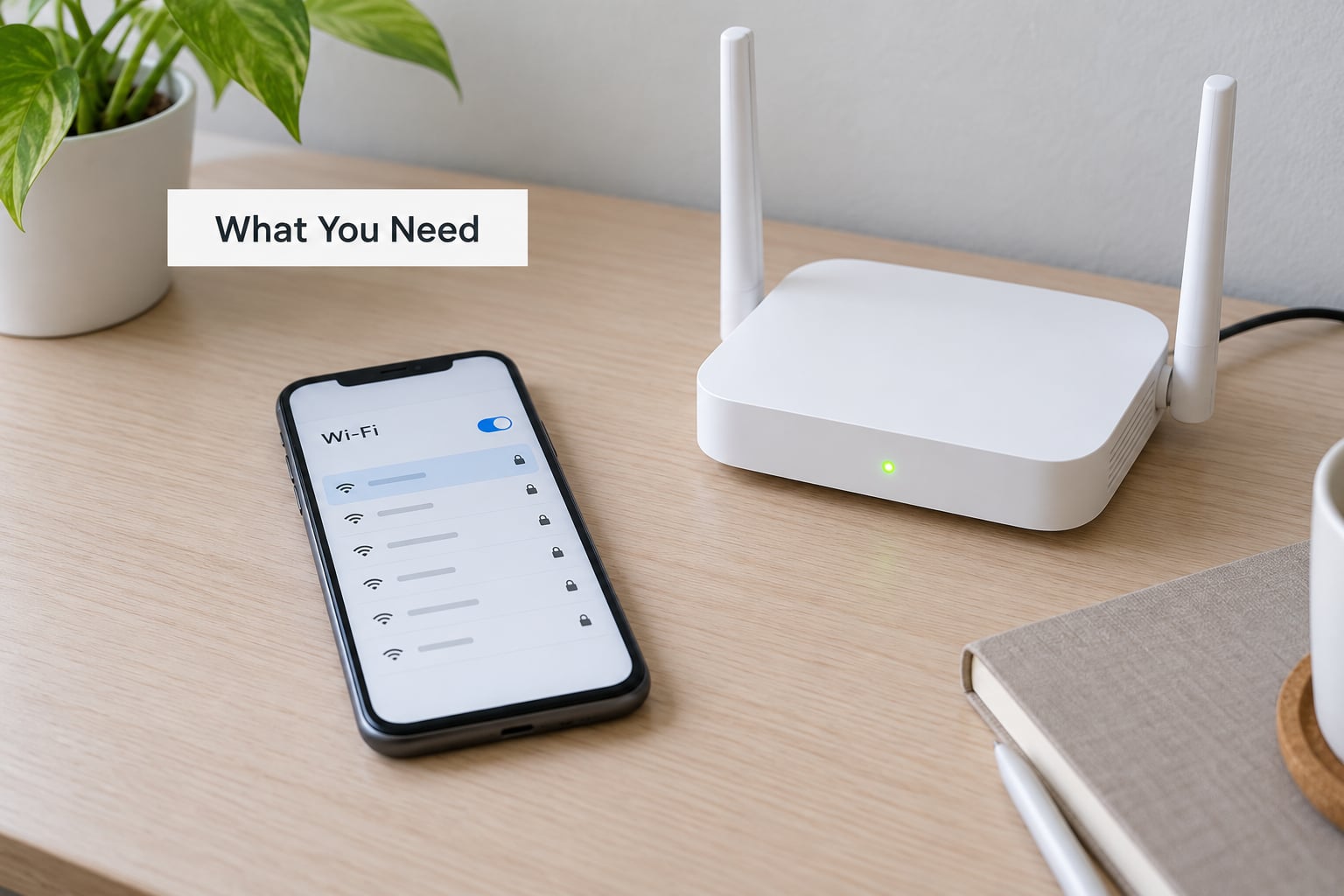
The list of things you need is short. An iPhone running a recent version of iOS, the password for the network you are trying to join, and for the later steps, access to the router or cable modem itself.
Two honest caveats before you start. First, menu names shift slightly between iPhone models and iOS versions, so treat the paths below as close to exact rather than pixel perfect. Second, one thing you do not need is a new phone. The overwhelming majority of these cases are software or router side, and the fixes cost nothing.
Step-by-Step: How to Fix WiFi Keeps Disconnecting on iPhone
Work top to bottom and stop when the drops stop. Each step below tells you how to tell whether it actually worked, which saves you from stacking fixes and never knowing which one did the job.
Here is the rough cost of each move before you start:
- Toggle Airplane Mode — 10 seconds, erases nothing, instantly reversible.
- Forget and rejoin the network — about 1 minute, you retype the password, instantly reversible.
- Restart the iPhone and router — 3 to 5 minutes, erases nothing, instantly reversible.
- Update iOS — 10 to 30 minutes, erases nothing, not reversible.
- Turn off Wi-Fi Assist or a VPN — about 1 minute, erases nothing, instantly reversible.
- Reset Network Settings — about 5 minutes, erases saved Wi-Fi passwords, VPN, APN and Bluetooth pairings, reversible but with effort.
1. Check Whether the Problem Affects Every Device
This is the split that decides everything else, so run it first. Does another phone, tablet, or laptop drop off the same network at the same time?
If yes, the fault is almost certainly the router, the modem, or your provider. Skip to step 7. If no, the other test: does the iPhone drop on a completely different network, like a cafe or a friend’s house?
If it drops everywhere, the problem lives on the phone. If it drops only at home, treat the router as guilty. Households with several identical iPhones have posted on Apple Community threads about one phone dropping while the others stay put, which is about as clean a device-side diagnosis as you will ever get.
2. Confirm the iPhone Is Connecting to the Right Network
Open Settings, tap Wi-Fi, then tap the small information icon next to your network name. Tap Forget This Network, confirm, then reconnect from the Wi-Fi menu by typing the password again.
While you are in that panel, check two things. Auto-Join should be on so the phone reattaches on its own, and if you see a password-mismatch warning, the saved password no longer matches what the router expects. You will also find Private Wi-Fi Address here, and Limit IP Address Tracking just below it.
Nearby networks with near-identical names are a real trap. In an apartment block, “Home_5G” and “Home_5G_EXT” can sit a few channels apart and your phone will roam between them. Test after rejoining by walking into another room for five minutes. If the connection holds, you are done.
3. Restart the iPhone and Router
Order matters. Unplug the modem first if you have one, then the router, leave both for a full minute, and plug the modem back in. Wait until its lights settle, then power the router and give it another two or three minutes to finish syncing.
Now restart the iPhone: hold the side button plus a volume button until the slider appears, slide it to power off, wait ten seconds, then power back on. Once it locks, check Settings, Wi-Fi for the connection.
Plenty of users describe the Airplane Mode toggle as the instant version of this, and they are right for a single drop. A full restart clears the network stack properly, so use it when the drops are frequent.
4. Check for iOS or Carrier Settings Updates
Go to Settings, General, Software Update. If an update is waiting, install it, then check Settings, General, About and tap Carrier Settings Update at the top, which installs carrier network fixes and needs a restart afterwards.
Check your iOS version in that same About screen. If the drops began right after a point release or a beta install, you are in a well documented pattern: users on several iOS builds describe the same behaviour appearing after updating, and it disappearing in a later build.
If your Wi-Fi is too unstable to download an update, connect the iPhone to a Mac with a cable, unlock it, tap Trust, and open Finder. Install the update from there over the USB connection instead. Hold Option while clicking Restore if you want to install the build without erasing your data.
5. Disable Wi-Fi Calling, Private Relay, and VPN Interference
Three switches sit on the same path between your iPhone and the router, and each can break a weak connection.
Wi-Fi Assist, under Settings, Cellular, hands your data to cellular the moment the Wi-Fi signal looks poor, which is frequently the drop itself. Recent iOS versions label the same option Connectivity Assist. Turn it off, use Wi-Fi for a day, then decide.
Private Relay, found on that same network info panel, and any VPN profile under Settings, VPN and Device Management can interfere. Apple’s own support guidance is blunt about third-party security and VPN apps: uninstall them as a test. Change one thing at a time and leave each test running for a few hours, otherwise you learn nothing.
Also check Settings, Battery, Low Power Mode. When the battery drops under roughly 20 percent, iOS trims background radio activity, and phones often abandon Wi-Fi for cellular at that point. If your drops cluster around low battery, that is your answer.
6. Reset Network Settings on the iPhone
Go to Settings, General, Transfer or Reset iPhone, Reset, then Reset Network Settings and confirm with the six-digit passcode. On older iOS versions the path stops at Settings, General, Reset.
Here is exactly what it erases: saved Wi-Fi networks and their passwords, cellular and APN settings, VPN configurations, and Bluetooth pairings. Your photos, messages, apps, and files are untouched.
Write your passwords down before you tap through, because the phone joins nothing automatically afterwards. Be honest with yourself about the limitation here. On community forums, Reset Network Settings is the single most repeated fix and the most common disappointment, because it often holds for a few days and then the drops return. If that happens to you, the cause sits further down the list.
7. Test the Router, Placement, and Network Name
Power cycle the router again if step 3 did not stick, then check its firmware through the manufacturer’s app or admin page. Outdated firmware is a common culprit and costs one restart to install.
Where the router sits matters as much as how it is configured. Keep it off the floor, out of a closed cupboard, and away from microwaves, cordless phone bases, and baby monitors. If your iPhone struggles only in one room, the problem is range, not software.
On crowded networks, try the 2.4 GHz band instead of 5 GHz. It travels further and tolerates interference, and it is the fix most apartment dwellers need. While you are logged into the router, check the device blocklist and any MAC address filtering, since a phone using a Private Wi-Fi Address can get rejected by a router that only knows its old identifier.
Give the network a fresh name and password when an old configuration is causing conflicts, then forget that name on every device and rejoin. Success here looks simple: the connection survives a walk through the house and an overnight charge.
8. Check for an iPhone Hardware or Service Problem
If the drops continue on every network, after a reset, with Wi-Fi Assist off, a faulty Wi-Fi antenna or radio module becomes the serious suspect. It is not theoretical. Users have had Apple replace handsets under warranty for exactly this fault.
Document the pattern before you go in: the iOS version, the networks affected, when it started, and which fixes you have already tried. Run the iPhone in Recovery Mode and update it, since a restore path can clear firmware-level faults that a normal update misses.
Then contact Apple Support or book a diagnostic at an Apple Store while the device is still under warranty or covered by AppleCare+. Apple Support can run hardware tests remotely and, if the iPhone is the problem, replace the device rather than the parts.
Common Mistakes
Most slow troubleshooting sessions come down to the same handful of avoidable moves.
- Resetting the iPhone before checking anything else. A restart is a good second step and a poor first diagnosis. Run the two-device test in step 1 first, or you will spend an hour fixing a phone that is fine.
- Forgetting the network without knowing the password. If it lives only in your router or an old device, check the label on the router or any device already joined before you tap Forget This Network.
- Changing five settings at once. Turn off Wi-Fi Assist and the VPN in the same afternoon and neither fix gets credit. One change, one test window.
- Turning Wi-Fi Assist on to fix it. Advice on the top organic results is still telling people to enable it, and it makes matters worse by pushing your traffic to cellular.
- Leaving the phone on an old iOS build. If the drops started after an update, check Settings, General, About for your version before buying anything.
- Assuming a weak signal means broken hardware. Three bars in one room and full bars in the next usually means the router or the band choice, not a failed antenna.
- Forgetting that reset does not fix a router. Resetting network settings on the phone cannot touch a router with crowded channels, stale firmware, or a device blocklist.
Two habits prevent most of this. Keep the iPhone on the current iOS release, and leave Wi-Fi Assist off if you care more about a stable home connection than automatic switching. For everything else, the sequence above is the short version of how to fix wifi keeps disconnecting on iphone, and it resolves the large majority of cases within an evening.
Frequently Asked Questions
Why does my iPhone keep disconnecting from Wi-Fi when the screen locks?
iOS trims background radio activity when the screen sleeps, so a phone that drops the moment it locks usually has a marginal signal or a router that is dropping the device. Leave the screen on for ten minutes and see whether the bars hold. If they do, check Auto-Join and Low Power Mode, then forget and rejoin the network.
Should I turn Wi-Fi Assist on or off?
Off, if your connection keeps dropping. With Wi-Fi Assist on, iOS silently switches to cellular whenever the Wi-Fi signal looks weak, which is exactly when a connection is already unstable. If you are searching for how to fix wifi keeps disconnecting on iphone, turn it off first: Settings, Cellular, Wi-Fi Assist, or Connectivity Assist on recent iOS versions. Switch it back on once things hold steady.
Does Reset Network Settings delete anything on my iPhone?
It does not touch your photos, messages, apps, or files. It erases network data only: saved Wi-Fi networks and their passwords, cellular and APN settings, VPN configurations, and Bluetooth pairings. Write your passwords down first, because the phone will not rejoin anything automatically. Expect to retype the router password and re-add your VPN profile afterwards.
Why does my iPhone say connected but there is no internet?
That message means the phone joined the network but the router cannot reach your provider, so Auto-Join is not your problem. Power cycle the modem and router, then check for an outage with your provider. A captive portal, such as a hotel or cafe sign-in page, produces the same message until you log in through it.
My iPhone Wi-Fi works everywhere except at home. What do I check first?
Treat the router as guilty. Power cycle the modem and router, install the current router firmware, confirm the iPhone is not on a device blocklist or blocked by MAC address filtering, and try the 2.4 GHz band if you live in a crowded building. A phone using a Private Wi-Fi Address also trips older routers that only recognise the old identifier.
Do these fixes work on an iPad or a Mac?
The same fixes apply, since they run the same networking software. Forget the network, restart the device, update the OS, then reset network settings. On a Mac, hold Option while clicking a network in System Settings, Wi-Fi to reveal the hidden Forget option. A router-side problem still behaves identically on every device.
Conclusion
Start with the three-minute work: toggle Airplane Mode, forget and rejoin the network, restart the iPhone and the router. If the drops continue, move to the toggles, then update iOS, and only then reset network settings with your passwords written down.
When the same iPhone drops on every network while the rest of the household stays connected, the phone is the problem and Apple Support or an Apple Store visit is the next step. When every device drops at the same time, call your provider instead. That one split settles most cases in a single evening.