On an iPhone 8 or later, how to put iPhone in recovery mode comes down to three button presses: tap Volume Up, tap Volume Down, then hold the Side button until the screen shows a cable and computer icon. It takes about ten seconds, no tools and no technical skill. Older models use a different pairing, so start by identifying yours.
Recovery mode is a built-in iOS state that lets you reinstall the operating system, restore a backup or troubleshoot an update that keeps failing. Getting in is the easy part. Knowing whether to choose Update or Restore afterwards is where data gets lost, so that part is spelled out below too.
Table of Contents
- 1What You Need
- 2How to Put iPhone in Recovery Mode: Step-by-Step
- 3How to put an iPhone with a Home button into recovery mode
- 4How to put Face ID iPhones into recovery mode
- 5How to put iPhone in recovery mode with a computer
- 6Confirm that your iPhone is in recovery mode
- 7Common Mistakes
- 8Frequently Asked Questions
- 9How do I know if my iPhone is in recovery mode?
- 10What is the difference between recovery mode and DFU mode?
- 11Does putting an iPhone in recovery mode delete data?
- 12Why does my iPhone not enter recovery mode?
- 13Can I put an iPhone in recovery mode without a computer?
- 14How do I exit recovery mode if I do not want to restore?
- 15Conclusion
What You Need
Strictly speaking, you need only the phone itself. The buttons on the iPhone do the work, and nothing is erased simply by entering recovery mode. That is the part most guides leave unclear, and it is the part that matters when you are worried about your photos.
A computer and cable are needed for the next stage, where the iOS software actually gets installed or a backup gets put back:
- An Apple-issued or MFi USB cable. Many cheap cables charge and do nothing else, which is the single most common reason a phone in recovery mode never shows up on the computer.
- A Mac or Windows PC. macOS Catalina and later use Finder. macOS Mojave and earlier use iTunes. Windows uses iTunes or the newer Apple Devices app.
- Software that is already up to date. Update Finder or iTunes first, otherwise the phone may not be recognised at all.
- Some free space on the computer. A full restore pulls down several gigabytes before it starts.
If you only plan to enter recovery mode and cancel out again, skip the computer entirely. You can leave recovery mode with the buttons alone.
How to Put iPhone in Recovery Mode: Step-by-Step
Use the row that matches your model. Holding the wrong pairing is the number one reason the phone just boots normally or refuses to do anything.
| iPhone model | Button combination |
|---|---|
| iPhone 8 or later, including iPhone SE 2nd generation and newer | Quickly tap Volume Up, quickly tap Volume Down, then hold Side until the recovery screen appears |
| iPhone 7 and iPhone 7 Plus | Hold Side and Volume Down together until the recovery screen appears |
| iPhone 6s, iPhone 6 and earlier, including iPhone SE 1st generation | Hold Home and Side (or Top) together until the recovery screen appears |
To find your exact model, open Settings and tap General, then About. The Model Name line at the top tells you the generation. If it says iPhone, look at the number beside it.
How to put an iPhone with a Home button into recovery mode
This covers the iPhone 6s, iPhone 6 and anything older, including the first generation iPhone SE. Both of these phones have a physical Home button and a Side button on the right (called Top on much older models).
- Make sure the iPhone is connected to a computer with a working data cable, then shut it down normally if you can.
- Hold the Home button and the Side or Top button at the same time.
- Keep holding both while the Apple logo appears. This is where most people let go, and it is the single mistake to avoid.
- Keep holding until a picture of a computer with a cable appears. Now you can release both buttons.
If the phone instead boots straight into iOS, you released too early. Try again and hold for roughly ten seconds past the Apple logo.
How to put Face ID iPhones into recovery mode
The iPhone 7 and 7 Plus are the odd ones out, because they still use a physical Home button but need a different pairing from the older phones.
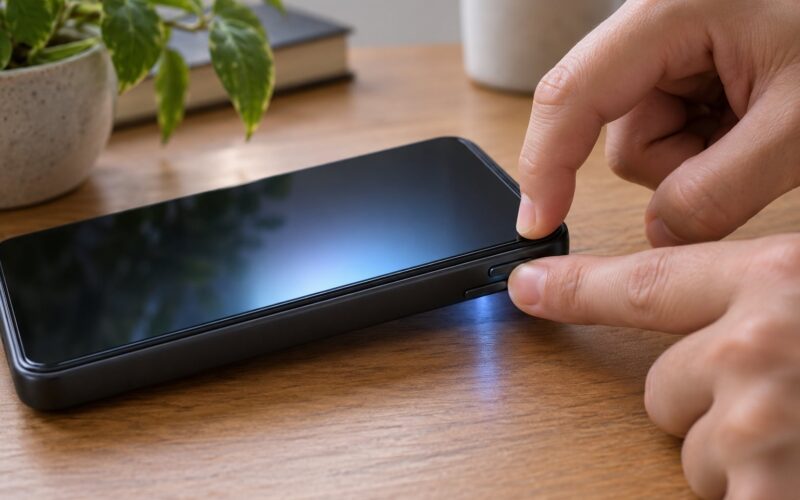
Hold the Side button and the Volume Down button together. Keep holding while the Apple logo shows, and release only when the cable and computer icon fills the screen. No cable is required at this point for either the iPhone 7 or the iPhone 8 or later sequence.
For the iPhone 8 and later, which covers the iPhone X, 11 through 16 series, and every iPhone SE from the 2nd generation on, the timing changes completely:
- Quickly press and release the Volume Up button, then let go straight away.
- Quickly press and release the Volume Down button, then let go straight away.
- Now press and hold the Side button and do not release it. Ignore the Apple logo.
- Continue holding until the screen shows a picture of a computer with a cable plugged into it. Release the Side button only then.
The two quick taps matter. Hold Volume Up or Volume Down too long and you can land in DFU mode instead, which shows a black screen and confuses a lot of first-timers.
How to put iPhone in recovery mode with a computer
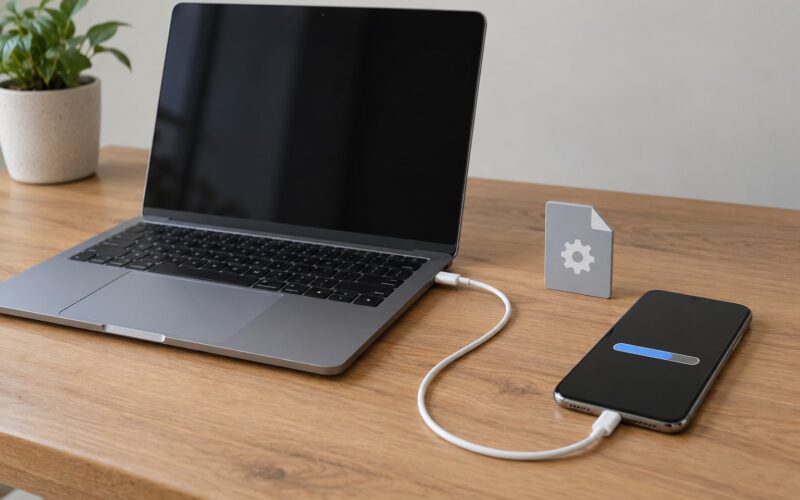
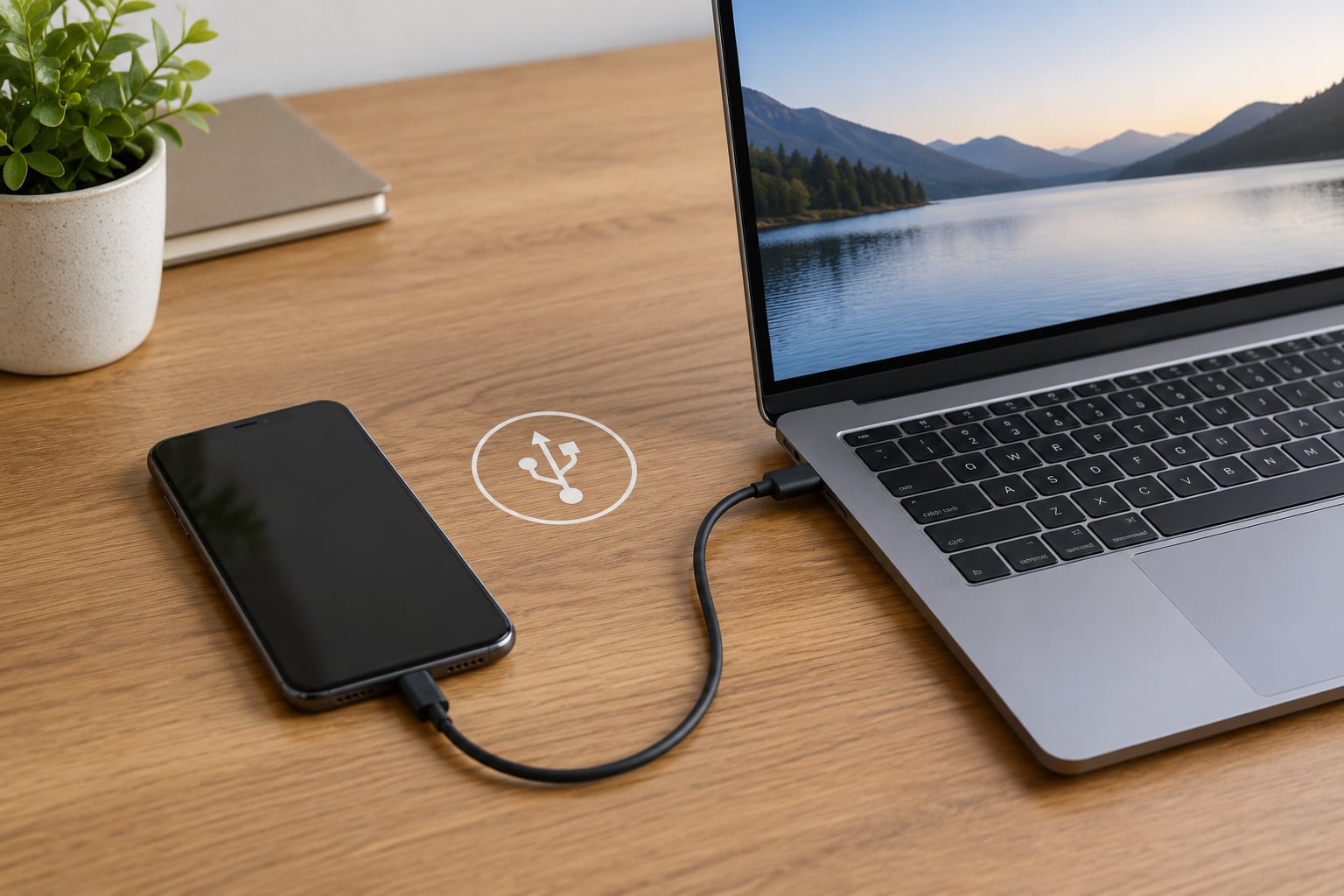
Entering recovery mode is button-only, but acting on it needs a computer. Plug the iPhone into a Mac or PC with a data cable, then choose the right app.
On macOS Catalina and later, open Finder and look under Devices. On macOS Mojave and earlier, or on Windows with iTunes, open iTunes and look under the device menu or the Library section. If iTunes looks dated or the phone never appears, install the current Apple Devices app on Windows instead.
First time connecting? Tap Trust This Computer on the iPhone screen and enter the passcode, or recovery mode will sit there waiting forever. On iPhone 12 and later, note that some tasks still need a wired USB-C connection because the wireless path between iPhone and Mac does not cover every recovery job. Some third-party USB-C hubs also fail to carry data, so connect straight to the computer port rather than through a dock.
Once the computer sees the phone, you get two choices. Update reinstalls iOS and keeps your photos, messages, apps and files. Restore erases everything on the iPhone first and then reinstalls iOS, and you put your data back from a backup only. If you have no recent backup, do not tap Restore.
Confirm that your iPhone is in recovery mode
Success looks the same on every model: a dark screen with an illustration of a computer and a cable plugged into it. On a computer, a dialog appears saying the iPhone needs to be updated or restored. Both together mean you got it right.
Three other screens get mistaken for it. A black screen with nothing on it usually means DFU mode, which Apple describes as a last-resort restore path. The Apple logo that never goes anywhere means a failed boot, not recovery mode, so the button sequence has not been started. A wrench or gear icon means the phone is at its own update screen, which shows up during an over-the-air update that failed partway through.
Common Mistakes
Almost every failed attempt comes down to one of these:
- Letting go at the Apple logo. The logo is not the finish line. Keep holding until the cable icon appears, which usually means ten to fifteen seconds on the Home button models.
- Holding for a fixed ten-second count. That number comes from old iPhone 4-era advice. Hold until the screen changes, not until you hit a count in your head.
- Using the wrong pairing for your generation. The iPhone 8 or later sequence relies on two quick taps that nobody expects. If you do that on an iPhone 7 or older, nothing useful happens.
- Using a charge-only cable. The phone charges and the computer sees nothing at all. Swap the cable before you blame the phone.
- Reconnecting too early. If you unplug during the hold, you may land in DFU mode. Disconnect fully, wait ten seconds, then start again.
- Treating a black screen as recovery mode. A black screen means DFU. Press and hold the Home button (or, on newer models, the Volume Down plus Side) until the iPhone shows the Apple logo, then continue into recovery.
- Forcing a restore on a phone that is only stuck. If the phone reaches the recovery screen, Update almost always solves the problem and keeps your data. Save Restore for a phone that cannot be recovered any other way.
Two more things worth knowing before you touch anything. Insufficient storage causes update failures that can leave an iPhone unusable, so check that you have real free space on the phone before you start. And recovery mode does nothing for activation lock, water damage or failing hardware. If the phone shows an activation lock screen or the Apple logo returns after a restore, a repair visit is the next step rather than another attempt.
Before a repair shop or a trade-in, back up to iCloud or to your computer first. Once you restore, the phone contents are gone.
Frequently Asked Questions
How do I know if my iPhone is in recovery mode?
A phone in recovery mode shows a dark screen with a drawing of a computer and a cable plugged into it. Connect it to a computer and a second confirmation appears there too, a dialog offering to update or restore the device. A completely black screen means DFU mode instead, and an Apple logo that stays put means the phone tried and failed to boot normally.
What is the difference between recovery mode and DFU mode?
Recovery mode shows the cable and computer graphic and is reached with a short button sequence. DFU mode shows a plain black screen and needs a longer hold with no quick taps in between. Use recovery mode first for a stuck update, a boot loop or a failed restore attempt. DFU mode is the escalation path for a restore that failed twice.
Does putting an iPhone in recovery mode delete data?
No. Entering recovery mode on its own changes nothing on the phone, and the Update option in Finder or iTunes reinstalls iOS while keeping your photos, messages and apps. Only Restore erases the device before reinstalling iOS. Decide which one to tap before you connect, not after.
Why does my iPhone not enter recovery mode?
The usual causes are the wrong button pairing for your model, letting go at the Apple logo, or a cable that only charges. On the iPhone 8 and later, tap Volume Up and Volume Down quickly rather than holding them. Check your model under Settings, General, About, and swap to a known data cable or a different port on the computer.
Can I put an iPhone in recovery mode without a computer?
Yes. Recovery mode is entered entirely with buttons, so a computer is only needed to install iOS or restore a backup. You can also leave recovery mode without a computer by holding the Home button on older models, or the Side button on the iPhone 8 and later, until the Apple logo reappears and the phone starts up normally.
How do I exit recovery mode if I do not want to restore?
With a computer connected, click Cancel in the Finder or iTunes dialog and the iPhone boots normally. Without a computer, hold the Home button plus Side (or Top) on older models, or just the Side button on the iPhone 8 and later, until the Apple logo appears. Nothing is erased by leaving recovery mode this way.
Conclusion
Knowing how to put iPhone in recovery mode comes down to three things: check the model under Settings, General, About, use the button pairing listed for that generation, and hold until the cable icon appears rather than stopping at the Apple logo. Once you see the recovery screen, choose Update to keep your data. Touch Restore only when you have a backup you trust.