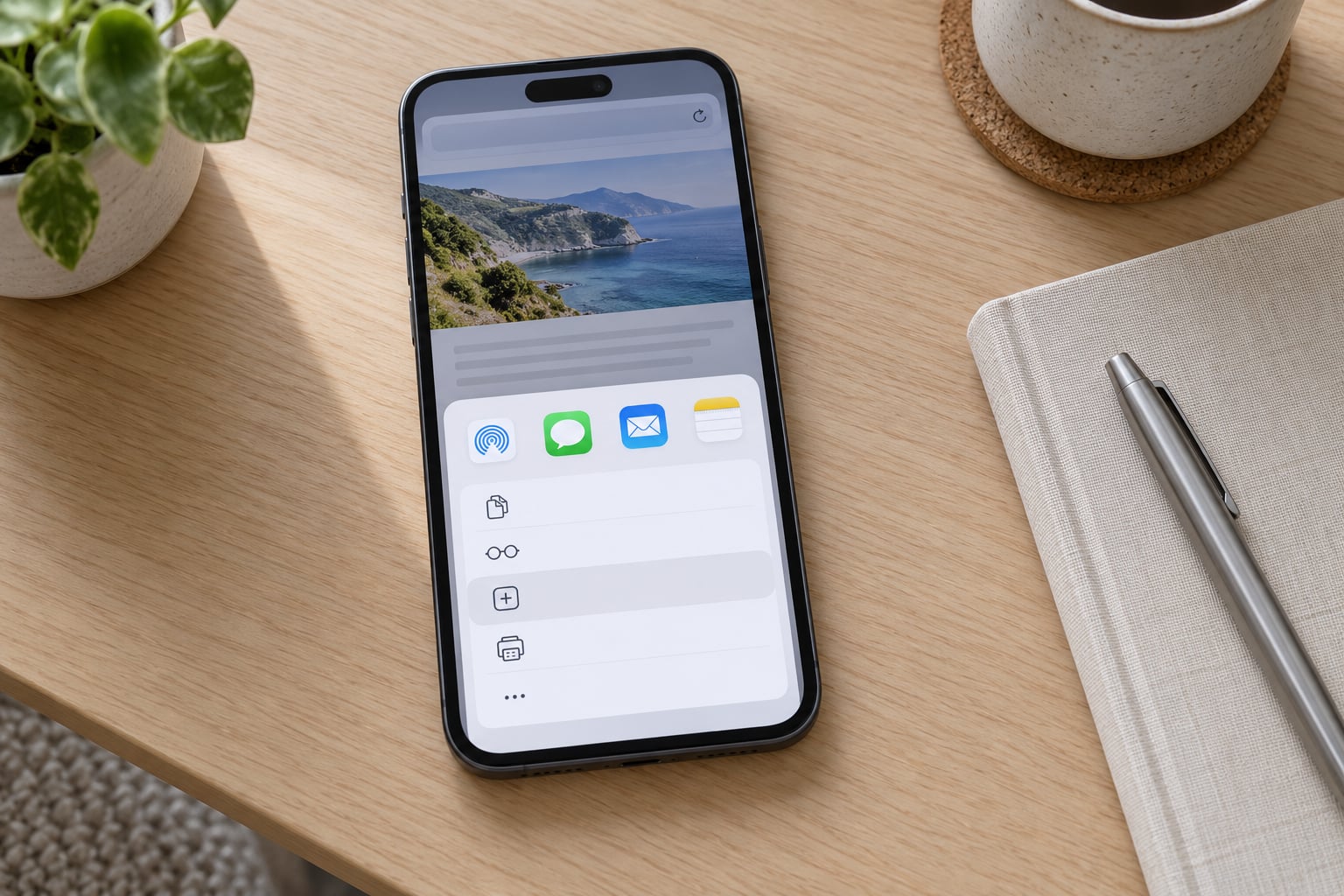
On iPhone and iPad, you add a shortcut to the home screen from the Share menu: open what you want to pin, tap Share, scroll down to Add to Home Screen, check the name, then tap Add. That is the whole job, and it takes about fifteen seconds.
The awkward part is that “shortcut” means three different things on an iPhone. It can mean a website or web app pinned as an icon, an automation built in Apple’s Shortcuts app, or a missing built-in app icon you want back. Each one lives in a different menu, so the steps below cover all three separately.
Table of Contents
- 1What You Need
- 2Step-by-Step
- 3How to Add a Website Shortcut in Safari
- 4Add a Shortcut in Chrome or Another Browser
- 5Add an App or Web App to the Home Screen
- 6Choose the Shortcut Name and Destination
- 7Check and Organize the New Shortcut
- 8Common Mistakes
- 9Frequently Asked Questions
- 10Why can’t I find Add to Home Screen on my iPhone?
- 11Can I rename a shortcut after adding it to the home screen?
- 12Will a home screen shortcut work without an internet connection?
- 13How do I move a shortcut to another home screen or folder?
- 14Can I add a shortcut to a specific page inside an app?
- 15How do I remove a shortcut from my iPhone home screen?
- 16Conclusion
What You Need
All you need is an iPhone or iPad running a recent version of iOS or iPadOS, and a clear idea of what you want pinned. No app downloads, no account changes.
On iPad, every step here works exactly the same as on iPhone, because iPadOS uses the same Share sheet and the same Home Screen.
Two honest caveats. Menu labels shift a little between iOS releases and between browsers, so if your wording differs slightly, look for the equivalent command. And Home Screen icons do not sync through iCloud, so you have to add each shortcut on every device you use.
Step-by-Step
How to Add a Website Shortcut in Safari
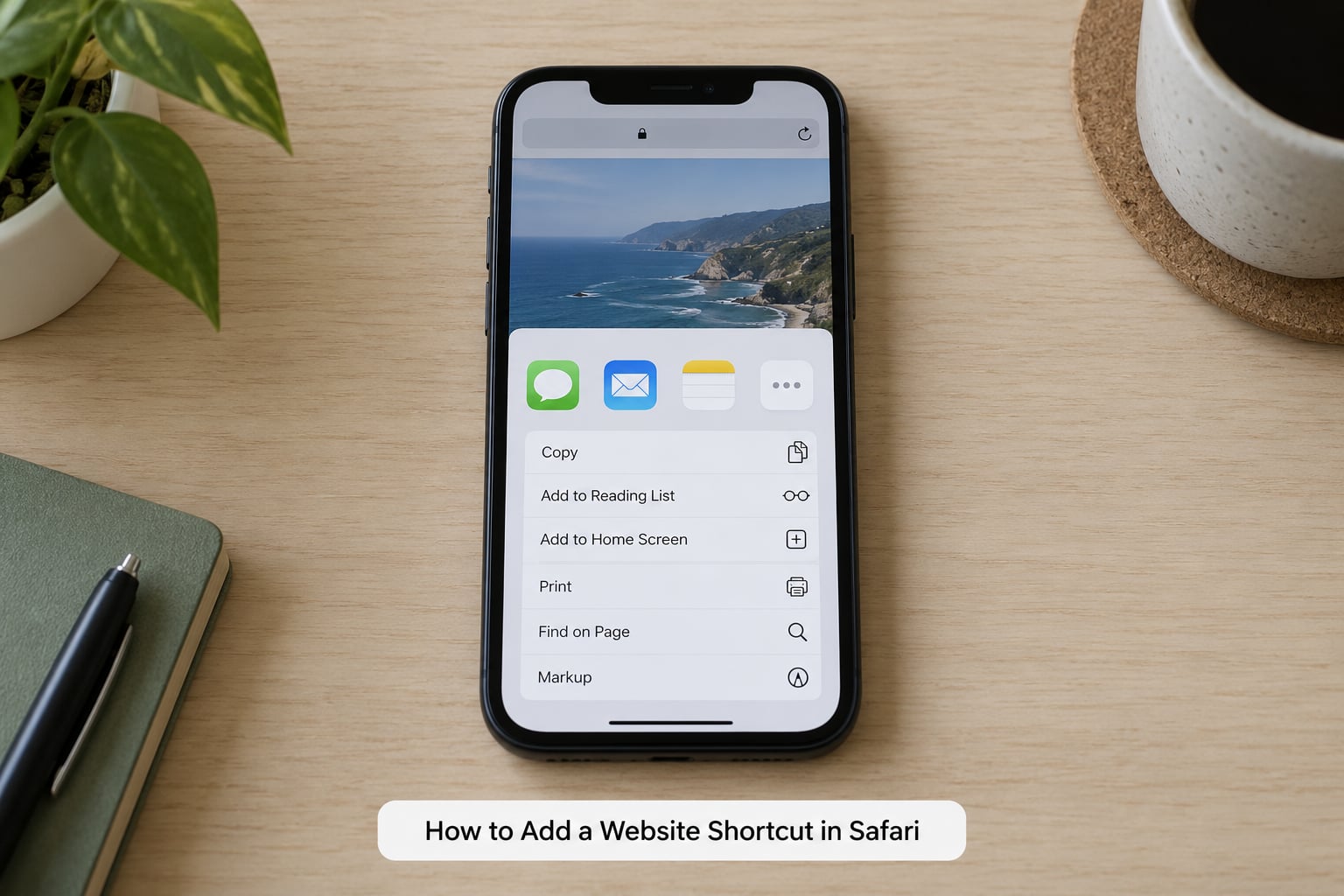
This is the route for any site you visit more than once a week: a booking page, your bank’s login, a work tool that lives in the browser rather than the App Store.
- Open the site in Safari. Load the exact page you want, not just the home page. A shortcut saves the page you are looking at right now, which is the detail most guides skip.
- Tap the Share button in Safari’s toolbar. On recent versions it is the square with an arrow pointing up out of it. A share sheet slides up over the bottom half of the screen.
- Scroll down the share sheet to Add to Home Screen. It is usually near the bottom of the list. If you cannot see it, scroll to the very end of the sheet, tap Edit Actions, tap Add to Home Screen so it appears with a checkmark, then tap Done. This is the fix for the option being hidden.
- Rename the icon. The name field defaults to the page title, which is often a long sentence. Tap it, clear it, and type something short like “Bookings”.
- Turn on Open as Web App if you want the site to run in its own window without Safari’s address bar. Recent iOS versions offer this for essentially any site, not only ones built as web apps.
- Tap Add in the top corner. The icon lands on your Home Screen, usually at the first free spot on the current page.
How do you know it worked? Tap the new icon. With Open as Web App on, it opens full screen with no address bar; with it off, it opens in Safari as a normal tab.
Add a Shortcut in Chrome or Another Browser
Chrome on iPhone uses the same iOS share sheet, so the path is nearly identical.
- Open the page in Chrome and wait for it to finish loading.
- Tap the three-dot menu at the top of the screen, then tap Share in the panel that appears.
- Scroll to Add to Home Screen and tap it, then confirm the name and tap Add.
Some third-party browsers are more limited. A few offer only a generic send or share action, with no Add to Home Screen command anywhere. If that happens, copy the link and paste it into Safari, then run the steps above. Firefox and Chrome both handle the standard share sheet fine, so this is rare.
One difference worth knowing: icons created in Chrome usually open in Safari rather than as standalone web apps, because the Open as Web App toggle lives in Apple’s share sheet.
Add an App or Web App to the Home Screen
Four situations come up here, and they are genuinely different.
An app you installed. Its icon already exists in your App Library. Open the App Library by swiping past the last Home Screen page, then press and hold the icon and drag it to any Home Screen page. On iOS 18 and later, a new button in the top corner opens an edit view where you can add, remove and reorder icons in bulk.
A web app. This is a website that behaves like a native app: its own window, no address bar, and in some cases offline access and notifications. You make one in Safari with the Open as Web App toggle described above. Once added, it sits on your Home Screen looking exactly like an app.
A specific page inside an app. There is no way to pin an internal screen of a native app, because iOS only exposes a URL for the app itself. The workaround is to find the web version of that page, open it in Safari, and pin it as a web app.
A built-in icon you deleted. If you removed something like the Phone app icon and want it back, search for it in Spotlight and launch it once, or find it in the App Library and drag it back. Apple periodically lets you customize the Dock and Home Screen, which is how icons like Phone disappear in the first place.
Choose the Shortcut Name and Destination
You can only rename a shortcut while the add sheet is open. Once it lands on the Home Screen, the name is fixed unless your iOS version offers Rename when you press and hold the icon, or you delete it and build it again.
Keep names to one or two words. Icon labels wrap to two lines, and a long title like “My University’s Student Portal Login” turns into an unreadable block that covers a neighbour.
The destination is the page you were on when you tapped Share, not the site root. If a shortcut keeps opening the front page instead of your dashboard, you were probably on a redirect page when you added it.
About the picture: for a website, iOS generates the icon from the site’s own favicon at whatever resolution the site provides. That is why some icons come out as blurry blobs or a white square against the wallpaper. You cannot choose a photo for a website shortcut.
The Shortcuts app is different. When you add an automation to the Home Screen, its Details view lets you pick a photo from your camera roll or your library, or choose an image file, and iOS crops it into the icon shape.
Check and Organize the New Shortcut
Tap the icon once and confirm it opens what you expect. Then press and hold it to pick it up, drag it to the page or position you want, and drop it.
Drag it on top of another icon to create a folder. Folders hold up to a grid of icons and open as a single full-screen page when tapped, which is a tidy home for a set of banking or travel shortcuts.
To remove one, press and hold until the icons jiggle, tap the small minus sign on the icon, then confirm Delete. Deleting the Home Screen icon does not delete the underlying bookmark or the shortcut itself, so you can rebuild it whenever you like.
Put shortcuts on the second or third Home Screen page rather than the first one. The first page gets crowded fast, and a jiggle-mode drag is much easier when the icon is not competing with everything else you look at when you unlock.
Common Mistakes
Add to Home Screen is missing from the share sheet. Scroll to the very bottom of the sheet and tap Edit Actions, then toggle Add to Home Screen on and tap Done. Apple hides and reorders these actions between releases, which is why it goes missing for people who set up their phone before an update.
The icon looks wrong. A white square, a stretched logo or a low-resolution thumbnail all come from the site’s own icon. Delete it and add it again to get a fresh copy, or build the shortcut in the Shortcuts app instead, where you can supply your own photo.
The shortcut opens the wrong page. It saved wherever you were when you tapped Share. Delete it, navigate to the page you actually want, and add it again from there.
You have four near-identical icons. Every tap of Add creates a new icon with no check for duplicates. Keep the one with the best name and delete the rest. If you only wanted a faster route to the site, a Safari bookmark on the bookmarks bar is often enough.
Your rename did not stick. The name only saves when you tap Add. Tapping the close button or swiping the sheet away discards it.
The shortcut feels broken offline. A plain bookmark icon is just a link and needs a connection. A web app can show cached content if the site supports it, but nothing is guaranteed, so treat either as an online shortcut.
One more limitation worth knowing before you commit: web apps do not load Safari extensions, so content blockers and password managers built as extensions may not work inside one.
Frequently Asked Questions
Why can’t I find Add to Home Screen on my iPhone?
The option is often moved or hidden after an iOS update. Open the Share sheet, scroll all the way to the bottom past the last app row, and tap Edit Actions. Find Add to Home Screen, tap it so a checkmark appears, then tap Done. The command now shows in every share sheet on the device. If it still is not there, check that you are in Safari and not inside a PDF or an image viewer, where the sheet has fewer actions.
Can I rename a shortcut after adding it to the home screen?
Usually not through the add sheet, because that screen closes once you tap Add. Press and hold the icon on the Home Screen and look for Rename in the menu; recent iOS versions include it for web apps and app icons. If your version does not, delete the icon and create it again, typing the name you want on the add screen this time. Names are limited to roughly a dozen characters before the label truncates.
Will a home screen shortcut work without an internet connection?
A plain website shortcut will not, because it is really a saved link that opens in Safari and needs a connection to load. A shortcut made with Open as Web App turned on can render cached pages, but only when the site supports offline use, so do not rely on it. For anything you need on a plane or in a basement, use the native app version, which is built to keep working without a signal.
How do I move a shortcut to another home screen or folder?
Press and hold the icon until it lifts or the screen enters edit mode, then drag it to the edge of the display to flip to the neighboring Home Screen page. Drop it where you want it. To put it in a folder, drag it on top of another icon until a folder opens, then release. Moving is free and reversible, so experiment until the layout feels right rather than planning it in advance.
Can I add a shortcut to a specific page inside an app?
Not for native apps. iOS exposes a web address for an app but not for its internal screens, so there is no way to pin a particular screen such as a settings page or a specific message thread. What you can do is find the web version of that page, open it in Safari, and add it as a web app or bookmark shortcut. Some shortcuts can also be built in the Shortcuts app to open a deep link if the developer supports one.
How do I remove a shortcut from my iPhone home screen?
Press and hold the icon until the Home Screen enters edit mode, tap the small minus sign in its corner, and confirm Delete. On some sites the menu reads Delete Bookmark even when the icon is a web app, which is confusing but harmless. Deleting the icon leaves the underlying bookmark, page or Shortcuts automation intact, so adding it again later takes the same fifteen seconds it took the first time.
Conclusion
The shortest route is the same every time: open the thing you want, tap Share, scroll to Add to Home Screen, type a short name, tap Add. If the command is not in the list, scroll to the bottom of the share sheet and tap Edit Actions, which is where the missing option almost always turns up.