Yes, Siri reads your text messages out loud, and the quickest way to do it is to say “read my messages” or “read my unread messages” and let Siri talk. For automatic announcements the moment a text arrives, you turn on Announce Notifications in the Settings app, which needs a pair of AirPods or compatible Beats in your ears. This guide covers both routes, plus the setting changes and accessibility commands for reading a thread on demand.
Table of Contents
- 1What You Need
- 2How to Make Siri Read Your Text Messages Step by Step
- 3How to Make Siri Read Your Text Messages With a Voice Command
- 4Read Messages with Voice Control
- 5Read One Conversation in Messages
- 6Check Siri and Messages Settings
- 7Common Mistakes
- 8Frequently Asked Questions
- 9Can Siri read all of my text messages aloud?
- 10How do I ask Siri to read only unread messages?
- 11Why is Siri not hearing my request to read messages?
- 12Can I make Siri read a specific conversation in Messages?
- 13Does Siri read text messages when my iPhone is locked?
- 14What should I do if Siri reads the wrong conversation or old messages?
- 15Conclusion
What You Need
Before anything else, check you have the basics in place:
- An iPhone with Siri switched on in Settings > Siri & Search.
- The Messages app and at least one conversation you want read.
- A working microphone and either “Hey Siri” or the side button set to Siri, under Settings > Accessibility > Touch > Side Button, or Control Center.
- Compatible earbuds for automatic announcements: AirPods (2nd generation or later), AirPods Pro, Powerbeats Pro, or Beats Solo Pro.
Menu labels shift a little between iOS releases. Most people are on iOS 18 or a newer release as of 2026, and the paths below match that wording. If you cannot see Announce Notifications in Settings at all, jump to the troubleshooting section, because the toggle only appears once a pair of earbuds has been paired.
How to Make Siri Read Your Text Messages Step by Step
How to Make Siri Read Your Text Messages With a Voice Command
This is the fastest method and it needs no earbuds. Wake Siri, then say “read my messages” or “read my unread messages” and Siri reads the most recent conversations through the speaker.
While it reads, a control panel appears at the top of the screen. Tap Play or Pause to stop and resume, and Replay to hear the last message again. Siri starts from the newest activity, so the sender name and the most recent text come first. If Siri asks “which message?” after you give a name, say the contact back and it will continue.
After it finishes reading, Siri stays listening for a short while. You can say “reply with on my way” without saying “Hey Siri” again, which is the whole point when you are driving.
Read Messages with Voice Control
Voice Control is the option when your voice triggers Siri unreliably or you simply want to navigate by voice. Go to Settings > Accessibility > Voice Control, tap it on, then tap Start and choose your preferred voice and commands.
With the overlay showing, say “tap Messages” to open the app. Once a thread is open, the Spoken Content commands take over: say “read from the top” to hear the conversation from the first message, or “read from here” to start at wherever the focus sits. “Stop reading” ends it immediately.
Support for these commands varies a little between iOS versions and with third-party keyboards, so if a command does nothing, tap the on-screen number for that item once to set the focus, then repeat it.
Read One Conversation in Messages
To hear a specific thread rather than everything recent, open Messages, tap the conversation, then swipe down from the top corner of the screen with two fingers. Siri starts reading the thread aloud from that point. Playback controls appear at the top, and you can pause, replay or skip.
You can trigger the same thing by saying “Hey Siri, speak screen” while the thread is open. This works with no earbuds, which is what makes it useful in a kitchen or with messy hands.
For a single sentence inside a message, select the text with touch and drag, then tap Edit in the menu and choose Speak. Turn the feature on first at Settings > Accessibility > Spoken Content > Speak Selection, and adjust the reading rate on the same screen. If voice activation is not working for you at all, this manual route needs nothing but your hands.
Check Siri and Messages Settings
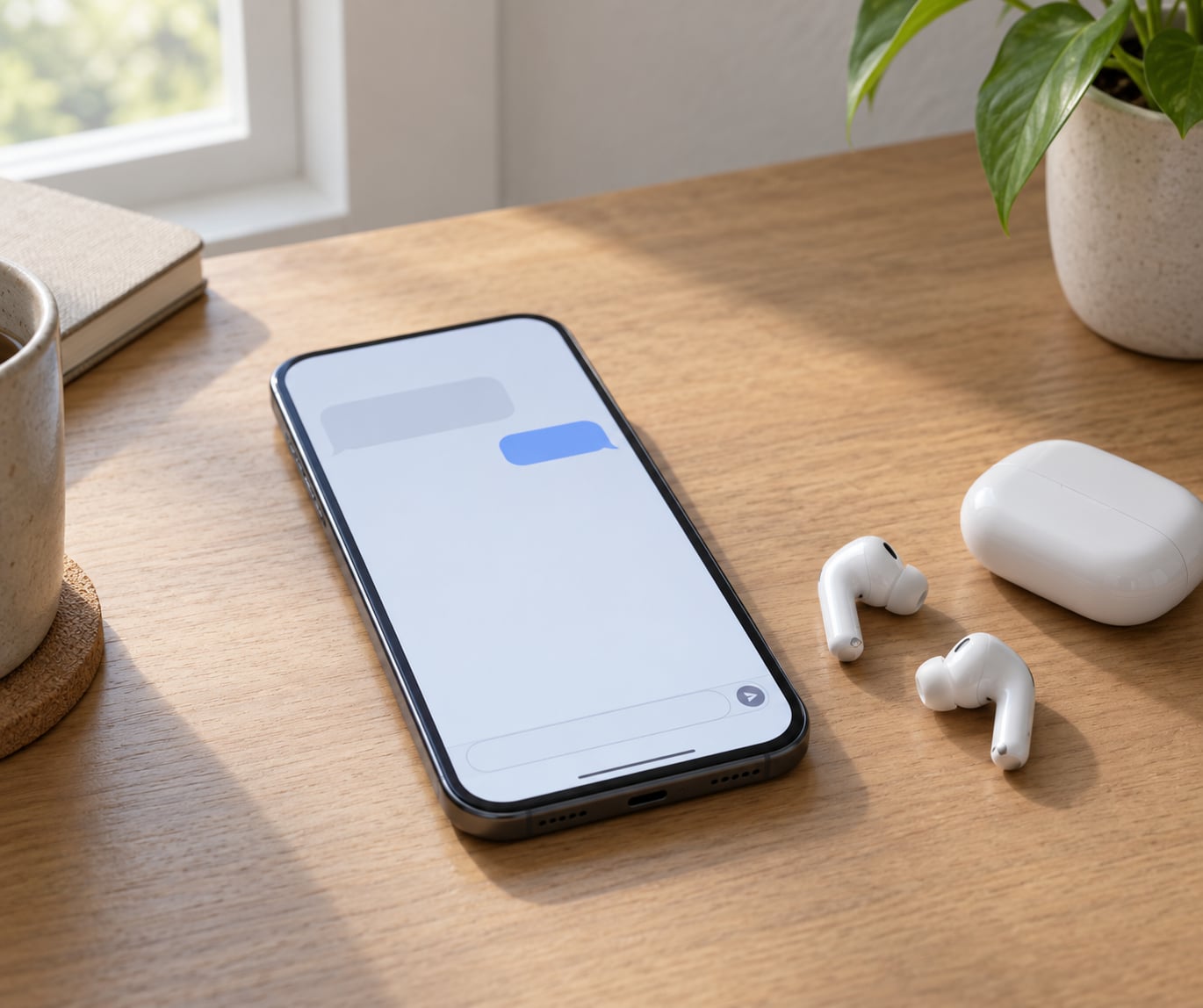
To have Siri read new texts the moment they arrive, open Settings > Notifications and turn on Announce Notifications. Some older guides call this “Announce Messages with Siri”. Play a sound first, then send yourself a text from another device, and put a bud in your ear with the screen off.
For the lock screen case, open Settings > Siri & Search and turn on Allow Siri When Locked. Without it, Siri replies “I must unlock my iPhone” and stops, which defeats the purpose when the phone is in your pocket.
To reverse everything, turn off Announce Notifications in the same Notifications panel, and check Settings > Accessibility > Spoken Content > Announce Notifications on Speaker, which is a separate switch and the one most people miss when the reading will not stop.
Common Mistakes
Seven failures account for nearly every complaint thread on this topic, and each has a plain fix.
- Nothing is read aloud after the toggle is on. Automatic announcements only route to paired earbuds, and the screen has to be off. Put a supported pair in, lock the phone and send yourself a test text.
- Announce Notifications is missing from Settings. iOS only shows the option once a compatible pair has been paired. Go to Settings > Bluetooth, tap the earbuds and choose Announce Calls & Notifications; if it is still missing, forget this device and pair again.
- Siri says it must unlock the iPhone. Siri is blocked on the lock screen. Turn on Settings > Siri & Search > Allow Siri When Locked.
- Messages start being announced without any change from you. Often spotted after a large iOS update, and the switch lives under Accessibility rather than Notifications. Go to Settings > Accessibility > Spoken Content > Announce Notifications on Speaker and switch it off.
- It reads one app but not regular texts. Third-party apps such as WhatsApp do not always hand their notifications to Siri. Use the on-demand command instead, or open the thread and use the two-finger swipe.
- Siri reads the wrong or an old thread. The command takes the newest activity, not the one you are looking at. Name the contact explicitly, or open the thread first and use “read from the top”.
- Siri cannot reply to a group text. Siri still has no reply all. Reply inside the thread yourself, or use dictation in the conversation.
Two habits fix most of the rest. Speak in a quieter room for the first try, because background noise makes Siri pick the wrong words, and keep the phone unlocked when you are testing settings so the failure is visible.
If you only want announcements in certain places, use Focus modes to silence the conversations you do not need, and if you keep forgetting to switch the feature off at work, a personal Shortcut that flips the Accessibility switch is worth ten minutes of setup.
Frequently Asked Questions
Can Siri read all of my text messages aloud?
It reads them, but not as a single endless playback. Saying u0022read my messagesu0022 makes Siri work through your most recent conversations, newest first, and you can pause or stop at any point with the panel at the top of the screen. For a full thread from the beginning, open the conversation and swipe down from the top corner with two fingers, or say u0022speak screenu0022.
How do I ask Siri to read only unread messages?
Say u0022read my unread messagesu0022 instead of u0022read my messagesu0022. Siri skips conversations you have already opened and starts with the first thread that has something new in it. This is the command most people want while driving, since it avoids going through yesterday’s whole backlog every time the car starts.
Why is Siri not hearing my request to read messages?
Usually the microphone is picking up more than your voice. Try again in a quieter room, hold the phone closer, and check that no case or windscreen is covering the mic. If you have switched on Siri with the side button, that setting is also used for the voice commands, so turn Siri back on for that in Settings u0026gt; Accessibility u0026gt; Touch u0026gt; Side Button.
Can I make Siri read a specific conversation in Messages?
Yes. Open Messages, tap the conversation you want, then swipe down from the top corner of the screen with two fingers. You can also say u0022Hey Siri, speak screenu0022 while the thread is open, or with Voice Control on, say u0022tap Messagesu0022 and then u0022read from the topu0022. Name the contact in your command if you would rather not touch the screen at all.
Does Siri read text messages when my iPhone is locked?
Automatic announcements work with the phone locked, but only with a supported pair of earbuds in your ears, such as AirPods 2nd generation or later, AirPods Pro, Powerbeats Pro, or Beats Solo Pro. For voice commands on the lock screen, turn on Allow Siri When Locked in Settings u0026gt; Siri u0026amp; Search, otherwise Siri says it must unlock the iPhone and gives up.
What should I do if Siri reads the wrong conversation or old messages?
The command takes the newest activity rather than a thread you choose, so tell Siri who you want: u0022read my messages from Sarahu0022. If it still picks the wrong one, open that conversation first and use the two-finger swipe or u0022read from the topu0022 instead, which reads exactly what is on screen and nothing more.
Conclusion
Start with the simple thing. Wake Siri and say “read my unread messages” and let it talk. If you want new texts read the moment they arrive, put a supported pair of earbuds in, lock the screen and turn on Announce Notifications in the Settings app.
From there, adjust what gets in the way: the microphone if Siri mishears you, Allow Siri When Locked if it stops at the lock screen, Voice Control or Speak Screen if you need a hands-free route that needs no earbuds, and the Announce Notifications on Speaker switch in Accessibility if the reading will not stop.