To share home control with family on an iPhone, you open the Home app, tap the home name at the top, choose Home Settings, tap People, then Invite and pick Resident or Guest. The whole process takes about two minutes once your home is set up with a home hub and every person has their own Apple Account.
That is the short version. The part people get wrong is not the tap sequence, it is who gets which role. A Resident sees every accessory in the home. A Guest sees only the doors, locks and security accessories you pick, and only during the hours you set. Handing a teenager or a house-sitter the Resident role because it was the first option in the list is how people end up unlocking doors at 2am from a friend’s sofa.
This guide walks through the exact taps, the permissions worth switching on, and the error messages that stop invitations from ever arriving.
Table of Contents
- 1What You Need
- 2Step-by-Step: How to Share Home Control with Family
- 3Open the Home App and Choose the Shared Home
- 4How to Share Home Control With Family in the Home App
- 5Turn On the Permissions Each Person Needs
- 6Ask the Invited Person to Accept the Invitation
- 7Test Access and Update Home Members Later
- 8Common Mistakes
- 9Frequently Asked Questions
- 10Does Home Sharing require Apple Account Family Sharing?
- 11What can family members control in the Apple Home app?
- 12How can I give my child limited access to home accessories?
- 13Why did my family member’s home invitation not arrive?
- 14Can I remove someone from my home after sharing access?
- 15Why can’t a family member control a particular lock or camera?
- 16Conclusion
What You Need
Four things have to be in place before the Invite button does anything useful. Miss one and you will spend an hour on troubleshooting a problem that is really a setup gap.
- An iPhone on a current iOS version. Guest access, which is the scheduled limited access role, needs iOS 18, iPadOS 18 or macOS Sequoia or later.
- A home hub. An Apple TV, a HomePod or an iPad assigned to the home acts as the bridge between your accessories and the internet. Without one, the Add People option is often simply missing from the menu.
- Your own Apple Account with two-factor authentication on. Both sides of the share need this. Two-factor authentication is not optional if the invitation is going to be accepted.
- Owner rights on that home. Only the person who created the home, or a resident with permission to manage people, can send invitations.
One more thing saves arguments later: rename your rooms and accessories before anyone else sees them. If the hallway switch is called “Switch 3”, your partner will not use it, and neither will a house-sitter.
Step-by-Step: How to Share Home Control with Family
Being in the right home matters more than it sounds, because iCloud can carry more than one home on a single Apple Account. If you have moved, or you own a place you do not live in, check the home name before you invite anybody. Inviting into the wrong home is the single most common self-inflicted step in this whole process.
Open the Home App and Choose the Shared Home
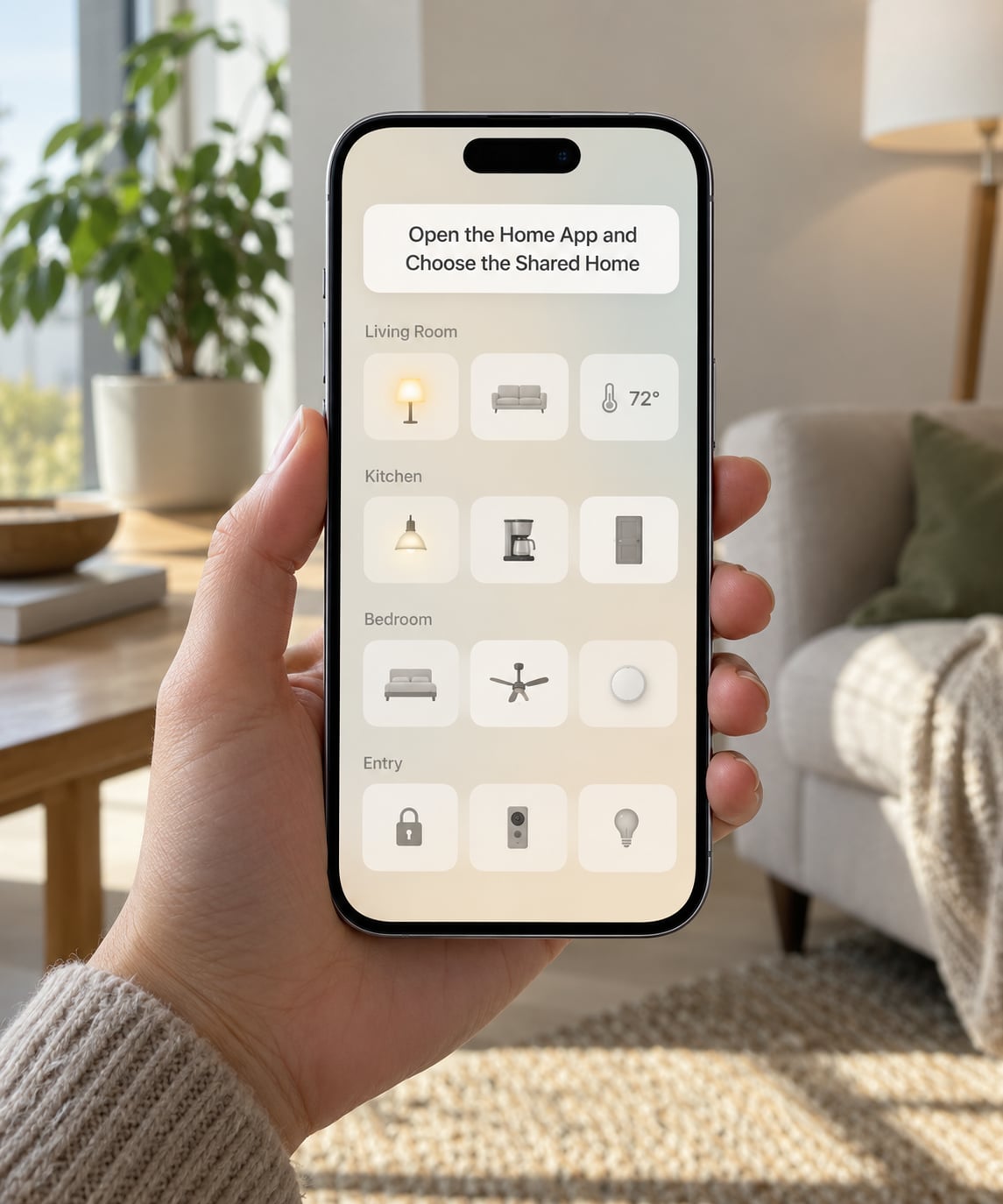
Open Home. The name of the active home sits in the top corner of the screen. Tap it, and a list of the homes on your account appears with the one you are currently viewing marked. If you see more than one, tap the one your family actually lives in.
To confirm you are in the right place, open any room and look for an accessory you know is there. A shared home still shows every room and every device to you, so a quick visual check is more reliable than the name alone.
How to Share Home Control With Family in the Home App
In the Home app, tap the home name or the More button, then choose Home Settings and tap People. Tap Invite, and a list of people already connected to your home appears with an Add Person button. From there, pick Resident or Guest.
Choose Resident for a partner, adult child or roommate who lives there. Choose Guest for anyone temporary, including a child who only needs the front door after school. Enter the person’s Apple Account email address, tap it in the list, and send the invitation.
You will see a confirmation sheet listing the name, role and email you entered. That sheet is worth a second look, because a typo in the email is the most common reason an invitation never shows up.
Turn On the Permissions Each Person Needs
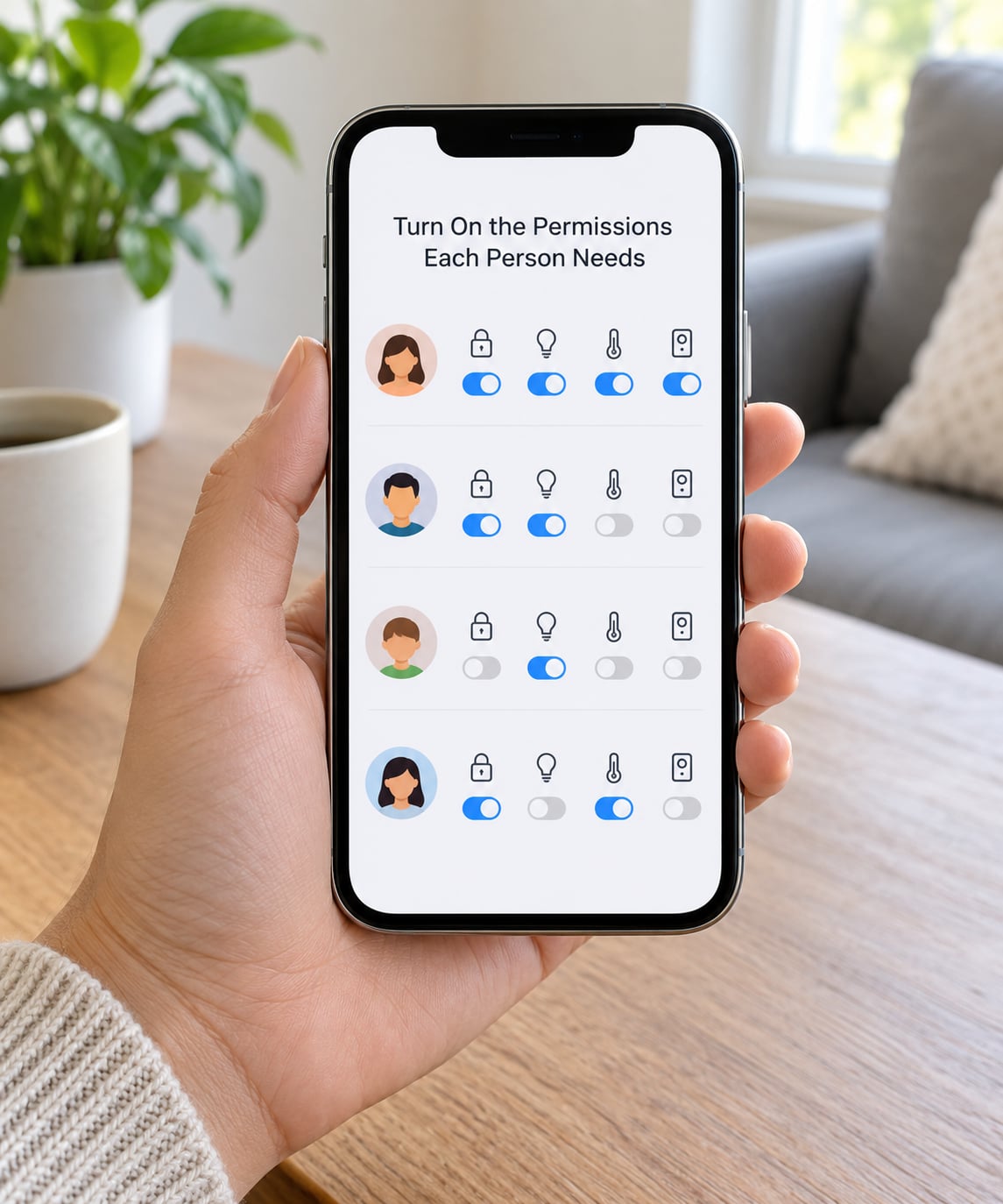
After the invitation is sent, tap the person’s name in Home Settings, then People. Five toggles decide how much they can do, and each one is worth setting on purpose rather than by default.
- Control Accessories Remotely. Working the devices from outside the home over the internet. On for residents who travel, question it for a guest.
- Add and Edit Accessories. Changing automations, scenes, names and room assignments. Off for guests and children.
- Cameras and Doorbells. Viewing camera feeds, recordings and doorbell history. Turn it on only for people you would hand the footage to.
- Speakers and TV. Playing audio on shared AirPlay speakers and TVs. On for residents, off for visitors.
- Home notifications. Alerts about motion, doors and devices. On, unless they find it noisy.
For a Guest, you also choose which doors, locks, garage doors and alarm systems they can control, plus a schedule. The two schedule options are Specific Dates for a fixed range such as a holiday week, and Specific Days and Times for a repeating pattern such as every weekday from 8am to 6pm.
One limitation catches people out. Shared users cannot add a HomePod, an Apple TV, or an AirPlay-compatible speaker or TV to the Home app. Only the owner can. If your partner tries to add a speaker and it will not budge, that is by design.
Grant the minimum that makes the person useful. A child who needs to let themselves in after school needs one lock, not the alarm system and not the indoor cameras. Every extra toggle is a decision you will have to audit later.
Ask the Invited Person to Accept the Invitation
The invitation goes out through iCloud to the other person’s Apple Account. On their iPhone, they open Home, tap the home name or the More button, choose Home Settings, and look for the Invitations section. Tapping View shows the pending invitation, and Accept adds your home to theirs.
Tell them to check with the Apple Account they actually use day to day, not an old one. Accepting on a device signed into a secondary Apple Account is a frequent reason an invitation looks accepted but never populates any devices.
If the invitation never arrives, the usual causes are a mistyped email, an invitation already sitting in that account’s spam folder, or a recipient who has never used the Home app on that device. Sending the invite again often works; the first one can expire.
Test Access and Update Home Members Later
Do not wait until 9pm to find out the share failed. Ask your family member to toggle a hallway light from their own iPhone while they are on home Wi-Fi, then again from mobile data. That confirms local control and remote control in about ten seconds.
Permissions change any time. Return to Home Settings, tap People, tap the person’s name, and adjust the toggles. To hand over the home entirely, tap Remove Person and confirm.
Two things people miss here. Removing someone from Home does not remove their access inside the accessory maker’s own app, so check any locks, thermostats or cameras you manage in a third-party app. And if you are the one who was invited, the Leave Home option removes you from that home, though the person who created it keeps control of the accessories.
Adding a second person can also change which device is acting as your home hub. If automations behave oddly afterward, check the hub assignment in Home Settings before you start rebuilding anything.
Common Mistakes
Nearly every sharing failure falls into one of these buckets, and each has a short fix.
Inviting from a home you do not own. If the Add People button is not there at all, check that a hub is assigned to that home. People on the Home Settings screen can see the hub status, and an unassigned home cannot send invitations reliably.
Expecting a guest to control lights. Guests cannot control lights, plugs or the thermostat. For a house-sitter, cleaner or pet sitter, build an automation that switches the lights and heat on when the front door unlocks, then disable that automation the rest of the time.
Granting every permission at once. Cameras, locks and remote control are three separate decisions. Splitting them by person is the whole point of the feature.
Accepting on the wrong device or Apple Account. If someone accepts on a shared old iPad, their own phone will stay empty. Have them remove the home from the wrong device and re-accept on the one they use.
Confusing Home sharing with Apple Family Sharing. They are unrelated. Family Sharing pools purchases, iCloud storage and some subscriptions between Apple Accounts. It does not share your lights, locks or cameras, and Family Sharing members cannot see your Home data.
“Could not complete operation” when accepting. This is the error community threads are full of. The fix that resolves it most often belongs on the receiving device, not the one that sent the invitation. Both people should confirm two-factor authentication is on, both devices are current, and nobody is signed into a leftover iCloud account. If it persists, resetting the encryption key on the receiving Apple Account clears stale Home data, but it also wipes Keychain items, so treat it as a last resort and know the cost before you start.
On a positive note, several people who spent days on that error report that a brand new Apple Account for the family member fixed it in minutes. That is a real option when the account has churned through several email addresses.
Frequently Asked Questions
Does Home Sharing require Apple Account Family Sharing?
No. They are separate systems. Apple Family Sharing pools purchases, iCloud+ storage, subscriptions and some services between Apple Accounts. Sharing a home in the Home app is done entirely inside Home Settings, and it works whether or not the people involved are in the same Family Sharing group. Two people on different Apple Accounts in different countries can share a home as long as each has an Apple Account and a recent iOS version.
What can family members control in the Apple Home app?
A Resident can control every accessory in the home, including lights, plugs, thermostats, cameras, locks and scenes, over Wi-Fi and, if you enable Control Accessories Remotely, from anywhere. A Guest can control only the specific doors, locks, garage doors and alarm systems you select, and only during the schedule you set. Both roles get Home notifications, and shared users can ask Siri to control the home.
How can I give my child limited access to home accessories?
Invite them as a Guest rather than a Resident. In Home Settings, tap People, select your child, and choose the specific lock or door they need. Leave Add and Edit Accessories off, leave cameras off, and turn off Control Accessories Remotely if you want access limited to the house. Then set a schedule, either Specific Dates for a holiday period or Specific Days and Times for school days. You can widen or narrow this later without re-inviting them.
Why did my family member’s home invitation not arrive?
Check four things in order. Confirm the email address you typed is the one they use for their Apple Account, since a typo is the most common cause. Ask them to look in the spam folder for a message from Apple. Make sure they are signed into the expected Apple Account on the device they will use. Finally, resend the invitation, because pending invites can expire before they are accepted.
Can I remove someone from my home after sharing access?
Yes. Open Home, tap the home name, choose Home Settings, tap People, select the person, and tap Remove Person. Their access ends inside the Home app. Remember that this does not revoke permissions you granted in the accessory manufacturer’s own app, so check any lock, camera or thermostat you manage elsewhere, and remove their account there too if needed.
Why can’t a family member control a particular lock or camera?
Four reasons are common. The person may be a Guest and the accessory is not in the list you selected for them. Their schedule may not be active at that moment. Control Accessories Remotely may be switched off, so the device only responds on home Wi-Fi. Or the accessory may still be finishing setup, which shows as an alert in the Home app. Camera access is also a separate permission from general accessory control.
Conclusion
Start by confirming which home is active in the Home app, then invite your family member through Home Settings and People. Give them Resident only if they live there and need the whole home; give everyone else Guest, with just the locks and schedules they actually need.
Test it the same day with a light, check the permissions once more a week later, and remember that removing someone from Home does not touch their access in the accessory maker’s own app. If the invitation never arrives, the fix almost always belongs on the receiving device.