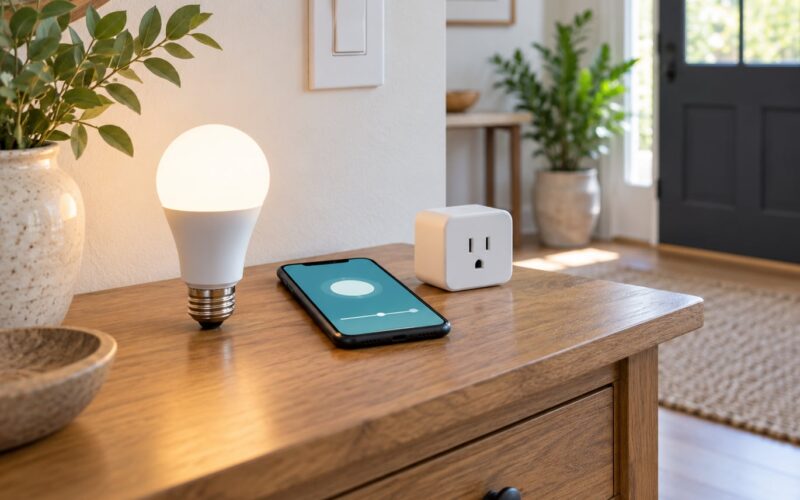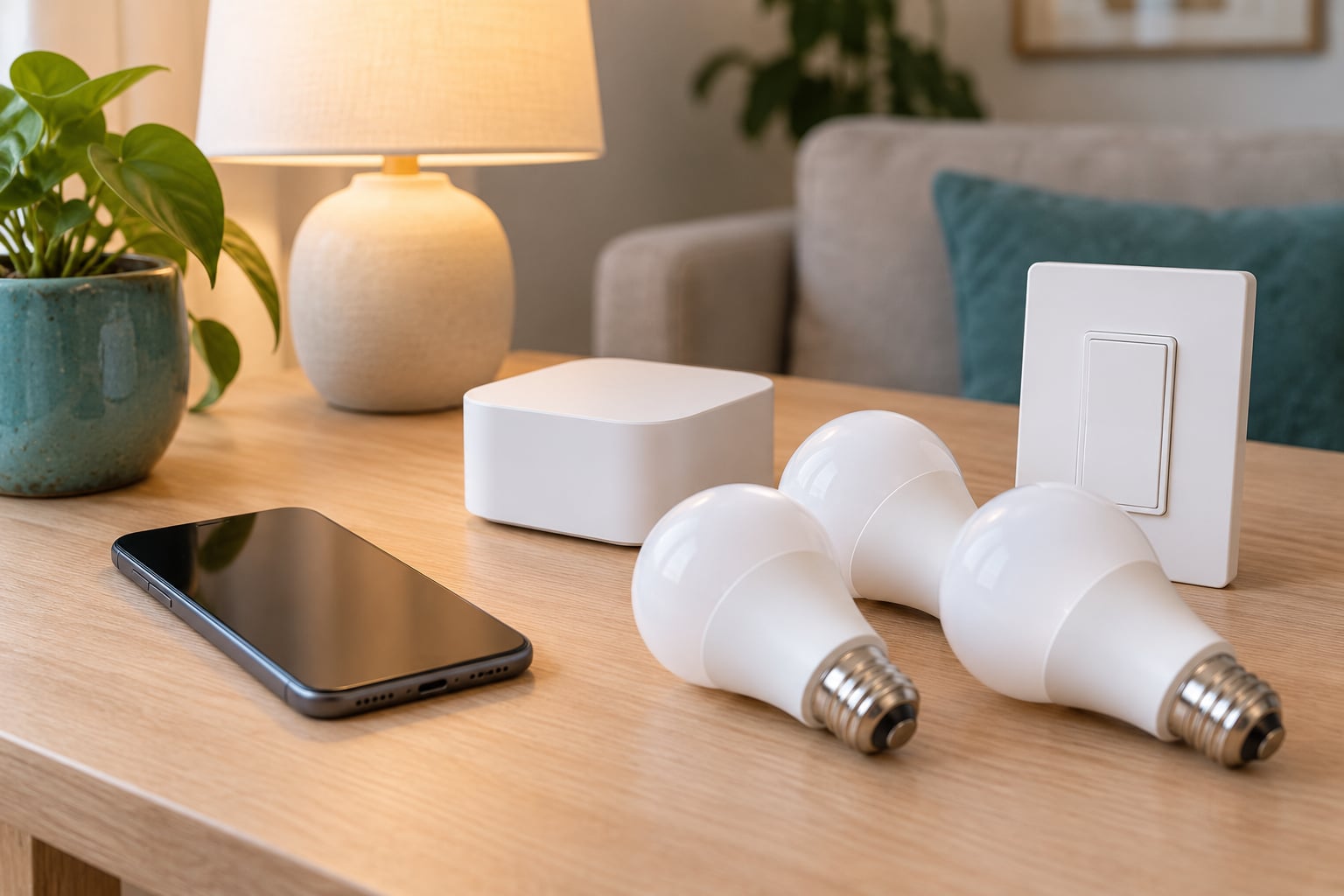
How to automate lights with iPhone comes down to the Apple Home app: add a HomeKit or Matter light, open the Automation tab, tap the plus button, pick a trigger, and choose what the light does. A home hub such as a HomePod or Apple TV runs those automations in the background, so they keep working when your phone is in another room or in your pocket.
It takes about 20 minutes for the first one, and the fiddly part is not the tap sequence. It is deciding which trigger you actually want and whether you have a hub yet.
Below are four approaches, from a plain on-and-off schedule to voice and Shortcuts control, plus the failure modes that make automations quietly do nothing.
Table of Contents
- 1What You Need
- 2The iPhone and account
- 3HomeKit versus Matter
- 4What counts as a light
- 5Do you need a home hub?
- 6Step-by-Step
- 7Step 1: Set Up a Basic Light Schedule
- 8Step 2: Automate Lights at Sunrise and Sunset
- 9Step 3: Turn Lights On When Motion Is Detected
- 10Step 4: Control Lights with Siri and Shortcuts
- 11Recipes worth copying
- 12Common Mistakes
- 13Frequently Asked Questions
- 14Can I control my lights using my phone?
- 15Do I need a home hub to automate lights with an iPhone?
- 16Why are my HomeKit automations not working?
- 17How do I turn lights on only if nobody is already home?
- 18Can I automate lights in a rental apartment?
What You Need
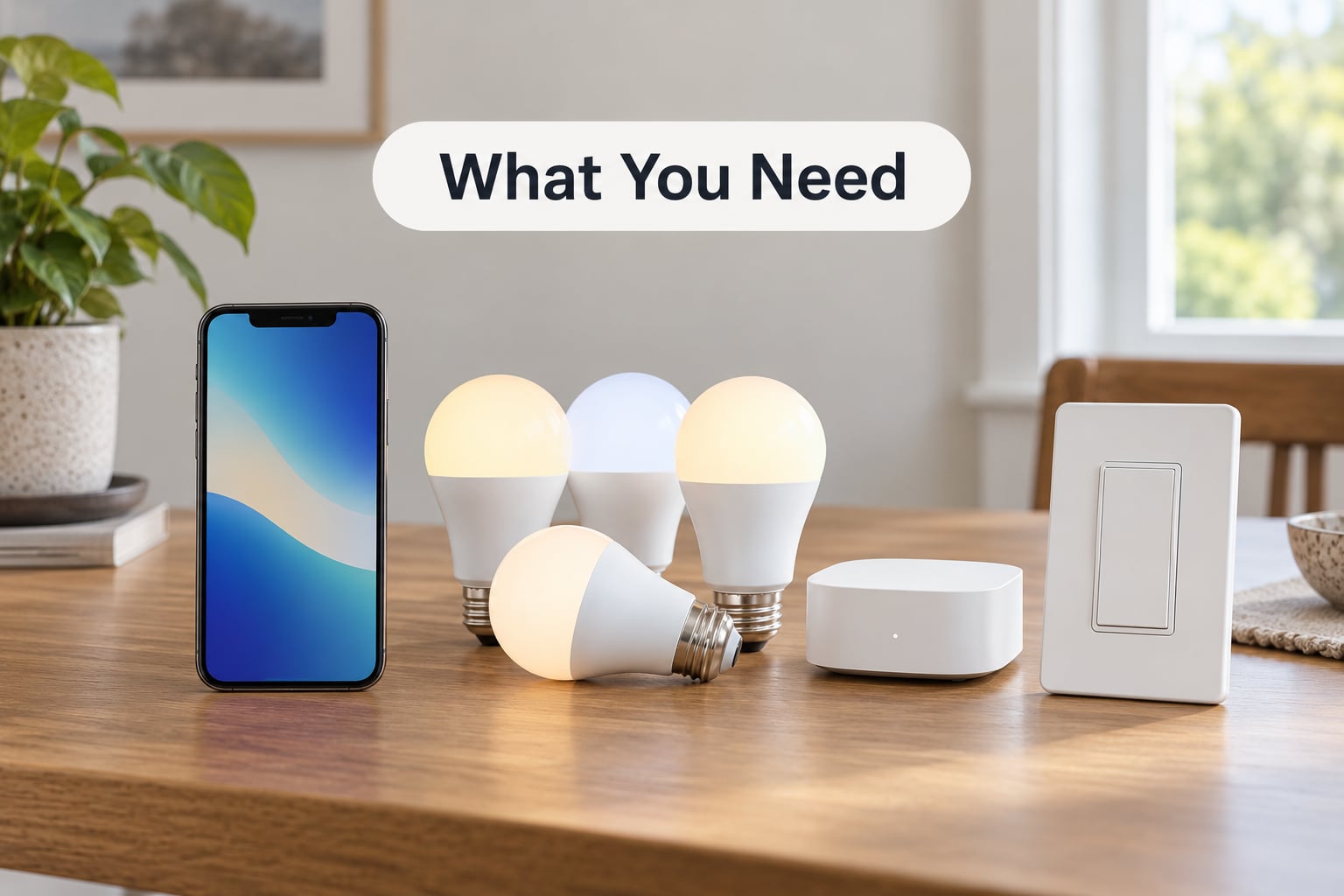
Here is the short version of the shopping list. You need an iPhone on a recent version of iOS, an Apple Account signed in, at least one light that speaks HomeKit or Matter, and a home hub for anything that has to run when your phone is not actively in use.
The iPhone and account
The Home app ships with iOS, so there is nothing extra to download and nothing to pay for. The light itself has to be added under your Apple Account, not just to the manufacturer’s app, because automations run inside Apple’s home system rather than inside the bulb’s own app.
Keep the phone on the same Wi-Fi network as the light during setup. 2.4GHz is the safe bet for older Wi-Fi bulbs, and Bluetooth is often used for the first handshake, so leave Bluetooth on even if you never pair manually.
HomeKit versus Matter
HomeKit is Apple’s original home automation standard. Matter is the newer cross-brand standard, and a bulb that works with Matter will show up in the Home app with a small Matter label next to it. Matter bulbs usually pair faster, and they keep working in Apple Home even if the manufacturer changes its own app.
Practical rule for 2026: if a box says Works with Apple Home and has the Matter mark, buy that one. If it only says HomeKit, it will still work, but you are buying into an older accessory list.
What counts as a light
You have more options than smart bulbs. A smart plug can turn any ordinary lamp into a smart light, which is the cheapest way to start if you already own lamps you like. A smart switch replaces a wall switch and controls whatever is wired behind it, which matters for ceiling fixtures and porch lights you cannot reach.
Whichever you pick, give it a plain name in the Home app. A bulb called Desk Lamp responds to Siri instantly; one left as a model number like A19-RGB-02 usually gets misheard.
Do you need a home hub?
Yes, for automations that matter. Without a hub, the Home app on your iPhone can control lights manually on the same Wi-Fi network, and that is genuinely useful. But trigger-based automations need something at home holding the whole system together, because the trigger has to be noticed when your phone is asleep in a pocket.
Existing iPad owners sometimes have a hub already, but treat it as legacy. An iPad hub can miss Matter accessories and later Home updates, so if you are starting fresh, pick a HomePod or an Apple TV.
| Hub | Runs automations when your phone is away | Matter and Thread | Good fit for |
|---|---|---|---|
| HomePod mini | Yes | Yes, Thread border router | Small homes, audio-focused setups |
| HomePod (2nd generation) | Yes | Yes, Thread border router | Homes that already want a speaker in each room |
| Apple TV 4K | Yes | Yes on current models, Ethernet preferred | Homes with a TV in the main room and no extra speaker |
| iPad | Partly, legacy | Can miss Matter accessories | Existing setups only, not new builds |
Whichever hub you pick, give it a minute on the same network as your iPhone and let the Home app discover it. Home then shows the hub under Settings, and from that point automations start running on the hub rather than on your phone.
Step-by-Step
All four approaches start with the same first move: add the light to Home. Open the Home app, tap the plus sign in the top right, choose Add Accessory, and put your iPhone close to the bulb or plug. Most accessories jump straight into pairing mode, and some show a setup code or QR code on their own app that the Home app asks you to scan.
Once the light appears, give it a name and assign a room. Room assignment matters more than it looks. Automations can target a whole room, and Siri understands rooms better than it understands individual accessories.
Test the light by tapping it on the Home dashboard before you build anything. If it does not turn on from Home, the problem is pairing or network, not automation, and you would be debugging the wrong thing.
Step 1: Set Up a Basic Light Schedule
A time-based schedule is the simplest automation and the easiest one to verify. In Home, tap the Automation tab at the bottom of the screen, tap the plus sign, and choose A Time of Day Occurs as the trigger.
Set it to a time of day, pick the days you want it to repeat on, and then choose the action. Set Light to On and pick the light or the room. If you want a dim wake-up rather than a flood, use Set Light to On, then adjust Brightness in the action rather than building a separate rule.
One useful addition sits right under the action: Turn Off for a duration. Set the light to turn off after 30 minutes and you have a cheap safety net for the lamp you always forget about.
Give the automation a name you will recognise in the list, such as Hallway at Seven. Then tap Test This Automation at the bottom of the screen. The Home app runs the actions immediately so you can confirm the right light is being targeted before you walk away.
You know it worked if the light changes state within a second or two of the test. If nothing happens, scroll to the top of the automation screen and look for a warning icon there, because that is where the Home app tells you a hub is missing or a permission is off.
Step 2: Automate Lights at Sunrise and Sunset
Fixed times drift with daylight saving and with the seasons. A porch light set for 6pm is wrong for half the year, so use the sun instead.
Create a new automation with A Time of Day Occurs again, but this time pick Sunset or Sunrise as the condition rather than a clock time. Add an offset if you want the porch light to come on before dark, such as 20 minutes before sunset.
Split it into two automations rather than one. The evening rule turns the porch and hallway lights on at sunset, and the morning rule turns the same lights off shortly after sunrise. One automation trying to do both ends up with logic that confuses people reading the list later.
Sunrise and sunset triggers do not need location permission, which is one reason people prefer them over arrival triggers. Test the sunset automation in the middle of the afternoon and it will run on the schedule you just set rather than waiting for dark.
A fixed offset like sunset minus 30 minutes is the common workaround people copy from forums. It works most of the year and then fails twice a year. The built-in sunset trigger tracks the seasonal change for you.
Step 3: Turn Lights On When Motion Is Detected
Motion is the trigger that makes a home feel responsive, and the hallway is where it pays off fastest. You need a motion or occupancy sensor, and it has to be one that exposes itself to Apple Home as a sensor, not just inside the manufacturer’s own app.
Add the sensor the same way you added the light, assign it to the room where it is mounted, and give it a name that says what it detects, such as Hallway Motion.
Then create an automation with A Sensor Detects Something as the trigger, choose your sensor, and set the action to turn that room’s light on at a low brightness. Low brightness for a hallway is kinder at 2am than full output.
Under the action, set the light to Turn Off for a short duration, around one to three minutes. Without that, motion keeps the light on until you tell it otherwise, and you end up with a stairwell that never goes dark.
On privacy: a motion sensor in a hallway or entryway tells you someone walked past, nothing more. A camera-based sensor is a different product with different rules, and if you add one, keep it out of bedrooms and private living spaces.
Test it by walking past the sensor after you set the automation to allow motion detection. If the notification arrives but the light does not turn on, the sensor is likely reporting only to the manufacturer’s app rather than to Home, and you will need a different sensor.
Step 4: Control Lights with Siri and Shortcuts
This is the step where most people push past the basics of how to automate lights with iPhone and start building their own logic. Scenes are the layer between individual lights and automations. A scene switches several lights at once, and automations can fire a scene instead of repeating a list of light actions.
To group lights, open Home, tap the plus sign, choose Add Scene, then pick each light and set its level for that scene. Movie Time at 20 percent and Bedside at 10 percent are two good starting points. Once the scene exists, Siri can run it on a phrase, and automations can use it as an action.
For a custom voice command, open Shortcuts, tap the plus sign, add Set Lights, pick your light and its state, tap the share button, choose Add to Siri, and type the phrase you want. Saying hey Siri, movie time now runs the shortcut from anywhere, including from a watch or HomePod.
The other half of Shortcuts is conditional logic, which is where the Home app runs out of room. Home offers a light set of Only If conditions, and the thing most people actually want, turn the lights on at sunset unless I am already home, does not express itself cleanly in the basic condition builder. This is the single most common reason people move to Shortcuts.
Build it as a personal automation instead: open Shortcuts, tap Personal Automation, choose the trigger, and add an If action that checks whether the light is already on. Set the shortcut to stop if the condition is true, and the lights stay off when you are already home with the lamp on.
Name everything in plain words before you start. Siri misfires on model numbers and on names that differ by one letter, and that is a far more common cause of a voice command failing than anything to do with the shortcut itself.
Recipes worth copying
These eight cover most of what people set up on a first pass. Change the room and the light, keep the shape.
| Trigger | Condition | Action | What you get |
|---|---|---|---|
| People Arrive | Nobody home | Hallway and porch on at 40% | Lights on when you get home |
| People Leave | Last person out | All lights off | No more lights left on in an empty house |
| Sunset minus 20 minutes | None | Porch light on at 60% | Exterior light that tracks the season |
| Sunrise | None | Bedroom lights off, kitchen on at 30% | Night light off without a command |
| Motion detected in hallway | After sunset | Hallway on at 15%, off after 2 minutes | Soft night path lighting |
| First accessory turned on | Time is evening | Run Movie Time scene | One switch sets the whole room |
| Time of day, 11pm | Everyone home or away | All lights off, one bedside lamp to 10% | Bedtime sweep |
| People Leave | Only if lights are already on | Turn off for 1 hour | Energy saving that respects a manual override |
The last row is the pattern to copy when you want energy saving without fighting someone who deliberately left a light on. Checking the current state first is what stops the on-off-on flicker people complain about.
Common Mistakes
Almost every broken light automation comes down to one of five things, and each has a fix you can check in under a minute.
The hub is not connected. If automations never fire, open Home and look for a warning at the top of the Automation screen saying the home hub is not connected. This badge is easy to miss because the automations still sit in the list looking normal. Check that the hub is powered, on the same network, and not asleep on a network that switches off at night.
Location permission is set to While Using the App. This is the most reported cause of dead arrival and departure automations. Go to Settings, Privacy and Security, Location Services, then Home, and set it to Always. Also confirm that Find My and Share My Location are on, because arrival triggers depend on that feature rather than on the Home app alone.
The Only If condition is doing the opposite of what you meant. If a sunset rule turns the lights on when you are already sitting in a lit room, the condition probably reads as only if someone is home instead of only if nobody is home. Read the condition line out loud before you save. When the logic gets complicated enough that reading it stops making sense, move that one rule to a Shortcuts personal automation with an explicit If block.
The accessory is not really in Home. Non-Apple hardware sometimes appears in the Home app with limited controls, which leaves an automation that looks half broken. If the light only shows on and off, dimming and colour controls will not appear in the action picker. Confirm the bulb carries the Matter mark, and if it does not, do not build automations around features the accessory never exposed.
Motion keeps the light on. Nearly always a missing timeout. Set the action to turn off after a short duration rather than waiting for the sensor to report an empty hallway, because most sensors only report motion, not stillness.
A Mac cannot trigger location automations. A Mac can control accessories and run time-based automations, but arrival and departure triggers need an iPhone or Apple Watch sharing location. If you built a rule on the Mac, move it to your iPhone and it will start working.
Two safety notes before you scale this up. Do not automate anything wired into a circuit you cannot identify, and keep smart bulbs away from enclosed fixtures where heat builds up, since a bulb that is on for hours is running hotter than one you switch off on the way out. For anything involving new wiring, a licensed electrician is the right call rather than a smart switch.
One more habit pays off over time. Name every room, light, scene and automation in the same plain language you would say out loud, and resist the urge to build ten rules in the first week. Two working automations that you understand beat eight that you are afraid to touch.
Frequently Asked Questions
Can I control my lights using my phone?
Yes. Any HomeKit or Matter light, smart plug, or smart switch appears in the free Apple Home app that ships with iOS, and you control it by tapping or by asking Siri. Manual control needs the phone and the light on the same Wi-Fi network. Automatic control, such as lights switching on when you arrive, needs a home hub like a HomePod or Apple TV.
Do I need a home hub to automate lights with an iPhone?
For manual control, no. The Home app on your iPhone can switch lights on the same Wi-Fi network on its own. For automations that trigger when you are away, asleep, or out of range, yes. The hub receives the trigger and runs the rule in the background. Without one, a time or arrival automation may sit idle until you open the Home app yourself.
Why are my HomeKit automations not working?
The four usual causes are a disconnected home hub, Location Services set to While Using the App instead of Always for the Home app, a condition that reads the opposite of what you intended, and an accessory that only exposes partial controls to Home. Check the Automation screen for a warning icon, then confirm your hub is powered and on the same network.
How do I turn lights on only if nobody is already home?
Create an automation with A Time of Day Occurs at sunset, then add an Only If condition checking that the lights are off. That condition makes the rule skip its action when the room is already lit. If you also need to account for presence, the condition builder gets limited, so move the rule into a personal automation in the Shortcuts app with an If block.
Can I automate lights in a rental apartment?
Yes, as long as you do not touch the fixed wiring. Smart bulbs and smart plugs are the easy path since they plug in and leave the wall switches alone. Smart switches require replacing the existing switch, which usually needs the landlord’s permission and a licensed electrician. Renting does rule out one useful trick: you cannot have someone tap the switch to turn off a bulb you have automated.
If you take one thing from this guide on how to automate lights with iPhone, start with the schedule. Add one light to Home, name it, create a time-of-day automation, and hit Test This Automation until it behaves. Once that one rule is reliable, copy it for sunset, then add motion, and leave the conditional logic for later.