To turn off auto brightness on an iPhone, open the Settings app, tap Accessibility, tap Display andamp; Text Size, scroll to the bottom, and switch off Auto-Brightness. The whole job takes about thirty seconds and it works the same on iPhone 15, 16 and 17 models.
The catch is that Auto-Brightness is only one of several things that can change how bright the screen looks. True Tone, Reduce White Point, Low Power Mode and plain old overheating will all dim the display even after you have switched the toggle off. Turn off the first two and the rest is troubleshooting.
Here is the exact path, then what to do when the screen still misbehaves.
Table of Contents
- 1What You Need
- 2How to Turn Off Auto-Brightness on iPhone
- 3How to turn off auto brightness on iPhone in iOS 17, iOS 18, and newer versions
- 4How to turn off auto brightness on iPhone on older iOS versions
- 5Set your brightness manually after turning it off
- 6Common Mistakes
- 7Tips for a comfortable manual brightness level
- 8Frequently Asked Questions
- 9Why does my iPhone keep dimming even with Auto-Brightness off?
- 10Why won’t the brightness on my iPhone stay where I set it?
- 11How do I stop my iPhone from dimming after 30 seconds?
- 12Is it bad to turn off auto brightness on an iPhone?
- 13How do I turn auto-brightness back on, and is it different on iPad or Android?
- 14Does turning off auto-brightness save battery?
- 15Conclusion
What You Need
You need your unlocked iPhone and about two minutes. That is the whole list — no apps, no accessories, and no changes to your Apple account or Apple ID.
It does help to know which iOS version you are on, because Apple moved this toggle years ago and most confusion comes from following a guide written for a different menu. Check it in Settings, then General, then About. The version number sits near the top of that screen.
Two things worth having in mind before you start. A restart afterwards is occasionally useful, though it is rarely the fix. And a screen protector or a thick case sitting over the front sensors can stop the ambient light sensor reading properly, which is a different problem entirely and one we get to further down.
How to Turn Off Auto-Brightness on iPhone
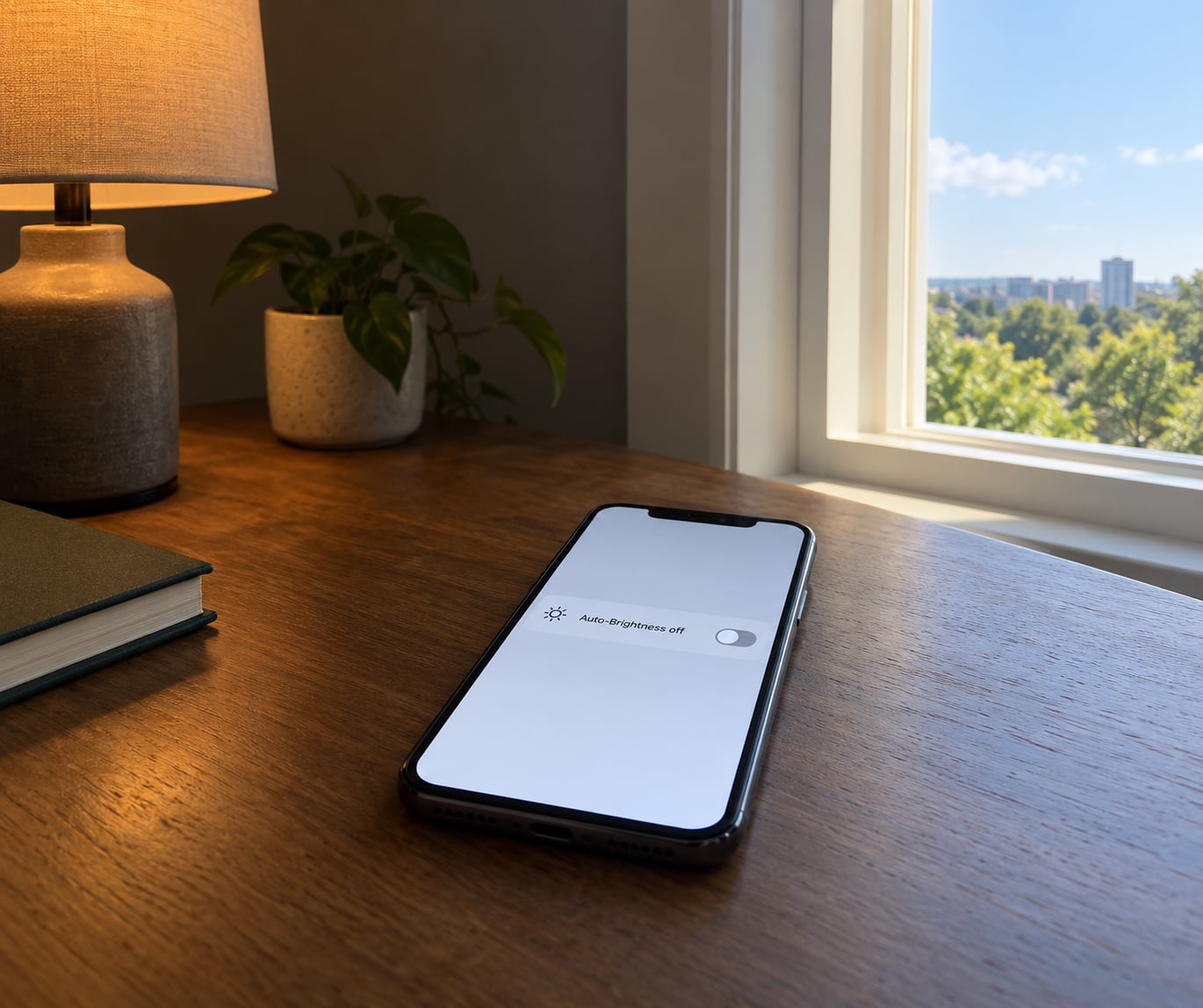
- Open the Settings app and tap Accessibility.
- Tap Display andamp; Text Size — it sits near the top of the list, under the Vision heading.
- Scroll all the way to the bottom of that screen, past the text size, bold text and contrast options.
- Tap Auto-Brightness so the switch turns gray. Green means it is still on.
That is the whole toggle. It is genuinely useful to know it is buried in Accessibility rather than sitting in Display andamp; Brightness where most people look first, because that is the reason so many readers give up assuming their phone cannot do it.
To confirm the change worked, move the phone from a dim room to a bright window. With the toggle off, the screen should hold exactly the same brightness in both places.
How to turn off auto brightness on iPhone in iOS 17, iOS 18, and newer versions
This is the path most iPhones use today, and the wording has been stable across recent releases. Settings, Accessibility, Display andamp; Text Size, then Auto-Brightness at the very bottom.
If you are on an iPhone 15, 16 or 17, nothing changes. There is no per-model difference in the menu, so a guide written for a different model is not going to mislead you here. Older hardware still runs the same menus as long as it is on a recent version of iOS.
iPad follows the identical route: Settings, then Accessibility, then Display andamp; Text Size, then Auto-Brightness. If you use the iPhone settings on an iPad and cannot find it, you are probably in the iPhone Settings app rather than the tablet one.
How to turn off auto brightness on iPhone on older iOS versions
On older versions of iOS, the switch lives in the display menu instead. Open Settings, tap Display andamp; Brightness, and look for an Auto-Brightness switch under the brightness slider. Switch it off there and the switch turns gray.
This is the path that older blog posts and forum threads describe, and it is the single biggest reason a search result can look wrong when you follow it. If you cannot see Display andamp; Brightness in the Settings list, or the Auto-Brightness option is missing from that screen, you are on a newer version and need the Accessibility route above.
A quick way to tell the two apart: count the top-level items in Settings. Modern iOS puts Display andamp; Brightness near the top and Accessibility further down, so if Accessibility is easy to reach, use the new path.
Set your brightness manually after turning it off
With Auto-Brightness off, you now control the level yourself. Swipe down from the top-right corner to open Control Center and drag the brightness slider with one finger, or use the larger vertical slider on the lock screen and in some apps.
The other control is in Settings, Display andamp; Brightness, where the same slider sits with a sun icon on either end. Both controls move together — they are two views of one setting.
Set a level you like and it will hold there until you change it. Rotation does not alter brightness on its own, so turning the phone sideways will not undo your setting. A restart or a software update can return the slider to a mid-level default, which is worth a glance after either.
While you are in that area, turn off True Tone as well. Go back to Accessibility, Display andamp; Text Size, and switch off True Tone. True Tone shifts the colour temperature as the ambient light changes, and plenty of people read that shift as a brightness change even though it is not one. Turning it off is the second half of the fix that forum users keep recommending, and it is the step most guides skip.
Common Mistakes
Most people who want this setting off fail in one of five predictable ways. Here is what goes wrong and what to do instead.
Looking in Display andamp; Brightness and giving up. On current iOS the toggle is not there. It sits at the bottom of Accessibility, Display andamp; Text Size. Many guides still describe the old location, and that mismatch is the top complaint in the Apple Community threads on this topic.
Toggling Night Shift or Dark Mode instead. Night Shift warms the colour temperature on a schedule and Dark Mode changes the theme. Neither one stops the screen responding to the ambient light sensor, so the dimming you were trying to fix keeps happening.
Leaving True Tone on. True Tone still adjusts the display to the light around you after Auto-Brightness is off. Turn it off in the same Display andamp; Text Size screen, one toggle below where Auto-Brightness sat.
Leaving Reduce White Point on. Reduce White Point is a genuine brightness limiter that lowers the brightest white the screen can produce, which is exactly the ceiling you need outdoors. It sits in the same Accessibility submenu. Turn it off if you want full brightness, and leave it on if you read at night and prefer a softer white.
Assuming the phone is broken when it is hot. An iPhone cuts screen brightness and processor speed when it gets too warm. Apple lists the safe range for use as 32 to 95 degrees Fahrenheit, so a phone sitting in a hot car or on a wireless charging pad in summer can dim itself no matter what your settings say. If the back of the phone is noticeably hot, that is your answer. Checking Settings, Battery, Battery Health andamp; Charging is worth doing if it happens regularly, since a worn battery is a common reason a phone runs hot.
Two more causes hide in plain sight. Attention Aware, added in iOS 17, dims the screen when the phone decides you are not looking at it — it is under Accessibility, and turning it off stops that particular dimming. And Low Power Mode reduces background activity and output on a low battery, so check that it is not switched on when the screen goes dull.
Finally, a case or a cracked screen protector can cover the ambient light sensor near the front camera, and the phone then misreads the light around it. Forum advice is to clean that area, take the case off, and see whether the reading changes. That is also the first thing to rule out if you are certain the sensor is behaving oddly.
One last distinction, because it causes constant confusion: the screen going dim half a minute after you stop touching it is Auto-Lock, not brightness. That setting lives in Settings, Display andamp; Brightness, and choosing five minutes or Never there stops the lock-screen dimming. It has nothing to do with the auto brightness toggle you just turned off.
Tips for a comfortable manual brightness level
Once the phone stops adjusting itself, a fixed level is your call. For indoor use, most people who make this switch land somewhere between 30 and 50 percent — bright enough to read comfortably, low enough that the battery lasts through a long day. A fixed mid-level indoor setting is where most of the battery saving actually comes from, not the toggle itself.
Outdoors, drag the slider up when you walk into sun. It will not stay comfortable for long, because heat will pull the brightness back down again, but it helps while you are moving.
For night reading, turn off Reduce White Point only if the screen feels too dim against dark surroundings. If glare is the problem rather than brightness, a warmer True Tone setting or Night Shift scheduled for the evening may suit you better than forcing a low brightness level.
Worth remembering that Auto-Brightness is a good default to return to. It exists because a human eye adapts to ambient light and a screen that never adapts gets tiring. Turn it back on whenever you like through the same menu, and your saved slider level takes over as soon as you do.
Frequently Asked Questions
Why does my iPhone keep dimming even with Auto-Brightness off?
Because something other than the brightness sensor is dimming it. Turn off True Tone and Reduce White Point in the same Display and Text Size screen, check that Low Power Mode is off, and turn off Attention Aware under Accessibility. If none of that explains it, feel the back of the phone — a hot iPhone reduces its own screen brightness to manage heat.
Why won’t the brightness on my iPhone stay where I set it?
The most common reason is heat. An iPhone reduces screen output when it gets warm, and Apple rates the phone for use between 32 and 95 degrees Fahrenheit, so a hot car or a warm charging pad is enough to override your setting. Set the brightness again after the phone cools, and check Battery Health under Settings if it happens often.
How do I stop my iPhone from dimming after 30 seconds?
That is Auto-Lock dimming, which is a separate setting from brightness. Open Settings, tap Display andamp; Brightness, and change Auto-Lock from 30 Seconds to five minutes or Never. Never is convenient at a desk, but on battery it means the display stays awake far longer, so expect noticeably shorter battery life.
Is it bad to turn off auto brightness on an iPhone?
Not at all. A fixed level suits people who read long documents, take photos and video where consistency matters, or use the phone as a point-of-sale or kiosk display. The real tradeoff is outdoors: a manually dimmed screen is harder to read in direct sun, and heat will push the brightness down further regardless of your setting.
How do I turn auto-brightness back on, and is it different on iPad or Android?
Go back to Settings, Accessibility, Display andamp; Text Size and switch Auto-Brightness back on, then reset the brightness slider wherever you like. iPad uses exactly the same menu. On Android the equivalent is Settings, Display, Adaptive brightness, which you slide to the left.
Does turning off auto-brightness save battery?
The toggle itself saves very little. What saves power is the brightness level, so keeping an indoor setting around 30 to 50 percent matters much more than whether the setting is on or off. Reduce White Point can also limit peak brightness, though its effect on battery is small compared with simply lowering the slider.
Conclusion
Start by opening Settings, Accessibility and Display andamp; Text Size, then switch Auto-Brightness off so the toggle turns gray. If the screen still dims, turn off True Tone in that same screen, check Reduce White Point, make sure Low Power Mode and Attention Aware are off, and see whether the phone is simply too hot.
Once the screen holds steady, set a level you like with the Control Center slider — around 30 to 50 percent indoors is a sensible starting point — and you can always switch automatic behaviour back on later.