To change watch faces on Apple Watch, press and hold the display, swipe left or right to the face you want, then tap it to make it your current face. That is the whole trick for faces you already have. Adding a new design takes one extra step in the Gallery, and it needs your iPhone within reach.
This guide covers what you need, the three routes Apple gives you, and the fixes for the problems people actually hit. It is written for the current watchOS release as of 2026, with notes where older versions navigate differently.
Table of Contents
- 1How to switch between saved watch faces in three steps
- 2What You Need to Change Watch Faces on Apple Watch
- 3Step-by-Step: How to Change Watch Faces on Apple Watch
- 41. Open the right app to change watch faces on Apple Watch
- 52. Open the Gallery and select a new face
- 63. Choose a face style and customize its appearance
- 74. Add the face to favorites or sync it to the watch
- 85. Remove a face you no longer use
- 9Common Mistakes When Changing Apple Watch Faces
- 10Frequently Asked Questions
- 11Can I change the watch face without my iPhone?
- 12Why is the Gallery button missing from my Apple Watch app?
- 13How do I switch between multiple watch faces?
- 14Can I change the complications after adding a watch face?
- 15How do I restore a watch face I deleted?
- 16Conclusion
How to switch between saved watch faces in three steps
- Touch and hold the display until the face shrinks into the Gallery view.
- Swipe across to the face you want.
- Tap it to make it your current face.
Turn on Settings > Clock > Swipe to Switch Watch Face and you can skip the press and hold entirely, swiping straight from one face to the next.
What You Need to Change Watch Faces on Apple Watch
A paired Apple Watch running a current watchOS release is the main thing. Everything else is optional but saves time.
- The watch itself. You can switch, edit and delete saved faces straight from the wrist.
- Your iPhone, nearby. Adding a brand new face requires the Watch app, and downloading a face that is not cached on the watch needs a connection.
- The Watch app on iPhone. This is where the Gallery lives and where your face collection is managed.
- An internet connection the first time you add a face, since it has to download before it appears on your wrist.
- A little free space on the watch. Each face takes a few megabytes, and a full collection on an older watch is a real thing.
You do not need your iPhone in the room to change between faces you already downloaded. That is the part most guides bury, and it is the part you will use most.
Step-by-Step: How to Change Watch Faces on Apple Watch
1. Open the right app to change watch faces on Apple Watch
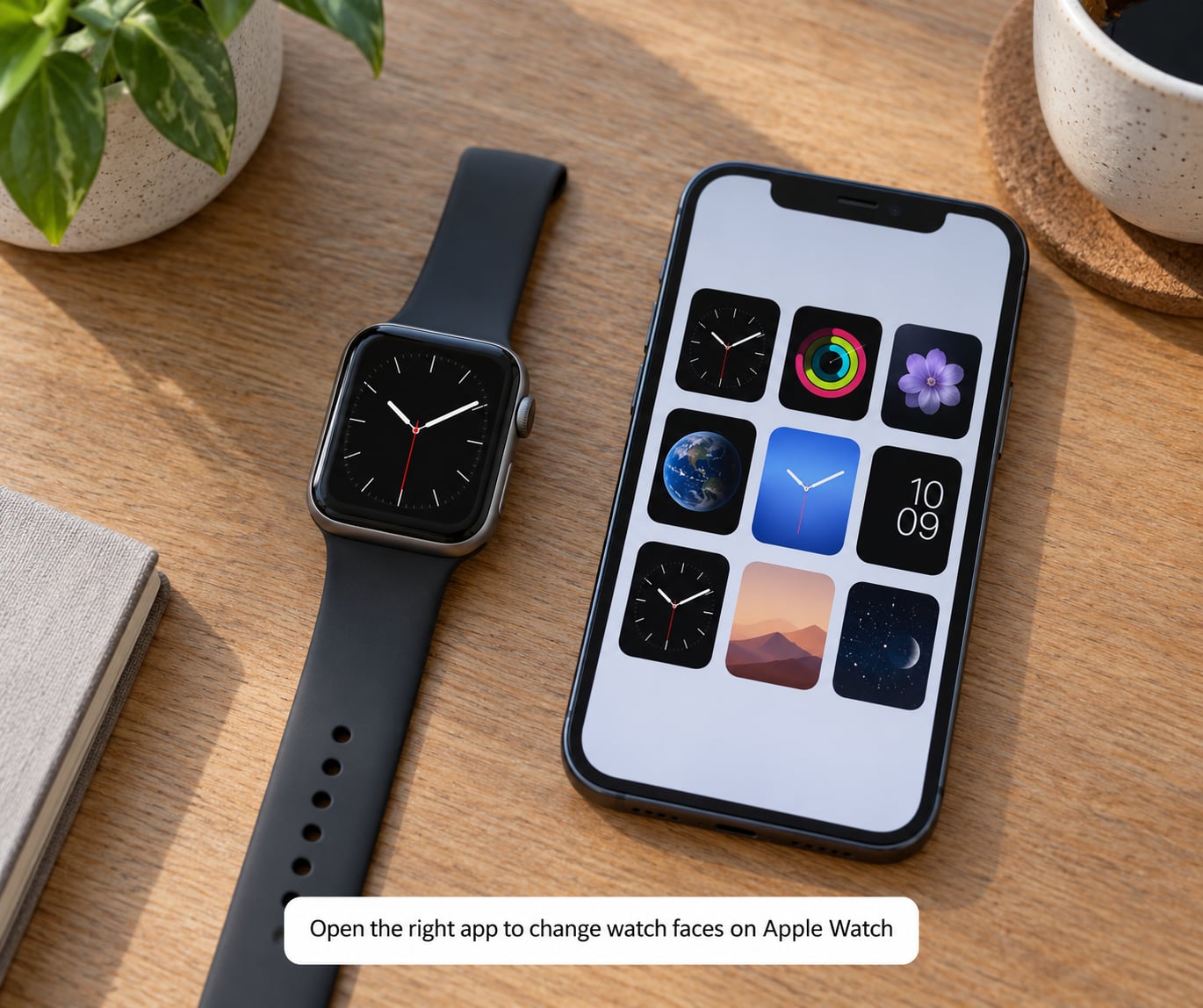
On iPhone, open the Watch app. If you own more than one Apple Watch or have an Apple Watch paired with more than one iPhone, tap the paired watch tile at the top of the My Watch tab first, so you are editing the right device. Then scroll to the Gallery section and tap it.
Inside the Gallery, faces are grouped into categories rather than listed alphabetically. Some sit under All Watch Faces, others under Infograph, Modular, California, Siri and so on. The grouping changes between watchOS releases, so do not assume a category you remember still exists.
On the watch itself, press the Digital Crown to reach the face carousel, where your current face sits in the middle. Swiping right past the last face brings up a plus button, which opens the same gallery on the wrist with a shorter list.
On watchOS 10 and later, the Gallery view with the shrunken face carousel is the normal way around. On watchOS 9 and earlier, long pressing the face opened an edit view instead, and the plus button was less prominent. If a guide tells you to tap the current face to open a menu that you cannot find, it was written for the older layout.
2. Open the Gallery and select a new face
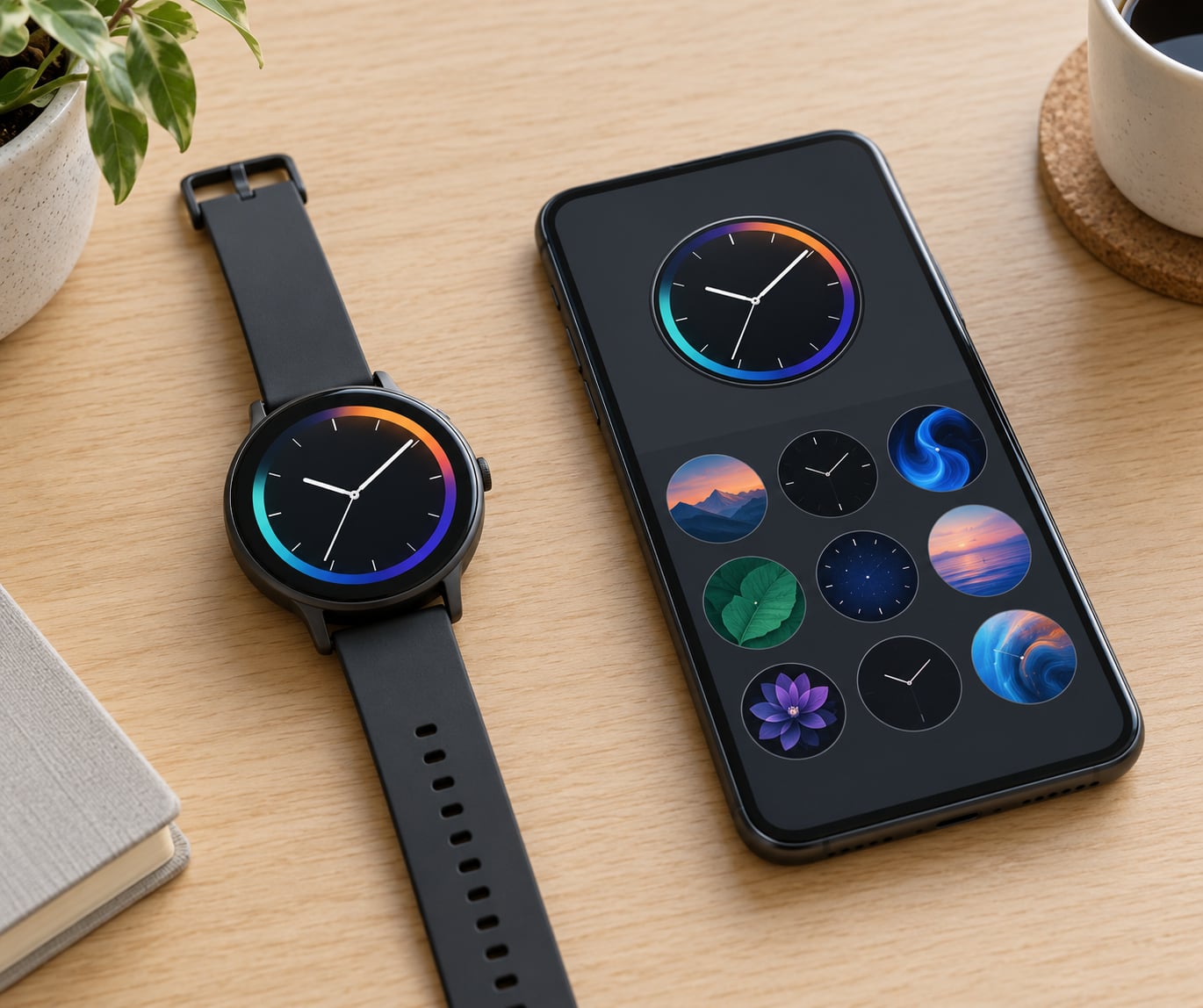
Scroll through the gallery until you find a face you like. Tap it once and you will see a live preview on the paired watch, which is the fastest way to tell whether a color scheme actually works in daylight.
Tap Add if the face is not on your watch yet, or Add to Watch for the same action from iPhone. The watch connects, pulls the face over Wi-Fi or Bluetooth, and returns to the face screen when it finishes. That transfer takes anywhere from a few seconds to a minute on an older watch, so give it a moment before assuming something failed.
You will know it worked when the new face shows up in your carousel on the watch, not just in the gallery on the phone. If it appears in the phone gallery but not on the watch, the download did not finish. Skip ahead to the fixes.
One useful habit: set the face you just added as your current one before closing the app. Tap the face card again, then tap Set as Current Face. That way you always know the most recent face is the one on your wrist when you compare it later.
3. Choose a face style and customize its appearance
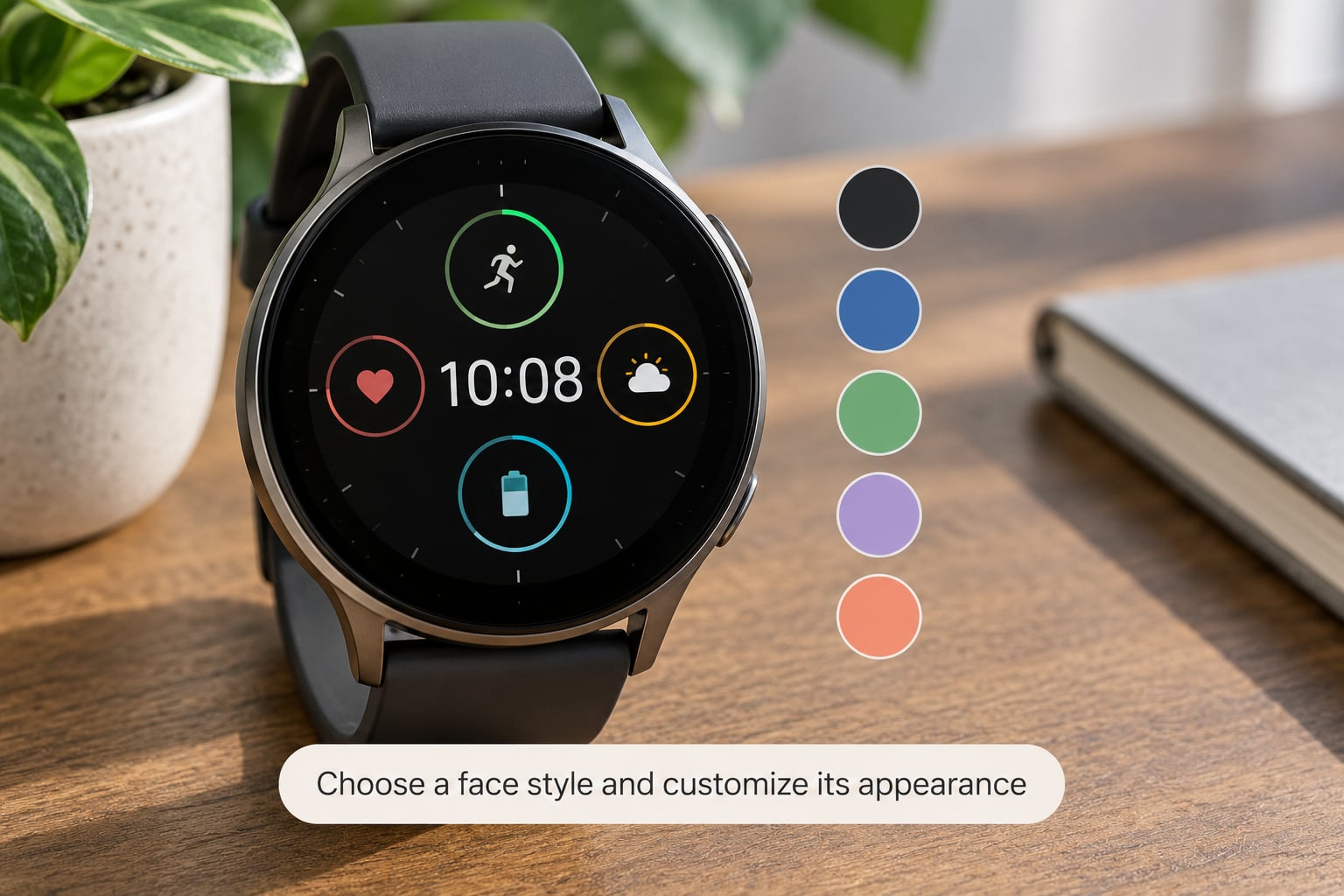
Every face has its own Color, Style and Complications options, and they do not carry over between faces. A face with four corner slots behaves nothing like one with a single bottom slot, and some faces offer no style variants at all.
Tap the face name at the top of the edit view to reach the options, then work through them:
- Color. Swatches change the face background, hands and highlights. Some faces include a gradient or a night mode that appears automatically in the dark.
- Style. Where a face supports it, this is where hour numerals swap to roman, minute markers change weight, or the layout moves.
- Hourly graphics. Faces such as California and the modular family can rotate through illustrations on the hour, which is more distracting than most people expect.
- Complications. Small data slots in the corners and along the bottom. Tap a slot, scroll the list, then tap away to set it. Choose Off to hide a slot completely.
- Typography and ticks. Face-specific toggles for the second hand, the ticking motion and the digital font.
Tap the current face once more to leave edit mode and save everything. Changes sync to the watch as soon as you tap outside the editor, usually within a second or two.
Complications are where most of the value sits. A weather complication showing 0 percent chance of rain is noise, so a calendar or battery complication in the top corner reads better at a glance. You get three or four slots on most faces, and each one can hold a different app.
4. Add the face to favorites or sync it to the watch
Your watch face collection is the carousel you swipe through, and its order is the order you swipe through it. The face you are currently wearing counts as the first item.
To reorder without hunting: on the watch, press and hold the current face to enter the Gallery view, then press and hold the face you want to move until it lifts. Drag it into place and release. On iPhone, open the Watch app, tap your paired watch, tap My Faces under Gallery, and tap the face you want to move. Tap Edit in the top right, then use the handle to drag it into a new position.
Turn on Settings > Clock > Swipe to Switch Watch Face on the watch and your normal swipe gesture moves between faces instead of opening notifications. That setting only changes which gesture swipes faces. To move to another face with a button, turn on Settings > Clock > Side Button > Dock and choose a face, then a Side Button press jumps straight to it.
Some people skip the carousel completely for a daily face. Putting your everyday design in the side button dock means one press and it is there, no swiping in the dark.
5. Remove a face you no longer use
Deleting a face takes it off the watch and out of your collection in the Watch app. It does not delete the design itself, so you can add it again later without hunting for it.
To remove one from the watch, press and hold the current face to enter the Gallery view, scroll to the face you want gone, then swipe up on it. Confirm with Remove, and the face disappears from your carousel.
To remove it from the collection on iPhone, open the Watch app, tap your paired watch, scroll to My Faces under Gallery, tap the face, then swipe left on its card and tap Delete. The watch syncs the change shortly after, and the face may also vanish from the watch on its own if it was already removed there.
Two things worth knowing before you delete. A face that is not currently on your watch is removed without confirmation, so check twice. And any face you keep needs space, so trimming five unused ones on a smaller watch makes the carousel noticeably faster.
Common Mistakes When Changing Apple Watch Faces
The face does not respond when you press and hold. This is the one that sends people to search engines. On watchOS 10.1.1 and similar releases, owners reported that the carousel stopped responding entirely after updating, and a restart alone did not fix it. Restart the watch from Settings > General > Restart, then the iPhone from Settings > General > Transfer or Reset iPhone > Reset > Reset Network Settings. That last step resets Bluetooth pairing state, which is where this usually clears.
Your saved faces have vanished. Faces disappearing from the collection after an update is a known side effect some owners hit. Reinstall them one at a time from the Watch app and check each one stays. Reordering your collection from the Watch app also forces a fresh sync, which is often enough to bring back faces that show as greyed out.
A face downloads on iPhone but never shows on the watch. Leave the Watch app open with the watch nearby and unlocked until the transfer finishes. If the watch is on a charger and asleep, it can refuse new faces until you wake it. Still nothing? Delete the face from My Faces, restart the watch, and add it again.
The Gallery button is missing. On watchOS 26 the watchOS setting is labelled Tap to Show Preview and lives in Settings > Clock. Earlier releases used a different toggle for the same job. If you cannot find either, your watchOS version is likely old enough to not have the setting, so check Settings > General > Software Update.
Complications will not change. A face you added but have not selected as current keeps its old settings until you wear it once. Edit mode also refuses to save on some faces unless you tap outside the editor rather than pressing the Digital Crown to leave.
You want a completely different design. Apple does not let third-party apps create standalone watch faces. Apps in the App Store work by sending a face to your watch through the paired iPhone, which means they need your phone nearby and cost money for a small set of designs. The people who downloaded one expecting a watchmaker app tend to end up back in the Apple gallery.
You want more faces than you can find. New faces sometimes skip older hardware. Some models never receive a given design at all, so a face your friend has may not appear in your Gallery no matter how long you scroll. The catalog is also smaller than most people expect, usually a few dozen faces in total.
A few habits prevent most of this. Keep two or three faces that suit genuinely different situations rather than a dozen near-identical ones. Set the face you like as current before you close the Watch app. And when a tutorial does not match your screen, check its watchOS version against yours before trying anything else.
Frequently Asked Questions
Can I change the watch face without my iPhone?
Yes, for switching. Touch and hold the display on your Apple Watch, swipe to the face you want, and tap it. That needs no iPhone at all. Your iPhone is only required when adding a face that is not already on the watch, editing faces from the Gallery, or downloading a new design. The only times your phone matters for switching are the very first time a face syncs and any time your watch needs to reconnect after being out of range.
Why is the Gallery button missing from my Apple Watch app?
On watchOS 26 the equivalent control is called Tap to Show Preview and sits in Settings u0026gt; Clock on the watch, not in the Watch app on iPhone. Older watchOS releases used a similar toggle under the same menu. If neither label appears, your watchOS is behind and it is worth checking Settings u0026gt; General u0026gt; Software Update. Apple has also moved this setting more than once, so the wording in most tutorials may not match what you see.
How do I switch between multiple watch faces?
Press and hold the watch display until the face shrinks, swipe left or right through your collection, and tap the one you want. Turn on Settings u0026gt; Clock u0026gt; Swipe to Switch Watch Face first and you can skip the press and hold. You can also assign a face to the side button through Settings u0026gt; Clock u0026gt; Side Button u0026gt; Dock, which jumps straight to it with one press. Reordering the collection changes the swipe order.
Can I change the complications after adding a watch face?
Yes, and you can do it on the watch. Press and hold the current face to enter edit mode, tap the face name at the top to open the options, and choose Complications. Tap a slot, scroll the list of apps, and tap away to save it. Choose Off to hide a slot entirely. Remember that complication positions are set per face, so changing them on one face leaves your others untouched.
How do I restore a watch face I deleted?
Deleting a face only removes it from your collection, so restoring it is the same as adding it again. Open the Watch app on iPhone, tap your paired watch, scroll to the Gallery and tap it, find the face and tap Add. On the watch, press the Digital Crown and swipe right to the plus button to browse the shorter on-watch list instead. The face downloads again and returns to your carousel.
Conclusion
Start on the watch: press and hold the display, swipe to the face you want, tap it. For something new, open the Watch app on iPhone, select your paired watch, enter the Gallery, pick a design and tap Add, then set it as your current face. That is the whole of how to change watch faces on Apple Watch, and it takes under a minute once you know which screen to open.
If a face does not appear, restart the watch, then the iPhone network settings, and check for a watchOS update. Turning on Swipe to Switch Watch Face in Settings > Clock afterward saves you the press and hold every single time.