To delete multiple photos on iPhone fast, open the Photos app, tap Albums, tap Select in the top right, flag the shots you want, then tap the Move to Trash button and confirm. On a library of a few hundred photos the whole job takes under a minute once you know the drag gesture.
The part that trips people up is what happens afterwards. Deleted photos sit in Recently Deleted for 30 days, and if iCloud Photos is switched on, the deletion travels to every Apple device signed into the same Apple Account.
So here is the workflow, the shortcuts that make it genuinely quick, and the handful of mistakes that turn a two-minute cleanup into a week of regret.
Table of Contents
- 1What You Need
- 2Step-by-Step: How to Delete Multiple Photos on iPhone Fast
- 3How to delete multiple photos on iPhone fast in the Photos app
- 4Delete selected photos from one album
- 5Delete multiple photos from the Recently Deleted album
- 6Check iCloud Photos before deleting
- 7Delete by date instead of tapping one by one
- 8Merge duplicates instead of selecting them one by one
- 9Common Mistakes
- 10Deleting from Recently Deleted on someone else’s device
- 11Storage stays full right after deleting
- 12Photos you deleted keep coming back
- 13The Photos app is too slow to use
- 14Confusing album removal with deletion
- 15Expecting iCloud storage to drop
- 16Deleting without checking the 30-day hold
- 17Frequently Asked Questions
- 18How long are deleted photos kept on an iPhone?
- 19Does deleting photos free up storage right away?
- 20How do I delete photos from my iPhone but keep them in iCloud?
- 21Can I select all photos in the Photos app at once?
- 22How do I bulk delete photos when my iPhone storage is full?
- 23Why are my deleted photos not freeing iCloud storage?
- 24Conclusion
What You Need
That is genuinely it. An iPhone or iPad on a current supported version of iOS or iPadOS, the stock Photos app, and about a minute of attention.
Two things worth checking before you start deleting.
- Know where your photos live. With iCloud Photos on, everything is one shared library. Deleting on one device deletes everywhere.
- Know which albums you care about. A photo can sit in an album and still be an original elsewhere, so removing it from an album is not the same as removing the file.
You do not need a computer, a cable, or a third-party app. Apple has built the bulk tools into the Photos app, they are just tucked behind the Select button most people never press.
Step-by-Step: How to Delete Multiple Photos on iPhone Fast
How to delete multiple photos on iPhone fast in the Photos app
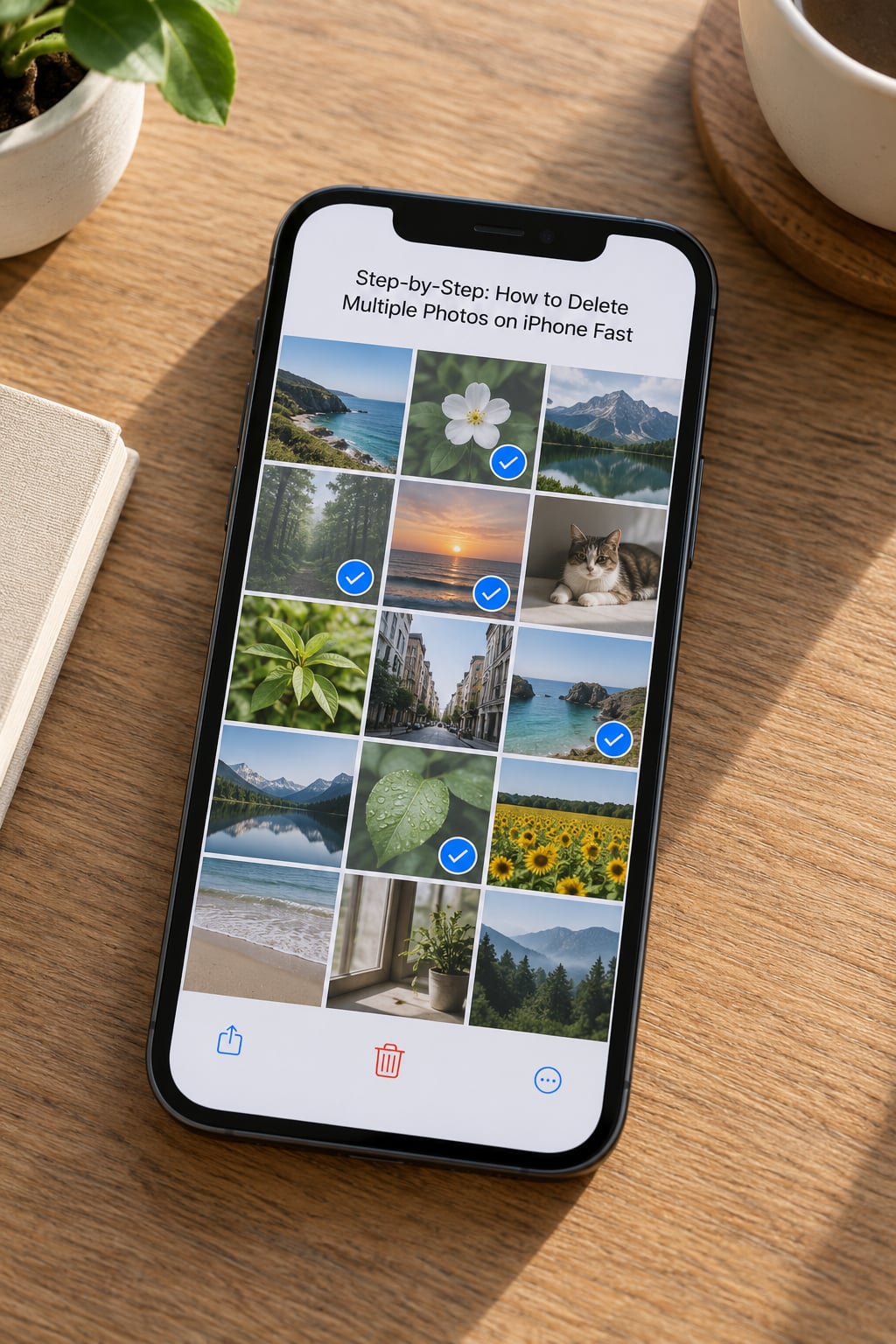
Here is the short answer in plain terms. To bulk delete photos from your iPhone: open Photos, go to Albums, tap Select, choose All Photos, flag the items you want with taps or a drag across the grid, tap the trash icon, then tap Delete Photos in the confirmation prompt. You never have to open a single photo.
- Open Photos and tap Albums in the tab bar at the bottom.
- Tap Select in the top right. Every thumbnail turns into a selectable item with a blue circle.
- Scroll to the group you want to clear, or tap All Photos first to work across the whole library.
- Tap each thumbnail to flag it. To flag a run of photos quickly, press and hold one thumbnail, keep the finger down, and drag across the row and down into the next row.
- Tap the Move to Trash button in the bottom left (the trash can icon).
- Tap Delete Photos on the confirmation sheet to confirm.
Two iPad-specific notes. On iPad, the same Select button is in the top right of the Photos window, and the trash icon appears in the top right rather than the bottom left. With a Magic Keyboard or trackpad attached, Command-click and Shift-click also flag multiple photos, and you can use three-finger swipe gestures to select.
The quickest way to know it worked: the Photos app returns to the album, the flagged thumbnails are gone, and Recently Deleted at the bottom of Albums now shows the new count.
Delete selected photos from one album
Deleting from a single album follows the same path, minus one decision that matters a lot. Open the album, tap Select, flag the photos, then tap the trash icon.
Apple then asks whether to delete the photos everywhere in your library or only as they appear in this album. Choose the album-only option and you keep the originals while clearing the folder. Choose everywhere and the same gesture you use for cleanup becomes a destructive action across iCloud and every signed-in device.
To clear an entire album in one shot, open it, tap Select, then tap Select All in the top right before tapping the trash icon.
Delete multiple photos from the Recently Deleted album
Recently Deleted is an album like any other, so it works the same way. Go to Albums, scroll to Recently Deleted, tap Select, then Select All. Tap the trash icon and confirm Delete to remove everything permanently, right now.
This is the step most guides bury, and it is the one that actually reclaims storage. Photos stay in Recently Deleted for 30 days unless you remove them sooner, and until they leave that album the space is still used.
Recovering works in the same place too. Open an item in Recently Deleted, tap Recover, and it returns to the library. Recovery only works inside the 30-day window and only restores the photo, not the album membership it had before.
Check iCloud Photos before deleting
Go to Settings, tap your name at the top, tap iCloud, then Photos. If Sync This iPhone is on, deletions propagate. You cannot delete a photo from one device and keep it in iCloud while that switch stays on, and the setting sits right under a toggle called Optimize iPhone Storage, which is often what people actually meant to change.
Turn off Sync This iPhone and you get a local-only copy on the iPhone. That frees space without touching iCloud, at the cost of losing automatic sync until you turn it back on. Anyone who wants to keep a full library in iCloud while clearing the phone lives in this toggle.
Delete by date instead of tapping one by one
This is the trick that turns a 10,000-photo job into a 10-minute one. Go to Albums and scroll to the smart albums grouped under Years and Months.
Open a month album, say last June, tap Select, then Select All. You have just flagged every photo and video taken in that month without scrolling through the grid. The Days albums work the same way for single days, and the Years albums clear a whole year in one pass.
Below the smart albums, check Media Types to isolate videos, and the Screenshots album if your grid has hundreds of screen captures in it. Screenshots and short videos are usually where the space went.
Merge duplicates instead of selecting them one by one
The Photos app can find identical and near-identical shots for you. Open Albums, scroll to the Utilities section, and tap Duplicates. Photos found in burst mode or repeated shots appear stacked together with a label showing how many images are merged.
Tap Merge to keep one and discard the rest, then confirm. This is the quickest route when your library is cluttered with near-copies rather than photos you simply want gone, and it works on both iPhone and iPad.
Common Mistakes
Deleting from Recently Deleted on someone else’s device
Photos deleted from one device appear in Recently Deleted on all your other devices, so an empty-looking album on your iPad may not be empty on your Mac. Check the album on the device you actually use before assuming a deletion failed.
Storage stays full right after deleting
Three things cause this. Recently Deleted is still holding the files, iOS has not recalculated the storage bar yet, or the space went to System Data rather than photos. Wait a few minutes, restart the iPhone, then check Settings > General > iPhone Storage. Users on recent iOS versions see this screen labelled iPhone Storage at the top level of Settings instead.
Photos you deleted keep coming back
Almost always one of two causes. Another device still signed into the same Apple Account is re-syncing the library, or the deletion only removed the photo from an album while the original stays elsewhere. Verify with Settings > your name > iCloud > Photos and check the Sync This iPhone state.
The Photos app is too slow to use
When storage sits at 100 percent, Photos can crawl or hang, which blocks deletion entirely. Free a small amount of space first by deleting a few large videos or an unused app, then open Photos again and do the bulk delete. Once the app is responsive again, the drag gesture handles thousands of photos quickly.
Confusing album removal with deletion
Opening an album, tapping Select and choosing Delete Photos only from this album clears the folder and keeps the file. If your goal is storage, you need the delete-everywhere option, and if your goal is tidiness, the album-only option is the safer one. Read the confirmation sheet every time.
Expecting iCloud storage to drop
iPhone storage and iCloud storage are separate meters. Clearing photos on the phone frees phone space. To free iCloud space you manage the library at iCloud.com in a browser, where you can select and delete from a computer screen, which suits very large libraries better than the phone.
Deleting without checking the 30-day hold
Recently Deleted keeps photos for 30 days by default. Anyone hoping to undo a bulk delete a week later is out of luck once that window closes, so verify your selection on screen before you tap Delete Photos.
Frequently Asked Questions
How long are deleted photos kept on an iPhone?
Deleted photos sit in the Recently Deleted album for 30 days before they are removed for good. You can recover any of them inside that window by opening the album, selecting the photo and tapping Recover. To skip the wait, open Recently Deleted, tap Select, tap Select All, then use the trash icon and confirm Delete. That removes them permanently straight away.
Does deleting photos free up storage right away?
Not always. The space comes back only after the photos leave Recently Deleted, so you need to empty that album yourself. iOS also takes a few minutes to recalculate the storage bar, and a restart usually settles it. Then check Settings, General, iPhone Storage to see the updated figure and which category now holds the space.
How do I delete photos from my iPhone but keep them in iCloud?
With Sync This iPhone switched on you cannot, because the library is one shared set of originals. Turn that setting off at Settings, your name, iCloud, Photos and the iPhone keeps a local copy while iCloud holds everything. Another route is Optimize iPhone Storage in the same screen, which leaves only small versions of your photos on the device and streams full-size files from iCloud when you open them.
Can I select all photos in the Photos app at once?
Yes. Open Photos, tap Albums, tap Select in the top right, then tap Select All to flag every item currently in view. Before you do, switch the view to All Photos or to a specific month so you are selecting the group you meant. Then tap the Move to Trash icon and confirm Delete Photos. There is no undo after 30 days.
How do I bulk delete photos when my iPhone storage is full?
Free a little space first, because the Photos app struggles at 100 percent. Delete a couple of large videos or remove an unused app, then reopen Photos and run the normal select-and-delete flow. Deleting from the Years and Months smart albums clears whole months in one pass, which avoids scrolling through a sluggish grid.
Why are my deleted photos not freeing iCloud storage?
iCloud storage and iPhone storage are billed and measured separately, so clearing photos on the phone does nothing to the iCloud quota. To reduce iCloud usage, sign in at iCloud.com from any browser, open Photos, select the items you want to remove, delete them, then empty Recently Deleted there as well. Large libraries can take a while to process that way.
Conclusion
If you want to delete multiple photos on iPhone fast, start in Photos, tap Albums, tap Select, and use the drag gesture instead of tapping thumbnails one at a time. Check Settings > your name > iCloud > Photos before you begin so you know whether the deletion will spread to every device, and read the confirmation sheet each time, because the album-only and delete-everywhere options are not the same action.
Then finish the job properly by emptying Recently Deleted, since photos stay there for 30 days and keep using storage until they go. If your library is enormous, work through the Months and Years smart albums rather than the grid, and merge duplicates from Utilities while you are in there.