Calibrating an Apple Watch for accuracy takes about 20 minutes of walking or running outdoors. Turn on Motion Calibration & Distance in iPhone Settings, then record an Outdoor Walk or Outdoor Run in the Workout app and hold your normal pace for the full 20 minutes. That is the short version of how to calibrate Apple Watch for accuracy, and it works for distance, pace and calories.
The part most guides skip is heart rate. Calibration does not adjust the optical sensor at all, and a watch that reads your pulse badly usually needs a fit change, a clean sensor and a steadier test, not a reset. This guide covers both, plus how to tell the difference between a watch that is still learning your gait and one with a genuine fault.
Table of Contents
- What You Need
- Step-by-Step
- Frequently Asked Questions
- How do I know if my Apple Watch heart rate sensor is accurate?
- Can I calibrate the distance and pace on my Apple Watch?
- Why does my Apple Watch heart rate change suddenly during a workout?
- Does resetting an Apple Watch fix inaccurate sensors?
- How often should I test Apple Watch accuracy?
- Should I replace the battery if my Apple Watch readings seem inaccurate?
- Conclusion
What You Need
You do not need any special equipment, but you do need a few things in place before the test. Missing one of these is the usual reason a calibration session produces no change.
- Your Apple Watch, worn on the wrist you normally use for exercise. Wrist placement affects the heart sensor, so testing on the left wrist when you normally wear it on the right does not tell you much.
- A paired iPhone, charged and within Bluetooth range, running the latest available watchOS version.
- An open outdoor area with a clear view of the sky. Tree cover, tall buildings and a stationary treadmill all weaken the GPS signal the watch uses as its reference.
- Twenty uninterrupted minutes at a pace you would genuinely hold on a normal day. Sprinting or walking very slowly gives the watch the wrong stride data.
- A chest-strap heart rate monitor (optional) if you want a real number to compare against. It is the only way to know whether the wrist sensor is drifting.
- A route you have measured before (optional), so distance and pace have a known-correct value to check against.
Step-by-Step
Prepare the Watch and Establish a Baseline
Open the Watch app on your iPhone, tap Watch, then check Available Update at the top of the settings list. Install it if one is waiting, and give the watch a restart before testing. Software updates change sensor processing, so a baseline taken on outdated watchOS is not comparable to one taken afterwards.
Then record what you have now. Open the Heart Rate app and note a resting reading after a minute of sitting still, and open the Activity app to note the step, exercise and distance totals for today. Note the distance of a route you know. Without a baseline you cannot tell whether the test changed anything, and a single workout is usually too small a sample to judge.
Fit the Watch and Avoid Interference
Wear the watch snug enough that it does not slide a millimetre when you shake your hand, but tight enough that you can still slip one finger underneath the band. The optical heart sensor reads through the skin on the back of the watch, and any gap between the sensor and your wrist weakens the reading.
Dry the sensor and the skin under it before you start. Lotion, sweat and grime all scatter the light the sensor uses. If you usually wear the watch loose during the day, pull it snug for the duration of the test and loosen it afterwards.
Open Apple Watch Calibration Options
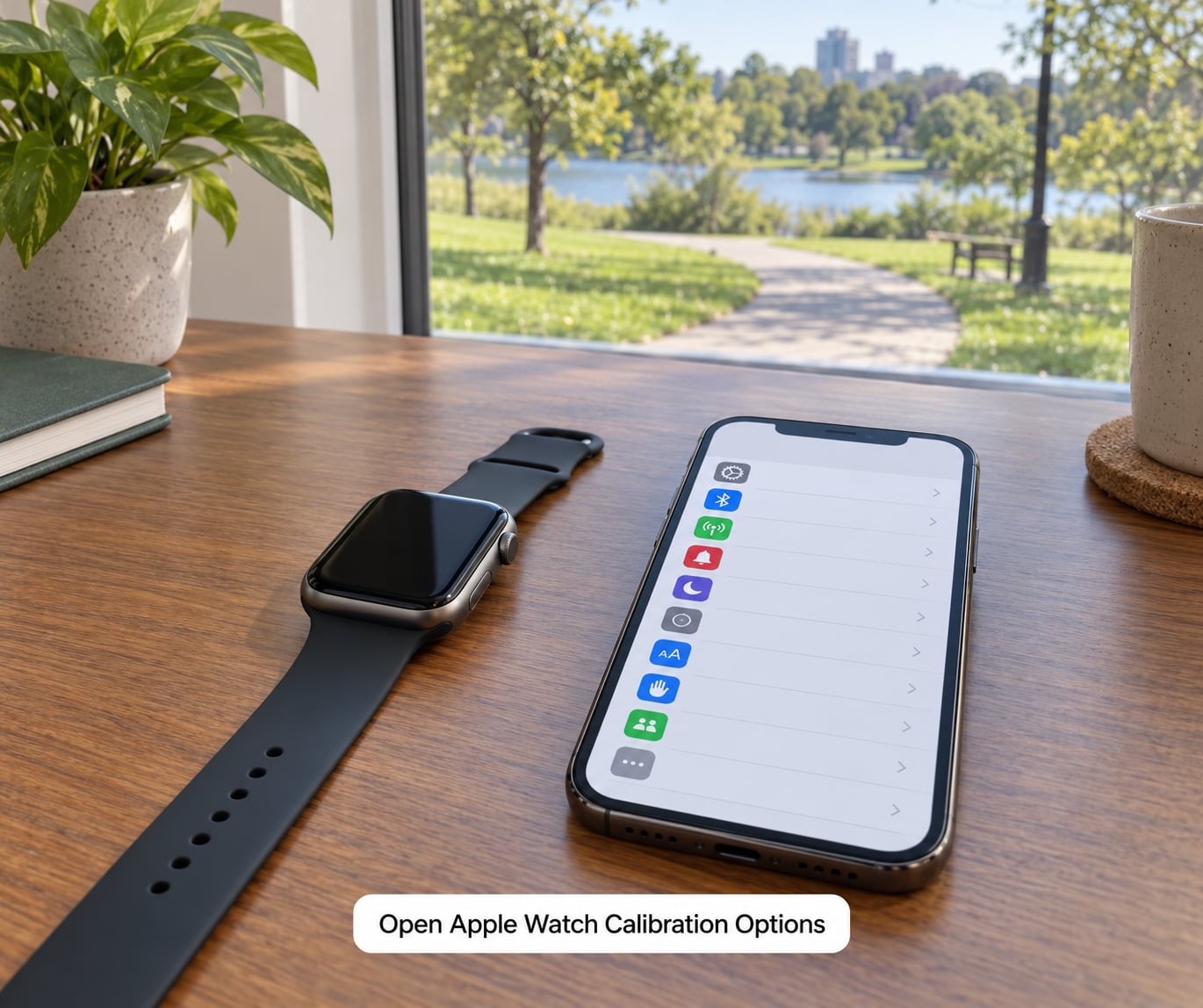
There is one setting that has to be on: Motion Calibration & Distance. On the iPhone, open Settings, tap Privacy & Security, tap Location Services, scroll to System Services, and tap Motion Calibration & Distance. Make sure the toggle at the top of that screen is on, and make sure Location Services itself is not set to Never for the Watch app.
On older watchOS versions the same setting sits under Settings > Privacy > Location Services > System Services rather than Privacy & Security, so the label you are looking for may be one folder deeper.
Now the honest part: there is no heart rate calibration setting anywhere in watchOS, on the watch or on the iPhone. Older versions of the Workout app had a Calibrate option in its menu, and it was removed because the watch no longer needs manual help to lock onto your pulse. What you can adjust for heart rate is the fit and skin contact, nothing else. If you want to see your history before and after, the Heart Rate data lives in the Health app on the iPhone under Browse > Heart Rate.
Complete a Steady-State Accuracy Test
Take the watch and your phone outside to the open area you picked. Open the Workout app on the watch, swipe to Outdoor Walk or Outdoor Run, and start it. Warm up for five minutes at an easy pace, then settle into your normal pace and stay there for the remaining fifteen.
Put the chest strap on at the same time if you brought one. The useful comparison is not the peak number during warm-up, it is the steady reading in the middle ten minutes. Most people find the watch sitting within a few beats per minute of the strap while both stay still relative to the movement. A gap of 2 to 3 BPM is normal tolerance for a wrist sensor, and it is the kind of number people in Apple Watch forums treat as a pass rather than a fault.
Finish the workout, open the Activity app and write the average heart rate and exercise minutes down next to your baseline. One session is a data point, not a verdict.
Check Workout Distance, Pace and GPS Accuracy
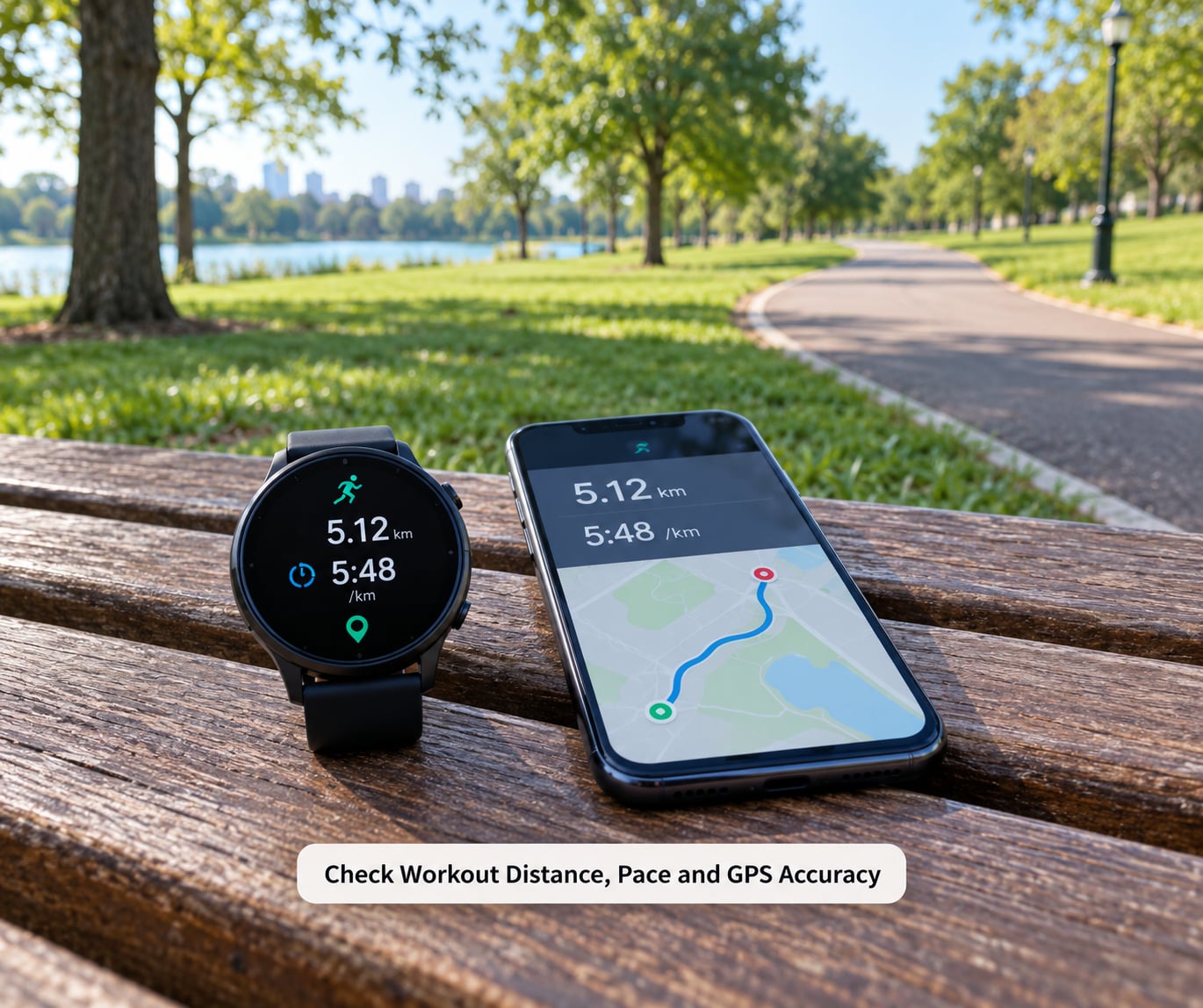
Repeat the same route you used for the baseline, at the same pace, and compare distance and pace against the known figure. Before you start, check signal quality: open Maps on your iPhone, tap the My Location arrow and watch the blue dot. If it sits still and clear, you have a good enough reference for the test.
What the watch is actually doing here is comparing what its accelerometer says you moved against what the GPS says you moved. Walk a measured mile at an easy pace, then a measured mile at a hard pace. A watch calibrated for only one of those speeds will read the other one long or short, which is why you calibrate once as a walker and again as a runner.
What calibration cannot do is apply a manual correction. There is no field anywhere that lets you type in that the watch runs 4 percent long, and there is no hidden one. If you need a guaranteed number for a specific distance, measure the treadmill belt or use a known route. There is also no way for a software setting to repair a physically damaged or failing sensor.
Repeat, Reset and Know When to Seek Service
Run the same test again on a different day, ideally on the same route. Two clean tests are the minimum before you decide anything is broken. If the second run is consistent with the first, the calibration is doing its job and the difference you are chasing is normal wrist-sensor variance.
If readings are consistently wrong, reset the stored data and start fresh. On the iPhone, open the Watch app, tap My Watch, tap Privacy, then tap Reset Fitness Calibration Data. This clears the learned stride values and nothing else. Your history, rings and apps stay exactly where they are.
Be careful with the heavier options. Unpairing the watch, restoring it from backup, or pairing it with a different iPhone wipes the calibration data, and that data is stored on the watch itself, not in iCloud. It cannot be restored, so you are back to the 20-minute test. Do the reset after you have ruled out settings, fit and environment, not before.
Book service through Apple Support or an authorised service centre when the readings stay far off across several tests with a snug fit and a clean sensor, when the heart rate display flickers or drops out mid-workout, or when the back of the watch is cracked. Those are hardware symptoms, and no amount of toggling will touch them.
Common Mistakes
- Calibrating while standing still. The watch learns from movement, not from a stationary ten minutes. Fix: walk or run the full session.
- Testing right after a hard workout. Skin is warm, sweaty and sometimes still slippery from water. Fix: wait a few hours, or at least clean and dry the sensor first.
- Comparing the watch and a chest strap at different moments. Numbers taken at the start and end of a run will never line up. Fix: compare the average over the same middle section of the workout.
- Wearing the watch too loose. This causes both bad heart rate and overcounted steps from arm swing. Fix: tighten the band so it cannot rotate.
- Expecting a software update to fix a bad sensor. Calibration personalises movement data; it cannot repair hardware. Fix: if clean tests still look wrong, go to service.
- Changing five settings at once. Then you cannot tell which one helped. Fix: change one thing, re-test, then move on.
Frequently Asked Questions
How do I know if my Apple Watch heart rate sensor is accurate?
Wear the watch snug, clean and dry the sensor, then run a 20-minute outdoor workout at a steady pace with a chest strap on. Compare the average of the middle ten minutes, not the peaks. A difference of 2 to 3 BPM is normal for an optical wrist sensor. If the gap stays far wider, or readings drop out during steady movement, get the sensor checked.
Can I calibrate the distance and pace on my Apple Watch?
You can personalise them, but you cannot correct them by hand. Calibration teaches the watch your stride length through the accelerometer, checked against GPS, so distance and pace improve for your gait. There is no setting anywhere to enter a percentage offset. Calibrate once for walking and once for running, since one pace does not fit the other.
Why does my Apple Watch heart rate change suddenly during a workout?
Sudden changes are where optical wrist sensors are weakest. Arm movement, a watch that shifts on the wrist, sweat breaking skin contact and sweat itself all cause spikes and drops. Some readings are also discarded when the watch is not confident in them, which leaves gaps rather than wrong numbers. Tighten the band during workouts and treat occasional spikes as noise, not as a sign of a problem.
Does resetting an Apple Watch fix inaccurate sensors?
Reset Fitness Calibration Data only clears the learned stride and fitness values, which affects distance, pace and calorie estimates. It has no effect on the heart rate sensor. A reset is worth trying once for movement data, after you have checked settings and fit. If the sensor itself is drifting, no reset will correct it and the watch needs service.
How often should I test Apple Watch accuracy?
Once at the start, and again whenever something changes that alters your movement: new shoes, a change in pace or routine, a significant weight change, or after unpairing and re-pairing the watch with an iPhone. Test on a familiar route at the same pace so the comparison is fair. Calibrating more often than that rarely changes anything.
Should I replace the battery if my Apple Watch readings seem inaccurate?
A worn-out battery is more likely to cause a watch that dies early, fails to hold a charge or shuts down mid-workout than one that reports bad numbers. If the heart rate display flickers, drops out or the watch gets hot, that is worth having checked. If readings drift while everything else runs normally, calibration, fit and sensor cleaning come first. Apple can assess the battery when you book service.
Conclusion
Start with the three things that cost you nothing: update watchOS, turn on Motion Calibration & Distance, and wear the watch snug with a clean, dry sensor. Then spend 20 minutes outside on a measured route at your normal pace, once as a walker and again as a runner, and write the numbers down.
Give it a second identical test on another day before you judge anything. If two clean runs still disagree with a chest strap by a wide margin, or the reading drops out mid-workout, that is a hardware question for Apple Support. If you know how to calibrate Apple Watch for accuracy and the numbers are simply different from a friend’s watch, that is usually stride length, not a fault.