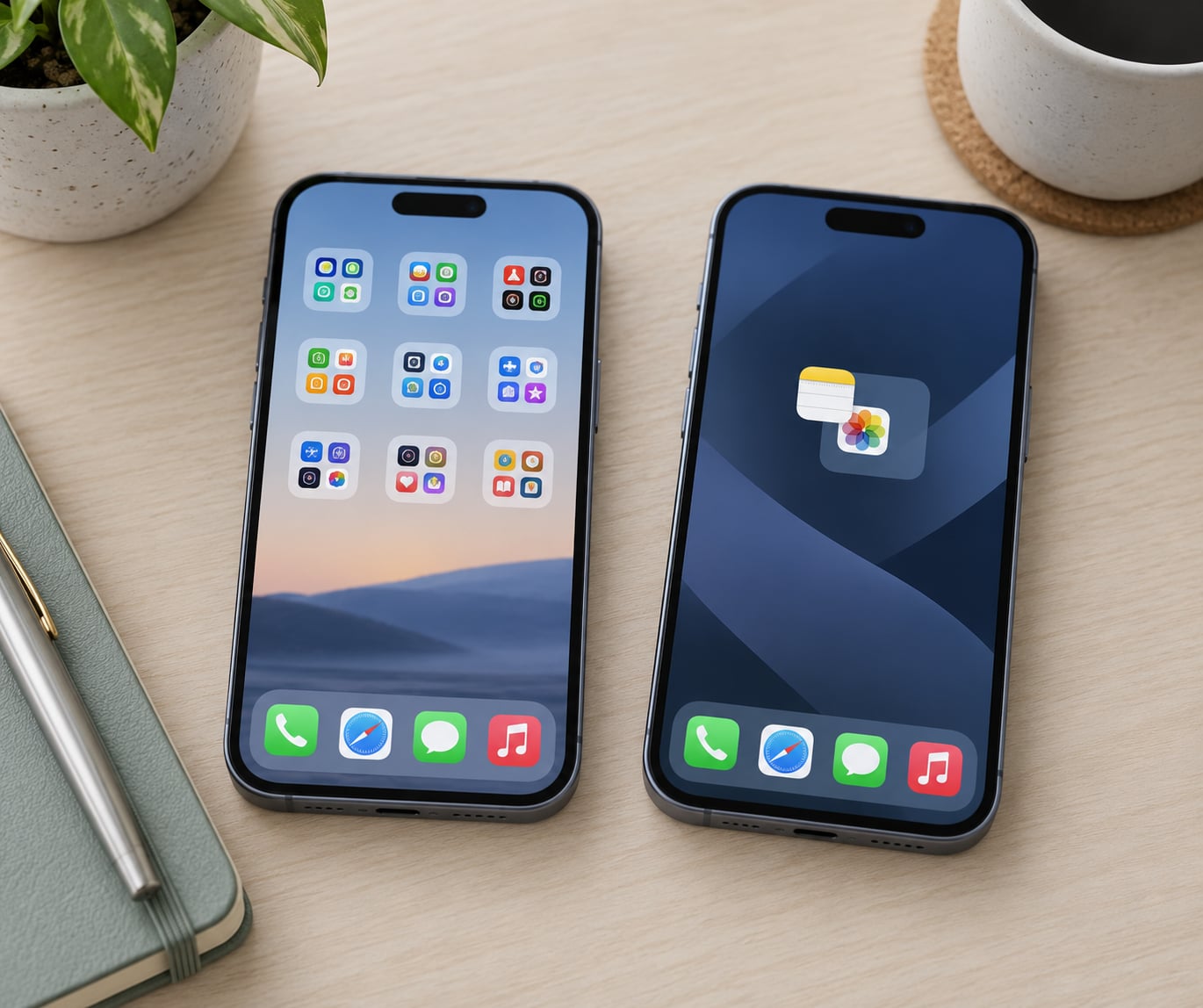
To organize apps into folders on iPhone, touch and hold an app icon, drag it directly onto another app icon until a folder opens, then release. Name the folder, keep dropping more apps in, and tap Done. The whole process takes about twenty seconds per folder.
Most people stumble over the same part: dropping the icon slightly off-centre, so the app just lands next to the target instead of on top of it. Get that one detail right and folders are easy. Below is the full method, including the cross-page trick and the apps iOS refuses to let you file away.
Table of Contents
- 1What You Need
- 2Step-by-Step
- 31. Open Home Screen edit mode
- 42. How to organize apps into folders on iPhone
- 53. Name the new folder
- 64. Add and arrange apps inside the folder
- 75. Move, rename, or remove the finished folder
- 8Common Mistakes
- 9Why apps will not move or stay put
- 10Dragging from another Home Screen page
- 11Some apps simply will not move
- 12Moving the folder when you meant the app
- 13Quick Organization Tips
- 14Frequently Asked Questions
- 15How many folders can I create on an iPhone?
- 16How do I remove an app from a folder without deleting it?
- 17How do I delete an entire folder on my iPhone?
- 18Do iPhone app folders sync with iCloud?
- 19How do I organize apps into folders on an iPad differently?
- 20Conclusion
What You Need
Just your iPhone, unlocked, on a Home Screen. Menu labels have shifted slightly across iOS releases, so if your wording differs from mine, look for the behaviour rather than the exact word.
Three limits are worth knowing before you start, because they shape how you plan:
- A single folder holds up to 99 apps, spread over as many internal pages as you need.
- Folders cannot nest inside other folders. There is no folder in a folder.
- iOS has no automatic sorting tool. Nothing groups your apps alphabetically or by category for you, so every icon is moved by hand.
You also do not need edit mode for anything except rearranging icons. If your Home Screen is already tidy and you only want to rename something, tap and hold the folder itself.
Step-by-Step
1. Open Home Screen edit mode
Touch and hold an empty patch of Home Screen wallpaper until every icon starts to jiggle and an Edit button appears in the top left. A minus badge in the corner of each icon, plus that Edit label, is your confirmation that edit mode is live.
If the icons never jiggle, tap the Edit button instead and choose Edit Home Screen from the menu. Tapping an empty area on some recent versions pulls up a wallpaper or widget menu first, so dismissing that panel and trying again is normal.
2. How to organize apps into folders on iPhone
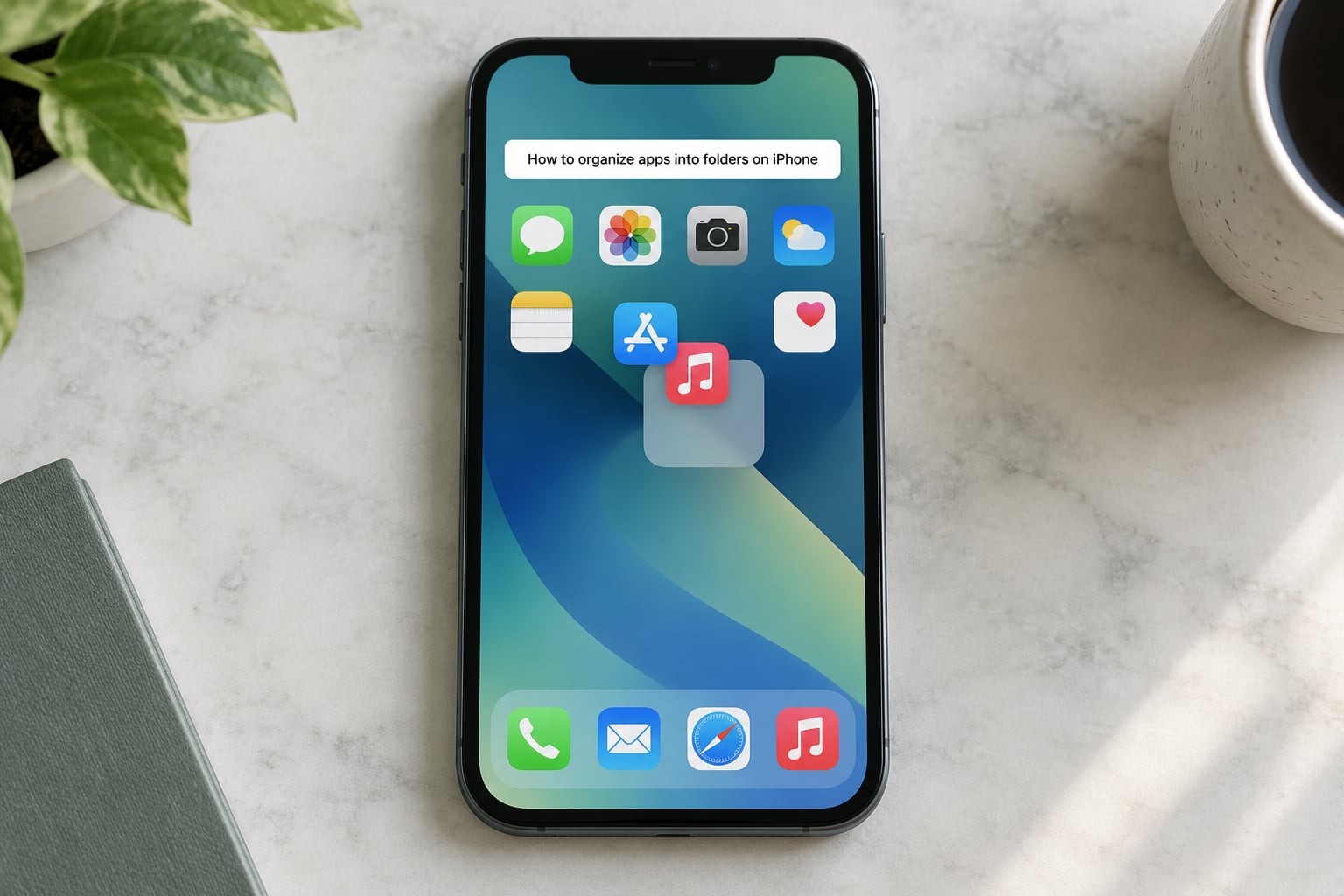
Touch and hold the first app you want to file. When it lifts off the screen, keep your finger down and drag it until it sits directly on top of a second app icon.
Aim for the centre of the target icon, not its edge. Hold it there for a beat and the icons merge into a folder preview; release and the folder is created with both apps inside. Drop somewhere slightly off and you will simply rearrange the icon instead, with no folder at all.
You can also build the folder one app at a time. Open it, tap the three-dot More menu in the top right, choose Add App, then pick the icons you want and tap Add. Slower, but far more precise when you are adding from another page.
3. Name the new folder
A new folder arrives named after the first two apps inside it, which is rarely what you want. Open the folder, tap the name at the top, select the existing text, and type something short such as Productivity, Travel or Work.
Tap Done on the keyboard or the Done button at the top of the folder. Keep names to one word where you can. The label has to fit under a small icon, and a long name gets truncated into something unreadable.
4. Add and arrange apps inside the folder
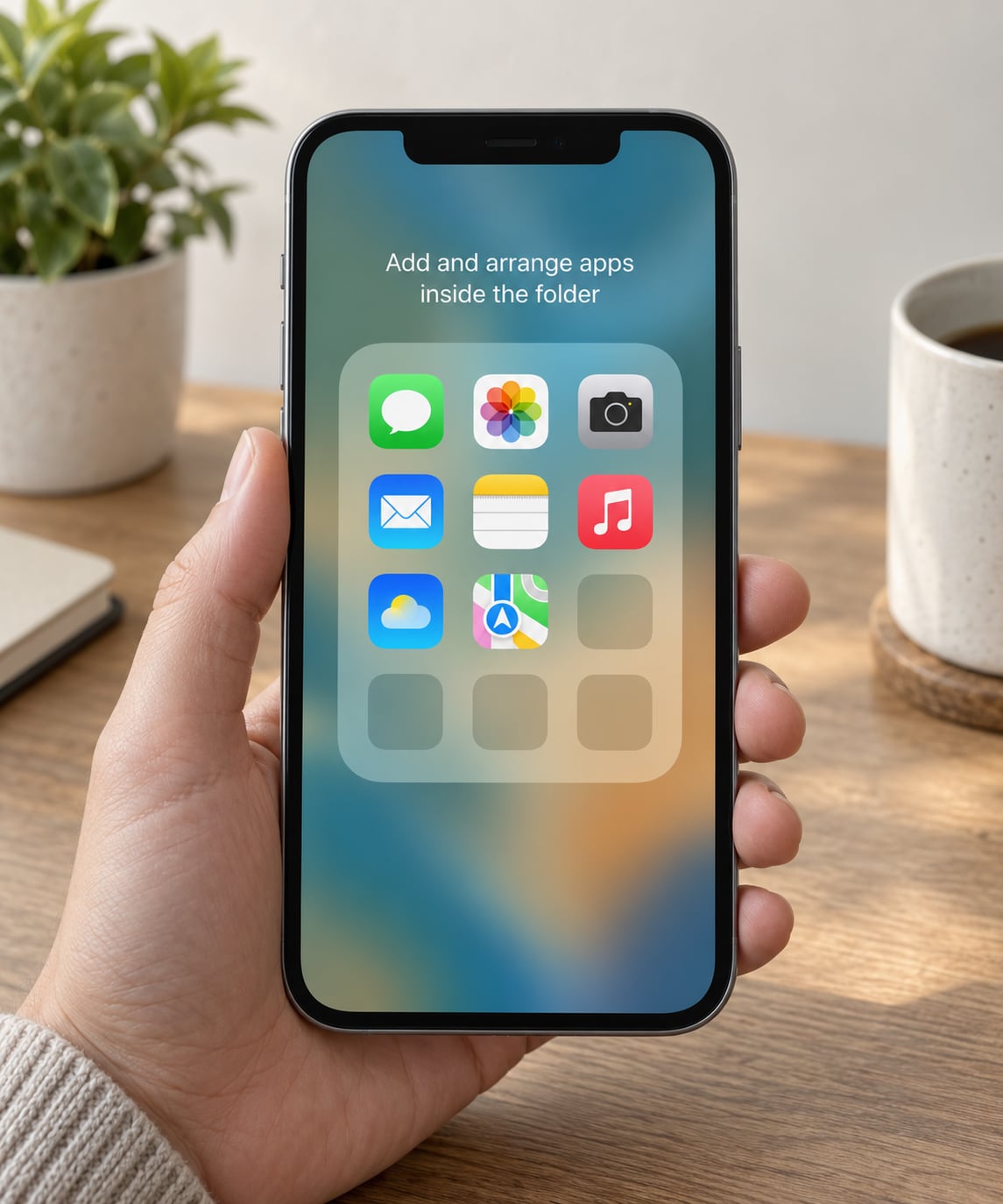
Open the folder and drag icons to the positions you want. Inside a folder you can use several pages, so leave the last row partly empty rather than cramming everything onto one screen.
If you want the two-column grid on a larger iPhone model, drag the folder left and then right until it snaps to the left edge of the screen. It moves into the wider layout on its own and stays there. You do not need to exit edit mode to test placement; you do need to stay in it to move it at all.
5. Move, rename, or remove the finished folder
Drag the folder icon to any spot on the Home Screen, including across pages by holding it at the screen edge until the page flips. Tap Done when you are finished and the layout saves itself.
To rename later, touch and hold the folder and choose Rename. To remove a single app, open the folder, touch and hold that icon, drag it out to the Home Screen, and release outside the folder boundary.
Deleting the folder itself removes only the container. Open it, touch and hold an empty spot inside, tap Delete Folder, then Remove, and every app inside stays installed on your iPhone and in the App Library.
Common Mistakes
Why apps will not move or stay put
The most common failure is not being in edit mode. Dragging an icon on a normal Home Screen does nothing at all, and people assume the app is broken. Tap and hold an empty area first, wait for the jiggle, then drag. If icons move after that, edit mode was the missing piece.
The second failure is a loose finger. Press lightly and hold. Pressing hard makes the drag feel like it has stalled, and lifting your finger at the wrong moment cancels the whole move. The preview follows your finger even under pressure, so if you cannot see an icon stacking, back off slightly.
Dragging from another Home Screen page
Apps on different pages can absolutely go into the same folder. In edit mode, drag the first app to the far edge of the screen and hold there until the page turns, then drop it onto your target. This is the single most misunderstood part of the process and the reason people assume cross-page folders are impossible.
Watch for folders that jump a row. If the target icon sits at the end of a row, the folder you are aiming at may shift as you approach. Drag to the last full row instead, or build the folder on an emptier page.
Some apps simply will not move
Several built-in Apple apps are locked to fixed positions. Phone, Messages, Settings, the App Store, Camera and Clock are the usual names in these reports, and apps installed through a work profile or mobile device management system can be locked too. No amount of precise dragging will move those. Design your folders around them rather than fighting it.
Check the fix each time: if every other icon moves and that one does not, it is locked rather than mis-dropped.
Moving the folder when you meant the app
Gripping a folder icon moves the folder and everything in it. If you want to extract a single app, open the folder first and drag the icon from inside to outside the folder boundary. Deleting a folder you thought was empty is the other version of this mistake; verify the contents before confirming.
Quick Organization Tips
Group by task, not by developer. A folder of Maps, Ride Sharing and Parking beats one folder of every app made by one company, because your hands remember what you are doing rather than who built it.
Number your folders if you want a predictable scan order. A setup using 01 Social, 02 Work, 03 Photos is common in forum threads about naming conventions, and it works because the position on screen does the sorting for you.
Keep your five or six most-used apps loose on the first screen. A folder costs one extra tap, which is fine for an app you open twice a day and irritating for the one you open fifty times.
Use Spotlight for everything else. Swipe down from the middle of the Home Screen and type a few letters; apps inside folders show up there, so a folder is never the only route to anything.
If you are building more than a handful of folders, learn the two-thumb stack. Start dragging one icon, then tap the other icons you want with a second finger to build a stack, and drop the whole stack into a folder in one go. It turns twenty drags into two.
Frequently Asked Questions
How many folders can I create on an iPhone?
There is no published cap on the number of folders, only a practical one set by screen space. Each folder can hold up to 99 apps across multiple internal pages. You can keep creating folders until the Home Screen is full, then add another page and keep going. Empty folders linger until you delete them, so remove any you abandon while reworking your layout.
How do I remove an app from a folder without deleting it?
Open the folder, touch and hold the app icon until it lifts, then drag it to the edge of the folder and release once it sits on the Home Screen outside the folder outline. The app stays fully installed and keeps all its data. If you release back inside the folder, nothing changes. Dragging a folder icon itself moves every app inside it, so always start from inside the open folder.
How do I delete an entire folder on my iPhone?
Touch and hold the folder, choose Delete Folder, then confirm with Remove. Only the folder is deleted. Every app inside stays installed on your iPhone and remains available in the App Library, so nothing is lost and no data is touched. If a folder is empty, iOS usually removes it on its own once the last app leaves it, so an explicit delete is only needed when apps are still inside.
Do iPhone app folders sync with iCloud?
Folders are part of your Home Screen layout, and that layout syncs across your devices through iCloud as long as the same Apple Account is signed in and iCloud is enabled. The apps themselves always transfer separately through the App Store or iCloud Drive. In practice, folder names and the arrangement of your pages can take a few minutes to appear on an iPad or a newly set up iPhone.
How do I organize apps into folders on an iPad differently?
The gesture is the same on iPad: enter edit mode, drag one icon onto another, and release. The differences are layout related. iPad gives you more room per page, so folders usually sit alongside full rows of icons rather than replacing whole pages. Dragging to the left edge also brings up the Dock, which behaves differently from swiping to a second page. The 99-app limit and the no-nesting rule are identical on both devices.
Conclusion
Start small. Pick the two apps you already think belong together, drag one onto the other, and name the folder before you do anything else. Doing that once teaches the gesture better than any description, and the naming step stops the auto-generated title from sticking around.
Then repeat the same three moves by category: drag, drop, name. When you are done, glance at your first Home Screen page. If the folders doing the real work are the ones sitting on it, and everything rarely opened lives in the App Library, the layout is finished.