To share paid apps through Family Sharing, create a family group in Settings under your name, invite members with their own Apple Accounts, turn on Purchase Sharing, then download each member’s apps from App Store > profile icon > Purchased. It takes about five minutes per member, and the whole setup lives in one screen. Android has no direct equivalent, since Google Play Family Library works as a separate library rather than a shared purchase list.
Family Sharing is worth the setup for any household with more than one person buying apps, since it removes duplicate purchases and gives parents one place to approve downloads. It also means nobody has to hand over a single shared Apple Account login, which is the approach most readers already know works badly.
Table of Contents
- 1What You Need
- 2How to Use Family Sharing for Apps Step by Step
- 31. Create or Choose an Apple Family Group
- 42. Turn On Purchase Sharing
- 53. Find an App That Supports Family Sharing
- 64. Send or Approve the App Request
- 75. Download and Open the Shared App
- 86. Manage Shared Apps and Subscriptions
- 9Common Mistakes and Quick Fixes
- 10Frequently Asked Questions
- 11Can I share any app I purchased through Apple Family Sharing?
- 12Why does an app not have the Family Sharing symbol?
- 13Why is a shared app stuck waiting for approval?
- 14Can family members share in-app purchases or subscriptions?
- 15What happens to shared apps if I remove a family member?
- 16Can I use Family Sharing for apps purchased in a different country or region?
- 17Conclusion: Start with App Sharing
What You Need
Before you start, confirm the accounts themselves are in order, because the features only work when every person is set up correctly rather than sharing one login.
- Separate Apple Accounts. Every member, adults and children alike, needs their own Apple Account. Sharing one login is unsupported and leads to purchase and update problems later.
- Devices signed in to those accounts. iPhone, iPad, and Mac all take part. Members on Windows or Android devices don’t participate.
- A payment method on the organizer’s account. Apple requires one to run a family group, and it stays visible to members for purchases they make.
- One family group per person. A family group holds up to six Apple Accounts, and each person can belong to only one group at a time.
- Developer support for the app. An app can only be shared if its developer enabled Family Sharing. Apple’s own apps and a large share of App Store apps qualify, but plenty do not.
Age limits differ by country, so check the current rules for your region before inviting a child. The setting paths below cover current iOS and iPadOS on iPhone and iPad, with Mac noted where it differs.
How to Use Family Sharing for Apps Step by Step
1. Create or Choose an Apple Family Group
Open Settings, tap your name at the top, then tap Family Sharing. If you’ve never set one up, tap Get Started, choose Create a Family, and confirm. Members you already see listed simply need to be invited with the Add Member button instead.
Mac users find the same controls under System Settings, then your name at the top of the sidebar. The Family app, if you use it on macOS or iPad, is a separate way to manage the group and adds a few sharing features that Settings does not expose.
2. Turn On Purchase Sharing
Inside Family Sharing, tap Share Purchases, then Continue. This single toggle is what makes every member’s apps and subscriptions visible to the rest of the group, so it’s the step most guides bury in the middle.
The organizer remains responsible for the family payment method. That’s also the reason people in r/applehelp and r/iphonehelp refuse to enable this at all: members can charge purchases to that payment method unless you add Screen Time limits. The setting is all or nothing, so decide before switching it on.
3. Find an App That Supports Family Sharing
Open the app’s product page in the App Store and look for the Family Sharing symbol in the share row, next to the app icon. Tap it and a panel lists your family group members and a Send Request button. No symbol means the developer did not enable sharing, and nothing you do in Settings will change that.
Subscriptions and one-time in-app purchases can share even when the app itself cannot. Consumable items, including in-game coins, currency packs, and consumable tips, never share, because each purchase is used up by the account that bought it.
4. Send or Approve the App Request
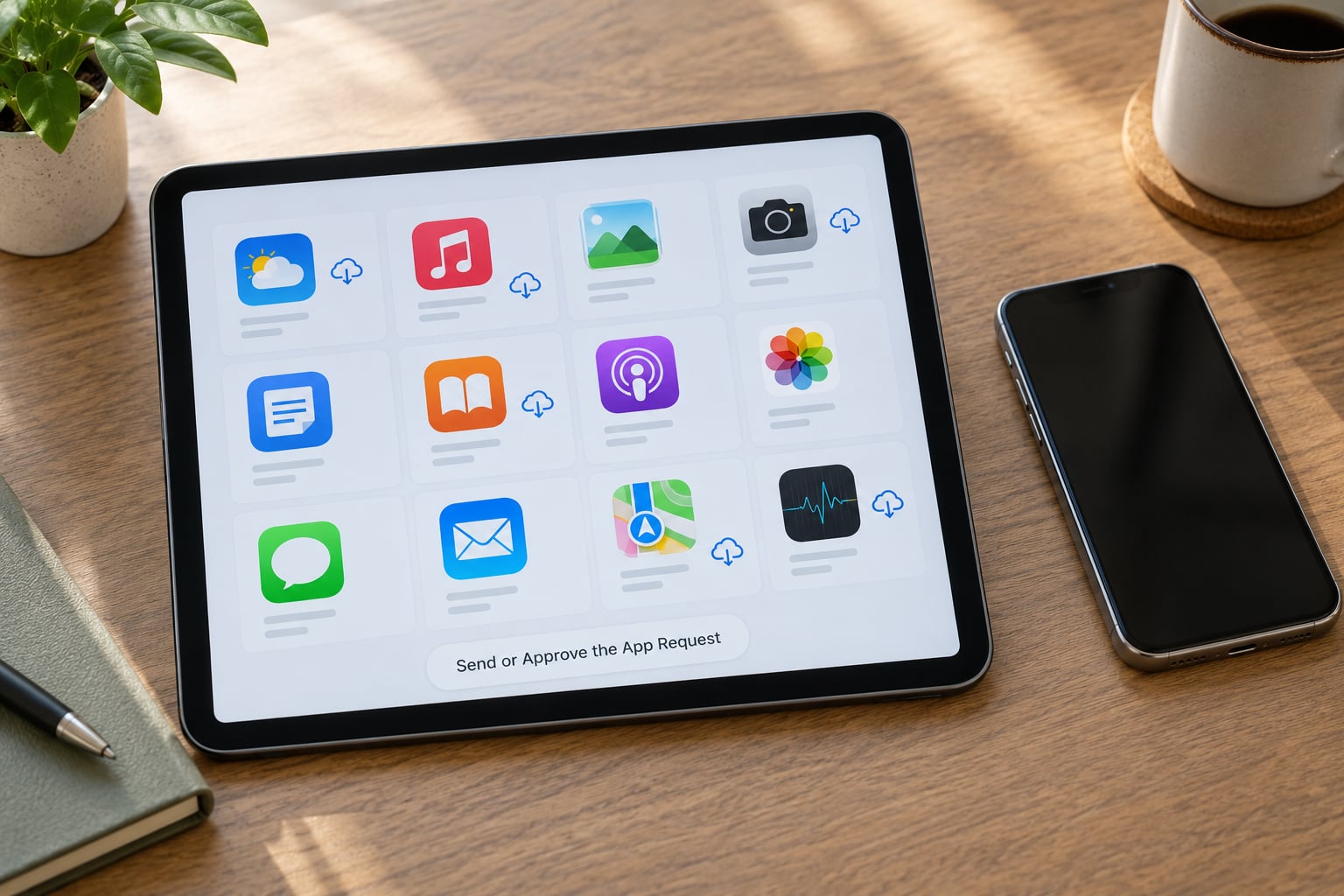
Tap Send Request, pick the family member, and confirm. The app appears immediately in their Apps list if you’re sharing with an adult whose Screen Time settings allow it. With a child’s account, or with Ask to Buy switched on, the request goes to the organizer as Waiting for Approval instead.
The organizer approves it in Settings under the member’s name, then opens App Store > profile icon > Purchased > that member, where the app shows a cloud icon next to it. Approvals can take a minute or two to push through to the member’s device.
5. Download and Open the Shared App
Free apps work differently from paid ones. A free app that someone else already owns appears in the Purchased tab with a cloud icon and downloads straight to your device, no request and no approval step at all.
A paid app follows the request path above, and once approved the cloud icon in the Purchased tab downloads it to you. On iPhone and iPad you’ll also find it under the Today tab by tapping the avatar in the top corner, which makes shared apps much easier to spot than hunting through your own library.
6. Manage Shared Apps and Subscriptions
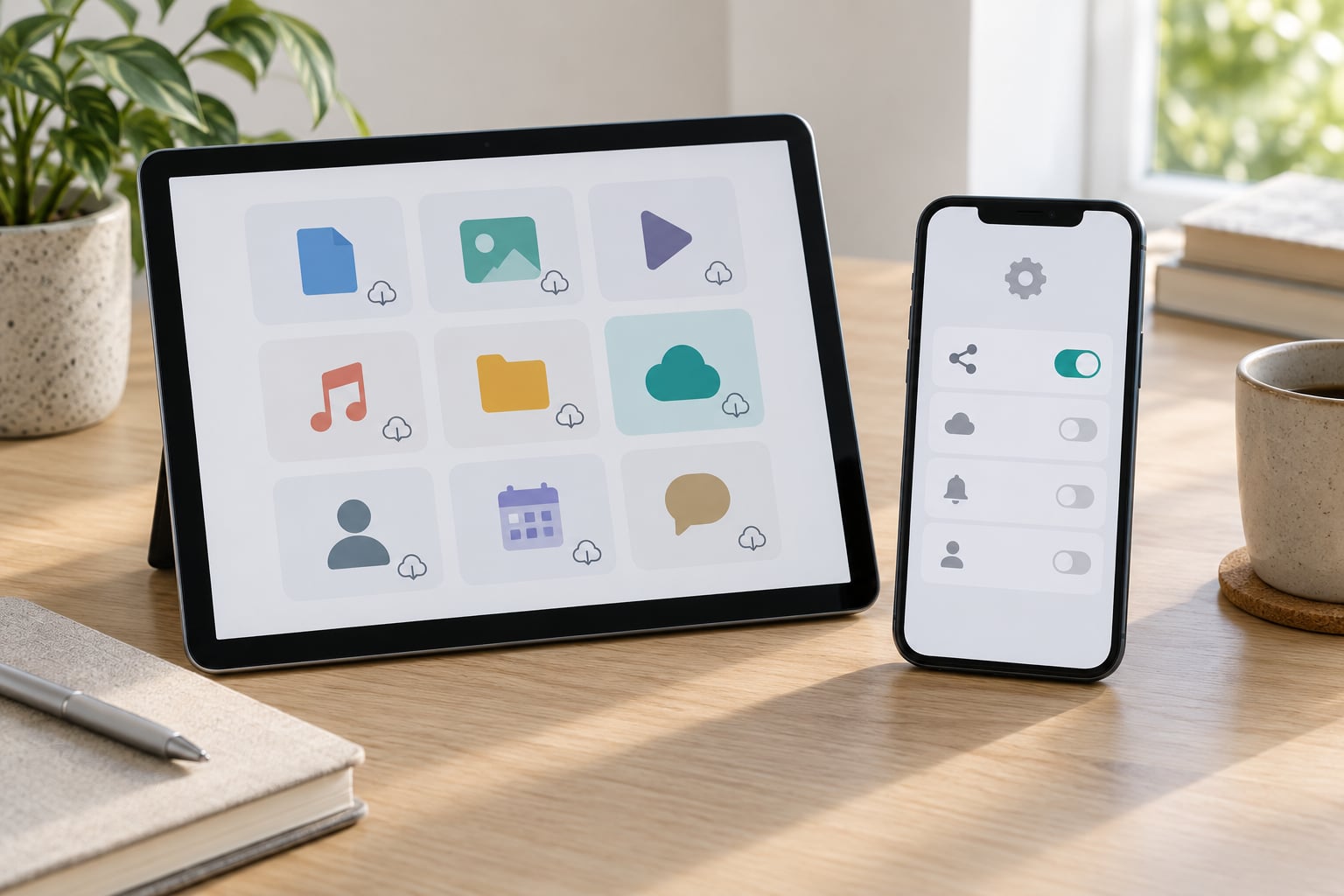
Some shares are optional and some are not. Subscriptions, iCloud+ storage, Apple Music, Apple TV+, Apple News+, and location sharing are separate toggles, and each member can opt out of most of them individually. Purchase Sharing itself is controlled by the organizer alone.
Individual app purchases are shareable per app rather than per person. Long-press an app in your own purchases and choose Hide, or go to Settings > your name > Family Sharing > Share Purchases and hide a specific item, and it disappears from the group without affecting anything else.
Some apps run their own in-app family plan, such as a photo service or a game with a household code. Those work completely separately from Apple’s sharing, so having the app in your Purchased tab tells you nothing about whether its own subscription is shared.
Common Mistakes and Quick Fixes
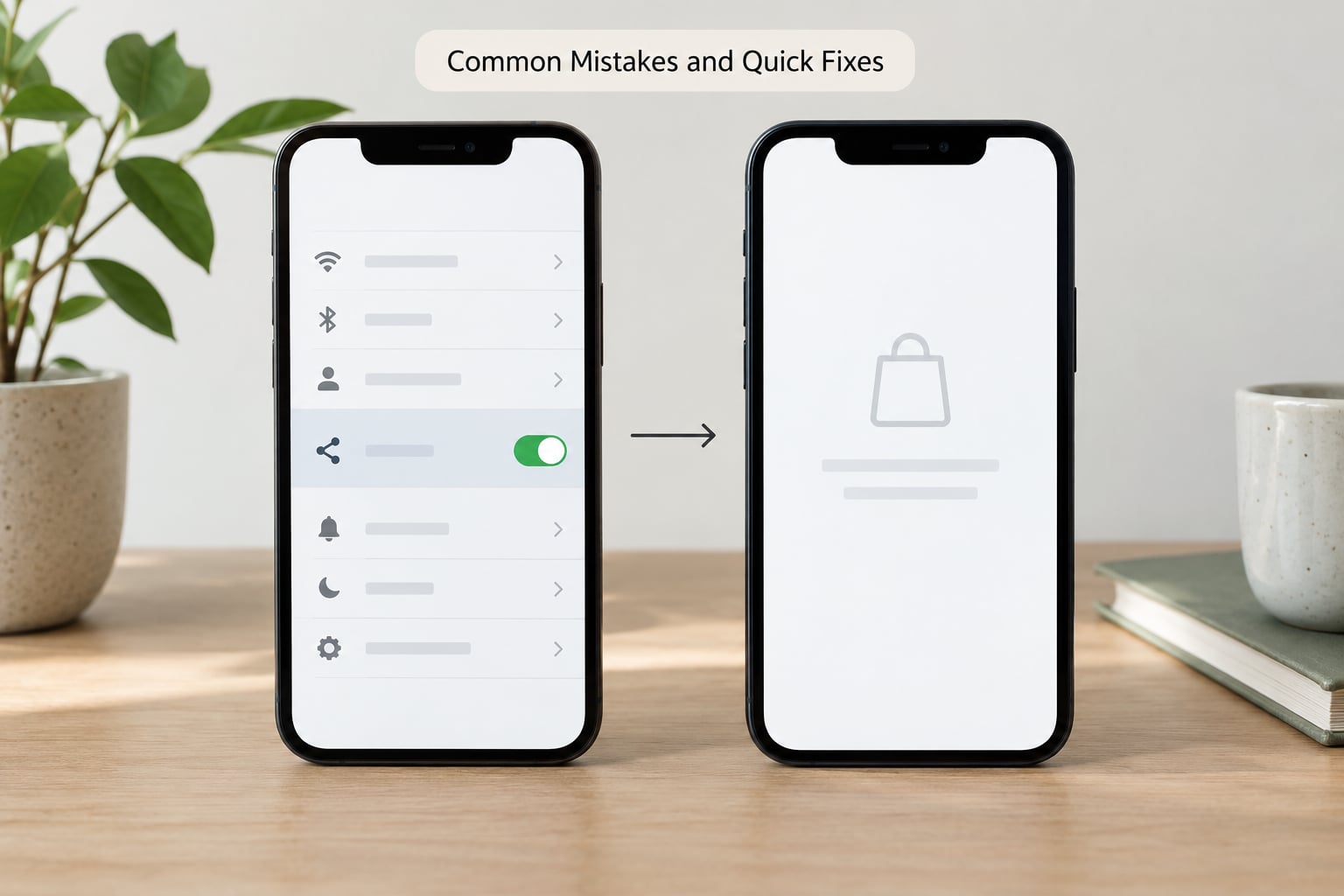
Most Family Sharing problems trace back to one of four things, and all of them are fixable in under a minute once you know which one you’re looking at.
“Family Member Not Sharing” appears where an app should be. That member has Share Purchases turned off, so nothing of theirs is visible to you. You cannot fix this from your own device; they have to enable it in their Settings under their name.
An app is missing from the Purchased tab entirely. Check three things in order: the developer may not support Family Sharing, the family member may not have purchased the app themselves, or the purchase may be hidden. If it’s an app that does support sharing and you can see it in their account, switching your Purchased tab filter from Not on This iPad to My Purchases and back usually forces a refresh.
The download icon is greyed out. This usually means the request is still pending, or the app was already installed and then removed. Deleting the app and searching its name in the App Store also re-triggers the download on some versions.
A child’s request never gets approved. Approvals live in Settings under the child’s name, not in the App Store, and Ask to Buy under Screen Time > Ask to Buy has to be on for the request to queue anywhere at all.
Setup looks different across devices. Mac lives in System Settings and Apple menu > System Settings, iPadOS 18 and later put Family Sharing behind a Family button rather than its own line, and the Purchased tab on iPad says Not on This iPad instead of Not on This iPhone. Same feature, three labels.
Prevention is dull and effective: give everyone their own Apple Account, check the Family Sharing symbol before you buy a shared app, and set Screen Time spending limits so Purchase Sharing can’t become a problem.
One more caveat worth knowing before you move a family group. Changing the country or region on an Apple Account can cancel family subscriptions, and Apple’s own support pages cover the details.
Frequently Asked Questions
Can I share any app I purchased through Apple Family Sharing?
Only if the developer enabled Family Sharing for it. Look for the Family Sharing symbol on the app’s App Store page, or for an entry under the Purchased tab with your family member’s name above it. Apps without that support, plus consumable purchases like in-game coins or currency packs, cannot be shared no matter what your settings say.
Why does an app not have the Family Sharing symbol?
The developer did not enable sharing, or the app is excluded from family purchases. Some categories are restricted outright, and a few apps opt out deliberately. Nothing in Family Sharing settings will add the symbol. Buy the app once per household or choose an alternative that supports sharing.
Why is a shared app stuck waiting for approval?
Approval belongs to the family organizer, not to you. Open Settings, tap your name, tap the member’s name, and review the pending requests there. A child’s account always routes through this path when Ask to Buy is enabled under Screen Time. Approvals sometimes take a couple of minutes to reach the member’s device.
Can family members share in-app purchases or subscriptions?
Subscriptions and one-time in-app purchases can share when the app supports it, and each member can opt out of most shared subscriptions on their own. Consumables never share. Some apps also run a separate in-app family plan with a household code, which works independently of Apple’s Family Sharing and must be set up inside the app.
What happens to shared apps if I remove a family member?
Apps that member downloaded from the group stop being usable and are normally removed from their device, since the license was never theirs. Their own purchases remain on your account and stay yours. Removal is immediate for them; leaving a group on your own side is limited to twice a year.
Can I use Family Sharing for apps purchased in a different country or region?
An app that is not distributed in your storefront region cannot be downloaded, and a purchase made in another region may not appear at all. Changing the country or region on an Apple Account can also cancel family subscriptions. Check availability in the App Store before assuming a missing app is a Family Sharing problem.
Conclusion: Start with App Sharing
Three actions get you most of the way: create the family group under your name in Settings, switch on Share Purchases, and confirm an app carries the Family Sharing symbol before you buy it. Everything after that is downloading and occasional approvals.
Set Screen Time spending limits before you hand the organizer card to the group, and remember that a missing app is more often a developer setting than a broken feature. Once that part is clear, the rest of the group works without anyone buying the same thing twice.