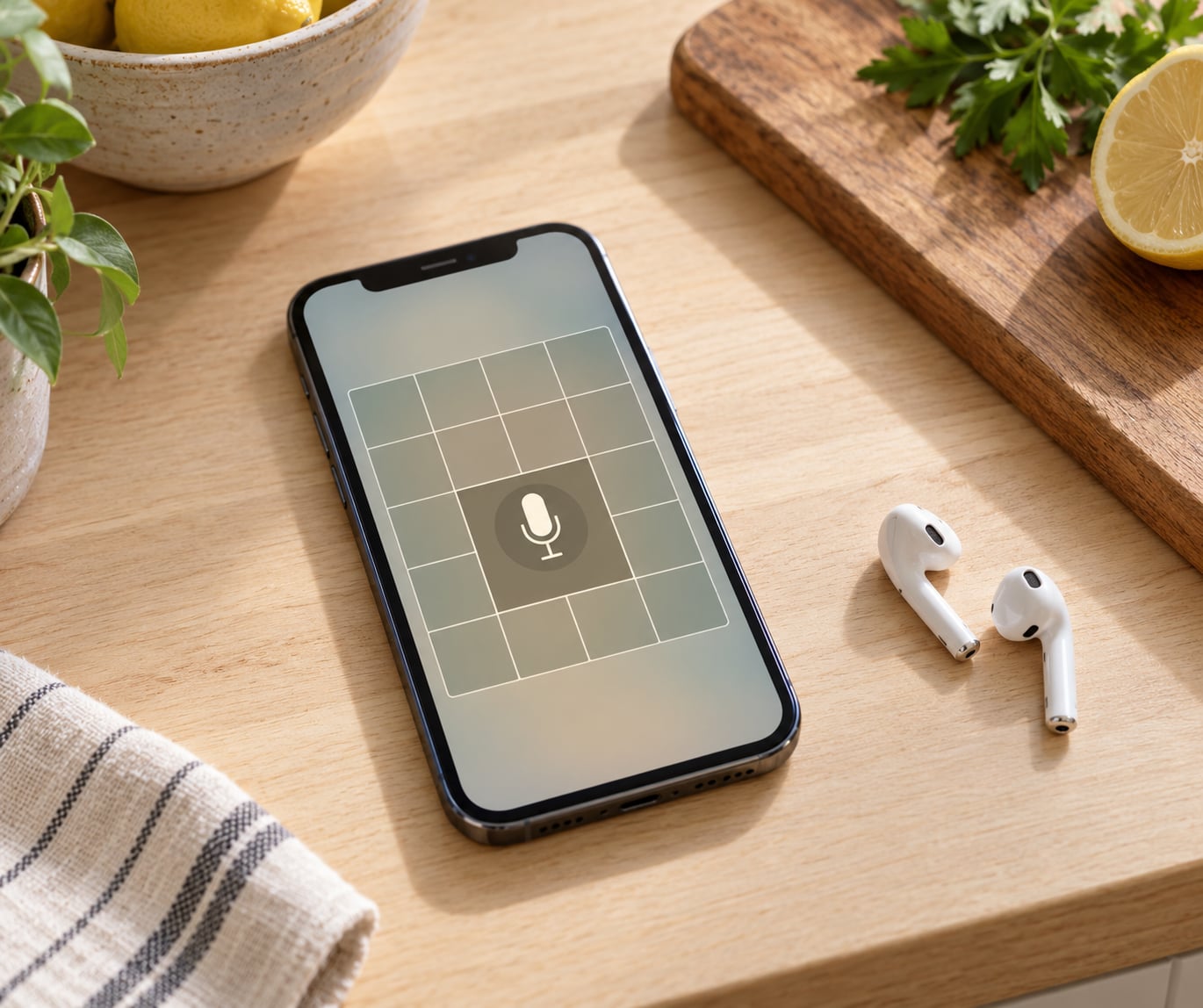
Voice Control is a built-in iPhone Accessibility feature that runs your whole screen with spoken commands, so you can tap, scroll and type without touching the display. To learn how to use Voice Control on iPhone, open Settings, go to Accessibility, choose Voice Control, tap Set Up Voice Control, and flip the switch on. It is quick to set up, and the first time through you need Wi-Fi.
That is genuinely all the setup there is. Once it is on, a small blue microphone icon shows in your status bar and the phone starts listening for commands like Go Home, Open Camera or Scroll down.
Table of Contents
- What You Need
- Step-by-Step: How to Use Voice Control on iPhone
- Common Mistakes
- Tips for Using Voice Control More Easily
- Frequently Asked Questions
- What is the difference between Voice Control and Siri on an iPhone?
- Do I need a specific iPhone model to use Voice Control?
- Is Voice Control always listening on my iPhone?
- Can Voice Control tap buttons and fill in forms?
- Why does Voice Control keep asking me to confirm commands?
- Can I turn off Voice Control when I no longer need it?
- Conclusion
What You Need
Voice Control needs a reasonably recent phone and a room quiet enough to talk in. Before you start, check these three things.
- A supported device. Voice Control arrived in iOS 13.4 and needs the A12 chip, so it works on iPhone XS, iPhone XR and everything newer. Older iPhones simply do not show the Voice Control menu at all.
- Wi-Fi for the first setup only. Set Up Voice Control downloads a voice model that takes a couple of minutes on a normal connection. After that download you can use it on cellular, on the go, in airplane mode, without any internet at all.
- Microphone permission. Your iPhone will ask the first time. If you tap Don’t Allow, nothing will respond and you will have to fix it in Settings, so allow it.
One more thing worth sorting out early: Siri and Voice Control are different systems, and so is VoiceOver. People enable Siri by mistake almost every time, then wonder why the phone only answers questions instead of tapping buttons.
Siri is an assistant: you wake it with the side button or “Hey Siri” and it answers questions, sets timers and sends messages. Voice Control runs the interface itself, highlighting buttons with numbers and grid squares and performing the action you name. VoiceOver is a screen reader for blind and low-vision users that reads the screen aloud, and the two can run together.
If you want your iPhone to open an app by name without touching it, you want Voice Control, not Siri.

Step-by-Step: How to Use Voice Control on iPhone
Turn On Voice Control on iPhone
Here is the whole path, in order. It is the same on every recent iPhone, and none of it changes between iOS versions.
- Open Settings.
- Scroll down and tap Accessibility.
- Tap Voice Control. On older setups you may see two entries: Voice Control and Voice Control for Accessibility. Choose Voice Control on current iOS, since the accessibility version is now folded in.
- Tap Set Up Voice Control. Keep the iPhone on Wi-Fi while the voice model downloads. You will see a progress bar and a note that it can take a few minutes.
- Once the download finishes, turn the Voice Control switch on.
- Tap Done. A blue microphone icon now sits in the status bar, and that icon is your confirmation that Voice Control is live and listening.
If you do not see the blue icon, the switch is off or the setup did not finish. Go back to Settings, Accessibility, Voice Control and look for any pending download. On the same screen you can also turn on Automatic Updates, which downloads new languages and voice models in the background as they become available.
Choose Voice Control or Accessibility Voice Control
On current iOS there is one Voice Control and it covers everything the old “Voice Control for Accessibility” mode did. Older guides, and some regional settings menus, still show both. The accessibility version is the deeper one: it supports multi-step gestures and the full grid of numbers, and it works handily alongside VoiceOver when someone uses both.
The practical test is simple. If saying “Tap Settings” opens Settings, you are fine. If basic commands work but you cannot reach a stubborn button, turn on the accessibility behaviour or pair Voice Control with VoiceOver.
Give Your First Voice Commands
Start with three commands and nothing else. Say Go Home, then Open Settings, then Scroll down. If those three land correctly, the feature is working and everything after this is practice.
These are the commands worth learning first.
- Go Home returns to the Home Screen. Wake Up wakes the screen from sleep.
- Open [app name] launches any app by name, for example “Open Camera” or “Open Safari”.
- Tap [element name] activates a named item, such as “Tap Search”.
- Show Numbers puts a number on every interactive element on screen.
- Show Grid covers the whole display with a numbered grid for anything unnamed.
- Scroll up or down to move the page under your finger-free control, and sideways to move across a wide screen.
- Go to Sleep locks the screen. Handy when you are talking to someone and do not want the display lit up.
- Stop listening pauses Voice Control without switching the setting off.
- Dictation, then Dictation text followed by Send or Save to type a message hands-free.
Here is how Show Numbers and Show Grid work together, because this is the trick that unlocks everything on screen. Say “Show Numbers” and every button gets a number. Say “Tap 42” and your finger never moves. For anything the numbers miss, say “Show Grid” and the screen fills with a numbered matrix; you then say “Tap 42” or “Scroll to 42” instead. This is how people photograph without touching the phone, and how users with limited reach hit small icons.
A realistic sequence: say “Open Camera”, then “Show Numbers” to find the shutter, then “Tap 18” to shoot. The grid is much more reliable than aiming at a name, especially in apps with unusual labels.
The full command list is far longer than the one above. Open Settings, Accessibility, Voice Control, then Commands: the reference is grouped by action, and scrolling to the bottom reads every variant aloud.
Customize Commands and Settings
Once the basics are solid, the settings screen on Settings > Accessibility > Voice Control is where you tune the behaviour. A few options pay off quickly.
- Language and accent. Pick the language you actually speak, and match the accent you actually have. A mismatch between the setting and your accent is the number one cause of commands not being recognised.
- Verbosity. Controls how much Voice Control repeats back. Turn it down if it chatters over your own next command.
- Headphones and microphones. Bluetooth headsets and EarPods work, and this is the best fix in a noisy kitchen or gym. A pair with a decent beam microphone picks you out of background noise far better than the phone speaker does.
- Gestures and Create New Command. This is where you build a one-phrase shortcut. You record a gesture on screen once, give it a name like “Take Picture”, and later you just say the name. The action can also be a shortcut from the Shortcuts app, so one spoken phrase can trigger a whole multi-step routine.
- Show confirmation. When an item needs approving, you can have the confirmation appear on screen rather than in your ear. Useful if you are hard of hearing or in a place where you do not want the phone to speak.
One caution about custom gestures: record them holding the phone the way you normally hold it. A gesture recorded in landscape will aim at the wrong spot later, which is the most common reason recorded commands tap the wrong cell.
Common Mistakes
Most problems come down to a handful of causes. Here is what to check, in the order that fixes most cases.
Nothing responds at all. Check the blue microphone icon in the status bar first. No icon means the switch is off or the phone locked the feature. Then confirm microphone permission under Settings, Privacy, Microphone, and check that a case, screen protector or lint in the earpiece or mic hole is not blocking input.
Siri keeps answering instead of the screen acting. You are talking to Siri, not Voice Control. Siri is waiting for the side button press or the wake phrase; Voice Control just listens continuously. Turn off Siri, or press and hold the side button once to dismiss it, then keep talking.
It works, then goes quiet mid-session. The most common cause is another voice, a television or a fan. Voice Control reads almost every sound in the room as a possible command, so a passing “go home” in a podcast can take over. Say “Stop listening” to pause, move somewhere quieter, then say “Wake Up”; if it keeps dying in a genuinely quiet room, restart the iPhone, because an interrupted model update is the usual culprit.
The wrong number gets tapped. Say “Show Grid” instead of guessing, read the numbers, and tap deliberately. Also make sure the layout has not shifted between the moment you looked and the moment you spoke, and check for any custom gestures recorded in a different orientation.
It asks for confirmation over and over. That setting lives under Voice Control options. Reduce or turn off Show Confirmation, and turn off the requirement to confirm destructive actions if you trust the commands you are giving.
You are stuck and cannot get out. The escape route is the phrase “Stop listening”. If the microphone cannot hear you, use the Control Center or lock the screen and switch Voice Control off in Settings, then turn it back on. For a long-running command that has clearly gone wrong, lock and unlock the phone: that ends the session cleanly and resets the state.
Getting out of a stuck session comes up constantly in iPhone user forums, and the honest answer is that the cancel step is not obvious to most people. Saying “Stop listening” is the intended exit, and the restart is the fallback.
There is also the reverse problem: VoiceOver switching itself on unexpectedly, which some iPhone 15 Pro owners have reported. If VoiceOver starts talking unprompted, turn it off at Settings, Accessibility, VoiceOver and switch off the shortcut that enables it from the Side button.
Tips for Using Voice Control More Easily
A few habits make a large difference in the first week.
- Talk at your normal speaking pace, but pause for half a second between the command name and the detail. “Tap” and “Search” run together as “tap search” more reliably than a fast sentence.
- Use headphones whenever the room is loud. It is the cheapest accuracy upgrade available.
- Practise one command at a time until it is boring. Boredom is the signal that it has stuck.
- Use Show Numbers instead of named elements whenever the button has an odd label, because names vary between apps and versions.
- Keep a known-good fallback. If you use Voice Control daily, know exactly how to switch it off, because a dead microphone with no touch fallback is a bad afternoon.
- Watch the battery. Continuous listening costs a little power, so people who only need it occasionally turn it off when finished rather than leaving it on all day.
For a parent or older family member, set it up together and write down their three or four favourite commands on a card. Users report that a short written list of personal commands works far better than a full command reference for someone new to it.
Frequently Asked Questions
What is the difference between Voice Control and Siri on an iPhone?
Siri answers questions and runs tasks like sending a message or setting a timer, and you wake it with the side button or the Hey Siri phrase. Voice Control operates the screen itself, tapping buttons, scrolling pages and opening apps by name without any wake phrase. Many people use both at the same time, asking Siri for information and using Voice Control to act on it.
Do I need a specific iPhone model to use Voice Control?
You need iPhone XS, iPhone XR or a newer model, running iOS 13.4 or later. The feature depends on the A12 chip and its Neural Engine, which is why Voice Control does not appear in the Accessibility menu on older iPhones. If the option is missing, check Settings, General, Software Update first, then confirm the device model meets that minimum.
Is Voice Control always listening on my iPhone?
While the feature is switched on, it does keep listening in the room, which is why the blue microphone icon stays in the status bar. Speech recognition runs on the device using the voice model downloaded during setup, so commands are handled locally rather than being sent to a server. If that level of background listening is not what you want, switch the toggle off or say Stop listening to pause it.
Can Voice Control tap buttons and fill in forms?
Yes. Say Show Numbers and every interactive element is numbered, then say Tap and the number to activate it. For anything without a number, say Show Grid to cover the screen with a numbered matrix. Text entry works too: say Dictation text followed by your message, then say Send or Save. It is slower than touch, but it reaches every part of the interface.
Why does Voice Control keep asking me to confirm commands?
Confirmation prompts come from the Show Confirmation setting under Settings, Accessibility, Voice Control, where you choose how items are approved. Some actions always ask for approval, especially anything destructive, and that is deliberate. You can reduce how often confirmation appears, or switch some prompts to on-screen display instead of spoken, if your Voice Control options include that choice.
Can I turn off Voice Control when I no longer need it?
Yes. Say Stop listening to pause it for the session, or open Settings, Accessibility, Voice Control and turn the switch off to disable it completely. Turning it off also removes the blue microphone icon from your status bar, which is the quickest way to confirm it is no longer listening. Turn it back on the same way whenever you need it again.
Conclusion
Start with one action: open Settings, go to Accessibility, tap Voice Control, choose Set Up Voice Control and turn the switch on. Wait for the blue microphone icon before you judge whether it works, because that icon is the only reliable confirmation you have.
Remember which feature you actually turned on. Siri answers you, VoiceOver reads the screen to you, and Voice Control lets you use the screen yourself. Begin with Go Home and Open Settings, get those two automatic, and everything else in this guide builds on them.