The fastest way to make text bigger on iPhone is to open Settings, tap Display & Brightness, tap Text Size, and drag the slider to the right. It takes about ten seconds and there is no Save button. Every Apple app that follows the system font size changes immediately.
When the slider runs out of travel and you still want bigger letters, Settings > Accessibility > Display & Text Size > Larger Accessibility Sizes extends the range well past the normal maximum. This guide covers that route too, the per-app controls for Messages, Mail, Safari and WhatsApp, and how to undo the whole thing if you overshoot.
Menu names below match current iOS on iPhone 15, 16 and 17 models. Older iPhones and older iOS versions use slightly different wording, and I flag where that happens.
Table of Contents
- 1What You Need
- 2Step-by-Step
- 31. Increase Text Size in Display & Text Size
- 42. Turn On Larger Text in Accessibility
- 53. Make Text Bigger in One App on iPhone
- 64. Use Extra-Large or Accessibility Text Options
- 75. Check Whether Your iPhone Has Applied the Change
- 8Common Mistakes
- 9Frequently Asked Questions
- 10Why is my iPhone text so small in the first place?
- 11How do I make my text messages bigger so I can see them?
- 12How do I make text even bigger on iPhone?
- 13How do I get my font size back to normal on my iPhone?
- 14Why did my font size suddenly change after an iOS update?
- 15Why is my Google font so small on my iPhone?
- 16Conclusion
What You Need
Just the iPhone in your hand. There is no app to download, no computer, no cable and no accessory.
Before you start, it helps to know which iOS version you are running, because menu labels moved between releases. Check it at Settings > General > About, where the version number sits near the top.
- Current iOS on iPhone 15, 16 or 17 models: the paths in this guide match what you see on screen exactly.
- iPhone 12, 13, SE and older: the same paths work, and nothing changes on an older phone purely because of the model.
- Guides written for iOS 13 and earlier: many send you to Accessibility > Display, a menu that was renamed. If a tutorial tells you to look somewhere that is not on your screen, that guide is out of date, not your phone.
One thing worth knowing: a few Apple apps keep fixed label sizes and will not grow no matter how far you drag. Photos is the usual example. If an app looks stuck, check the per-app section further down before assuming the setting failed.
Step-by-Step
1. Increase Text Size in Display & Text Size
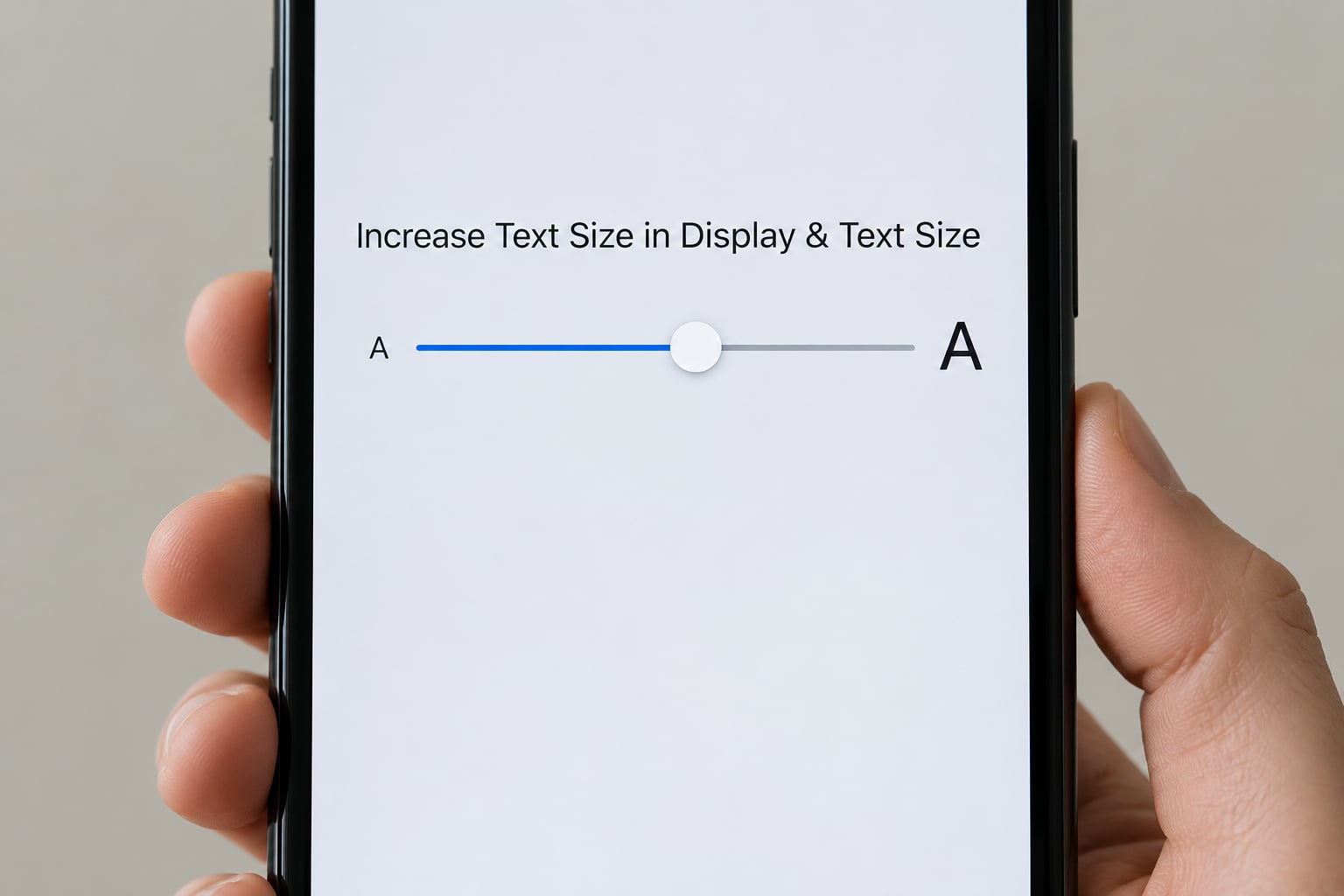
This is the setting most people mean, and it changes text across every app that honours the system size.
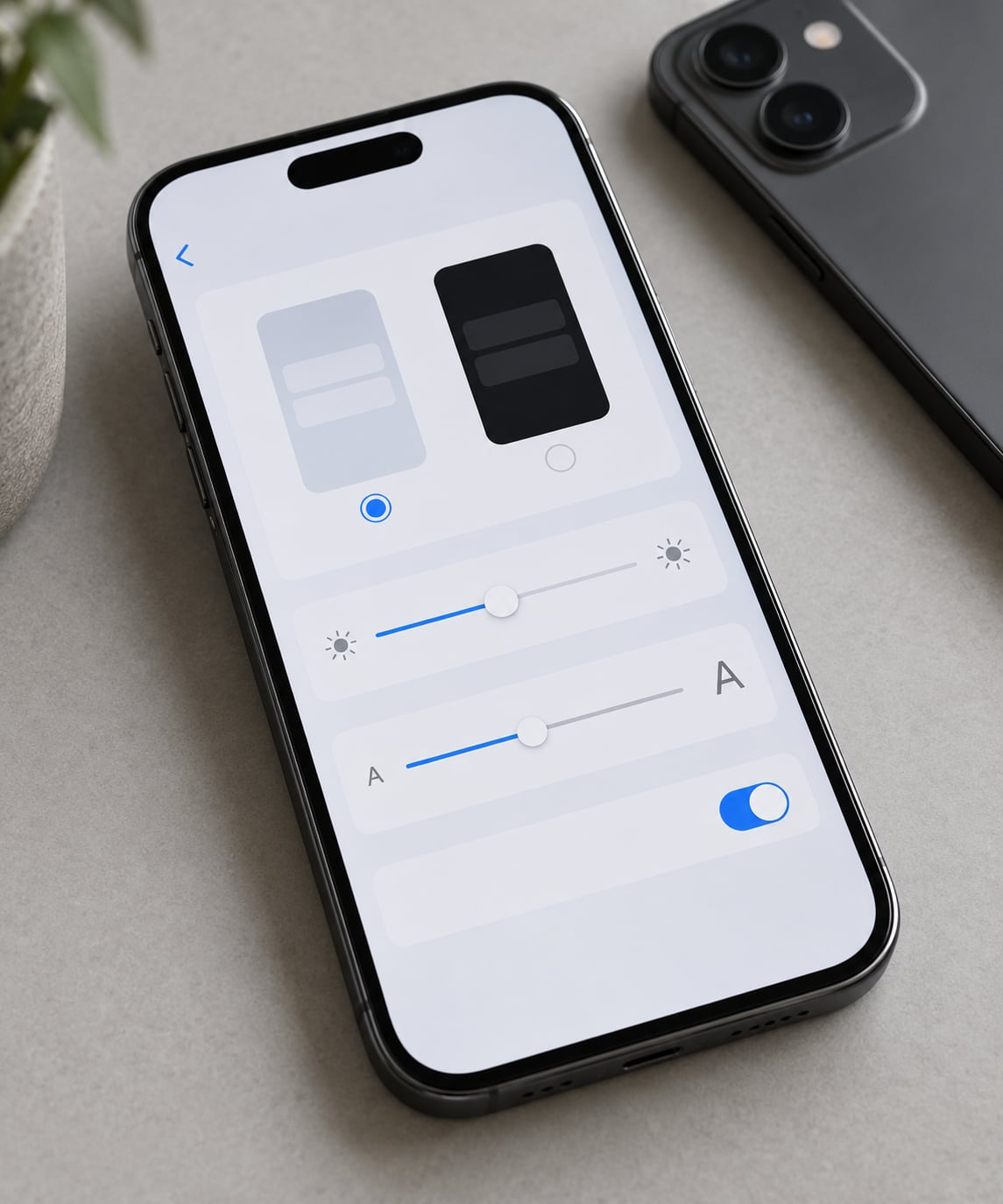
- Open Settings and tap Display & Brightness.
- Scroll to the Text Size row, below the brightness slider and the True Tone and Night Shift controls. It sits about halfway down the first screen.
- Tap Text Size. A preview appears at the top with the words Your Text, and a slider runs below it.
- Drag the slider to the right. Each notch is one step up in Dynamic Type, the system that scales text for every app built to support it.
- Press the Home gesture bar or swipe back to the Home Screen to see the result in real use.
There is nothing to confirm. iOS saves the size the moment you let go of the slider, which surprises people who hunt for a Save button that does not exist.
The slider here covers the normal range only. Several steps past the default and you are at the ceiling of Method 1, which is why the next step exists.
2. Turn On Larger Text in Accessibility
Larger Accessibility Sizes is the setting that answers how to make text even bigger on iPhone when the slider in Display & Brightness runs out.
- Open Settings and tap Accessibility.
- Tap Display & Text Size, the first item in the list.
- Tap Larger Accessibility Sizes. On some older versions the row is simply called Larger Text, and it sits one screen down instead.
- Tap Larger Accessibility Sizes again to confirm, then choose from Large, Larger, Extra Large, Extra Extra Large, Extra Extra Extra Large and Accessibility XXXL.
- Tap Done. The change applies across the system at once.
Accessibility XXXL is enormous. On most phones it breaks menus off the right edge and makes buttons wrap onto two lines, so treat it as a last resort rather than a starting point.
While you are in that same Accessibility screen, Bold Text is one tap away. Bold text on a modest size change reads far better than piling on extra size, and it is what many long-time iPhone users land on.
3. Make Text Bigger in One App on iPhone
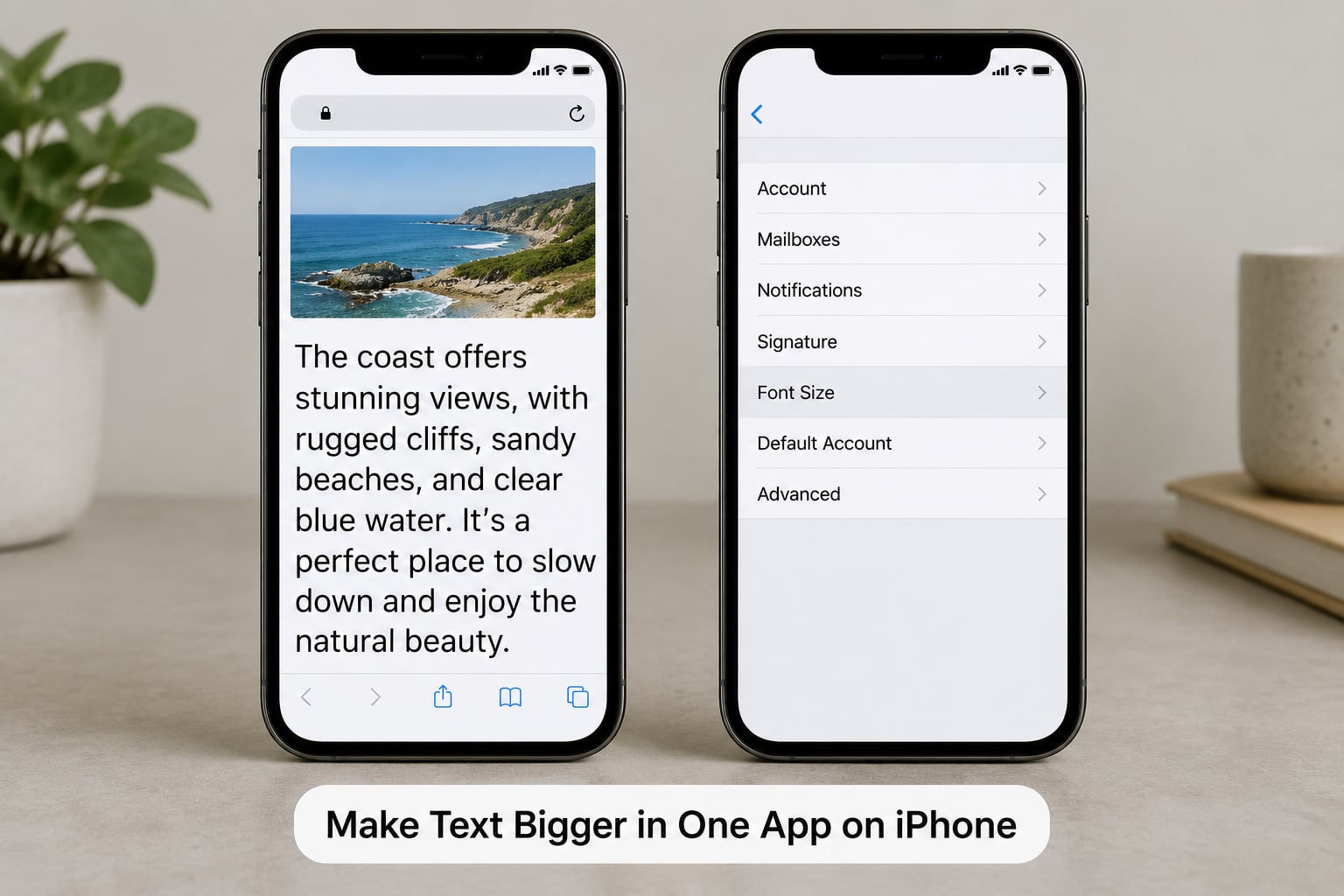
Some apps carry their own text size switch that overrides the system setting. This is the fastest way to make text bigger in a single app without changing anything else.
- Safari: tap the AA button in the address bar, then choose Page Zoom or Text Size. Page Zoom magnifies the whole page including images, while Text Size redraws the layout with larger words. Text Size usually reflows better on a phone.
- Mail: open the app, tap Mail in the account list at the bottom of the sidebar, tap Font Size and pick Small, Medium, Large or Extra Large. Each mailbox keeps its own size, so you can make the main inbox large and leave Archive alone.
- Messages: there is no font size switch. The app follows the system setting, so Methods 1 and 2 are the only route. Message bubbles, timestamps and the input bar all scale together.
- WhatsApp: open the chat, tap the contact name at the top, tap Media, Links, and Docs, then Text Size and choose from the four sizes. It applies to every chat in the app.
Apps you install behave differently, and this is where most frustration comes from. Instagram and Facebook keep their own font scale inside the app and ignore the iPhone setting. Reddit and several banking apps do the same. Google apps usually follow the system but occasionally look smaller because of condensed layouts, which makes it look like the change failed when it did not.
So if you are wondering why your Google font is small on your iPhone, check the app for its own display setting first, then come back to the system slider.
4. Use Extra-Large or Accessibility Text Options
Two different settings get confused constantly, so here is what each one actually changes.
| Setting | What it changes | How far it goes | Where it lives |
|---|---|---|---|
| Text Size | Letters and numbers in apps only | Normal range, seven or so steps | Settings > Display & Brightness |
| Larger Accessibility Sizes | Same text, extended range | Large up to Accessibility XXXL | Settings > Accessibility > Display & Text Size |
| Display Zoom | Everything: icons, buttons, images, text | One step, but a big one | Settings > Display & Brightness |
| Bold Text | Stroke weight of all text, no size change | On or off | Settings > Accessibility > Display & Text Size |
Display Zoom is the answer to how to make everything bigger on iPhone, because it scales the entire interface rather than just the words. Go to Settings > Display & Brightness > Display Zoom and choose Larger Text. It shrinks the number of rows on screen, so use it when icons and buttons are the problem, not when a single article is hard to read.
Two more toggles in the same Accessibility folder help when brightness, not size, is the real issue. Increase Contrast deepens text against its background, and Reduce Transparency removes the blurred overlays that blur text sitting on top of them. Both are one tap and both are reversible.
Two instant options need no settings at all. Place two fingers on the screen and spread them apart to magnify whatever is under them, then tap three times with three fingers or press the side button three times to drop the zoom overlay. And the Magnifier tool, available from Control Center, opens a full camera-based screen magnifier in about a second.
5. Check Whether Your iPhone Has Applied the Change
Go back to Settings > Display & Brightness > Text Size and look at the preview at the top. If your words match what you are reading on screen, the setting is applied and the change is live.
If the setting looks right but an app has not caught up, force quit the app by swiping up from the app switcher and flicking its card off the top. Relaunch it. iOS reads the text size when an app launches, and a running app can hold the old value until it restarts.
If several apps are stale, restart the iPhone. That is usually enough.
One case needs no fix at all: screens you are reading right now, such as a Settings pane already open, keep the size they loaded with. Back out and reopen, and the new size appears.
A final shortcut worth knowing: swipe down from the top-right corner to open Control Center and tap the Text Size button if you have added it. That lets you nudge the size up or down without leaving the app you are reading in.
Common Mistakes
Changing the wrong control. Most people drag the brightness slider by mistake, since Text Size sits right underneath it and the two look similar on the first open. Keep dragging until the words at the top visibly change.
Expecting every app to follow along. The system setting only reaches apps built with Dynamic Type. Instagram, Facebook, Reddit and a good number of banking apps keep their own scale. Use each app’s own font setting for those.
Following an old menu path. Guides written years ago point at Accessibility > Display or Display & Text Size for the base size. Those labels changed. Trust the menu names on your own screen over a tutorial’s screenshots.
Going straight to Accessibility XXXL. At maximum size, buttons wrap, menu labels run off the edge and it can be genuinely hard to navigate back to Settings. Large or Larger plus Bold Text is usually more readable in practice, even though it looks less dramatic.
Losing the way back when text is too big. If you have overshot, do not reset the whole phone. Go to Settings > Display & Brightness > Text Size and drag the slider left until the labels fit. For the accessibility range, go to Settings > Accessibility > Display & Text Size > Larger Accessibility Sizes and turn it off.
Resetting everything as a first resort. Settings > General > Transfer or Reset > Reset > Reset All Settings returns every preference, including text size, to factory defaults. It erases no data, but it resets Wi-Fi networks, notification choices and home screen layouts. Save it for a phone that is genuinely in a mess.
Forgetting that larger text costs screen space. At Extra Large and above you see fewer messages, fewer emails and shorter web pages. Turning on Reduce Motion and keeping Bold Text on are two ways to keep readability without paying for the lost space.
Frequently Asked Questions
Why is my iPhone text so small in the first place?
Most iPhones ship with the system text size at or near the default middle setting, which is tuned for average eyesight at typical viewing distance. If text feels small, your eyes are probably telling you something the default ignored. Presbyopia, low vision, bright sunlight and small phone screens all change what reads comfortably, and the fix is the same: raise the Text Size slider, then add Bold Text if letters still feel thin.
How do I make my text messages bigger so I can see them?
Messages has no font size setting of its own, so the system size controls it. Go to Settings u0026gt; Display u0026amp; Brightness u0026gt; Text Size and drag the slider right, and if you need more, turn on Larger Accessibility Sizes under Settings u0026gt; Accessibility u0026gt; Display u0026amp; Text Size. Bubble text, timestamps and the keyboard all scale together, so there is nothing else to change.
How do I make text even bigger on iPhone?
Use the extended accessibility range. Open Settings u0026gt; Accessibility u0026gt; Display u0026amp; Text Size u0026gt; Larger Accessibility Sizes, then choose from Large through Accessibility XXXL. That unlocks sizes far beyond the normal Text Size slider, which stops at its maximum. Test Large or Larger first, because Accessibility XXXL often pushes buttons and menu labels off the edge of the screen.
How do I get my font size back to normal on my iPhone?
Go to Settings u0026gt; Display u0026amp; Brightness u0026gt; Text Size and drag the slider left until the preview matches what you want. If you turned on the accessibility range, open Settings u0026gt; Accessibility u0026gt; Display u0026amp; Text Size u0026gt; Larger Accessibility Sizes and switch it off. Bold Text and Display Zoom are separate toggles and stay on until you turn them off themselves.
Why did my font size suddenly change after an iOS update?
Most iOS updates reset the accessibility text range back to default, and a few apps re-render differently after an update because their own scaling changed. So the sudden shift is usually a reset rather than a fault. Recheck Settings u0026gt; Display u0026amp; Brightness u0026gt; Text Size after each major update. If one app alone looks different, it is the app, not the phone, and the app has its own font setting.
Why is my Google font so small on my iPhone?
Google apps generally follow the system text size, so they often do grow, but several use condensed layouts that make the same point size look smaller than it does elsewhere. Before changing your iPhone settings, check the app itself, since the Google app and Chrome both carry their own display options. Raising the system slider fixes most cases, and Safari or Chrome page zoom handles the rest.
Conclusion
Start with the slider: Settings > Display & Brightness > Text Size, drag right, done. If that is not enough, turn on Larger Accessibility Sizes under Settings > Accessibility > Display & Text Size, and reach past that only when you have to.
Adjust individual apps such as Safari, Mail and WhatsApp last, so you can tell which change actually helped. Add Bold Text early if the problem is thin letters rather than small ones. And if the text ends up too large, the reverse takes about the same time as setting it.