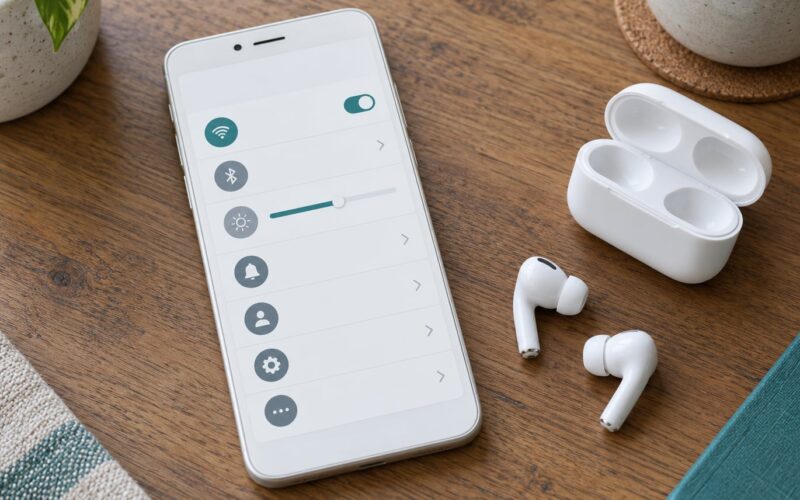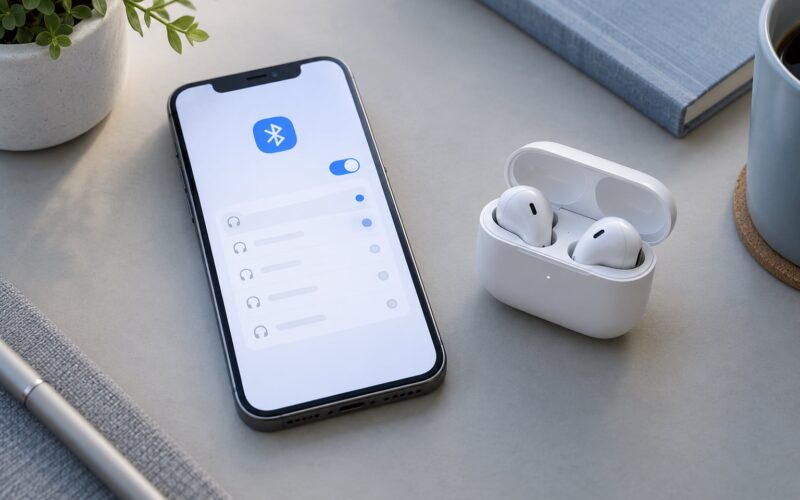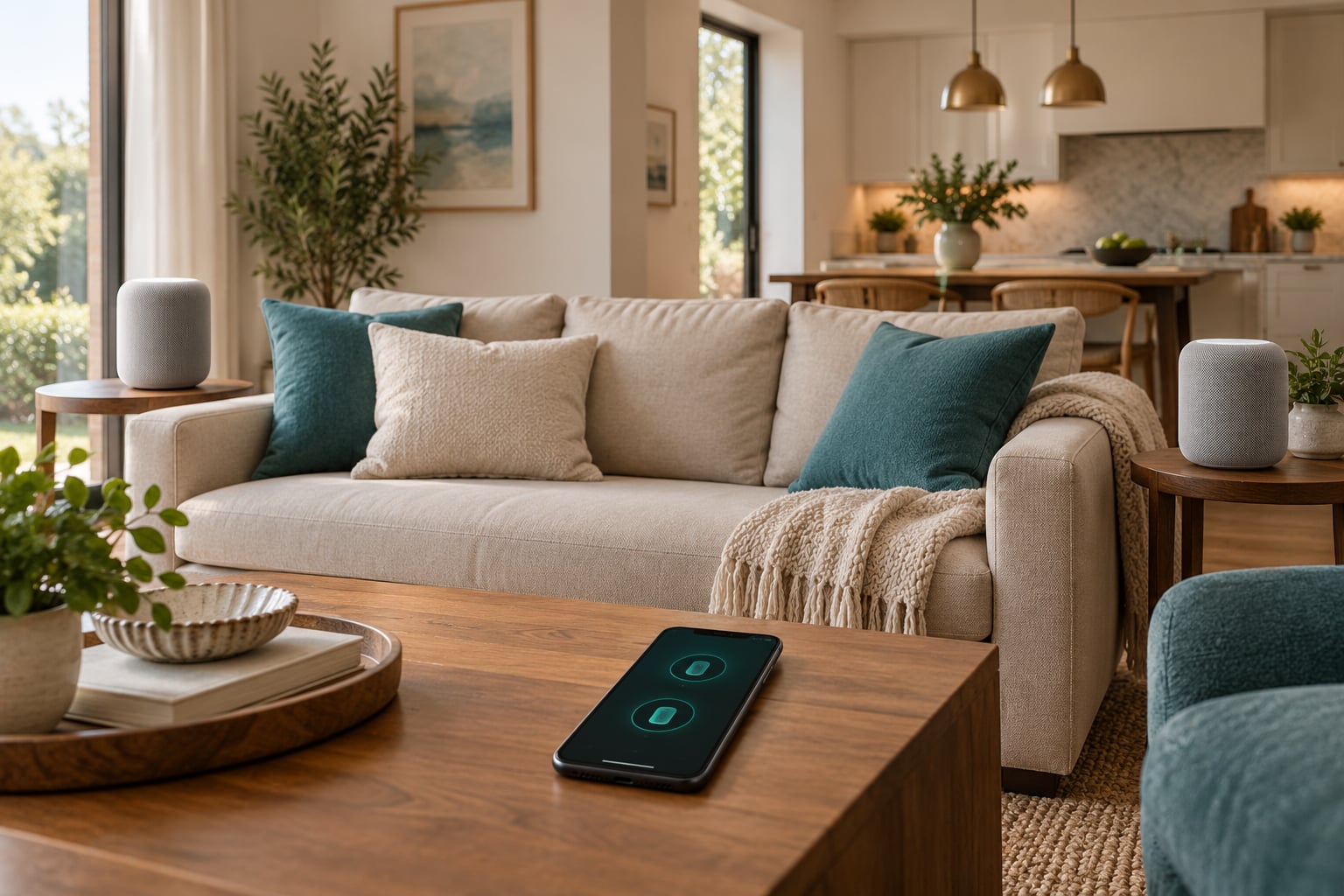
To play music on multiple HomePods at once, tap the AirPlay icon in Control Center on your iPhone, choose AirPlay 2, and tick every speaker you want to hear. Siri works too, and so does the Home app. It takes about thirty seconds once your speakers are on the same Wi-Fi network and added to the same home.
There are really only three routes, and which one you use depends on what you are listening to and whether you want the same track everywhere. Here they are in full:
- Siri: say “Hey Siri, play this everywhere” or, with music already playing, “Hey Siri, also play this in the kitchen.”
- Control Center AirPlay picker: swipe down from the top right, tap the AirPlay icon in the media panel, then select two or more HomePods before you hit play. This is the method for when you want a volume slider per room.
- The Home app: tap and hold a speaker, then Add to Scene to build a scene such as “Music Downstairs” that turns on every speaker in that scene with one tap.
The Control Center route is the one most people reach for first, mostly because it shows you exactly which speakers are selected. Siri is faster when your hands are wet, which happens more often than anyone would like to admit.
Table of Contents
- 1What You Need
- 2Step-by-Step
- 31. Check That Your HomePods Are Ready
- 42. Open the iPhone Audio Output Menu
- 53. Select More Than One HomePod
- 64. Choose Grouped Playback or Separate Tracks
- 75. Start and Verify the Music
- 86. Stop Playback and Save the Group
- 9Common Mistakes When You Play Music on Multiple HomePods
- 10Frequently Asked Questions
- 11Can I play the same song on multiple HomePods at the same time?
- 12How do I play different songs on two HomePods?
- 13Why is only one HomePod available in the AirPlay menu?
- 14Do multiple HomePods need to be assigned to the same Apple Account?
- 15Can I control grouped HomePod music from a Mac or iPad?
- 16How do I make several HomePods play as separate stereo pairs?
- 17Conclusion
What You Need
Before anything else, check these five things. Most failed setups are a missing Wi-Fi detail rather than a broken speaker.
- Two or more HomePods or HomePod minis. One speaker cannot play in multiple rooms. Any mix of models works together, so a second-generation HomePod can sit alongside a HomePod mini.
- The same Apple Account and the same home. Every speaker needs to be in one home in the Home app, not just signed in to the same iCloud.
- The same Wi-Fi network. Guest networks isolate devices from each other, and a pod on the guest network will not appear in your AirPlay picker.
- Current software. Update your iPhone to the latest iOS and each speaker through the Home app. Multi-speaker playback has needed iOS 11.4 or later since AirPlay 2 arrived in 2018.
- An audio app that supports AirPlay 2. Apple Music and most mainstream music and podcast apps do. Some apps only send audio to a single device, which is covered further down.
One thing worth clarifying now, because it trips people up constantly: a stereo pair is not the same thing as a multi-room group. Two HomePods of the same model in one room can be paired as left and right channels, and that pair then behaves as a single speaker that can join a group. Two HomePods in different rooms cannot be paired, and they only ever work together as a group.
Step-by-Step
1. Check That Your HomePods Are Ready
Open the Home app and confirm every speaker you plan to use is listed under your home with a room assigned. A speaker with no room name still works, but naming rooms makes the rest of this far easier.
Tap each speaker and look at its settings. You should see it connected and on a recent software version. If a speaker is missing from the Home app entirely, unplug it, wait ten seconds and plug it back in, then give it a couple of minutes to reappear.
If two identical HomePods sit in the same room, decide now whether they are a stereo pair. If they are not paired, they will play the same mono audio twice, which sounds thin and slightly wrong. Pair them in the Home app under Settings, Stereo Pair, or accept that they are two separate rooms.
2. Open the iPhone Audio Output Menu
There are two reliable entry points on iPhone. The first is inside the app: in Apple Music, open Now Playing, tap the AirPlay icon in the top right, and the full speaker list slides up from the bottom. The second is the Control Center, which is where you go when the app has no AirPlay button of its own.
To get there, swipe down from the top right corner. In the media panel at the top, tap the small AirPlay icon. On recent iOS versions the icon looks like a rectangle with a triangle in it and usually sits to the left of the volume slider.
Starting from a Mac or iPad follows the same logic. On a Mac, click the Control Center icon in the menu bar, then the AirPlay icon. On iPad, the AirPlay target is in Control Center as well. The one rule that catches people: AirPlay 2 sends from iPhone, iPad, Mac and Apple TV, not from a HomePod, so the music has to start somewhere else.
3. Select More Than One HomePod
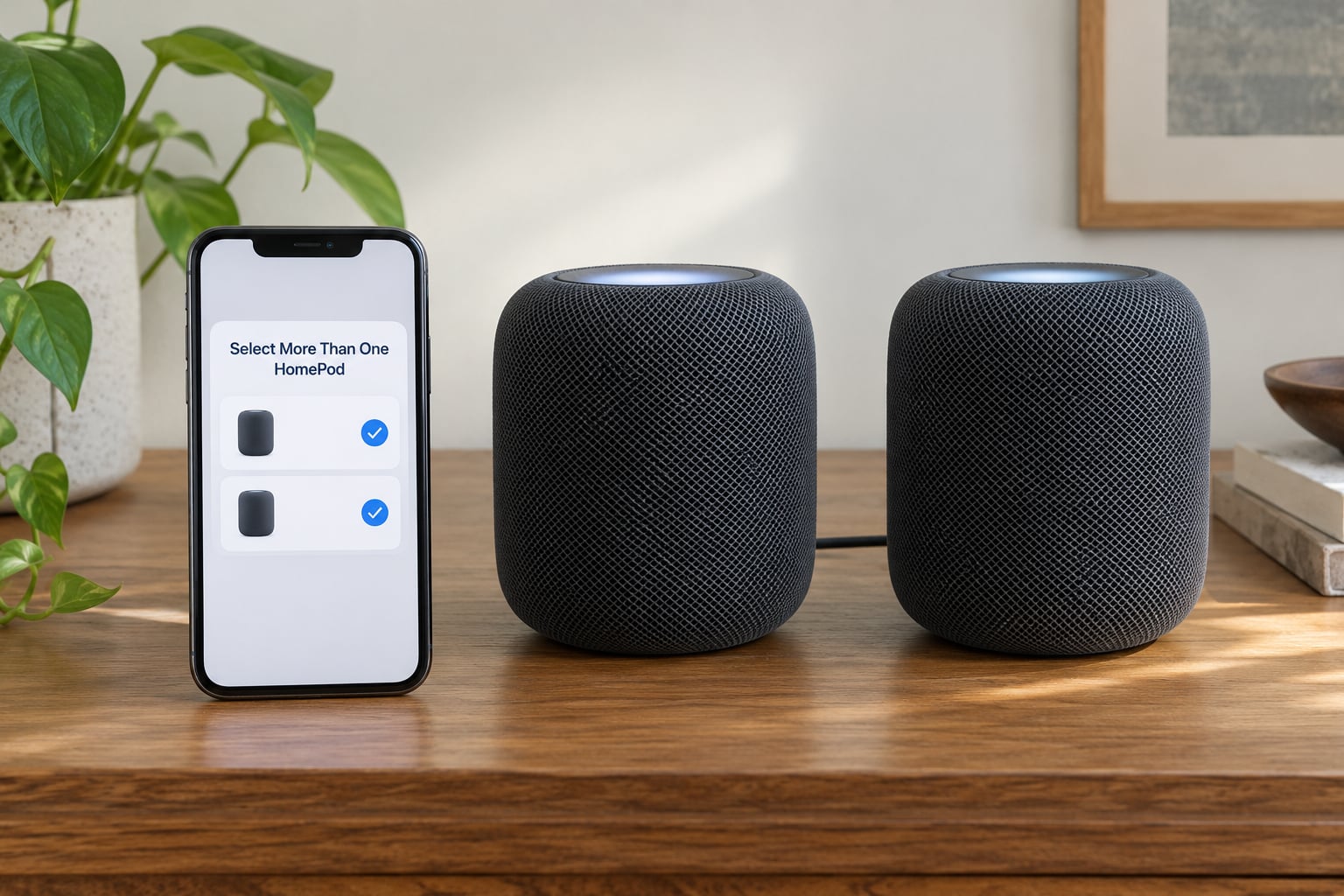
With the speaker list open, your HomePods appear alongside your phone and any AirPlay 2 speaker from another brand. Tap one speaker, then tap the second. Both show a checkmark, and a volume slider appears under each one as soon as a second speaker is selected.
That checkmark is the whole confirmation. It means the speaker is included in the group and will receive the same stream as the others. Tap a checkmark again to remove that speaker from the group without disturbing the rest.
Nothing is saved automatically here. This selection lasts for the current playback session, which is why the music stops grouping by itself after you stop the track and start again later.
4. Choose Grouped Playback or Separate Tracks
Grouped playback is for one track everywhere: kitchen, living room and hallway all carrying the same music, with the volume set independently in each room. That is the default once you have two checkmarks.
Separate tracks are for when you do not want the same thing in every room. Send your iPhone to one HomePod, pick a track in Apple Music, then use Handoff or the Home app to hand the next track to a different speaker. The limitation is worth being blunt about: iOS does not let one phone play two different songs on two HomePods at the same time. Apple Music can have one group playing while a different speaker plays its own album through the Home app, but that means using two devices.
For choosing where a zone of music should play, create a Zone. In the Home app, long-press a room, open Room Settings, add a Zone, then pick the rooms that belong to it. Now “Hey Siri, play jazz in the downstairs zone” works without waking the whole house.
5. Start and Verify the Music
Tap play. Then put your ear to each room and confirm sound is coming out of every selected speaker. That check is quick and it is the only reliable way to know a silent speaker has really joined the group, because a speaker can carry the checkmark and still be muted or turned down.
Raise the volume using the per-room sliders rather than the iPhone volume button. The iPhone volume controls the phone itself, not the speakers, and plenty of people waste a minute tapping volume keys that do nothing.
If one speaker is silent, open the AirPlay picker again while the music is playing. It shows you which rooms are actually in the group at that moment, and it is the fastest way to see whether a speaker quietly dropped out mid-song.
6. Stop Playback and Save the Group
To stop everything, pause in the app, then deselect the HomePods in the AirPlay picker or say “Hey Siri, stop.” To stop just one room while the rest keep playing, open the AirPlay picker, uncheck that single speaker and leave the others ticked.
If you want a group you do not have to rebuild every evening, put it in a Scene. In the Home app, long-press a speaker and choose Add to Scene, then add the other speakers. Scenes also work by voice: “Hey Siri, start the music downstairs scene.”
Two things to avoid when a group misbehaves. Mixing a wired receiver or surround system into the same group usually produces echo, since the wired speakers cannot be synced to the AirPlay clock. And putting a pod behind a TV, a wall or in a closed cabinet is the most common reason audio drops out mid-track.
Common Mistakes When You Play Music on Multiple HomePods
A speaker is missing from the AirPlay list. Check that it is in the same home in the Home app, then check the network. A pod sitting on a guest Wi-Fi network or a separate access point will never appear, and neither will one that has lost its connection entirely. Restarting the speaker is usually enough to bring it back.
Only one speaker plays even though several are ticked. This is almost always a volume or mute issue on the quiet speaker rather than a grouping failure. Open the per-room slider and push it up, then check the speaker itself for a physical mute control on its top surface.
Audio drifts out of sync. AirPlay 2 measures timing over your local network, so jitter causes the delay you hear. Wired Ethernet on a hub such as an Apple TV makes a real difference. Moving the pods onto a 2.4GHz SSID, or tightening a mesh network so each node reaches every speaker, fixes the rest of the cases. Repositioning the router away from thick walls helps too.
AirPlay 2 is not offered in the app. Some apps send audio to a single speaker only. Apple Music, Podcasts and most video apps all support multi-speaker output. If an app has no AirPlay 2 option, use Control Center to route it, or mirror the audio to a group through the Home app.
The group resets every time you restart. That is normal for a hand-picked selection, since it is not stored anywhere. Scenes, Zones and automations are the durable options, and all three live in the Home app.
The Mac or iPad is the controller and it keeps dropping. Send long multi-room sessions from an Apple TV instead. Owners with several pods tend to report that iPhone and iPad driven groups are slow to build and lose speakers mid-track, while a group started from Apple TV holds together, and Siri still works from any pod in the house.
A couple of general tips. Turn off Wi-Fi calling on the phone running the group if it keeps hopping networks, and keep the speakers updated, since a great deal of multi-room flakiness was fixed in software years ago. If guests are going to start music, set Speakers and TV access in the Home app to Only People Sharing This Home, or turn on Require Password.
Frequently Asked Questions
Can I play the same song on multiple HomePods at the same time?
Yes, and AirPlay 2 keeps them in sync. Tap the AirPlay icon in Control Center, select AirPlay 2, then tick each HomePod you want. All of them receive one synchronized stream with a volume slider per room. You can also ask Siri to do it: say u0022Hey Siri, play this everywhereu0022 while a track is already playing.
How do I play different songs on two HomePods?
One iPhone cannot send two different tracks to two HomePods at once. What you can do is start a track on one speaker, then hand playback to a second speaker in the Home app or with Handoff, and set the first to shuffle or auto-advance. To have genuinely different music in two rooms at the same time, use two devices, or group the rooms into a Zone and target one zone at a time.
Why is only one HomePod available in the AirPlay menu?
Usually the network. If the pod is on a guest Wi-Fi network, a separate access point, or has dropped its connection, it will not show as groupable. Check that it is listed in the same home in the Home app, restart the speaker, and confirm your iPhone is on the main 2.4GHz or 5GHz network rather than a guest one. A second HomePod should appear the moment it reconnects.
Do multiple HomePods need to be assigned to the same Apple Account?
They need to be in the same Home, which is what the app calls a shared home. Family members can each add their own pod to a shared home and everyone can then control every speaker from their own iPhone. Guests, however, can only control a speaker if you set Speakers and TV access to Everyone or to Anyone on the Same Network.
Can I control grouped HomePod music from a Mac or iPad?
Yes. On a Mac, click the Control Center icon in the menu bar, then the AirPlay icon, and tick the speakers you want. On iPad, AirPlay targets sit in Control Center. Both build a group in exactly the same way as the iPhone picker. For long sessions, owners with several pods find a group started from an Apple TV holds together more reliably than one driven from a phone or tablet.
How do I make several HomePods play as separate stereo pairs?
Stereo pairing works room by room, not across the house. In the Home app, open a speaker, enter Settings and choose Stereo Pair, then pick a second speaker of the same model in the same room and assign it left or right. Repeat in each room. Once paired, every pair shows as a single speaker that you can tick like any other HomePod when you group playback.
Conclusion
The fastest route to music in every room is the same as it has always been: open the AirPlay control in Control Center, choose AirPlay 2, tick every HomePod that should play, and start the track. Say “Hey Siri, play this everywhere” when your hands are busy, and build a Scene or Zone in the Home app for the nights you do not want the whole house woken up.
If a speaker does not appear, sort out the network first. Same Wi-Fi, same home, speaker updated. Almost every grouping problem comes down to one of those three.