To use spatial audio on AirPods, put them in your ears, open Control Center, long-press the volume or AirPods control, and choose Head Tracked or Fixed under Spatial Audio. The same setting sits in the Settings app under your AirPods name. Either route takes about ten seconds, provided your hardware supports it.
If you have been told spatial audio is on and you cannot tell what changed, the setting is rarely the problem. It is usually the content: a plain stereo stream has nothing for spatial audio to place around you. That is why this guide covers the compatibility list, the three modes, and where to actually hear the difference.
Table of Contents
- 1Quick Answer: 5 Steps to Turn It On
- 2What You Need
- 3Step-by-Step: How to Use Spatial Audio on AirPods
- 4Step 1: Check That Your Devices Are Compatible
- 5Step 2: Update Your iPhone, iPad, and AirPods
- 6Step 3: How to Use Spatial Audio on AirPods From Settings
- 7Step 4: Choose the Right Spatial Audio Mode
- 8Step 5: Test and Confirm Spatial Audio
- 9Common Mistakes
- 10Frequently Asked Questions
- 11Which AirPods support spatial audio?
- 12Do I need an iPhone or iPad with spatial audio enabled?
- 13Why is the spatial audio option missing from my AirPods settings?
- 14Does spatial audio work with Spotify and YouTube?
- 15Should I choose fixed spatial audio or head tracking?
- 16Does using spatial audio drain AirPods battery faster?
- 17Conclusion
Quick Answer: 5 Steps to Turn It On
- Put both AirPods in your ears and make sure they are connected.
- Swipe down from the top-right corner to open Control Center.
- Long-press the volume or AirPods control in the top right.
- Tap Spatial Audio, then choose Head Tracked or Fixed.
- Play a supported track or video and turn your head to check it.
Those same three options mean the same thing every time: Head Tracked anchors the sound to the room and follows your head, Fixed anchors it to the room but ignores movement, and Off returns plain stereo.
What You Need
You need AirPods 3 or newer, or an AirPods Pro or AirPods Max generation that supports the feature, paired to an iPhone or iPad running a current iOS or iPadOS version. Older AirPods and Android or Windows devices are out.
These models support spatial audio:
- AirPods 3
- AirPods 4 and AirPods 4 with Active Noise Cancellation
- AirPods Pro 2 and AirPods Pro 3
- AirPods Max
AirPods 1 and AirPods 2 do not support spatial audio at all, and the option will not appear for them. If the AirPods show up in your Settings menu but the Spatial Audio row is missing, generation is the first thing to check.
Two things matter beyond the model. First, software: the feature arrived in iOS 14, and Personalized Spatial Audio, the ear scan version, needs iOS 16 or later. A device parked on an older release will either hide the toggle or hide the personalize button. Second, firmware: Apple pushes AirPods firmware quietly, and a pairing on stale firmware can keep the spatial control from appearing even on a supported pair.
Signed in to Apple is not strictly required, but a device signed out of iCloud, or one where Screen Time restrictions are active, has been reported to hide some audio settings. If the row is missing after everything else, check that your Apple Account and Screen Time settings are not filtering it.
| AirPods model | Spatial Audio | Dynamic head tracking | Personalized Spatial Audio |
|---|---|---|---|
| AirPods 1 and 2 | No | No | No |
| AirPods 3 | Yes | No | Yes |
| AirPods 4 | Yes | Yes | Yes |
| AirPods Pro 2 | Yes | Yes | Yes |
| AirPods Pro 3 | Yes | Yes | Yes |
| AirPods Max | Yes | Yes | Yes |
That middle column is the detail that trips people up. AirPods 3 have no motion sensors for head tracking, so the Head Tracked option simply is not offered for them. Fixed is the best those earbuds can do.
Step-by-Step: How to Use Spatial Audio on AirPods
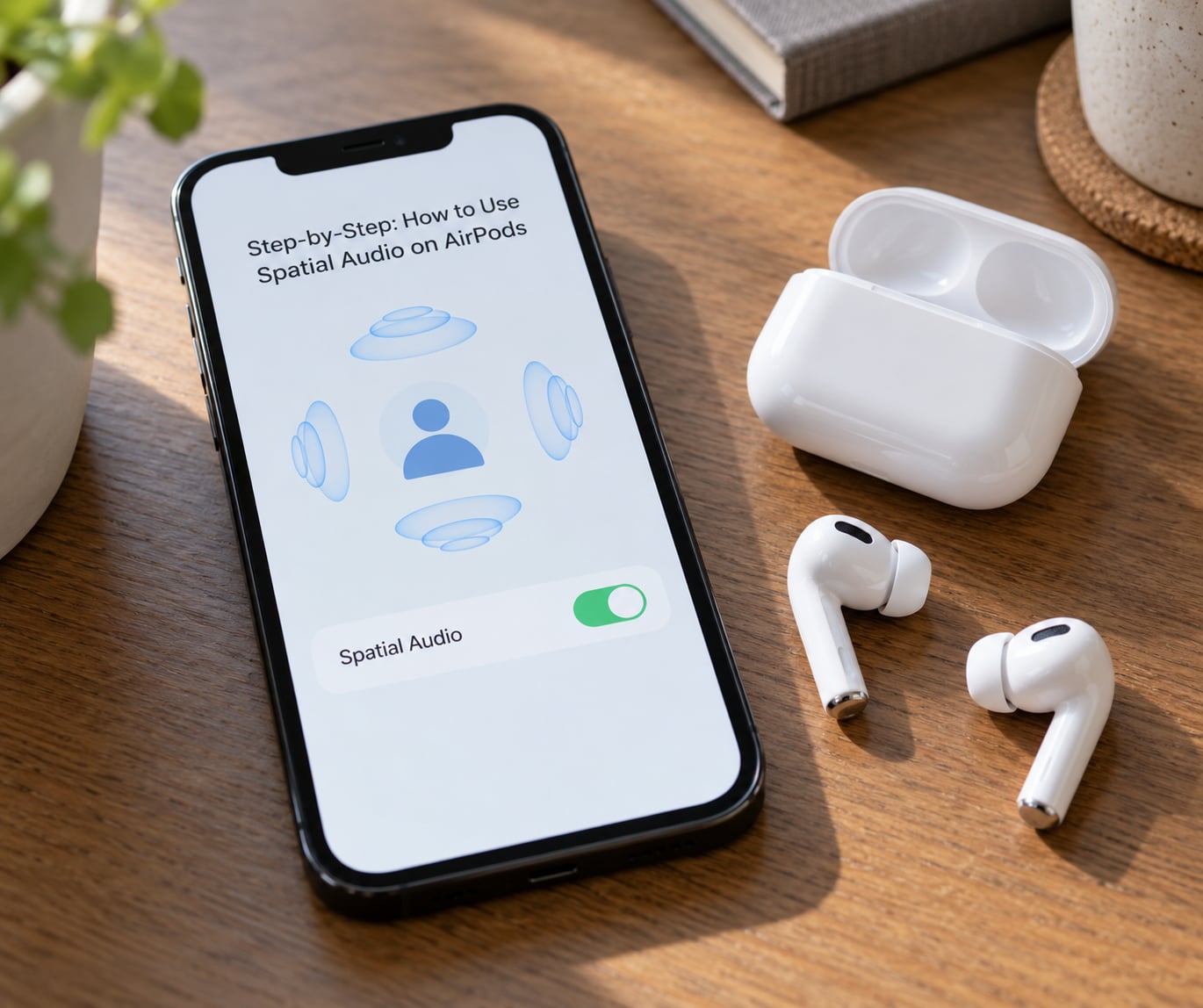
Step 1: Check That Your Devices Are Compatible
Open Settings and tap the name of your AirPods at the very top of the list. If you see a Spatial Audio row, the hardware is fine and you can move to Step 3. If you do not, the pair is either an older generation or the connection is not fully established.
On an iPhone the path is Settings, then your AirPods name directly under your Apple Account. On an iPad it is Settings, then your AirPods name in the sidebar. The row only appears while the AirPods are connected to that specific device, not while they are paired to something else.
Step 2: Update Your iPhone, iPad, and AirPods
On an iPhone, go to Settings, General, then Software Update, and install anything pending. On an iPad the route is Settings, General, Software Update as well, so the labels match.
AirPods update through the same device. With the AirPods in their case and the lid open, tap the AirPods name in Settings, then Find My AirPods, then the firmware version line. Tap Check for Update and wait while they charge near your phone or iPad.
Updates are the most common reason the option vanishes. A major iOS release can drop the spatial control for a few hours or until the AirPods are reconnected, and the usual fix that owners report is simply putting them back in the case for around thirty seconds with the lid shut, then taking them out again.
Step 3: How to Use Spatial Audio on AirPods From Settings
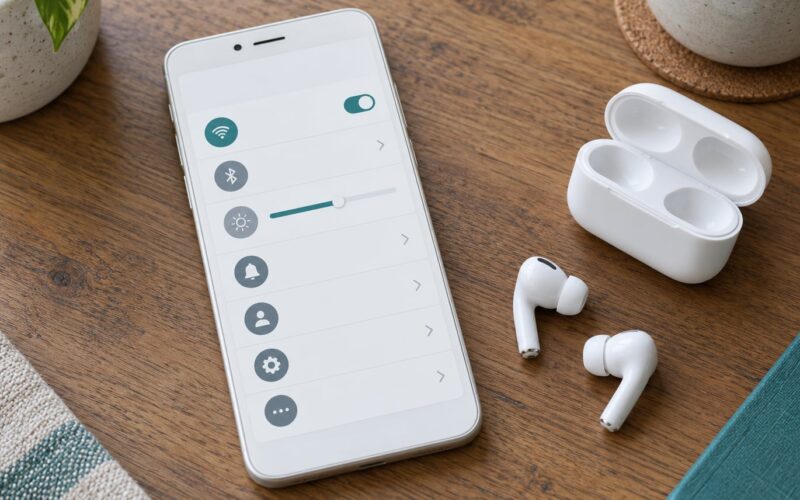
Put the AirPods in your ears, open Settings, and tap the AirPods name at the top. Scroll to the Spatial Audio row and tap it. You get three choices: Off, Fixed, and Head Tracked. Pick Head Tracked for the full effect and you are done in about ten seconds.
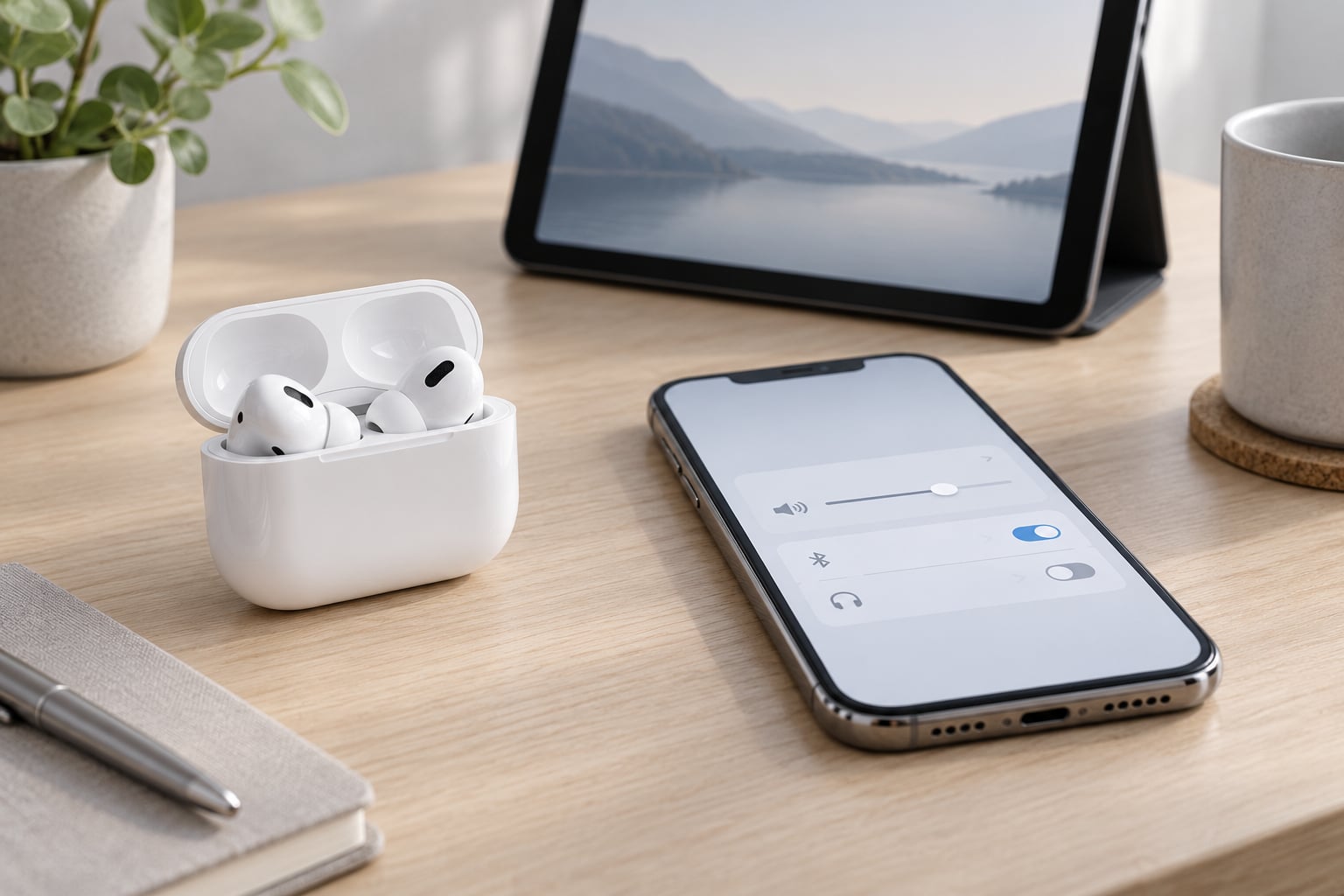
The faster route from anywhere is Control Center. Swipe down from the top-right corner of your iPhone, or from the top-right corner of an iPad, then long-press the volume or AirPods control. A panel appears with several audio options, one of which is Spatial Audio. Tap it, choose your mode, and dismiss Control Center.
You can also reach the setting on a Mac by opening Music, choosing the AirPods as output, and using the Spatial Audio control in the playback toolbar. Apple TV and Vision Pro have their own audio menus and behave differently, so if you are reading this on a living room screen, use the guide for the device you actually have in your ears.
Below the Spatial Audio row you will find Personalize Spatial Audio on iOS 16 and later. Tap it and a short animation asks you to hold your iPhone or iPad in front of your face for a moment while it scans your ears. The scan takes a few seconds, and the result is stored on the device. Done properly, the sound field lands closer to where your ears actually are, which matters most for voices and effects placed directly ahead of you.
Step 4: Choose the Right Spatial Audio Mode
Head Tracked is the default choice and the one most people want. The sound field stays put in the room while your head moves, so a helicopter in a film stays above and behind you instead of sliding around inside your skull.
Fixed anchors the sound in space and ignores your head entirely. It is the right choice when you move around a lot while listening, for example while cooking or walking, and some people prefer it for music because the mix stops shifting.
Off disables the processing and returns standard stereo. It is worth trying all three on the same track rather than judging the feature from a podcast, where the difference is subtle and easy to miss.
Under the same menu sits a Spatialize Stereo switch, and it causes more confusion than anything else here. Spatial audio expects content that was mixed for it, such as a Dolby Atmos track in Apple Music or a spatial video. Spatialize Stereo applies a similar effect to plain two-channel audio. Turn it on and ordinary music and podcasts get placed around you too. Turn it off and you hear the original stereo mix, which many listeners prefer for music and prefer on for video and podcasts.
Step 5: Test and Confirm Spatial Audio
Play something that is genuinely spatial. In Apple Music, open a track marked with a Dolby Atmos or Spatial Audio label, and if the badge is missing, check the audio menu in the track’s overflow and choose that mix yourself. Apple TV+ films, Netflix Dolby Atmos titles, and spatial video on YouTube also carry the effect. A standard stereo stream will not demonstrate anything, which is the reason behind most complaints that the feature does nothing.
With a film or a spatial music track playing in Head Tracked mode, turn your head a few degrees to one side. If the sound stays put in the room while you move, spatial audio is working. If it swings with your head like it is glued to your skull, you are hearing a fixed stereo image, and you should check that the mode is set to Head Tracked and that Spatialize Stereo is on for content that is not natively spatial.
Head tracking usually drops to Fixed by itself for a few seconds after a call or after you switch devices, then returns. If it stays on Fixed, the fix is in Settings, Accessibility, AirPods, where the Follow Phone switch tells your iPhone or iPad to hand the audio back and forth as you move between devices.
Video calls are the exception. Spatial audio has little effect on a FaceTime or phone call, because the other person’s voice is a single mono channel, so there is nothing to position.
Common Mistakes
Most complaints about spatial audio come down to one of five problems, and each has a fix that is faster than a full reset.
The spatial audio option is missing entirely. Put the AirPods in their case for around thirty seconds with the lid closed, then take them out and reopen Settings. Owners on Apple Community threads and Reddit report that this restores the row after a major iOS update. If it does not, check your model against the table above and confirm your iOS version.
The toggle is there but grayed out. This usually means the AirPods are connected to a different device, or they are not worn. Both AirPods need to be in your ears for the full set of options to become selectable.
Head tracking keeps switching to Fixed. Toggle Follow Phone off and on again under Settings, Accessibility, AirPods. If the mode drops constantly while you are on one device, restart that device with the AirPods still in your ears.
You hear no difference at all. Check the content first. Stereo audio with Spatialize Stereo off produces almost nothing, because the track was never mixed for the format. AirPods 3 owners hit this too, since those earbuds have no sensors and can only offer Fixed.
Sound gets worse in some tracks. Some genres, especially dense metal and heavily layered electronic music, lose clarity when a stereo master is pushed through a spatial renderer. Leaving Spatialize Stereo off for music and on for video and podcasts is a reasonable split, and plenty of AirPods Pro 2 owners have settled on exactly that.
Two more small habits help. Charge AirPods in the case with the lid open whenever you change devices, because the firmware update is what makes the feature appear. And if you use a Mac, remember that the Mac path is through Music, not Settings, which is where most people look first.
Frequently Asked Questions
Which AirPods support spatial audio?
AirPods 3, AirPods 4, AirPods 4 with Active Noise Cancellation, AirPods Pro 2, AirPods Pro 3, and AirPods Max all support spatial audio. AirPods 3 support the sound field but not dynamic head tracking, since they have no motion sensors, so Head Tracked is not offered. AirPods 1 and AirPods 2 do not support spatial audio at all.
Do I need an iPhone or iPad with spatial audio enabled?
Spatial audio works on iPhone and iPad models that are new enough to run a current iOS or iPadOS release, and it needs iOS 14 or later for the core feature. Personalized Spatial Audio, the ear scan option, requires iOS 16 or later. Android and Windows devices do not offer the feature even when the same AirPods are paired to them.
Why is the spatial audio option missing from my AirPods settings?
The usual cause is a software change, not a broken device. Put both AirPods in their case with the lid closed for about thirty seconds, then take them out and reopen Settings. If the row is still missing, update iOS or iPadOS and AirPods firmware, and confirm your model supports the feature, since AirPods 1 and 2 never will.
Does spatial audio work with Spotify and YouTube?
YouTube spatial video works, because those clips are mixed for the format. Netflix and other streaming apps with Dolby Atmos tracks also work. Spotify streams are standard stereo, so spatial audio there depends on the Spatialize Stereo switch under your AirPods name in Settings. Turn it on to place the mix around you, or off to hear the original stereo version.
Should I choose fixed spatial audio or head tracking?
Head Tracked is the better default for films, TV, and games, because the sound stays anchored in the room as you move. Fixed is worth switching to when you move around while listening, and some music listeners prefer it because the mix stops shifting. Try both on the same track before deciding, since the difference is obvious on a film and subtle on a podcast.
Does using spatial audio drain AirPods battery faster?
Spatial audio adds some on-device processing, but the change in playback time is small enough that most listeners never notice it. If your AirPods seem to run down faster, the usual suspects are Noise Cancellation and Transparency mode, ANC on calls, and a weak case battery, not the spatial audio mode itself. Compare battery after a few days on each mode before changing anything.
Conclusion
Start in Control Center. Long-press the volume or AirPods control, tap Spatial Audio, and choose Head Tracked. If the option is not there at all, put the AirPods in their case for thirty seconds, update your iPhone or iPad and the AirPods firmware, and check your model against the compatibility table above.
Then test it on the right content. A Dolby Atmos track in Apple Music, a film on Apple TV+, or a spatial video will show you what the feature does. A plain stereo stream will not, and that is what makes people think the setting is broken when it is working fine.