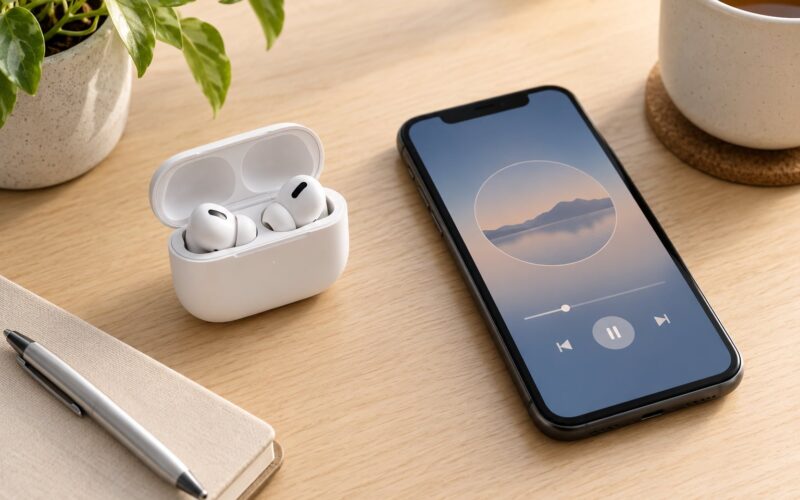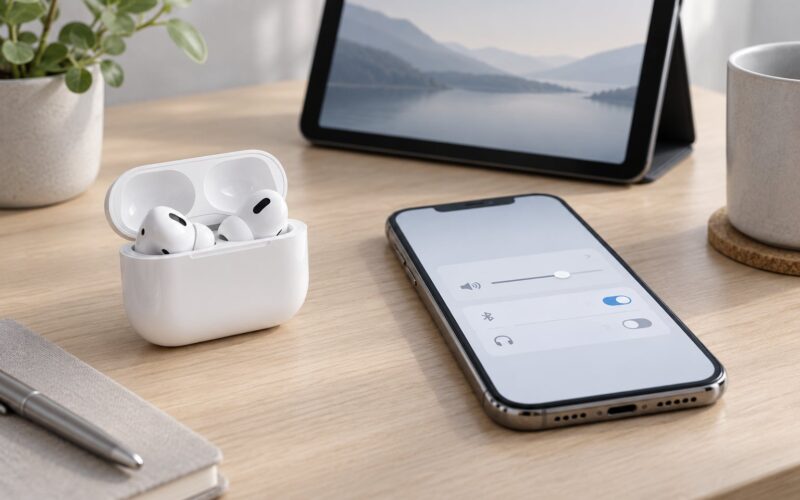
To rename AirPods, open the Find My app on your iPhone or iPad, tap Devices, pick your AirPods, tap More, and choose Rename. On a Mac, the same path runs through the Find My sidebar. It takes about fifteen seconds, and the only real requirement is that the AirPods are connected to the device you are renaming from.
- Put both AirPods in the charging case and leave the case open next to the device you are renaming from.
- On iPhone or iPad, open Find My, tap the Devices tab, tap your AirPods, then tap More.
- Choose Rename, clear the current text, and type the name you want.
- Confirm with Rename or Done, then check the name in Settings, Bluetooth, and on your other Apple devices.
That is the whole job on Apple hardware. If the Rename option is greyed out, missing, or the name snaps back afterwards, the fixes are further down.
Table of Contents
- 1What You Need
- 2Step-by-Step
- 3Open the My AirPods Screen on iPhone or iPad
- 4Enter and Confirm the New Name
- 5Rename AirPods on Mac
- 6Common Mistakes
- 7Frequently Asked Questions
- 8Why can’t I rename my AirPods?
- 9Does renaming AirPods change anything other than the name?
- 10Will the new name show up on my other Apple devices?
- 11Why do one of my AirPods show a different name from the other?
- 12Why can’t my iPhone Find My AirPods?
- 13Conclusion
What You Need
Before you start, put the AirPods in the case and keep the case open. The device needs to see them as currently connected, not just remembered from last week.
- The AirPods, the case, and one iPhone, iPad, or Mac.
- Bluetooth switched on, and a recent version of iOS, iPadOS, or macOS. Older versions label the same screens differently, which is why half the tutorials online send you looking for something that no longer exists.
- An Apple Account signed in to Find My. This is what creates the My AirPods screen where the Rename option lives.
- On Mac, the same Apple Account as the iPhone, and the AirPods within Bluetooth range of the computer.
The one thing you do not need is a third-party app. Anything advertising an AirPods name changer is doing nothing your Settings app cannot do, and some ask for your Apple Account credentials. Skip them.
Step-by-Step
Open the My AirPods Screen on iPhone or iPad
The quickest route runs through Find My. Open Find My, tap Devices along the bottom, select your AirPods, then tap More next to the name. Choose Rename from the menu that appears.
Community answers on the Apple discussions boards and r/airpods keep landing on this path for a reason: the AirPods card at the very top of the Settings app only shows up when the buds are actively connected to that phone, and plenty of the time it is simply not there. Find My is more forgiving.
There is a second route worth knowing. Open Settings, tap Bluetooth, and tap the circled (i) button to the right of your AirPods. That opens the same AirPods details panel with the Name field near the top. Wording shifts a little between versions, so on some releases you tap Name directly from the device card instead of going through More.
Enter and Confirm the New Name
Tap the current name to select it, clear it, and type your own. On a Mac, use the computer keyboard instead of the on-screen one. Confirm with Rename, or Done on iPhone and iPad, and the panel closes.
Check it worked by looking at the name in the AirPods details screen, then in Settings, Bluetooth, where the entry sits in the list of devices you own. On iOS and iPadOS the renamed name also shows in the device picker and Today View, and on a Mac it appears in Control Center. A name that updates on the iPhone but not the iPad usually means the iPad has not synced yet, so give it a moment with Bluetooth on for both devices.
On Apple platforms the name belongs to your Apple Account rather than to one device, so it follows the AirPods to your other signed-in devices. On Windows and Android, the name is stored per computer or per phone, so you rename it again on each machine you use.
Rename AirPods on Mac
On a Mac, open Find My in the Applications folder or Dock. Select your AirPods in the sidebar, click More, click Rename, type the new name, and confirm. The AirPods need to be nearby and connected, so leave the case open and within range.
There is a second Mac path: open System Settings, choose Bluetooth in the sidebar, click the Info button next to your AirPods, and change the name in the panel. Guides written before macOS Ventura call this app System Preferences, and the Bluetooth pane there is laid out differently, but the idea is identical: find the AirPods entry, open its details, rename it.
On Windows, the rename is a Bluetooth property rather than an AirPods setting. Go to Control Panel, then Hardware and Sound, then Devices and Printers. Right-click your AirPods, choose Properties, open the Bluetooth tab, and edit the friendly name. On Android, open Settings, tap Bluetooth, find your AirPods under Paired devices, tap the gear icon, and select Rename. The name you set there applies to that phone only.
Common Mistakes
The AirPods do not appear under Devices in Find My. Open the case and check Bluetooth is on. If Find My still shows nothing, toggle Bluetooth off and on, then search again. If they show up but with a serial number and no name, they are still linked to another Apple Account and you need the previous owner to remove them before you can rename them.
More or Rename is greyed out. This one catches people out constantly. The device is not currently connected. Wear the AirPods or tap them into the case, leave the case open, and reopen Find My.
There is no Name option at all. That is the single most common question on the Apple discussion threads. It usually means the AirPods are paired but not connected right now, or the phone is on an older version of iOS with a different panel layout. Connect them, update the software, and try the Settings, Bluetooth, (i) route if Find My stays unhelpful. Anyone offering an app to fix this is selling a workaround for a problem you can solve by connecting the buds.
The name keeps reverting to AirPods #2 or Your Name’s AirPods. A reset puts the AirPods back to a default, and adding a second pair to the same account often names the newer one AirPods #2. Rename again after the reset, before you pair the second set, and it will hold. If it reverts without you touching anything, the most likely cause is Automatic Device Sharing handing the AirPods to a nearby device signed into your Apple Account or your family group. Toggle it off in Find My, My Devices, then AirPods, then See All Devices, Automatic Device Sharing.
Your AirPods show another person’s name. These are second-hand. The previous owner still has them in their account, so rename from your side is blocked until they are removed. Ask the seller to open Find My, select the AirPods, then Remove This Device. Once that clears, your phone can adopt them and the rename field works normally.
Different devices show different names. Expect this on Windows and Android, where the name is stored per device. Expect a short delay on Apple devices instead, and rename from whichever device has the AirPods connected if one of them lags.
Frequently Asked Questions
Why can’t I rename my AirPods?
Almost always because they are paired but not connected. Open the charging case, wear the AirPods or tap them into the case, leave the case open, and reopen Find My or Settings, Bluetooth. If a Name row is missing entirely, update your iOS and try the Settings, Bluetooth, then the circled (i) route. If the AirPods are second-hand and still linked to the seller’s Apple Account, no rename is possible until that account removes them.
Does renaming AirPods change anything other than the name?
No. Renaming is cosmetic. The serial number, pairing records, firmware, serial-based Find My tracking, and your Apple Account connection all stay exactly as they were. If you want a genuinely fresh start, factory reset the AirPods instead, then rename them, because a reset is what actually clears the old name and pairing history.
Will the new name show up on my other Apple devices?
Yes, on Apple platforms the name is tied to your Apple Account rather than to one device, so it follows the AirPods to your other iPhones, iPads, Macs, and Apple Watch. It can take a minute or two to appear. On Windows and Android the name is stored per device, so you will need to rename them again on each machine you use.
Why do one of my AirPods show a different name from the other?
Each AirPod keeps its own device entry on some setups, and one of them may still carry the old name from before you renamed the pair. Open Find My and check the Devices list for a second entry, or look for two similarly named devices in Settings, Bluetooth. Rename the outdated one and the list will clean itself up. A single leftover entry usually means only one bud was in range when the pair was first connected.
Why can’t my iPhone Find My AirPods?
Check the case first: the AirPods need to be nearby and connected, not just paired. If Find My lists the AirPods under a different Apple Account or a family member’s devices, the previous owner still has them registered and you will need them removed from that account. A serial number with no name next to it almost always points to an ownership link that has not been cleared.
Conclusion
The method that works most reliably is the Find My one: open Find My, tap Devices, select your AirPods, tap More, and type the new name. Keep the case open and the AirPods connected, and if the Rename option is missing, the problem is a connection or an ownership link, not a broken setting. Renaming changes the label and nothing else, so it is always safe to try.