To turn off Screen Time passcode on an iPhone, open Settings, tap Screen Time, tap your name at the top, tap Lock Screen Time Settings, then Change Screen Time Passcode and Turn Off Screen Time Passcode. Apple asks for the current four-digit code before it will switch off. On recent releases the labels sit one level deeper than on older versions, which is where most people get stuck.
It takes about a minute, and nothing on the phone changes except who can edit the settings. The apps stay, the limits stay, only the lock on the settings goes away. If you have forgotten the code, skip ahead — the honest answer there is that no one can retrieve it for you, not even Apple Support.
Table of Contents
- 1What You Need
- 2How to Turn Off Screen Time Passcode, Step by Step
- 3Check Whether Screen Time Is Active
- 4How to turn off screen time passcode when you know it
- 5Turn Off Screen Time and Its Restrictions
- 6What to Do If You Forgot the Passcode
- 7Common Mistakes
- 8Frequently Asked Questions
- 9Can Apple recover a forgotten Screen Time passcode?
- 10Does turning off Screen Time delete photos, messages, or apps?
- 11Can I use my iPhone or iPad device passcode instead of the Screen Time passcode?
- 12Can I turn off the Screen Time passcode from a Mac or another Apple device?
- 13Can a child remove Screen Time restrictions without the passcode?
- 14Conclusion
What You Need
Three things, and only one of them is hard to get hold of.
First, the device that has Screen Time on it. The passcode is stored in the Apple Account, not the phone, so the setting lives on the iPhone or iPad you are working on. You need physical access to that device with its Screen Time settings showing.
Second, the current Screen Time passcode. This is a separate four-digit code from the one that unlocks your phone. Apple built it that way deliberately, so a child who learns your device passcode still cannot lift the app limits.
Third, the device passcode itself, because Apple asks for it before it will let you change a Screen Time passcode at all.
What nobody can give you is a forgotten Screen Time passcode. There is no email, no support ticket and no phone number that returns it. Apple Support has confirmed this repeatedly, and a repair shop has no more access than you do. Once it is gone, it is gone.
How to Turn Off Screen Time Passcode, Step by Step
Check Whether Screen Time Is Active
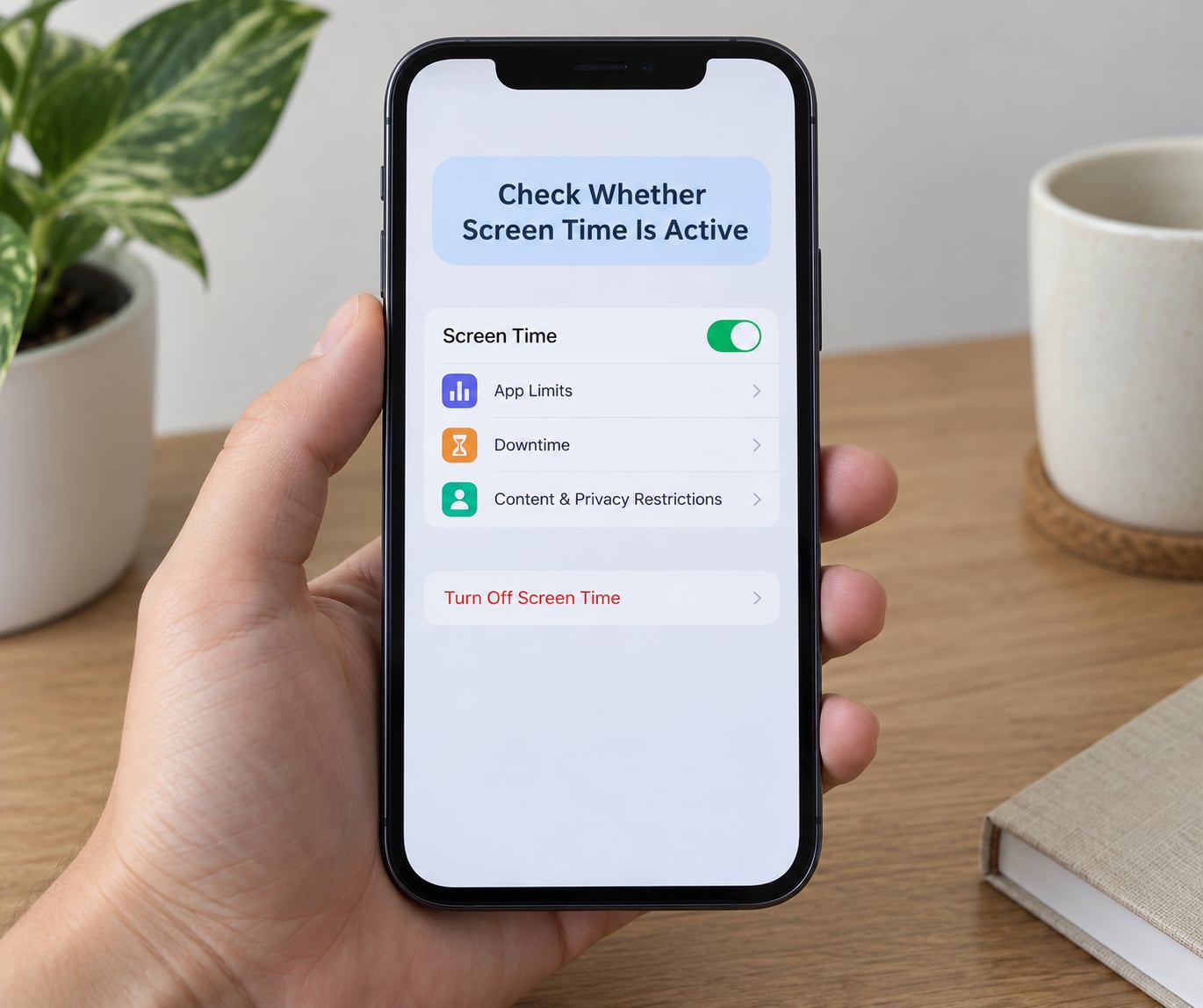
Open Settings and tap Screen Time. If the toggle at the top is on and green, Screen Time is running on the device. You will also see a coloured bar under the heading showing today’s average screen time, and a schedule or limit listed underneath it.
If Screen Time has never been set up, that screen looks different: the toggle is off and most of the options are dimmed. In that case there is no passcode to turn off, and none of the steps below apply.
Worth knowing before you go further: iPhone and iPad run the same feature under slightly different labels depending on the release. Apple has renamed the menu entries more than once, so the words on your screen may not match another guide exactly. The path is the same, just deeper in some versions.
How to turn off screen time passcode when you know it
Here is the full path on the current iOS release. It takes four taps and one code.
- Open Settings and tap Screen Time.
- Tap your name or Apple Account at the top of the screen. If the device belongs to a child in Family Sharing, you will see the child’s name here instead.
- Tap Lock Screen Time Settings and enter the current Screen Time passcode when prompted.
- Tap Change Screen Time Passcode, then tap Turn Off Screen Time Passcode. Type the current passcode once more and confirm.
Menu labels changed more than once, so here is what to look for by version.
| iOS version | Settings label | Where the toggle lives |
|---|---|---|
| iOS 26 and later | Lock Screen Time Settings | Change Screen Time Passcode, then Turn Off Screen Time Passcode |
| iOS 18 | Lock Screen Time Settings | Change Screen Time Passcode, then Turn Off Passcode |
| iOS 15 to 17 | Tap your name at the top of Screen Time | Enter passcode, then Turn Off Screen Time Passcode |
| iPadOS recent releases | Screen Time, then Lock Screen Time Settings | Same as iPhone, sometimes under Screen Distance first |
To confirm it worked, scroll back to the Screen Time screen. The Lock Screen Time Settings prompt no longer asks for a code, and Turn Off Screen Time Passcode no longer appears as an option. If either is still there, the removal did not take.
Turn Off Screen Time and Its Restrictions
Removing the passcode and turning off Screen Time are two different jobs, and people often mean one when they say the other.
Removing the passcode only deletes the lock. App limits, Downtime, content and privacy restrictions, and communication limits all stay exactly as they were, and now anyone holding the device can change them without a code. That is usually what a parent wants when a child is older, or when an adult locked themselves out of a self-imposed limit.
Turning off Screen Time itself is separate. Go to Settings > Screen Time and flip the main toggle, or set App & Website Activity to Off. Apple then shows a confirmation explaining that the limits, restrictions and scheduled downtime will no longer apply. Your photos, messages, apps and accounts are untouched by that switch.
A third option gets confused with both of these. Turning off App & Website Activity only stops the reporting and the automatic time limit for app use. Downtime, content restrictions and communication limits are separate switches on the same screen, and each has to be dealt with on its own.
On a Mac, the equivalent lives in Screen Time in System Settings on a Mac in the same Apple Account. Because the passcode is shared across the iPhone, the iPad and the Mac, you can start the change on one device and finish it on another as long as the passcode is still known to you.
What to Do If You Forgot the Passcode
Here is the honest part. Apple has no process for looking up a Screen Time passcode, and no one else does either. Anyone offering to recover it with an app, a repair shop or a remote unlock is either guessing or taking your money.
One detail causes more frustration than anything else in these searches: the Forgot passcode? option many guides promise simply does not appear for everyone. It is tied to Screen Time Passcode Recovery, which works when the passcode was set during Family Sharing setup for a child. An adult who set the passcode on their own phone often has no recovery route at all, which is why the button looks missing.
Count your attempts carefully. After repeated wrong entries, the device locks the Screen Time passcode for a period before the Forgot option becomes available. Guessing at a four-digit code in a hurry is how a lot of people end up here in the first place.
What you can still do, in order of how much you will regret it:
- Try a shortlist of codes you actually set. A birthday, an old PIN from a previous phone, the last four digits of something memorable. No single place holds a record, but people are more predictable than they think.
- Check the device holding the Apple Account. If you still have access to another iPhone, iPad or Mac signed into the same Apple Account, the same passcode applies there, so nothing new unlocks, but a backup device lets you at least keep working.
- Use Screen Time Passcode Recovery by Apple Account. Set up an Apple Account or iCloud address on the child’s device, wait roughly an hour for it to activate, then use the Forgot passcode link at the Apple ID site. It only works with an Apple Account created during Family Sharing setup.
- Erase all content and settings as a genuine last resort. On a Mac or PC, use Find My iPhone and choose Erase This Device. Anything with an Apple Account level restriction may still ask for the code during setup, so know that going in.
- Restore the device from a computer. Putting the iPhone or iPad into Recovery Mode and restoring through Finder or iTunes does not ask for the Screen Time passcode. It wipes the device, and Activation Lock still applies afterwards, so you need the Apple Account password. This is the route several long-suffering owners describe in the Apple forums.
If the passcode was set on a child’s phone by a parent who no longer has it, the honest answer is that you cannot remove it. The restriction is designed to survive exactly that, and the only real path is for the Family Sharing organiser to do it from their own account.
Common Mistakes
Mixing up the two passcodes. The most common error by far. If Apple asks for your device passcode first and you type the Screen Time one, nothing happens. Apple asks for the device code, then the Screen Time code. Go in that order.
Looking for the option in the wrong place. Turn Off Screen Time Passcode is not on the main Screen Time screen. It sits under the settings lock, behind your name. If you cannot find it, you are probably two taps short.
The greyed-out button. Several things can stop the option responding: no Apple Account signed in on the device, a device managed through Apple Business Manager or Mobile Device Management, Screen Distance turned on, or restrictions set by a parent in Family Sharing. A supervised or MDM-managed device has its Screen Time panel controlled by the organisation, not by you. Check whether Screen Distance is on first, since it is the quickest fix and sits in the same menu.
Menu labels drifting. Apple renames these entries between releases, and screenshots from older guides are frequently a release behind. If a guide says tap your name and your screen has a Lock Screen Time Settings button instead, you are on a newer version, not doing it wrong.
Expecting the passcode to be device-specific. It is not. One Screen Time passcode signed into the same Apple Account covers your iPhone, iPad and Mac, so forgetting it can lock you out of three devices at once.
Assuming a factory reset clears it. Erasing the device removes the local settings, but a passcode tied to the Apple Account can reappear during setup. Back up first, and expect the question.
One habit worth keeping: after removing the passcode, open Screen Time > Lock Screen Time Settings and set a new one if the device belongs to a child. A short one you write down beats an absent one you are stuck with.
Frequently Asked Questions
Can Apple recover a forgotten Screen Time passcode?
No. Apple Support cannot look up, view or reset a Screen Time passcode, and no employee will read it back to you. The only recovery route is Screen Time Passcode Recovery through an Apple Account set up during Family Sharing, which is why the Forgot passcode link is missing for adults who set the code themselves. Otherwise the code cannot be recovered.
Does turning off Screen Time delete photos, messages, or apps?
No. Turning off Screen Time or removing its passcode only affects app limits, Downtime, content restrictions and communication limits. Your photos, messages, apps, accounts and backups stay exactly as they are. What changes is who can edit those limits: once the passcode is off, anyone holding the device can adjust the settings without entering a code.
Can I use my iPhone or iPad device passcode instead of the Screen Time passcode?
No, they are two separate codes. The device passcode unlocks the phone itself. The four-digit Screen Time passcode locks the Screen Time settings so app limits and content restrictions cannot be changed. Apple asks for the device passcode first when you go to lock or change Screen Time settings, then asks for the Screen Time code separately.
Can I turn off the Screen Time passcode from a Mac or another Apple device?
You can make the change on any device signed into the same Apple Account, including a Mac, where the setting sits in Screen Time in System Settings. Because the passcode is shared across your iPhone, iPad and Mac, the same four digits apply everywhere. You will still need the current passcode to remove it, and the device passcode on the device you are using.
Can a child remove Screen Time restrictions without the passcode?
Not while the passcode is active, and that is the point of it. Without the code, app limits, content restrictions and communication limits cannot be changed. If the restrictions were set by a parent in Family Sharing, the parent can remove them from their own device. If the code is genuinely lost, the only route is recovery through Family Sharing or erasing the device.
Conclusion
Start at Settings > Screen Time and check whether you actually know the current Screen Time passcode. If you do, there is no reason to look elsewhere: knowing how to turn off screen time passcode settings is a four-tap job — tap your name, tap Lock Screen Time Settings, then Change Screen Time Passcode and Turn Off Screen Time Passcode. Check the button has disappeared before you walk away.
If the code is truly gone, treat the passcode as gone too. Screen Time Passcode Recovery works for Family Sharing child accounts and almost nowhere else, so put that out of your mind quickly and erase the device when you are ready to accept the loss. Better to lose a backup than to keep guessing four digits at a locked screen.