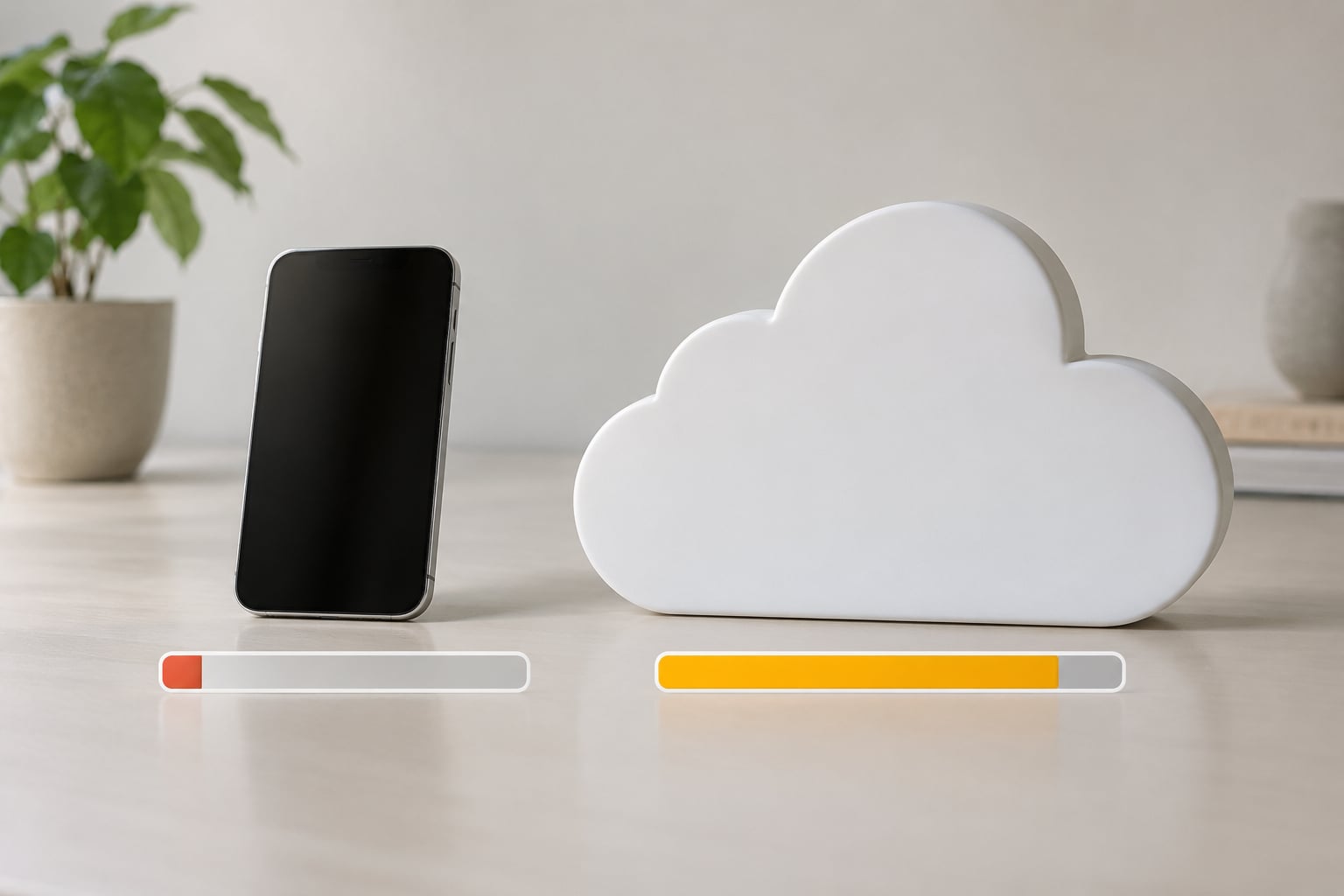
iCloud storage and iPhone storage are two separate systems, so iCloud can be full while your phone still has plenty of free space. iCloud storage is rented space on Apple’s servers for backups, photos, files and app data. iPhone storage is the fixed capacity built into your device, and buying more iCloud never adds a byte to it.
That is the whole reason the warning feels wrong. Nothing you delete on the phone changes the iCloud meter, and nothing you buy for iCloud changes the phone meter. The two only interact in one direction, through iCloud Photos.
Every path below is written for iOS 18 and later, iPadOS and macOS. Apple renames a few menu items between releases, but the route from Settings to your name to iCloud to Storage has stayed the same.
Table of Contents
- 1Why Does iCloud Say Storage Full When Phone Has Space?
- 2Why does iCloud fill up when the phone has space
- 3When another family member is using your iCloud storage
- 4iPhone and iCloud Storage: What Is the Difference?
- 5Why iCloud Photos uses your iCloud storage and your device storage
- 6Optimize iPhone Storage vs Download and Keep Originals
- 7What Can Make iCloud Storage Full?
- 8How to Check What Is Using Your iCloud Storage
- 9Why the storage numbers look wrong right after you clean up
- 10How to Fix the iCloud Storage Full Warning
- 11Fix it in this order
- 12What does not actually work
- 13Why Does the Warning Still Appear After You Delete Files?
- 14Frequently Asked Questions
- 15Does deleting a photo from the iPhone free iCloud storage?
- 16Can iCloud be full when the iPhone has plenty of free space?
- 17What happens when iCloud storage is full?
- 18Will upgrading my iPhone automatically give me more iCloud storage?
- 19How long does it take for deleted files to disappear from iCloud usage?
- 20Conclusion
Why Does iCloud Say Storage Full When Phone Has Space?
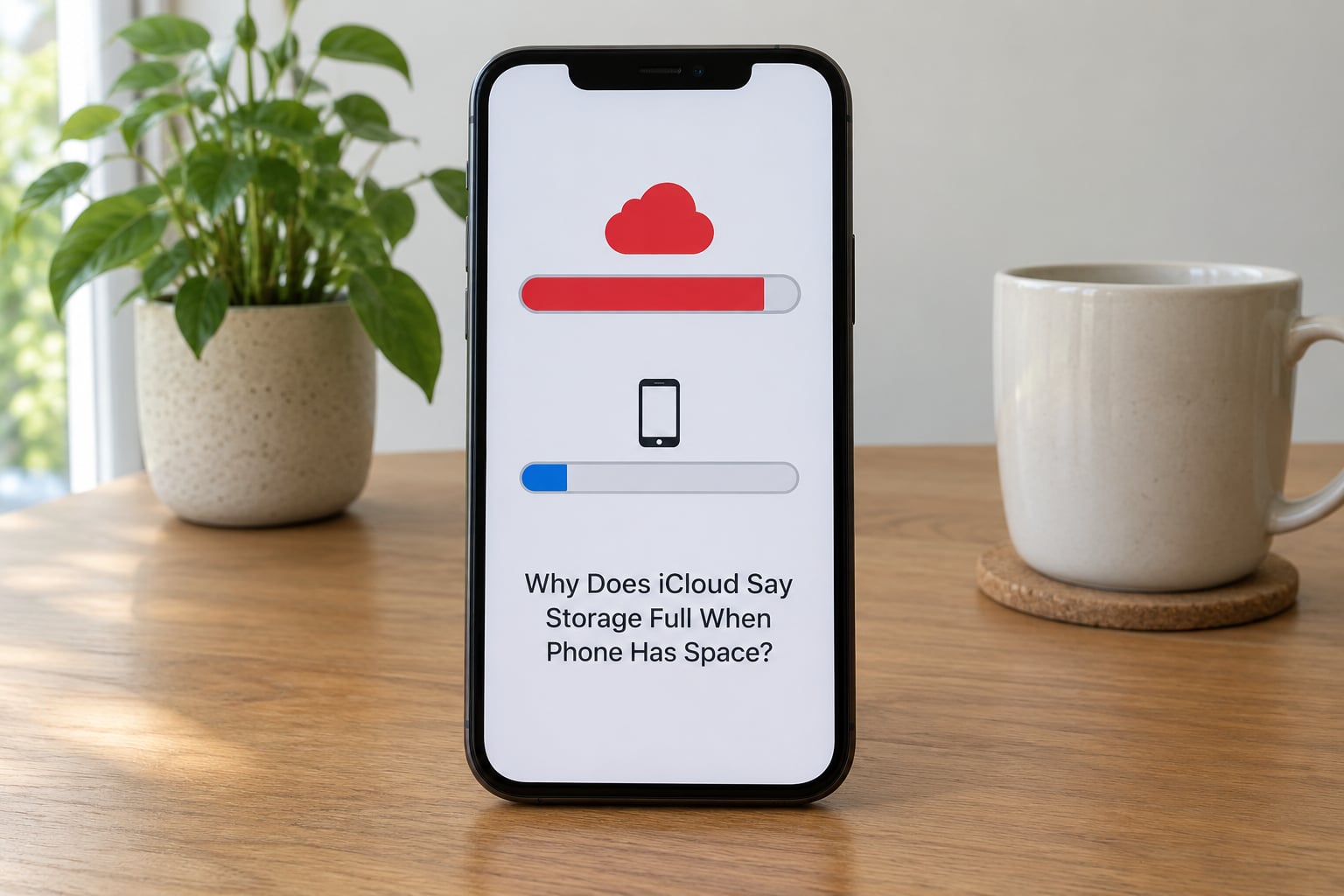
iCloud storage fills up from things that live on Apple’s servers, not from files sitting in your phone. Four of those things have nothing to do with your local storage, which is why the two numbers drift apart so much.
Why does iCloud fill up when the phone has space
- Device backups. Every iPhone, iPad and Mac you have ever backed up keeps a full copy of that device on Apple’s servers. You can have three backups you forgot about, each one several gigabytes.
- iCloud Drive. Desktop files, Documents folders and anything an app saves to iCloud Drive count here even though a copy never touches your phone.
- Full-resolution originals. When iCloud Photos is on, the full-size file lives in iCloud. Your phone may only be holding a smaller compressed copy, yet the original still eats your quota.
- Family Sharing. If you are on a shared plan, every member’s library, backup and Shared Photo Library draws from the same pot. A family member’s photos can fill your account while your own Settings screen shows nothing unusual.
A shared photo library adds another wrinkle. On Apple Discussions and in r/ApplePhotos, syncing stops entirely when the library owner’s storage is full, even though the other members have room. Your account shows free space and nothing uploads anyway.
When another family member is using your iCloud storage
Open Settings, tap your name at the top, then tap Shared, then Manage Shared Storage. Every person on the plan is listed with the space they are using. Removing someone from the shared plan frees their share, but only after their own content is deleted, so handle that with care.
iPhone and iCloud Storage: What Is the Difference?
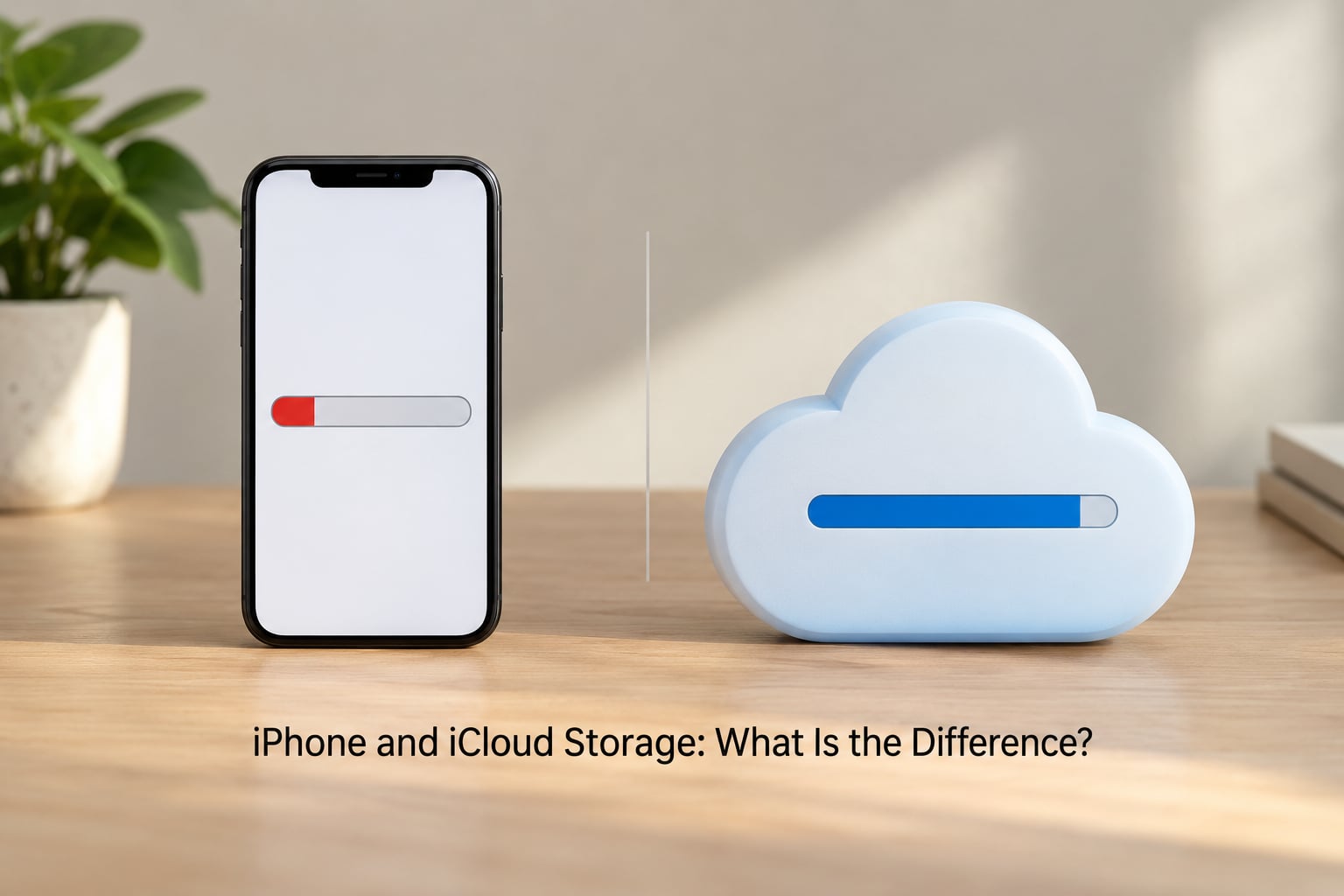
Apple’s support documentation puts it plainly: your Apple device comes with a set amount of storage built into it, and iCloud is a separate service with its own allowance. Here is the side-by-side version that most search results are missing.
| iPhone (iPad, Mac) storage | iCloud storage | |
|---|---|---|
| What it is | Flash memory inside the device | Space rented on Apple’s servers |
| Where to check it | Settings > General > iPhone Storage | Settings > your name > iCloud > Storage |
| What fills it | Apps, photos on the device, system files, messages, downloads, caches | Backups, iCloud Drive files, iCloud Photos originals, app data |
| Can you buy more? | No. It is fixed when you buy the device. | Yes, through an iCloud+ plan |
| Does deleting on one side free the other? | Only with iCloud Photos and Optimize iPhone Storage | Deleting in iCloud removes it from the device too |
Why iCloud Photos uses your iCloud storage and your device storage
Turn on iCloud Photos and both meters start moving. Apple states that photos and videos kept in iCloud Photos use your iCloud storage and your device storage at the same time. Your phone keeps a version, iCloud keeps the full-resolution original, and both get charged.
This is also why your photo library is not inside your iCloud backup. The backup stores device data and settings, not the library itself, which is already synced separately. Deleting the library does not shrink a backup, and backing up does not hold a second copy of your photos in iCloud.
Optimize iPhone Storage vs Download and Keep Originals
Under Settings > Photos > iCloud Photos you get two choices. Optimize iPhone Storage replaces full-size photos on the device with small versions you cannot edit, and downloads the original again the moment you open it. Download and Keep Originals keeps every full-size file on the phone, which is why that setting guarantees your phone stays full.
Optimize works gradually and only under pressure. iOS starts with the photos you almost never open, so after a day you will see almost no change, and people often assume the feature is broken. On a library of 90 GB expect roughly a day of quiet background work before the number starts dropping; on something like 350 GB, give it several days. The phone also has to keep enough free space to keep uploading, so you need headroom before this can run at all.
What Can Make iCloud Storage Full?
These are the causes that show up again and again, roughly in order of how much space they eat.
- Old device backups. The single most common surprise. Old iPhones and iPads keep backing up forever unless you delete them.
- Your Mac backup. A Mac backup of a large drive can be hundreds of gigabytes, and most people never see it because it is not a phone.
- iCloud Drive files. Desktop documents, downloads folders from other devices, and app data such as Pages or Numbers libraries.
- Full-resolution photos and videos. Especially 4K video, which is enormous compared with the compressed copy on the phone.
- Recently Deleted and trashed items. Deleted photos and files still count for 30 days. Some trash bins stay recoverable much longer.
- Shared Photo Library content. Items contributed by other family members are stored against the plan, not against the person who uploaded them.
- Another member’s usage. On a shared plan, a second person’s library can consume the quota without appearing anywhere in your own storage breakdown.
One more case worth knowing: some people open their iCloud breakdown, see almost nothing, and conclude iCloud is broken. On r/iCloud, users who deleted nearly everything still saw a large Photos figure, which almost always came from Recently Deleted, a Shared Library, or a display that simply had not refreshed.
How to Check What Is Using Your iCloud Storage
On iPhone and iPad with iOS 18 or later, open Settings, tap your name at the top of the list, tap iCloud, then tap Storage. Tapping the storage bar first gives you the colour-coded breakdown by category, then tapping a block expands it into the item-level list. Later versions rename some items, but the path from Settings to your name to iCloud to Storage does not change.
Read the bar from the largest block down. Photos, Backups and iCloud Drive are the three that account for almost every full account.
On a Mac, open System Settings, then your Apple Account, then iCloud, then Manage Account Storage. The same categories appear, and the same backup list does too, which is the fastest way to spot a forgotten desktop backup.
Why the storage numbers look wrong right after you clean up
The figures are calculated in the background. After a large deletion the total can take up to a day or two to settle, and a restart often forces a recalculation faster than waiting. If you delete something and immediately reopen the screen, you are looking at a stale number, not a mistake.
How to Fix the iCloud Storage Full Warning
Work through these in order, because each one only matters once the larger sources above it are handled. Every step includes what success looks like.
Fix it in this order
- Delete an old backup. Open Settings > your name > iCloud > Storage, tap Manage Account Storage, then Backups and tap the unwanted device. Success: the total drops by that backup’s size and the red bar clears.
- Turn on Optimize iPhone Storage. Settings > Photos > iCloud Photos > Optimize iPhone Storage. Success: the Photos number on the iPhone begins shrinking within a day or two, slowly at first.
- Empty Recently Deleted. Open Photos, tap Select in the bottom left, then Recently Deleted, then Delete All. Check iCloud Drive for a Recently Deleted folder as well. Success: the deleted originals leave your quota.
- Clear Messages attachments. Settings > General > iPhone Storage > Messages, tap Large Attachments and delete. Success: several gigabytes return to the phone immediately.
- Offload unused apps. Settings > General > iPhone Storage, then any app, then Offload App. Success: the app icon stays and its documents are kept while the app data goes.
- Remove downloaded content. In Music, Podcasts and TV, delete shows and albums you have streamed before. These download full files you did not know you had. Success: the device number drops the moment you delete.
- Sign out of iCloud and back in. Settings > your name > Sign Out, then sign back in on Wi-Fi and power. This rebuilds the sync state, which fixes many cases where the display disagrees with reality.
- Move to a larger iCloud+ plan. Do this last, and only for genuine cloud overflow, because it does nothing for the phone. Success: the iCloud bar turns from red to amber or clear.
One warning before you delete anything. With iCloud Photos on, deleting a photo on the phone removes it from iCloud and from every other signed-in device, including the Mac and iCloud.com. Anyone in a Shared Photo Library you delete from is gone for them too.
There is a second, quieter risk. When iCloud storage is over its limit, Apple gives you very little grace: some recently deleted items can be removed straight away instead of sitting in the 30-day window. Clear space before you bulk-delete anything.
What does not actually work
- Buying a bigger iCloud plan for a full phone. It adds nothing to device storage. It is the single most common wrong fix, and people on r/iCloud and r/applehelp repeat it constantly.
- Turning iCloud Photos off. It stops the uploads, but the full-size photos already on the phone stay there. You solve the wrong meter.
- Cleaner apps promising gigabytes. People report the opposite more often than not. On a photo-heavy phone, the camera roll is the whole story.
- Restarting only. A restart helps a stale reading. It does not remove a 90 GB photo library from a 128 GB phone.
If you are wondering how much free space iOS needs before it will upload at all, the widely repeated answer from r/applehelp is that you must free up roughly 10 to 15 percent of the phone’s storage first, because uploading photos is an intensive task. That threshold is also why backups sit at Syncing, Paused on a phone that looks almost empty.
Why Does the Warning Still Appear After You Delete Files?
If you cleared things out and the bar did not move, one of these is usually responsible.
- Recently Deleted is still holding them. Photos stay for 30 days, and iCloud Drive keeps a Recently Deleted folder too. This is the most common reason by a wide margin.
- The figure has not caught up. Storage totals recalculate in the background and can take 24 to 48 hours, or until you restart the device.
- A backup is running. A device backup in progress temporarily uses extra space and pauses uploads.
- Shared Photo Library content. Items from other members are charged to the plan, and syncing halts if the owner is full.
- You are checking the wrong account. If a second Apple Account is signed in, you may be reading a different plan’s meter.
- Family Sharing quota. The usage belongs to another member, so your own breakdown shows nothing.
- A storage management bug. Some cases only clear on a newer iOS or iPadOS release. There are users who spoke to Apple Support twice with a paid 2 TB plan and still saw the full warning.
If you get here, do these four things in order: restart the device, check that you are on the latest iOS or iPadOS, confirm the active Apple Account under Settings and your name, and check your usage on iCloud.com from a browser, which sometimes shows a different number than the device. If it is still wrong after that, contact Apple Support and ask them to check the account’s storage state from their side.
Frequently Asked Questions
Does deleting a photo from the iPhone free iCloud storage?
Yes, if iCloud Photos is on. Deleting a photo removes it from the iCloud library too, along with every device signed into that Apple Account, and the space comes back once the item leaves Recently Deleted. It can take up to 24 to 48 hours for the iCloud usage total to reflect it. If iCloud Photos is off, deleting on the phone only frees device storage.
Can iCloud be full when the iPhone has plenty of free space?
Absolutely. iCloud storage holds backups, iCloud Drive files and full-resolution photo originals on Apple’s servers, none of which live on your phone. A phone with 100 GB free can sit next to a completely full iCloud account. Conversely, upgrading iCloud never adds a byte to the device. Only Optimize iPhone Storage moves space in the other direction.
What happens when iCloud storage is full?
Backups stop running, iCloud Photos stops syncing, and new photos stay on the device where they will fill it. iCloud Drive files will not upload either, and some apps will refuse to save documents. Apple also tightens recovery: items in Recently Deleted can be removed early instead of being held for the usual 30 days, so free space before you delete anything you care about.
Will upgrading my iPhone automatically give me more iCloud storage?
No. A new iPhone does not come with a bigger iCloud plan, and any free iCloud trial you get is the standard allowance, not something extra on top of your existing plan. If you upgraded and the warning persisted, the cause was never device capacity. Device storage is fixed at purchase, while iCloud is the only one of the two you can buy more of.
How long does it take for deleted files to disappear from iCloud usage?
Allow a day, sometimes two. Items you delete go to Recently Deleted first and keep occupying space for 30 days, and the usage figures recalculate in the background rather than instantly. If the total still has not moved after 48 hours, restart the device to force a recalculation, then check iCloud.com in a browser, which sometimes reports a different number than the Settings screen.
Conclusion
Start on the device with the most storage activity and open Settings > your name > iCloud > Storage. Delete one old device backup or clear out cloud content you no longer need, empty Recently Deleted, then give the total a day or two to update before you judge the result.
Which brings us back to the original puzzle: why does iCloud say storage full when phone has space? Because the two meters were never connected in the first place.