To free up iCloud storage on iPhone, open Settings, tap your name at the top, then iCloud, then tap Manage Account Storage or See All Storage. That screen shows exactly which categories are eating your 5 GB, so you can delete the biggest offenders instead of guessing.
Most accounts can recover several gigabytes in about ten minutes, and almost all of it comes from three places: old device backups, photos and videos, and files sitting in iCloud Drive. The trick is working from the biggest category down rather than tidying randomly.
Apple counts everything in one shared pool, which is why people get confused. Backups, photos, Drive files, Mail attachments, Messages and app data all draw from the same allowance, so a 3 GB backup can block new photos just as effectively as a full camera roll. Below is the order I would use, safest deletion first, with a note on what cannot be undone.
Updated for 2026. Menu names shift slightly between iOS versions, so treat the labels as landmarks rather than exact wording.
Table of Contents
- 1What You Need
- 2How to Free Up iCloud Storage: Step by Step
- 3Check iCloud Storage and Find the Biggest Categories
- 4Delete Large Files from iCloud Drive
- 5Remove Old iPhone and iPad Backups
- 6Optimize iCloud Photos
- 7Delete Unwanted Photos and Videos
- 8Review Mail, Messages, and App Data
- 9Change Mail Attachment Downloads
- 10Verify the Space You Reclaimed
- 11Common Mistakes
- 12Frequently Asked Questions
- 13Why is my iCloud storage still full after I deleted photos?
- 14What takes up the most space in iCloud?
- 15What happens if I delete a backup from iCloud?
- 16Can I free up iCloud storage without deleting any photos?
- 17Does deleting something from iCloud also delete it from my iPhone?
- 18Can I merge multiple iCloud accounts to combine storage?
- 19Conclusion
What You Need
You need an iPhone or iPad signed in to the Apple Account whose storage you are freeing, and roughly ten minutes. Large accounts with years of backups and video take longer, mostly because syncing takes a while after each deletion.
You do not need a Mac, a PC or any third-party cleanup app. If you have ever searched for this and landed on pages selling a “one-click iCloud cleaner”, stop there. Those tools cannot see inside your account properly, and forum users on r/iCloud are blunt about how they feel about them.
Two things worth having on hand before you start: an external drive or a second cloud account if you plan to keep certain files, and five minutes to read your backup list carefully. Deleting the wrong backup is the only irreversible mistake in this whole process, and it is entirely avoidable.
How to Free Up iCloud Storage: Step by Step
Check iCloud Storage and Find the Biggest Categories
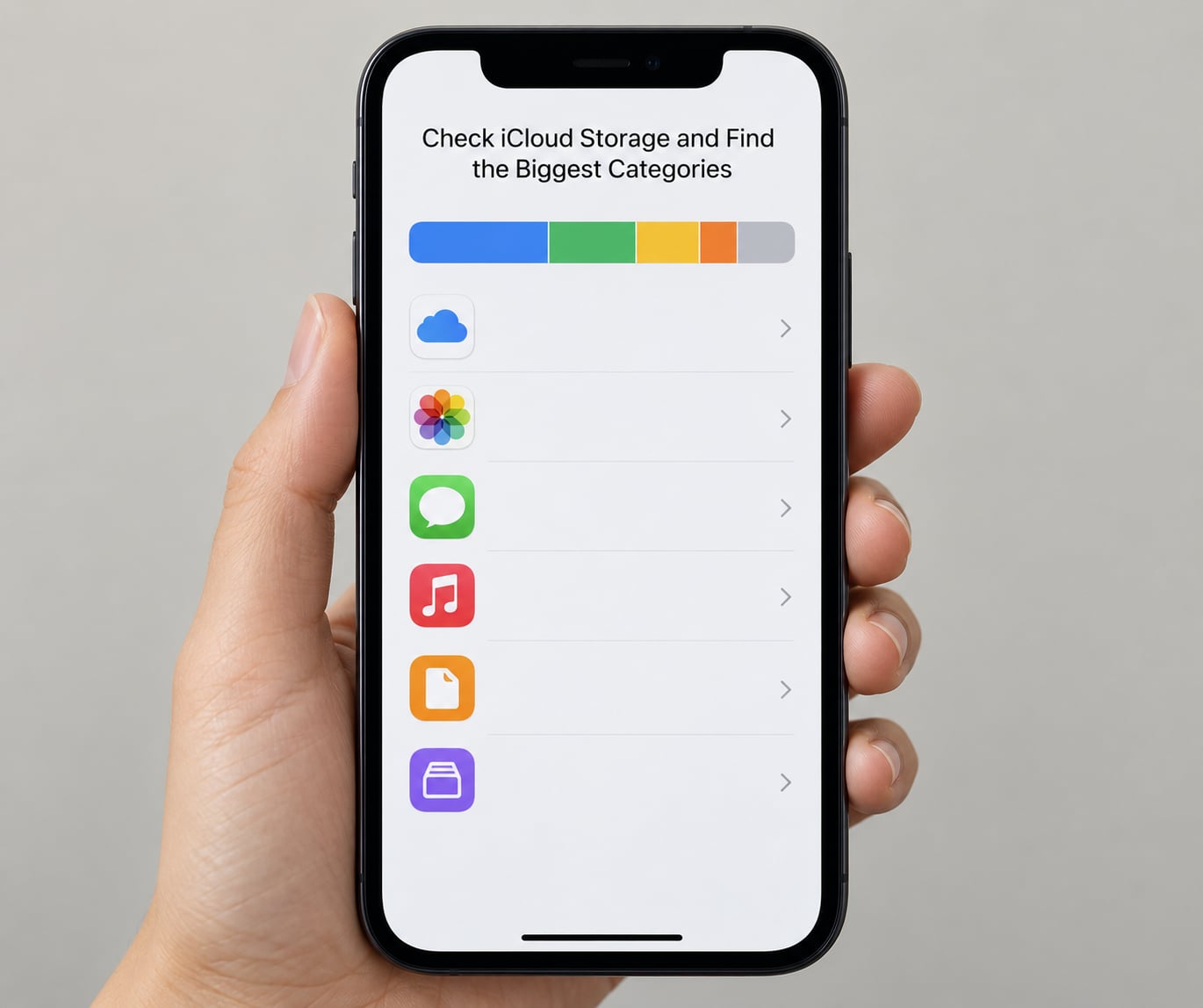
Start here, because every later step depends on what you see. On iPhone, open Settings and tap your name at the top of the list, then tap iCloud, then tap See All Storage or Manage Account Storage depending on your iOS version. Newer versions put the same view behind the iPhone Storage entry in the same iCloud screen.
You get a coloured bar showing total usage against your plan, and a list of categories beneath it with the space each one uses. Tap the bar to expand it into separate bars per category, which makes the ranking obvious at a glance.
Also open iCloud.com in a browser, sign in, click your name in the top right and choose Account Settings. The web view shows the same breakdown and is genuinely easier for deleting backups. How you know it worked: you now know which single category is the biggest, and roughly how much you need to recover.
Delete Large Files from iCloud Drive
Open the iCloud Drive app, which appears on your Home Screen if you have ever used it, or tap Files and pick iCloud Drive. Tap the three-dot menu in the top right and switch the view to List, then sort by Size so the biggest documents surface first.
Anything left at the top of that list is usually a leftover video export, a Keynote or PowerPoint deck from years back, or a downloaded installer. Delete what you no longer need and move the trash to empty. With iCloud Drive on macOS or Windows, the folder lives in your normal file browser instead.
One caution: deleting a folder in iCloud Drive deletes everything inside it, and there is no Recently Deleted folder here to rescue it. If a folder holds originals, download it to an external drive first and open a file from the copy to confirm it works. How you know it worked: the Drive figure in iCloud Storage drops after a short sync.
Remove Old iPhone and iPad Backups
This is usually the single biggest win, and almost nobody knows the backups are there. They accumulate silently every time you upgrade a device, and a single backup of a phone with a few years of photos can run to several gigabytes.
On iPhone, go to Settings, tap your name, tap iCloud, then tap Manage Account Storage and tap Backups. Each entry is named after the device and shows its last backup date and size. Tap any backup belonging to a device you no longer own or use, then tap Delete Backup. The same list is at iCloud.com under Account Settings.
Here is the safety rule that matters: never delete the backup of the device currently in your hand unless you have a fresh one made first. Deleting a backup does not touch anything currently on your phone, it only removes the safety copy. Make a new backup, confirm the date updates, then delete old ones.
To stop them coming straight back, review your backup list after every upgrade and remove the retired device right away. How you know it worked: the Backups section total drops and iCloud Storage shows the difference within an hour or so.
Optimize iCloud Photos
If iCloud Photos is on, every photo and video you take is uploaded and counted against your quota at full quality, and your iPhone keeps a space-saving copy too. That is why people look at a nearly empty phone and a full iCloud at the same time.
Go to Settings, tap Photos, and look at the iCloud Photos section at the bottom of that screen. Choose Optimize iPhone Storage if you want smaller copies on the device with full-resolution originals safely in iCloud, or choose Download and Keep Originals if you want full resolution on the phone as well. You can also flip this at Settings, your name, iCloud, Photos.
The trade-off is honest and simple: Optimize saves device space, not iCloud space. Nothing you do here reduces the gigabytes in the cloud, because originals stay there either way. Use it for device storage, not as an iCloud fix. How you know it worked: your Photos app starts showing smaller thumbnails on the device.
Delete Unwanted Photos and Videos
Videos are the reason most accounts fill up. A few minutes of 4K video can outweigh a year of photos, so filter by large or video rather than scrolling in order.
Open Photos, tap the year or the Collections view, and look for duplicates and near-identical burst shots. Select them, tap the share icon, then Delete. In Albums, look for Screenshots and Live Photos, which quietly accumulate in the thousands on many accounts.
Now the part that trips people up. Deleted photos move to Recently Deleted and keep occupying iCloud space for 30 days. To actually reclaim the space, open Albums, tap Recently Deleted, select All and tap Delete. That second deletion is permanent.
If you want to keep photos but drop the cloud copy, download them to an external drive or another service first and verify a few files open correctly before removing anything. How you know it worked: the Photos figure in iCloud Storage shrinks once the sync finishes.
Review Mail, Messages, and App Data
Mail and Messages are where people forget to look. Tap iCloud Storage and check the Mail category, which is often dominated by years of attachments. Tap it and you get a breakdown by sender, and you can delete large messages or entire threads from there.
Messages grows without a ceiling if you never touch the retention setting. Go to Settings, tap Messages, tap Keep Messages, and pick 30 Days or 1 Year instead of Forever. Older conversations get removed from your account after the window closes. There is no separate iCloud Messages quota to shrink, but this stops the growth.
Then check the app data categories in iCloud Storage. Anything you no longer use can be toggled off at Settings, your name, iCloud, then the app. Turning sync off stops new data uploading; it does not delete data already there, so use the Delete Data option in iCloud Storage for that.
One more that catches people out: items shared with you from a shared folder or shared album count against your own 5 GB. Download anything you want to keep, then ask the owner to remove your access. How you know it worked: the Mail and app figures drop after the next sync.
Change Mail Attachment Downloads
This one costs nothing and stops the problem returning. Open Settings, tap Mail, tap Accounts, then tap your mail account and tap Download Attachments. The default is usually automatic for the first 30 days.
Change it to the most conservative setting, Get Attachments on Demand. Mail then keeps headers and message text on your iPhone and fetches the actual attachments only when you tap them. On a big mailbox that is often a few hundred megabytes kept off the device and away from being re-synced.
How you know it worked: open Mail and confirm that tapping a message with a PDF in it takes a moment to load rather than showing the file instantly.
Verify the Space You Reclaimed
Go back to Settings, your name, iCloud, and reopen storage. Give it a little time, because the numbers update as devices sync rather than instantly, and your bar may look unchanged for an hour or two after a big deletion.
If the total has not moved, check that you emptied Recently Deleted rather than just deleting photos, since those are separate actions and the first one does not free anything. On a Mac, watch the iCloud menu bar icon for a sync indicator, and on iPhone and iPad make sure the device is plugged in and on Wi-Fi overnight so the sync can finish.
If the number is still stuck after a full day, sign in at iCloud.com and compare. If the web view shows a lower figure, your device just has not caught up yet. How you know it worked: the total on both the device and the web view agree, and the coloured bar has visibly more empty space.
Common Mistakes
Deleting the backup of the phone you are currently using. Nothing on the device changes, but you lose your restore point. The fix is simple: make a fresh backup, check the date changed, then clear out the retired ones.
Treating Optimize iPhone Storage as an iCloud fix. It changes the copies on your phone and nothing in the cloud, so the storage bar will not move. Freeing iCloud space still means offloading or deleting photos and videos.
Deleting an app and assuming its iCloud data follows. Removing the app from your iPhone leaves the cloud copy in place. Turn sync off and delete the stored data from iCloud Storage if you want it gone.
Emptying Recently Deleted without checking. That folder is your 30-day undo for deleted photos and videos, and once you clear it there is no recovery, including on the other devices signed into the same account.
Expecting instant results. iCloud recalculates in the background, and other devices on your account compete for the same sync. Give it a few hours, or check the web view to see the real number sooner.
To keep it from filling again, do three things: delete retired backups right after every upgrade, keep Keep Messages off Forever, and get Download Attachments on Demand. That routine takes about two minutes and stops the same cleanup from being needed every few months.
Frequently Asked Questions
Why is my iCloud storage still full after I deleted photos?
Deleted photos go to Recently Deleted and keep taking up iCloud space for 30 days. Until that folder empties or you clear it yourself, the storage bar will barely move, which makes it look like nothing happened. Open Photos, tap Albums, then Recently Deleted, select all and delete. Also give the account time to sync, since the total can take a few hours to update.
What takes up the most space in iCloud?
For most people the ranking is backups first, then photos and videos, then files in iCloud Drive, then Mail attachments and per-app data. Old device backups are the most commonly missed, because they appear silently after each upgrade and can reach several gigabytes. Checking the category list in iCloud Storage tells you your own ranking rather than the average one.
What happens if I delete a backup from iCloud?
Only the cloud copy of that backup is removed. Nothing on the device it came from is touched, and no photos, messages or apps are affected. The only risk is timing, so avoid deleting the backup of the iPhone you are currently using unless you have just made a new one and confirmed the date updated.
Can I free up iCloud storage without deleting any photos?
Yes. Old device backups, files in iCloud Drive, Mail attachments, unused app data and shared folders someone added to your account are all fair game, and together they often add up to more than photos. You can also switch iCloud Photos to Optimize iPhone Storage, which helps your phone’s storage even though it does not shrink the cloud copy.
Does deleting something from iCloud also delete it from my iPhone?
It depends on the item. Photos deleted in iCloud Photos disappear from every device signed into that Apple Account, including your iPhone. Files you remove in iCloud Drive while they are also stored on the device may stay on the device, and a deleted backup only affects the cloud copy. Check each case before you confirm anything irreversible.
Can I merge multiple iCloud accounts to combine storage?
No. Apple does not allow two Apple Accounts to be merged, so the free 5 GB cannot be pooled with another account. If a family member has spare room, Family Sharing lets up to five other people use your iCloud+ plan, which is the only supported way to share that space. Otherwise, upgrading the plan or moving media elsewhere is the route.
Conclusion
The safest order is: open iCloud Storage first, work the biggest category, remove retired backups before anything else, clear out iCloud Drive and empty Recently Deleted, then leave the photo originals alone if you can. Once that is done, switch Mail to download attachments on demand and shorten Messages retention so the account does not refill.
Verify by reopening the storage screen and comparing it with iCloud.com after the sync catches up. If the bar still sits full, Recently Deleted is almost always the reason, and that is a five-second fix rather than a lost cause.