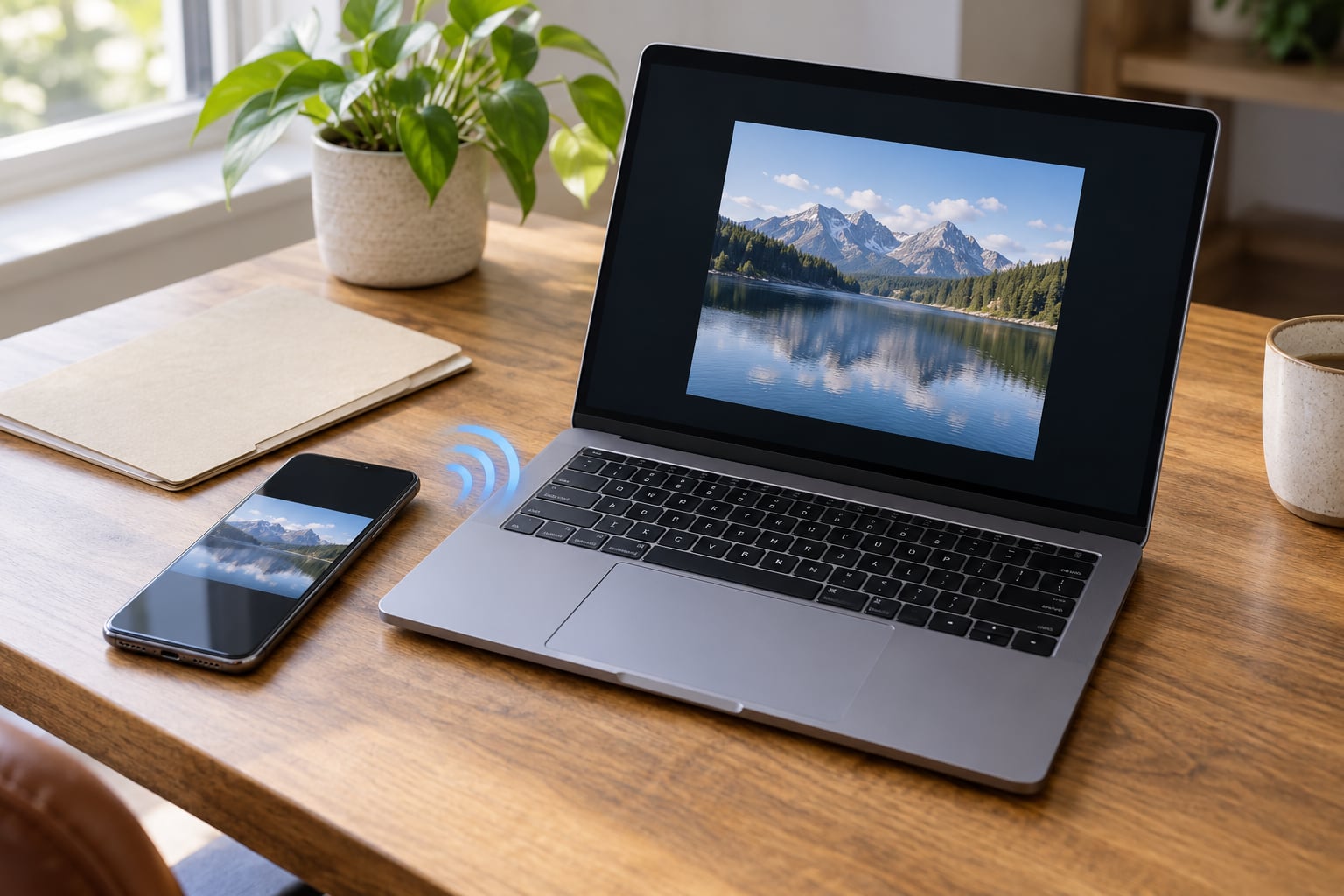
Learning how to use AirDrop between iPhone and Mac takes about thirty seconds once you know the three things AirDrop insists on: Bluetooth on, Wi-Fi on, and both devices within about 30 feet (10 metres) of each other. No internet, no cable, no account juggling. Open the Share sheet on one device, tap the other one, accept on the receiving screen.
I move photos off my iPhone to my Mac this way several times a week, and the only reason it ever fails is something small: a Mac that had drifted back to Receiving Off, or an iPhone set to Contacts Only while the two devices use different Apple Account addresses. Both are thirty-second fixes once you know where to look.
Table of Contents
- What You Need
- Step-by-Step
- Common Mistakes
- Frequently Asked Questions
- Why can’t my Mac appear in AirDrop on my iPhone?
- Can I use AirDrop to transfer any type of file between an iPhone and Mac?
- How long does the iPhone stay visible to other devices in AirDrop?
- Why does AirDrop work with one Mac but not another?
- Is AirDrop private and safer than emailing a file?
- What can I use if AirDrop is not available on my devices?
- Conclusion
What You Need
AirDrop ships with every Apple device, so there is nothing to download and nothing to sign up for. You need an iPhone running iOS 7 or later and a Mac running macOS, and both have to be signed in to an Apple Account, because discoverability matching works through that account.
Both radios have to be switched on. AirDrop uses Bluetooth to find nearby devices and Wi-Fi to move the actual file, so having Bluetooth on with Wi-Fi switched off is the single most common cause of a Mac that never appears. Bluetooth range is around 30 feet (10 metres), and walls and distance both eat into that quickly.
The receiving device also has to be awake, unlocked, and on its home screen. A locked Mac that has gone to sleep will not show up in the Share sheet at all. On a phone, the screen has to be lit.
Step-by-Step
Step 1: Check Compatibility and Connections
Open Control Center on the iPhone and confirm the Wi-Fi and Bluetooth toggles are both on, not just greyed out with a crossed symbol. On the Mac, click the Control Center icon in the top right of the menu bar and check the same two rows there.
Bring the two devices within a couple of metres of each other while you set things up. You can push them back apart later. If either device was updated recently, restart it before going further; a half-finished update is a common reason discovery misbehaves for a day or two.
Step 2: Choose AirDrop Settings on the iPhone
There are two ways to reach the setting. Press and hold the Wi-Fi and Bluetooth button in Control Center and tap AirDrop, or open the Settings app and tap AirDrop at the top of the list. Both lead to the same three options.
Receiving Off means the iPhone is invisible. Contacts Only means only devices whose Apple Account matches yours, including the phone number and the email address, can find it. Everyone for 10 Minutes opens it up to every Apple device nearby, then closes again by itself after ten minutes.
Contacts Only is the setting I leave on. Everyone for 10 Minutes is the right choice when you are receiving files from someone who is not in your contacts, or when you are moving data off a phone you are about to sell.
Worth knowing before you pick: the ten-minute option reverts without warning. Several people have spent an afternoon wondering why their phone vanished from a colleague’s Share sheet when they had set it hours earlier.
Step 3: Set the Mac to Receive Files
On macOS Ventura and later, click the Apple menu, choose System Settings, then General in the sidebar, then AirDrop and Continuity. Set Allow me to be discovered by to Contacts Only or Everyone. On older versions of macOS the same pane lives in System Preferences, so if you are following a guide that says System Preferences, that guide is simply written for an older Mac.
The second route is quicker once you get used to it. Open Finder and click AirDrop in the sidebar. If it is not there, press Command, Shift and R, or use the Go menu and pick AirDrop. The window shows every discoverable Apple device nearby, and you can drag files straight onto one.
If the Mac does not appear in that window, the setting is almost certainly No One, or the Mac is asleep. That grey circle with initials and no name or photo is what shows for a device that is discoverable but not matched to your contacts. You can still send to it by tapping the circle.
Step 4: Share a Photo, File, or Contact
From the iPhone to the Mac, open the photo, video or file, tap the Share button, then tap AirDrop in the share sheet, and tap your Mac when it appears. The Mac lights up with an incoming item notification in the top right corner; click Accept and the file lands in your Downloads folder. If you change that prompt to Always Allow, it skips the click next time.
On the iPhone, received files arrive in the Files app under Downloads rather than in the photo library, so search for them there when you are looking for a document you sent across.
From the Mac to the iPhone, select the file or files in Finder, right-click and choose Share, then AirDrop, then your iPhone. You can also drag several selected files onto the iPhone in the Finder AirDrop window, which is faster than the share sheet and skips the browsing step. Tap Accept on the iPhone when the banner appears.
You know a transfer worked when the file appears in the destination. On the Mac, check Downloads. On the iPhone, check the Files app. Nothing arrives anywhere else, so if you are hunting for a file, those two folders are the only places to look.
Common Mistakes
AirDrop failing almost always comes down to discoverability, distance, or something sitting between the two devices. Work down this list in order, because the early items cost a few seconds each.
- The Mac never shows up. Check Allow me to be discovered by on the Mac is not No One, and that the iPhone is not on Receiving Off. Wake the Mac and leave the screen unlocked while you try.
- The Mac shows as a grey circle with initials. The device is discoverable but its Apple Account does not match yours. You can send to the circle, but to get the name and photo showing, sign both devices into the same Apple Account or match the phone number and email address on each device.
- It says no nearby devices found. Move closer. Ten metres is the working range, and a thick wall between you and the Mac will do it. Also confirm Bluetooth is on on the Mac itself and not just on the iPhone.
- The transfer sits on Sending and then fails. This is usually a large file, most often a multi-gigabyte video. Close other transfers, restart both devices, and try again with the phone plugged into power. Splitting the file into smaller parts is the fallback that always works.
- You get a lack of disk space error with plenty free. Free several gigabytes anyway, then restart the Mac. That particular message frequently shows on a large transfer when the receiving volume has too little headroom for the temporary copy AirDrop makes first.
- It worked last week and not now. A macOS or iOS update can reset the discoverability option, and a new Apple Account signing can change the matching. Open the setting and confirm the state rather than assuming it.
- Nothing helps and it fails consistently. Turn off any VPN or security software, including endpoint protection installed as a profile, since it can block peer-to-peer discovery between devices. One case in an Apple support thread was traced to software installed in the user profile.
A couple of habits worth keeping. Plug the sending device in during long video transfers, and reset AirDrop to Receiving Off or Contacts Only when you are done if you used Everyone for 10 Minutes.
Frequently Asked Questions
Why can’t my Mac appear in AirDrop on my iPhone?
Nine times out of ten it is a discoverability setting. On the Mac, open Apple menu, System Settings, General, then AirDrop and Continuity, and check Allow me to be discovered by is not No One. On the iPhone, check AirDrop is not on Receiving Off. The Mac must also be awake and unlocked, and both devices need Bluetooth and Wi-Fi on and within 30 feet of each other.
Can I use AirDrop to transfer any type of file between an iPhone and Mac?
Almost anything you can open. Photos, videos, PDFs, documents, contacts, links, notes and voice memos all travel this way, at full original quality with no compression and no size cap. Items tied to another app’s licensing, some streaming media, and very large video files are the usual exceptions. Files too big to send arrive better split into parts.
How long does the iPhone stay visible to other devices in AirDrop?
It depends on the setting. Contacts Only stays visible indefinitely but only to devices whose Apple Account matches yours. Everyone for 10 Minutes stays visible to every Apple device nearby, then switches itself back off after ten minutes with no notification. Receiving Off hides the phone completely. Many people are caught out by that automatic reversion.
Why does AirDrop work with one Mac but not another?
Discoverability is set per device, not per household. Each Mac has its own Allow me to be discovered by value, and each is signed into its own Apple Account, so a Mac signed in with a different account can appear only as a grey circle or not at all. Sleep settings, an older macOS build, and pending software updates on one machine all cause the same symptom.
Is AirDrop private and safer than emailing a file?
It is more private than email, but it is not private by default. The connection is direct between the two devices and does not pass through a server or an inbox, so there is no attachment sitting in a mailbox. Still, anyone within range can send to you if you have chosen Everyone for 10 Minutes, and they can view what is sent before you accept it.
What can I use if AirDrop is not available on my devices?
AirDrop is Apple-to-Apple only, so a Windows PC or an Android phone will never appear. For those, iCloud Drive syncs a folder through your Apple Account, a USB cable with Finder moves files both ways, and email works for small documents. For two Apple devices, iCloud Drive, the Files app, or a USB cable are the fallbacks when discovery keeps failing.
Conclusion
Start by opening the discoverability setting on both devices and confirming Bluetooth and Wi-Fi are on, with the two of them within about 30 feet. That single check solves most of what people search for when AirDrop seems broken.
For everyday use, leave both devices on Contacts Only. It keeps photos and documents off your screen from strangers in a cafe while still working with your own devices, and switching to Everyone for 10 Minutes only when you actually need it keeps the ten-minute timeout working in your favour.
If the Mac still does not appear, work through the fixes above in order, starting with the awake and unlocked check, then the Apple Account match, then VPN software. Once a transfer lands, remember where to look: Downloads on the Mac, and the Files app on the iPhone.