To stop apps from tracking you on iPhone, open Settings > Privacy & Security > Tracking and switch off Allow Apps to Request to Track. That single switch stops every app from prompting you, and you can still fine-tune each app afterwards. The whole job takes about ten minutes.
Most people picture tracking as one thing, which is why they end up either panicking about Find My or ignoring the settings that actually matter. It is two things. One is apps following your activity between companies’ apps and websites to build an advertising profile. The other is a person following the phone itself through Find My, family sharing or an AirTag. Only the first one is handled by the Tracking screen.
This guide covers both, plus the permissions that quietly do more harm than the ad prompt everyone complains about. Labels shift a little between iOS versions, so I have written the exact wording where it matters and noted where yours may read slightly differently.
Table of Contents
- What You Need
- Step-by-Step: How to Stop Apps From Tracking You on iPhone
- Common Mistakes
- Frequently Asked Questions
- Will turning off app tracking break my apps?
- Why is Allow Apps to Request to Track greyed out or missing?
- Can my iPhone track my location even when Location Services is off?
- What is the IDFA and does resetting it help?
- How do I check whether a person is tracking my iPhone?
- How can I see what apps already collected about me?
- Conclusion
What You Need
You need an up-to-date iPhone, your Apple Account password, and about ten minutes. No app, no paid service, no computer. If your device is on iOS 14.5 or later you have the App Tracking Transparency prompt, which is the switch this whole guide is built around.
Before you change anything, separate two categories. Essential device functions are Find My, Find My network, Emergency SOS location, crash diagnostics and location sharing with family. Those are worth keeping on, because they are what lets you recover a lost phone or reach emergency services. App tracking is advertising measurement and data brokers selling your profile. That is what you turn off.
Keep that line in mind as you read, because most privacy advice online mixes the two and leaves people disabling the wrong thing.
Step-by-Step: How to Stop Apps From Tracking You on iPhone
The steps below run in the order I would do them: the global switch first, then permissions, then advertising, then a maintenance habit. Each one takes a minute or two.
Review iPhone tracking settings
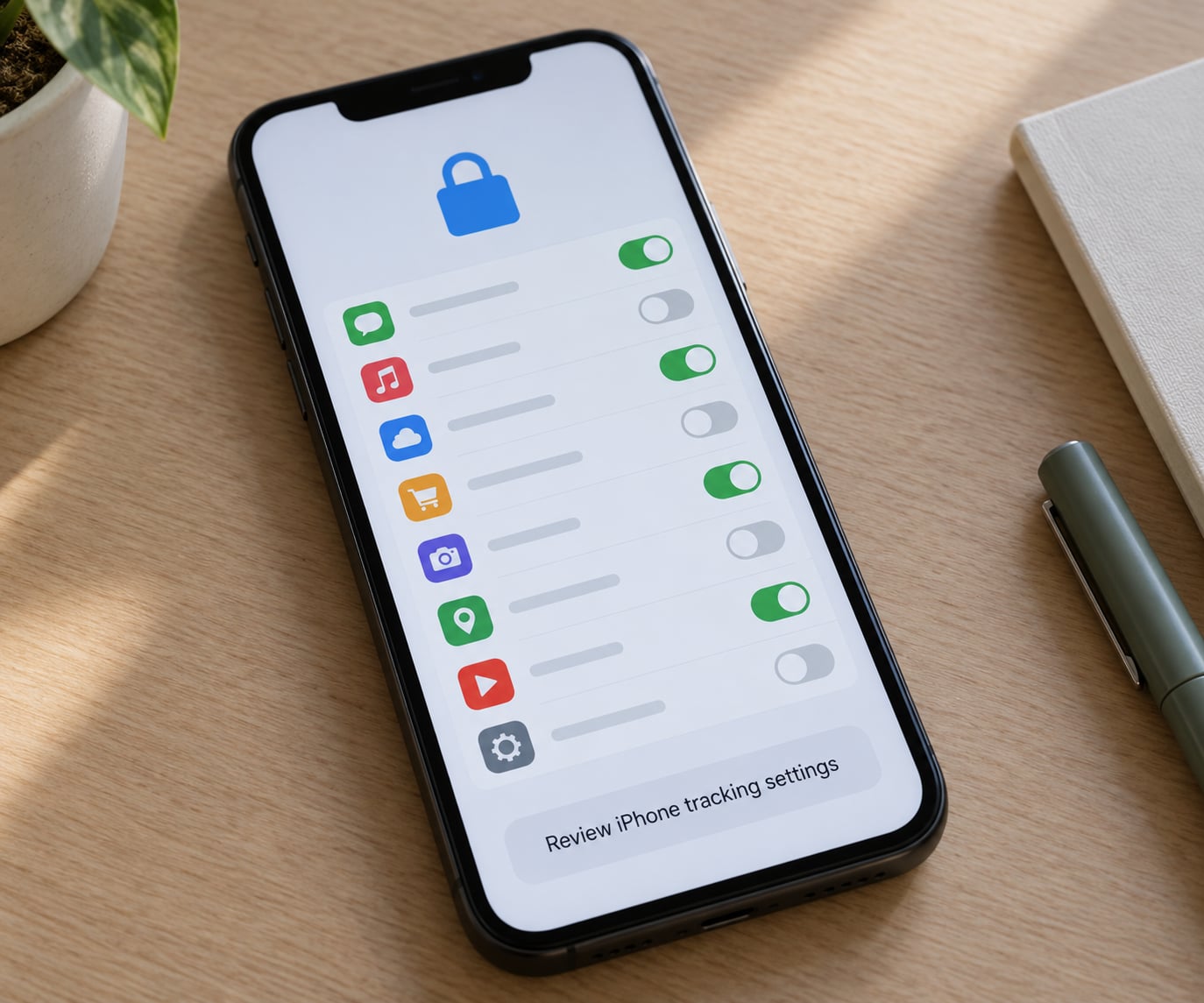
The direct answer: one toggle, at Settings > Privacy & Security > Tracking, turns off tracking requests from every app on the phone at once.
Open Settings, tap Privacy & Security, then tap Tracking. The switch Allow Apps to Request to Track sits at the top of that screen. Switch it off and no app can show you the tracking prompt at all.
Below the switch is a list of the apps that have already asked. Tapping any of them gives you the same request in miniature, and you can change that answer whenever you like. Declining is not permanent in the sense of being locked in, and it is not tangled with your other permissions.
How to verify it worked: reopen Settings > Privacy & Security > Tracking and confirm the switch is off. Then open Settings > Privacy & Security > App Privacy Report and check the last seven days of data. If no new tracking requests appear after a few app launches, the change took.
If the switch is greyed out or missing, check Screen Time and any parental or school management profile first. A supervised device can lock that setting, and on some iOS versions a stale restriction makes the switch look dead. Restarting the phone clears most of those cases.
Control location, Bluetooth, and other app permissions
Location is where the real data sits, so it deserves a slower pass than the tracking toggle. Go to Settings > Privacy & Security > Location Services and read every app on the list.
Each app has four options: Never, Ask for the Next Time, While Using the App, and Always. While Using the App is the sensible default for most things. Always is the one worth auditing, because it lets an app read your position in the background with the screen off.
Tap Precise Location to drop a specific app to approximate instead. Approximate gives roughly a 10 square mile area rather than your exact spot, which is plenty for weather and most shopping apps and useless for turn-by-turn navigation.
Do not set everything to Never. Maps, ride-hailing, food delivery, fitness trackers, and parking apps genuinely need location, and denying it leaves you staring at a blue dot that never moves. Deny the apps that ask but do not need it, and keep While Using the App for the ones that do.
While you are in there, check the other categories that quietly keep running: Bluetooth, Contacts, Calendars, Photos, Camera, Microphone, Health, Local Network, and Speech Recognition. Photos is worth a specific look, since iOS now lets you grant Selected Photos instead of your whole library.
Limit tracking inside individual apps
One app following you across other companies’ apps is a different problem from all apps doing it, and it is easier to fix than people expect.
Find the app on your Home Screen and hold it, tap Share, then choose App Privacy. The app’s own screen shows its data practices and lets you reset anything it has stored, where it offers that option at all.
Some apps also ship their own marketing preference centre inside Settings, usually under a menu called Privacy, Data or Advertising. That is separate from the iOS switch, and it is the only way to opt out of that company’s email list. Turning off the iOS tracking permission does not unsubscribe you from their marketing.
For social apps, revoke the Contacts permission. Uploading your address book is one of the biggest data moves any phone app makes, and almost nobody needs it.
Reduce advertising and cross-app tracking
Preventing an app-to-app tracking request is not the same as stopping data collection, and treating it as one switch is the most common misunderstanding on this topic.
Allow Apps to Request to Track governs whether an app may follow you across other companies’ apps and websites for advertising or share anything with data brokers. Your advertising identifier is the key piece here, and denying the request keeps it away from advertisers.
Separately, turn on Limit Ad Tracking on the same Tracking screen. It asks apps to limit targeted advertising based on your device data. It does not remove ads and it does not reduce how many you see, it only narrows how specifically they are aimed.
On the Tracking screen you will also find Reset Advertising Identifier on versions of iOS that still offer it. Resetting it breaks the existing link between your device and past ad profiles. Apple has moved or removed that option in some recent releases, which is why you may not see it.
Two settings worth switching on at the same time: Hide My Email under Apple Account > Sign-In & Security, so apps get a relay address instead of your real one, and iCloud Private Relay under Settings > Apple Account > iCloud if you subscribe to iCloud+. Private Relay hides your browsing traffic from your network operator and the sites you visit.
Under Settings > Privacy & Security > Analytics & Improvements, turn off Share iCloud Analytics. That stops your device usage data going to Apple for improving its services.
Remove or replace apps that do not need excessive access
Sometimes the honest fix is to delete the app. If you opened something once and it asked for contacts, camera, location and Bluetooth in the same breath, it probably has no business having all four.
Press and hold the app icon, tap Remove App, then Delete App. Its permission entries disappear from every list in Settings at the same time, which makes this the fastest way to clean up a phone you have had for years.
What deleting does not do is reach back into a data broker’s records or erase what the app already sent elsewhere. Anything already collected is gone from your phone and still sitting on someone else’s server. That part is not reversible from your side.
Before you delete, check for a web or desktop version that covers what you actually used it for. Most flashlight apps, coupon apps and one-off utilities have a better alternative that asks for nothing.
Check your settings again after iOS updates
Big iOS updates can reset permission states, add new categories, and move menus around, so a settings audit that worked last year may need redoing.
Put a repeating reminder in for the week after a major iOS release and once a quarter after that. Two minutes in the Tracking screen and two in Location Services is enough to catch anything that flipped back.
Watch for one specific pattern: an app update can re-request a permission you declined earlier, especially location. iOS should honour your earlier answer, but on a fresh install or after an app is reinstalled, the prompt comes back. Answer No again and the global switch keeps it from arriving next time.
Common Mistakes
- Thinking switching off location stops all tracking. Location is one input among several, and advertising identifiers work without it. Fix: do the tracking toggle and the advertising settings as well, and treat location as its own job.
- Turning off Find My, AirTag alerts or Emergency location. Those protect the phone rather than profile you, and a stolen iPhone is much harder to recover without them. Fix: leave Find My on and check its sharing list instead.
- Assuming deleting an app erases what it already collected. Deleting removes the app and its permission entries from your phone. Data already sent to advertisers or data brokers stays where it was sent. Fix: use the app’s own reset or delete-account option before you remove it.
- Denying everything and breaking the apps you use. Setting Maps, banking or ride-hailing location to Never tends to produce frustration, not privacy. Fix: While Using the App for what you need, Never for what you do not, and Precise Location off for the rest.
- Believing Limit Ad Tracking stops all advertising. It narrows targeting, not ad volume, and it is a request to apps rather than a technical block. Fix: treat it as one layer alongside App Tracking Transparency, not a replacement for it.
One habit worth building: after any iOS update, open Settings > Privacy & Security > App Privacy Report and read the domain list. It is the fastest way to spot an app that quietly started reaching out somewhere new.
Frequently Asked Questions
Will turning off app tracking break my apps?
Usually not. Advertising identifiers are used for measuring ads, so declining removes personalised targeting rather than functionality. The apps most likely to complain are free ad-supported games and shopping apps that personalise by location. Navigation, ride-hailing and banking apps rely on Location Services, which is a separate setting with its own four permission levels.
Why is Allow Apps to Request to Track greyed out or missing?
A managed device is the usual cause. Screen Time, parental controls and school or workplace profiles can lock the tracking permission so it cannot be changed. The toggle also sometimes fails to respond right after an iOS update, which a restart clears. If you are not on a managed device and a restart does nothing, note your iOS version and check for a pending update.
Can my iPhone track my location even when Location Services is off?
Partly, and the honest answer matters here. Your mobile carrier still logs which cell towers your phone connects to as part of running the network, and that happens regardless of your settings. Turning Location Services off stops apps and system services from reading your position, but it cannot remove carrier-level records or anything already stored in your Maps history or Significant Locations.
What is the IDFA and does resetting it help?
IDFA is the identifier for advertisers, a device code apps and websites use to recognise you across different apps and sites. Since iOS 14.5, apps need permission before they can use it for tracking, and a declined request means they get nothing usable. Resetting the identifier breaks the link to ad profiles built before the reset, but it does not delete records data brokers already hold.
How do I check whether a person is tracking my iPhone?
Start with Find My: open the Find My app, tap the people tab and review everyone listed under Sharing My Location. Also check Settings u0026gt; Privacy u0026amp; Security u0026gt; Location Services u0026gt; Share My Location. For unknown hardware, watch for AirTag and AirPods separation alerts and run the built-in Safety Check under Privacy u0026amp; Security, which flags trackers and location sharing in one pass.
How can I see what apps already collected about me?
Open Settings u0026gt; Privacy u0026amp; Security u0026gt; App Privacy Report. It covers the last seven days and lists which apps accessed location, camera, microphone, Bluetooth and other sensors, plus the domains your apps and websites contacted. The report also shows apps that have requested permission to track you but currently have no access, which is a quick way to spot one that was granted by accident.
Conclusion
The whole job of learning how to stop apps from tracking you on iPhone starts at Settings > Privacy & Security > Tracking and switching off Allow Apps to Request to Track. That takes ten seconds and it removes the whole wall of prompts. Then work through Location Services, keeping While Using the App for the apps that need it and dropping Precise Location on the ones that do not. Leave Find My on. Check the App Privacy Report in a week to confirm the change held.
Updated for October 2026. Menu names follow current iOS; wording shifts slightly between versions and device models.