If you want to know how to turn off location services for specific apps on iPhone, the whole job takes about a minute per app. Open the Settings app, tap Privacy & Security, tap Location Services, scroll to the app, and either flip its switch off or set the permission to Never. Leave the master Location Services toggle alone and everything else keeps working.
That is usually the right move. Most people who want more privacy do not actually want Maps, Find My and Wallet broken, they want one chatty app stopped from following them around. The middle ground most people never find on their own is the Precise Location toggle, which keeps an app working while shrinking what it learns about you to a rough area instead of your exact street corner.
Paths below are current as of 2026. Apple shuffles labels between iOS versions, so I have noted where the wording drifts.
Table of Contents
- What You Need
- Step-by-Step: How to Turn Off Location Services for Specific Apps
- Frequently Asked Questions
- Can apps access my location if Location Services is turned off?
- Does turning off location notify friends or family?
- Why does an app keep asking for location after I chose Never?
- What does it mean when a location toggle is greyed out?
- Can I stop my child from turning location back on?
- Why does the Weather app say it needs location access?
- Conclusion
What You Need
You need an iPhone or iPad on a recent version of iOS or iPadOS, and about two minutes. No computer, no app, no account changes.
Before you open Settings, make a short list of the apps you actually want to change. People open this menu with no plan, scroll through thirty entries, change four at random, then forget which ones they touched. A list of five names is easier to work through and easier to undo later.
It also helps to know which apps you want to keep working. Maps, Find My, Weather and most navigation apps need location to do their job. A shopping app that wants your position at 2am probably does not.
Step-by-Step: How to Turn Off Location Services for Specific Apps
How to Open an App’s Location Settings
There are two routes, and they land on the same screen. The long-standing one runs through the privacy menu, the newer one buries each app inside its own settings page.
The classic path: open Settings, scroll down and tap Privacy & Security, tap Location Services, then scroll to the bottom of the list of apps and tap the one you want.
The newer path in recent iOS releases: open Settings, tap Apps, tap the app name, then tap Location. Shortcuts differ slightly by version, but both routes end at the same permission screen, so pick whichever you can find faster.
One naming detail worth knowing: on iPad, and on some iOS versions, the menu may read Privacy instead of Privacy & Security. Older guides online still send you to a plain Privacy menu that no longer exists at the top level, which is why a lot of that advice no longer matches what you see on screen.
Turn Off Location for the Selected App
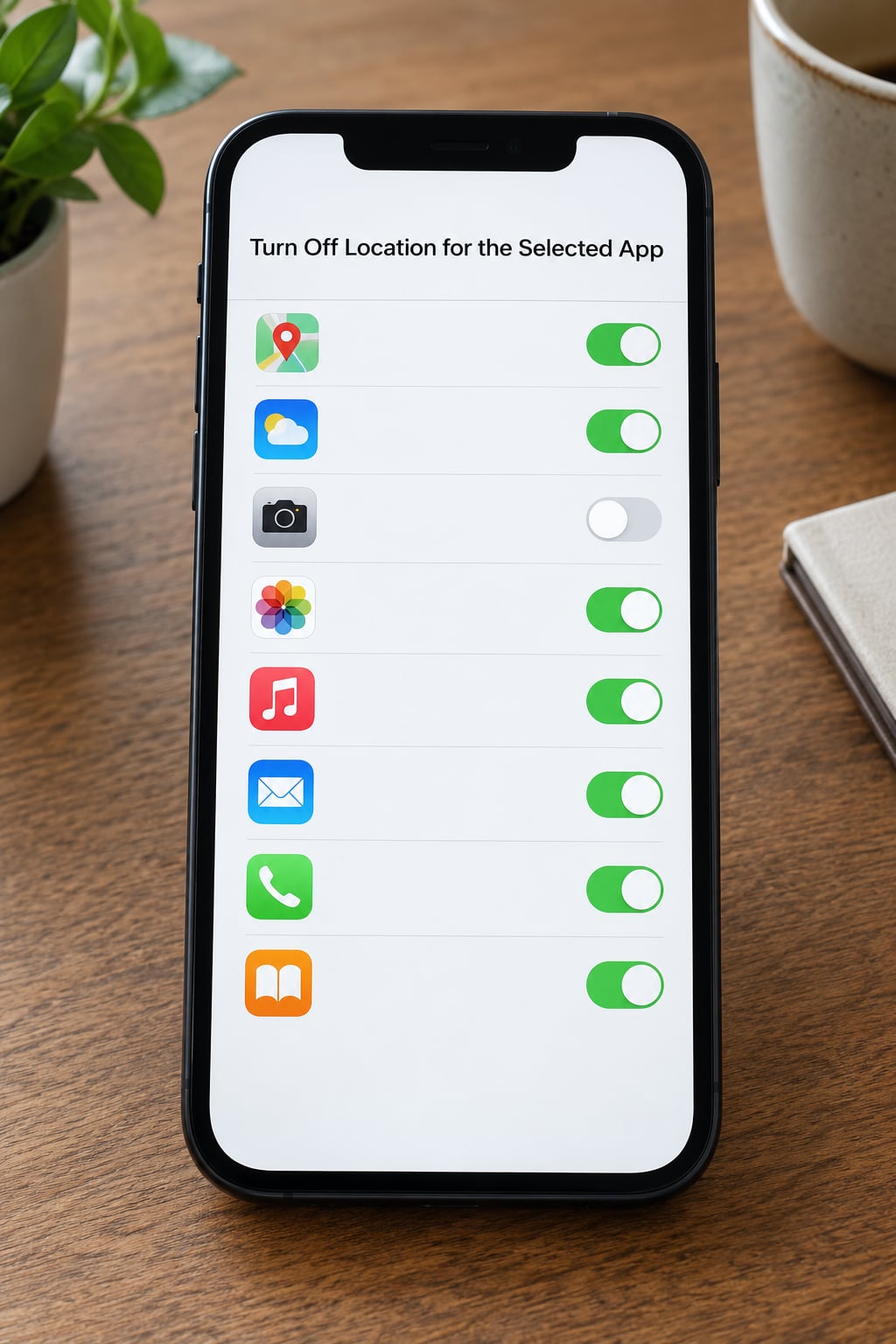
On the app’s location screen you will see a permission selector and, under it, a Precise Location switch. Here is how to turn off location services for specific apps without touching anything else:
- Open Settings and tap Privacy & Security, then Location Services.
- Scroll to the app you want to change. Apps you have never allowed may be greyed out until you tap them once, which is normal.
- Tap the app name to open its permission screen.
- Tap Never in the Allow Location Access section. The toggle at the top of the app’s screen also flips off as a result.
- Close Settings, or swipe up to reopen the app and see what it does now.
That is the whole change. Every other app on the list keeps whatever access it had, and the master Location Services switch at the top of the screen stays on.
If you would rather use the switch than the words, dragging the app’s toggle from green to grey does the same thing and lands on the same Never state. Both routes are equivalent.
Allow Approximate Location Instead
Never is a blunt instrument. A weather app set to Never cannot tell you the forecast, which is often why people give up and leave everything on. Approximate location solves that.
On the same permission screen, turn Precise Location off while leaving the permission itself on. Your iPhone then hands the app a position derived from Wi-Fi and cellular networks, accurate enough for a city-level forecast and useless for pinning you to a particular house.
The other two levels sit between those extremes. Ask Next Time (sometimes written Ask When I Share, depending on version) prompts each time, which is fine for one-off tools you open deliberately. While Using the App grants access only while the app is open in front of you, so it cannot follow you home in the background.
Always is the one that keeps running after you close the app. Apple deliberately leaves it out of the first permission popup, and you have to pick it deliberately from this screen. Most people should never need it, and it is the setting most worth auditing once a year.
If your app stops working after the change, approximate location is usually the fix rather than the full stop.
Check Other Location Settings
Once the per-app switch is off, a few related controls are worth a look, because they operate independently of the app list.
Find My and Find My Friends keep reporting your last known location for a period after access is cut, and Find My has its own entry at the bottom of the Location Services list. Maps keeps a separate history of places you have been under Settings, then Apps, then Maps, then Location, where Visited Places has its own switch.
At the very bottom of the Location Services screen sits System Services, which controls things like calibration and the status bar arrow rather than whole apps. Under it, Significant Locations stores a smaller, longer-lasting record of where you have been, and Clear History removes stored location data. If your reason for doing this is privacy rather than battery, clearing that history is the part that actually deletes something.
One last thing: the master Location Services switch at the top turns location off for everything at once, including Find My, Maps and emergency location sharing. That is a different action from what you asked about, and it is the one people regret.
Verify That the Change Worked
There are three ways to check, from quickest to most convincing. First, open the app. If it still shows your neighbourhood, it either never had accurate access to begin with or it is showing a cached value from before the change.
Second, watch the status bar arrow. While an app is actively using your position, iOS shows a small arrow at the top of the screen. If nothing is using location, it stays hidden. A stubborn arrow means something still has access, and the per-app list will tell you what.
Third, check Settings, then Battery, and look at the app’s time on screen over a day or two. If location was the drain, that number drops. Expect a delayed result: apps often display an old cached location for a session or two after permission changes.
Common Mistakes
Changing the wrong entry. The Location Services list is alphabetical and long, and similarly named apps sit next to each other. Check the icon before you confirm, and re-open the screen afterwards to make sure the setting stuck.
Flipping the master switch instead. Turning off Location Services at the top of that screen breaks Maps, Find My and navigation too. It is a blunt global setting, not a per-app one.
Confusing background refresh with location. Background App Refresh under Settings, then General, controls how often apps fetch new data. It has nothing to do with GPS. Background location is controlled entirely by the Always permission level on the app’s location screen.
Expecting past data to disappear. Setting an app to Never stops future access. It does not delete what the app already collected, so clear its location history inside the app itself if that matters to you.
Fighting a greyed-out toggle. When the master Location Services switch is off, every per-app row below it is disabled. Turn the master switch back on first, then edit the app you meant. On a child’s device, Screen Time and content restrictions can lock these settings down, and a change you make may quietly revert.
Frequently Asked Questions
Can apps access my location if Location Services is turned off?
No. The master Location Services switch cuts GPS, Wi-Fi and cellular location for every app at once, so nothing on the phone can read your position through normal channels. Anything already stored from before, such as a home address saved by a maps app, stays on the device. If an app still seems to know roughly where you are, it is usually working from that saved data or from something you typed in, not from live location.
Does turning off location notify friends or family?
No one gets a notification. Find My, Find My Friends and similar tracking apps simply stop receiving fresh updates from your phone and show the last location they recorded, usually stamped with how long ago it was. There is no alert to the other person that you changed anything. Their view of you just goes stale, and it will refresh again if you ever grant access back.
Why does an app keep asking for location after I chose Never?
It should not prompt again, but apps can still show a generic location-access message because they were built assuming a permission exists. Some update themselves to a fresh file and retry quietly. If a prompt genuinely reappears, something reset your settings, and the usual culprit is an update, a restored backup, or a Screen Time or profile change. Re-check the app entry under Privacy u0026amp; Security, then Location Services.
What does it mean when a location toggle is greyed out?
It almost always means the master Location Services switch at the top of that screen is off, which disables every per-app row beneath it. Turn the master switch back on and the individual toggles become editable again. A second, less common cause is Screen Time or another parental control profile that restricts location settings on that device, in which case the setting has to be unlocked from the Screen Time app first.
Can I stop my child from turning location back on?
On a child’s device, yes. Open Settings, then Screen Time, then App Limits, and add apps such as Maps or Find My to the Always Allowed list so they cannot be removed. Location settings on a managed child device can also be locked through Screen Time content restrictions and restrictions on changes to accounts and settings. On a standard family-shared setup, though, you cannot fully prevent an adult account holder from changing their own permissions.
Why does the Weather app say it needs location access?
Because it was set to Never. The Weather app has no city saved, so with location blocked it genuinely has no idea where you are and asks you to enable access or pick a city manually. This is the case where full denial costs you real function. Turning Precise Location off instead gives it a rough area and usually restores the forecast without handing over your exact position.
Conclusion
Start with one app: open Settings, tap Privacy & Security, then Location Services, pick the app and choose the least permissive option that still lets it do its job. In practice that means Never for anything you barely use, and Precise Location switched off for anything that needs to know roughly where you are. Give it a day, check the status bar arrow and the battery screen, then work down your list.