To lock notes on iPhone, open the note you want to protect, tap the three-dot More button at the top right, tap Lock Note, then confirm with your iPhone passcode or a password you create. A small padlock appears beside the title, and the note stays shut until you authenticate. It takes about twenty seconds, and it works the same on every recent iPhone and iPad.
The catch is worth knowing up front. Apple cannot recover a forgotten Notes password, and Reset Password in Settings will not open notes you locked under the old one. So lock the note, then test it immediately, before you put anything truly important inside.
What You Need

Three things, and you almost certainly have all of them already.
An iPhone or iPad on a current version of iOS or iPadOS. Locking a single note has been built into Notes for years, and iOS 16 or later is where Apple’s own guidance sits. The menus in this guide match the current interface on iPhone 13 through iPhone 17, and the layout is identical on iPad.
iCloud Notes switched on. The lock only travels with the note if your notes sync through iCloud. If your account is set to keep notes locally on the device, the lock behaves differently across your other Apple devices. Open Settings, tap your name at the top, choose iCloud, and confirm Notes is enabled.
An Apple Account password you actually remember. This is the bit people skip. If you use Use iPhone Passcode, your existing device passcode doubles as the note password. If you choose Create Password, you make up a separate one, and it becomes the key to every locked note on that Apple Account.
One optional addition: a password hint. When you create the password, Apple offers a hint field. A hint is genuinely useful here precisely because there is no recovery email to fall back on.
Step-by-Step
This covers the three jobs most people search for: locking one note, locking a whole folder, and changing the password later.
Lock One Note with the Share Menu
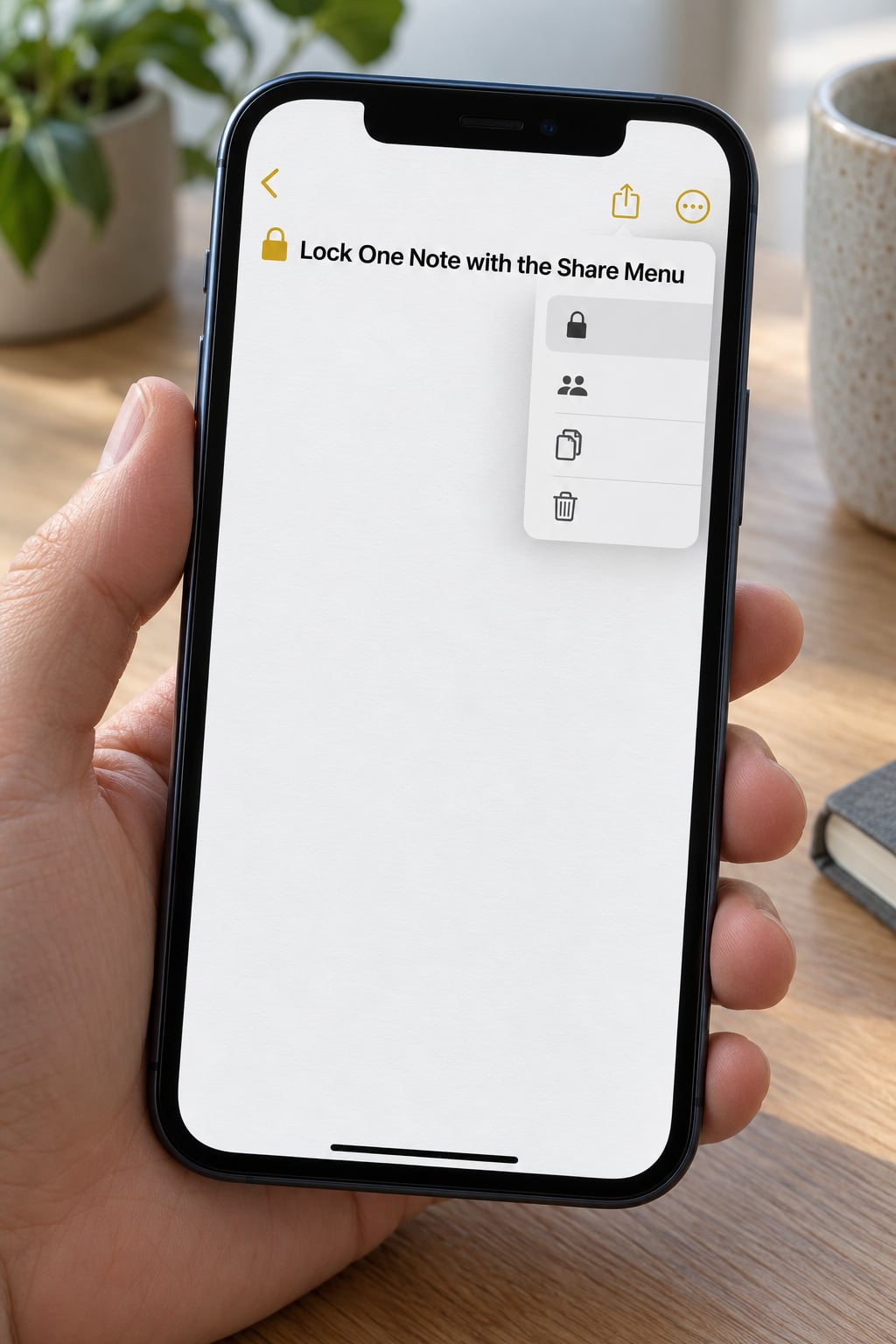
This is the Share Sheet path, and it is the same six taps whether you are on an iPhone 13 or an iPhone 17.
- Open the note. Launch Notes, pick the folder, then tap the note you want to protect. You must be inside the note, not just looking at the list.
- Tap the More button. It is the three-dot circle in the toolbar at the top right of the screen.
- Tap Lock Note. If the option is greyed out or missing entirely, jump to Common Mistakes below, because something in that note is blocking it.
- Choose your authentication. Pick Use iPhone Passcode to reuse the passcode you already type to unlock your phone, or Create Password to set a separate one. You can also add a hint.
- Tap Done. The note closes and returns to the list with a small padlock icon next to its title.
- Test it. Tap the note again. It should prompt for Face ID, Touch ID, or your password. If it opens straight away, the lock did not take.
One naming detail that trips people up: older tutorials point at the Share icon, and on current versions that control no longer carries the lock option. If you tap Share and see a box of apps, you are one control to the wrong side. The lock lives under More, the three-dot button.
Lock an Entire Notes Folder
Locking notes one at a time gets old fast, and iOS 16 and later let you lock a whole folder in a single move.
- Open Notes and tap the folder you want to protect.
- Tap the Share button at the top of the screen while the folder is open. On a phone, the folder view gives you this option; a single note gives you More instead.
- Tap Lock Folder from the share sheet.
- Enter or create a password, then tap Done.
- If prompted, turn on the option that makes the folder available from the share sheet, so you can lock it again later without hunting for the folder.
- Reopen the folder to confirm. A padlock now appears next to the folder name, and every note inside is covered.
There is no per-note password inside a locked folder. The folder password is the whole mechanism.
Check or Change the Locked-Note Password
The password lives in Settings, not in the Notes app. Open Settings > Notes > Password and you will find the controls in one place.
Change Password sets a new one going forward, and on most versions it also opens the currently locked notes with the old password in the same step. Reset Password is the blunt option: it wipes the stored credentials entirely, and every note you previously locked stays unreadable. That surprises a lot of people, so treat Reset Password as a last resort rather than a fix.
On the same screen you will find Use Face ID or Use Touch ID. Turning those on means you can unlock locked notes and folders with a glance or a fingerprint instead of typing. Some iOS versions label the row Locked Notes instead of Password, and on iPad the toggle may read Use Touch ID or Face ID depending on the hardware.
Common Mistakes
The Lock Note option is not there at all. Almost always the note contains something that cannot be locked: a PDF, a video, an audio recording, a scan, or a Pages, Numbers, or Keynote attachment. Notes in shared folders cannot be locked either, and Quick Notes are outside the feature entirely. The app gives you no explanation, which is why this trips people up so often. Move the attachment into a separate note and lock the text note instead.
The note still opens without a password. Usually you are tapping the note in the list and reading a preview, or you locked a different note than the one you are opening. Confirm you see the padlock beside the title. A second cause is a note shared with other people: sharing silently drops the lock, and it has to be re-applied after the sharing ends.
You cannot remember the password. There is no reset link and no support path. Apple stores the material in a way that even they cannot read. If you have changed devices and no longer recall the password, the note is effectively gone on every device signed into that Apple Account, and the same limitation applies on Mac.
You locked the wrong folder. Open it, authenticate, and use Share > Lock Folder to lift the lock. The password does not change when you unlock, it just stops being asked for.
The menus do not match what you see. iOS and iPadOS differ in a couple of spots, and iOS releases have shuffled the Lock entry between the More menu and the Share sheet over the years. If Lock is not under one, check the other before assuming the feature is broken. On the Mac, locking a single note is not offered in Notes the way it is on iPhone; use the Share menu on a selected note instead, and manage the password in Notes Preferences.
One more thing worth clearing up, because the word gets used two ways. Locking a note for privacy is not the same as locking it against editing. Swiping up on a note in a folder opens an edit lock, which stops accidental changes but shows the content to anyone who opens the phone.
Frequently Asked Questions
Can I lock notes on any iPhone model?
Yes. Any iPhone or iPad running iOS or iPadOS 16 or later supports locking a single note, and newer versions add folder locking. The menu labels are identical across iPhone 13 through 17, so the steps in this guide apply without changes. Older devices on earlier software still lock notes through the Share sheet instead of the More button.
What happens if I forget my Notes password?
The locked note stays locked, permanently. Apple cannot recover a Notes password because the note is encrypted with it. Reset Password in Settings clears your stored credentials but does not unlock notes locked under the old password. This is the single most important thing to understand before you lock anything: test the password the moment you set it.
Can you password protect a whole folder in Notes?
You can, on iOS and iPadOS 16 and later. Open the folder, tap Share from the folder view, choose Lock Folder, and set a password. Every note inside becomes protected by that one folder password, and the padlock moves to the folder name. If you do not see Lock Folder, your software version is too old, or the folder is a shared or Quick Notes folder.
Does locking a note hide it from notifications?
No. Locking protects the content inside the note when someone opens it, but the note still appears in the Notes list and still syncs through iCloud to your other devices. If your concern is someone seeing that a notification exists at all, look at notification settings for the Notes app or turn off note previews, rather than relying on the lock.
Is it possible to lock notes on iPad or Mac too?
Yes, and the lock syncs. A note locked on your iPhone shows the padlock on your iPad and Mac, and unlocking it on one device unlocks it everywhere signed into that Apple Account. Face ID on iPhone and Touch ID on Mac work as the authentication method once you enable them in Settings, Notes, Password. For passwords stored as credentials, use Keychain rather than a note.
Conclusion
Start with the one note that worries you most. Open it, tap the three-dot More button, choose Lock Note, set a password you will remember, and then reopen the note to confirm the padlock works. Once that habit is set, locking a whole folder takes the same number of taps and covers everything else in a single move.