
Deleted photos on an iPhone stay recoverable for 30 days in the Recently Deleted album, and after that window your remaining routes are iCloud Photos and a Finder or iTunes backup. Most people who lose a library never open Recently Deleted at all. They scroll past it, assume the files are already gone, and then pay for software that cannot bring them back.
The five routes below are in the order you should work through them. The first takes about twenty seconds and costs nothing. The last one costs money and, on a modern iPhone, often returns nothing at all. Menu labels shift a little between iOS versions, so I have written out the full paths for the current release and noted the older layout where it differs.
Paths checked against current iOS releases in 2026.
Table of Contents
- What You Need
- How to Recover Deleted Photos on iPhone: Step-by-Step
- Is It Still Recoverable? A Scenario Table
- Turn on Backups So This Does Not Repeat
- Frequently Asked Questions
- How long do deleted photos stay in Recently Deleted on an iPhone?
- Why did my deleted photos disappear from Recently Deleted before 30 days?
- Can I recover permanently deleted photos on an iPhone with no backup?
- How do I recover photos from an iPhone backup on Windows?
- If I deleted photos on my iPad, will they disappear from my iPhone too?
- Conclusion
What You Need
Every route below needs a different set of things. Here is what each one takes before you start.
- Recover from Recently Deleted: your unlocked iPhone and your passcode or Face ID. Nothing else. If you cannot pass the authentication prompt, Apple will not show the album contents.
- Recover from iCloud Photos: the Apple Account that stores the library, its password, and a working internet connection. If you have two-factor authentication on, you will need a trusted device to receive the code.
- Recover from a computer backup: a Mac or Windows PC with the backup already saved on it, plus enough free storage to hold what you pull out. The phone must be unlocked and trusted by that computer.
- Recover from an iCloud device backup: your Apple Account, plus knowing which device the backup belongs to. Apple removes iCloud device backups after a set period unless you have an active subscription.
- Use recovery software: a desktop computer, the original iPhone, and patience. You also need somewhere to copy anything found before it gets overwritten.
One warning applies to every route. Stop taking photos, stop downloading videos, and stop letting the phone sync to iCloud until you know what you have lost. New data written to the phone makes an already-difficult recovery less likely.
How to Recover Deleted Photos on iPhone: Step-by-Step
Recover Photos from the Recently Deleted Album

This is where most recoveries end, and it costs nothing. Apple keeps deleted photos, videos and Live Photos in a holding album for 30 days before removing them.
- Open the Photos app on your iPhone.
- Scroll down to the Albums section and tap Recently Deleted. On iOS 17 and later it sits at the bottom of the album list.
- Authenticate with Face ID, Touch ID or your passcode.
- Tap a photo to select it, or tap Select then Select All to grab the whole batch at once.
- Tap Recover in the bottom-right corner, then confirm.
Recovered items go back to the album they were originally in, not to the end of your library. On older iOS versions, Recently Deleted appears as its own tab along the bottom of the Photos app instead of inside Albums. The rest is identical.
Recovering a thousand photos one tap at a time is not required. Select All pulls the whole album back in a single action, which is the route people who deleted a batch during a cleanup usually need.
The 30-day clock starts the moment you tap delete, not the moment you notice the photos are gone. If the album looks empty, you may have emptied it yourself, restored a backup that replaced the album, or let 30 days pass.
Recover Deleted Photos from iCloud Photos
If iCloud Photos is switched on, your library lives in the cloud as well as on the device. That makes two things possible: the library itself may still hold items the phone no longer shows, and you can browse the same library from a browser.
First check whether the library is actually synced. Go to Settings > [your name] > iCloud > Photos. You need Sync this iPhone turned on. If it is off, tap it, confirm the merge prompt, and wait while the library downloads before checking Recently Deleted again.
Then sign in at icloud.com and open Photos. The Recently Deleted folder in the left sidebar holds the same 30-day items. If the album is empty there too, the deletion reached the cloud library, which is what happens whenever you delete a photo through iCloud Photos on any device.
Someone in an r/iCloud thread described checking iCloud.com for photos that were plainly visible on the phone and finding nothing in the folder. That is usually a wrong-account problem: check the email address in the top-right corner of iCloud.com against the one in Settings on the iPhone, and confirm the phone has a connection before you trust an empty folder.
Restore Photos From an iPhone or iCloud Backup
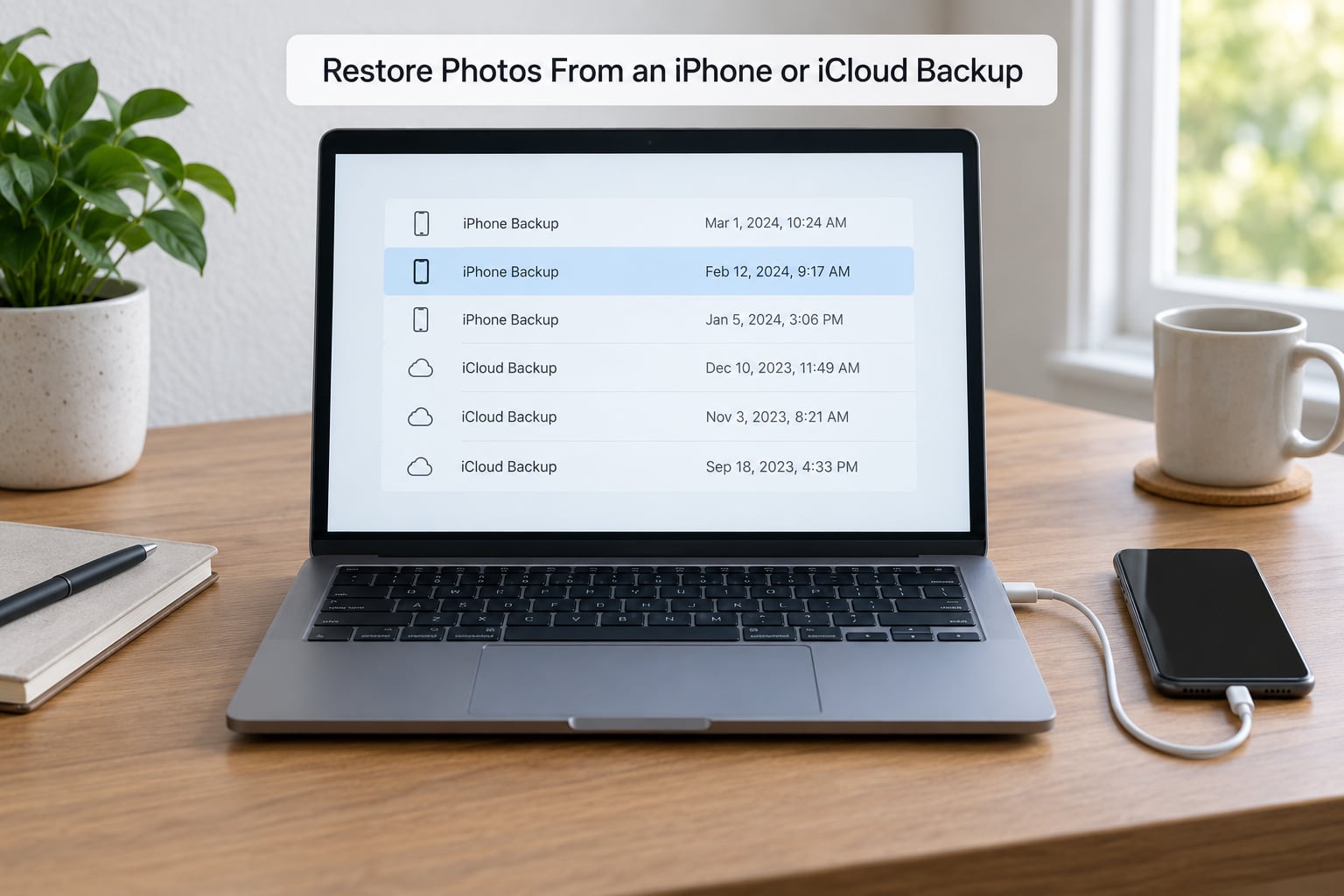
A backup is a snapshot of the phone taken at a moment in the past. If you deleted photos this morning and your last backup is from last week, that snapshot still contains them. This is the only route that works after Recently Deleted is empty.
On a Mac, connect the iPhone and open Finder. Select the device in the sidebar, then Manage Backups. Choose a backup by date and click Restore. On Windows, open iTunes, pick the device under the device icon, and use Restore Backup from the same tab.
Before you do either: a restore replaces the current contents of the iPhone with the contents of the backup. Everything since that date is replaced. If you have photos on the phone now that are not in the backup, copy them off first.
iCloud device backups are a separate store from the iCloud Photos library, and they carry different photos. Sign in at icloud.com, go to Account Settings > iCloud > Manage iCloud Storage > Backups, or open Recovery on a recent Apple device to browse older backups. One user in an r/techsupport thread reported calling Apple support to ask for a reversal after a mistaken deletion, noting that Apple keeps iCloud backups for 30 days.
Apple does not offer a photo-only restore from an iCloud device backup. Restoring one pushes the entire backup back to the phone.
Check Old iPhones, iPads, Macs, and Synced Folders
Before spending money, look for copies that already exist. This step takes five minutes and often ends the search.
- Older iPads and Macs signed into the same Apple Account. Deleting in iCloud Photos removes an item everywhere. Photos held only in that device’s optimised storage may still survive locally.
- A Mac that synced photos through Finder or iTunes. Older library locations are under Pictures in your user folder; newer ones live inside the Photos Library bundle. Drag the bundle to a desktop copy rather than opening it.
- Shared albums. Photos added to a Shared Album stay visible to everyone on it, which sometimes keeps a copy alive after a local delete.
- Messages, Mail and messaging apps. If the photo arrived as an attachment, re-downloading it puts a copy back on the phone. Files received before an iOS update are harder to locate, but the conversation still holds them.
- Google Photos, OneDrive, Dropbox and similar. Each keeps its own trash folder that empties on its own schedule, separate from the iPhone’s 30 days.
- The Hidden album. Photos you hid are not deleted. Open Photos, go to Albums, then Hidden, and authenticate.
If you deleted hundreds of photos on an iPad while iCloud Photos was on, the deletion carried across to the iPhone within minutes. That is expected behaviour, and it is why the iCloud route above comes before anything paid.
Use Recovery Software Only as a Last Resort
Here is the honest part. Desktop recovery tools fall into two groups, and only one of them can ever help with an iPhone.
The first group scans drives on a computer. Tools such as PhotoRec work on a memory card, a hard disk or a USB drive that a phone was never encrypted on. They are genuinely useful and genuinely free for those cases.
The second group is sold as iPhone recovery. On a modern iPhone these usually return nothing, for reasons that are not the vendor’s fault. File-based encryption keeps deleted data cryptographically scrambled, and flash storage on modern devices reports block availability to the operating system, which clears those blocks quickly after deletion. There is no readable file for a scanner to pull back. People on r/datarecovery describe the same limitation for modern Mac SSDs.
Red flags to watch for: a scan that reports a huge number of recoverable files in seconds, an upgrade prompt before any preview, and any tool that asks you to connect the locked phone rather than the unlocked one. One thread on r/datarecovery called out Disk Drill and Wondershare Recoverit as the two results that most often lead people into downloading something they regret. Check the privacy policy before you install anything.
If a professional data recovery lab is your next step, ask for a written quote and an itemised list of what they attempted. Anyone promising a guaranteed 100 percent recovery of an overwritten phone is selling you a fantasy.
Common Mistakes
These are the errors that turn a solvable problem into an unsolvable one.
- Waiting too long. Thirty days is the entire window. Fix: check Recently Deleted today, not next week.
- Emptying Recently Deleted yourself. That single action removes the last reference on the device. Fix: if you are done with it, restore your copy first.
- Checking the wrong Apple Account. Fix: compare the email in Settings with the one shown on iCloud.com before believing an empty library.
- Syncing the phone to a new computer after the deletion. That writes new data over the recoverable region. Fix: use a computer that already holds an old backup, not a fresh one.
- Restoring the wrong backup. A restore erases what came after it. Fix: note the backup date before you click, and compare it to when the photos vanished.
- Believing a guarantee from a recovery app. Fix: no app can recover data that has been erased by the storage layer. A free scan that shows no readable photos is telling you something.
Is It Still Recoverable? A Scenario Table
This table maps each situation to the route that still works. Find your row before you spend anything.
| Situation | Still recoverable? | Route that works |
|---|---|---|
| Deleted less than 30 days ago | Yes, almost always | Recently Deleted in the Photos app |
| Recently Deleted emptied by you | Only from a copy | iCloud Photos, Finder or iTunes backup, an old device |
| More than 30 days, no iCloud, no backup | No | Nothing returns these; the data is gone |
| Deleted on an iPad with iCloud Photos on | Only if 30 days have not passed | Recently Deleted on any device, or the cloud library |
| Photos removed by a cleanup or editing app | Sometimes | That app’s own trash folder, then backups |
| Photos missing after an iOS update | Often | Latest backup, older device, iCloud Photos |
| Photos never saved locally (optimised storage) | Yes, from iCloud | iCloud Photos library on iCloud.com |
Turn on Backups So This Does Not Repeat
The fix for next time takes two minutes and is worth doing before you need it.
- Open Settings > [your name] > iCloud and turn on iCloud Photos.
- Open Settings > [your name] > iCloud > iCloud Backup and switch on Back Up This iPhone.
- Keep Wi-Fi selected so backups run on your own network instead of mobile data.
- Open the Recently Deleted album once a month and recover anything you still want.
One more habit pays off: after any big deletion, wait a full day before syncing to a computer. Photos you might have wanted are much easier to find in Recently Deleted than on a backup you have to dig through.
Frequently Asked Questions
How long do deleted photos stay in Recently Deleted on an iPhone?
Apple keeps deleted photos, videos and Live Photos in the Recently Deleted album for 30 days from the moment you tap delete. After that they are removed. The clock also restarts early if you restore a device backup that replaced the album, so an empty folder does not always mean 30 days have passed.
Why did my deleted photos disappear from Recently Deleted before 30 days?
Three things cut the window short. Emptying the album yourself deletes them permanently, restoring an older backup replaces the album with an earlier version, and signing a new device into iCloud Photos can trigger a library re-sync that clears pending deletions. Check whether you did any of those before assuming the photos expired.
Can I recover permanently deleted photos on an iPhone with no backup?
If the items are older than 30 days, Recently Deleted was emptied, you have no iCloud Photos library and no computer backup, then no. The files were removed and modern iPhone storage clears those blocks quickly. Paid recovery software cannot change this. Your only remaining hope is an old phone, Mac, shared album or a third-party cloud library that still holds a copy.
How do I recover photos from an iPhone backup on Windows?
Install iTunes, connect the unlocked iPhone with a trusted computer, accept the Trust prompt and click the device icon. Choose the Restore Backup tab and pick the backup by date. The restore replaces everything currently on the iPhone with that snapshot, so copy off anything taken since that date before you begin.
If I deleted photos on my iPad, will they disappear from my iPhone too?
Yes, when iCloud Photos is switched on. iCloud Photos keeps one library across every device on the same Apple Account, so a deletion on an iPad propagates to iPhone and Mac. All devices keep their own Recently Deleted copy for 30 days, so check the album on whichever device you still have in hand.
Conclusion
To recover deleted photos on an iPhone, open Photos, go to Albums, tap Recently Deleted and hit Recover. That covers anything inside the 30-day window. After it, work through iCloud Photos, then a Finder or iTunes backup, then old devices and cloud libraries. Leave the phone alone in the meantime: no new photos, no fresh sync, no restore until the free routes are exhausted.