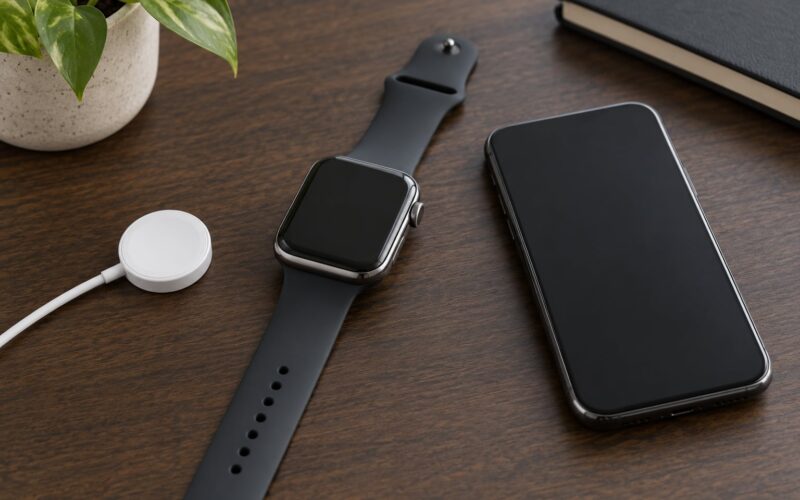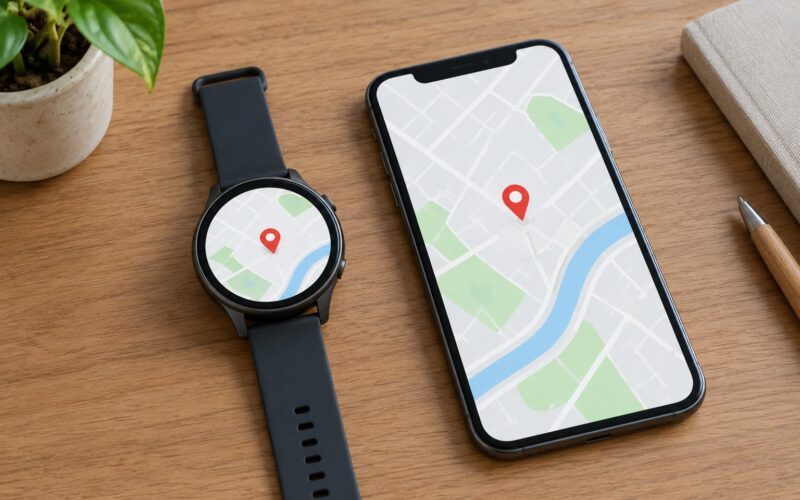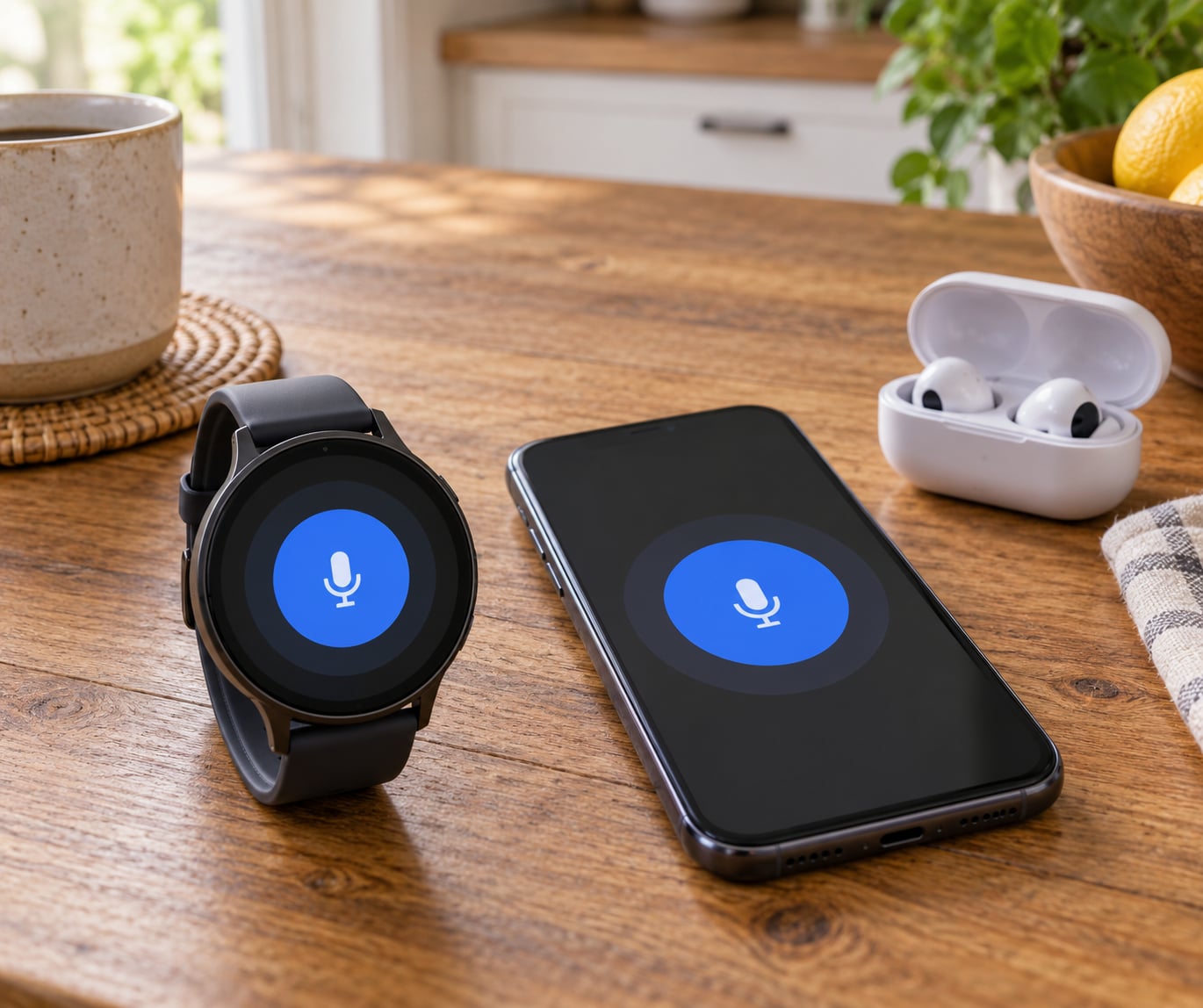
Walkie-Talkie is a push-to-talk app that ships with every Apple Watch Series 1 or later, and setting it up takes about five minutes once you know where the switches live. The whole trick is that it runs on FaceTime audio, so the real setup work happens on your iPhone, not the watch. Once FaceTime is on and you have accepted one invite, talking is a matter of tapping a contact and holding a yellow button.
This guide covers how to set up walkie talkie on apple watch models running current watchOS, including the region setting, the invite handshake, and the fixes for the two problems everyone hits: invites that never arrive, and one-way audio. I have walked several family members through this on Series 6, Series 8 and Ultra 2 watches, and the same fixes come up every time.
One thing worth knowing before you start: Apple has flagged Walkie-Talkie for removal in a future watchOS release. If you are setting this up on a watch that has already been updated to that version, the app will be gone from the app grid and no amount of troubleshooting will bring it back. The steps below cover the release where the feature is still present, and I will show you how to check which one you have.
Table of Contents
- 1What You Need
- 2Apple Watch Model Compatibility
- 3Step-by-Step: How to Set Up Walkie Talkie on Apple Watch
- 41. Check compatibility and connect your Apple Watch
- 52. Turn on Walkie Talkie on Apple Watch
- 63. Set your region and check the channel
- 74. Pair with a friend and finish the walkie talkie setup
- 85. Test the walkie-talkie connection
- 96. Troubleshoot missing channels or failed audio
- 10Common Mistakes
- 11Frequently Asked Questions
- 12Can I use Walkie-Talkie on Apple Watch without an iPhone?
- 13How far apart do two Apple Watches need to be?
- 14Does Walkie-Talkie work with Android phones or smartwatches?
- 15Why is Walkie-Talkie missing from my Apple Watch?
- 16Why can my friend hear me, but I cannot hear them?
- 17Is Walkie-Talkie private and encrypted?
- 18Conclusion
What You Need
Walkie-Talkie is picky about its prerequisites, and most failed setups come down to one of these being off. Check the whole list before you start chasing a bug.
- Two Apple Watches. Both people need a Watch, not just one. Original Series and Series 1 work; so do every later generation through the current lineup. The watch must be paired with an iPhone.
- watchOS 5 or later on both watches. That is the version that introduced the feature. Any watch on a current watchOS release qualifies.
- FaceTime switched on in the iPhone Settings app. On your iPhone, open Settings, tap FaceTime, and turn the FaceTime toggle on. This is the single most common cause of silence.
- An Apple ID on both iPhones with a reachable email or phone number. Open the FaceTime app, tap your contact info in the top left, and check the boxes for email and phone under “You Can Be Reached By.”
- Bluetooth on, plus Wi-Fi or cellular data. Walkie-Talkie streams over FaceTime audio, not over a radio channel, so both devices need an internet connection.
- Both watches charged and unlocked. A watch at 10 percent will accept the invite and then drop mid-conversation.
You also need both people to be in the same country or region. Walkie-Talkie only lists contacts who are set to the same region as you, which is why a friend abroad can look like they simply do not exist.
Screen Time deserves its own warning, especially on a child’s watch. On a supervised Apple Account, FaceTime has to be allowed under Screen Time, Allowed Apps. You will often see Camera switched on and FaceTime switched off, and that blocks the app even though the camera works fine. The same setting trips up Family Setup watches.
Apple Watch Model Compatibility
Every Apple Watch that can run a current watchOS release also runs Walkie-Talkie, so the model is rarely the reason a setup fails.
| Apple Watch model | Walkie-Talkie support | Watch requirements |
|---|---|---|
| Series 1 and later | Supported | watchOS 5 or later |
| Series 4, 5, 6, 7 | Supported | watchOS 5 or later |
| Series 8, 9, 10 | Supported | watchOS 5 or later |
| Ultra and Ultra 2 | Supported | watchOS 5 or later |
| Family Setup watch (child) | Supported with limits | Guardian must allow FaceTime in Screen Time |
If the Watch app on your iPhone shows your watch paired and in range, the hardware is not your problem. Move on to software settings.
Step-by-Step: How to Set Up Walkie Talkie on Apple Watch
1. Check compatibility and connect your Apple Watch
On the iPhone, open the Watch app. You should see your watch listed at the top with a green Connected label. If it says Disconnected, lift the watch and let it settle near the phone for a few seconds.
Then confirm the software version. On the watch, open Settings, then General, then About, and read the Version number. Do the same on the iPhone under Settings, General, About, iOS Version. If either device is more than a couple of major versions behind, update before you go further, because a mismatch between the two is a common cause of the connecting screen hanging.
What you should see: the watch name, a green connection dot, and a version number at or above watchOS 5.
2. Turn on Walkie Talkie on Apple Watch
Walkie-Talkie is a built-in app rather than something you download. On the watch, press the Digital Crown to open the app grid, scroll to Walkie-Talkie, and tap it.
The first time you open it, the app shows an invite list with a yellow plus sign at the bottom. That plus sign is the entry point for every future friend you add. If the app opens and immediately shows an empty list with the plus sign, the feature is live on that watch.
You can also flip availability from Control Center. Press the side button under the Digital Crown, scroll to the Walkie-Talkie icon, and tap it to switch between the yellow available state and greyed out. Do this on both watches when you are not actively testing, so you do not receive connection requests all evening.
What you should see: the Walkie-Talkie app opens to a contact list with a yellow plus button, and the Control Center icon turns yellow when you are available.
3. Set your region and check the channel
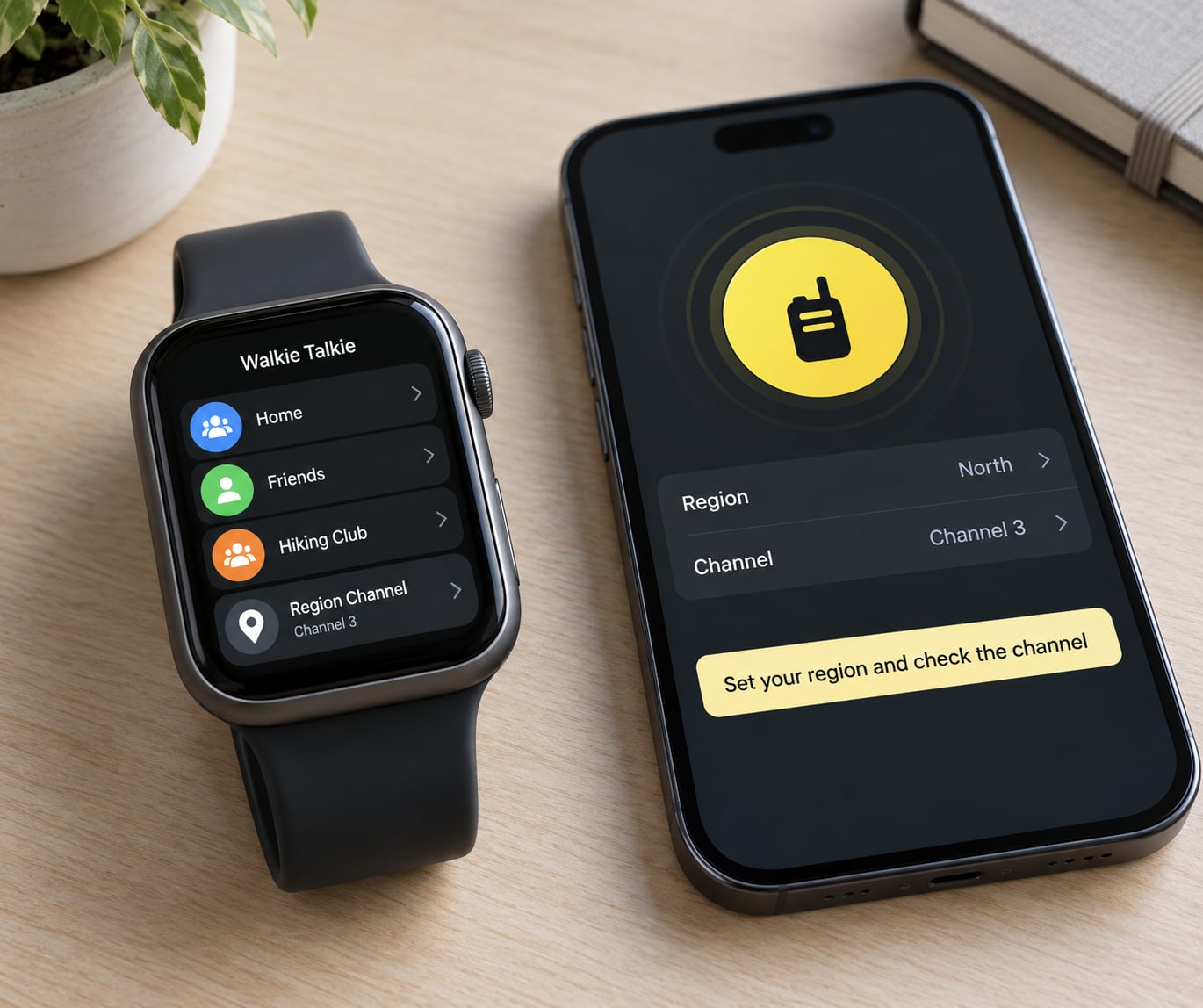
Region is set on the iPhone, not the watch. Open Settings on your iPhone, tap FaceTime, and set your region to the country you are actually in. A mismatched region is the quiet reason a friend never shows up in your list.
Back on the watch, open Walkie-Talkie and turn the Digital Crown to scroll through the channels. Each channel shows a name and a status. A contact who is available appears in full colour, while one who has switched off or is out of range is greyed out. Greyed out does not mean broken, it means that person is unavailable right now.
What you should see: at least one name in the list, and a colour state you can read at a glance.
4. Pair with a friend and finish the walkie talkie setup
This is the part where most people get stuck, so do it deliberately. Both people should have their watch on the wrist and unlocked at the same time.
- On your watch, tap the yellow plus sign at the bottom of the Walkie-Talkie list.
- Turn the Digital Crown until you find the person you want, then tap their name.
- Your watch shows Connecting to that name, with concentric circles flashing while the invite goes out.
- The other person’s watch receives an incoming notification and vibrates.
- On the receiving watch, tap the notification and choose Always Allow. One tap is enough for good, and it is the option that stops the prompt from returning every time.
- Once accepted, tap the contact’s name on your watch to open the talk screen and confirm the Talk button is there.
If the other person taps Allow rather than Always Allow, you will be asked again next time. If they dismiss it, you simply do not appear in their list.
What you should see: their name goes from Connecting to a normal contact, and the talk screen opens when you tap it.
5. Test the walkie-talkie connection
Stand within about 10 metres of each other for the first test. Range is not the issue yet, and being close removes Wi-Fi as a variable.
Tap the contact, then touch and hold the yellow Talk button and speak. Concentric circles appear while the audio streams. Release the button and the other person’s watch vibrates and plays your message, so you talk in turns rather than at the same time.
Volume is set with the Digital Crown while the talk screen is open. Turn it up before you start talking, because the app follows the crown rather than your usual ringer volume.
Two optional settings are worth turning on. Tap to Talk, found under Settings, Accessibility, Touch, Walkie-Talkie, replaces hold-to-talk with a single tap and release, which helps anyone with a motor difficulty or a smaller watch face. If you wear AirPods or any Bluetooth headphones when you talk, audio routes to them instead of the watch speaker, and the conversation becomes semi-private.
What you should see: a burst of sound from the other watch while the circles are flashing, and silence when you let go.
6. Troubleshoot missing channels or failed audio
Work through these in order. They are ordered by how often each one turns out to be the cause.
- No contacts at all. Open FaceTime on the iPhone and confirm the toggle is on and your region is correct. Then check Screen Time, Allowed Apps, and make sure FaceTime is allowed even if Camera already is.
- The connecting screen hangs. The other person did not tap Always Allow. Send the invite again, or have them remove you and you remove them, then invite simultaneously from both watches at the same moment.
- They hear you, you hear nothing. Raise the volume with the Digital Crown on the talk screen, and check for a connected Bluetooth headphone that is muted. Then check that silent mode or a Do Not Disturb schedule is not blocking FaceTime on their watch.
- Their name is greyed out. They set themselves unavailable. They can fix it from Control Center, or by opening the app and turning the Digital Crown to switch availability back on.
- Invites go out but nothing arrives. Restart both watches and both iPhones, then try once more with the two watches on and close together. Several users on Apple Watch forums report that doing this at the same time, rather than one after the other, is what makes the pairing stick.
- It worked and then stopped. Check the watchOS version on both devices. If one is several versions ahead, update the other, since mixed versions are a reliable way to break the invite handshake.
One warning to set expectations properly: this feature takes precedence over silent mode, but it still respects Do Not Disturb. A friend on a Do Not Disturb schedule may not hear an incoming conversation at all.
Common Mistakes
- Leaving FaceTime off in Settings. The app is on the watch, so people assume the phone side is irrelevant. It is not.
- Wrong region. A friend in a different country simply will not appear. Region lives under FaceTime in iPhone Settings.
- Bluetooth turned off. Walkie-Talkie uses Bluetooth for the watch handshake even though the voice travels over Wi-Fi or cellular data.
- Outdated watchOS or iOS. Update both sides, then reopen the app.
- Missing FaceTime under Screen Time. On a child or Family Setup watch, allowed apps are switched on individually. FaceTime is off more often than not.
- Tapping the contact too fast. The Talk button needs a proper hold. A quick tap sends nothing, which looks exactly like a broken connection.
- Low battery. A watch near empty will pair, then drop the audio mid-sentence.
- A child watch without a paired iPhone. On a Family Setup watch with cellular, Walkie-Talkie does not work on its own. The guardian’s Apple Account must be signed in on an iPhone or iPad so FaceTime is set up. This is the single biggest surprise for parents, and it has no clean workaround other than adding that device.
There is no group mode. Walkie-Talkie is one conversation at a time, so if you need three people talking, that is not the tool.
Frequently Asked Questions
Can I use Walkie-Talkie on Apple Watch without an iPhone?
No. Walkie-Talkie runs on FaceTime audio, and the watch alone cannot host that. On a cellular Apple Watch set up through Family Setup, the app will open but invites will not send until the guardian’s Apple Account is signed in on an iPhone or iPad with FaceTime configured. This catches parents out because the watch has its own cellular data and looks fully independent.
How far apart do two Apple Watches need to be?
There is no radio range limit, because the voice is carried over FaceTime audio rather than a direct watch-to-watch signal. Two watches in different countries can talk as long as both have Wi-Fi or cellular data and are set to the same region. For a first test, stand within about 10 metres so you are not debugging the connection and the audio at the same time.
Does Walkie-Talkie work with Android phones or smartwatches?
No. Walkie-Talkie is built into watchOS and works Apple Watch to Apple Watch only. There is no Android phone app, no Android smartwatch version, and no third-party bridge that Apple supports. Both people in a conversation need an Apple Watch, which is the one limitation that trips up families with a mix of devices.
Why is Walkie-Talkie missing from my Apple Watch?
There are three common reasons. Your watch may be older than Series 1, though this is rare now. FaceTime may be switched off in iPhone Settings, which can hide the app. Or the watch may be on a watchOS release where Apple has removed the feature. Check the version under Settings, General, About on the watch, and turn FaceTime back on in iPhone Settings to rule it out.
Why can my friend hear me, but I cannot hear them?
Your audio is leaving fine, so the problem sits on the receiving side. Turn the Digital Crown while your talk screen is open to raise the output volume, since the app ignores your normal ringer volume. Then check for connected AirPods or Bluetooth headphones that are muted, and whether their watch has a Do Not Disturb schedule active. Silent mode is not the culprit, because the app overrides it.
Is Walkie-Talkie private and encrypted?
It is private in the everyday sense: audio travels over Apple’s FaceTime infrastructure rather than over an open radio frequency, so it is not something a passerby can tune into. Treat it as a phone call rather than a walkie-talkie, and do not discuss anything you would not say on FaceTime. Anyone you have invited can see you as available in their list unless you switch yourself off from Control Center.
Conclusion
The fastest route to a working setup is short. Turn FaceTime on in iPhone Settings, check your region is right, open the Walkie-Talkie app on both watches, tap the yellow plus sign, and have your friend choose Always Allow. After that, tap their name, hold the yellow Talk button, and adjust volume with the Digital Crown.
If something fails, start with the phone, not the watch. FaceTime toggle, then region, then Screen Time allowed apps, then the watchOS version on both devices. The connecting screen that hangs forever almost always means the invite was allowed but not accepted, and greyed-out contacts are usually just unavailable rather than broken. Before anything else, confirm your watch is on a watchOS release that still includes the app.