To set screen time limits for kids on iPhone, open the Settings app, tap Screen Time, turn on App and Website Activity, mark the device as your child’s, set a Screen Time passcode, then add an App Limit for each app or category you want to cap. It takes about five minutes to set up the first limit, and once it works you never open that screen again unless a number needs changing.
Screen Time is Apple’s built-in tool for tracking how long apps and websites are used on iPhone, iPad, Mac and Apple Watch. It syncs across devices signed into the same Apple Account, so one limit set on the iPhone follows the child to their iPad without any extra work. Below is the exact path, the numbers worth typing, and the fixes for the limits that quietly stop enforcing.
Table of Contents
- 1What You Need
- 2Step-by-Step
- 3How to set screen time limits for kids on iPhone
- 4Choose the apps your child can use
- 5Create a daily schedule
- 6Protect the Screen Time settings
- 7Test and review the limits
- 8Common mistakes to avoid while setting up
- 9Adjust limits as your child grows
- 10Common Mistakes
- 11Frequently Asked Questions
- 12Can I set a total screen time limit for my child’s iPhone?
- 13What should I do if I forgot the Screen Time passcode?
- 14Do Screen Time limits work on an iPad as well as an iPhone?
- 15How does Ask to Allow work for screen time limits?
- 16Can I temporarily turn off Screen Time limits?
- 17Why can’t I find the app I want to limit in App Limits?
- 18Conclusion
What You Need
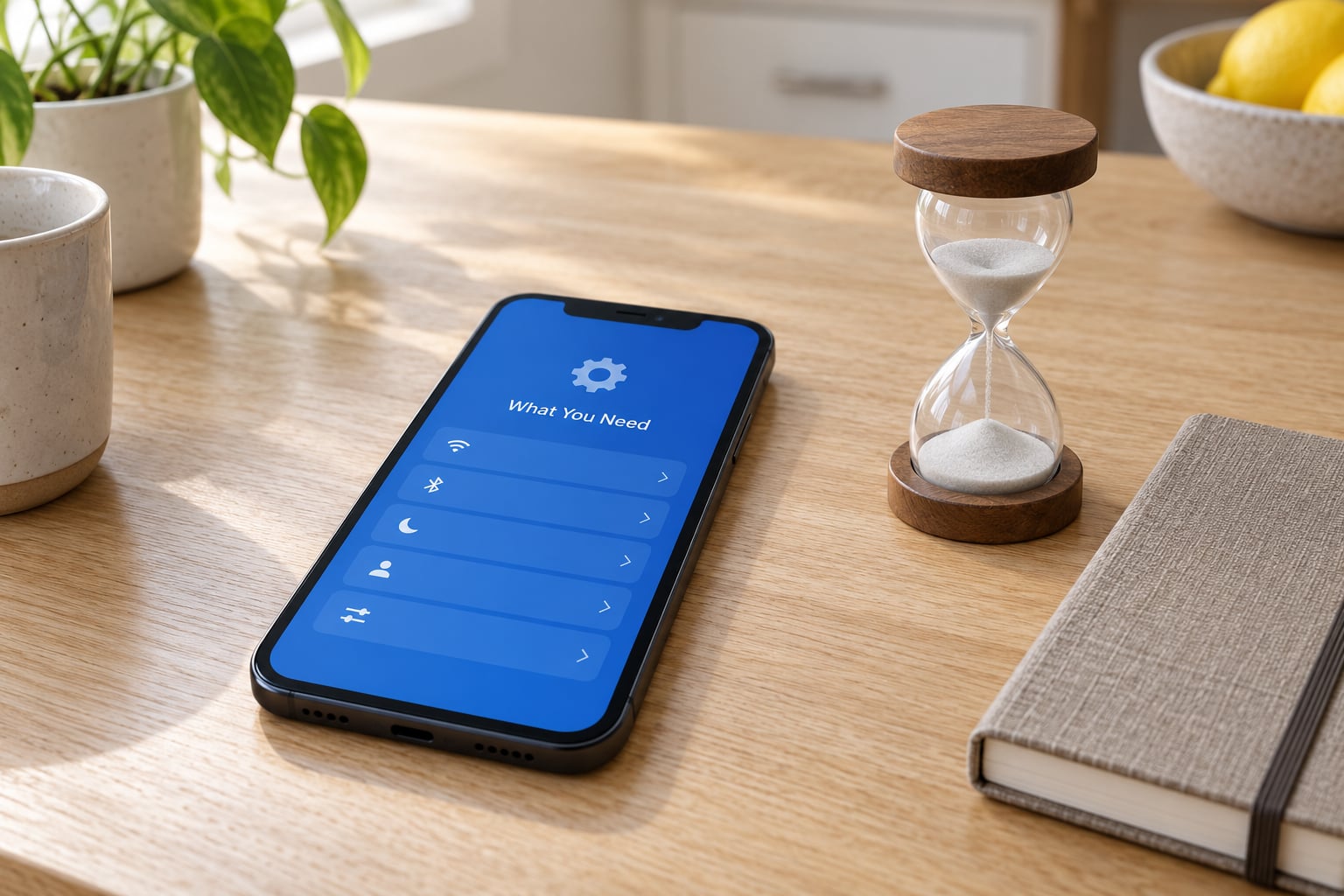
Four things, and three of them take two minutes.
- The child’s iPhone or iPad and the passcode to unlock it. You need physical access to the device for the first setup.
- An adult Apple Account for yourself. The child’s Screen Time works best when the parent is signed in to Family Sharing.
- A Screen Time passcode, which is separate from the phone’s unlock passcode. This is the control that stops a seven-year-old from extending their own limit.
- A number. Decide the daily limit before you open App Limits, or you will end up typing whatever looks reasonable in the moment.
These instructions follow the current Apple Settings app on iOS 18 and later, including the reorganised Family Sharing menu under Settings and your name. Apple renames and relocates items fairly often, so if your device says “Family” instead of “Family Sharing”, or puts Screen Distance somewhere else, the steps still apply. On iPad the path is identical, with one exception covered in the FAQ.
Step-by-Step
How to set screen time limits for kids on iPhone
Start by switching on Screen Time and telling iOS whose device this is.
- Open Settings and tap Screen Time.
- Tap Turn On Screen Time, then Continue.
- Choose This is My Child’s Device. This selection changes the wording of later screens and unlocks the child-specific options.
- Set a display passcode now rather than later. Without it, the child can delete every limit.
- Turn on Share Across Devices so limits apply to the child’s iPad and Apple Watch as well.
- On App and Website Activity, leave it on. If it is switched off, Screen Time cannot report or limit anything.
You can tell it worked by opening the Screen Time pie chart on the pie icon at the bottom of that same screen. If you see a coloured chart, data is being collected. If the chart is empty and grey, App and Website Activity is off.
Choose the apps your child can use
App Limits is where the actual cap goes, and you can set it per app or across a whole category.
- Tap Screen Time, then App Limits.
- Tap Add App Limit at the top of the list.
- Pick All Apps for a category limit, or Specific Apps to name individual ones.
- Choose a category such as Games, Social Networking, Entertainment or Education.
- Set Time for a daily allowance or Every Day for a fixed window that opens and closes at set hours.
- Tap the hour and minute dials to enter the limit, then confirm the schedule.
Category limits save real time. One Games category rule caps every game on the device instead of you scrolling through forty titles. Specific app limits are the right tool when one app is the problem, such as a video app that eats the entire evening while games stay under control.
For a concrete example, a starting setup that works for many families is Games at 30 minutes per day, Social Networking at 30 minutes, and a single specific limit on one video app at 45 minutes. Phone, Messages, Maps, Music and the Camera were left untouched because they are how the child reaches the family. That is roughly an hour and three quarters of entertainment in a day, which sits comfortably inside the age guidance further down this page.
When the limit is hit, the app icon greys out and a clock appears on it. Opening it offers five extra minutes, fifteen extra minutes, or an hour. That extension request is the child’s decision to make, not yours.
Create a daily schedule
A daily allowance and a schedule solve different problems, and most families need both.
A time limit says “no more than 30 minutes.” A schedule says “only between 4pm and 7pm.” Downtime goes further and switches off almost everything, which is what you want at bedtime and during school hours.
- Tap Screen Time, then Downtime.
- Turn on Set a Schedule or Schedule Downtime depending on the iOS version.
- Choose Bedtime to repeat every night, or Custom to set start and end times yourself.
- Set the day and time, then repeat the schedule for school days, weekends, or both.
- Under Always Allowed, add Phone, Messages, Maps, FaceTime and any school app the child needs.
Always Allowed is the part families skip and then regret. Without it, a child in Downtime cannot call you from school. Parents often describe needing an always-allowed browser to reach help while every other app was dark during downtime. Add the contacts and school tools before the first night, not during it.
For weekday versus weekend differences, tap any existing schedule and pick the days individually. A child who gets 60 minutes of games on a Saturday and 30 minutes on a weekday is a schedule you set once and stop thinking about.
Protect the Screen Time settings
The Screen Time passcode is the only thing standing between your settings and a determined child, so treat it like a bank PIN.
- Go to Settings, then Screen Time.
- Tap the passcode icon under Change Passcode or Change Screen Time Settings.
- Enter the existing Screen Time passcode, not the phone unlock passcode.
- Choose Turn On Passcode Protection or Require Passcode for Changes.
- Set a passcode the child cannot guess from birthdays, addresses or sports jerseys.
- Write it down somewhere you will find it in two years.
This passcode is genuinely separate from the device passcode. That separation is the point: a child who watches you unlock the phone every morning still cannot reach the Screen Time settings, because a different code is required.
If passcode protection is off, or you are not sure, verify it properly. Ask the child to open Settings and try to change an App Limit. With protection on, they hit a passcode prompt and cannot proceed without you. If they can change it freely, protection is not doing its job.
Apple gives no recovery for a forgotten Screen Time passcode. If it is lost, the supported route is erasing the device and restoring from a backup, which erases the child’s data along with the limits. Losing that code is genuinely painful, so store it in a password manager.
Test and review the limits
Most parents assume a limit saved and move on. Check it once, properly, in the first ten minutes.
Open Settings, tap Screen Time, then App Limits. Your limit should appear in the list with its time and schedule. Tap it and confirm the numbers are what you typed. That is the saved-state check, and it catches the common mistake of hitting Cancel instead of Add at the end of the flow.
For a live test, open one of the limited apps and watch the on-screen timer. When it runs out the icon greys out, and reopening the app triggers the extension request screen.
Ask to Allow covers the wider permission question. When a child taps something that needs permission, the request appears on your paired Apple Watch and on every device signed into your Apple Account. You approve or deny it from your own phone without touching theirs. Keep in mind that Screen Time asks “Always Allow” and “Allow Once” too, so a request can quietly become permanent.
Once a week, open the weekly activity report from Screen Time and read the chart rather than the total. The Pickups section tells you which app the child picks up most often and for how long, which usually explains a surprising number faster than the total does.
Common mistakes to avoid while setting up
Five errors account for nearly every support question on this topic.
The first is leaving App and Website Activity off. Some families toggle Screen Time on, skip the activity permission, and then wonder why the chart never fills. No data collected means no limits enforced.
The second is setting Time when you meant Every Day. A 30-minute Time limit on a video app sounds sensible until you realise the child just starts it again at 7am. A schedule is usually what people actually mean.
The third is expecting to find a specific app in the category list and giving up when it is buried. Open Add App Limit and switch to Specific Apps; that view lists everything by name in alphabetical order.
The fourth is setting limits on the wrong device. If the child has an iPad and an Apple Watch, limits set on the iPhone do apply to those only when Share Across Devices is on and the same Apple Account is signed in.
The fifth is forgetting that an app can restart its own timer. Force-quitting and reopening does reset some per-app counters, which is why Downtime is a stronger tool than an app limit for anything you need to be certain about.
Adjust limits as your child grows
Revisit the numbers once a month, not once a fight.
Look at the weekly activity report and ask one question: is this working? A child who finishes homework and still has energy left at bedtime may need more, not less. A child who cannot get to a school app at the right time needs an exception, not a punishment.
When you change a number, tell them before they hit the wall. Announced increases land well; discovered ones turn into a daily negotiation. A useful phrasing is “your game time goes to 45 minutes from Saturday, because you finished your reading without being asked.”
What number should you actually type? The American Academy of Pediatrics publishes age bands, and they are the most useful starting point because they are broad enough to apply to most children rather than pretending to precision.
| Age | Recommended daily total | How to set it on iPhone |
|---|---|---|
| Under 18 months | Avoid screens except live video chat | No limits needed; use Downtime to keep the device out of reach |
| 18 to 24 months | Introduce gradually, watch together | Always Allowed plus one specific app limit on a short schedule |
| 2 to 5 years | About 1 hour of quality content per day | One category limit at 60 minutes, co-viewed, plus bedtime Downtime |
| 6 to 12 years | Consistent limits; roughly 1 to 2 hours of recreation per day | Category limits of 30 to 60 minutes each with a Downtime schedule |
| 13 to 17 years | Family agreement rather than a fixed cap | Schedules over hard caps, with communication limits left open |
These are guides, not rules, and the useful number is the one your child can actually live with. If a one-hour cap is met every day without a single argument, it is probably too tight. If it is never reached and the evening still goes badly, the problem is likely something else entirely.
Use Downtime for meals and sleep rather than trying to police every app individually. A phone that goes quiet from 7:30pm to 7:00am solves more bedtime battles than three separate app caps, because there is nothing to argue with.
As kids get older, shift from hard caps to schedules. A schedule still has boundaries but leaves the child in charge of pacing within them, which is the skill you actually want them to build before they leave home.
Common Mistakes
Here is each error with the fix, in the order parents usually hit them.
| Problem | What is happening | The fix |
|---|---|---|
| Screen Time will not turn off or settings cannot be changed | Passcode protection is on and you do not have the code | The Screen Time passcode is not the phone passcode. Try any codes the child may know; there is no Apple reset option short of erasing the device. |
| App Limits do not appear on the child’s phone | You set them on your own phone, or Share Across Devices is off | Set limits on the child’s device, or turn on Share Across Devices and confirm both devices use the same Apple Account. |
| The limit does not stop the app | A Time limit was used and the app was simply reopened | Switch the limit to Every Day with start and end times, or use a Downtime schedule to switch the whole device off. |
| The daily total looks too high | Always Allowed apps and Safari browsing both count toward the total | Always Allowed usage is reported separately. Set specific limits on browsers to cut background browsing. |
| Notifications still arrive during Downtime | Apple does not offer per-app notification blocking inside Screen Time | Allow notifications selectively in Settings, Notifications for each app, and turn on Scheduled Summary. |
| The child changed the date or time to reset limits | Settings, General, Date and Time, Set Automatically is off | Turn on Set Automatically so the device cannot be moved out of sync, and keep a Screen Time passcode. |
| Notifications and extensions still get through | A second adult or older sibling knows the passcode | Change the Screen Time passcode and use separate Apple Accounts for each parent in Family Sharing. |
A few habits make the setup stick. Decide exceptions before your child asks, so granting one feels like a decision rather than a win. Explain the rule once, in plain words, and stick to the same numbers across every device in the house. And when you do extend time, keep the extension button rather than typing a new limit into the app, because a ten-minute extension is far less of a precedent than a rewritten 60-minute cap.
One last thing worth doing: put the schedule in writing on the fridge. Families tend to argue far less when the limits came from a shared decision rather than a notification that appeared mid-argument.
Frequently Asked Questions
Can I set a total screen time limit for my child’s iPhone?
Not a single global timer, no. Screen Time caps apps individually or by category through App Limits, and pauses everything at once with a Downtime schedule. Most families get the same result by setting a limit on the two or three categories their child actually uses, then adding a Downtime window for bedtime.
What should I do if I forgot the Screen Time passcode?
There is no reset link and no Apple support bypass. The Screen Time passcode is stored on the device, so the only supported route is erasing the iPhone or iPad and restoring from a backup, which removes the limits along with the data. Store the passcode in a password manager the day you create it.
Do Screen Time limits work on an iPad as well as an iPhone?
Yes, and you do not set them twice if Share Across Devices is on. Limits travel with the Apple Account, so a Games limit set on the iPhone applies on the iPad and Apple Watch too. The one difference is the menu label, which reads Screen Time on iPhone and Screen Time under Settings on iPadOS as well.
How does Ask to Allow work for screen time limits?
When a child hits a blocked app or requests extra time, a permission request appears on your paired Apple Watch and on any device signed into your Apple Account. You approve or deny it from your own phone in a few taps. Watch for the Always Allow option, because accepting it grants permanent access.
Can I temporarily turn off Screen Time limits?
Yes, and it only takes a moment. Go to Settings, Screen Time, then turn off App Limits or change the Downtime schedule until a later date. To pause everything for an afternoon, turn off the Screen Time switch under App and Website Activity and turn it back on afterwards.
Why can’t I find the app I want to limit in App Limits?
The category list only shows broad groups, so a specific app can appear to be missing. Tap Add App Limit and switch from All Apps to Specific Apps to see every app by name in alphabetical order. If it is still absent, check that Share Across Devices is on, since the limit may already be set on another family device.
Conclusion
Start with three moves and nothing more: turn on App and Website Activity on the child’s phone, set a Screen Time passcode you will still remember in three years, and add one App Limit on the category your child uses most. Test it that evening by opening the app when the timer runs out, so you know the limit fires before you rely on it.
Then add a Downtime window for bedtime with Phone, Messages and school apps in Always Allowed. Over the next few days, check the weekly report once and adjust one number at a time. That is the whole system, and it takes an afternoon to build.