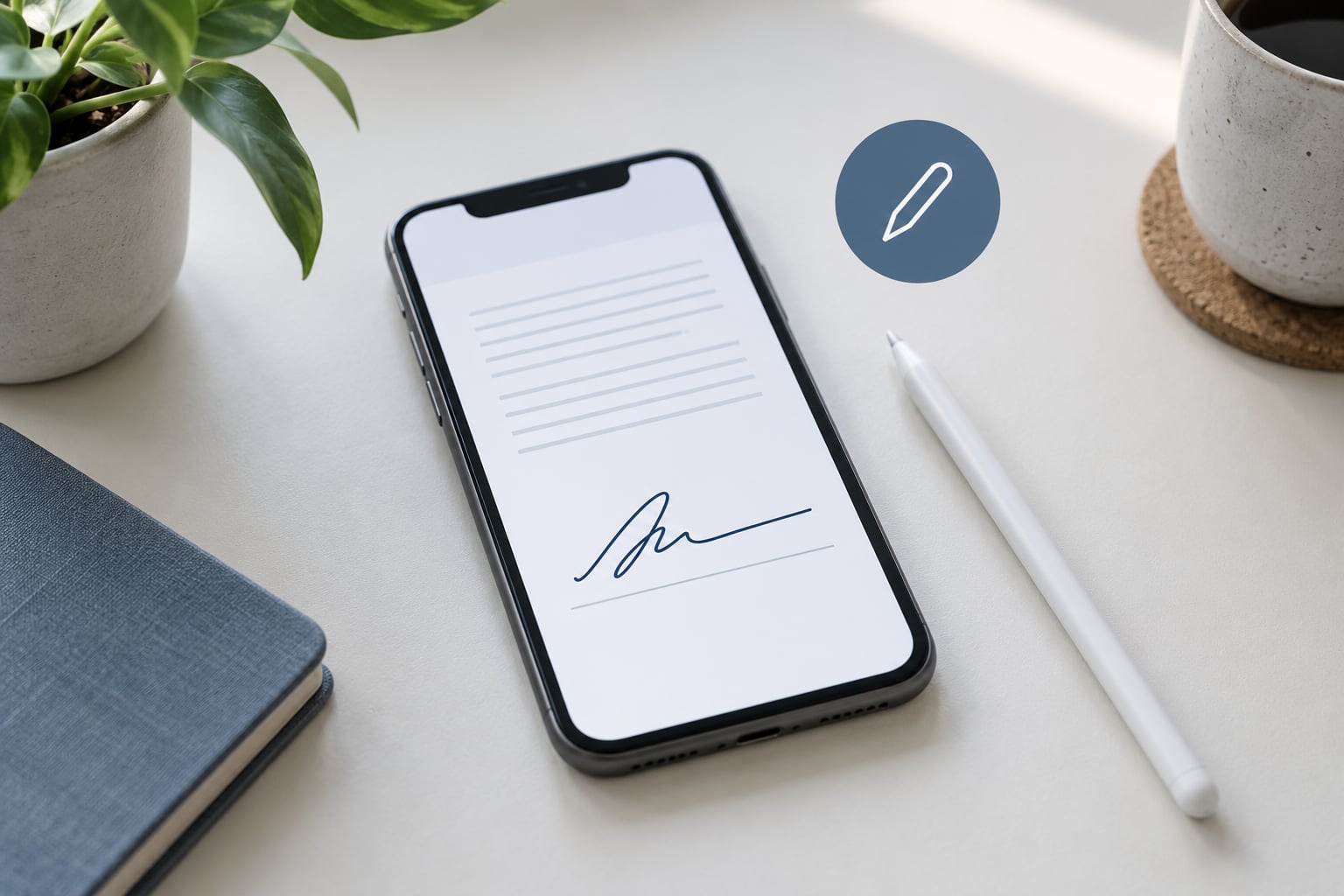
Yes — you can sign a PDF on an iPhone for free, and you don’t need to install anything. Apple’s built-in Markup tool sits inside the Files and Mail apps: open the PDF, tap the Markup icon, add your signature, drop it on the signature line, and save a copy. The whole thing takes about two minutes once you know where the buttons are.
The catch worth knowing up front: a Markup signature is a picture of your signature stamped onto the page. There’s no audit trail behind it, so it’s fine for a school permission slip or a work order, and thin evidence if you’re signing a lease or a client contract.
Table of Contents
What You Need
An iPhone on a current or recently updated version of iOS, the PDF saved in the Files app, and a couple of minutes. No Apple Pencil, no account, no download.
If the document arrived as an email attachment, a WhatsApp message or a Safari download, get it into Files before you start. Markup works on the copy you can open, and a mail or chat preview is not a safe place to work.
Some files are locked. A password-protected PDF, or one the sender restricted, may open read-only with the Markup icon greyed out or missing entirely. When that happens only the sender can unlock it — no app on the phone gets around a restriction the owner set.
A finger signs perfectly well. An Apple Pencil gives a finer line if you have one, and on an iPad the Pencil draws noticeably cleaner than a fingertip.
How to Sign a PDF on iPhone Using Markup
Open the file, tap the Markup icon, add a signature, place it, tap Done. Seven steps, and the same signature is saved for the next document.
- Open the PDF in Files. Tap the file in any folder, including Downloads. If it opens with a Done button already in the top corner, you’re in Markup and can skip to step 4.
- Tap the Markup icon. It’s the pen tip inside a circle at the top right, beside Share. The annotation toolbar sliding up from the bottom edge is your proof it opened.
- Tap the (+) button. This adds a new annotation to the page — a signature, a text box, a shape, a photo or a scan.
- Tap Signature, then Add or Remove Signature. A list of signatures you’ve used before appears at the top. Under it, tap Add Signature to draw a new one.
- Draw your signature and tap Done. Use your finger or an Apple Pencil. Anything you draw here is stored on the iPhone and reused automatically next time.
- Drag the signature onto the line, then resize it. Drag to reposition, use the corner handles to scale it. Keep it small enough that it doesn’t sit on top of the printed text.
- Tap Done again to save and close. In the Files app the signed version replaces the file in place, no prompt and no extra tap.
Signing a form works the same way. Tap each field, type your answer, tap the next field, and add the signature last so nothing sits over your entries.
How to sign a PDF on iPhone with your finger
You sign with your finger by drawing on the signature canvas that appears when you tap Add Signature. Inside that panel you get a magnifier bubble that follows your fingertip, so you can see the line of your signature before you lift off — the main reason finger signatures come out badly on the first try.
The thickness slider and the colour selector sit above the canvas. A mid-weight line in dark ink is the safest choice; hairline strokes drop out when a document gets printed or photocopied.
If a stroke goes wrong, clear the canvas and draw again rather than trying to patch it. The canvas has one undo step, but starting clean produces a better signature than three attempts stitched together. Turn the iPhone sideways into landscape mode if the panel feels cramped — it widens the drawing area noticeably.
How to insert a saved signature on iPhone
Once you’ve drawn a signature, it stays available in every later document you sign on that iPhone, including ones you open from Mail. You don’t have to redraw it.
To place a saved one, tap the (+) button, tap Signature, and tap your signature at the top of the list instead of Add Signature. It lands in the middle of the page at full size. Drag it down to the signature line, then pull a corner handle inward to shrink it.
Resize from a corner rather than a side, so the proportions hold and the signature doesn’t stretch. If you need to remove a signature you saved by mistake, Add or Remove Signature lists them with a delete control next to each one.
To confirm it’s attached, tap the placed signature once — small square handles appear at its corners and a Delete button shows up in the toolbar. If you tap away and the handles disappear but the ink stays on the page, it’s committed.
How to save and share the signed PDF
Files and Mail behave differently here, and this is where people lose work. A document opened from the Files app saves itself the moment you tap Done. A PDF opened from a Mail attachment does not — close that preview and your signature is gone.
So when you sign from Mail, tap the reply button or the share sheet before you close anything. Reply keeps the thread and attaches the signed copy; the share sheet has a Save to Files option that puts your own copy on the phone.
From the Files app, use the share button to send the signed PDF by Mail, Messages or AirDrop, or tap the item and use Duplicate if you want a signed copy without touching the original. The filename stays the same, so rename it before sending if a colleague might confuse the two versions.
Open the saved file once more before you send it. Scroll to the signature page and check the mark is there and sitting on the line — that two seconds catches a signature that got scaled to nothing or dragged into a margin.
Using a PDF App Instead
Markup covers one signature, one document, one device. There are four cases where a separate app earns its place.
- You sign the same document many times. Employment paperwork, rental renewals, a standing supplier agreement. A dedicated editor can stamp a saved signature onto page 12 without redrawing it.
- You’re filling a long form. Built-in Markup steps through fields one at a time and has no field detection, so a twenty-field application is slow. PDF form tools highlight every field and remember values.
- Someone else has to sign. Sending a document out for countersignature, with a defined signing order and reminders, is something free signing services do and Markup simply doesn’t offer.
- You need proof of who signed. When the other side insists on an audit trail, a timestamped certificate of completion or an identity check, Markup’s signature image won’t satisfy them.
The honest caveat from the people who post about this: plenty of signing apps on the App Store demand an annual subscription before they let you sign a single page, and plenty more want you to upload a scan of your driver’s licence before the free tier opens. Read what a free tier actually allows before you commit to anything. On the flip side, the built-in tool needs no download, no account and no network, which matters when you are signing on a train.
Common Mistakes
The Markup button is missing. Usually the PDF is locked or read-only. Open it from Files rather than from inside a chat app, check for a password prompt, and if it’s still greyed out, ask the sender for an unlocked copy.
Your signature came out tiny or crooked. It was placed at full size and resized with a side handle. Delete it, place it again, and scale from a corner so it keeps its shape.
The signature covers printed text. Drag it slightly to the whitespace under the line and shrink it a little. Signatures that span two lines of body text get rejected more often than anything else on this list.
Stray pencil marks are left on the page. Close the file and reopen it — Files keeps the last saved version, so your original comes back clean. The safer habit is to save a copy before you start marking up.
You signed it and nothing happened. You were working inside a Mail preview. Save to Files first, sign there, then send. This is the single most common way people lose a signature.
The recipient says the signature isn’t there. You sent the original instead of the signed copy. Open the attachment on your own phone and check the signature page before you hit send.
Edits are blocked entirely. Some PDFs are flattened or restricted by the sender. No workaround exists on the phone; you need the original editable file.
A couple of habits worth keeping: name the signed version rather than overwriting silently, and remember that a drawn signature on a phone screen can be reproduced by anyone who sees it. For anything with money or legal weight, check what the recipient actually requires before you sign.
Frequently Asked Questions
Can I sign a PDF on my iPhone for free?
Yes. The Markup tool in the Files and Mail apps is part of iOS, so signing costs nothing and needs no download or account. You draw your signature once, save it, and reuse it on later documents. You need a current or recently updated iOS version and an unprotected PDF.
Which iOS versions can sign a PDF?
Markup signing has been built into iOS for many releases now and works on iPhone and iPad alike. If you cannot see the pen-in-circle Markup icon, update iOS in Settings, then General, then Software Update, and reopen the file from the Files app rather than from a mail preview.
How do I sign a PDF when there is no signature line?
Add one yourself. Tap the Markup icon, then the (+) button and choose Text, Signature or Shape, and position it in the whitespace below the last paragraph. Leave room for a date underneath. Many people add a signature line plus a typed date so the page still reads correctly when printed.
How do I fix a signature I placed in the wrong spot?
Tap the placed signature once and the handles and a Delete button appear. Delete it, then add it again and drag it into position before you tap Done. If you have already tapped Done, reopen the file in Files and use the Undo tool, or sign a duplicate so the first attempt is not lost.
Does signing change the original PDF?
In the Files app, tapping Done saves the signed version over the file in that folder. Work on a Duplicate first if you want to keep the unsigned original, and rename the signed copy before sending it. Files opened from a Mail attachment are not auto-saved, so use Save to Files before closing the preview.
What if the PDF is password-protected or will not let me edit?
A locked or restricted PDF opens read-only, which is why the Markup icon is missing or greyed out. There is no way around that on the phone. Ask the sender for an unprotected copy, or for a signing link from a service that hosts the document itself and handles the authentication on their side.
Conclusion
How to sign a PDF on an iPhone, in the shortest version: open the file in Files, tap the Markup icon, tap the (+) button and choose Signature, drop the mark on the signature line, tap Done. Then reopen the saved file and check the signature is visible before you send it.
Sign from Files rather than from a Mail preview, keep a duplicate if the original matters, and switch to a dedicated signing app only when you need countersignatures or an audit trail. For how to sign a PDF on iPhone questions that go beyond the basics, the answer nearly always starts with the same seven taps.