If you have forgotten the passcode on your Apple Watch, there is no way to unlock it. The only route back in is to erase the watch completely, which deletes its data and settings, and then set it up again with your iPhone. The whole job takes about five minutes on the watch itself, and you do not need the passcode to do it.
Here is the short version:
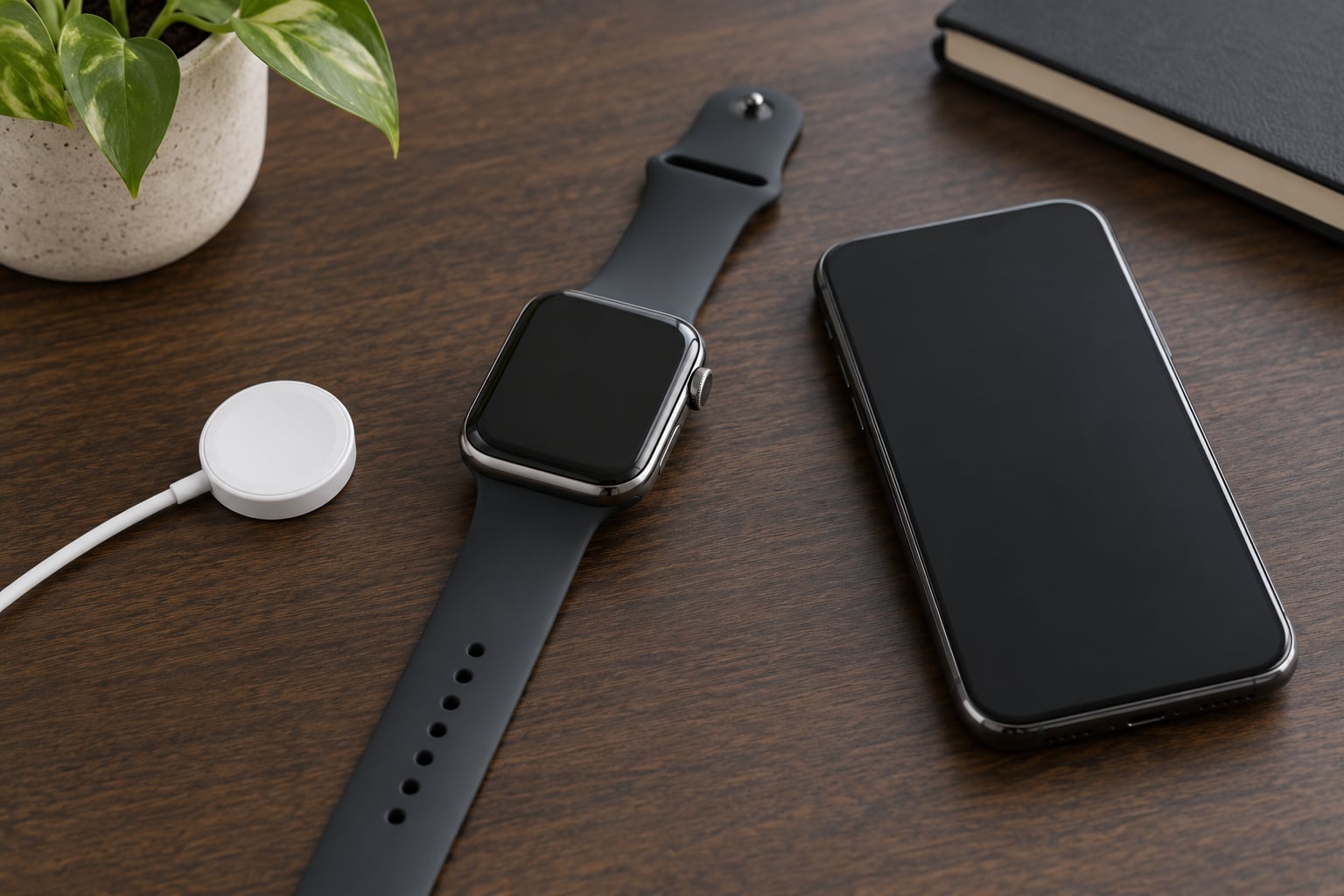
- Put the Apple Watch on its charger and leave it there.
- Press and hold the side button until the power slider appears.
- Keep holding the Digital Crown until Erase all content and settings appears.
- Tap Reset, then tap Reset again to confirm.
- When the Apple logo shows, open the Watch app on your iPhone and restore from backup.
One warning first, because it changes how urgently you should act. If the Erase Data setting is turned on, the watch wipes its own contents after 10 failed passcode attempts. You may already be closer to that than you think, and the reset is a safety net as much as a fix.
Updated for 2026 with current watchOS menu names.
Table of Contents
- 1What You Need
- 2Step-by-Step
- 3How to Reset the Apple Watch Using the Paired iPhone
- 4How to Erase an Apple Watch That Will Not Unlock
- 5How to Remove the Apple Watch with Find My
- 6How to Set Up the Apple Watch Again
- 7Common Mistakes and What to Do About Them
- 8Frequently Asked Questions
- 9Can I unlock my Apple Watch if I forgot my passcode?
- 10Can I factory reset an Apple Watch without the passcode or iPhone?
- 11How do I reset an Apple Watch that is locked by the previous owner?
- 12Why does the Erase all content and settings option not appear?
- 13Will I lose my Apple Watch data if I reset it?
- 14What if the watch is already disabled after too many passcode attempts?
- 15Conclusion
What You Need
Resetting needs very little, but two of these trip people up.
- Your Apple Watch and its magnetic charging cable.
- The iPhone it is currently paired with. You can erase without it, but you need it to set the watch up again.
- Your Apple Account password. Not the watch passcode — a different thing, and you will need it during setup.
- A Wi-Fi or cellular connection on the iPhone for the restore step.
- The password for your Apple Account, plus access to the phone number or trusted device on it, in case the reset triggers a verification code.
The confusion worth sorting out before you start: the watch passcode is a 4 or 6 digit code that protects the watch itself. Your Apple Account password is the longer one you use for iCloud. Erasing the watch removes the first and does nothing about the second, and setup will ask for the second every single time.
No other tool is needed. No computer, no Apple Store visit, no third-party app.
Step-by-Step
Three routes get you to the same place. Pick the one that matches your situation.
- Reset on the watch — no iPhone needed for the erase itself. Best when the iPhone is gone, or the Watch app cannot find the watch.
- Reset via the paired iPhone — needs the iPhone. Best when you still have it and want the cleanest, most complete erase.
- Remove with Find My — needs the iPhone or iCloud.com. Best when the watch is lost, sold, or locked to someone else’s account.
Whichever you use, the watch ends up wiped and ready for setup. The difference is what gets cleaned up along the way.
How to Reset the Apple Watch Using the Paired iPhone
Start here if you still have the iPhone. It gives the cleanest result, because the phone backs the watch up first.
- Open the Watch app on your iPhone.
- Tap My Watch, then scroll down to General.
- Tap Reset, then tap Erase Apple Watch Content and Settings.
- Tap Erase to confirm. Enter your iPhone passcode if asked.
- If you have a GPS + Cellular model, the phone asks whether to keep or remove the cellular plan. Keep it if you want calls and data on the wrist; remove it if you are passing the watch on.
A backup of the watch contents is created on the iPhone as part of the erase, so your data is not simply dropped. You should see the watch drop off the My Watch list within a minute or two, and when you put it back on the charger it shows the pairing screen rather than a lock screen.
Apple is clear that this does not remove Activation Lock. The watch is still tied to the Apple Account until someone with that account password removes it, which is exactly what makes the Find My route necessary for second-hand or inherited watches.
How to Erase an Apple Watch That Will Not Unlock
This is the method that works with no iPhone, no passcode and no Apple Account password. The watch is in charge.
- Put the watch on its charging cable and keep it there through the whole process.
- Press and hold the side button until the power slider appears in the upper-right corner of the display.
- Keep holding the Digital Crown, the round button on the right side, until Erase all content and settings shows up.
- Tap Reset, then tap Reset again.
- Wait for the Apple logo, then for the pairing screen. The watch is now empty.
The charger is not optional advice. Without power the watch may drop the request partway and go straight back to asking for the passcode, which is the single most common reason people think the method failed.
If Erase all content and settings never appears, you are most likely on an older watch. Owners on Series 1 and Series 3 report exactly this while the same steps work fine on a Series 5 or 6. On those models, force restart first by holding the side button and the Digital Crown together until the Apple logo appears, then let it boot and try the reset again on a charger.
If that still fails, unpair from the iPhone instead. Open the Watch app, My Watch, then the info button beside your watch, and choose Unpair Pairing. That clears the connection without needing the watch passcode.
How to Remove the Apple Watch with Find My
Find My is the route for a watch you cannot physically use: lost, returned to someone else, sold, or inherited.
- Open Find My on the iPhone, or go to iCloud.com/find and sign in.
- Choose Devices, then select the Apple Watch.
- Tap Erase This Device. If the watch is online, the erase starts immediately; if not, it starts as soon as the watch connects.
- Choose Remove This Device to take it off your Apple Account.
Removing it from the account clears Activation Lock, which is the only thing that can, short of Apple itself. Owners who bought a used watch and hit the activation screen find this out the hard way, and the honest answer is that the previous owner has to sign out of iCloud for the device or contact Apple with proof of purchase.
In a family situation where the previous owner is not reachable, Apple Support is the route. They will want proof of purchase, such as a receipt or the original order details. Expect it to take a few days, and expect to be asked for identification. This comes up often enough with a parent who has died that it is worth knowing before you need it.
How to Set Up the Apple Watch Again
With the watch showing its pairing screen, setup takes about ten minutes.
- Put the watch on its charger and unlock the iPhone.
- When the Watch app prompts, tap Pair. If it does not, open the Watch app yourself and pair from there.
- On the iPhone, tap the name of the watch you just erased in the list of available watches. The name matters — pairing the wrong one is how people end up restoring the wrong backup.
- Sign in with the Apple Account that the watch belonged to, and complete the two-factor verification.
- Choose Restore From Backup to bring back your watch faces, complications, apps and settings. Choose Set Up as New Apple Watch only if you genuinely want a clean slate.
After the restore, add your Apple Pay cards again, and re-confirm your cellular plan if you kept it. Wallet cards do not survive an erase and have to be re-added on purpose.
Then set a new passcode you will remember, and put it somewhere durable. Turning the passcode off entirely works, but it strips the Apple Pay cards and removes a layer of protection on a device that sits on your wrist all day.
Common Mistakes and What to Do About Them
Most failed resets come down to one of these.
- No Erase all content and settings option. Usually an older watch, or the watch is not on power. Charge it, force restart with both buttons until the Apple logo, then retry.
- The erase option appears, then the passcode screen returns. The watch lost power mid-request. Keep it on the charger and hold the Digital Crown longer.
- The watch will not appear in the Watch app. It is not paired, or it is too far from the iPhone. Unpair from iCloud, or pair again from the iPhone Watch app while both are close.
- Stuck on the activation screen asking for someone else’s Apple Account. Activation Lock is still active. The previous owner must remove it, or Apple Support with proof of purchase.
- No backup found during restore. Backup was disabled, or the phone was replaced. Set up as new and reinstall your apps and watch faces.
- The Digital Crown does not respond. Dead battery or a crash. Charge for 30 minutes, then hold both buttons until the Apple logo.
Two more situations come up constantly. If you have forgotten your Apple Account password rather than the watch passcode, no amount of resetting will help — that recovery runs through iforgot.apple.com and needs access to a trusted device or phone number.
And if you still half-remember the passcode, do not keep guessing. Ten wrong attempts and Erase Data does the erasing for you, without warning and without the restore you would have chosen yourself.
Frequently Asked Questions
Can I unlock my Apple Watch if I forgot my passcode?
No. There is no software trick, app or service that reads a forgotten Apple Watch passcode, and Apple does not keep a copy of it. The only path back to a usable watch is to erase it, which clears all data and settings, then set it up again from your iPhone. Restoring from a backup gets your watch faces, apps and settings back within minutes.
Can I factory reset an Apple Watch without the passcode or iPhone?
Yes. Put the watch on its charger, press and hold the side button until the power slider appears, then keep holding the Digital Crown until Erase all content and settings shows. Tap Reset twice and the watch is wiped. You will still need your Apple Account password later, during setup with any iPhone, because Activation Lock is not removed by the erase.
How do I reset an Apple Watch that is locked by the previous owner?
You cannot, on your own. A watch still tied to another person’s Apple Account stays on the activation screen after any erase, and no amount of resetting clears it. The previous owner has to sign out of iCloud for the device, or remove it from Find My, and that is the usual fix. If they cannot be reached, Apple Support can help with proof of purchase, though it takes several days.
Why does the Erase all content and settings option not appear?
Usually the watch is not on power, and the request is dropped before it finishes. Keep it on the charging cable. On older models such as Series 1, Series 3 and early Series 4, the option is genuinely less reliable and owners report it returning to the passcode screen, so force restart by holding the side button and Digital Crown together until the Apple logo appears, then try again on the charger.
Will I lose my Apple Watch data if I reset it?
Your activity history, health records and other data already synced to the iPhone stay on the phone. On the watch itself, everything is deleted, and a backup is created on the iPhone as part of the erase so you can restore it. Apple Pay cards are the exception, and they have to be re-added by hand after setup because Wallet does not restore them.
What if the watch is already disabled after too many passcode attempts?
A disabled watch is not a different problem, it is the same one with a countdown attached. The reset procedure is identical, and Apple groups the two cases together for that reason. If Erase Data was left on, the watch erases itself after 10 failed attempts anyway, so resetting deliberately gives you the restore choice instead of a blank device.
Conclusion
Start with the on-watch reset. Charger, side button, Digital Crown, Reset, Reset again. It is the only method that works without an iPhone and the only one that works on a watch stuck on the passcode screen. Have your Apple Account password ready, because that is what setup asks for and it is the step that catches people out. Reach for the iPhone method if you want the cleanest erase, and for Find My if the watch is not in your hand. If a watch will not erase or will not leave the activation screen, that is a conversation with Apple Support, not another reset attempt.