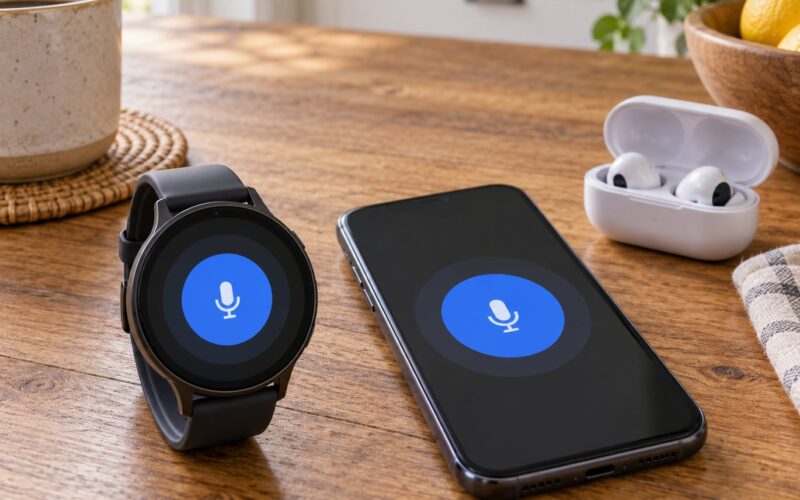
To find my iPhone with Apple Watch, press the side button to open Control Center, tap the Ping iPhone icon, and follow the sound. That is the whole task, and it takes about five seconds from your wrist. If the sound never plays, the cause is almost always one of four things: the control moved after a watchOS update, the phone is silenced, the two devices are on different Apple Accounts, or the phone is out of Bluetooth range.
Everything below is written for watchOS on the current generation, with older versions called out where the path differs. Menus change between major watchOS releases, so I have named the exact labels rather than describing gestures loosely.
Table of Contents
- 1What You Need
- 2How to Find My iPhone with Apple Watch: Step-by-Step
- 3Step 1: Turn On Find My on Your iPhone
- 4Step 2: Open the Apple Watch App
- 5Step 3: Use the Watch App to Check the iPhone Location
- 6Step 4: Play a Sound or Mark the Phone as Lost
- 7Common Mistakes When the Watch Cannot Find Your iPhone
- 8Frequently Asked Questions
- 9Why isn’t my phone ringing when I ping it with my Apple Watch?
- 10Can Apple Watch find my iPhone if the phone is switched off?
- 11Does the Find My map work without Wi-Fi or cellular data?
- 12Which Apple Watch models support Precision Finding?
- 13Can I use an Apple Watch for location instead of an iPhone?
- 14How do I ping my Apple Watch from my iPhone?
- 15Conclusion
What You Need
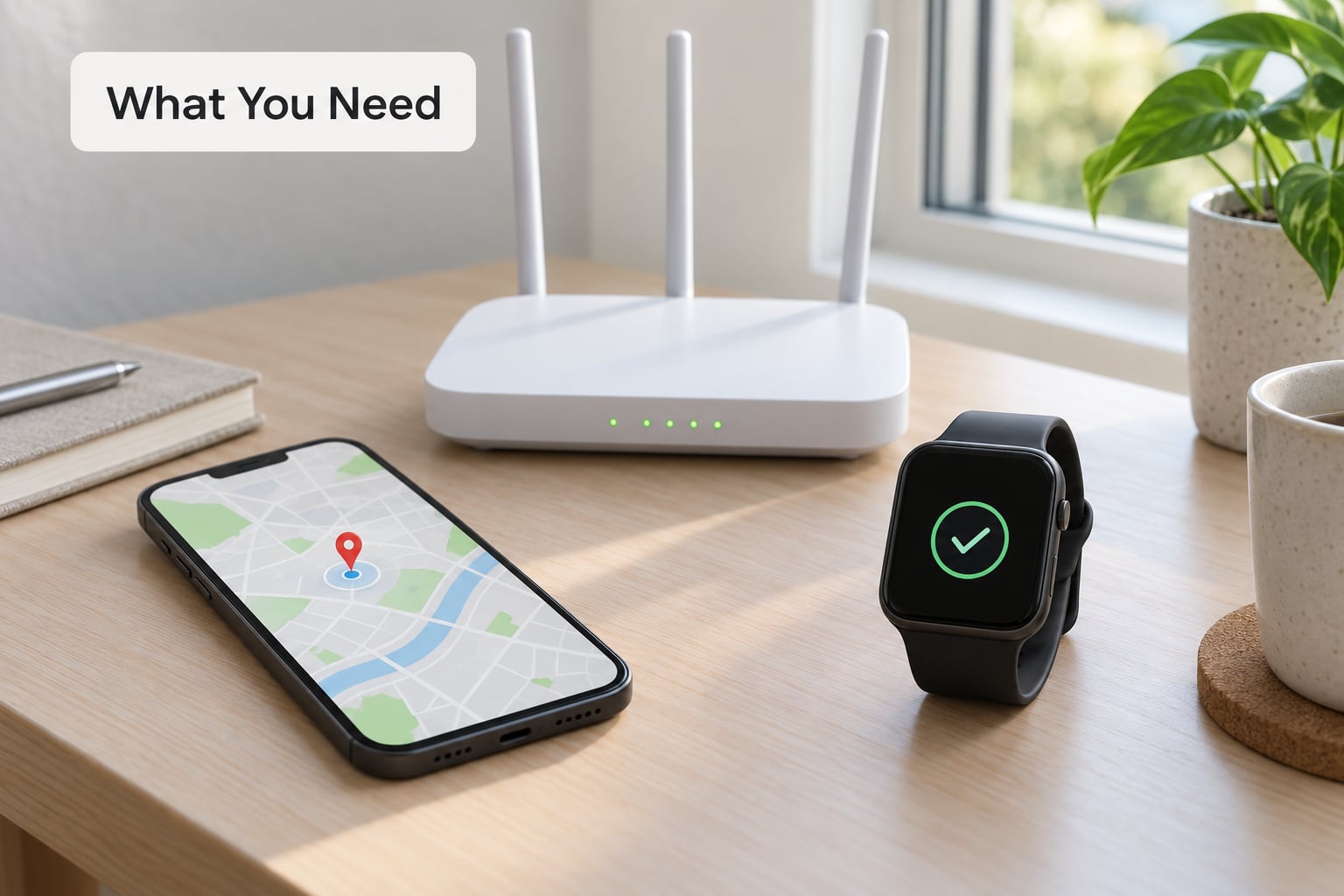
You need four things in place before any of the steps work. Checking them takes two minutes and saves an hour of tapping around.
- A paired Apple Watch and iPhone. They must be signed into the same Apple Account. A watch set up on someone else’s account can ping nothing at all, and that is the single most common setup mistake in family households.
- Find My switched on for the iPhone. Path: Settings > [your name] > Find My > Find My iPhone. If Find My is off, the watch has nothing to talk to.
- Location Services allowed for Find My. On the iPhone: Settings > Privacy & Security > Location Services > Find My > While Using the App. Without it you get a map with no pin and no sound.
- The phone in Bluetooth range for the ping to work. Room to room is fine. Through a floor or a concrete wall usually is not.
Network access is needed for the map, not for the sound. The ping travels over Bluetooth between watch and phone, so it works with the phone on cellular off, Wi-Fi off and even in Airplane Mode. The map pin and Lost Mode need iCloud.
How to Find My iPhone with Apple Watch: Step-by-Step
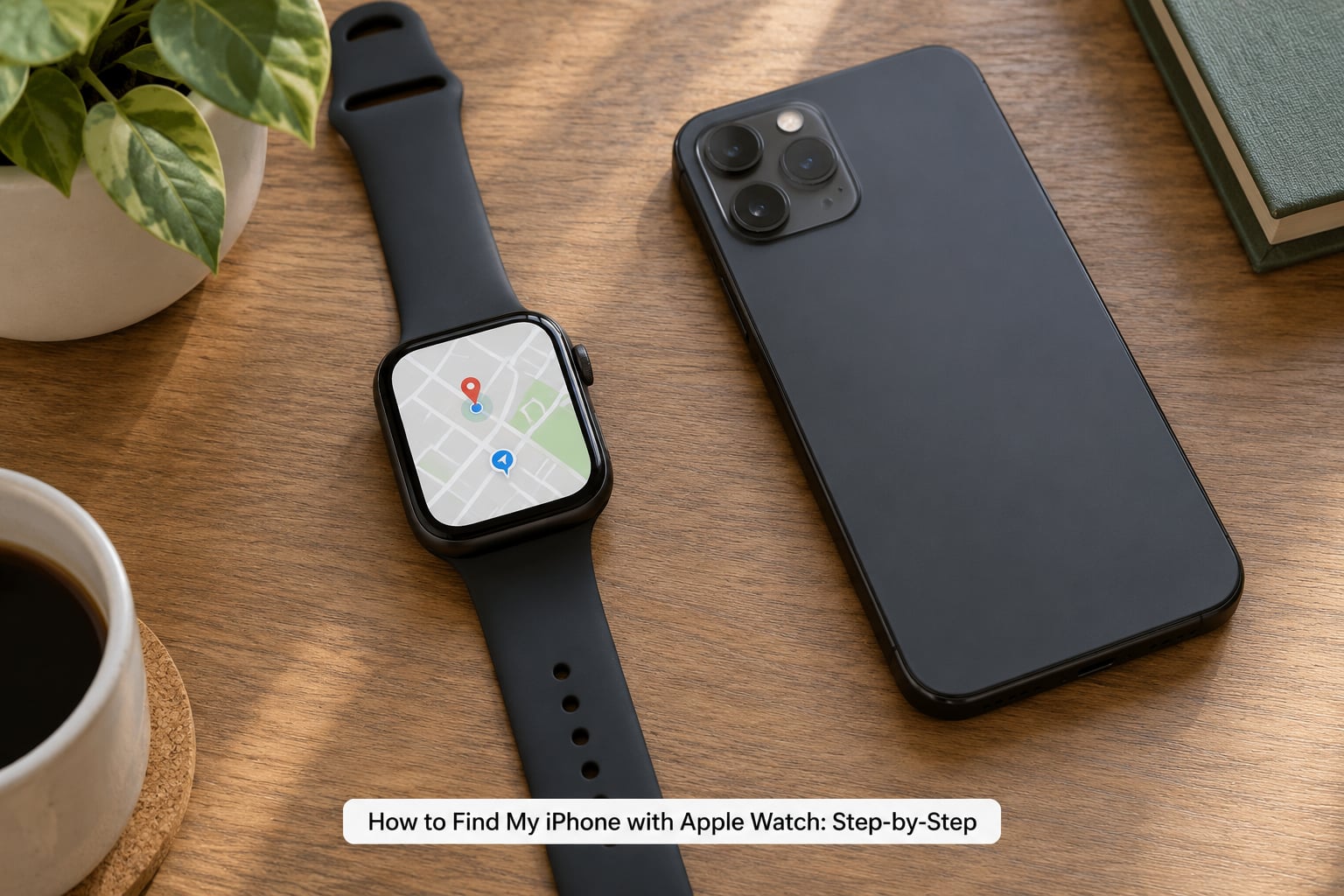
Step 1: Turn On Find My on Your iPhone
Open Settings and tap your name at the top. Choose Find My, then turn on Find My iPhone. You can confirm it worked by opening the Find My app and seeing your iPhone listed with a location, or by looking for the green location arrow in the status bar.
If the switch refuses to stay on, the phone is still signed into an account that has Find My disabled, or Activation Lock is in play. Finish setup before continuing.
Step 2: Open the Apple Watch App
On the watch, press the side button once. Control Center opens as a grid of round icons. Find the one that looks like an iPhone with a speaker and sound waves: that is Ping iPhone.
Tap it and the iPhone plays a full-volume chime, even from another room or down a hall. In 2020 Apple moved this control out of the old swipe-up app grid and into Control Center, which is where most people lose it.
Tap and hold the icon instead of tapping, and you get three choices: Play Sound, Flash Light, and Play Sound and Flash Light. The last one is the answer for a phone buried in a bag or under a sofa in a dark room, because the phone’s flashlight switches on and is easy to spot.
Step 3: Use the Watch App to Check the iPhone Location
To see the phone on a map rather than just hear it, open the Find My app on the Apple Watch, tap the button at the top left, then tap Devices. Turn the Digital Crown to scroll to your iPhone and tap it.
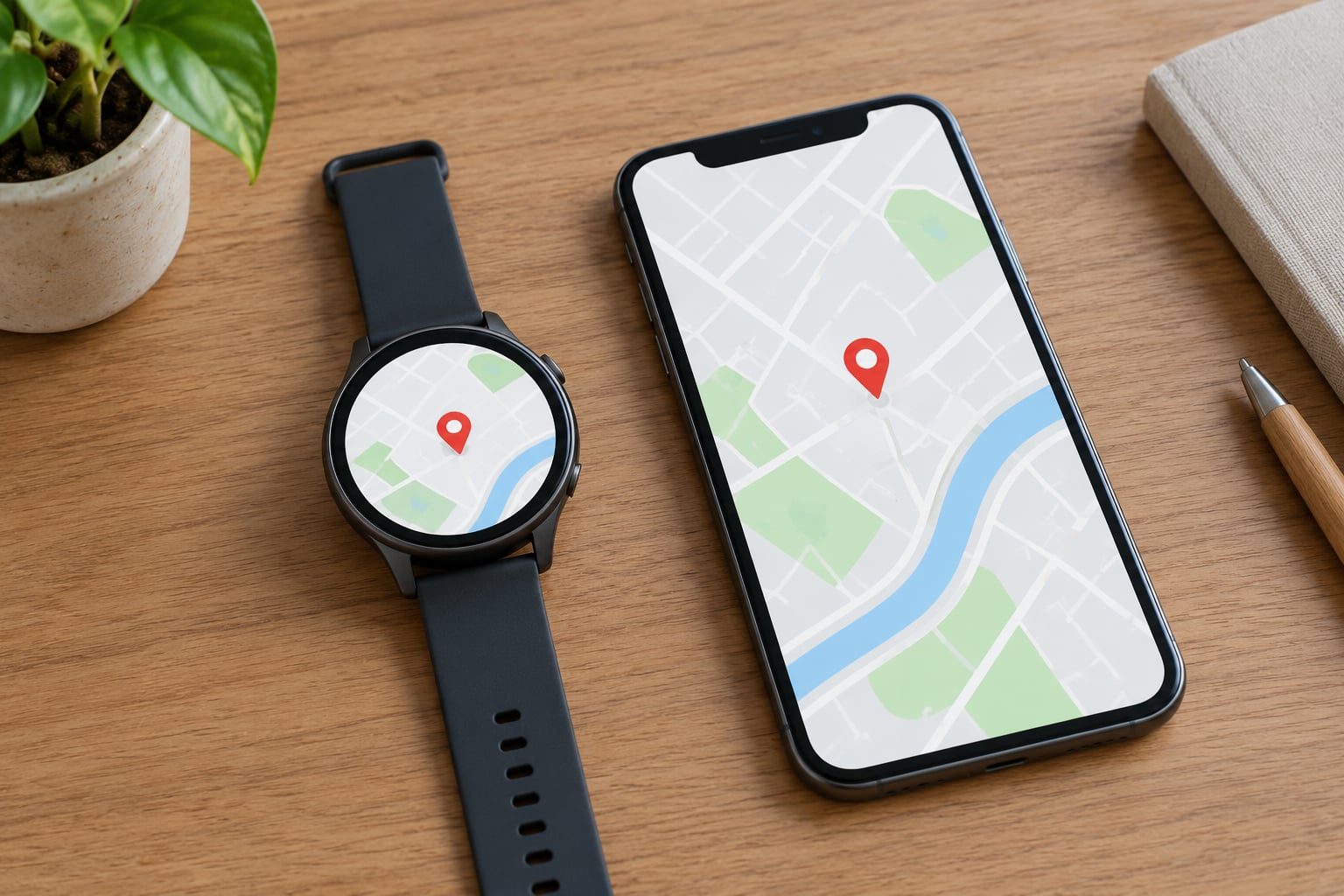
You get a green pin on a map, a timestamp showing how recently it updated, and buttons for Play Sound, Directions and Mark as Lost. Directions hand off to Maps on the watch, which is useful when the phone was left somewhere further than arm’s reach.
On Series 9, Ultra 2 and newer models paired with an iPhone 15 or later, the Find My view also shows Precision Finding: a large arrow pointing toward the phone and a distance estimate. Walk toward the arrow and the arrow turns green when you are close enough to see or hear it. Apple’s guidance for that range is about 50 feet.
Step 4: Play a Sound or Mark the Phone as Lost
If the phone is somewhere in the house, play a sound and walk toward it. If it is genuinely gone, open the Find My app on the watch, choose your iPhone, scroll to Mark as Lost and confirm.
Mark as Lost locks the phone, hides notifications, and stops it from being activated with anything other than its passcode. Any Find My-enabled device signed into the account can still play a sound on it. Turn it off the same way once the phone is back.
One more feature worth turning on now: in the Find My app on the watch, scroll your iPhone to Notify Me and choose When Left Behind. Pair it with your home and work addresses under Trusted Locations and your watch will buzz the moment you walk away from a place where the phone is still sitting. It catches the cafe-chair and taxi-seat cases that a ping cannot.
Common Mistakes When the Watch Cannot Find Your iPhone
Each of these has a specific cause and a specific fix.
No ping icon in Control Center. An update moved the control, or you are on an older watchOS where it lived in the swipe-up grid. Swipe up from the bottom, open the app grid, and look for a phone control. On current watchOS it is a side-button press away.
The phone does not ring at all. Check the volume first: an iPhone on Silent, in Do Not Disturb, or inside a Focus mode still plays the Find My chime, but the ringer switch matters on some models. Move the volume slider up with the side buttons and try again. If it still fails, the watch and phone are probably on different Apple Accounts, which you fix on the iPhone under Settings > [your name] and on the watch under Watch app > My Watch > Apple Account.
The map pin is stale. The location is the last one the network received, not live. Read the timestamp under the pin before you trust it. If the date is days old, the phone has been offline, powered off, or out of coverage.
Precision Finding is missing. It needs Series 9, Ultra 2 or newer plus iPhone 15 or later, and the budget iPhone 16e and 17e models are excluded. If you have a supported combination and still do not see it, check that both devices have the newest software, since it depends on Ultra Wideband hardware rather than a setting you can switch on.
Range is the problem. The ping uses Bluetooth and behaves like a strong short-range radio. Through a floor, a metal door or a brick wall it often fails, and in that case the watch is asking an already-disconnected radio to do something impossible. Fall back to the Find My map or walking directions, and if you own AirPods, pinging those through the same watch can help you triangulate.
The watch itself is dead, unpaired, or lost. Then the watch cannot help. Use any other signed-in device, or sign in to icloud.com/find from a browser, open Find Devices, select the iPhone, and play a sound there.
Frequently Asked Questions
Why isn’t my phone ringing when I ping it with my Apple Watch?
Usually the connection rather than the sound. The phone must be in Bluetooth range of the watch, the watch and iPhone must be signed into the same Apple Account, and Find My must be on. Raise the ringer volume and rule out Do Not Disturb or a Focus mode, then press the side button and tap the Ping iPhone icon again.
Can Apple Watch find my iPhone if the phone is switched off?
Not with a sound, because a powered-off phone cannot receive a Bluetooth ping. The Find My network still reports a position for it from other Apple devices nearby, so the map may show a pin and a last-known timestamp. The location is approximate and may be hours old, so treat it as a starting point rather than a live fix.
Does the Find My map work without Wi-Fi or cellular data?
The map and Play Sound from the watch do not need them, because that command travels over the direct Bluetooth link between your two devices. Loading a map, walking directions and Mark as Lost all need a connection. If the pin will not refresh with no signal, you are offline, not misconfigured.
Which Apple Watch models support Precision Finding?
Apple Watch Series 9, Ultra 2 and later models support it, paired with an iPhone 15 or later. The cheaper iPhone 16e and 17e do not have the required radio, and availability varies by country. Older watches play the sound and show the map, but they do not show the direction arrow and distance estimate.
Can I use an Apple Watch for location instead of an iPhone?
As a backup, yes. The watch can show a position and a timestamp, play a sound, and mark the phone lost, so you do not have to walk to another device first. It cannot replace the iPhone for checking AirPods or items, and a wrist-only workflow makes you the only source of the location, so having the phone on you is still the better habit.
How do I ping my Apple Watch from my iPhone?
It is the mirror image of the phone ping. On the iPhone open the Watch app, scroll to My Watch, then Control Center, tap Add a Control and choose Ping My Watch. The watch plays a sound and flashes its screen. The control is hidden by default, which is why many people cannot find it until they scroll past the visibility section.
Conclusion
Knowing how to find my iPhone with Apple Watch comes down to three checks. Confirm Find My is on for the iPhone, make sure both devices share one Apple Account, then press the watch side button and tap the Ping iPhone icon. If the sound is inaudible, check Silent mode, Do Not Disturb and Bluetooth range. If the phone is genuinely gone, use Mark as Lost from the Find My app on the watch, or sign in to Find Devices at icloud.com/find from any browser.