To pair an Apple Watch with a new iPhone, unpair the watch from the old phone first, set up the new iPhone from a backup, then hold the watch near it and follow the prompt in the Watch app. It takes about 10 minutes, most of which is restoring, and almost nothing breaks if you skip straight to it.
Last updated: October 2026
An Apple Watch only talks to one iPhone at a time, so a new phone means the watch has to be released from the old one before it can attach to the new one. Apple handles that with a backup copy: when you unpair, the watch’s settings, faces, apps and activity data are stashed inside the old iPhone’s backup, and the Watch app offers to restore them once the new phone is running.
That safety net is also why the order matters. Unpair before you erase or trade in the old phone, and you keep almost everything. Do it the other way around and the watch still pairs, but you start from factory settings with no history.
A note on versions before we start. The paths below assume iOS and watchOS as shipped in 2026. Older watches run older watchOS, and an old watch paired with a brand-new iPhone is the single most common reason a pairing attempt fails halfway.
Table of Contents
- 1What You Need
- 2Step-by-Step: How to Pair Apple Watch with New iPhone
- 31. Prepare the Apple Watch and New iPhone
- 42. Start Pairing with the Watch App
- 53. Choose Settings Restoration or Set Up Manually
- 64. Confirm the Apple Watch Is Connected
- 75. Wait for Syncing and Complete Configuration
- 8Common Mistakes and Quick Fixes
- 9Frequently Asked Questions
- 10Can I pair the same Apple Watch with a new iPhone without erasing it?
- 11What should I do if my Apple Watch does not appear in the Watch app?
- 12How long does it take to pair an Apple Watch with a new iPhone?
- 13Do I need both iPhones or an Apple Account to pair the watch?
- 14Will my Apple Watch automatically transfer apps and settings to a new iPhone?
- 15What should I do if my Apple Watch is already paired with another iPhone?
- 16Conclusion
What You Need
You need the watch itself, the new iPhone, and the Apple Account password. That password is required even if you have Touch ID or Face ID set up, because the Watch app asks for it during setup to confirm the account.
Also worth having on the desk:
- The Apple Watch you already own, charged above 50 percent
- The charging cable and a power source, since the watch can restart mid-pairing
- The old iPhone, unlocked and connected to Wi-Fi, if you still have it
- Your Apple Account password, typed by hand rather than autofilled
- Both devices on the same Wi-Fi network, and Bluetooth switched on
Before touching anything, back up the old iPhone: Settings, tap your name at the top, iCloud, iCloud Backup, then Back Up Now. Give it time to finish before you continue, because the unpair and the new phone restore both read from that backup.
If the old phone is already gone, skip that step and see the section on pairing without it, further down. The process still works, with a bigger caveat about what you keep.
Step-by-Step: How to Pair Apple Watch with New iPhone
1. Prepare the Apple Watch and New iPhone
Wake the watch and confirm you can see the time, not a pairing code or an error. If the screen is frozen on a spinning progress bar, that is a leftover failed attempt and needs clearing before you start clean.
Put the watch on its charger, turn the new iPhone face up next to it, and open the Watch app. If the app offers Migrate to a new Apple Watch or Set Up Apple Watch, choose the one that matches your case: Migrate when this watch came from your old phone, Set Up Apple Watch when it is new, used or freshly reset.
2. Start Pairing with the Watch App
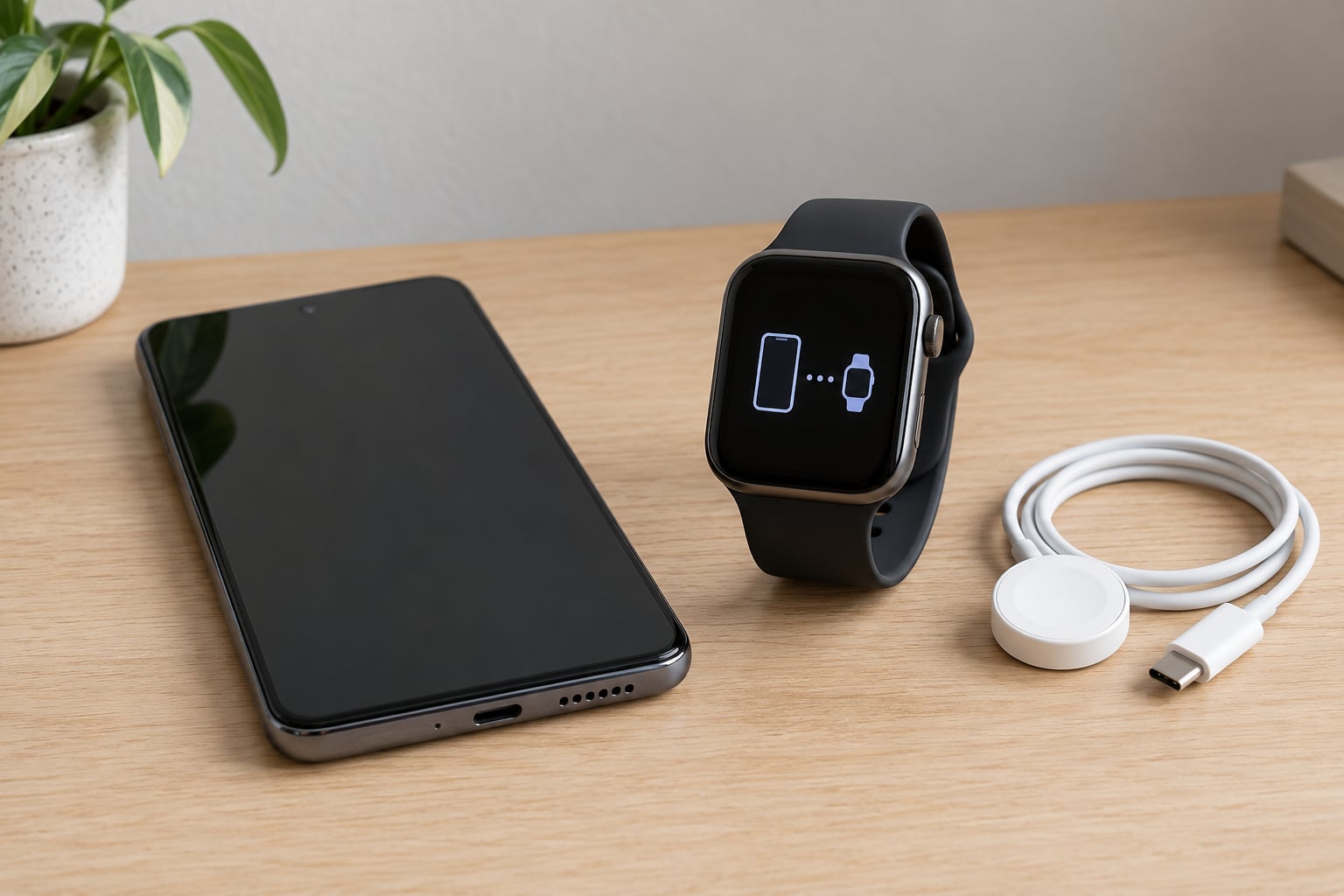
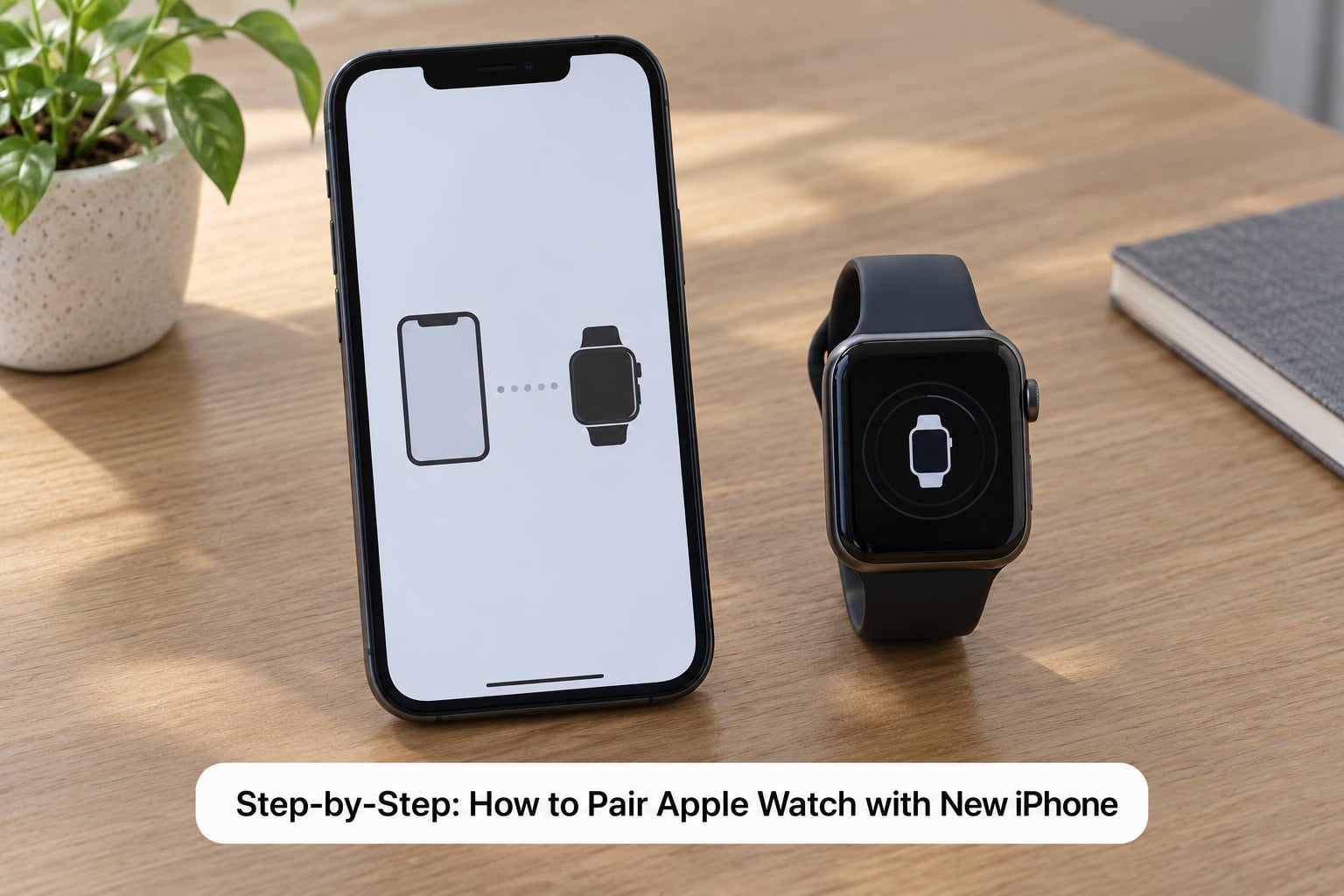
With both devices unlocked and within about a foot of each other, a pairing prompt usually appears on the iPhone on its own. Tap Continue, then Start Pairing.
If nothing pops up, do it by hand. Open Watch, tap All Watches at the top, tap Add Watch, then Start Pairing. A six-digit pairing code appears on the watch; enter it on the iPhone when asked. The iPhone camera can also read the code from the watch if you allow camera access.
3. Choose Settings Restoration or Set Up Manually
Once the two devices agree, the Watch app offers to restore settings from your previous watch. If you still have the old iPhone and its backup, say yes. If the watch was reset or bought second-hand, set it up as new instead.
Here is what actually crosses over, so nothing surprises you:
| Item | Restored from backup | Set up as new |
|---|---|---|
| Watch faces and complications | Yes | No, you re-pick them |
| Apps and app layouts | Yes | No |
| Activity history and trends | Yes, if Health sync ran on the old phone | No |
| Apple Pay and Wallet cards | Cards return, but each one needs re-verification with your bank | No |
| Cellular plan on GPS + Cellular models | Paired, but the plan re-provisions separately with the carrier | Must be set up from scratch |
| Passcode, notifications, workout settings | Restored | You set them |
Setting up as new is not a disaster, it just takes an evening of putting things back. The one item worth fighting for is Health data, because watch activity history is not stored on the watch itself.
4. Confirm the Apple Watch Is Connected
When setup finishes you land in the Watch app’s main screen, which shows your watch name at the top with a small view of the current face. Open it, tap Done, and lift the watch: the time and face should match the iPhone within a second or two.
Lock the iPhone, then raise your wrist. If the watch unlocks to your face and shows a notification that arrived on the phone, pairing is genuinely working. Also open Workout or Activity on the watch and check that your rings are there.
5. Wait for Syncing and Complete Configuration
Right after pairing, the watch quietly backs itself up to the new iPhone and downloads any watchOS update. On Wi-Fi that takes a few minutes; on a slow connection, longer. Keep both devices powered on and close together until the progress indicator on the watch disappears.
While it finishes, set the passcode. The Watch app prompts for a numeric passcode, and enabling it is what makes the Apple Pay and wallet cards usable again. Then check that the health toggle is on: on the iPhone, Health, Data Access and Devices, your watch, then Make All Data Readable, or turn on Sync this iPhone so activity history keeps flowing both ways.
Finish with a quick pass through Find My, Wallet and Phone, all of which need to see the watch listed by name. Then take the old iPhone out of range or switch it off, and confirm the watch still behaves normally.
Common Mistakes and Quick Fixes
The watch is stuck on Updating or Preparing Update. This is the most reported pairing failure, and it usually means the watch is downloading a watchOS build after it attached. Leave it on the charger near Wi-Fi for 20 to 30 minutes. If the ring has not moved after half an hour, restart the watch by holding the side button until the power slider appears, sliding it off, then holding the side button again.
Unable to connect with Apple Watch keeps repeating. Force quit the Watch app, restart the iPhone, restart the watch, and try again. Forum threads for this problem cluster around the same fix: a full unpair followed by a fresh pairing attempt works where repeated retries do not.
The watch does not appear in Bluetooth settings at all. Bluetooth is off, or the watch is still paired to another phone. Restart both devices and check Settings, Bluetooth, then Your Devices. One watch cannot be active on two iPhones at once.
Setup asks for an Apple Account the watch does not recognise. This happens with second-hand and gifted watches. The previous owner has to remove the watch from their account: Watch app, All Watches, the watch, info button, Unpair Apple Watch, then Erase. Until that happens, you cannot set it up as your own.
The Digital Crown will not respond. If the crown is dead, the watch may not have completed its first boot or may be low. Put it on the charger for 20 minutes and hold the side button to restart.
Notifications stopped or the watch says Cannot Reach iPhone. Raise the watch, run a quick workout or open a heavy app to force a sync, or open the Watch app and tap your watch name. Bluetooth and Wi-Fi both have to be on, and the iPhone needs to be unlocked nearby to hand the watch over.
You no longer have the old iPhone. Put the watch on its charger with the new iPhone beside it and open Watch, All Watches, Add Watch, Start Pairing. If it refuses or shows an unrelated pairing code, erase the watch directly: on the watch, Settings, General, Reset, Erase All Content and Settings. Then pair again. Everything except Health history and your Apple Account settings is set up fresh afterwards.
Two more situations come up often. If the watch is a GPS + Cellular model, it pairs normally but the cellular plan has to be moved separately, either by your carrier or in the Watch app under Cellular. And if the watch is genuinely too old for the newest iOS, no amount of retrying helps; pairing stops working at that point and the watch is at end of support for new phones.
Frequently Asked Questions
Can I pair the same Apple Watch with a new iPhone without erasing it?
Yes, in almost every case. Unpairing transfers the watch’s settings into the old iPhone’s backup rather than wiping the watch, and restoring from that backup brings your faces, apps and settings back. You would only erase it if you no longer have the old phone, or if pairing fails repeatedly.
What should I do if my Apple Watch does not appear in the Watch app?
Keep the watch unlocked, powered on and within a foot of the new iPhone, then open the Watch app again. If it still does not show, confirm Bluetooth is on for both devices and that the watch is not still paired to another phone, since only one iPhone can be active at a time.
How long does it take to pair an Apple Watch with a new iPhone?
Ten minutes is a realistic target, most of it spent restoring rather than pairing. The pairing handshake itself takes under a minute. The watch backup and any watchOS update that follows can add another 20 to 30 minutes on Wi-Fi, so keep both devices on power and nearby until the watch stops showing progress.
Do I need both iPhones or an Apple Account to pair the watch?
You need your Apple Account and password either way, because the Watch app verifies it during setup. You do not need both iPhones. If the old one is gone, pair from the new iPhone directly with the watch on its charger, though you lose anything that only existed in the old phone’s backup.
Will my Apple Watch automatically transfer apps and settings to a new iPhone?
Settings and apps transfer when you restore from the old iPhone’s backup, not automatically in every case. Watch faces, complications, app layouts and most preferences come back that way. Activity history only follows if Health sync was switched on, and Wallet cards return but still need re-verification with your bank.
What should I do if my Apple Watch is already paired with another iPhone?
Unpair it from the phone that owns it first: Watch app, All Watches, your watch, info button, then Unpair Apple Watch. If that phone is gone or you do not have its password, erase the watch itself with Settings, General, Reset, Erase All Content and Settings and pair it fresh to the new iPhone.
Conclusion
Back up the old iPhone, unpair the watch from it, set up the new phone from that backup, then hold the watch nearby and tap Continue. Say yes to restoring settings, and set a passcode before you do anything else with Wallet or payments.
After that, leave both devices switched on and within reach until the watch backup and any watchOS update finish. That is the step people skip, and it is the one behind most of the half-finished pairings people describe later.