You can unpair an Apple Watch without the iPhone it was paired with, but two separate jobs are involved. The first is erasing the watch, which you can do from the watch’s own Settings app or through Find My on iCloud. The second is removing Activation Lock from your Apple Account, and that only happens when the watch comes off your Find My list.
Erase on its own leaves the watch demanding the old Apple ID at setup, and that is where most people get stuck. Get both done and pairing it to a new iPhone takes a few minutes. Allow about ten minutes for the whole thing, plus longer if the watch has to reach a network for a remote erase.
Table of Contents
- 1What You Need
- 2Erase vs. Unpair: the difference everyone misses
- 3Which method should you use?
- 4Step-by-Step: How to Unpair Apple Watch Without iPhone
- 5Step 1: Check That the Apple Watch Is Unlocked
- 6Step 2: Open the Apple Watch App on Any Compatible iPhone
- 7Step 3: Choose Erase All Content and Settings
- 8Step 4: Confirm the Reset and Sign Out of iCloud
- 9Step 5: Pair the Watch With the New iPhone
- 10Common Mistakes and Troubleshooting
- 11The watch asks for a passcode nobody knows
- 12Nothing happens when you tap Reset
- 13Find My says Erase Pending and never finishes
- 14This Apple Watch is paired with another iPhone
- 15You forgot the Apple Account password
- 16The watch is secondhand and still locked to a stranger
- 17Before you sell, hand over, or reset a cellular model
- 18Pairing feels slow or the watch keeps waking to the old phone
- 19Frequently Asked Questions
- 20Is there any way to unpair an Apple Watch without a phone?
- 21Does erasing my Apple Watch delete my data?
- 22Does unpairing an Apple Watch remove Activation Lock?
- 23Can I use an Android phone or a Windows PC to unpair it?
- 24How do I remove the previous owner’s Apple ID from a secondhand watch?
- 25How long does unpairing and re-pairing take?
- 26Conclusion
What You Need
Before you touch anything, gather four things. Knowing which of them you are missing decides which method below will actually work for you.
- The Apple Account the watch is paired with. You need its Apple Account password, not just the email address. That is the account holding Activation Lock.
- The Apple Watch passcode. If the watch has a passcode, Erase All Content and Settings asks for it. There is no way around that on the watch itself.
- A Mac, PC, or any iPhone signed into that same Apple Account. This is how you reach Find My and remove the watch from your devices.
- A current iPhone for the next pairing. Setup needs an iPhone, either yours or one you borrow for the transfer.
Two things get destroyed by an erase and are worth handling first. Health, activity, and offline maps data are gone unless the watch backs up to the original iPhone. Apple Pay cards and transit passes in Wallet are removed too. For a GPS + Cellular model, you also have to decide whether to keep the carrier plan or remove it during the reset.
Erase vs. Unpair: the difference everyone misses
Erasing wipes the watch and returns it to factory settings. Unpairing is the full separation: the watch is erased, backed up, and removed from the Apple Account so Activation Lock clears. Without the original iPhone, erasing is the easy part and removing Activation Lock is the part people skip.
Which method should you use?
This table answers the question no other guide on this topic lays out plainly.
| Method | Needs the iPhone? | Clears Activation Lock? | Makes a backup? | Needs passcode? | Best for |
|---|---|---|---|---|---|
| Erase from the watch’s Settings | No | No, not on its own | No | Yes | You have the watch in hand and can sign into Find My afterwards |
| Erase via Find My on iCloud | No | Only after Remove from Account | No | No, but needs the Apple Account password | The watch is away from you, or you have no access to it |
| Unpair in the Watch app | Yes | Yes | Yes | No | You still have the original paired iPhone |
| Force erase with the buttons | No | No, not on its own | No | No | The touch reset never appears or the screen is frozen |
Read the Activation Lock column twice if you are buying a secondhand watch. A method that clears the lock needs the previous owner’s Apple Account, not yours.
Step-by-Step: How to Unpair Apple Watch Without iPhone
Use Method A when the watch is physically with you and Method B when it is not. You only need one of them. Once it is erased and removed from your account, Step 5 gets it onto the new iPhone.
Step 1: Check That the Apple Watch Is Unlocked
Wake the watch by lifting your wrist or pressing the side button. If a passcode field appears, type it. If a name and password prompt for someone else’s Apple Account appears instead, the watch is locked to another account and you cannot erase it until that lock is gone.
Also confirm you are the owner. Settings, then General, then About shows the watch name and owner. If the name is a stranger’s, stop here and read the secondhand section in troubleshooting below.
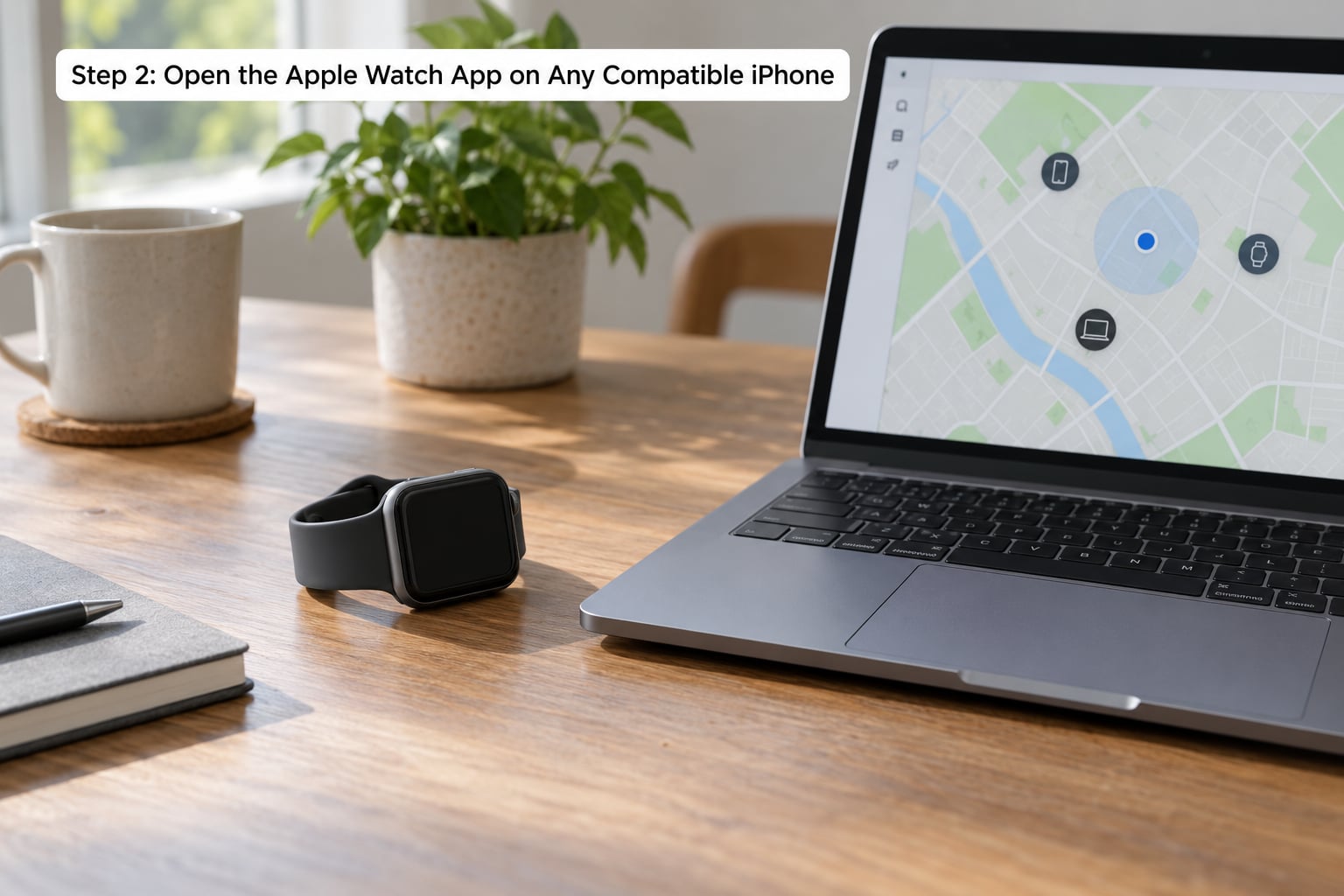
Step 2: Open the Apple Watch App on Any Compatible iPhone
This is where people expect to be stuck, and you are not quite. A different iPhone can show you the watch in the Watch app as long as it is signed into the Apple Account the watch is paired with.
Open the Watch app, tap My Watch, then All Watches, and pick your watch from the list. You will see its settings but not the unpair button, because unpairing is reserved for the phone that holds the pairing record.
If you have no iPhone at all, skip to Method B and use a browser. There is no Android or Windows app that can unpair an Apple Watch, but any computer can reach the Find My web tools.
Step 3: Choose Erase All Content and Settings
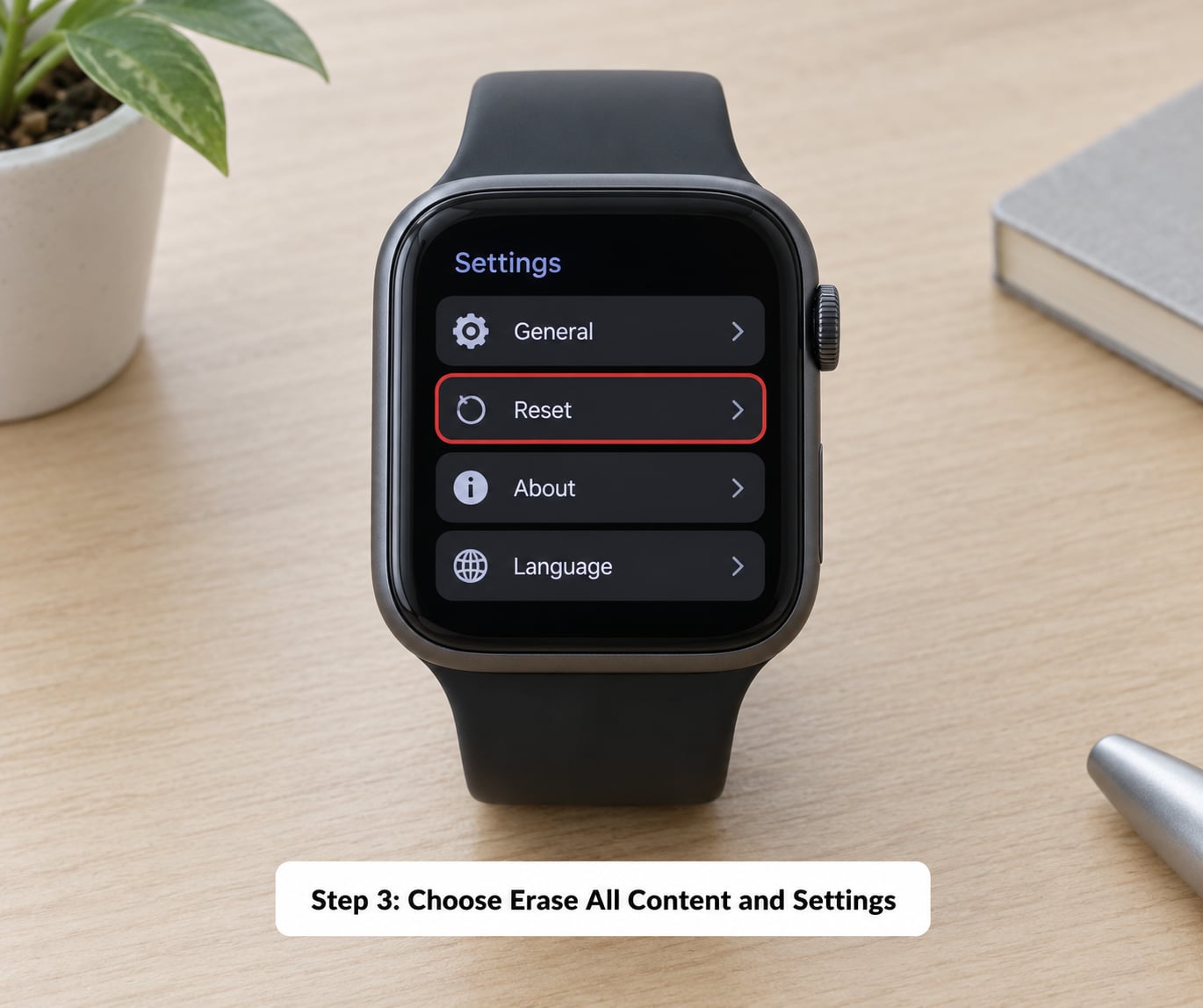
On the watch itself, open Settings, tap General, scroll to the bottom, then tap Reset. Choose Erase All Content and Settings. Enter the Apple Watch passcode if you have one, then confirm the erase.
This is Erase All Content and Settings on watchOS 10 and later. Older models used the older layout with Reset sitting in the same General menu, so the wording may differ slightly while the path stays the same.
If you own a GPS + Cellular model, the watch asks whether to keep or remove the cellular plan. Keep it if you are moving to a new iPhone and will pair again. Remove it if you are selling or giving the watch away, then contact your carrier to cancel the line and keep the number if you want it.
You will know the erase worked when the watch shows the language and region setup screen. At that point it holds no data and no pairing.
Step 4: Confirm the Reset and Sign Out of iCloud
This is the step that removes Activation Lock, and it is not optional. On any iPhone, Mac, or PC, go to iCloud.com/find or open the Find My app and sign in with the Apple Account the watch was paired with. Select All Devices, pick the Apple Watch, then choose Erase This Device if it is not already erased.
Next, tap Remove from Account and confirm. That removes the watch’s pairing record from your Apple Account and clears Activation Lock. If you only press Erase and stop, the lock stays live and the watch will still ask for your Apple ID at setup.
If you never touched the watch’s Settings and only used Find My, Remove from Account still does both jobs in one press. Make sure the watch is erased first; removing a still-paired watch from iCloud leaves Activation Lock on, which is a very common mistake.
If you are handing the watch to another person or selling it, this is also where you delete it from iCloud entirely so it disappears from your device list for good.
Expect Erase Pending to sit there a while when the watch is off a charger in a drawer. Remote erase needs the watch to reach Wi-Fi or a cellular network before it can complete. Move on and check back, or bring it into Bluetooth and Wi-Fi range and try again.
Step 5: Pair the Watch With the New iPhone
Put the new iPhone near the watch and power both on. The watch should show a setup screen, or the iPhone should prompt you to set up a new Apple Watch. You can trigger that prompt by opening the Watch app on the new iPhone and tapping Pair New Watch.
Pick your language and region, then follow the prompts. During setup the iPhone offers to restore from a backup taken during a previous unpair. If you never unpaired from the original iPhone, there is no backup and you start fresh.
Verify the pairing worked by lifting your wrist and confirming notifications arrive, then opening the Watch app and checking that your watch appears under All Watches.
The final check matters. If the watch shows an Apple ID and password screen for someone else during setup, Activation Lock was not cleared in Step 4. Go back to Find My and complete Remove from Account.
Common Mistakes and Troubleshooting
Most stuck states come from one of four things: a passcode nobody remembers, a watch that never reached a network, a lock bound to another Apple Account, or a reset that never triggered. Work down the list.
The watch asks for a passcode nobody knows
Erase All Content and Settings is gated by the watch passcode, not the Apple Account password. If the passcode is lost and no one in the family remembers it, erasing from the watch is not available. Go through Find My instead, using your Apple Account password. That route does not need the watch passcode.
If the watch passcode was changed and not written down, there is no recovery path. Take it to an Apple Store or authorised service provider and expect proof of purchase to be required.
Nothing happens when you tap Reset
Force a hardware restart with the buttons. Press and hold the side button and the Digital Crown together for about ten seconds until the Apple logo appears. Then repeat the Reset path in Settings.
On Series 5 and later without a Digital Crown, hold the side button for ten seconds, wait ten more seconds, and press the side button once to power it back on. Once it boots, the Reset option should be reachable from the touchscreen.
If the screen is cracked over the Reset row or the Digital Crown does not turn, erase through Find My on iCloud instead.
Find My says Erase Pending and never finishes
The watch is offline. Remote erase queues until the device checks in. Put the watch on its charger, bring it near a known Wi-Fi network, and wait. A watch stored for weeks in a drawer may need a few hours of charging before it reports in at all.
You can still press Remove from Account while the erase is pending. The watch becomes free to pair the next time it comes online and sees a new phone.
This Apple Watch is paired with another iPhone
This message means the watch still holds a pairing record. Erase it from the watch’s own Settings, which breaks the pairing locally, then complete Remove from Account in Find My. If you only did one of those two, the message keeps coming back.
If the watch drops into a loop where it offers to set up a nearby iPhone and then reverts, the pairing is still live on the watch side. Erase it again and remove it from your account before touching setup.
You forgot the Apple Account password
Recover it at account.apple.com, which walks through two-factor authentication and lets you reset a forgotten password. Doing it from a browser works fine; the Find My web tools accept the same credentials.
If two-factor authentication is on and you no longer have a trusted device, you need an Apple Support request to get the account back. That process is deliberate and slow, so start it before you buy a secondhand watch that depends on it.
The watch is secondhand and still locked to a stranger
There is no legitimate way past someone else’s Activation Lock. Any site or app advertising an Activation Lock bypass either scams you or cannot do what it claims. Walk away from those.
What does work is the previous owner signing into icloud.com/find, selecting the watch, and choosing Remove from Account. If they will not, your only route is Apple Support, and you will need proof of purchase showing the serial number. If you bought it used with no receipt, you are likely out of luck, which is why checking the watch is unlocked before you pay matters so much.
Before you sell, hand over, or reset a cellular model
Double-check the cellular decision at the erase prompt. Keeping the plan leaves a carrier line open that you keep paying for, and removing it deletes the number if your carrier does not port it. Call the carrier before resetting so you know which one you are doing.
Remove Apple Pay cards and any transit or boarding pass before erasing. Those are deleted by the reset and have to be reissued by your bank or transit authority.
Pairing feels slow or the watch keeps waking to the old phone
After the erase, bluetooth range matters more than usual. Keep the watch and the new iPhone within about 30 centimetres of each other with both unlocked during setup.
Reset Bluetooth on the new iPhone if the pairing prompt never appears, and make sure the watch is not still listed in the new iPhone’s Bluetooth settings under a name you do not recognise.
Frequently Asked Questions
Is there any way to unpair an Apple Watch without a phone?
Yes, in two parts. Erase the watch from Settings, General, Reset, then Erase All Content and Settings, or erase it remotely through Find My on iCloud. Then remove it from your account by selecting the watch in Find My and choosing Remove from Account. Erasing alone leaves Activation Lock on, so the setup screen will still ask for your Apple ID until the account step is done.
Does erasing my Apple Watch delete my data?
Yes. An erase removes health, activity, and offline maps data stored on the watch, plus Apple Pay cards and Wallet passes. The only backup is one taken automatically when the watch unpairs from the original iPhone. Without that phone, no backup exists, so sync anything you care about to iCloud or your health app before you reset.
Does unpairing an Apple Watch remove Activation Lock?
A full unpair does, because it removes the pairing record from your Apple Account. Erasing the watch on its own does not, and neither does a remote erase through Find My until you press Remove from Account. Activation Lock is tied to your account, not to the watch’s own storage, which is why the account step is the one that matters.
Can I use an Android phone or a Windows PC to unpair it?
An Android phone cannot unpair an Apple Watch at all. A Windows PC or Mac cannot run the Watch app either, but both can open iCloud.com/find in a browser, sign in with the paired Apple Account, and use Remove from Account. That removes the watch from your account and clears Activation Lock once the watch has been erased.
How do I remove the previous owner’s Apple ID from a secondhand watch?
The previous owner has to do it. They sign into icloud.com/find, select the watch under All Devices, and choose Remove from Account. You cannot bypass someone else’s Activation Lock, and paid bypass tools are scams. If they will not cooperate, Apple Support can help, but you will need proof of purchase showing the serial number.
How long does unpairing and re-pairing take?
Erasing on the watch takes a few minutes, and pairing to a new iPhone takes another five or so. A remote erase through Find My is the slow path: it can show Erase Pending for hours if the watch is flat or out of network range, and sometimes overnight. Removing the watch from your account is quick once the erase is done.
Conclusion
Start with the erase. If the watch is in your hand, open Settings, then General, then Reset, then Erase All Content and Settings and type the watch passcode if it asks. Then sign in at iCloud.com/find, select the watch, and press Remove from Account. That second step is the one that clears Activation Lock, and skipping it is why so many watches end up asking for a stranger’s Apple ID at setup. Once the watch shows the language screen, put it next to your new iPhone and start pairing.