To schedule Dark Mode on iPhone, open Settings, tap Display & Brightness, turn on the Automatic switch, then tap Options and pick Sunset to Sunrise or a Custom Schedule. The whole thing takes about a minute, and it works on any iPhone running iOS 13 or later.
That Automatic switch is the part most people miss. They set the schedule, walk away, and the phone never changes because the toggle got switched off by a stray tap or a Settings reset. Everything below is written against current iOS menu wording, with the older paths noted where they still apply.
Table of Contents
What You Need
You need an iPhone 6s or later running iOS 13 or newer. Dark Mode arrived in iOS 13, and every iPhone still supported today has the scheduling controls built in.
The same menu exists on iPad under Settings > Display & Brightness, so the instructions carry over if you own both. No third-party app, account or accessory is needed.
Step-by-Step
Five taps from the Home Screen to a working schedule.
Step 1: Open Display & Brightness Settings
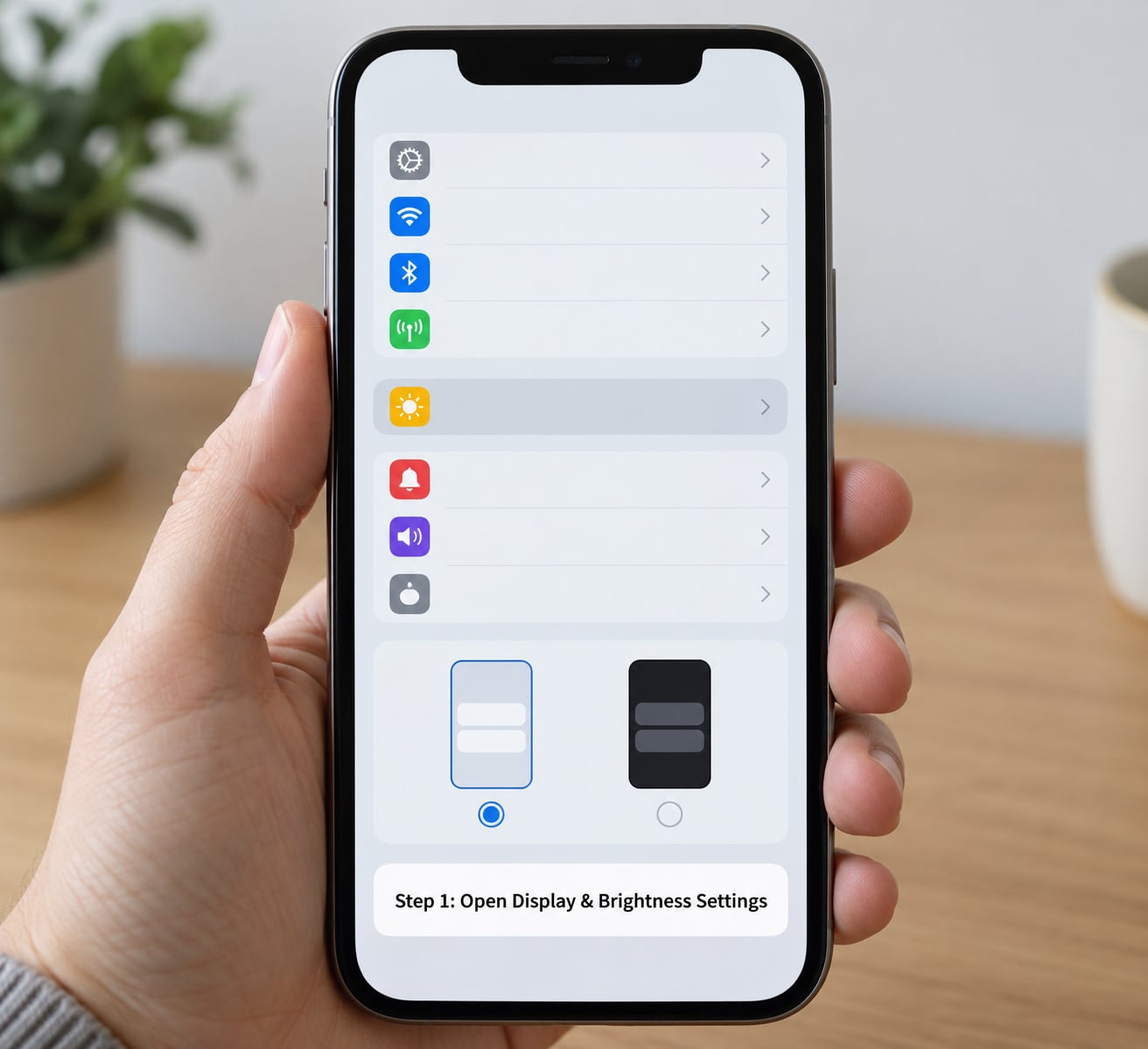
Open the Settings app, scroll down and tap Display & Brightness. Near the top of that screen you will see an Appearance section with two choices, Light and Dark.
On iPadOS the same page is also called Display & Brightness. Older guides mention System Preferences on a Mac or an Appearance-only page on some builds, but the iPhone path has not changed in years.
Step 2: Turn On Dark Mode
Tap Dark so the screen switches immediately. This confirms the feature works before you add any scheduling, which makes troubleshooting easier later.
The setting applies across the whole system: Settings, Messages, Mail, Safari and most third-party apps that ship a dark design. Apple apps support it properly now, which was not true when the feature first shipped.
Step 3: Choose an Automatic Schedule
Below the Light and Dark row sits the Automatic switch. Turn it on, and an Options row appears underneath. Tap it and you get two choices.
| Option | How it picks the times | Best for |
|---|---|---|
| Sunset to Sunrise | Uses your current location to calculate local sunset and sunrise each day | People who keep the phone on the same schedule and never travel far from home |
| Custom Schedule | You pick the exact minute Light Mode and Dark Mode each begin, with optional days | Shift workers, night owls, light-sensitive readers, and anyone who travels |
| Automatic off | No switching; the phone stays on whichever option you tapped in Step 2 | Locking the iPhone to one appearance permanently |
Sunset to Sunrise is the reason some schedules look wrong. It relies on Location Services, so if location access is denied or limited to While Using the app, iOS falls back to a default location and your switch times can drift by an hour or more. A Custom Schedule never drifts because the clock is on your device.
Step 4: Set Custom Hours
Tap Custom Schedule and two time rows appear: one for Light and one for Dark. Tap each row, spin the wheel to the time you want, then tap outside the picker to save it.
For a normal overnight schedule, set Light to something like 7:00 AM and Dark to 9:00 PM. The pickers move in five-minute steps, so you are not going to get seconds.
Schedules can cross midnight. If you are awake past 1 AM, set Dark to 11:00 PM and Light to 7:00 AM anyway, then let the reverse wrap handle it. A Day selector lets you restrict the schedule to weekdays only, which is handy if weekends are your reading time.
Step 5: Confirm the Schedule Works
Go back to Display & Brightness and check which of Light or Dark is currently selected. That row shows the active appearance at this exact moment, so it tells you whether the window is open.
To test without waiting for sunset, open Control Center by swiping down from the top-right corner and tap the appearance button there. You can then switch back and watch the setting follow your choice. Once you leave the phone inside its scheduled window, it will change on its own.
Common Mistakes
The Options row is greyed out. The Automatic switch has to be on before Options responds. Turn it on, then tap Options again.
Dark Mode keeps reverting. Screen-reading and colour-filter apps such as f.lux, Iris or Opal drive appearance changes themselves and will fight your schedule. Close them or set the schedule back once the app stops running.
The times are off by minutes or hours. Sunset to Sunrise recalculates from your location and can be wrong while travelling or behind a VPN. Switch to Custom Schedule and the drift disappears.
It stopped after an update. Check the Automatic switch first, then the two time rows. Occasionally an update resets the schedule to Sunset to Sunrise with default times, so re-enter Custom Schedule values.
You want it in one app only. iPhone has no per-app Dark Mode setting, unlike macOS. Dark webpages and dark widgets work individually, and some apps force their own colours regardless of the system setting.
Two settings get confused with this one. Night Shift shifts the display towards warm amber in the evening, and True Tone adjusts colour temperature to ambient light. Both are independent of Dark Mode, and the two schedules can look like they are fighting each other when both run overnight.
Frequently Asked Questions
How do I schedule Dark Mode on my iPhone?
Open Settings, tap Display u0026amp; Brightness, turn on the Automatic switch, then tap Options. Choose Sunset to Sunrise for location-based times, or Custom Schedule to set the exact minute Light Mode and Dark Mode each begin. Leave the Automatic switch on or nothing will switch. The whole setup takes about a minute and works on any iPhone running iOS 13 or later.
What is the difference between Dark Mode and Night Shift on iPhone?
Dark Mode replaces bright backgrounds and white text with dark backgrounds and light text across the system. Night Shift shifts the whole screen towards warm amber so blue light is reduced, and it can run in either appearance. They are separate settings with separate schedules, and the two can look like they are fighting when both run overnight.
How do I keep my iPhone on Dark Mode all the time?
Open Settings, tap Display u0026amp; Brightness, tap Dark, and switch the Automatic toggle off. With Automatic off, iOS ignores any schedule and holds the appearance you chose until you change it. To switch on the go, swipe down from the top-right corner for Control Center and tap the appearance button instead of changing the setting.
Why is my scheduled Dark Mode not working?
Check three things in order. First, confirm the Automatic switch under Display u0026amp; Brightness is still on, since that is the most common cause. Second, check the time rows under Options, which updates sometimes reset to defaults. Third, close any screen-filter app like f.lux or Iris, since those apps force the appearance themselves and override the schedule.
Can I schedule Dark Mode on my iPad too?
Yes, and the menu wording is nearly identical. On an iPad, open Settings and tap Display u0026amp; Brightness, where the Appearance section with Light, Dark and Automatic appears near the top. Tap Options for Sunset to Sunrise or Custom Schedule and pick your times. iPad and iPhone schedules are set separately, so changing one does not change the other.
Conclusion
The fastest reliable setup is Custom Schedule: Settings > Display & Brightness, Automatic on, Options, Custom Schedule, then set your Light and Dark times. Sunset to Sunrise is fine if you never leave home, but it depends on location data you may have switched off.
Before you walk away, reopen Display & Brightness and confirm Automatic is on and the time rows hold the values you entered. That single check is the whole fix for most people who struggle to schedule dark mode on iPhone.