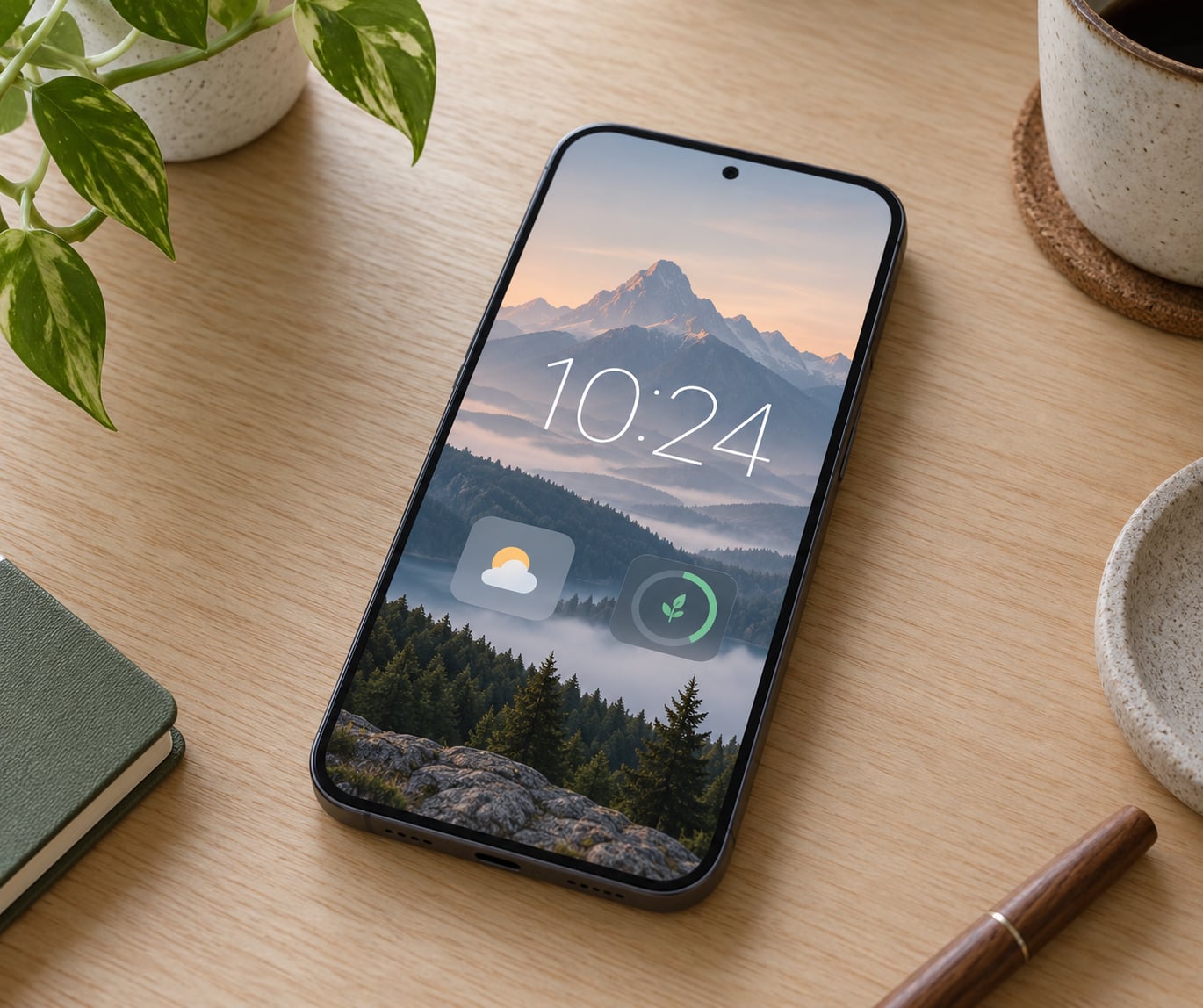
Customizing the iPhone Lock Screen takes about five minutes. Touch and hold the Lock Screen until it zooms, tap Customize (called Personalize on iOS 16), then change the wallpaper, clock, widgets and notification settings from there. Apple labels this the Lock Screen editor, and it is built into every iPhone running iOS 16 or later.
Most people only need the wallpaper changed. The editor also handles the clock font and colour, widget placement, the flashlight and camera buttons, and which notifications show without unlocking. Menu names shift a little between iOS versions, so I have noted where they differ.
Table of Contents
- What You Need
- Step-by-Step
- How to Customize the iPhone Lock Screen from the Home Screen
- Choose a Lock Screen Wallpaper
- Set the Lock Screen Color, Style, and Filters
- Change the Clock, Date, and Text Appearance
- Add and Arrange Lock Screen Widgets
- Choose Which Notifications Appear
- Check the Result and Secure the Lock Screen
- Common Mistakes
- Quick Tips for a Cleaner Lock Screen
- Frequently Asked Questions
- Why can I not find the lock screen customization options on my iPhone?
- Why did my old lock screen wallpaper disappear after I changed the wallpaper?
- Can I remove the clock and date from the iPhone Lock Screen?
- Why are some widgets not available on the Lock Screen?
- How do I hide sensitive information from Lock Screen notifications?
- Conclusion
What You Need
You need an unlocked iPhone running a recent iOS release and knowledge of its passcode. Nothing else — no app, no Mac, no cable.
An Apple Account is optional for this. Signing in is only relevant if you want your wallpaper and clock choices to follow you to a new phone through iCloud, and that sync can be turned off if you would rather start fresh on the next device.
One more thing worth checking: your iPhone model and iOS version. Several controls, including Photo Shuffle and spatial wallpapers, simply do not appear on older hardware or older releases. The section on each feature below tells you when that applies.
Step-by-Step
The whole process has four parts. You pick a wallpaper, decide how it looks, then adjust the clock and widgets, and finally check what notifications reveal. You can do all four in one editing session, or stop after any one of them.
How to Customize the iPhone Lock Screen from the Home Screen
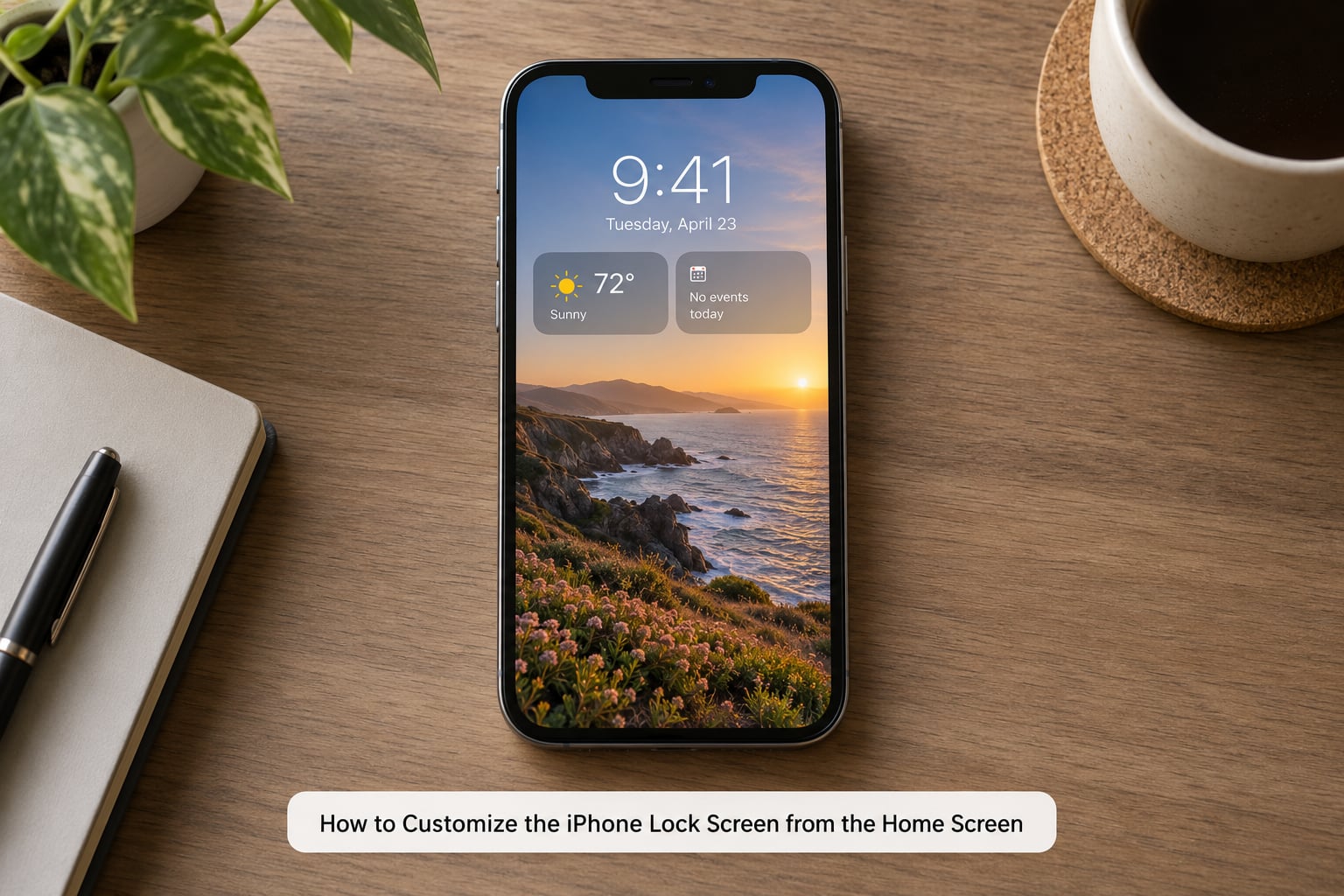
Touch and hold the Lock Screen until the wallpaper shrinks and the Customize button appears near the bottom. Tapping it puts the phone straight into edit mode, where each element becomes selectable.
You can also get there without touching the Lock Screen. Open Settings, tap Wallpaper, then Customize. On iOS 16 and some earlier builds, that same route ends at a button labelled Personalize instead. Both names open the same editor, so an old search result using the older wording is not wrong.
You will know you are in the right place when the wallpaper sits above the Home Screen preview, with a row of controls below it. Swiping left and right moves between Lock Screens you have already saved, and the blue + button starts a brand-new one.
Choose a Lock Screen Wallpaper
Tap Add New Wallpaper to see three sources: Apple’s own gallery, your Photos, and options for shuffling or spatial effects. Apple’s gallery is organised by themes and updates throughout the year.
From your own library, a photo gets automatically cropped so the subject sits in the visible band between the clock and the bottom buttons. Pinch to zoom and drag to reposition, and the crop applies to the Lock Screen view while your Home Screen keeps its original framing.
Live Photos animate briefly when you wake the phone. Shuffle rotates through several photos on a schedule you set — on lock, hourly, or daily — and can also advance when you tap the screen. Spatial Capture needs a photo recorded in 3D on a compatible model, and it shifts as you tilt the phone.
Two caveats. Motion wallpapers use a little more power than still images, and the live and spatial effects do not animate on every model or with every wallpaper, so a plain photo is the safer pick if you care about battery.
Set the Lock Screen Color, Style, and Filters
With a wallpaper selected, tap the Add Filter control to apply photographic styles: Vivid, Vivid Warm, Vivid Cool, Light, Light Warm, Light Cool, Mono, and No Filter. Filters change the mood of a photo without editing the original, which is handy if you reuse the same shot elsewhere.
Apple’s gallery wallpapers arrive with their own colour treatment, and several use gradients or a soft tint that keeps white clock text readable over a busy image. Shuffle has its own options for how often the photo changes, including a shuffle mode tied to unlocking the phone.
Older iOS releases used different wording for the same idea: the photo could rotate on lock, and Perspective Zoom pushed a landscape photo around as you tilted the phone. If you are reading an older guide and looking for those controls, they were folded into the newer wallpaper picker.
Change the Clock, Date, and Text Appearance
Tap the clock itself to open its options. From there you can switch between the available styles, toggle Glass and Solid rendering, pick a colour, adjust the weight of the numerals, and move an opacity slider so the clock reads faintly against a busy wallpaper.
There is also a date toggle in the same panel. Turn it off if you do not need it, which tightens the layout and gives widgets more room to breathe.
To change the size, drag the handle at the bottom corner of the clock. Stretching it vertically makes the time easier to read at a glance, which is the reason most people resize it.
You can hide the clock entirely. Tap the clock, choose Hide or Turn Off, and you are left with a wallpaper and widgets only — a cleaner look that some people prefer on a phone with an always-on display.
For people who miss the previous look after an update, the fix is the same path: tap the clock and pick the older style from the list. Apple usually keeps the previous option available even after a redesign.
Add and Arrange Lock Screen Widgets
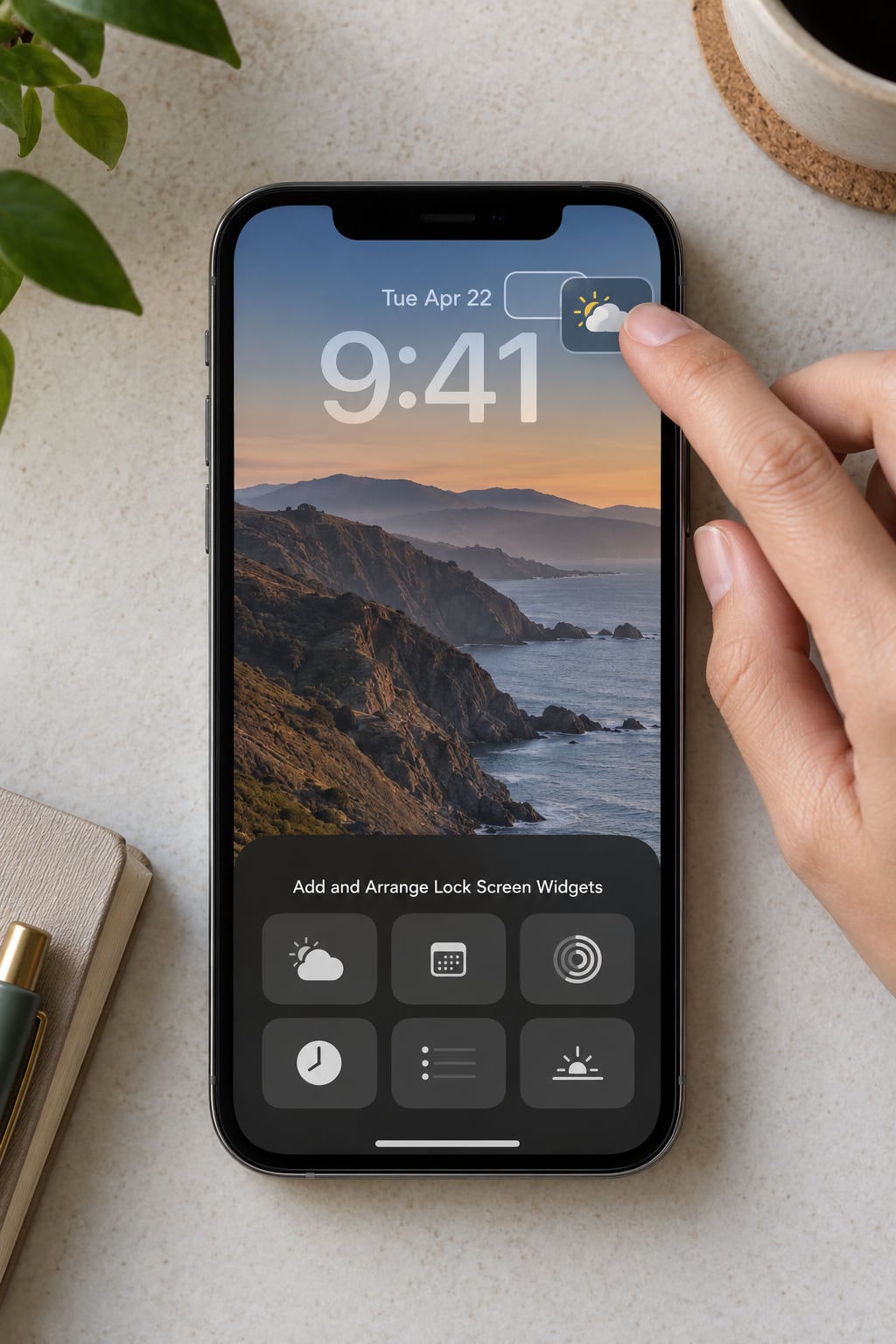
Tap Add Widgets to open the widget gallery, then scroll or swipe through the preview row to find the size you want. The small, medium, large and accessory sizes are listed in the same sheet.
Drag the widget by its middle and drop it into position. iOS snaps it to whichever spot is free, so you rarely place it by hand — nudge the neighbouring widgets instead and the grid reflows around them.
Each widget is then tappable to change its content. Battery can show charging status, Calendar can list the next event, Weather can flip between daily and hourly, and HomeKit accessories can show a car’s battery level if yours is set up in the Home app.
To remove one, touch and hold it, then drag it off the screen or tap the minus sign. And if you are wondering how to move widgets around the Home Screen too, the same long-press-and-drag gesture applies there.
Choose Which Notifications Appear
The Lock Screen can show notification previews without a passcode, which is convenient and risky in equal measure. Open Settings, tap Notifications, then Lock Screen to switch between showing previews, unlocking to view them, or hiding sensitive content entirely.
That last option keeps the app name and notification type but blanks out the text, so a message preview is not readable by anyone who picks up your phone. Per-app controls live under Notifications as well, where you can allow, preview or turn off alerts one app at a time.
If you want fewer interruptions in the first place, Scheduled Summary collects notifications into one digest at a time you pick. It suits people who would rather check a summary than clear twenty badges before lunch.
Check the Result and Secure the Lock Screen
Tap Done to save, then press the side button to lock the phone and wake it again. Check four things in order: the wallpaper fills the screen without distortion, the clock is legible, the widgets sit where you left them, and no notification is showing text you would rather keep private.
To go back in, touch and hold the Lock Screen again and tap the clock, a widget or the wallpaper directly to edit that single element. You do not have to walk through the whole editor each time.
For anything that should stay hidden, set a passcode in Settings, Face ID & Passcode. With a passcode in place, the previews stay out of reach and the customization work stays yours.
Common Mistakes
If the Customize button never appears, you are probably not holding long enough or you are pressing where a notification sits. Touch an empty patch of wallpaper and keep holding until the screen zooms. If it still does not appear, a recent iOS update may be mid-install, so restart the phone and try once more.
When wallpaper changes do not show up, you were probably looking at the Home Screen. The two are separate surfaces and are edited separately, which also answers whether you can make the Lock Screen and the Home Screen different: yes, and most people do.
If a widget will not fit, the wallpaper’s depth effect is usually to blame. Spatial wallpapers treat the clock and the row of widgets as part of the scene, which blocks the third widget row. Use a flat wallpaper if you need the extra row.
Missing clock options and a clock you want back are the same problem from opposite ends. Tap the clock to see the full style list, and if the option you expect is genuinely absent, it belongs to an iOS version your phone has not received.
When sensitive content shows up anyway, notification previews are on for at least one app. Return to Settings, Notifications and check the Lock Screen preview setting, then review any app still set to show previews.
Finally, if a wallpaper you liked is gone, a new Lock Screen replaced it rather than deleting the photo. Swipe between your saved Lock Screens to find it; switching also works from the three-dot control at the bottom of the editor.
Quick Tips for a Cleaner Lock Screen
Pick a wallpaper with a darker area across the top. White clock text needs contrast, and a photo with empty sky above the subject gives you that without fighting the image.
Four small widgets is a sensible ceiling. Calendar, weather, battery and activity rings stack neatly above the clock, and going past that starts to crowd the screen on wake.
If the new outlines that move around widgets and icons bother you, Reduce Motion in Settings, Accessibility, Motion turns them off. It also reduces the movement on motion wallpapers if you would rather save the power.
Test your finished setup on an always-on display if your model has one. The clock dims and the wallpaper blurs at rest, which can wash out a design that looks perfect when the screen is fully bright.
Give it a few days before you commit. A Lock Screen you look at eighty times a day rewards something legible and calm far more than something clever.
Frequently Asked Questions
Why can I not find the lock screen customization options on my iPhone?
On iOS 16 the editor opens through Settings, Wallpaper, then Personalize, while iOS 17 and later rename that button Customize. If neither appears, you are probably tapping a notification instead of empty wallpaper. Hold on a blank area until the screen zooms. A partially installed update can also hide the button until the phone restarts.
Why did my old lock screen wallpaper disappear after I changed the wallpaper?
Nothing was deleted. A new Lock Screen replaces the current one, and the previous version moves to your saved list. Wake the phone and swipe left and right to cycle through them, or open the editor and use the three-dot control to pick the one you want. Your original photo stays in Photos either way.
Can I remove the clock and date from the iPhone Lock Screen?
Yes. Tap the clock to open its options and choose Hide, then switch off the date in the same panel. The wallpaper and widgets remain. If you only want the date gone, leaving the clock options untouched keeps the time display as it is. You can bring both back the same way at any time.
Why are some widgets not available on the Lock Screen?
Not every widget supports every size, and some accessory widgets need the paired device nearby. A depth effect on the wallpaper also reserves space, which can block the third row of widgets and stop some additions. Switch to a flat wallpaper in the picker and the full row becomes available again.
How do I hide sensitive information from Lock Screen notifications?
Go to Settings, Notifications, Lock Screen and set the preview option to hide sensitive content, which keeps the app name but blanks the text. You can also choose to unlock for view or show nothing at all. For tighter control, review each app under Notifications and turn off previews app by app.
Conclusion
Start by touching and holding the Lock Screen until it zooms, then tap Customize. That single gesture is how to customize the iPhone Lock Screen on every version from iOS 17 onward, with Personalize serving the same purpose on iOS 16.
From the editor, work in order: choose a wallpaper, apply a filter or colour treatment if you want one, set the clock style and size, add up to four widgets, and adjust the bottom-row buttons. Save with Done, press the side button, and look at what you actually see on wake.
That final check catches almost everything — an unreadable clock, a crowded third row, a notification revealing more than you intended.